How to Load AWS S3 Images in Puppeteer PDFs
Fix missing S3 images in Puppeteer PDFs with presigned URLs, explicit image readiness checks, and reliable troubleshooting.

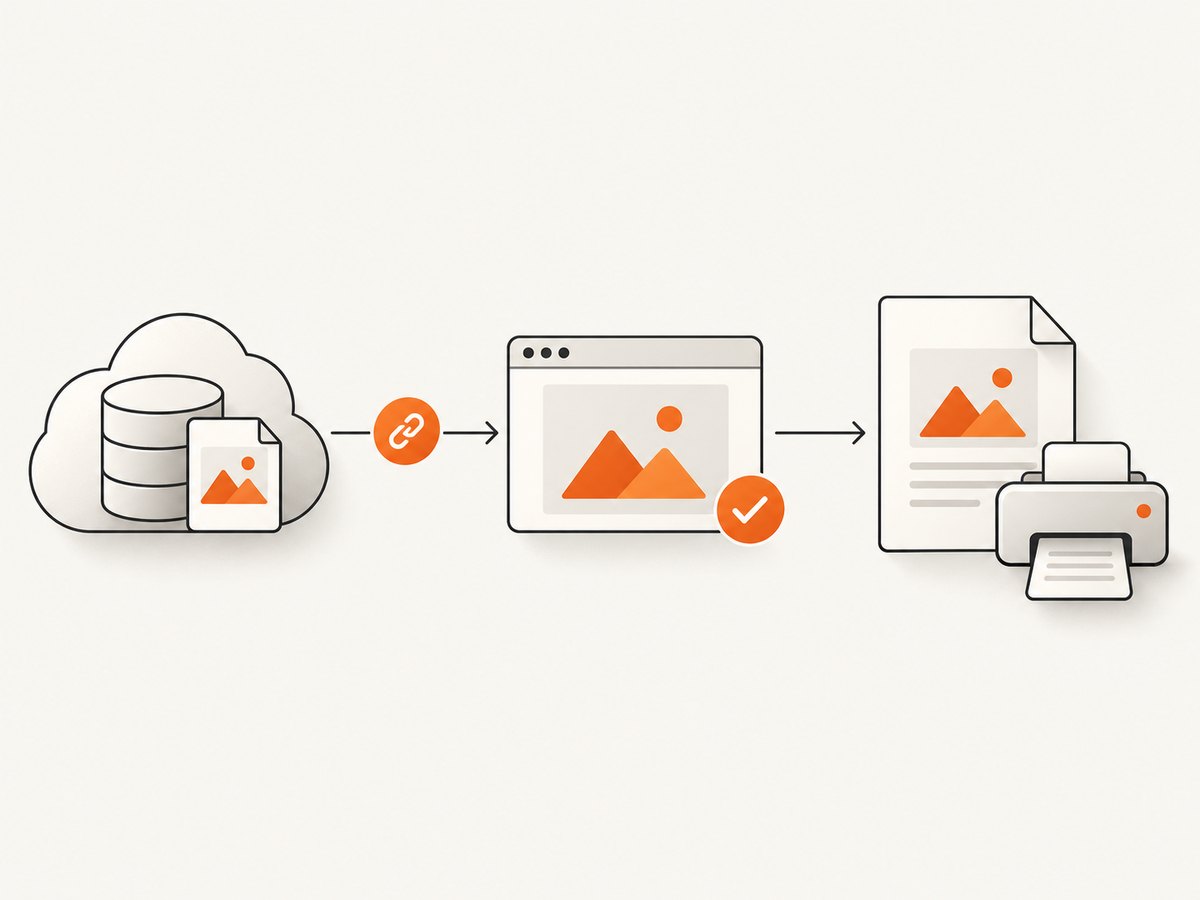
Direct answer: make every S3 image reachable from the browser page that Puppeteer renders, then wait for the specific image elements to finish loading before calling page.pdf(). For private objects, generate a short-lived S3 presigned GET URL on your server and place that URL in each image’s src. Puppeteer’s networkidle2 navigation condition and default font wait help, but neither proves that every required image rendered successfully.
This guide shows a complete Node.js implementation, a Python pattern, cURL checks, private-object access rules, lazy-loading handling, request interception pitfalls, performance choices, and a troubleshooting checklist.
1. Why S3 images disappear from Puppeteer PDFs
A PDF render has two separate requirements:
- The browser must be authorized to fetch the object.
- The image request must finish before printing.
An S3 bucket is private by default. A URL that works in your backend does not automatically work in the browser context used by Puppeteer. The browser needs either a publicly retrievable object or a temporary presigned URL. A presigned URL grants time-limited access and can be used directly in a browser.
Even when the URL is valid, navigation completion is not the same as image readiness. networkidle2 is useful for pages that settle after navigation, but pages can contain lazy-loaded images, delayed scripts, failed requests, or long-lived connections. Check the images that matter to the PDF explicitly.
Puppeteer’s PDF guide also states that Page.pdf() waits for fonts by default. That font wait does not guarantee that all image elements have a nonzero natural width.
2. The reliable rendering sequence
- Generate a presigned
GETURL for each private S3 object. - Build HTML whose image
srcvalues contain those temporary URLs. - Navigate with an appropriate completion condition such as
networkidle2. - Trigger lazy loading if the page uses it.
- Wait until each required image is complete and has a nonzero
naturalWidth. - Inspect failed image requests and console errors.
- Call
page.pdf().
Keep the presigned URL lifetime long enough for navigation, image retries, lazy-load delays, and PDF generation. AWS documents a maximum configured Signature Version 4 presigned URL expiration of 604800 seconds (seven days). That is an upper limit, not a reason to use a seven-day URL for a single render.
3. Complete Node.js example with Puppeteer and S3
Install the dependencies:
npm install puppeteer @aws-sdk/client-s3 @aws-sdk/s3-request-presigner
The identity running this code needs permission to read the objects it signs. The example keeps credentials on the server and sends only temporary URLs into the rendered HTML.
import puppeteer from 'puppeteer';
import { S3Client, GetObjectCommand } from '@aws-sdk/client-s3';
import { getSignedUrl } from '@aws-sdk/s3-request-presigner';
const s3 = new S3Client({ region: process.env.AWS_REGION });
async function imageUrl(bucket, key) {
const command = new GetObjectCommand({ Bucket: bucket, Key: key });
// Keep this short enough for the render, with room for retries.
return getSignedUrl(s3, command, { expiresIn: 900 });
}
async function waitForImages(page, selector = 'img[data-pdf-image]') {
await page.waitForFunction((css) => {
const images = [...document.querySelectorAll(css)];
return images.length > 0 && images.every((img) => img.complete && img.naturalWidth > 0);
}, { timeout: 30000 }, selector);
}
const logo = await imageUrl(process.env.S3_BUCKET, 'reports/logo.png');
const chart = await imageUrl(process.env.S3_BUCKET, 'reports/chart.png');
const html = `
Monthly report

 `;
const browser = await puppeteer.launch({ headless: true });
try {
const page = await browser.newPage();
page.on('requestfailed', (request) => {
console.error('Request failed:', request.url(), request.failure());
});
page.on('console', (message) => {
console.error('Browser console:', message.text());
});
await page.setContent(html, { waitUntil: 'networkidle2' });
await waitForImages(page);
await page.pdf({
path: 'report.pdf',
format: 'A4',
printBackground: true,
preferCSSPageSize: true
});
} finally {
await browser.close();
}
`;
const browser = await puppeteer.launch({ headless: true });
try {
const page = await browser.newPage();
page.on('requestfailed', (request) => {
console.error('Request failed:', request.url(), request.failure());
});
page.on('console', (message) => {
console.error('Browser console:', message.text());
});
await page.setContent(html, { waitUntil: 'networkidle2' });
await waitForImages(page);
await page.pdf({
path: 'report.pdf',
format: 'A4',
printBackground: true,
preferCSSPageSize: true
});
} finally {
await browser.close();
}
If your HTML is served from a URL rather than assembled with setContent, use page.goto(url, { waitUntil: 'networkidle2' }) and keep the same image readiness check before printing.
Use a stable image list
Mark only images required in the PDF with a data attribute. Waiting for every image on a complex page can block on analytics pixels or decorative resources. A selector such as img[data-pdf-image] makes the readiness contract explicit.
Handle pages with no required images
The example requires at least one marked image. If a report can legitimately contain zero images, return early when the selector count is zero, then print the PDF.
4. Lazy-loaded images and full-page content
Lazy-loading code may not request an image until it enters or approaches the viewport. A page that is ready at the top can therefore produce a PDF with lower images missing. Before waiting, trigger the site’s loading behavior. A simple approach is to scroll through the document:

await page.evaluate(async () => {
  await new Promise((resolve) => {
    let y = 0;
    const step = 600;
    const timer = setInterval(() => {
      window.scrollBy(0, step);
      y += step;
      if (y >= document.body.scrollHeight) {
        clearInterval(timer);
        window.scrollTo(0, 0);
        resolve();
      }
    }, 50);
  });
});
await waitForImages(page);
Adapt this to the page’s own lazy-loading mechanism. Some applications require a click, an IntersectionObserver event, or a delayed hydration step instead of scrolling.
5. Python pattern
Python services can create the presigned URL with Boto3 and render with a Chromium automation library. The browser-side rule remains the same: wait for the required image elements, not only for navigation.
import asyncio
import boto3
from pyppeteer import launch
s3 = boto3.client("s3", region_name="us-east-1")
url = s3.generate_presigned_url(
"get_object",
Params={"Bucket": "example-private-bucket", "Key": "reports/chart.png"},
ExpiresIn=900,
)
html = f'''
 '''
async def main():
browser = await launch(headless=True)
page = await browser.newPage()
await page.setContent(html, {"waitUntil": "networkidle2"})
await page.waitForFunction("""() => {
const img = document.querySelector('img[data-pdf-image]');
return img && img.complete && img.naturalWidth > 0;
}""", {"timeout": 30000})
await page.pdf({"path": "report.pdf", "format": "A4"})
await browser.close()
asyncio.get_event_loop().run_until_complete(main())
'''
async def main():
browser = await launch(headless=True)
page = await browser.newPage()
await page.setContent(html, {"waitUntil": "networkidle2"})
await page.waitForFunction("""() => {
const img = document.querySelector('img[data-pdf-image]');
return img && img.complete && img.naturalWidth > 0;
}""", {"timeout": 30000})
await page.pdf({"path": "report.pdf", "format": "A4"})
await browser.close()
asyncio.get_event_loop().run_until_complete(main())
Pin and review the browser library version used by your project. The important behavior is independent of the language: valid browser access plus an explicit image completion check.
6. Test a presigned URL with cURL
Before debugging Puppeteer, test the exact URL generated for the browser:
curl -I "PRESIGNED_S3_GET_URL"
curl -L "PRESIGNED_S3_GET_URL" -o image.png
A successful cURL response does not prove the browser will succeed if a proxy changes the query string, the page has a restrictive content policy, or the HTML uses a different URL. Compare the URL in the generated HTML with the URL you tested.
7. Private S3 access choices
| Approach | When it fits | Tradeoffs |
|---|---|---|
| Presigned GET URL | Private objects needed for a temporary render | Time-limited; tied to the signer’s still-valid credentials |
| Public retrieval | Objects intentionally public | Changes exposure and must match your security requirements |
Do not make a bucket public merely to repair PDF output. For presigned URLs, verify the object key, HTTP method, expiration, signing credentials, bucket policy, and any proxy behavior. A presigned URL cannot outlive the validity of the credentials used to create it.
8. Request interception can stop images
If request interception is enabled, Puppeteer pauses each request until your code continues, responds to, or aborts it. Forgetting to resolve an image request can make the page wait indefinitely or leave the image unavailable.
await page.setRequestInterception(true);
page.on('request', (request) => {
  if (request.isInterceptResolutionHandled()) return;
  // Continue every request unless you intentionally block it.
  request.continue();
});
If you block tracking or advertisements, limit the rule to known hosts or resource types. Do not accidentally classify S3 image requests as unwanted resources.
9. Troubleshooting missing images
| Symptom | Likely cause | Fix |
|---|---|---|
| HTTP 403 or 400 from S3 | Expired URL, wrong key, invalid signature, or denied bucket policy | Generate a fresh GET URL, verify the exact key and signer permissions, and inspect the response body. |
| Works in backend, fails in PDF | The browser never received a usable URL | Inspect the final HTML and ensure src contains the presigned URL. |
| Top images render, lower images do not | Lazy loading has not been triggered | Scroll or invoke the page’s loading trigger, then wait for marked images. |
| PDF prints before images finish | Only navigation or font readiness was checked | Wait for complete and naturalWidth > 0 on each required image. |
| Render hangs after enabling interception | A request handler forgot to continue, respond, or abort | Resolve every intercepted request, including images and fonts. |
| Signature works with one client but not another | A proxy modified the signed query string or headers | Test the direct URL, bypass the modifying proxy, and compare the exact request details. |
| Image element is complete but blank | The request failed or returned unusable content | Check request status, console errors, response headers, and naturalWidth; do not rely on complete alone. |
10. Diagnostics to add before production
- Log the image object key, without logging long-lived credentials.
- Attach
requestfailedand console listeners. - Record which required selector failed and whether its
naturalWidthis zero. - Capture the response status for S3 requests when debugging.
- Use a render timeout that covers the presigned URL lifetime and expected page delays.
When a failure occurs, first identify whether it is an access problem or a readiness problem. A 403 points to signing, permissions, expiration, or policy. A 200 response with a zero-width image points to HTML, content type, lazy loading, decoding, or timing.
11. Performance, reliability, and cost
Performance
Sign only the objects needed for the document, reuse one browser process for multiple jobs when your service permits it, and avoid waiting for unrelated images. Large originals increase transfer and decode time; use appropriately sized source objects when visual quality allows.
Reliability
Generate URLs close to render time, leave expiration headroom, and retry the whole render when a transient load fails. Do not retry indefinitely: a malformed signature or denied policy will not be fixed by waiting. Keep the image readiness check specific so a permanently missing decorative asset cannot block every PDF.
Cost
S3 request and transfer charges depend on your AWS account and workload. Puppeteer also consumes compute while Chromium runs. Avoid unnecessary retries and duplicate downloads, and cache generated PDFs when the underlying data has not changed.
12. Or skip the browser setup
ScreenshotNeo provides a website screenshot API and PDF endpoint when you do not want to maintain Chromium setup, image waits, and request interception. Its clean-shot pipeline accepts cookie and consent banners before capture and removes more than 60 known consent platforms, newsletter popups, and chat widgets. Each step can be turned off.
Only clean shots are billed. Bot checks, CAPTCHAs, blank pages, timeouts, failed loads, and cache hits cost nothing, and each response reports the result with X-Page-Verdict and X-Billed headers. It also provides an MCP server with take_screenshot, get_page_info, and capture_pdf tools for Claude, Cursor, and other MCP clients.
See the ScreenshotNeo API documentation for all options, including PDF paper size, margins, landscape mode, page ranges, custom headers and cookies, waiting rules, full-page capture, caching, async jobs, and bulk capture.
curl -G "https://api.screenshotneo.com/v1/shot" -d access_key=YOUR_API_KEY --data-urlencode url=https://stripe.com -o shot.webpimport requests
r = requests.get("https://api.screenshotneo.com/v1/shot", params={"access_key": "YOUR_API_KEY", "url": "https://stripe.com"}, timeout=90)
open("shot.webp", "wb").write(r.content)const q = new URLSearchParams({ access_key: 'YOUR_API_KEY', url: 'https://stripe.com' });
const res = await fetch(`https://api.screenshotneo.com/v1/shot?${q}`);The Free plan includes 1,000 screenshots per month with no card. Paid plans start at $5 for 3,000 shots, and every feature is available on every plan. Create a free ScreenshotNeo account.
13. FAQ
Does networkidle2 guarantee that S3 images are ready?
No. It is a useful navigation condition, but explicitly check the image elements required by the PDF.
Can I put AWS credentials in the page?
No. Keep credentials server-side and pass only the temporary presigned URL needed for the render.
How long should a presigned URL last?
Long enough for navigation, lazy loading, retries, and PDF generation. AWS documents a seven-day maximum for configured Signature Version 4 expiration; use a shorter lifetime appropriate to the job.
Why does the browser show an image but the PDF does not?
The browser may be viewed after a delayed load, while the PDF was printed earlier. Add the explicit readiness check immediately before page.pdf().
Should I make the S3 bucket public?
Only if the objects are intended to be public and your security design allows it. A presigned URL is the documented temporary-access option for private objects.


