How to Load a Website Without Images in Chrome and Playwright
Block image requests in Chrome DevTools or Playwright with reliable rules, verification steps, service-worker caveats, and runnable code.

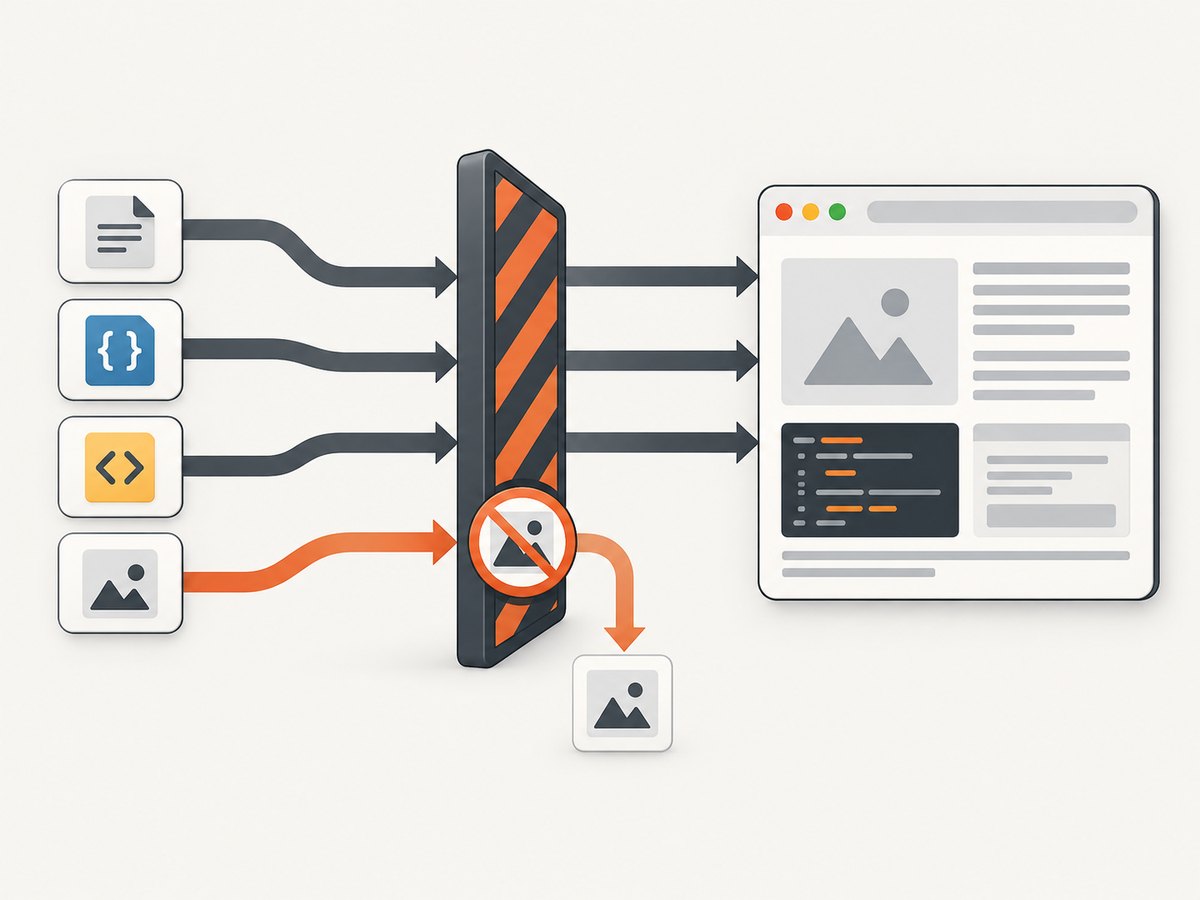
To load a website without images, use Chrome DevTools Request conditions for a one-off inspection, or intercept requests in Playwright and abort requests whose resource type is image. Chrome matches URL patterns, while Playwright can classify requests directly. Verify the result in the Network panel or in your test logs because neither workflow guarantees that every visual asset is an ordinary image URL.
Choose the right method
| Need | Use | What it does | Main limitation |
|---|---|---|---|
| Inspect a page manually | Chrome DevTools Request conditions | Blocks requests matching URL patterns while DevTools is open | Patterns are URL based, so broad or extension-based rules can miss assets or block unrelated requests |
| Run repeatable checks | Playwright context routing | Checks each request’s resource type and aborts images | Service-worker requests are not intercepted; routing also disables HTTP cache |
| Capture a clean screenshot without browser setup | ScreenshotNeo | One API request returns a PNG, JPEG, WebP or PDF | You still need to choose capture options for your page |
Chrome’s documented Request conditions workflow is designed to test how a page behaves when resources such as images or stylesheets are prevented from loading. Playwright’s network guide documents request interception with route.abort() and route.continue() using request.resourceType().
How to block images in Chrome DevTools
Chrome does not provide a universal image-type switch in this workflow. Request conditions blocks URL patterns. A pattern such as *.jpg can be useful, but it can miss images served without a familiar extension and may match non-image responses. Use the Network panel to check coverage.
Step 1: Open Request conditions
- Open the page in Chrome.
- Open DevTools with
F12orCtrl+Shift+Ion Windows/Linux. On macOS, useCommand+Option+I. - Open the DevTools menu and choose More tools > Request conditions.
- You can also open the Command menu with
Ctrl+Shift+P(Windows, Linux and ChromeOS) orCommand+Shift+P(macOS), then search for Request conditions.
Step 2: Add image URL patterns
Add patterns for the image URLs you want to block. Examples include:
*.png
*.jpg
*.jpeg
*.gif
*.webp
*.avif
*.svg
Patterns are matched against request URLs. If your site uses a CDN path, a path rule can be more precise, for example *://cdn.example.com/images/*. Avoid assuming that all images end in an extension: query-string URLs, responsive image endpoints and CSS background images often do not.
Step 3: Enable blocking and reload
- Turn on request blocking in the Request conditions drawer.
- Reload the page with the Network panel open.
- Look for requests marked
(blocked:devtools). - Filter the Network panel by the Img type and inspect whether requests remain.
You can also right-click an individual request in the Network panel and choose Block request. Chrome adds a matching pattern to Request conditions and enables blocking.
Step 4: Keep the rule active
Chrome saves your patterns, but closing DevTools disables their effect. Reopen DevTools, open Request conditions and enable blocking again before the next inspection. This matters when you are comparing two reloads or handing the procedure to another developer.
How to block image requests in Playwright
For automated work, route all requests at the browser-context level and inspect route.request().resourceType(). Register the route before creating or navigating pages.
import { chromium } from 'playwright';

const browser = await chromium.launch();
const context = await browser.newContext({
  // Required when you need routing to see requests that a service worker
  // would otherwise handle.
  serviceWorkers: 'block'
});

await context.route('**/*', async route => {
  const request = route.request();
  if (request.resourceType() === 'image') {
    await route.abort();
  } else {
    await route.continue();
  }
});

const page = await context.newPage();
await page.goto('https://example.com', { waitUntil: 'domcontentloaded' });
await page.screenshot({ path: 'without-images.png', fullPage: true });

await browser.close();
The **/* route covers requests made by pages in the context. Context routing is preferable when you create several pages or need coverage for the first request from a popup. A page route is narrower and applies to one page.
Run the example
npm install playwright
npx playwright install chromium
node without-images.mjs
Save the script as without-images.mjs. The browser must be installed separately because Playwright’s package and browser binaries are distributed independently.
Log what was blocked
await context.route('**/*', async route => {
  const request = route.request();
  if (request.resourceType() === 'image') {
    console.log('blocked image:', request.url());
    await route.abort();
    return;
  }
  await route.continue();
});
Logging is useful when a page still appears to show images. It tells you whether the asset is classified as an image, loaded from a service worker, or rendered from another source such as a data URL or canvas.
Block only selected image hosts
const blockedHosts = new Set(['images.example.com', 'img.cdn.test']);

await context.route('**/*', async route => {
  const request = route.request();
  const host = new URL(request.url()).hostname;
  if (request.resourceType() === 'image' && blockedHosts.has(host)) {
    await route.abort();
  } else {
    await route.continue();
  }
});
This keeps first-party images available while suppressing selected third-party hosts. Put the route in place before page.goto().
What Playwright routing changes
Routing is an interception layer, so interpret results carefully.
- Service workers: Playwright documents that
page.route()andbrowserContext.route()do not intercept requests handled by a service worker. SettingserviceWorkers: 'block'makes interception predictable, but it changes pages that depend on a service worker. Keep workers enabled when your test specifically targets the real service-worker path and accept that those requests can escape the route. - HTTP cache: Enabling routing disables HTTP cache. A routed run can therefore differ from an ordinary cached visit, even when the page and browser profile are otherwise identical.
- Resource type: The rule covers requests classified as
image. It does not remove pixels already embedded in HTML, CSS, SVG markup, canvas drawing or data URLs. - Popups: Page-level routing may miss the first request of a popup. Use context routing when popup creation is part of the scenario.
These limitations are described in the Playwright network documentation and the BrowserContext routing API reference.
Verifying that a page really loaded without images
- Record blocked URLs in the route handler.
- Check the browser’s Network panel or Playwright request events.
- Inspect the DOM for
imgelements whosesrcstill points to a data URL or inline resource. - Check computed styles for
background-image; CSS background images can be requested separately and are normally classified asimage, but inline data can bypass the network. - Compare screenshots or page metrics only after the same service-worker and cache settings are applied.
const imageRequests = [];
page.on('request', request => {
  if (request.resourceType() === 'image') imageRequests.push(request.url());
});

await page.goto('https://example.com', { waitUntil: 'networkidle' });
console.log(`image requests observed: ${imageRequests.length}`);
networkidle is convenient for a test, but it is not proof that all application work is complete. Pages with analytics, polling or open connections may never become idle; use a selector or an explicit application-ready signal when possible.
Common errors and fixes
| Symptom | Likely cause | Fix |
|---|---|---|
| Images still appear in Chrome | The pattern does not match the actual URL, or the image is inline | Inspect the request URL, add a narrower host/path pattern, and check for data URLs or inline SVG |
| Nothing is blocked after reopening Chrome | DevTools was closed, which disables the active block | Reopen Request conditions and enable blocking |
| Playwright misses requests | A service worker handled them | Use serviceWorkers: 'block', or keep the worker and test that behavior separately |
| Only one page is affected | A page route was used instead of a context route | Register context.route() before creating pages |
| Tests behave differently from normal browsing | Routing disables HTTP cache | Document the routed configuration and compare like-for-like runs |
| Navigation times out | The page waits on an image-dependent script, lazy-load trigger or never-ending connection | Use domcontentloaded, wait for a meaningful selector, or set a bounded timeout; do not rely on network idle for every site |
| Images are replaced by broken-image icons | The page renders an img element even though its request was aborted |
Hide the elements with CSS for a cleaner visual test, or assert only on network behavior |
Performance, reliability and cost considerations
Performance
Blocking image requests reduces the work required to transfer and decode those resources, but the result depends on the page. HTML, JavaScript, fonts, CSS and third-party calls can still dominate navigation time. Do not publish a speed percentage without measuring your own pages under controlled conditions.
For repeatable measurements, keep browser version, viewport, device scale factor, cache policy, service-worker policy and network conditions constant. Run enough repetitions to separate startup noise from page behavior.
Reliability
Use URL-pattern blocking in Chrome for exploratory work and resource-type interception in Playwright for maintainable tests. Keep a separate test with service workers enabled when the production path uses them. Treat a “no image requests” assertion as a network property, not as a guarantee that no pixels can appear.
Cost
Both local approaches run in your own browser process. Their practical cost is browser CPU, memory, bandwidth and CI time. Routing can disable cache and service workers can change behavior, so a faster-looking run may not represent a normal user visit.
Or skip the browser setup
If your goal is a clean screenshot rather than a browser test, ScreenshotNeo provides a one-call website screenshot API. It accepts capture options for full-page shots, a CSS-selected element, custom CSS and JavaScript, waits, blocked resource types, headers, cookies, user agents and more. You can also request a PDF, use caching with a TTL, submit asynchronous jobs, capture up to 100 URLs per bulk call, or call it through its MCP server from Claude, Cursor or another MCP client.

See the ScreenshotNeo API documentation for the full parameter list. A basic WebP capture looks like this:
cURL
curl -G "https://api.screenshotneo.com/v1/shot" \
  -d access_key=YOUR_API_KEY \
  --data-urlencode url=https://example.com \
  -o shot.webp
Python
import requests

r = requests.get(
    "https://api.screenshotneo.com/v1/shot",
    params={"access_key": "YOUR_API_KEY", "url": "https://example.com"},
    timeout=90,
)
r.raise_for_status()
open("shot.webp", "wb").write(r.content)
Node.js
const q = new URLSearchParams({
  access_key: 'YOUR_API_KEY',
  url: 'https://example.com'
});
const res = await fetch(`https://api.screenshotneo.com/v1/shot?${q}`);
if (!res.ok) throw new Error(`Screenshot failed: ${res.status}`);
const fs = await import('node:fs/promises');
await fs.writeFile('shot.webp', Buffer.from(await res.arrayBuffer()));
ScreenshotNeo removes cookie and consent banners, newsletter popups and chat widgets before capture. Bot checks, blank pages, timeouts, failed loads and cache hits are not billed, and response headers identify the page verdict and whether the shot was billed. It offers 1,000 shots per month free with no card; paid plans start at $5 for 3,000 shots. Create a free account at ScreenshotNeo sign-up.
FAQ
Can Chrome block every image automatically?
The documented Request conditions workflow matches URL patterns. It is not a guaranteed resource-type classifier, so inspect Network requests and refine patterns for the site.
Should I use page.route() or context.route()?
Use context routing when several pages or popup initial requests need the same rule. Use page routing for a deliberately narrow, single-page scenario.
Does aborting images test a real slow network?
No. It removes matching requests. A throttled network test, a failed image response and an image that never starts are different conditions and should be tested separately.
Why do inline SVGs still display?
Inline SVG markup and data URLs are already in the document and may require DOM or CSS changes rather than request interception.
Can I use ScreenshotNeo to block images?
ScreenshotNeo supports blocking resource types and requests as capture options. It is intended for producing screenshots or PDFs through an API, while Playwright remains the better fit for browser assertions and end-to-end tests.


