How to Display a Local Base64 PNG in a Handlebars Puppeteer PDF
Read a local PNG in Node.js, embed it as a Base64 data URI in a Handlebars template, and render it into a Puppeteer PDF.
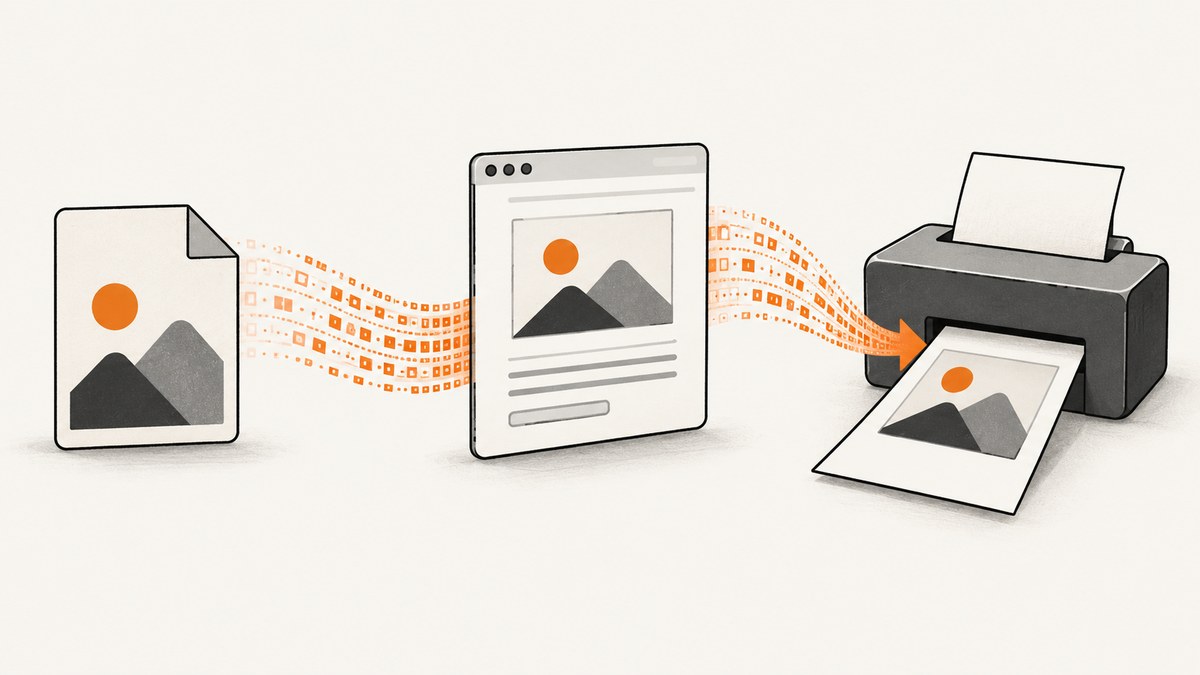
To display a local PNG in a Handlebars Puppeteer PDF, read the file on the Node.js side, encode its bytes as Base64, place the result in a data:image/png;base64,... URI, render that URI into an HTML <img> with Handlebars, and pass the finished HTML to Puppeteer. Chromium cannot read a Node.js server’s local filesystem path just because that path appears in HTML; embedding the bytes makes the image available to the page.
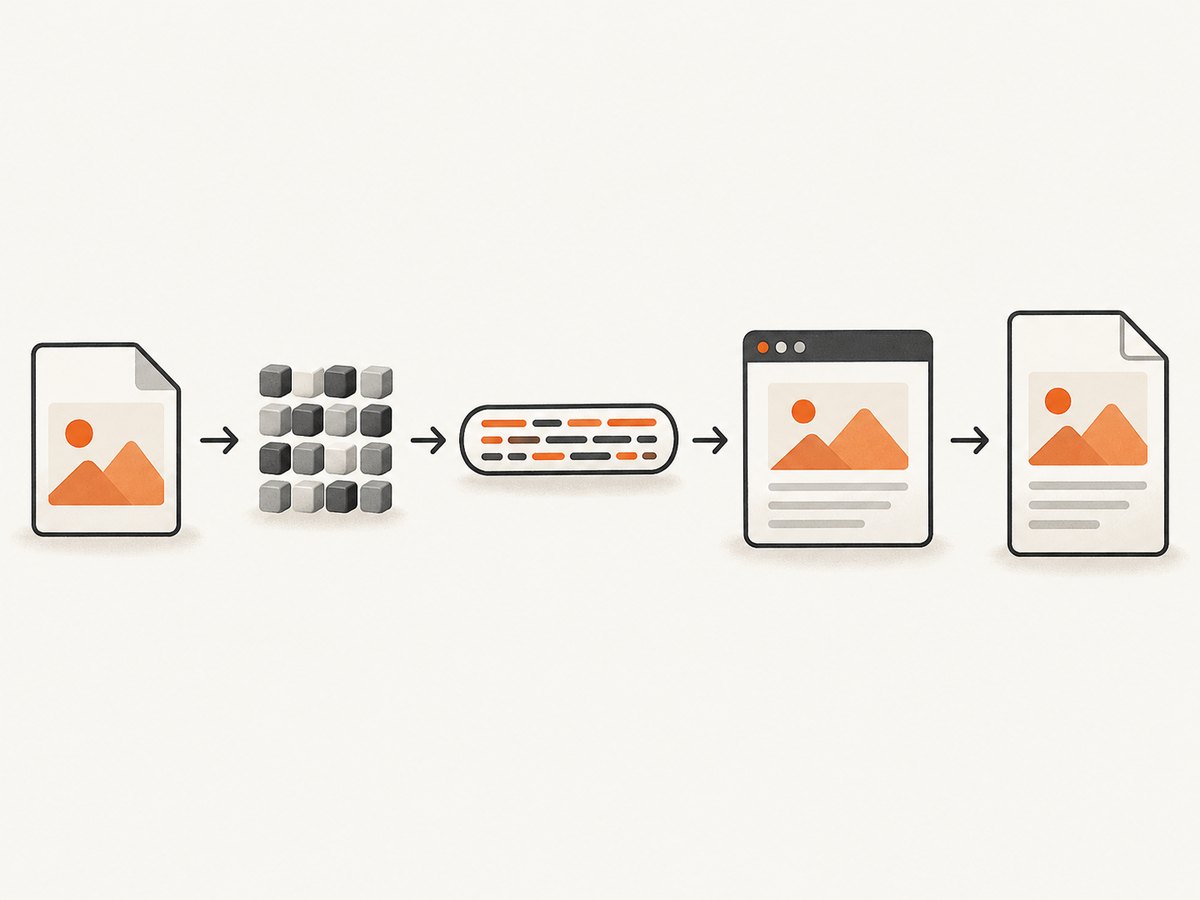
The complete flow is: local file → Node.js Buffer → Base64 data URI → Handlebars HTML → Puppeteer PDF. The example below places the image in the document body, the simplest path for a report image. Puppeteer generates PDFs using print CSS by default, so print layout and page margins matter too. See the Puppeteer setContent() API, Puppeteer pdf() API, and Handlebars guide.
1. Install the packages and prepare the image
Use a supported Node.js version for your chosen Puppeteer release. Install Handlebars and Puppeteer in your project:
npm install handlebars puppeteerSave the source image somewhere the Node process can read. In production, prefer a configured absolute path or resolve a path relative to the application module. Do not assume the process working directory is the same in a container, worker, or service manager as it is during local development.
const path = require('node:path');
const imagePath = path.resolve(__dirname, 'assets', 'report-chart.png');
The server reads this path. Chromium receives only the rendered HTML and its embedded data URI; it does not need direct access to the server’s path. If your source is an upload, validate its content type and size on the server rather than trusting the file extension or a MIME type supplied by the caller.
2. Build the PDF with Handlebars and Puppeteer
This CommonJS example is runnable after placing report-chart.png in an assets directory next to the script. It writes the PDF to report.pdf. The image is scaled down to fit the content width while preserving its aspect ratio.
const fs = require('node:fs/promises');
const path = require('node:path');
const Handlebars = require('handlebars');
const puppeteer = require('puppeteer');

const templateSource = `
<!doctype html>
<html lang="en">
<head>
  <meta charset="utf-8">
  <meta name="viewport" content="width=device-width, initial-scale=1">
  <title>Report</title>
  <style>
    @page { size: A4; margin: 18mm; }
    body { font: 12pt Arial, sans-serif; color: #222; }
    img.report-image { display: block; max-width: 100%; height: auto; }
  </style>
</head>
<body>
  <h1>Report</h1>
  <img class="report-image" src="data:image/png;base64,{{imageBase64}}" alt="Report chart">
</body>
</html>`;

async function makePdf() {
  const imagePath = path.resolve(__dirname, 'assets', 'report-chart.png');
  const imageBytes = await fs.readFile(imagePath);
  const imageBase64 = imageBytes.toString('base64');
  const html = Handlebars.compile(templateSource)({ imageBase64 });

  const browser = await puppeteer.launch();
  try {
    const page = await browser.newPage();
    await page.setContent(html, { waitUntil: 'load' });
    const pdf = await page.pdf({
      format: 'A4',
      printBackground: true,
      margin: { top: '18mm', right: '18mm', bottom: '18mm', left: '18mm' }
    });
    await fs.writeFile(path.resolve(__dirname, 'report.pdf'), pdf);
  } finally {
    await browser.close();
  }
}

makePdf().catch((error) => {
  console.error('Could not create report PDF:', error);
  process.exitCode = 1;
});
Because the data URI prefix is fixed in the template and only the Base64 payload is interpolated, the HTML structure is not supplied by the image value. Handlebars escapes ordinary {{expression}} interpolation by default. Base64 uses a restricted alphabet, so ordinary interpolation is appropriate here. Avoid triple-stash interpolation ({{{value}}}) or SafeString for untrusted content: those bypass normal escaping and can introduce HTML injection if the value is not tightly controlled.
Using ES modules
If your project uses ES modules, the same steps apply; only the imports and module-relative path setup change. For example, use import fs from 'node:fs/promises', import Handlebars from 'handlebars', and import puppeteer from 'puppeteer'. Derive the asset path from import.meta.url with Node’s fileURLToPath() rather than relying on __dirname.
3. Choose the right image URI and template placement
| Approach | Best for | Tradeoff |
|---|---|---|
| Base64 data URI in page body | A local image that must travel with generated HTML | Increases HTML size; keeps the capture self-contained |
| Browser-readable file URL | A controlled environment where Chromium can access the file | Requires deliberate file access and path configuration |
| Remote image URL | An image served from a stable, reachable host | PDF creation depends on network access and image availability |
| PDF header/footer template | Repeated small branding or page furniture | Special header/footer rendering can behave differently by Puppeteer version |
For a local PNG, the data URI in the main page body is usually the most direct option. A remote URL can be simpler if the image is already hosted and reachable from Chromium, but the page must wait for that request and a network failure can leave the image absent. A local file URI may work in a controlled deployment with the right browser settings and permissions, but it couples rendering to filesystem access; the data URI avoids that dependency.
Use the MIME type that matches the actual bytes: image/png for PNG, image/jpeg for JPEG, and the appropriate type for another supported format. Changing only the URI label does not convert the file. If an uploaded file’s real format is uncertain, inspect or decode it with a trusted image library before embedding it.
4. Control PDF layout, media, and image loading
page.pdf() uses print CSS media. This can change responsive styles, hide screen-only elements, apply @media print rules, and honor @page sizing. Set the paper and margins with PDF options or CSS, and be consistent if both define them. Use printBackground: true when background colors or images are part of the design.
If the page was designed for screen media, call await page.emulateMediaType('screen') before generating the PDF. The PDF API also documents options for paper format, margins, header/footer templates, and font readiness; consult the documentation matching your installed Puppeteer version because APIs can change. Printed colors may be adjusted by the browser. CSS such as -webkit-print-color-adjust: exact requests more faithful color rendering where supported, but verify the result in your rendering environment.
waitUntil: 'load' waits for the page load event. For more complex pages, explicitly wait for the image to finish decoding before calling page.pdf(). A data URI is local to the HTML, but image decoding and layout still occur asynchronously.
await page.setContent(html, { waitUntil: 'load' });
await page.waitForFunction(() => {
  const image = document.querySelector('img.report-image');
  return image && image.complete && image.naturalWidth > 0;
});
const pdf = await page.pdf({ format: 'A4', printBackground: true });
The predicate checks that the image loaded and has nonzero intrinsic width. Add a timeout to the wait if you need a bounded failure path, and report a clear error when it expires. A missing image should not silently become a blank report page.
5. Add dynamic content without weakening escaping
Keep the template’s markup fixed and pass data separately. For example, a title can be inserted using {{title}}, while the Base64 payload goes into the already-defined src attribute. Normal Handlebars escaping is appropriate for text values as well; it prevents values containing markup characters from becoming HTML. If you need to insert rich HTML, sanitize it for the intended context with a suitable sanitizer rather than switching arbitrary values to raw interpolation.
Large images make both the Base64 string and rendered HTML larger. If a report contains many high-resolution images, consider resizing or recompressing them before encoding, or use a controlled browser-readable asset source. Base64 itself adds roughly one third to the binary payload size, so do not encode a much larger image than the PDF needs.
For multiple images, construct each URI from bytes and an explicit, validated MIME type. Pass an array of image objects to Handlebars and iterate over it in the template. Keep upload limits and total HTML size bounded: many large data URIs can increase memory pressure in Node.js and Chromium.
6. Troubleshooting: missing images and failed PDFs
| Symptom | Likely cause | Fix |
|---|---|---|
| Broken image icon or blank image area | Wrong file path, unreadable file, malformed URI, or mismatched MIME prefix | Check that readFile() succeeds, inspect the rendered src, and confirm the format and prefix match. |
Rendered HTML contains [object Object] or no payload |
The template received the wrong value or the Base64 conversion was skipped | Pass buffer.toString('base64') as a string and check the compiled HTML before PDF generation. |
| Image exists in HTML but not in PDF | PDF was generated before decoding, print CSS hid it, or layout clipped it | Wait for complete and nonzero naturalWidth; inspect print rules, page margins, and element dimensions. |
| Colors or backgrounds differ | PDF uses print media and may adjust printed colors | Review print styles, set printBackground: true, and consider -webkit-print-color-adjust: exact. |
| Image fails only in a header or footer | Header/footer rendering can differ from normal page content and may depend on the installed version | Test the same URI in the main page body, inspect the rendered header template, and check your Puppeteer/Chromium version. |
| Process hangs or runs out of memory | Very large image data, excessive concurrent pages, or browser cleanup not guaranteed | Limit file size and concurrency, resize images, close pages and browsers in finally, and set operational timeouts. |
| PDF styles look like the wrong layout | Print media is active by default | Use print-specific CSS or emulate screen media before calling pdf(). |
For a first diagnosis, inspect the rendered HTML in memory and confirm that the image element has the expected data URI prefix. If possible, test the same bytes in ordinary body content before moving the image into a header/footer template. This separates problems in file reading and encoding from special PDF furniture behavior.
7. Performance, reliability, and cost
Reading a local file and converting it to Base64 is straightforward, but the encoded text is larger than the original bytes and exists alongside the Buffer and rendered HTML in memory. Resize images to the dimensions needed on the page, avoid embedding redundant copies, and cap upload size. For services that render many PDFs, bound concurrent browser work and ensure every browser is closed even when page setup or PDF generation throws.
A self-contained data URI removes a network dependency for the image, which can improve reliability when the renderer has no external network access. It does not remove the need to wait for rendering or protect against malformed image bytes. Validate the source, check successful decoding, and fail the job clearly rather than returning a PDF that appears complete but omits required content.
There is no fixed cost figure in the cited APIs: deployment cost depends on where Chromium runs, how many PDFs are generated, image sizes, and the compute and storage choices of the application. Track PDF job duration, failures, memory use, and output size in your own environment before setting concurrency or retention limits. The reviewed source material provides no benchmark or universal throughput claim.
8. Header and footer image caveats
Puppeteer’s history contains differing reports about Base64 images in PDF header/footer templates. A maintainer replied in a 2018 issue that a Base64 image should work in that context, while a 2025 issue reports a failure beginning with Puppeteer 24.4.0. These are version-specific issue reports, not a compatibility guarantee for every current release. See issue 2443 and issue 13726.
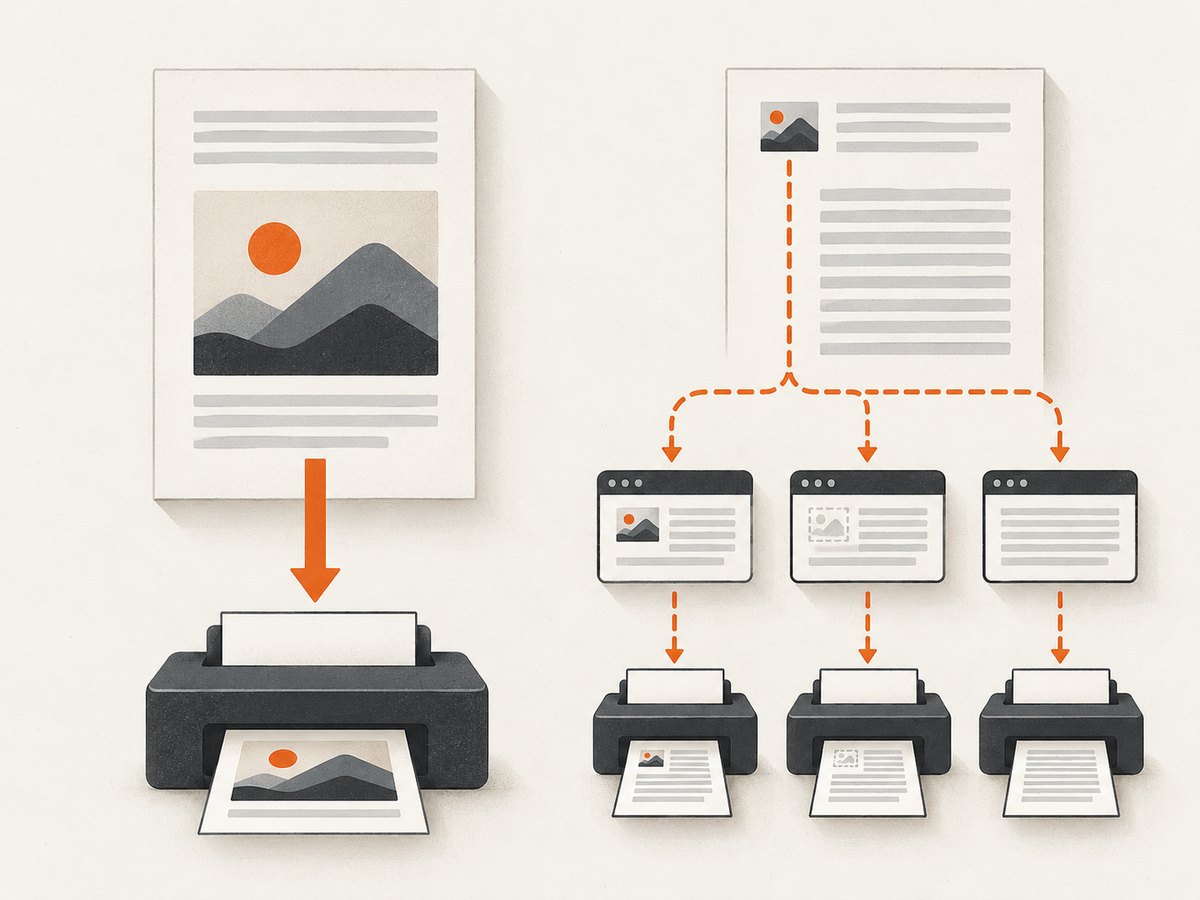
If a logo is missing from a header or footer, check the installed Puppeteer and Chromium versions and inspect the exact template HTML. When document layout allows it, put the image in the regular page body instead. That path uses the normal HTML content and avoids relying on special header/footer rendering behavior.
Or skip the browser setup
If what you need is a screenshot or PDF of a live web page rather than a locally assembled Handlebars report, ScreenshotNeo provides a website screenshot API and MCP server. It is a different workflow from embedding a local image: send a URL and receive a PNG, JPEG, WebP, or PDF. See the ScreenshotNeo API documentation.
curl -G "https://api.screenshotneo.com/v1/shot" -d access_key=YOUR_API_KEY --data-urlencode url=https://stripe.com -o shot.webpimport requests
r = requests.get(
"https://api.screenshotneo.com/v1/shot",
params={"access_key": "YOUR_API_KEY", "url": "https://stripe.com"},
timeout=90,
)
r.raise_for_status()
open("shot.webp", "wb").write(r.content)const q = new URLSearchParams({ access_key: 'YOUR_API_KEY', url: 'https://stripe.com' });
const res = await fetch(`https://api.screenshotneo.com/v1/shot?${q}`);
if (!res.ok) throw new Error(`Screenshot request failed: ${res.status}`);
const fs = require('node:fs/promises');
await fs.writeFile('shot.webp', Buffer.from(await res.arrayBuffer()));ScreenshotNeo removes cookie banners, newsletter popups, and chat widgets before the shot; bot checks, blank pages, and failed loads are never billed. Its MCP server lets AI agents take screenshots, and 1,000 screenshots a month are free with no card; paid plans start at $5 for 3,000. Sign up for the free plan.
FAQ
Does Base64 convert a non-PNG file into a PNG?
No. Base64 encodes bytes as text; it does not change the image format. Use a MIME prefix that matches the actual encoded file.
Can I use this approach for JPEG images?
Yes. Read the JPEG bytes and use a matching data:image/jpeg;base64, prefix.
Why can’t I put the local path directly in src?
The path is local to the Node.js process. The browser page needs a URL it can access, so embed the bytes or provide a deliberately accessible URL.
Should I use a data URI for every image in a large report?
It depends on image sizes and count. Data URIs make the HTML self-contained, while many large embedded payloads increase memory and document size. Resize assets and keep total input bounded.
Can I use Handlebars triple-stash for the full data URI?
It is generally unnecessary when the template fixes the URI prefix and interpolates only the Base64 payload. Raw interpolation bypasses escaping, so reserve it for carefully validated values and avoid it for untrusted content.


