Local LLM Guide 2026: Running Ollama on Your Hardware
Learn how to run Ollama locally, choose hardware and context sizes, verify GPU use, fix common errors, and connect local models to your tools.
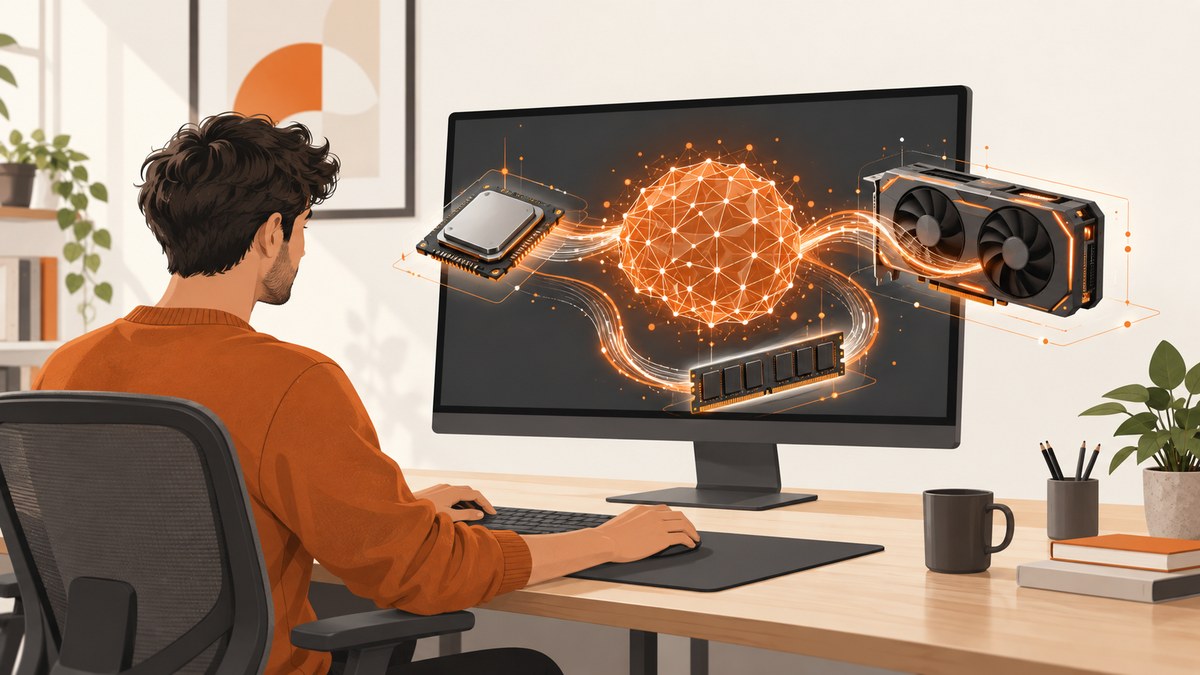
Short answer: install Ollama for your operating system, download a model with ollama run <model>, then check placement with ollama ps. Whether a model runs well depends on the exact model, quantization, context length, available RAM or VRAM (or Apple unified memory), operating system, drivers, and Ollama backend support. There is no single hardware minimum that applies to every local model.
This guide explains how to make the decision before downloading large files, how to configure context, how to confirm GPU acceleration, and how to troubleshoot slow or failed loads. The commands use Ollama’s normal CLI and local API patterns. Check Ollama’s current GPU documentation and the page for your chosen model before buying hardware or changing drivers.
1. What you need before installing Ollama
Start with five facts about your machine and workload:
- Operating system and backend: Windows and Linux can use supported NVIDIA, AMD, and Vulkan paths; Apple devices use Metal. Exact driver and backend requirements vary.
- Available memory: record system RAM, GPU VRAM, or Apple unified memory. Leave room for the operating system and other applications.
- Model size and quantization: a 7B model at one quantization can have very different requirements from a 7B model at another.
- Context length: longer prompts and larger conversation histories consume additional memory.
- Workload: chat, coding, image input, and agent tools have different prompt and latency patterns.
Ollama’s Llama 2 library page gives useful examples: 7B models generally require at least 8 GB of RAM, 13B models at least 16 GB, and 70B models at least 64 GB. Treat those as guidance for that model family, not as a universal 2026 sizing formula. Read the current tags and notes for the model you intend to use.
2. Check GPU compatibility first
Compatibility is determined by the specific GPU, operating system, and driver. Ollama’s live GPU page lists NVIDIA support by compute capability and driver version. It documents NVIDIA GPUs with compute capability 5.0 or newer and driver 550 or newer, with driver 570 or newer for compute capability 5.0 through 6.2. The page also lists supported RTX 50-series cards, including the RTX 5090, and many earlier generations.
AMD support is backend and operating-system specific. The documented Linux path requires AMD ROCm 7, while Windows requires a ROCm 7/HIP 7-capable driver stack and a card from the applicable list. Apple acceleration uses Metal. Vulkan provides additional Windows and Linux acceleration, with Linux setup caveats. These lists change, so use the live documentation instead of relying on an old forum post.
Useful compatibility commands
# Linux: inspect the NVIDIA driver and GPU, if installed
nvidia-smi

# Linux: inspect PCI devices (availability depends on your distribution)
lspci | grep -Ei 'vga|3d|display'

# macOS: show Apple hardware details
system_profiler SPDisplaysDataType
These commands identify hardware; they do not prove that Ollama will select the accelerator. Ollama’s own process report is the authoritative check after a model is loaded.
3. Install Ollama and download a model
Use the official download flow for your operating system, then open a new terminal. The exact installer and service behavior differ between macOS, Linux, and Windows, so follow the current Ollama download page.
Run a model from the library
ollama run llama2The command downloads the model if it is not already present and opens an interactive session. Llama 2 is used here because it is documented clearly; choose a current model from the Ollama library based on your task, license needs, memory, and context requirements.
Basic local API request
Ollama serves a local HTTP API when its application or server is running. A simple request to the generate endpoint looks like this:
curl http://localhost:11434/api/generate \
  -H 'Content-Type: application/json' \
  -d '{"model":"llama2","prompt":"Explain recursion in two sentences.","stream":false}'
For an application integration, use the API examples in the model and API documentation you are following. Keep the server bound to the local interface unless you have deliberately configured access controls and network exposure.
4. Understand memory, quantization, and context
Model weights are only part of the memory calculation. Runtime buffers, the key-value cache, the operating system, and your prompt all consume memory. Increasing context length increases cache requirements, and image or tool inputs can add more.
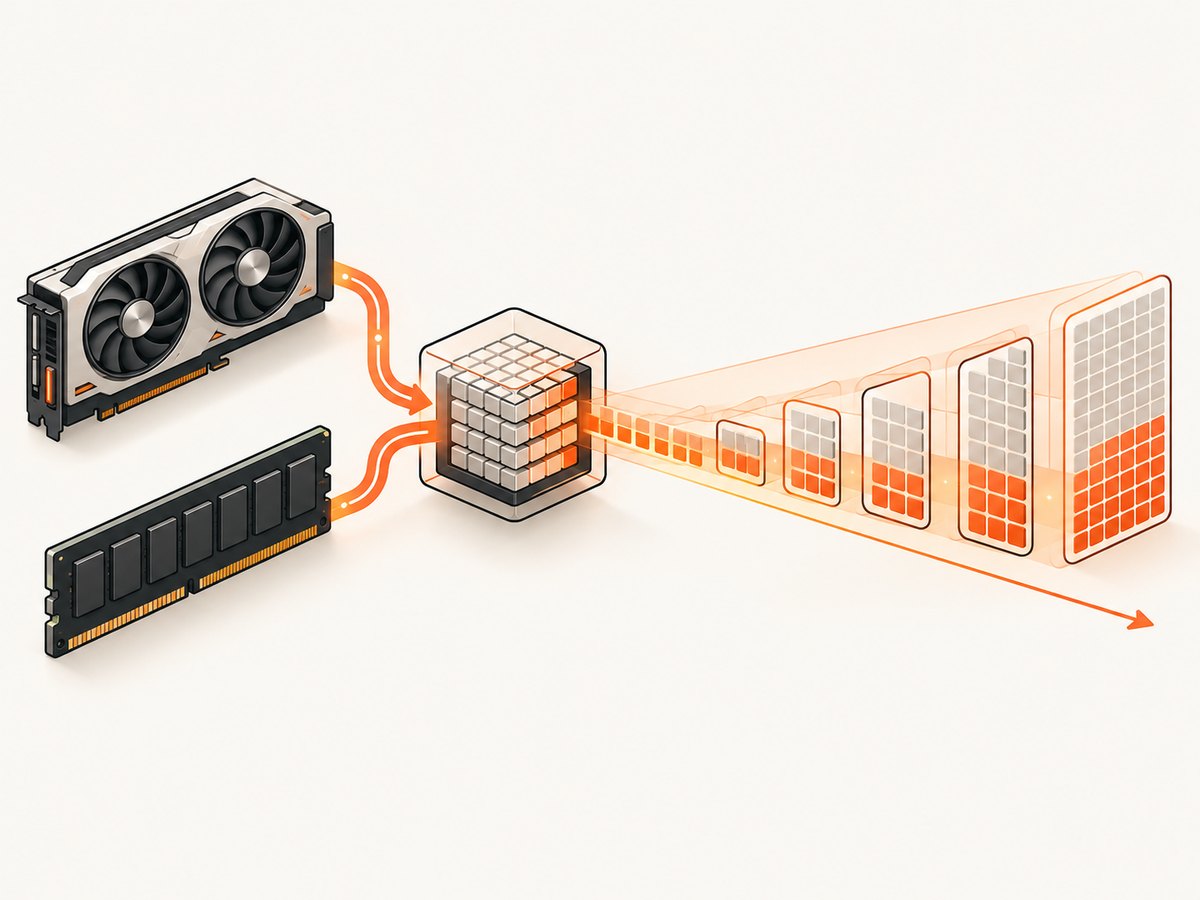
Ollama describes quantization as a trade-off among memory use, speed, and accuracy. The Llama 2 library page says the default is 4-bit quantization and directs users to current tags for available variants. Do not assume that every model uses the same default or that two tags with similar parameter counts have identical memory behavior.
Context-window settings
Ollama’s documented default context window is 4,096 tokens. You can change it in three common ways:
# Set a shell-wide value before starting the server
export OLLAMA_CONTEXT_LENGTH=8192
ollama serve
Inside an interactive session, the FAQ documents the /set parameter num_ctx command. Through the API, include num_ctx in the request options:
curl http://localhost:11434/api/generate \
  -H 'Content-Type: application/json' \
  -d '{"model":"llama2","prompt":"Summarize this document.","stream":false,"options":{"num_ctx":8192}}'
Use the smallest context that covers your task, then increase it when you have a reason. A coding-agent launch post dated January 23, 2026 recommends at least 64,000 tokens for coding tools and gives an approximately 23 GB VRAM example for glm-4.7-flash at a 64,000-token context. That is a model-specific example, not a requirement for every coding model.
5. Confirm whether Ollama is using your GPU
Load the model, send a prompt, and run:
ollama psThe output reports whether the model is on the GPU, on the CPU, or split between CPU and GPU. A split placement can be valid when the model does not fit entirely in VRAM, but it often changes latency. If the report shows CPU placement when you expected GPU use, check the driver, backend, supported GPU list, available memory, and Ollama version.
Do not treat published tokens-per-second figures as predictions for your computer. Ollama’s September 23, 2025 scheduling post reports specific tests: Gemma 3 12B at 128K context on one RTX 4090 increased generation from 52.02 to 85.54 tokens per second while VRAM changed from 19.9 GiB to 21.4 GiB. In another test, Mistral Small 3.2 at 32K context on two RTX 4090 GPUs changed prompt evaluation from 127.84 to 1,380.24 tokens per second and generation from 43.15 to 55.61. Those are vendor-reported configurations, not general performance guarantees.
6. Choose hardware for your actual workload
Compare systems in this order:
- Compatibility: confirm the exact operating system, driver, compute capability, ROCm/HIP stack, Metal support, or Vulkan path.
- Memory: match VRAM or unified memory to the model tag and intended context. More memory can prevent CPU offload.
- Model and quantization: decide whether a smaller quantized model meets your accuracy needs.
- Context: budget extra memory for long documents, coding repositories, images, and tool calls.
- Upgrade and price constraints: consider total system cost, power, noise, and whether adding a second GPU is practical.
Ollama’s June 5, 2026 release post says version 0.30 expanded GGUF compatibility through llama.cpp, augmented the MLX engine on Apple silicon, and enabled Vulkan by default for broader AMD and Intel acceleration. It reports NVIDIA performance up to 20% faster in a test using Gemma 4 26B on an RTX 5090 with Q4_K_M. Keep the full test setup beside that number; it cannot rank every current GPU.
The RTX 5090 is a supported high-end example because Ollama lists it and used it in that test. It is not a universal requirement or a best-value conclusion. For a budget build, start with a model and context target, then select the least expensive supported hardware that provides enough memory.
7. Storage, model locations, and updates
Models can occupy many gigabytes, and multiple quantizations multiply that usage. Ollama’s FAQ documents default model directories for macOS, Linux, and Windows and explains that OLLAMA_MODELS can move the store. Check free disk space before pulling a large model.
# List downloaded models
ollama list

# Remove a model you no longer need
ollama rm llama2

# Download without opening an interactive chat
ollama pull llama2
Keep enough free space for temporary downloads and future tags. Updating Ollama can change backend behavior, supported formats, and performance, so read release notes when a previously working setup changes.
8. Privacy and local-only operation
Ollama’s official FAQ states: “Ollama runs locally. We don’t see your prompts or data when you run locally.” The same FAQ distinguishes cloud-hosted models, where prompts and responses are processed to provide the cloud service. If you need local-only operation, it documents OLLAMA_NO_CLOUD=1 or the disable_ollama_cloud setting. Disabling cloud features also removes access to cloud models and web search.
export OLLAMA_NO_CLOUD=1
ollama serve
Review your shell configuration and service manager so the setting is applied to the process that actually runs Ollama.
9. Troubleshooting common problems
“Is my GPU compatible with Ollama?”
Cause: unsupported compute capability, an old driver, the wrong ROCm/HIP stack, or a backend that is not enabled for your operating system.
Fix: check the live GPU documentation, update only to a driver supported by your operating system, restart Ollama, and run ollama ps after loading a model. On AMD, verify the separate Linux and Windows requirements. On Linux with Vulkan, follow the documented setup caveats.
The model loads on CPU and is slow
Cause: the model or context does not fit in VRAM, the GPU is unsupported, or the driver/backend failed to initialize.
Fix: inspect ollama ps, reduce num_ctx, try a smaller or more aggressively quantized tag, and verify the driver. A CPU/GPU split may be expected when memory is tight.
The server runs out of memory
Cause: a large model, long context, concurrent requests, or other applications consuming RAM or VRAM.
Fix: lower context, close competing workloads, unload unused models, choose a smaller quantization, or add memory. Do not infer requirements from parameter count alone.
Long prompts fail or responses are truncated
Cause: the effective context remains at the 4,096-token default or the configured value is too small for prompt plus response.
Fix: set OLLAMA_CONTEXT_LENGTH, use /set parameter num_ctx, or pass API options.num_ctx. Leave headroom for the generated answer and tool messages.
Cloud models or web search are unavailable
Cause: local-only mode is enabled.
Fix: remove OLLAMA_NO_CLOUD=1 and the equivalent disable_ollama_cloud setting if you intentionally need cloud features, then restart the server.
Models fill the wrong disk
Cause: the service is using its default model directory instead of your intended volume.
Fix: configure OLLAMA_MODELS for the account that runs Ollama, restart the service, and verify with a new pull. Existing files may need to be moved according to the operating system’s service instructions.
10. Integrate local Ollama into scripts and agents
The local API is useful for editor extensions, batch jobs, and internal tools. Keep requests explicit about the model and context so a machine change does not silently alter behavior.
python - <<'PY'
import requests

payload = {
    'model': 'llama2',
    'prompt': 'List three risks in this deployment plan.',
    'stream': False,
    'options': {'num_ctx': 8192},
}
response = requests.post('http://localhost:11434/api/generate', json=payload, timeout=120)
response.raise_for_status()
print(response.json()['response'])
PY
For coding agents, Ollama's January 23, 2026 launch post lists local options including glm-4.7-flash, qwen3-coder, and gpt-oss:20b. Availability and recommended tags can change, so check the current library before configuring an agent.
11. Or skip the browser setup
If your application needs screenshots of web pages alongside a local model, you can use ScreenshotNeo instead of maintaining a browser automation stack. It accepts one GET request and returns a PNG, JPEG, WebP, or PDF. Before capture it accepts cookie or consent banners and removes more than 60 known consent platforms, newsletter popups, and chat widgets; each step can be turned off.

Only clean shots are billed. Bot checks, CAPTCHAs, blank pages, timeouts, failed loads, and cache hits cost nothing, and response headers identify the page verdict and billing result.
See the ScreenshotNeo API documentation for all options, including full-page capture with lazy images, CSS element capture, dark mode, device presets, retina scale, PDF paper sizes and margins, custom CSS and JavaScript, clicks, waits, request blocking, headers, cookies, user agents, authorization, timezone, geolocation, transparent backgrounds, resizing, TTL caching, signed links, asynchronous jobs, webhooks, bulk capture, usage, and the OpenAPI specification.
cURL
curl -G 'https://api.screenshotneo.com/v1/shot' -d access_key=YOUR_API_KEY --data-urlencode url=https://stripe.com -o shot.webpPython
import requests
r = requests.get('https://api.screenshotneo.com/v1/shot', params={'access_key': 'YOUR_API_KEY', 'url': 'https://stripe.com'}, timeout=90)
open('shot.webp', 'wb').write(r.content)
Node.js
const q = new URLSearchParams({ access_key: 'YOUR_API_KEY', url: 'https://stripe.com' });
const res = await fetch(`https://api.screenshotneo.com/v1/shot?${q}`);
ScreenshotNeo also provides an MCP server with take_screenshot, get_page_info, and capture_pdf tools for Claude, Cursor, and other MCP clients. The free plan includes 1,000 screenshots per month with no card; paid plans start at $5 for 3,000. Create a free ScreenshotNeo account.
12. Practical operating checklist
- Record your exact GPU, operating system, driver, and available memory.
- Read the current Ollama GPU page and model page.
- Pull a model tag that fits memory before increasing context.
- Start with 4,096 tokens and raise context deliberately.
- Run
ollama psto confirm CPU, GPU, or split placement. - Measure your own workload instead of copying vendor benchmark expectations.
- Set local-only mode when cloud features are not appropriate.
- Keep model storage on a disk with room for multiple tags.
FAQ
How much memory does a local model need?
It depends on the model, quantization, context, and runtime buffers. The Llama 2 page's 8 GB, 16 GB, and 64 GB examples are useful starting points for its 7B, 13B, and 70B sizes.
How can I specify the context window size?
Use OLLAMA_CONTEXT_LENGTH, /set parameter num_ctx, or API options.num_ctx, depending on how you run the model.
How can I tell if my model was loaded onto the GPU?
Run ollama ps. It reports GPU, CPU, or split placement.
Does local Ollama send prompts to Ollama?
Ollama's FAQ says locally run prompts and data are not seen by Ollama. Cloud-hosted models have separate processing behavior.


