How to Enable Local Overrides in Headless Chrome with Puppeteer
DevTools Local Overrides is an interactive workflow. In headless Puppeteer, intercept requests and fulfill them with versioned fixtures for repeatable tests.
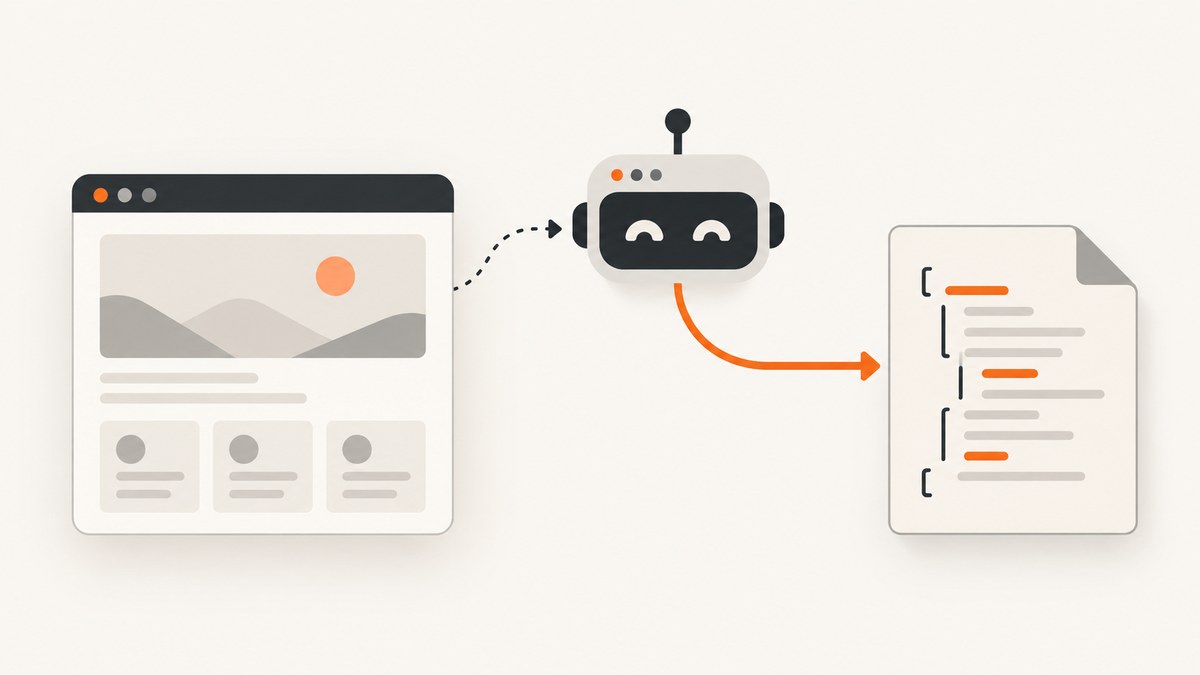
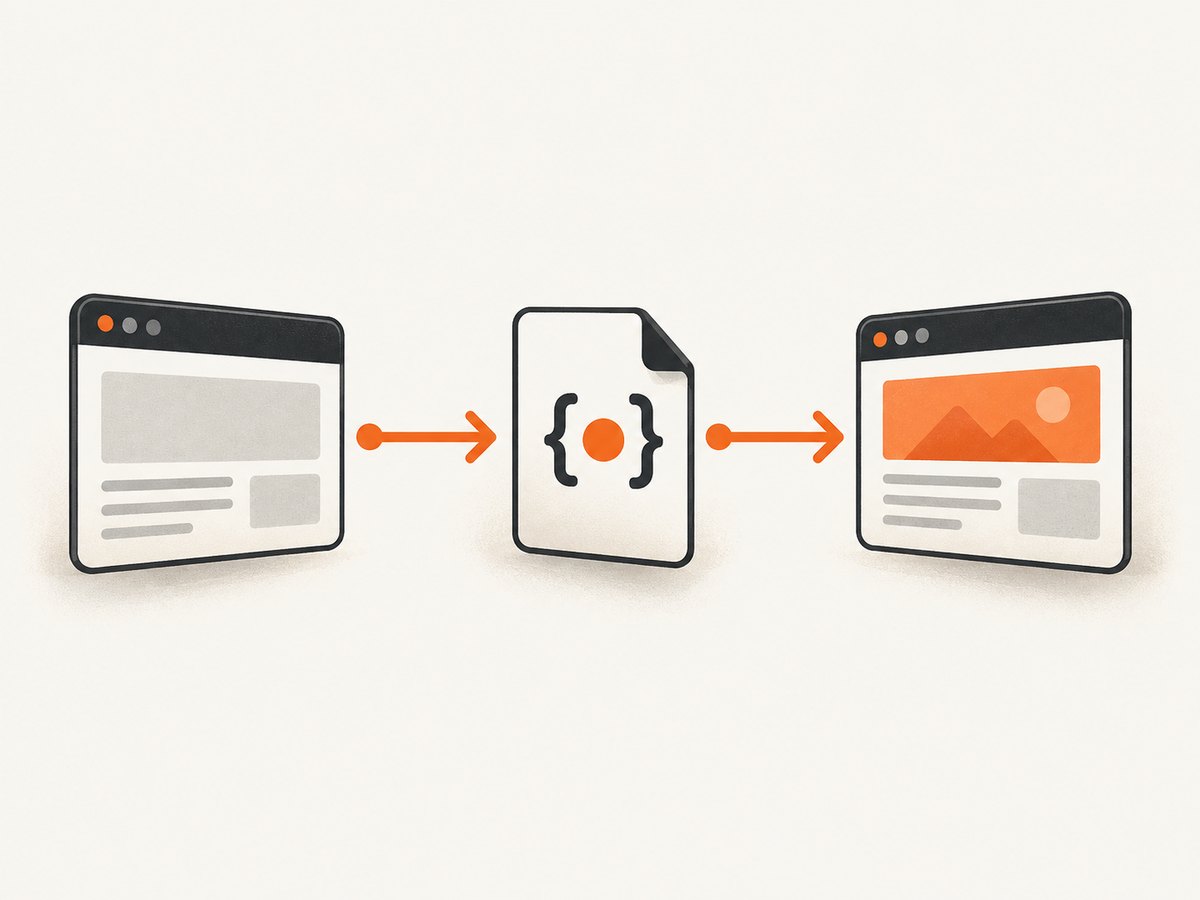
Chrome DevTools Local Overrides is an interactive DevTools workflow: you choose a folder, save a modified response or file there, and DevTools serves that local copy when the page reloads. For headless Puppeteer, the practical programmatic equivalent is request interception: match a request, read a replacement fixture, and fulfill it with request.respond(). It works in CI because the fixture and matching logic are part of the script, rather than a folder selected in a visible DevTools window. This is an implementation inference from Chrome’s documented workflow and Puppeteer’s interception API.
Use this approach to replace JavaScript, CSS, HTML, JSON, or an XHR/fetch response. It can also return custom response headers and a chosen status. It does not automatically reproduce every DevTools Overrides behavior: in particular, cache handling and editing already-rendered DOM require separate decisions.
1. Understand what Local Overrides does
In DevTools, Local Overrides persists edited network resources in a folder you select. After reload, DevTools serves the modified local file instead of the network resource. It can override web content, XHR/fetch responses, and response headers, and it automatically disables cache. [Chrome DevTools Local Overrides]
Puppeteer does not expose the Sources > Overrides folder-picker workflow as an ordinary headless automation API. When a test needs a predictable replacement response, use Puppeteer’s request interception instead. Interception enables requests to be continued, aborted, or fulfilled with a synthetic response. Once enabled, every request must be resolved or it will remain stalled. [Page.setRequestInterception, HTTPRequest.respond, Puppeteer request interception guide]
2. Set up the project and fixture
Use a supported Node.js version and install Puppeteer in your project. Puppeteer downloads a compatible Chrome for Testing by default. If your environment supplies its own Chrome or Chromium, configure the executable path deliberately and keep the browser version consistent between local runs and CI.
mkdir puppeteer-overrides
cd puppeteer-overrides
npm init -y
npm install puppeteer
Set the project to use ES modules by adding "type": "module" to package.json. Create a fixture file:
// overrides/app.js
window.bannerText = 'Fixture response loaded';
For a JSON fixture, store valid JSON such as {"enabled":true,"message":"fixture"} in overrides/feature.json. Keep fixtures beside the test or script and version them so local runs and CI use the same content.
3. Replace a JavaScript response
This complete script intercepts exactly one asset URL, responds with the local file, and continues every other request. Save it as index.js, then run node index.js.
import puppeteer from 'puppeteer';
import {readFile} from 'node:fs/promises';

const targetUrl = 'https://example.test/assets/app.js';
const replacement = await readFile(
  new URL('./overrides/app.js', import.meta.url),
  'utf8',
);

const browser = await puppeteer.launch({headless: true});
try {
  const page = await browser.newPage();
  await page.setRequestInterception(true);

  page.on('request', async request => {
    if (request.isInterceptResolutionHandled()) return;

    if (request.url() === targetUrl) {
      if (request.isInterceptResolutionHandled()) return;
      await request.respond({
        status: 200,
        contentType: 'application/javascript; charset=utf-8',
        body: replacement,
      });
      return;
    }

    await request.continue();
  });

  await page.goto('https://example.test', {waitUntil: 'networkidle0'});
  console.log(await page.evaluate(() => window.bannerText));
} finally {
  await browser.close();
}
Change targetUrl to the exact asset URL requested by the page. The fixture is read before navigation so a file error does not leave an intercepted request stalled. The listener still checks the resolution state before responding because another listener or package may have handled the same request.
4. Mock an XHR or fetch response
For an API fixture, match the endpoint and return JSON with the expected status and MIME type. The application may depend on response fields, headers, or status codes, so make the fixture reflect the contract the page actually consumes.
const apiUrl = 'https://example.test/api/profile';
const profile = JSON.stringify({id: 42, name: 'Test User'});

page.on('request', async request => {
  if (request.isInterceptResolutionHandled()) return;

  if (request.url() === apiUrl && request.method() === 'GET') {
    if (request.isInterceptResolutionHandled()) return;
    await request.respond({
      status: 200,
      contentType: 'application/json; charset=utf-8',
      headers: {'cache-control': 'no-store'},
      body: profile,
    });
    return;
  }

  await request.continue();
});
Put this listener in place before calling page.goto(). If the endpoint uses query parameters, either match the complete expected URL or parse it with new URL(request.url()) and check the path and parameters you intend to replace. Avoid matching only a broad substring such as api; unrelated calls could be intercepted.
5. Choose the right replacement method
| Need | Puppeteer approach | Limits to account for |
|---|---|---|
| Replace a JavaScript, CSS, HTML, or JSON response | Match the URL and use request.respond() with a fixture. |
Return a correct content type and body. |
| Mock an XHR/fetch endpoint | Match endpoint and method, then return fixture JSON. | Match query strings and expected status/body shape. |
| Change response headers | Use request.respond() with a headers object. |
This synthesizes the response; it does not fetch the original first. |
| Change request-side headers | Use request.continue({headers}). |
Preserve headers the server or application requires. |
| Replace a complete frame document | Use CDP Page.setDocumentContent with the frame ID and HTML. |
This replaces the frame document; it is not a selective asset override. |
| Inspect DevTools Sources > Overrides visually | Launch with headless: false. |
Useful for investigation, usually not the CI workflow. |
To bypass page Content Security Policy for controlled debugging, call await page.setBypassCSP(true) before navigation. The underlying Chrome DevTools Protocol documents both the CSP bypass and document content commands. [Chrome DevTools Protocol Page domain]
6. Handle interception, cache, and service workers
- Resolve every request. When interception is enabled, continue, respond to, or abort each request. A missed path can hang navigation.
- Enable it before navigation. Otherwise the initial document or early subresources may already have been requested.
- Use exact matching. Include method and relevant URL components; do not replace a third-party resource accidentally.
- Guard asynchronous handlers. After awaiting a file read or other work, check
request.isInterceptResolutionHandled()again immediately before the action. Puppeteer advises that the check and action be synchronous together when no asynchronous work intervenes. [Puppeteer interception guide] - Set cache behavior intentionally. DevTools Local Overrides disables cache automatically; custom request interception does not reproduce that policy. If the test needs parity, disable cache with CDP using
Network.setCacheDisabledon the page’s session, and decide how service workers should behave. A service worker can affect network traffic, so if it prevents the interception path you expect, create the page withpage.setBypassServiceWorker(true).
For CDP cache control, create a session with const client = await page.createCDPSession(), then call await client.send('Network.enable') and await client.send('Network.setCacheDisabled', {cacheDisabled: true}) before navigation. If you do not need to emulate DevTools cache behavior, avoid extra CDP setup and use normal browser caching.
7. Make the run reproducible in CI
- Commit fixture files and the lockfile. Install with
npm ciin the build job. - Use a pinned Puppeteer dependency and its managed browser, or pin the system browser image as well.
- Register interception before navigation and keep URL matching narrow.
- Use explicit navigation readiness conditions.
networkidle0waits for a quiet network and may not work for pages that poll or keep connections open; a specific selector or application-ready condition can be more reliable. - Close the browser in a
finallyblock so assertion failures do not leak Chrome processes. - On failure, log the requested URL and the reason for each mock decision. Avoid logging authorization headers or sensitive response bodies.
Headless mode suits repeatable automated execution. For visual diagnosis, launch with headless: false and inspect the page in a graphical environment; Puppeteer documents visible browser debugging as part of its troubleshooting guidance. [Puppeteer debugging guide]
8. Troubleshooting
| Symptom | Likely cause | Fix |
|---|---|---|
| Navigation hangs after enabling interception | A request path never calls continue, respond, or abort. | Make the non-match path call request.continue(); inspect all listeners and exceptions. |
| “Request is already handled” or resolution error | Multiple handlers attempted to resolve the same request. | Check isInterceptResolutionHandled() before resolving, including after awaited work. |
| The original asset still appears | The URL did not match, the request happened before interception, or a service worker/cache path intervened. | Log request.url(), enable interception before navigation, and review cache and service-worker behavior. |
| Browser reports a script or JSON parse error | Wrong fixture contents or MIME type, or an HTML error page was returned as JSON. | Validate fixture syntax and set an accurate contentType. |
| Page behavior differs from DevTools Overrides | DevTools disables cache and can persist response/header changes; a bare interceptor does not automatically copy those policies or DOM edits. | Configure cache explicitly and intercept the right response. For direct DOM edits, use page evaluation after navigation or replace the document deliberately. |
| Works locally but fails in CI | Browser binary, dependencies, sandbox/container settings, or fixture path differs. | Pin dependencies and browser environment, use a path relative to the module, and follow Puppeteer’s install guidance for your CI image. |
| Test waits forever for network idle | Long polling, analytics, or persistent connections keep traffic active. | Wait for a known selector or application state instead of global network idleness. |
9. Performance, reliability, and cost
Interception adds a handler to each request, so keep matching logic small and avoid unnecessary asynchronous work. Read fixtures once when possible, as in the JavaScript example, instead of reading from disk for every matching request. Use exact predicates and intercept only the resources the test needs. The research sources provide no published benchmark for a performance difference between DevTools Overrides and Puppeteer interception, so no percentage comparison is warranted.

Reliability comes from explicit resolution of every request, realistic response metadata, pinned browser dependencies, and versioned fixtures. Custom interception does not automatically share DevTools’ cache-disabling behavior. Decide whether to preserve cache, disable it, or test both paths. Costs depend on the Chrome runtime and CI environment you use; this technique itself has no ScreenshotNeo API dependency.
Or skip the browser setup
If your goal is to get a screenshot of a page rather than test a modified response, ScreenshotNeo is a website screenshot API and MCP server. One GET request returns a screenshot or PDF. See the API documentation.
curl -G "https://api.screenshotneo.com/v1/shot" -d access_key=YOUR_API_KEY --data-urlencode url=https://example.test -o shot.webpimport requests
r = requests.get("https://api.screenshotneo.com/v1/shot", params={"access_key": "YOUR_API_KEY", "url": "https://example.test"}, timeout=90)
open("shot.webp", "wb").write(r.content)const q = new URLSearchParams({ access_key: 'YOUR_API_KEY', url: 'https://example.test' });
const res = await fetch(`https://api.screenshotneo.com/v1/shot?${q}`);- Cookie banners, popups, and chat widgets are removed before the shot, and each step can be turned off.
- Bot checks, blank pages, failed loads, timeouts, and cache hits are never billed; response headers identify the page verdict and billing status.
- An MCP server gives AI agents tools to take screenshots, inspect page information, and capture PDFs.
- The free plan includes 1,000 screenshots a month with no card. Paid plans start at $5 for 3,000 screenshots.
Sign up for ScreenshotNeo and get 1,000 free screenshots a month with no card.
FAQ
Can I use Local Overrides in headless Chrome itself?
The documented folder selection and Sources panel workflow is interactive. For automated headless replacement, Puppeteer interception is the practical equivalent described here.
Can I override only response headers?
Use a synthetic response with request.respond() and provide the headers you need. For request headers sent to the server, use request.continue({headers}).
Can I modify the page’s DOM after it loads?
Request interception replaces network responses. To edit rendered DOM, use page evaluation after the relevant content appears; use CDP document replacement only when replacing the whole frame is intended.
Why would I use headful mode?
Use it when you need to inspect the actual browser and DevTools interactively. Keep headless mode for repeatable automated runs.


