How to Locate CKEditor and Send Text with Selenium WebDriver
Find the right CKEditor editing surface, switch into classic editor frames, and enter text reliably with Selenium WebDriver.
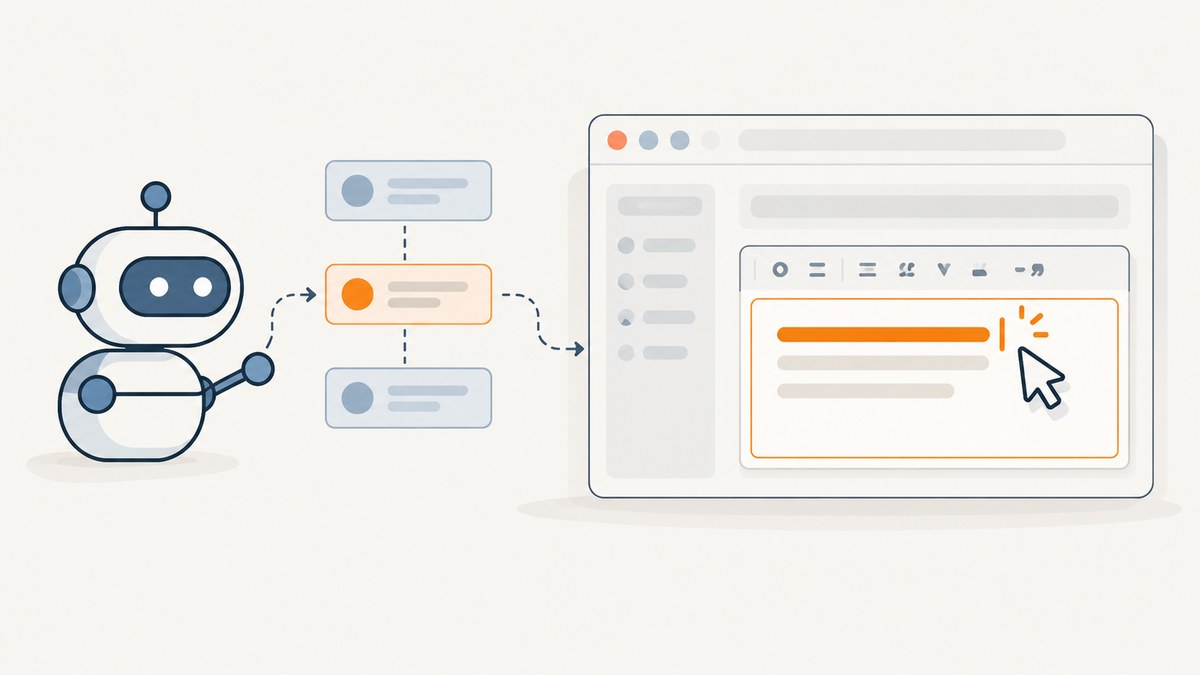
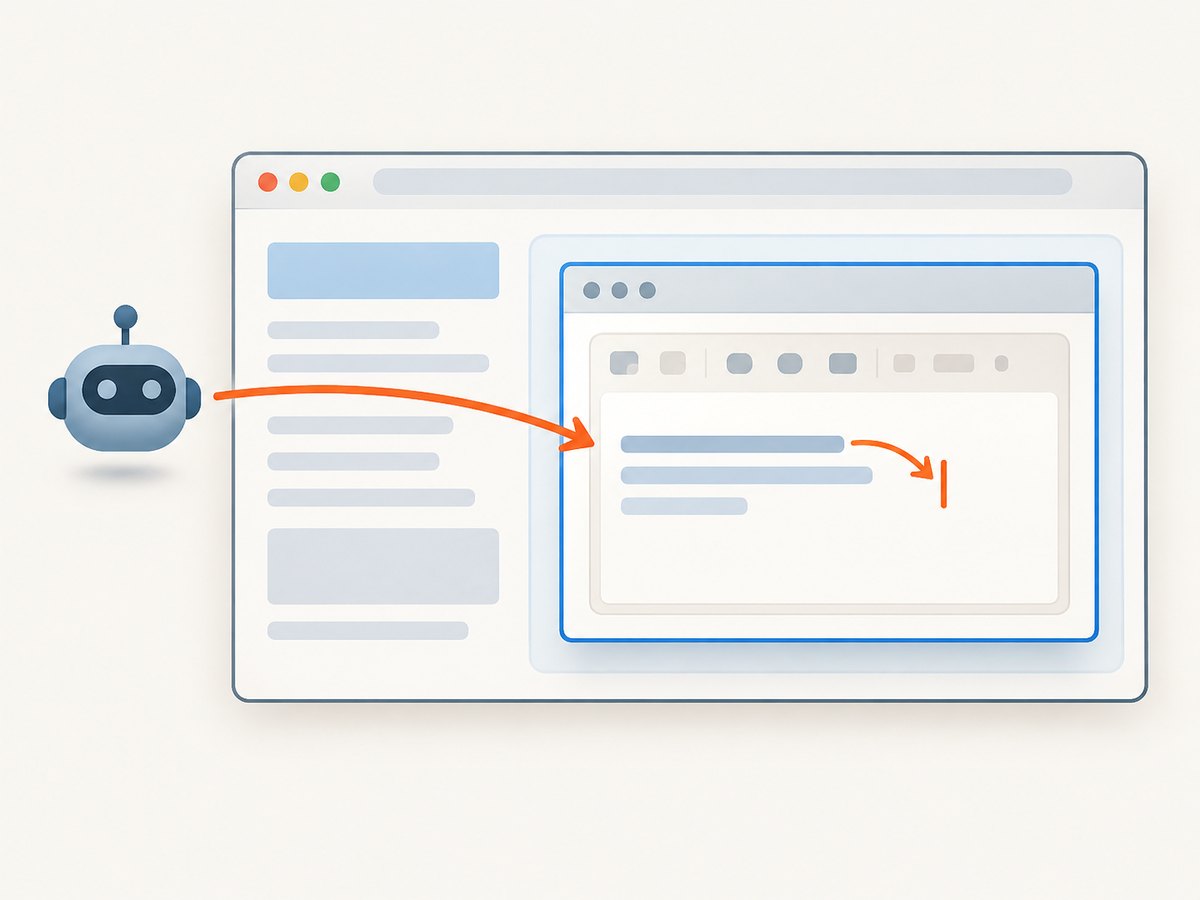
To type into CKEditor with Selenium, first identify which CKEditor version and editing mode the page uses. CKEditor 4 classic places its editing area inside an iframe, so switch into that frame before finding its editable body. CKEditor 4 inline and CKEditor 5 expose a contenteditable element that Selenium can target directly. A hidden textarea is usually not the visible typing surface.
The examples below use Python, then show equivalent cURL, Python, and Node.js calls for ScreenshotNeo when you need a screenshot of the page for visual inspection. Selenium drives a live browser and enters text; a screenshot API captures a page image or PDF and does not type into CKEditor.
1. Identify the CKEditor version and mode
Inspect the live DOM after the editor has initialized. Do not decide based only on the original HTML or a textarea in the form: CKEditor may replace or hide that field and render a separate editing surface.
| Editor | What to look for | Selenium target | Frame switch? |
|---|---|---|---|
| CKEditor 4 classic | An editing iframe, commonly with a class such as cke_wysiwyg_frame |
The editable body inside that frame |
Yes |
| CKEditor 4 inline | An element with contenteditable="true" |
The inline editable element | No |
| CKEditor 5 | An element with .ck-editor__editable and contenteditable="true" |
The editable element | Usually no |
CKEditor 4 inline mode does not create an iframe for the editing area, while CKEditor 4 classic does. Selenium must switch browsing context before it can find elements inside a frame. [CKEditor 4 inline editing] [Selenium frame interactions]
Inspect the rendered page
- Open the page in the same browser and state your test uses.
- Wait for the editor to initialize, then inspect the rendered DOM.
- Look for an iframe around the editing area. If present, identify it by a stable ID, name, or scoped CSS selector.
- If there is no editor iframe, locate the element whose
contenteditableattribute istrue. Prefer an application-owned ID or data attribute where available.
Selectors such as iframe.cke_wysiwyg_frame and .ck-editor__editable are common patterns, not universal contracts. Confirm the selectors against the actual application.
2. Set up Selenium and wait for the editor
Install Selenium and configure a WebDriver for your browser using the setup appropriate to your project. The following code assumes driver is an initialized Selenium WebDriver and uses explicit waits. Explicit waits poll for a condition; they are more dependable than sleeping for a fixed duration when editor initialization time varies.
from selenium.webdriver.common.by import By
from selenium.webdriver.support.ui import WebDriverWait
from selenium.webdriver.support import expected_conditions as EC

wait = WebDriverWait(driver, 10)
Choose a timeout that fits the application and test environment. A ten-second wait is an example, not a promise that every editor initializes in that time. If initialization is slow, first determine whether the page or editor is still loading before simply increasing the timeout.
3. Type into CKEditor 4 classic
Wait for the iframe, switch into it, find its editable body, and send keystrokes there. Switch back to the top-level document before using controls outside the editor.
from selenium.webdriver.common.by import By
from selenium.webdriver.support.ui import WebDriverWait
from selenium.webdriver.support import expected_conditions as EC

wait = WebDriverWait(driver, 10)
frame = wait.until(EC.presence_of_element_located(
    (By.CSS_SELECTOR, "iframe.cke_wysiwyg_frame")
))
driver.switch_to.frame(frame)

body = wait.until(EC.presence_of_element_located(
    (By.CSS_SELECTOR, "body[contenteditable='true']")
))
body.click()
body.send_keys("Text entered by Selenium")

driver.switch_to.default_content()
Selenium supports switching by a frame WebElement, frame name or ID, and frame index. Prefer a stable frame element over an index: index-based selection can break if the page adds or reorders frames. [Selenium frame interactions]
The frame wait can combine readiness and switching:
wait.until(EC.frame_to_be_available_and_switch_to_it(
    (By.CSS_SELECTOR, "iframe.cke_wysiwyg_frame")
))
body = wait.until(EC.presence_of_element_located(
    (By.CSS_SELECTOR, "body[contenteditable='true']")
))
body.send_keys("Text entered inside the frame")
driver.switch_to.default_content()
Use the combined condition when its selector unambiguously identifies the intended frame. If you need to inspect or log the frame element before switching, wait for the element first and call switch_to.frame(frame) as in the first example.
4. Type into CKEditor 4 inline
Inline mode does not require a frame switch. Locate the contenteditable element and interact with it directly. A selector based on an application-owned ID is generally more robust than a broad search for any editable element on the page.
editor = WebDriverWait(driver, 10).until(
    EC.element_to_be_clickable(
        (By.CSS_SELECTOR, "#editor1[contenteditable='true']")
    )
)
editor.click()
editor.send_keys("Text entered by Selenium")
Change #editor1 to the selector that matches your page. If the page has several editable elements, scope the selector to the editor container or use a unique ID or data attribute. CKEditor 4 inline content is edited in the original page element, so the regular document context remains active. [CKEditor 4 inline editing]
5. Type into CKEditor 5
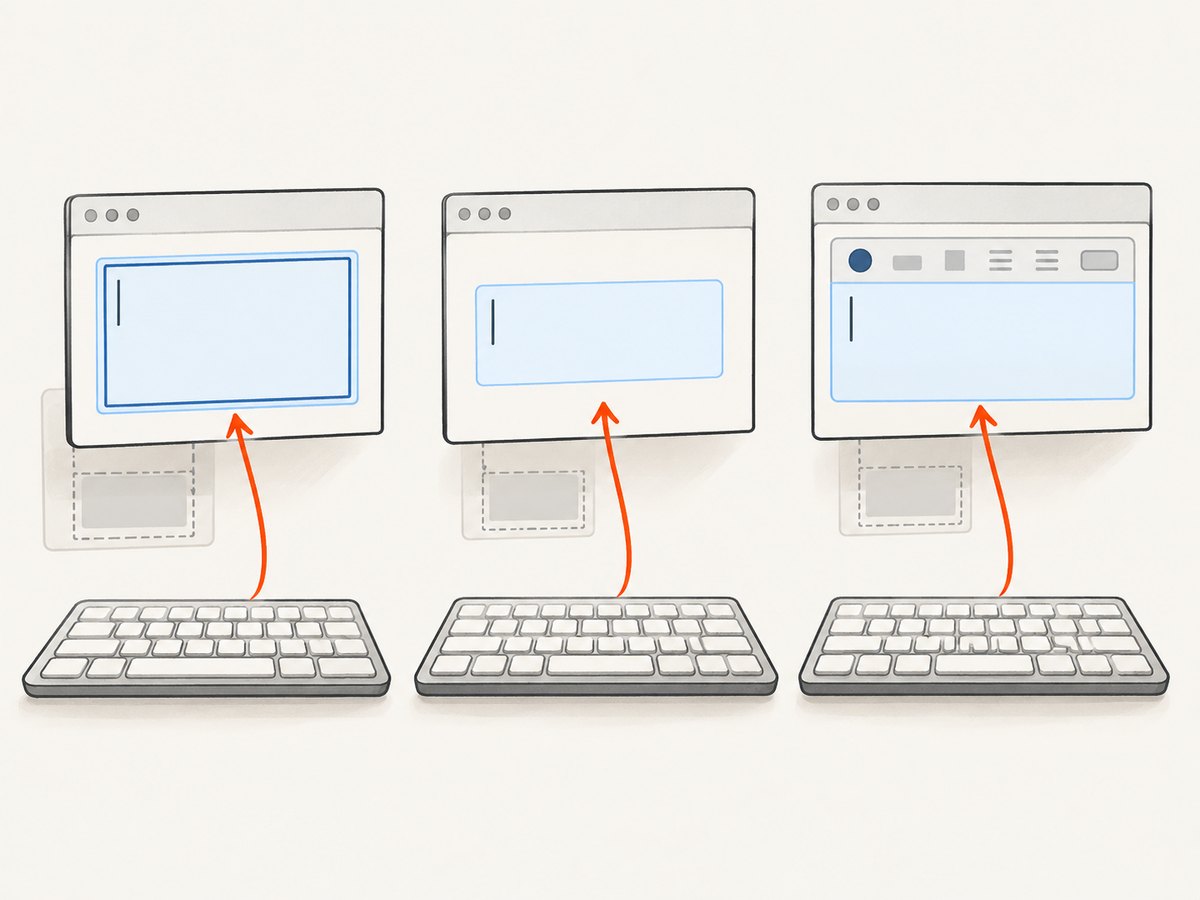
For keyboard-style automation, locate the CKEditor 5 editable root, focus it, and send keys. A common selector is .ck-editor__editable; use .ck-editor__editable_inline when it more specifically matches your editor and confirm the element is the intended one.
editor = WebDriverWait(driver, 10).until(
    EC.element_to_be_clickable(
        (By.CSS_SELECTOR, ".ck-editor__editable[contenteditable='true']")
    )
)
editor.click()
editor.send_keys("Text entered by Selenium")
When direct model setup is intended
A test may need to initialize editor data without modeling keyboard input. CKEditor 5 exposes the editor instance on its editable DOM element as ckeditorInstance; its setData() method sets editor data. This is an API-level test action, not a substitute for a test whose purpose is to exercise typing, focus, keyboard handling, or user-triggered editor behavior.
editor = WebDriverWait(driver, 10).until(
    EC.presence_of_element_located(
        (By.CSS_SELECTOR, ".ck-editor__editable[contenteditable='true']")
    )
)
html = "<p>Text set through the CKEditor 5 model</p>"
driver.execute_script(
    "arguments[0].ckeditorInstance.setData(arguments[1]);",
    editor,
    html,
)
# Continue through the application's intended save/change path.
The CKEditor 5 documentation describes accessing ckeditorInstance from the editable element and calling setData(). Wait until the editor is initialized before using that property. [CKEditor 5: getting and setting data]
6. Choose the right way to enter data
| Method | Use it when | What it exercises |
|---|---|---|
send_keys() |
The test should simulate user keyboard input | Focus and keyboard interaction with the editable surface |
CKEditor 5 setData() |
The test deliberately sets model data as setup | The editor's data API, not the user's typing path |
After either method, test the application's actual save or submit path if persistence matters. A visible change inside the editor does not by itself prove that the form submitted, server accepted the content, or the application synchronized its data as intended. Selenium's locator guidance recommends selecting elements with reliable locators, including CSS selectors, and avoiding brittle targeting when a stable attribute is available. [Selenium locator guidance]
7. Make the automation reliable
- Wait for the right condition. Wait for frame availability before switching; wait for the editable surface before typing.
- Scope selectors. Use a stable ID or application-owned data attribute when possible. Avoid selecting the first generic
bodyor contenteditable element on a complex page. - Keep context explicit. After typing in a classic editor, call
driver.switch_to.default_content()before accessing page controls. - Distinguish presence from readiness. An element can exist before it is visible or clickable. Use a condition suited to the next action.
- Verify the result. Check the editor content or the saved result through the application path relevant to the test.
- Clean up context on errors. If an exception occurs after switching into a frame, switch back in a
finallyblock so later test steps do not run in the wrong document.
try:
    wait.until(EC.frame_to_be_available_and_switch_to_it(
        (By.CSS_SELECTOR, "iframe.cke_wysiwyg_frame")
    ))
    body = wait.until(EC.presence_of_element_located(
        (By.CSS_SELECTOR, "body[contenteditable='true']")
    ))
    body.send_keys("Text entered by Selenium")
finally:
    driver.switch_to.default_content()
8. Troubleshooting common failures
| Symptom | Likely cause | Fix |
|---|---|---|
| Selenium finds a textarea but typing has no visible effect | The textarea is hidden or replaced as CKEditor renders its editable surface. | Inspect the rendered DOM. Target the classic editor's iframe body or the inline/CKEditor 5 contenteditable root. |
NoSuchElementException for the iframe |
The editor has not initialized, or the iframe selector does not match this page. | Wait for the frame, inspect its actual class, ID, or name, and update the selector. |
| The frame is found but the body is not | The code is still in the top-level document, or the body selector is wrong for this editor. | Confirm switch_to.frame() completed, then inspect the frame DOM and locate its actual editable body. |
send_keys() reports an element is not interactable |
The target is hidden, not ready, covered, or not the active editable surface. | Wait for visibility or clickability, verify the chosen element, and focus the editable root. |
| Controls after typing cannot be found | The driver remains inside CKEditor 4's iframe. | Call driver.switch_to.default_content() before locating controls in the page. |
ckeditorInstance is undefined |
The CKEditor 5 instance is not initialized yet, or the selected element is not its editable root. | Wait for the correct editable element and confirm it has the instance property before calling setData(). |
| Text appears but is absent after save | The application save path did not run, failed, or did not synchronize as expected. | Exercise the real submit/save control and verify the persisted result. Do not infer persistence from the editor DOM alone. |
| The test intermittently fails | Fixed sleeps, broad selectors, or asynchronous page/editor initialization create timing or targeting races. | Use explicit waits, stable scoped selectors, and a condition that matches the next action. |
9. Performance, reliability, and maintenance
For a single editor, the practical cost of the automation is usually dominated by browser startup, page loading, and editor initialization rather than locating one editable element. Reuse a browser session where the test design permits, avoid unnecessary fixed waits, and wait only for the condition needed by the next step. These practices reduce idle time while keeping readiness checks explicit.
Reliability depends on matching the selector to the rendered editor and keeping frame context correct. Treat editor initialization and page loading as asynchronous. When a test times out, record which condition failed—frame availability, editable presence, clickability, or save completion—so the failure points to a specific stage.
CKEditor 4 reached end of life in June 2023 and no longer receives normal updates, feature work, bug fixes, or security patches. If you maintain automation for CKEditor 4, include the application's editor support arrangement in maintenance planning; for new work, establish whether the application can use CKEditor 5. [CKEditor 4 end-of-life announcement]
10. Capture a page screenshot while debugging
A screenshot can help document what the browser displayed when a test failed, but it does not replace DOM inspection: an image cannot reveal whether the editor is inside an iframe or expose the selector attributes. Selenium's own browser screenshot can be useful when the test already controls the browser. If you need a separate website screenshot API, [ScreenshotNeo](https://screenshotneo.com) takes a URL and returns an image or PDF. See the ScreenshotNeo API documentation for request options.
Or skip the browser setup
For a page capture, ScreenshotNeo uses one GET request. Example target below is Stripe; replace it with a page you are authorized to capture. Keep your access key private.
curl -G "https://api.screenshotneo.com/v1/shot" -d access_key=YOUR_API_KEY --data-urlencode url=https://stripe.com -o shot.webpimport requests
r = requests.get("https://api.screenshotneo.com/v1/shot", params={"access_key": "YOUR_API_KEY", "url": "https://stripe.com"}, timeout=90)
open("shot.webp", "wb").write(r.content)const q = new URLSearchParams({ access_key: 'YOUR_API_KEY', url: 'https://stripe.com' });
const res = await fetch(`https://api.screenshotneo.com/v1/shot?${q}`);- Cookie banners are accepted and removed before capture; 60+ known consent platforms, newsletter popups, and chat widgets can be removed, and each cleanup step can be turned off.
- Bot checks, blank pages, timeouts, failed loads, and cache hits cost nothing; response headers report the page verdict and billing status.
- An MCP server gives AI agents tools for screenshots, page information, and PDF capture.
- The free plan includes 1,000 shots a month with no card. Paid plans start at $5 for 3,000 shots.
Sign up for 1,000 free screenshots a month—no card required.
11. FAQ
Can I locate the editor by XPath?
Yes. Selenium can locate elements with XPath as well as CSS and other locator strategies. Choose a selector that uniquely identifies the rendered editable surface and remains stable as the page changes.
Should I clear the editor before sending text?
Only if clearing existing content is part of the test. For rich text editors, verify that the chosen element supports the clearing behavior you need; otherwise select existing content using keyboard interactions appropriate to the test.
Does ScreenshotNeo enter text into CKEditor?
No. ScreenshotNeo captures a page from a URL as an image or PDF. Use Selenium for typing and browser interactions; use a capture API when you need a page screenshot.
12. Quick decision checklist
- Iframe around editor: wait for it, switch into it, then type into its editable body.
- No iframe, CKEditor 4 inline: type into the contenteditable page element.
- CKEditor 5: type into
.ck-editor__editable; useckeditorInstance.setData()only for deliberate model-level setup. - After classic iframe interaction: return to default content before using the rest of the page.
- For every mode: use explicit waits, stable selectors, and verify the application's save path.


