How to Locate and Click an Element in Selenium with Python
Learn reliable Selenium element locators, explicit waits, click patterns, iframe handling, troubleshooting, and production-ready Python examples.
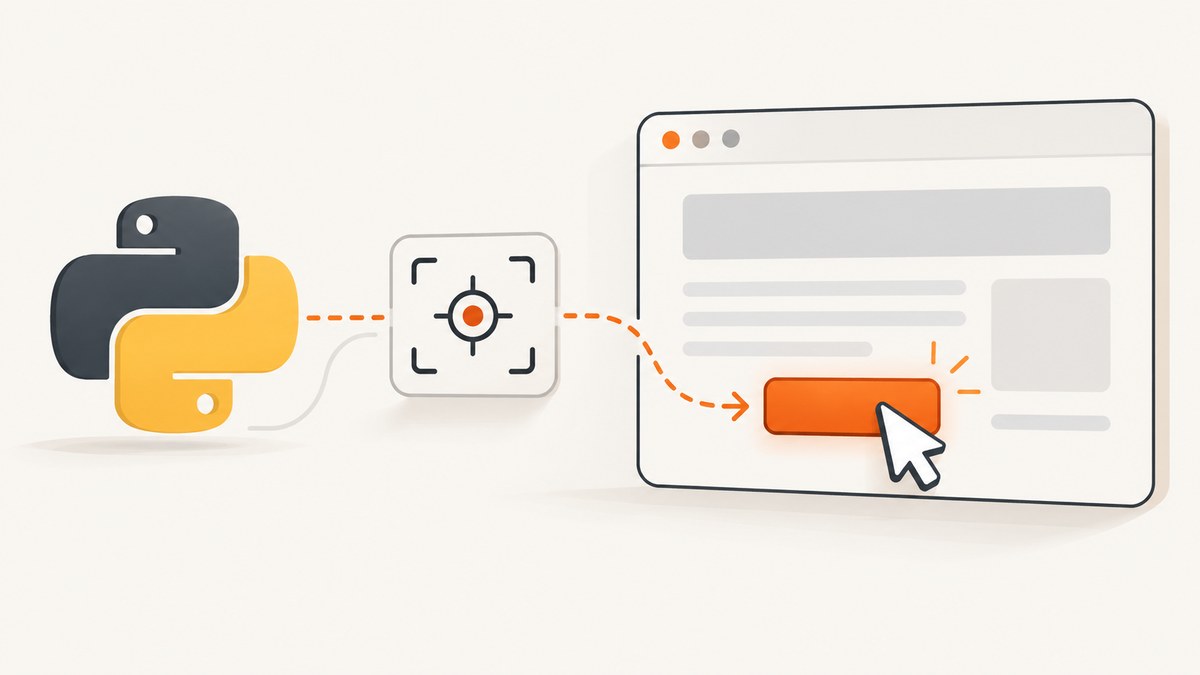
The reliable way to locate and click an element in Selenium with Python is to use the modern By-based API and an explicit wait that matches the state you need. For a button that must be visible and enabled, use element_to_be_clickable:
from selenium.webdriver.common.by import By
from selenium.webdriver.support.ui import WebDriverWait
from selenium.webdriver.support import expected_conditions as EC

wait = WebDriverWait(driver, 10)
button = wait.until(
    EC.element_to_be_clickable((By.ID, "submit"))
)
button.click()
For a static element that is already loaded, the shorter form works:
from selenium.webdriver.common.by import By

element = driver.find_element(By.ID, "submit")
element.click()
Selenium’s WebDriver API defines element lookup as finding an element with a By strategy. The Python bindings support ID, name, XPath, CSS selector, class name, tag name, link text, partial link text, and relative locators. The current syntax passes the strategy and value explicitly; older calls such as find_element_by_id should not be used in new code. See the official Selenium element documentation.
1. Install Selenium and create a driver
Install the Python package in your virtual environment:
python -m pip install -U seleniumA current Selenium release can manage the browser driver for common local setups. This example opens Chrome, navigates to a page, clicks a control, and always closes the browser:
from selenium import webdriver
from selenium.webdriver.common.by import By
from selenium.webdriver.support.ui import WebDriverWait
from selenium.webdriver.support import expected_conditions as EC

options = webdriver.ChromeOptions()
# options.add_argument("--headless=new")  # useful in CI

driver = webdriver.Chrome(options=options)
driver.set_window_size(1440, 1000)

try:
    driver.get("https://example.com/form")
    wait = WebDriverWait(driver, 10)
    submit = wait.until(EC.element_to_be_clickable((By.ID, "submit")))
    submit.click()
finally:
    driver.quit()
2. Choose the right locator
A locator should identify the intended control consistently, even when the page layout changes. Prefer a stable, unique attribute supplied by the application.
| Strategy | Example | Use it when | Main risk |
|---|---|---|---|
| ID | (By.ID, "submit") |
The ID is unique and stable | Generated IDs can change between builds |
| Name | (By.NAME, "email") |
Forms expose stable name attributes | Several controls may share a name |
| CSS selector | (By.CSS_SELECTOR, "button[type='submit']") |
You need concise attribute or structure matching | Overly structural selectors break after markup changes |
| XPath | (By.XPATH, "//button[@type='submit']") |
You need relationships, text conditions, or axes | Long expressions become difficult to maintain |
| Class name | (By.CLASS_NAME, "primary") |
A single, stable class identifies the control | Styling classes are often reused |
| Tag name | (By.TAG_NAME, "button") |
You are inspecting broad sets of elements | Usually matches many elements |
| Link text | (By.LINK_TEXT, "Continue") |
The visible link wording is stable | Copy changes and localization cause failures |
| Partial link text | (By.PARTIAL_LINK_TEXT, "Cont") |
Only part of link text is stable | May match the wrong link |
CSS selectors are usually the clearest choice for attributes such as data-testid:
save = wait.until(
    EC.element_to_be_clickable((By.CSS_SELECTOR, "button[data-testid='save']"))
)
save.click()
XPath is useful for relationships or readable text conditions:
continue_button = wait.until(
    EC.element_to_be_clickable((
        By.XPATH,
        "//button[normalize-space()='Continue']"
    ))
)
continue_button.click()
Tie XPath to a stable attribute where possible. Visible text is convenient but can change with copy edits or translation.
3. Understand find_element and find_elements
find_element(by, value) returns the first matching WebElement. It is appropriate when the locator should identify one button, input, or link. If there is no match, Selenium raises NoSuchElementException.
first_card = driver.find_element(By.CSS_SELECTOR, "article.card")find_elements(by, value) returns a list of every match. An empty list is returned when nothing matches, so select deliberately:
rows = driver.find_elements(By.CSS_SELECTOR, "table tbody tr")
if not rows:
    raise RuntimeError("No table rows found")
rows[0].click()
For a repeated collection, inspect text or attributes before clicking:
for card in driver.find_elements(By.CSS_SELECTOR, "article.card"):
    if card.find_element(By.CSS_SELECTOR, ".title").text == "Pro plan":
        card.find_element(By.CSS_SELECTOR, "button.choose").click()
        break
4. Wait for the state you actually need
Modern pages render asynchronously. An immediate lookup can run before the element exists, and a present element can still be hidden, disabled, covered, or moving.
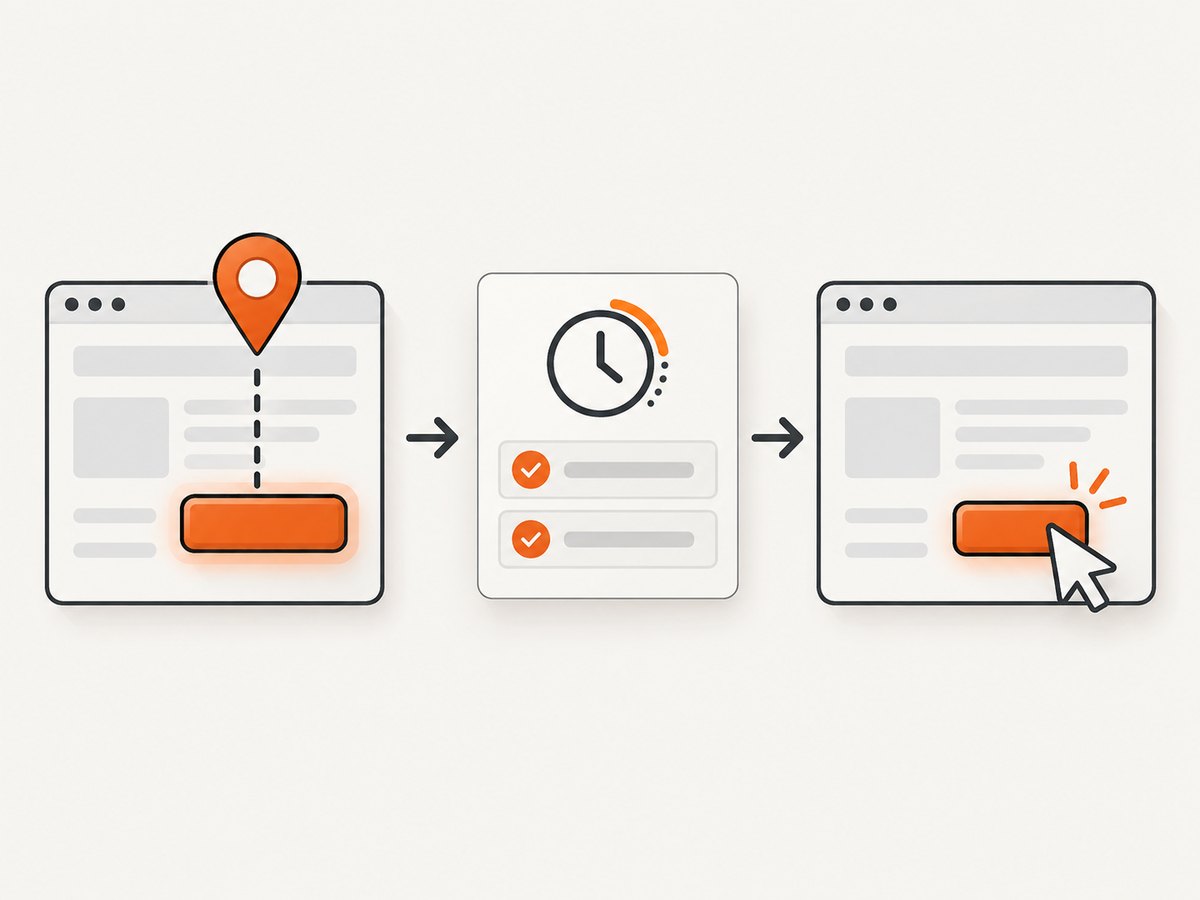
| Condition | Guarantee | Typical use |
|---|---|---|
presence_of_element_located |
Element exists in the DOM | Reading an attribute or waiting for markup |
visibility_of_element_located |
Element exists and is displayed with nonzero size | Reading visible text or preparing interaction |
element_to_be_clickable |
Element is visible and enabled | Normal user-like clicks |
from selenium.common.exceptions import TimeoutException

try:
    button = WebDriverWait(driver, 15).until(
        EC.element_to_be_clickable((By.CSS_SELECTOR, "button.checkout"))
    )
    button.click()
except TimeoutException:
    driver.save_screenshot("checkout-timeout.png")
    raise
Use a page-specific condition when a control becomes ready after validation:
def button_is_ready(d):
    element = d.find_element(By.ID, "submit")
    return element if element.is_displayed() and element.is_enabled() else False

button = WebDriverWait(driver, 10).until(button_is_ready)
button.click()
Do not replace every wait with a fixed sleep. A sleep adds delay when the page is fast and still may be too short when the page is slow.
5. Click elements inside an iframe
An iframe has its own document. Locate the frame, switch into it, find the control, then switch back:
frame = WebDriverWait(driver, 10).until(
    EC.presence_of_element_located((By.CSS_SELECTOR, "iframe.payment"))
)
driver.switch_to.frame(frame)
try:
    pay = WebDriverWait(driver, 10).until(
        EC.element_to_be_clickable((By.NAME, "pay"))
    )
    pay.click()
finally:
    driver.switch_to.default_content()
If frames are nested, switch through each parent frame in order. A locator that works in the top document will not find an element inside a frame.
6. Handle overlays, scrolling, and re-rendering
A cookie banner, modal, sticky header, or loading overlay can intercept a click. Wait for the overlay to disappear, then reacquire the target:
WebDriverWait(driver, 10).until(
    EC.invisibility_of_element_located((By.CSS_SELECTOR, ".loading-overlay"))
)
button = WebDriverWait(driver, 10).until(
    EC.element_to_be_clickable((By.ID, "submit"))
)
button.click()
For an element outside the viewport, scroll it into view before the normal click:
button = WebDriverWait(driver, 10).until(
    EC.visibility_of_element_located((By.ID, "submit"))
)
driver.execute_script(
    "arguments[0].scrollIntoView({block: 'center'});", button
)
WebDriverWait(driver, 10).until(
    EC.element_to_be_clickable((By.ID, "submit"))
).click()
Frameworks can replace a node during rendering. A previously stored WebElement then becomes stale. Catch the condition by locating the element again after the update:
from selenium.common.exceptions import StaleElementReferenceException

for attempt in range(3):
    try:
        WebDriverWait(driver, 5).until(
            EC.element_to_be_clickable((By.ID, "submit"))
        ).click()
        break
    except StaleElementReferenceException:
        if attempt == 2:
            raise
JavaScript click() can bypass parts of the browser's normal interaction model. Treat it as a diagnostic or last resort, not the default replacement for a real WebElement click.
7. Useful locator patterns
# Attribute value
(By.CSS_SELECTOR, "input[name='email']")

# Multiple classes (CSS)
(By.CSS_SELECTOR, "button.primary.confirm")

# Descendant relationship
(By.CSS_SELECTOR, "form#signup button[type='submit']")

# XPath by stable attribute
(By.XPATH, "//input[@aria-label='Search']")

# Relative locator (Selenium 4)
from selenium.webdriver.support.relative_locator import locate_with
(By, "")
email = driver.find_element(
    locate_with(By.TAG_NAME, "input").above({By.ID: "password"})
)
Keep selectors specific enough to avoid accidental first matches, but short enough that a future maintainer can understand them.
8. Troubleshooting checklist
| Error or symptom | Likely cause | Fix |
|---|---|---|
NoSuchElementException |
Wrong selector, wrong page, or lookup ran too early | Verify the URL and DOM, then add an explicit wait |
TimeoutException |
The required state never became true | Choose the correct condition, inspect a screenshot, and check for an iframe or failed load |
ElementClickInterceptedException |
Overlay or another element covers the target | Wait for the overlay to disappear and scroll the target into view |
ElementNotInteractableException |
Element is hidden, disabled, or not a user-facing control | Wait for visibility and enabled state; locate the visible control |
StaleElementReferenceException |
Framework replaced the node | Reacquire the element after rendering |
| Click has no visible result | Wrong duplicate match, validation failure, or navigation is asynchronous | Use find_elements to inspect matches and wait for the post-click state |
| Element is inside a frame | Search is occurring in the top document | Switch to the frame before locating it |
When diagnosing failures, record the current URL, page title, a screenshot, and the number of matches for the selector. These facts usually reveal whether the problem is timing, context, or locator quality.
9. Reliability, performance, and maintainability
- Use one explicit wait object with a sensible timeout instead of repeated sleeps.
- Prefer stable IDs or test attributes agreed with the application team.
- Keep selectors close to the action they support and give important controls descriptive variables.
- Use a shorter timeout for a local, guaranteed-fast state and a longer one for remote pages, but avoid masking broken pages with extreme values.
- After a click, wait for a meaningful result such as a URL change, a new heading, or a success message.
- Close every driver with
quit()so CI workers do not accumulate browser processes. - For parallel jobs, isolate profiles, downloads, ports, and test data.
10. Or skip the browser setup
If your goal is to capture a page or an element image rather than drive a full browser workflow, ScreenshotNeo provides a single HTTP request. It accepts cookie and consent banners like a visitor, removes more than 60 known consent platforms plus newsletter popups and chat widgets, and lets each cleanup step be turned off. Only clean shots are billed: bot checks, CAPTCHAs, blank pages, timeouts, failed loads, and cache hits cost nothing, with the result identified by X-Page-Verdict and X-Billed headers.

See the ScreenshotNeo API documentation for all options, including full-page capture with lazy images, CSS element capture, custom CSS and JavaScript, clicks before capture, waits, request blocking, headers, cookies, user agents, geolocation, PDF output, resizing, caching, signed links, asynchronous jobs, bulk capture, and usage data.
curl -G "https://api.screenshotneo.com/v1/shot" -d access_key=YOUR_API_KEY --data-urlencode url=https://stripe.com -o shot.webpimport requests
r = requests.get(
"https://api.screenshotneo.com/v1/shot",
params={"access_key": "YOUR_API_KEY", "url": "https://stripe.com"},
timeout=90,
)
r.raise_for_status()
open("shot.webp", "wb").write(r.content)const q = new URLSearchParams({ access_key: 'YOUR_API_KEY', url: 'https://stripe.com' });
const res = await fetch(`https://api.screenshotneo.com/v1/shot?${q}`);
if (!res.ok) throw new Error(`HTTP ${res.status}`);
const bytes = Buffer.from(await res.arrayBuffer());
require('fs').writeFileSync('shot.webp', bytes);ScreenshotNeo also includes an MCP server with take_screenshot, get_page_info, and capture_pdf tools for Claude, Cursor, and other MCP clients. The free plan includes 1,000 screenshots each month with no card; paid plans start at $5 for 3,000. Create a free ScreenshotNeo account to try it.
11. FAQ
Should I use CSS selectors or XPath?
Use CSS for concise attribute and structure matching. Use XPath when you need relationships or text conditions. In both cases, anchor the locator to stable attributes.
Does find_element wait automatically?
No. It searches immediately. Use WebDriverWait when the page renders asynchronously.
Why does presence not mean clickable?
Presence only confirms a DOM node exists. It may be hidden, disabled, covered, or still moving. Clickability checks visibility and enabled state.
How do I click the second matching element?
Call find_elements, verify the list contains the intended matches, then select by index or inspect each element's text and attributes.
What is the safest response to a stale element?
Locate the element again after the page update, then perform the action on the fresh reference.


