How to Locate an Element Inside an iFrame with Selenium
Switch Selenium into the right iframe before locating its elements. Learn reliable waits, nested-frame navigation, runnable examples, and fixes for common errors.
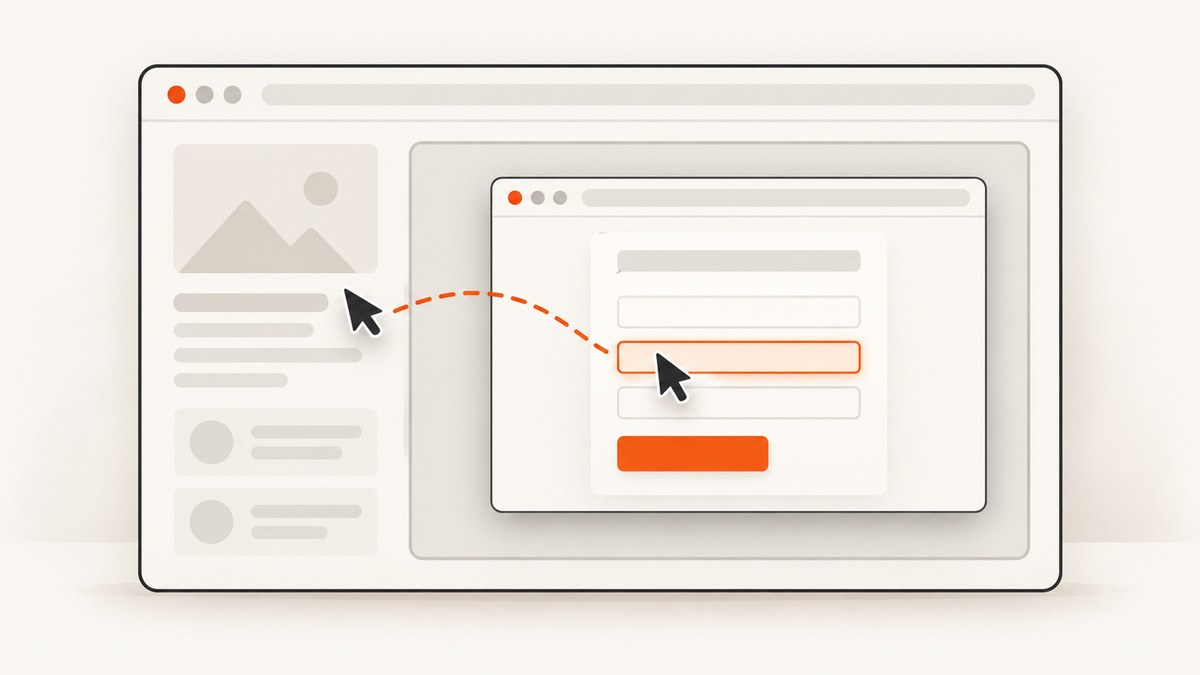
Selenium cannot find an element inside an iframe while it is searching the top-level page. First select the iframe and switch WebDriver into it; then use ordinary locators to find the iframe’s elements. When the frame loads asynchronously, wait for it with Selenium’s frame availability condition, which also switches into it. After you finish, return to the parent frame or the top-level document.
This page covers Python, Java, cURL, and Node.js. The frame-switching examples are Selenium workflows; cURL and Node.js examples near the end show a different option for capturing a web page as an image, not for locating or interacting with DOM elements.
1. Why Selenium cannot see the element
WebDriver searches within its currently selected browsing context. An iframe embeds a separate document, so a lookup issued against the parent document does not search that embedded document. The target can be present and visible in the browser while a top-level find_element still raises NoSuchElementException.
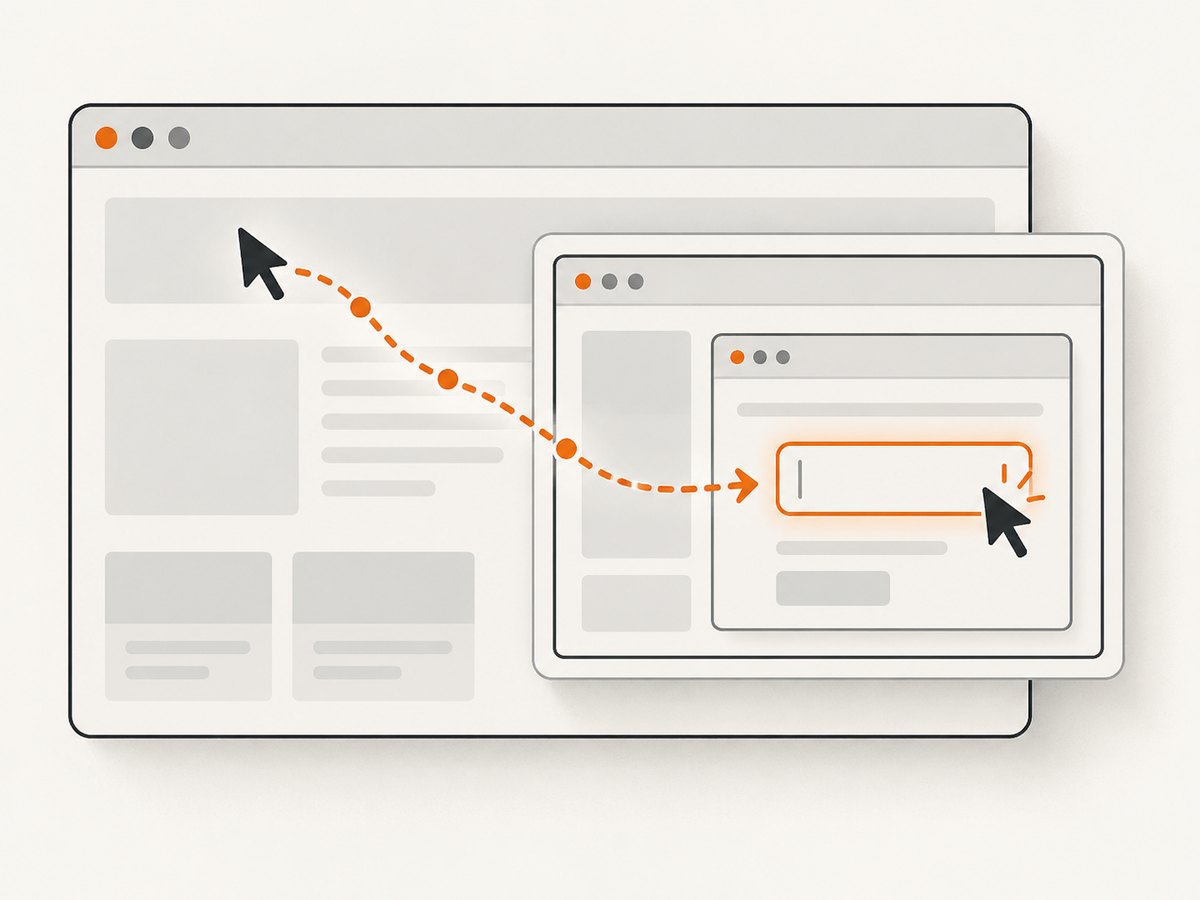
The fix is to identify the iframe in the document that contains it, switch to the frame, and only then look for the target. Selenium’s frame guide explains that interacting with frame content requires switching to that frame, much like switching windows. [Selenium: Working with IFrames and frames]
2. Python: wait for the iframe, switch, and locate the element
Install Selenium with python -m pip install selenium. The example below uses Selenium Manager to obtain a suitable browser driver when needed. It opens a page, waits up to ten seconds for the frame with ID iframe1, enters it, locates an email field, and returns to the top-level page. Replace the example URL and selectors with those on your page.
from selenium import webdriver
from selenium.webdriver.common.by import By
from selenium.webdriver.support import expected_conditions as EC
from selenium.webdriver.support.ui import WebDriverWait

url = "https://www.selenium.dev/selenium/web/iframes.html"
driver = webdriver.Chrome()

try:
    driver.get(url)

    # This wait switches into the frame when it becomes available.
    WebDriverWait(driver, 10).until(
        EC.frame_to_be_available_and_switch_to_it((By.ID, "iframe1"))
    )

    email = driver.find_element(By.ID, "email")
    email.send_keys("admin@selenium.dev")

    # Switch back before interacting with the top-level document.
    driver.switch_to.default_content()
finally:
    driver.quit()
The timeout is an example, not a guarantee that every page loads within ten seconds. Set it to fit the application and test environment. Python’s expected-condition API accepts a locator tuple, a string, or a WebElement; on success, the condition switches into the frame. [Selenium Python expected conditions]
Minimal Python sequence when the frame is ready
If another step already establishes that the iframe is present, the essential sequence is:
iframe = driver.find_element(By.ID, "iframe1")
driver.switch_to.frame(iframe)
email = driver.find_element(By.ID, "email")
driver.switch_to.default_content()
Do not use the child selector until after the switch. Conversely, locate the iframe itself while still in the document that contains it.
3. Choose a reliable way to identify the iframe
Selenium’s Python switch_to.frame accepts a frame WebElement, a string (frame name or ID), or an integer index. [Selenium Python SwitchTo API]
| Reference | Example | When to use it | Trade-off |
|---|---|---|---|
| WebElement | driver.switch_to.frame(iframe) |
The iframe has a stable CSS selector, ID, or other locator. | Usually the clearest option; find the intended frame explicitly. |
| Name or ID | driver.switch_to.frame("payment-frame") |
The page has a stable and unique frame name or ID. | If names or IDs are duplicated, Selenium may select the first match. Make the reference unique. |
| Index | driver.switch_to.frame(0) |
The frame order is known and controlled. | Indexes are zero-based and depend on frame order, which can change as the page changes. |
For example, select by a stable attribute and pass the resulting element:
iframe = driver.find_element(By.CSS_SELECTOR, "iframe[data-testid='checkout-frame']")
driver.switch_to.frame(iframe)
submit = driver.find_element(By.CSS_SELECTOR, "button[type='submit']")
Check that your selector matches exactly the intended iframe. An iframe selector is evaluated in the current document, so if it is nested, you must first switch into its parent frame.
4. Java: use the same frame workflow
In Java, find the iframe as a WebElement, switch into it, locate the child, and restore context when finished. This example uses Selenium 4 and assumes a configured Java project with Selenium on its classpath.
import org.openqa.selenium.By;
import org.openqa.selenium.WebDriver;
import org.openqa.selenium.WebElement;
import org.openqa.selenium.chrome.ChromeDriver;

public class FindInFrame {
    public static void main(String[] args) {
        WebDriver driver = new ChromeDriver();
        try {
            driver.get("https://www.selenium.dev/selenium/web/iframes.html");

            WebElement iframe = driver.findElement(By.id("iframe1"));
            driver.switchTo().frame(iframe);

            WebElement email = driver.findElement(By.id("email"));
            email.sendKeys("admin@selenium.dev");

            driver.switchTo().defaultContent();
        } finally {
            driver.quit();
        }
    }
}
When timing is uncertain, use WebDriverWait with ExpectedConditions.frameToBeAvailableAndSwitchToIt(...). Java provides overloads for locators, strings, indexes, and WebElement references. Pick the overload matching the frame reference you use. [Selenium Java ExpectedConditions API]
5. Nested iframes and context navigation
For nested frames, enter them one at a time from the outside inward. The child iframe is visible to Selenium only after the driver has entered the outer iframe that contains it.
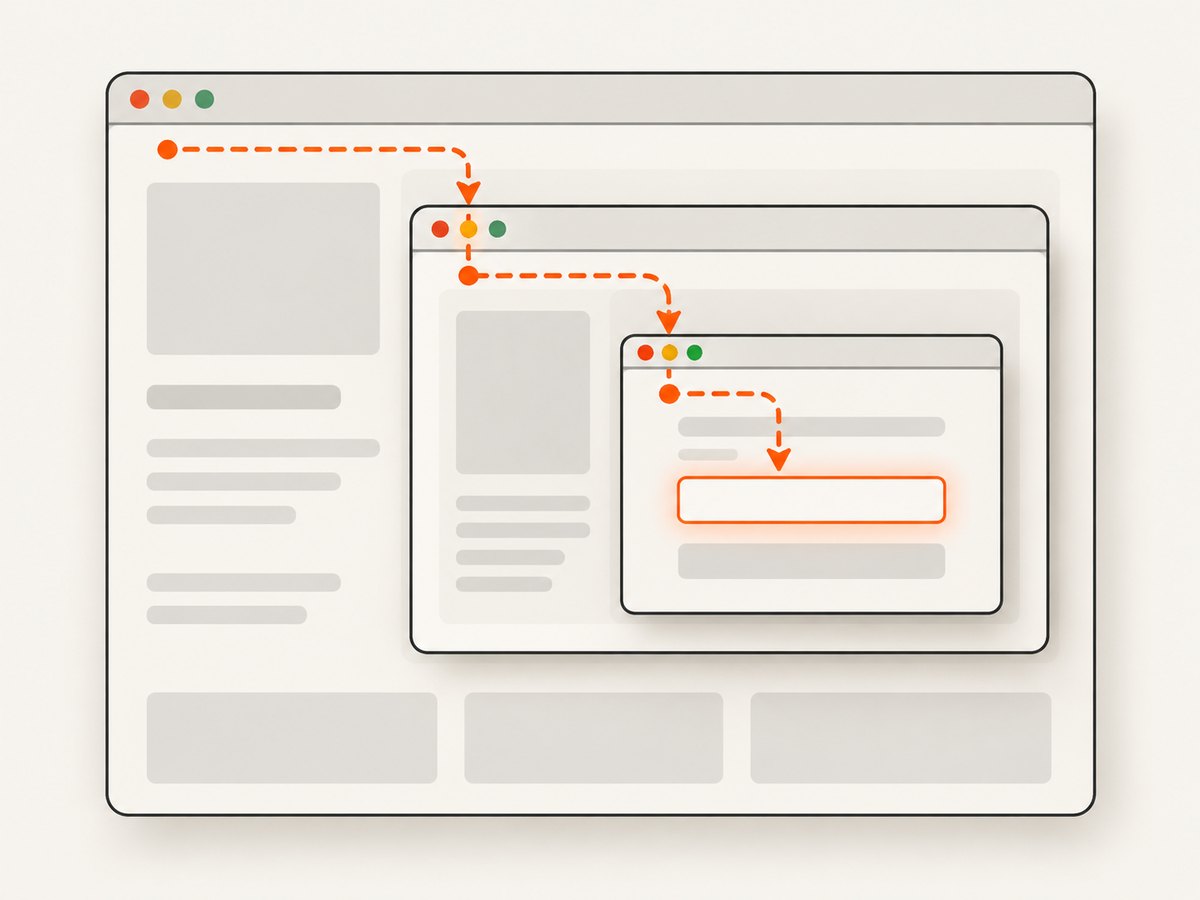
# Start at the top-level document.
outer = driver.find_element(By.CSS_SELECTOR, "iframe.outer")
driver.switch_to.frame(outer)

# Find the child frame in the outer frame's document.
inner = driver.find_element(By.CSS_SELECTOR, "iframe.inner")
driver.switch_to.frame(inner)

target = driver.find_element(By.ID, "submit")
target.click()

# Go up one level, back into the outer frame.
driver.switch_to.parent_frame()

# Or return directly to the top-level document.
driver.switch_to.default_content()
parent_frame() moves up one frame level. default_content() resets directly to the top-level page. Use the first when you still need to work in the parent frame; use the second when the frame interaction is complete. [Selenium Python SwitchTo API]
6. A practical debugging checklist
- Confirm the target is inside an iframe. Inspect the page structure in browser developer tools. If the element belongs to an embedded document, top-level lookup will not find it.
- Find the iframe in its parent context. If it is nested, enter the containing frame first. A frame selector searched from the wrong context can fail too.
- Use a stable and specific reference. Prefer a unique ID or CSS selector and pass the iframe element to
switch_to.frame. Avoid index selection unless ordering is intentionally stable. - Wait for asynchronous frame creation. Use
frame_to_be_available_and_switch_to_itwhen the frame appears after page scripts run. The condition both waits and changes the active context. - Check the current context after each switch. Use
parent_frame()ordefault_content()to get back to the right document before the next lookup. - Check whether the child itself is ready. Frame availability means Selenium can switch into the frame; the target element may still be added later. If so, wait for that target inside the frame.
7. Common errors and their fixes
| Error or symptom | Likely cause | Fix |
|---|---|---|
NoSuchElementException for a visible element |
The driver is still in the parent document, or the selector is wrong. | Switch into the correct iframe first, then verify the child selector against that frame’s document. |
NoSuchFrameException |
The reference does not identify a frame in the current context, or the iframe is not present yet. | Check the parent context and locator; wait for availability if the iframe is created asynchronously. Selenium documents this exception for frame references it cannot find. [SwitchTo API] |
| Frame wait passes, then a child lookup fails | The wait has switched the driver into the frame, but the child is not ready yet or its locator is wrong. | Look up the child after the wait; if needed, wait for the child in the now-active frame. Do not assume the driver remains at top level after the wait. |
| Works on one page but not another | The pages may have different frame structure, or the driver may be left in a previous frame. | Reset with default_content(), inspect the current page structure, and enter frames in order. |
| Wrong frame is selected | A name or ID is not unique, or an index points to a different position after the page changed. | Use a unique iframe locator. Verify duplicate IDs/names and any assumptions about ordering. |
| Stale iframe element | The page replaced or re-rendered the iframe after it was located. | Re-find the iframe after the page update and switch using the fresh element; include the frame lookup in an explicit wait if timing varies. |
8. Reliability, performance, and practical limits
Switching into a frame changes WebDriver’s selected context; it does not make a slow frame load faster. A wait tied to the frame’s actual availability is more reliable than a fixed sleep because it proceeds as soon as the condition is met and stops at the configured timeout. Choose a timeout based on the application’s normal loading behavior and your CI environment; no single value fits every page.
Keep frame selection close to the lookup that depends on it, and restore the context deliberately. This makes failures easier to diagnose and prevents later commands from accidentally searching the wrong document. If the page re-creates an iframe, discard stale references and locate the current frame again.
Locating an element is not the same as capturing a visual screenshot. Selenium is the right path when the task requires DOM interaction, form entry, clicking, or automation in the frame. For a visual capture, a screenshot API can avoid setting up browser automation; it will not provide Selenium-style element interaction or prove that a particular child locator exists.
9. Or skip the browser setup
For a visual screenshot of a page, ScreenshotNeo offers a one-request API. It is a website screenshot API and MCP server for developers from ScreenshotNeo. Its clean-shot flow accepts cookie or consent banners like a visitor and removes more than 60 known consent platforms, newsletter popups, and chat widgets before capture; each step can be turned off. Only clean shots are billed: bot checks or CAPTCHAs, blank pages, timeouts, failed loads, and cache hits cost nothing, and response headers report the page verdict and billing status. Its MCP server provides take_screenshot, get_page_info, and capture_pdf for Claude, Cursor, and other MCP clients. Every plan includes every feature; the free plan includes 1,000 shots each month with no card, and paid plans start at $5 for 3,000 shots. See the ScreenshotNeo API documentation.
curl -G "https://api.screenshotneo.com/v1/shot" \
  -d access_key=YOUR_API_KEY \
  --data-urlencode url=https://stripe.com \
  -o shot.webp
This returns an image capture, not a Selenium-controlled DOM element. Create a free account to get 1,000 screenshots a month with no card: sign up for ScreenshotNeo.
10. FAQ
Can I locate an iframe’s child without switching into the iframe?
No. WebDriver searches the selected document context. Switch to the frame first, then locate its child.
Should I use an index to switch frames?
Only when frame order is stable and known. Indexes are zero-based in Python and can become incorrect when the page structure changes.
What is the difference between parent_frame() and default_content()?
The first moves up one level in a nested frame stack. The second returns directly to the top-level document.
Does waiting for the frame also wait for my target element?
No. It waits until the frame is available and switches into it. Wait for the child separately if the page adds that element later.
Are iframe elements deprecated?
No. Selenium’s guide notes that legacy frames used for page layout are deprecated and less common; that does not mean iframe elements themselves are deprecated.


