How to Make Screenshot Files Smaller on iPhone
Reduce an iPhone screenshot’s file size, crop it to the part you need, or choose a capture format for future screenshots. Learn which option fits your image and sharing needs.
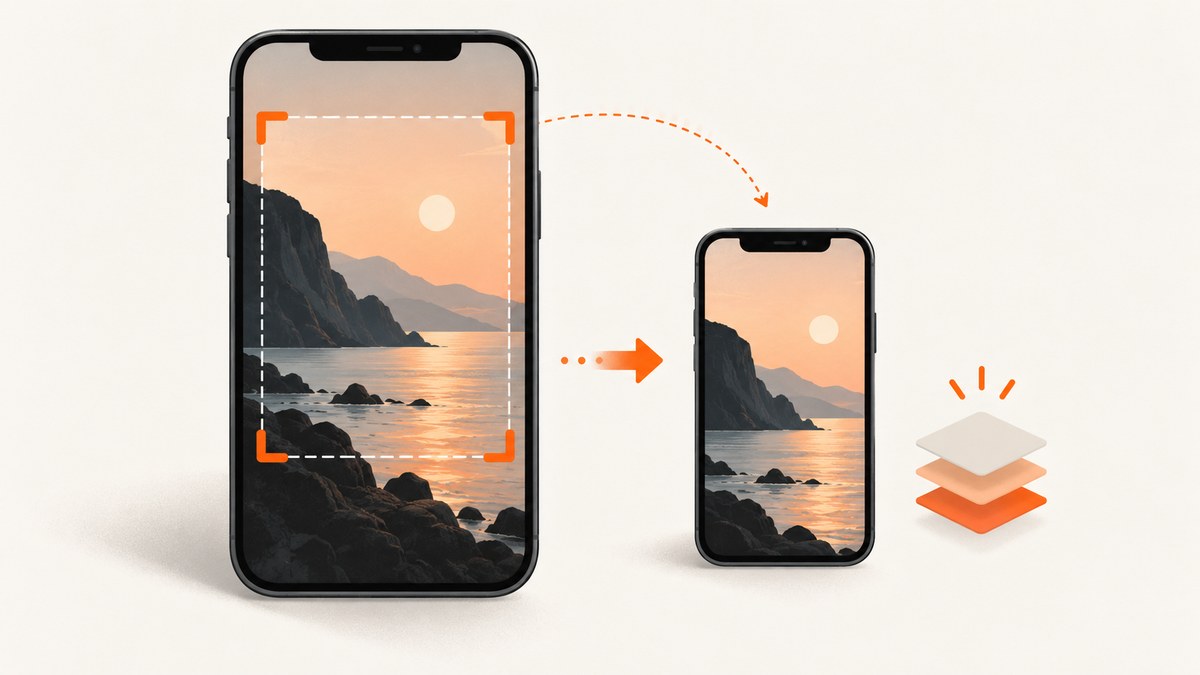
To make an existing iPhone screenshot smaller in bytes, export a copy in Preview as HEIC or JPEG and move the Size slider toward smaller. To make the screenshot smaller on screen, crop it. For screenshots you take in the future, choose SDR in Settings > General > Screen Capture; Apple says SDR screenshots use PNG while HDR screenshots use HEIF. That setting also changes the captured brightness and color, so it does not guarantee a smaller file for every image.
These are different jobs: cropping removes pixels and content, exporting changes how an image is encoded, and Screen Capture settings affect later screenshots. Pick the one that fits the image, quality you need, and destination’s format support.
1. Decide what “smaller” means
| Your goal | Use | What changes |
|---|---|---|
| Keep only the useful part | Crop | Image dimensions and visible content |
| Reduce the saved file’s byte size | Export a copy as HEIC or JPEG in Preview | Encoding and the balance between size and quality |
| Change how future screenshots are captured | Choose SDR or HDR in Screen Capture settings | Capture format and brightness/color presentation |
If the file is too large to upload, cropping can help when surrounding content is unnecessary. If you must preserve the whole screenshot, export a compressed copy. If you only want future screenshots to use Apple’s standard-display option, set SDR. There is no universal percentage or resulting size: it depends on the content and export settings.
2. Make future screenshots use SDR
- Open Settings.
- Tap General, then Screen Capture.
- Select SDR.
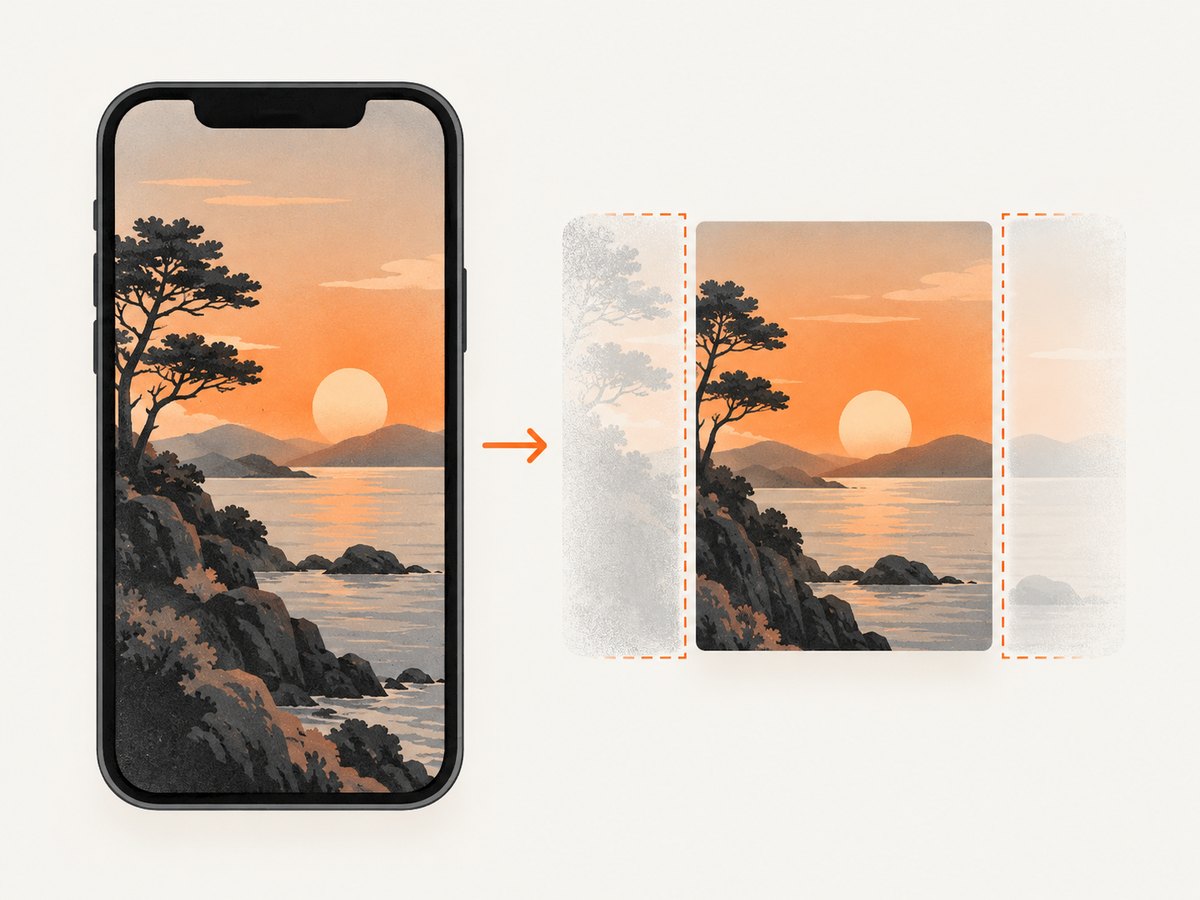
Apple documents SDR screenshots as PNG and HDR screenshots as HEIF. HDR captures more brightness and color for an HDR display; SDR captures less and is the standard option for most computer displays and mobile devices. Changing this setting affects future captures, not screenshots already saved.
Do not treat SDR as a guaranteed compression switch. PNG and HEIF encode images differently, but the actual byte count varies with the screenshot and its visual content. SDR also changes appearance: an HDR screenshot’s extra brightness and color are not retained in the same way. Compare the result on the display and destination that matter to you.
3. Crop an existing screenshot
- Open the screenshot from Photos or its screenshot preview.
- Tap Edit, then choose the crop control.
- Drag the crop handles until only the useful area remains.
- Tap Done to save the edit.
Crop when the extra content does not need to be kept: for example, blank margins, browser chrome, or unrelated parts of a long capture. Fewer pixels can mean a smaller image, but cropping is not the same as compression and does not guarantee a particular file size. Keep an original copy if you may need the full context later.
For a full-page screenshot
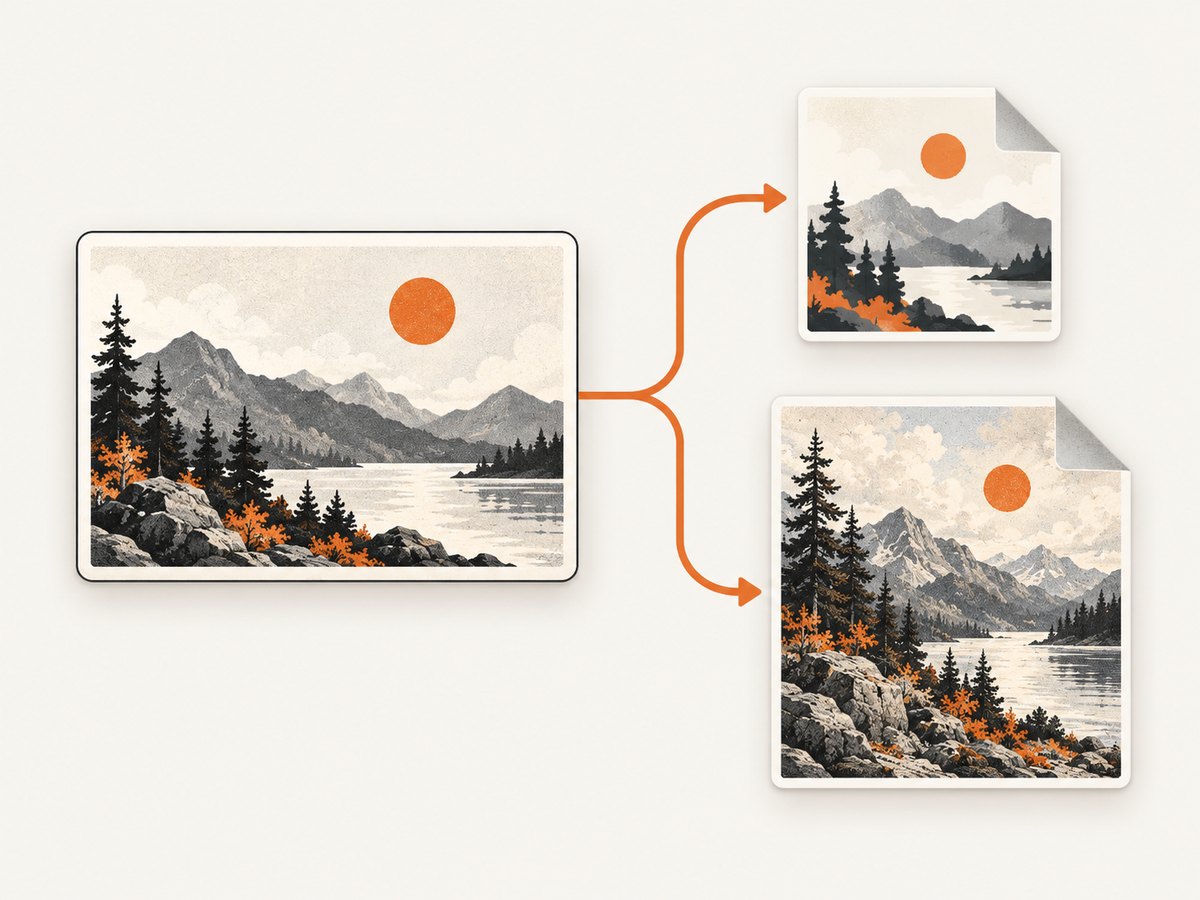
When you take a screenshot of a page and select the full-page view in the preview, crop it to the portion that is actually relevant. Apple’s screenshot guide documents cropping a smaller portion of a full-page screenshot. This can make the result easier to read and share as well as reduce its dimensions. If the recipient needs the entire page, export or share the full capture instead.
4. Export a smaller copy with Preview
Preview on iPhone can export an image as HEIC or JPEG and offers a size slider. The slider trades file size against quality. Exporting creates a copy you can tune while keeping the original available.
- Open the image in Preview.
- Tap the actions menu beside the filename.
- Tap Export.
- Choose HEIC or JPEG.
- Move Size toward the smaller end, then save the exported copy.
- Open the copy and check that text, icons, and fine details are still legible.
Apple describes the slider as a size-versus-quality tradeoff: moving it left makes a smaller file; moving it right favors higher quality. The exact control and available formats can depend on the software version and image. If you do not see Preview or the expected export controls, check your installed iOS version and use the crop and export options available on your device.
HEIC or JPEG?
| Format | Consider it when | Tradeoff |
|---|---|---|
| HEIC | You want a compact copy and know the recipient can open it | Some recipient systems may need a conversion |
| JPEG | You need broad compatibility with older or varied systems | Compression and slider settings still affect quality |
Apple says HEIF offers better compression than JPEG while preserving the same visual quality in its general format guidance. That is not a guarantee that every individual screenshot or export will be smaller. Apple also notes that sharing to a device that does not support newer formats might automatically convert media to a more compatible format such as JPEG. If a file must work in a particular app, test the exported copy there before deleting the original.
5. Check the result before sharing
- Compare bytes: inspect the original and exported copy in the file details or destination app, if it shows file size.
- Check legibility: zoom in on small text, thin lines, and UI icons.
- Check the actual destination: upload the copy to the service or send it to the device that must receive it.
- Keep the original until confirmed: compression or conversion may discard detail, and cropping may remove context.
- Choose by need: use crop if you can omit content, compression if all content must remain, and SDR for future standard-display captures.
Or skip the browser setup
This guide is about iPhone screenshots. If your workflow is capturing website screenshots for development, documentation, or an AI agent, ScreenshotNeo is a website screenshot API and MCP server. One GET request returns a PNG, JPEG, WebP, or PDF; see the API documentation.
curl -G "https://api.screenshotneo.com/v1/shot" -d access_key=YOUR_API_KEY --data-urlencode url=https://stripe.com -o shot.webpimport requests
r = requests.get("https://api.screenshotneo.com/v1/shot", params={"access_key": "YOUR_API_KEY", "url": "https://stripe.com"}, timeout=90)
open("shot.webp", "wb").write(r.content)const q = new URLSearchParams({ access_key: 'YOUR_API_KEY', url: 'https://stripe.com' });
const res = await fetch(`https://api.screenshotneo.com/v1/shot?${q}`);ScreenshotNeo removes cookie banners, newsletter popups, and chat widgets before capture. Bot checks, blank pages, and failed loads are never billed. Its MCP server lets AI agents take screenshots. The free plan includes 1,000 screenshots a month with no card; paid plans start at $5 for 3,000. Sign up for 1,000 free screenshots a month, no card required.
6. Troubleshooting
| Problem | Likely cause | What to try |
|---|---|---|
| The exported file is not much smaller | The image content or slider setting did not yield much additional compression | Try a smaller Size setting and compare copies. Crop unnecessary areas if the full frame is not needed. |
| Text looks blurry or artifacts appear | The export favors a smaller file at the cost of quality | Export again with the slider farther toward higher quality, or use the original. |
| The recipient cannot open the file | Their device or app may not support HEIC/HEIF | Export a JPEG copy and confirm it opens in the destination app. |
| Screen Capture is missing from Settings | Settings and features can vary with iOS version and device | Check the installed iOS version and use available crop or export controls; do not assume the menu is identical on every device. |
| The screenshot still looks different after choosing SDR | SDR changes brightness and color presentation compared with HDR | Choose the capture setting that suits the display and content. SDR is not solely a file-size control. |
| The original changed after cropping | The edit may have been applied to the saved image | Keep a duplicate before editing when the full capture matters; export a separate copy for compression. |
7. Performance, reliability, and storage notes
There is no screenshot-specific size reduction figure in Apple’s cited guidance, so plan to inspect each exported result rather than rely on a promised percentage. The efficient sequence is to discard unneeded content first, then choose a format and quality setting, then verify both appearance and compatibility. This avoids spending time compressing pixels you do not need while preserving the option to return to the original.
For a one-off upload limit, make a copy and adjust it until the destination accepts it. For repeated captures, SDR may suit standard-display use, but remember that it changes the visual representation as well as the format. For archival or review workflows where exact detail matters, keep the original and share a compressed derivative. Cloud sharing services can also transform images, so judge the file that reaches the recipient rather than assuming it is unchanged.
8. Frequently asked questions
Does changing Screen Capture shrink screenshots I already took?
No. It affects later captures. Export existing images in Preview or crop them.
Is SDR always smaller than HDR?
Apple documents different formats and image characteristics, not a guaranteed byte-size result for every screenshot. Compare actual files if size is the deciding factor.
Will cropping always reduce the file size?
It removes image area and is useful when that content is unnecessary, but the saved byte count depends on the image and how it is saved. Check the result.
Should I delete the original after exporting?
Keep it until you have checked readability and confirmed the exported format works at its destination.


