How to Make a Screenshot Editable
Use OCR to turn screenshot pixels into editable text, with complete OneNote, Acrobat, Lens, quality-control, and ScreenshotNeo workflows.
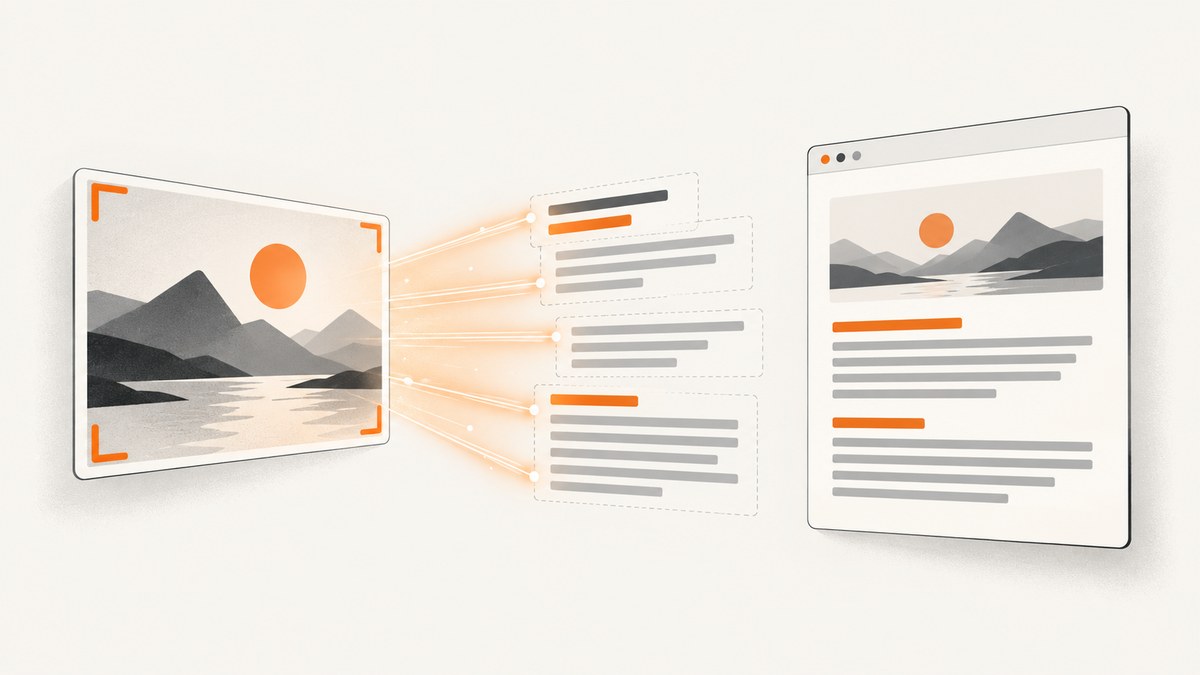
Short answer: a screenshot is a raster image, so its letters are pixels rather than editable characters. To edit the wording, run optical character recognition (OCR), copy the recognized text into an editor, or create an OCR text layer in a PDF. OCR gives you selectable and editable text; it does not turn the original screenshot pixels into a native design file.
This guide covers the practical choices for an existing screenshot: OneNote desktop for quick copy and paste, Acrobat for a searchable and editable PDF, and Microsoft Lens when you can recapture a document into Word. It also explains image preparation, review, edge cases, and an API option when you need clean screenshots before OCR.
1. Choose the editable result you need
| Goal | Best-fit workflow | What you receive |
|---|---|---|
| Reuse a few words in another app | OneNote desktop OCR | Recognized text on the clipboard |
| Keep the page as a document and edit it | Acrobat OCR | Searchable PDF with an editable text layer |
| Turn a photographed document into Word | Microsoft Lens | Word file with editable text and layout |
| Preserve the screenshot exactly | Keep the image and add a separate text transcript | Original pixels plus corrected text |
Use the first workflow for a quote, error message, or short paragraph. Use Acrobat when page boundaries, images, and a searchable archive matter. Lens is capture-oriented: it is useful when you can photograph or rescan the source, while OneNote or Acrobat is more direct for a screenshot you already have.
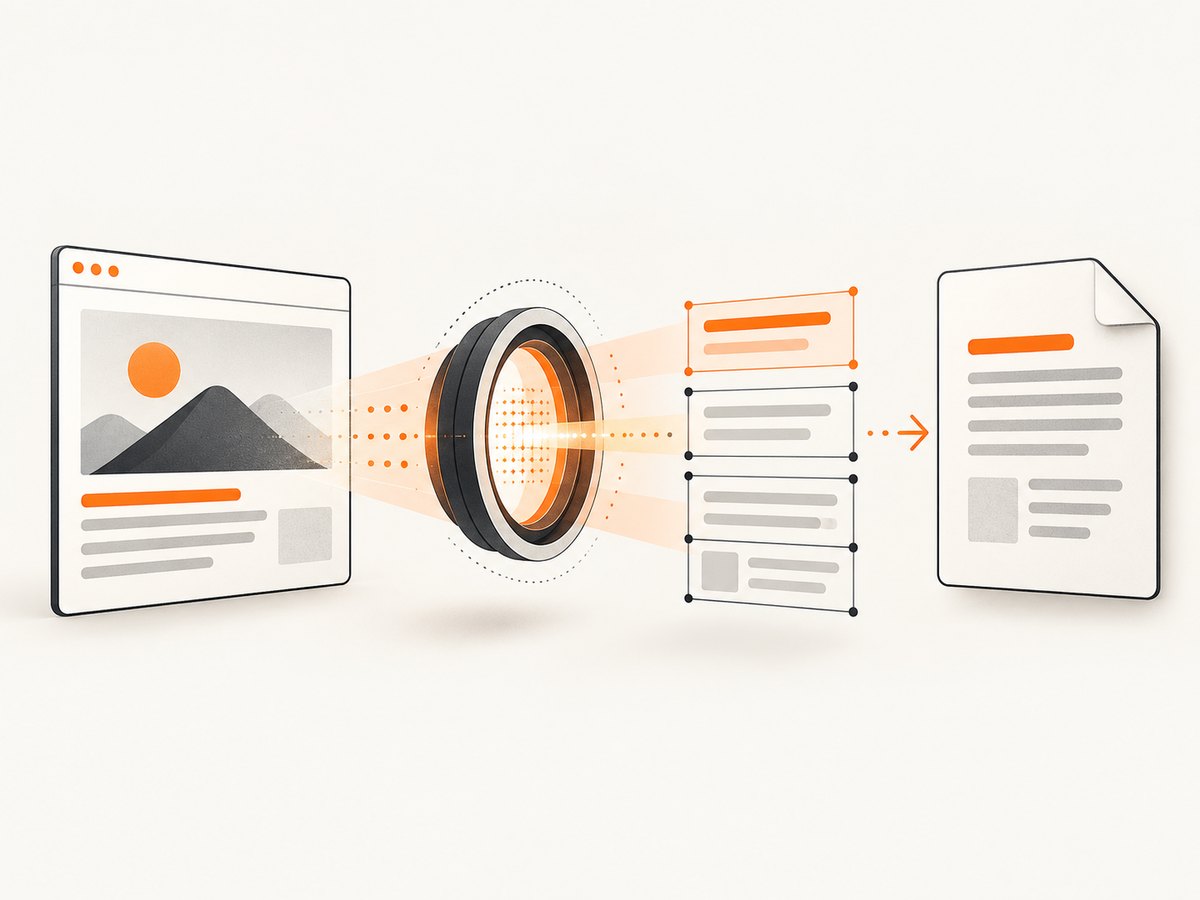
2. Prepare the screenshot for OCR
- Start with the original file instead of a compressed copy or a screenshot of a screenshot.
- Crop away browser chrome, margins, and decorative backgrounds that can confuse segmentation.
- Upscale small text before recognition and increase contrast when characters blend into the background. Adobe recommends enhancing blurry or low-resolution images before editing a scanned PDF.
- Keep text horizontal where possible. Rotate pages and split two-column layouts if the OCR tool reads columns in the wrong order.
- For tables, preserve the grid in the source and plan to verify every cell. OCR can return a visually similar line of text while losing the table structure.
Image quality and legibility control recognition quality. Stylized fonts, handwriting, shadows, gradients, and very small type require more correction. Keep the image beside the extracted text while proofreading.
3. OneNote desktop: copy text from a screenshot
OneNote desktop can recognize text in a picture and put the result on the clipboard. Microsoft documents this for Windows and Mac desktop apps. The web version does not provide the picture-copy command, so use the desktop app for this workflow.
- Open a notebook section in OneNote desktop.
- Insert the screenshot with Insert > Pictures, or paste it onto a page.
- Right-click the picture and choose Copy Text from Picture.
- Paste into OneNote, a text editor, Word, or your issue tracker.
- Compare the pasted text with the image. Correct names, numbers, punctuation, code symbols, and line breaks.
The command can be unavailable while recognition is processing. Microsoft notes that availability depends on complexity, legibility, and text volume, and some recognition results may take 24–48 hours. That timing is a documented possibility, not a promise that every image waits that long.
When OneNote output needs cleanup
- Code screenshots: OCR commonly confuses
0/O,1/l/I, braces, and indentation. Treat the result as a draft and run it through a formatter or compiler. - Columns: paste each column separately if the reading order interleaves lines.
- Links: inspect punctuation around periods, slashes, and query strings before clicking or copying.
- Lists: restore bullets and numbering manually if the source uses decorative glyphs.
4. Acrobat: make an image-based PDF searchable and editable
Acrobat is the document workflow when the screenshot is already inside a PDF or when you want a PDF deliverable. Adobe’s desktop instructions say that opening a scanned or image-based PDF and choosing Edit automatically applies OCR and creates an editable copy. For an explicit pass, use All tools > Scan & OCR > Recognize text.
- Open the image-based PDF in Acrobat. If you only have a PNG or JPEG, create a PDF from that image first.
- Choose Edit, or open All tools > Scan & OCR and select Recognize text.
- Choose the page range and language options offered by your Acrobat version.
- Click a recognized text element, type the replacement, and save an edited copy.
- Search for several distinctive words to confirm that the PDF has a text layer. Review uncertain words and correct them before delivery.
Adobe describes a review flow for text-recognition errors: inspect uncertain words, compare them with the scan, and accept or replace each result. If the image is blurry or low resolution, enhance it first. OCR may preserve the appearance while changing spacing, font substitution, or line wrapping, so compare the edited PDF with the source page.
PDF edge cases
- Multi-page scans: run OCR across all pages, then search for a word on the last page to verify the range.
- Rotated pages: rotate before recognition; otherwise reading order and text coordinates can be wrong.
- Forms and tables: OCR recognizes words but does not guarantee that fields, rows, or formulas become structured data.
- Protected files: permissions or a password can prevent editing. Obtain an authorized editable copy instead of trying to bypass controls.
5. Microsoft Lens: capture into an editable Word file
Microsoft Lens for Android documents a capture path that outputs a Word file with extracted text, formatting, and layout. Open Lens, select the document capture mode, frame the page, capture it, choose Word as the output, and open the resulting document for correction. This is most useful when you can recapture a paper document or display. For an existing desktop screenshot, OneNote or Acrobat usually involves fewer steps.
6. Make the result trustworthy
- Proofread high-risk characters. Check dates, decimal points, currency symbols, account IDs, URLs, commands, and filenames character by character.
- Compare layout separately from wording. OCR can recognize every word while losing columns, indentation, superscripts, or table borders.
- Keep provenance. Save the original screenshot next to the OCR output and record the page or crop used.
- Run a second pass on critical text. Re-crop a difficult line, enlarge it, and recognize only that region.
- Search for omissions. Count headings or list items in the image and confirm the same count in the extracted text.
Do not publish OCR output without review when a single character changes meaning. The official OneNote guidance explicitly recommends looking over copied text, and Acrobat provides tools to inspect uncertain words.
7. Automate clean source screenshots with ScreenshotNeo
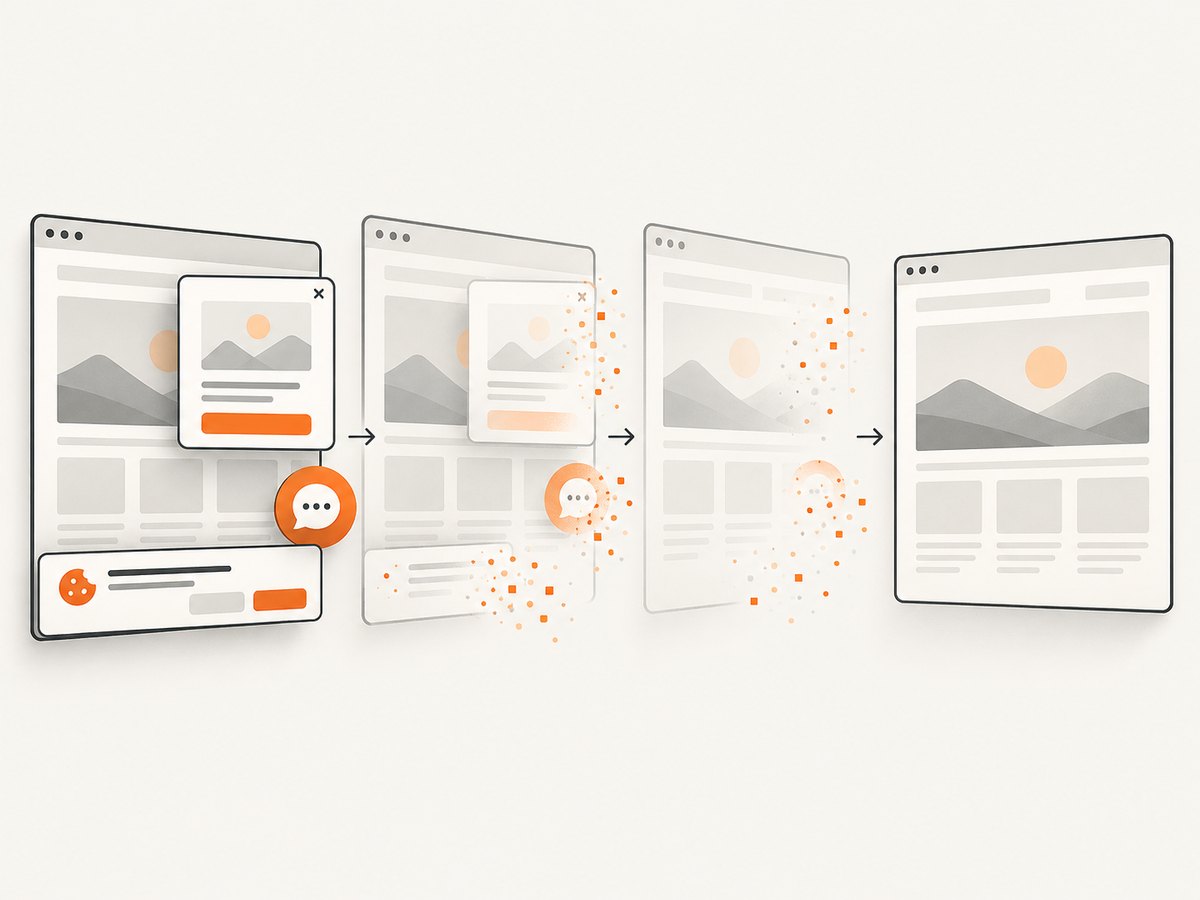
If the screenshot comes from a live web page, browser automation adds setup, waits, cookie banners, popups, and bot checks before OCR even starts. ScreenshotNeo is a website screenshot API and MCP server. It accepts one GET request and returns PNG, JPEG, WebP, or PDF. Before capture it can accept consent banners and remove more than 60 known consent platforms, newsletter popups, and chat widgets; each step can be turned off. Clean shots are billed only when a clean page is returned: bot checks or CAPTCHAs, blank pages, timeouts, failed loads, and cache hits cost nothing, and the response identifies the result with X-Page-Verdict and X-Billed headers.
Or skip the browser setup:
cURL
curl -G "https://api.screenshotneo.com/v1/shot" -d access_key=YOUR_API_KEY --data-urlencode url=https://stripe.com -o shot.webpPython
import requests
r = requests.get("https://api.screenshotneo.com/v1/shot", params={"access_key": "YOUR_API_KEY", "url": "https://stripe.com"}, timeout=90)
open("shot.webp", "wb").write(r.content)
Node.js
const q = new URLSearchParams({ access_key: 'YOUR_API_KEY', url: 'https://stripe.com' });
const res = await fetch(`https://api.screenshotneo.com/v1/shot?${q}`);
See the ScreenshotNeo documentation for the full parameter set. You can request full-page capture with lazy images loaded, an element by CSS selector, dark mode, device presets or any viewport, retina scale, PDF paper size and margins, custom CSS and JavaScript, clicks, selector or network-idle waits, ad and tracker blocking, headers, cookies, user agents, Authorization, timezone, geolocation, transparent backgrounds, resizing, a chosen cache TTL, signed links, asynchronous jobs with signed webhooks, bulk capture for up to 100 URLs per call, usage data, and the OpenAPI specification. Parameter names used by other screenshot APIs also work, which simplifies migration.
The MCP server exposes take_screenshot, get_page_info, and capture_pdf to Claude, Cursor, and other MCP clients. That lets an AI agent obtain a clean source image before sending it to an OCR step.
8. Troubleshooting checklist
| Symptom | Likely cause | Fix |
|---|---|---|
| “Copy Text from Picture” is missing | OneNote is still processing, or you are using OneNote for the web | Wait, then use the desktop app; the web app does not expose this command. |
| Words are scrambled | Columns, rotation, or complex layout | Rotate and crop; recognize columns separately; rebuild layout manually. |
| Many character errors | Blur, low resolution, contrast, or stylized type | Use the clearest source, enhance it, enlarge the crop, and proofread. |
| PDF looks editable but search finds nothing | OCR was not applied or the page range was skipped | Run Scan & OCR > Recognize text across the required pages, then test a distinctive word. |
| Screenshot API returns a bot-check page | The target challenged the capture | Inspect X-Page-Verdict; adjust waits or headers only when authorized. The failed result is not billed by ScreenshotNeo. |
| Image is blank or times out | Page failed to load or needed more wait time | Use a selector, delay, or network-idle wait; check the verdict header. Blank and failed loads are not billed. |
9. Performance, reliability, and cost notes
OCR quality is usually limited by the source image, so spend effort on capture resolution and cropping before changing tools. For repeated web captures, cache with a TTL you choose, request only the element or page region needed, and use bulk capture for up to 100 URLs per call. Async jobs and signed webhooks fit long-running batches. Keep timeouts explicit in client code and log the verdict and billed headers so retries do not create surprises.
ScreenshotNeo has a Free plan with 1,000 shots per month and no card. Paid plans are Starter $5 for 3,000, Growth $15 for 15,000, Pro $39 for 60,000, Scale $99 for 250,000, and Business $249 for 1,000,000; yearly billing gives two months free, and every feature is on every plan. Only clean shots are billed, while cache hits and failed or blocked captures are free.
10. FAQ
Can I edit the letters directly inside a PNG?
No. PNG, JPEG, and WebP store pixels. OCR creates separate text that you can edit, or a PDF text layer that sits over the image.
Will OCR preserve the exact font?
Not reliably. It aims to recognize characters; editable output may substitute fonts and change spacing. Keep the screenshot as the visual source of truth.
Is OneNote for the web enough?
No for this command. Microsoft’s support page directs users to OneNote desktop because the web version does not support copying text from inserted pictures.
Should I use Lens for an existing screenshot?
Use Lens when you can recapture a document into Word. For a file already on your computer, OneNote desktop or Acrobat is the more direct route.
Can an AI agent automate the capture step?
Yes. ScreenshotNeo’s MCP server provides take_screenshot, get_page_info, and capture_pdf for MCP clients such as Claude and Cursor.
11. Start with a clean, editable source
For a screenshot you already own, run OCR and review the output against the pixels. For a live URL, let ScreenshotNeo remove cookie banners, popups, and chat widgets before capture; bot checks, blank pages, and failed loads are never billed; its MCP server lets AI agents take screenshots; and 1,000 screenshots a month are free with no card while paid plans start at $5 for 3,000. Create your free ScreenshotNeo account.


