How to Make SelectPdf Match the Rendered ASPX Page
Match SelectPdf to the ASPX page users see by aligning the browser width, engine, CSS media, authentication, assets, and JavaScript timing.
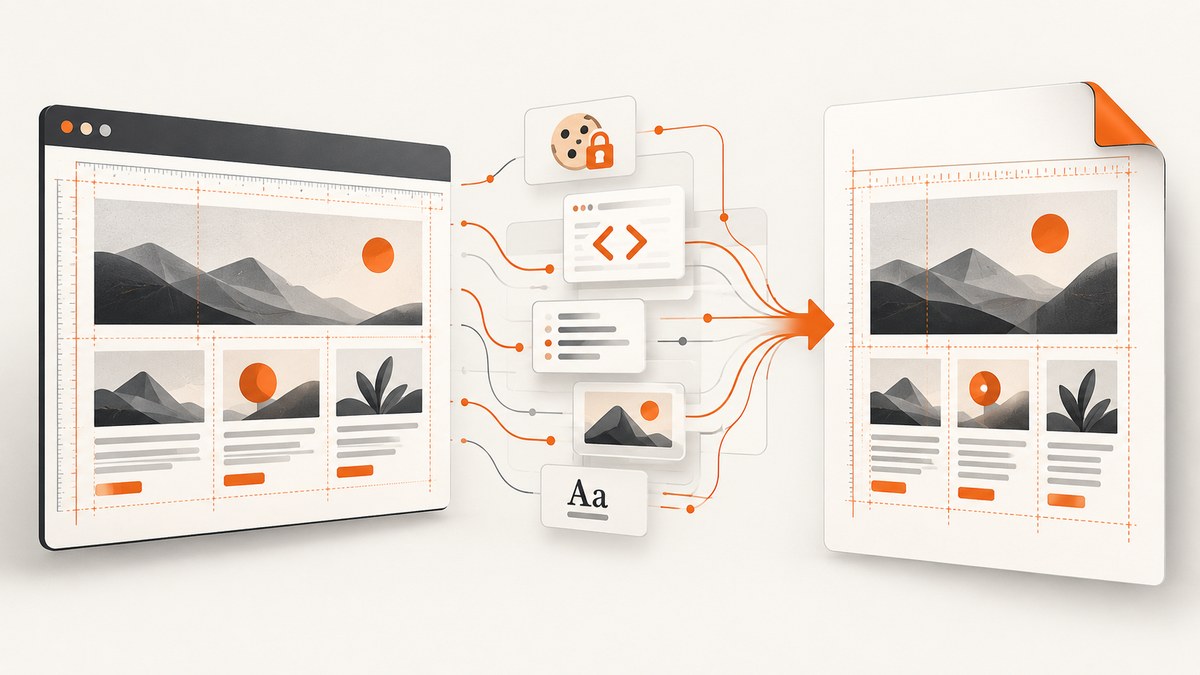
Use the same URL, session, viewport width, rendering engine, CSS media, and load-completion conditions that produced the browser view. For an authenticated ASPX page, forward the ASP.NET Forms Authentication cookie and make every referenced stylesheet, script, image, font, and data endpoint reachable. Use Blink or Chromium when the page depends on modern HTML5, CSS3, or JavaScript; keep Screen media for the normal browser appearance; and wait until deferred controls and lazy content finish.
SelectPdf renders through an internal browser. A PDF can therefore differ even when the ASPX source is unchanged: a different viewport can activate another responsive breakpoint, a different engine can miss modern JavaScript or CSS, print media can replace the screen stylesheet, and protected child resources can fail after the main page loads. The controls described in the SelectPdf documentation let you align those conditions, but pixel-identical output still needs validation against the specific page and data state.
1. Start with the browser conditions that matter
Before changing code, record the conditions of the browser view you want to reproduce:

- The exact URL, including query-string state.
- The effective layout width, such as 1280 or 1440 CSS pixels, rather than the physical monitor width.
- Whether the browser used Screen or Print CSS.
- The authenticated session and any tenant, locale, or feature flags stored in cookies.
- Which content appears after page load: data-bound controls, charts, lazy images, fonts, or client-side templates.
- The browser engine and JavaScript features used by the page.
Capture a reference screenshot at that width, then compare the PDF after each configuration change. Change one variable at a time so you can identify whether a mismatch is caused by layout, resources, authentication, or timing.
2. Convert the URL, or provide a correct base URL
Prefer ConvertUrl(url). SelectPdf then navigates to the page and requests its dependent resources as a browser would. If you already have an HTML string, use ConvertHtmlString(html, baseUrl); the base URL is required for relative CSS, image, font, and script references.
var converter = new HtmlToPdf();
var pdf = converter.ConvertUrl("https://app.example.com/report.aspx?id=42");
pdf.Save("report.pdf");
pdf.Close();
A common failure mode is an HTML string containing <link href="/css/site.css"> or <img src="images/logo.png"> without a base URL. The document shell loads, but styles and images disappear because the converter has no origin from which to resolve those paths.
var converter = new HtmlToPdf();
string html = File.ReadAllText("report.html");
var pdf = converter.ConvertHtmlString(html, "https://app.example.com/");
pdf.Save("report.pdf");
pdf.Close();
3. Match the internal viewport width
Set WebPageWidth to the width that produced the desired ASPX layout. SelectPdf documents 1024 px as the default. If the browser reference was captured at 1440 px, leaving the default can trigger a tablet or compact breakpoint, alter grid columns, wrap headings, and change control visibility.
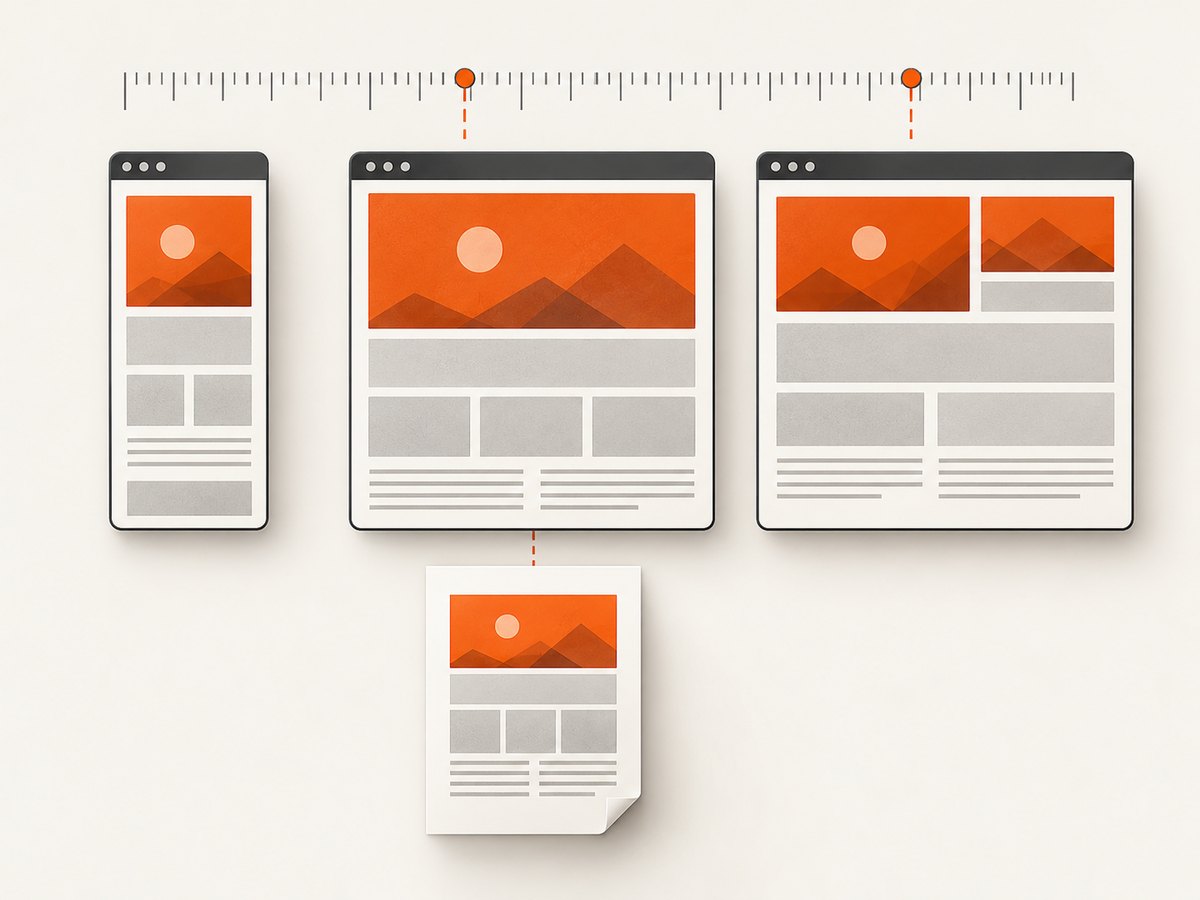
var converter = new HtmlToPdf();
converter.Options.WebPageWidth = 1440;
var pdf = converter.ConvertUrl(url);
pdf.Save("report.pdf");
pdf.Close();
Set WebPageHeight only when a fixed viewport height is part of the design. For normal full-page documents, let the converter paginate the content. A forced height can clip a dashboard, change viewport-height media queries, or make a script believe the page is shorter than it is.
How to find the correct width
- Open the ASPX URL in the browser at the target window size.
- Inspect the CSS breakpoints that control the differing region.
- Record the browser’s CSS viewport width.
- Set
WebPageWidthto that value and compare the first page. - Repeat only if the page intentionally uses a different print layout.
4. Choose WebKit, Blink, or Chromium deliberately
| Engine | Use when | Watch for |
|---|---|---|
| WebKit | The page targets traditional CSS and ES5 JavaScript, or depends on WebKit-specific legacy behavior. | Modern CSS, HTML5 APIs, and newer JavaScript may not render correctly. |
| Blink | The page uses modern CSS3, HTML5, or ES6 JavaScript. | Validate any WebKit-only partial-page workflow. |
| Chromium | The page needs current Chromium behavior, modern HTML5/CSS3, or ES2020+ JavaScript. | Confirm the installed SelectPdf package supports the engine and authenticated navigation. |
SelectPdf’s guidance is to switch to Blink or Chromium when modern CSS3, HTML5, or JavaScript is not rendered correctly by WebKit. The engine choice does not repair missing cookies, inaccessible assets, or scripts that have not finished; solve those separately.
var converter = new HtmlToPdf();
converter.Options.RenderingEngine = RenderingEngine.Chromium;
converter.Options.WebPageWidth = 1440;
var pdf = converter.ConvertUrl(url);
pdf.Save("report.pdf");
pdf.Close();
Enum and property names can vary between SelectPdf package generations. Check the API reference for the version installed in your application before copying the declaration verbatim.
5. Match Screen versus Print CSS
Use Screen media when the target is the normal browser appearance. Enable Print media only when the intended design is defined by @media print. Print rules commonly remove navigation, change colors, resize tables, or hide controls, so enabling them can look like a rendering bug when it is actually a different stylesheet set.
var converter = new HtmlToPdf();
converter.Options.CssMediaType = CssMediaType.Screen;
var pdf = converter.ConvertUrl(url);
pdf.Save("screen-layout.pdf");
pdf.Close();
For a deliberately print-designed report:
var converter = new HtmlToPdf();
converter.Options.CssMediaType = CssMediaType.Print;
var pdf = converter.ConvertUrl(url);
pdf.Save("print-layout.pdf");
pdf.Close();
6. Wait for ASP.NET controls, images, and scripts
A page can return HTTP 200 before it is visually complete. Web Forms controls may bind through client-side code, charts may draw after a data request, and lazy images may load only after layout. Increase MinPageLoadTime so SelectPdf does not convert the intermediate state. Set MaxPageLoadTime high enough for server and browser work; the documented default maximum is 30 seconds, with an allowed maximum of 120 seconds.
var converter = new HtmlToPdf();
converter.Options.RenderingEngine = RenderingEngine.Chromium;
converter.Options.WebPageWidth = 1440;
converter.Options.MinPageLoadTime = 2;
converter.Options.MaxPageLoadTime = 60;
converter.Options.CssMediaType = CssMediaType.Screen;
var pdf = converter.ConvertUrl(url);
pdf.Save("report.pdf");
pdf.Close();
The documented conversion-delay example uses a two-second minimum and a 30-second maximum. Treat those as starting points, not universal values. A deterministic page can use a post-load script or an explicit manual startup signal when your SelectPdf package exposes that control. A fixed delay is easier to add but less reliable when data or images vary in duration.
Make completion deterministic
- Wait for a selector that only appears after the final control has bound.
- Wait for network idle when supported by your engine and package.
- Use a page-side completion flag or startup callback after charts and images finish.
- Reserve a delay for third-party resources whose completion cannot be signaled reliably.
Do not solve a missing element by adding an arbitrarily large delay. First check whether the request is blocked, whether the selector is wrong, or whether the page requires an authenticated API call.
7. Forward ASP.NET Forms Authentication
If the ASPX page requires Forms Authentication, copy the browser’s forms-authentication cookie into converter.Options.HttpCookies. Loading the public login redirect instead of the report is one of the clearest signs that the session was not forwarded.
var converter = new HtmlToPdf();
converter.Options.RenderingEngine = RenderingEngine.Chromium;
converter.Options.WebPageWidth = 1440;
converter.Options.MinPageLoadTime = 2;
converter.Options.MaxPageLoadTime = 60;
converter.Options.CssMediaType = CssMediaType.Screen;

string cookieName = System.Web.Security.FormsAuthentication.FormsCookieName;
var authCookie = Request.Cookies[cookieName];
if (authCookie != null)
{
    converter.Options.HttpCookies.Add(cookieName, authCookie.Value);
}

var pdf = converter.ConvertUrl(url);
pdf.Save(Response, false, "report.pdf");
pdf.Close();
The main page can be authenticated while its child resources are not. CSS, JavaScript, images, fonts, and data endpoints must either allow the converter’s authenticated request or be anonymously reachable. SelectPdf’s authentication guidance specifically warns that protected external resources can disappear even when the main HTML loads.
Cookie checklist
- Use the same host and scheme as the browser session where possible.
- Forward every cookie required by the page, not only the login cookie, when tenant or locale state depends on additional cookies.
- Confirm that redirects do not send the converter to a login page.
- Check that asset URLs use a host where the cookie is valid.
- Do not log cookie values.
8. Complete configuration example
This pattern combines the settings that most often control ASPX fidelity. Adapt names to the SelectPdf SDK version installed in your project and use the real width of the reference browser.
using SelectPdf;
using System;
using System.Web;

public void WriteReport(HttpResponse response, string url)
{
    var converter = new HtmlToPdf();
    converter.Options.RenderingEngine = RenderingEngine.Chromium;
    converter.Options.WebPageWidth = 1440;
    converter.Options.MinPageLoadTime = 2;
    converter.Options.MaxPageLoadTime = 60;
    converter.Options.CssMediaType = CssMediaType.Screen;

    string cookieName = System.Web.Security.FormsAuthentication.FormsCookieName;
    HttpCookie authCookie = HttpContext.Current.Request.Cookies[cookieName];
    if (authCookie != null)
    {
        converter.Options.HttpCookies.Add(cookieName, authCookie.Value);
    }

    PdfDocument pdf = converter.ConvertUrl(url);
    pdf.Save(response, false, "report.pdf");
    pdf.Close();
}
9. Troubleshooting mismatches
| Symptom | Likely cause | Fix |
|---|---|---|
| Columns stack or wrap differently | Internal width does not match the browser breakpoint. | Set WebPageWidth to the reference CSS viewport width. |
| Modern widgets are blank | WebKit cannot execute the page’s modern JavaScript or CSS. | Use Blink or Chromium and verify the package version. |
| PDF looks like a print stylesheet | Print media is enabled. | Set CssMediaType.Screen for browser appearance. |
| Only the login page appears | Forms Authentication cookie was not forwarded or expired. | Copy the active forms-authentication cookie and inspect redirects. |
| Styles load but images or fonts do not | Relative URLs lack a base URL, or child resources require authentication. | Use ConvertUrl or pass baseUrl; authorize every asset. |
| Charts or data-bound controls are missing | Conversion starts before deferred JavaScript completes. | Increase MinPageLoadTime, set a suitable maximum, and use a deterministic completion signal. |
| Some pages time out | Server work, third-party resources, or blocked requests exceed the load window. | Raise MaxPageLoadTime within the documented limit, remove unnecessary dependencies, and inspect the slow request. |
BadImageFormatException |
x86/x64 process and SelectPdf package architecture do not match. | Align the process architecture with the installed package. |
| HTML string conversion loses assets | No origin exists for relative references. | Pass the deployed site URL as baseUrl. |
| Output differs only for one tenant | Tenant, locale, or feature-flag cookies were omitted. | Forward the complete required session state and confirm the target URL. |
10. A repeatable diagnostic order
- Open the exact URL with the same account and confirm the browser view is correct.
- Set
WebPageWidthto the browser’s CSS viewport width. - Keep Screen media unless the target explicitly uses print CSS.
- Switch to Blink or Chromium if the page uses modern JavaScript or CSS.
- Forward Forms Authentication and any tenant or locale cookies.
- Verify that every stylesheet, script, image, font, and data endpoint is reachable.
- Increase the minimum and maximum load times, then wait for a real completion condition.
- Check deployment architecture if the converter fails before producing a document.
11. Performance, reliability, and cost considerations
Performance
Large widths, full-page layouts, many images, charts, and third-party scripts increase rendering work. Request only the page state needed for the PDF, avoid unnecessary trackers on the conversion route, and keep asset URLs close to the converter to reduce network delay. A short minimum delay improves throughput but is safe only when the page has a deterministic completion signal.
Reliability
Use stable URLs and explicit authentication. Record the selected engine, width, media type, and timing values with each conversion so a later layout change can be explained. Validate fonts and images in the deployed environment rather than relying on local development paths. No documentation-based setting guarantees pixel equality for every ASPX page; compare representative states, including empty data, long values, and the largest expected table.
Cost and operational limits
SelectPdf is an application component, so your costs come from the hosting process, browser resources, network calls, and any licensed package terms that apply to your deployment. Longer waits and heavier pages consume more CPU and memory per conversion. Queue conversions when many users request reports at once, and enforce a maximum page-load time so one broken dependency cannot occupy a worker indefinitely.
Or skip the browser setup
If you only need a clean screenshot or PDF of a URL, ScreenshotNeo handles the browser session through one request. It accepts the cookie or consent banner like a visitor and removes more than 60 known consent platforms, newsletter popups, and chat widgets before capture; each step can be turned off. Bot checks, CAPTCHAs, blank pages, timeouts, failed loads, and cache hits are not billed, and the response identifies the result with X-Page-Verdict and X-Billed headers. ScreenshotNeo also provides an MCP server with take_screenshot, get_page_info, and capture_pdf tools for Claude, Cursor, and other MCP clients.
See the ScreenshotNeo API documentation for the full option list.
cURL
curl -G "https://api.screenshotneo.com/v1/shot" -d access_key=YOUR_API_KEY --data-urlencode url=https://app.example.com/report.aspx?id=42 -o report.webpPython
import requests

r = requests.get(
    "https://api.screenshotneo.com/v1/shot",
    params={
        "access_key": "YOUR_API_KEY",
        "url": "https://app.example.com/report.aspx?id=42",
    },
    timeout=90,
)
r.raise_for_status()
open("report.webp", "wb").write(r.content)
Node.js
const q = new URLSearchParams({
  access_key: 'YOUR_API_KEY',
  url: 'https://app.example.com/report.aspx?id=42'
});
const res = await fetch(`https://api.screenshotneo.com/v1/shot?${q}`);
if (!res.ok) throw new Error(`ScreenshotNeo request failed: ${res.status}`);
const data = Buffer.from(await res.arrayBuffer());
await import('node:fs/promises').then(fs => fs.writeFile('report.webp', data));
ScreenshotNeo has 1,000 screenshots per month free with no card. Paid plans start at $5 for 3,000 shots, and every feature is available on every plan. Create a free ScreenshotNeo account.
FAQ
Should I convert the ASPX HTML string or its URL?
Use the URL when possible so SelectPdf can request the same resources as a browser. Use an HTML string only when you control the generated markup, and always supply a base URL for relative resources.
Is a two-second delay always enough?
No. It is the documented example value. Measure the page’s real deferred work and prefer a selector, network-idle condition, or explicit completion signal when available.
Why does the page work in Chrome but not in SelectPdf?
The internal engine, viewport, media type, cookies, or load timing differs. Check those in that order, then inspect protected child resources and deployment architecture.
Can Chromium guarantee a pixel-identical PDF?
No. Chromium improves support for modern web features, but fonts, data state, responsive rules, authentication, and timing still affect the result. Validate the actual ASPX page you ship.
When should I use Print CSS?
Use it when the desired PDF is intentionally designed by @media print. Keep Screen media when the goal is to match what users see in the browser.
What does a missing image usually mean?
Check the URL base, the image’s authentication requirements, certificate and network access, and whether the image is lazy-loaded after conversion begins.


