How to Make Web Pages Readable to LLMs
Make important page content crawlable, clearly structured and accessible. Learn how to check JavaScript rendering, use structured data and decide whether llms.txt matters.

To make web pages readable to large language models (LLMs), make the important content available to crawlers in ordinary HTML, give it a clear structure, and check what the relevant crawler actually receives. Use descriptive titles, headings, links and text alternatives; ensure JavaScript does not hide essential content from crawlers that cannot render it; and add structured data only when it accurately describes visible page content.
There is no universal markup switch that guarantees an LLM will use or cite a page. The practical goal is to make the page understandable to people, assistive technology, search crawlers and other systems that retrieve web content. For Google Search’s generative features, Google says ordinary crawlability and search best practices remain foundational; it does not require an llms.txt file or special AI markup. Google’s guide to generative AI features
1. Make the page fetchable and its important content available
Start by checking access. A crawler must be able to request the page and its essential resources. Review robots.txt, HTTP responses, meta robots directives, authentication, consent flows, and CDN or firewall rules. A page that returns a login screen, an accidental noindex directive, or an access-denied response does not become readable because it has excellent headings.
Put the main answer and supporting content in the document’s HTML whenever practical. Server rendering or pre-rendering can make the content available immediately and help crawlers and other clients that do not run page JavaScript. Client-side rendering is not automatically a problem for Google: Google can render JavaScript when the page and required resources are accessible. But rendering adds another step and some crawlers do not run JavaScript. Google’s JavaScript SEO guide
Check the initial response and the rendered page
Compare the HTTP response with the browser-rendered DOM. If the response is only an empty app shell, confirm that scripts load without errors and insert the right text for a crawler. Do not block the JavaScript bundles, API endpoints, stylesheets or other resources required to render the main content. Use stable URLs for meaningful pages and ordinary links with href attributes so a crawler can discover them.
For Google specifically, use Search Console’s URL Inspection tool to view the page Google received and rendered. Inspect the rendered HTML and loaded resources when content is missing; Google’s documentation also points to the Rich Results Test for examining rendered output. Those checks explain what Google can process, not what every AI service can access. Google’s JavaScript troubleshooting guide
2. Give the document a clear, semantic outline
Use HTML elements for their meaning, not merely for how they look. A simple article can have a page title, a single clear main heading, and properly nested section headings. Put its main content in an appropriate main or article element. Use lists for grouped items, tables with header cells for tabular comparisons, and nav for navigation.
<!doctype html>
<html lang="en">
  <head>
    <title>Configure webhook retries | Example Docs</title>
    <meta name="description" content="Set retry limits and inspect delivery failures.">
    <link rel="canonical" href="https://example.com/docs/webhook-retries">
  </head>
  <body>
    <header><nav aria-label="Documentation">...</nav></header>
    <main>
      <article>
        <h1>Configure webhook retries</h1>
        <p>Set a retry limit and inspect failed deliveries...</p>
        <section>
          <h2>Choose a retry limit</h2>
          <p>...</p>
        </section>
      </article>
    </main>
  </body>
</html>
Use an informative title for the page and a clear main heading that describes its subject. Headings should reflect the actual hierarchy: do not skip levels just to get a preferred font size. Write link text that makes sense when read on its own; “retry configuration guide” conveys more than “click here.” These choices help people scan and navigate as well as help software identify relationships in the document. W3C describes HTML elements as providing structural hierarchy. WCAG 2.2
3. Write for people who need to find and extract an answer
Lead with the answer in the section where a reader needs it. Give paragraphs a clear subject, define specialized terms, and use specific names instead of relying on pronouns whose meaning disappears when a paragraph is read separately. Lists and tables help when they genuinely clarify steps or comparisons; they are not a requirement to break every idea into tiny chunks.
Make factual statements precise enough to stand alone: identify the product, behavior, version or date when relevant, and conditions or limitations. Keep page title, visible heading, description and body consistent. Avoid making an important instruction or qualification exist only in a graphic, tooltip, or transient interaction.
Google says there is no ideal page length and no requirement to split material into tiny pieces for its generative AI search features. Write the length the subject and reader need, with useful organization and original information. Google’s guidance
4. Make images, controls and media understandable without vision
Give informative images useful alternative text that communicates their purpose or relevant information. A decorative image should not create distracting redundant text. If an image contains a chart or diagram, explain the key takeaway in nearby text as well. Provide captions or transcripts when spoken content carries information readers need.
Give form controls labels and interactive elements names that explain their purpose. Use native buttons and links where appropriate instead of clickable generic containers. Ensure instructions do not depend only on color, location or shape. Accessibility is a practical way to make structure explicit, but it is not a guarantee of inclusion in any particular model’s results. WCAG 2.2 includes testable criteria for text alternatives, headings, labels and programmatically determinable names and roles. W3C’s WCAG 2.2 Recommendation
5. Use structured data to clarify the page, not to make extra claims
Structured data can describe a page in a machine-readable format. Choose a type that matches the page’s actual purpose and visible content, such as an article or product where appropriate. JSON-LD is commonly straightforward to maintain, but selecting a format does not make inaccurate markup acceptable.
For example, an article’s JSON-LD should use the same title, author and publication details readers can see. Do not use markup to add hidden claims, ratings, FAQs or product details that the page does not support. Validate the syntax and check relevant Search Console reports after deployment. Google explains structured data as a way to provide explicit clues about page meaning and documents supported rich result types; it does not require special schema for generative AI. Google’s structured data introduction
<script type="application/ld+json">
{
  "@context": "https://schema.org",
  "@type": "Article",
  "headline": "Configure webhook retries",
  "description": "Set retry limits and inspect delivery failures.",
  "mainEntityOfPage": "https://example.com/docs/webhook-retries"
}
</script>
This is a syntax example, not a claim that every article qualifies for a specific search enhancement. Include additional fields only when they are accurate and supported by the page and the relevant documentation.
6. Treat llms.txt as an optional, consumer-specific file
An llms.txt file is a convention some downstream tools may choose to consume. It can act as a curated index or point to documentation, but it is not a substitute for a crawlable website, sitemap, robots directives, semantic HTML, or accessible content.
For Google Search, Google’s current guidance says llms.txt and other special AI-only files or markup are not needed and do not provide a special ranking signal. Another service may behave differently, so add the file only if a known consumer benefits from it and you can keep it accurate. Do not promise users that it will improve rankings or make an LLM cite the site. Google’s llms.txt guidance
7. Test the delivered page in a repeatable way
- Check access: request the canonical URL without a logged-in session. Check status, redirects, robots.txt, noindex directives, and whether a consent screen blocks the main content.
- Inspect the response: view the returned HTML and confirm that the title, primary text, links and metadata are present or can be rendered from accessible resources.
- Inspect rendered output: use Search Console URL Inspection for Google, and check the rendered DOM, loaded resources and console errors. Test other target services separately because their crawler capabilities differ.
- Validate markup: run structured-data validation when markup is present, and check that each material value matches visible content.
- Check accessibility: navigate headings and links with assistive technology or a screen reader, verify labels and image alternatives, and combine automated checks with human review. WCAG conformance is not established by an automated scanner alone.
- Repeat after changes: retest representative pages after deployments, routing changes, consent updates, or changes to rendering and caching.
8. Capture a page when a visual check helps
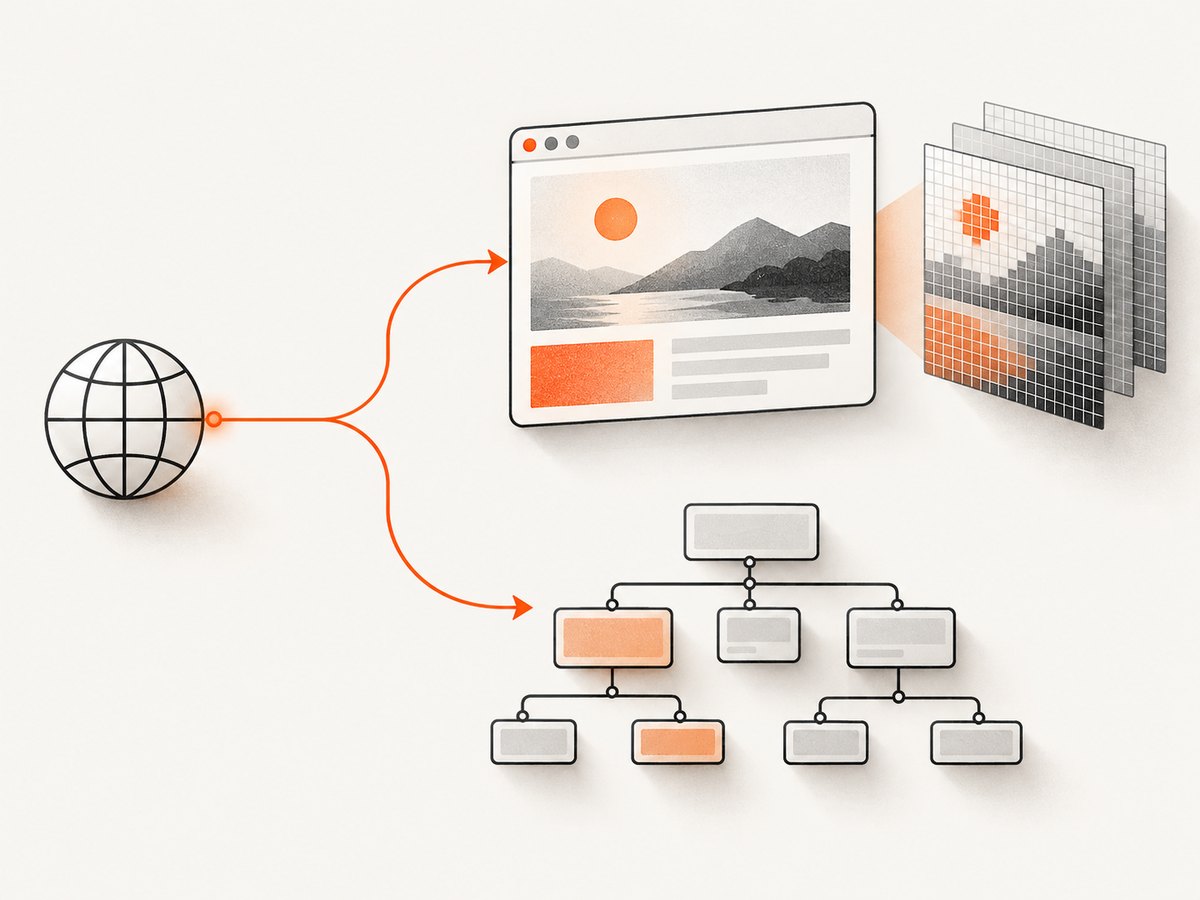
A screenshot can help a developer compare what a page visibly renders with its text, metadata and DOM. It is a debugging aid: an image alone does not establish that a crawler can access the underlying text or that assistive technology can use the page. For repeatable checks, use the same viewport and wait condition, capture after the relevant content appears, and compare the image with the rendered DOM.

Do-it-yourself browser capture with Playwright
This runnable Node.js example captures a full-page screenshot after the page reaches a network-idle state. Install Playwright and its browser first with npm install playwright and npx playwright install chromium.
const { chromium } = require('playwright');

(async () => {
  const browser = await chromium.launch({ headless: true });
  try {
    const page = await browser.newPage({ viewport: { width: 1440, height: 1000 } });
    const response = await page.goto('https://example.com', {
      waitUntil: 'networkidle',
      timeout: 45000
    });
    if (!response || !response.ok()) {
      throw new Error(`Page load failed: ${response?.status() ?? 'no response'}`);
    }
    await page.screenshot({ path: 'page.png', fullPage: true });
    console.log('Title:', await page.title());
    console.log('Main heading:', await page.locator('h1').first().textContent().catch(() => null));
  } finally {
    await browser.close();
  }
})().catch(error => {
  console.error(error);
  process.exitCode = 1;
});
For a page that keeps network connections open, such as one using analytics or live updates, networkidle may never arrive. Wait for a meaningful selector instead: use await page.locator('main article').waitFor({ state: 'visible', timeout: 15000 }) after navigation, or use a short fixed delay only when the page offers no reliable signal. For a region-only screenshot, use await page.locator('main').screenshot({ path: 'main.png' }). Do not store credentials in source code; pass authentication using an environment or secret manager and scope it to a test account.
Or skip the browser setup
Use ScreenshotNeo to request a screenshot with one GET call. Its API can return PNG, JPEG, WebP or PDF, and its documentation describes the options. For example, cURL:
curl -G "https://api.screenshotneo.com/v1/shot" \
  -d access_key=YOUR_API_KEY \
  --data-urlencode url=https://example.com \
  -o shot.webp
Python:
import requests

r = requests.get(
    "https://api.screenshotneo.com/v1/shot",
    params={"access_key": "YOUR_API_KEY", "url": "https://example.com"},
    timeout=90,
)
r.raise_for_status()
with open("shot.webp", "wb") as f:
    f.write(r.content)
Node.js:
const q = new URLSearchParams({
  access_key: 'YOUR_API_KEY',
  url: 'https://example.com'
});
const res = await fetch(`https://api.screenshotneo.com/v1/shot?${q}`);
if (!res.ok) throw new Error(`Screenshot request failed: ${res.status}`);
await import('node:fs/promises').then(fs => fs.writeFile('shot.webp', Buffer.from(await res.arrayBuffer())));
ScreenshotNeo accepts cookie and consent banners like a visitor and removes more than 60 known consent platforms, newsletter popups and chat widgets before capture; each step can be turned off. Bot checks or CAPTCHAs, blank pages, timeouts, failed loads and cache hits are not billed, and response headers report the page verdict and billing status. Its MCP server gives AI agents tools to take screenshots, get page information and capture PDFs. The free plan includes 1,000 screenshots a month without a card; paid plans start at $5 for 3,000 shots. These are product details, not a promise that a screenshot diagnoses crawler access by itself.
Sign up for ScreenshotNeo’s free 1,000 screenshots a month, with no card required.
Performance, reliability and cost considerations
For your own site, server-rendering or pre-rendering important text can reduce dependence on a crawler’s JavaScript execution and can make content available sooner. It does not remove the need to test the actual deployed response. Keep scripts and API calls needed for the page reliable, avoid making the main answer depend on a delayed interaction, and monitor errors in the rendering path.
For screenshot-based checks, browser startup and page rendering add latency and consume compute. Reuse a browser process for batches where the library supports it, cap concurrency to protect the host and target sites, set timeouts, and avoid needlessly capturing oversized full-page images. Cache captures only when a stale image is acceptable; a cached screenshot can miss a recent deployment or dynamic content. A screenshot service’s billing rules are product-specific, so check the service response and plan terms rather than estimating from image count alone.
Troubleshooting common problems
| Symptom | Likely cause | What to do |
|---|---|---|
| Text is missing in a crawler inspection | Content is blocked, fetched only after an interaction, or rendered by a failing script. | Check access directives and loaded resources. Put essential content in HTML or ensure it renders without a user gesture, then inspect again. |
| Google sees an empty shell | JavaScript errors, blocked bundles or API requests, or a rendering dependency that fails for Googlebot. | Use URL Inspection and Google’s JavaScript troubleshooting guide. Fix the failed request or render the essential content server-side. |
| The wrong page title or canonical appears | Metadata differs between initial and rendered HTML, or client-side routing changes it inconsistently. | Set a unique title and canonical URL for each page and ensure the rendered version agrees with the initial document. |
| Structured data is invalid or ineligible | Malformed JSON, unsupported fields, or markup that disagrees with visible content. | Validate syntax, remove unsupported or untrue claims, and follow the documentation for the exact result type. |
| Playwright times out waiting for network idle | A persistent connection or recurring request keeps the network active. | Wait for a page-specific selector or a bounded delay; use an explicit timeout and report a failure if the expected content never appears. |
| Screenshot is blank or incomplete | Capture starts before content renders, access is denied, or a bot challenge is shown. | Check the response and rendered page, wait for a meaningful element, and test the URL manually. Do not interpret a challenge screenshot as a successful content capture. |
| llms.txt has no visible effect in Google | Google Search does not use it as a special signal. | Keep the file only if a known non-Google consumer needs it; focus Google work on crawlability, useful content and valid structure. |
FAQ
Can I guarantee that ChatGPT or another LLM will cite my page?
No. Clear, accessible content improves the chance that systems which retrieve web pages can interpret them, but each service has its own retrieval and selection behavior.
Should I rewrite every page in Markdown?
No general requirement supports that. Maintain an alternate format only when a specific client or workflow needs it; make the primary page usable as a web document.
Does accessibility work help AI readability?
Often the same explicit labels, relationships and text alternatives help both. Accessibility should be evaluated against its own criteria and user needs, not treated solely as an AI optimization.
Is a screenshot enough to check whether a page is readable?
No. Pair visual review with response and rendered DOM inspection, access checks, metadata validation and accessibility review.


