How to Manage Footers When Converting HTML to DOCX With LibreOffice
Learn how LibreOffice maps footers to page styles, create different first or section footers, and verify the saved DOCX.
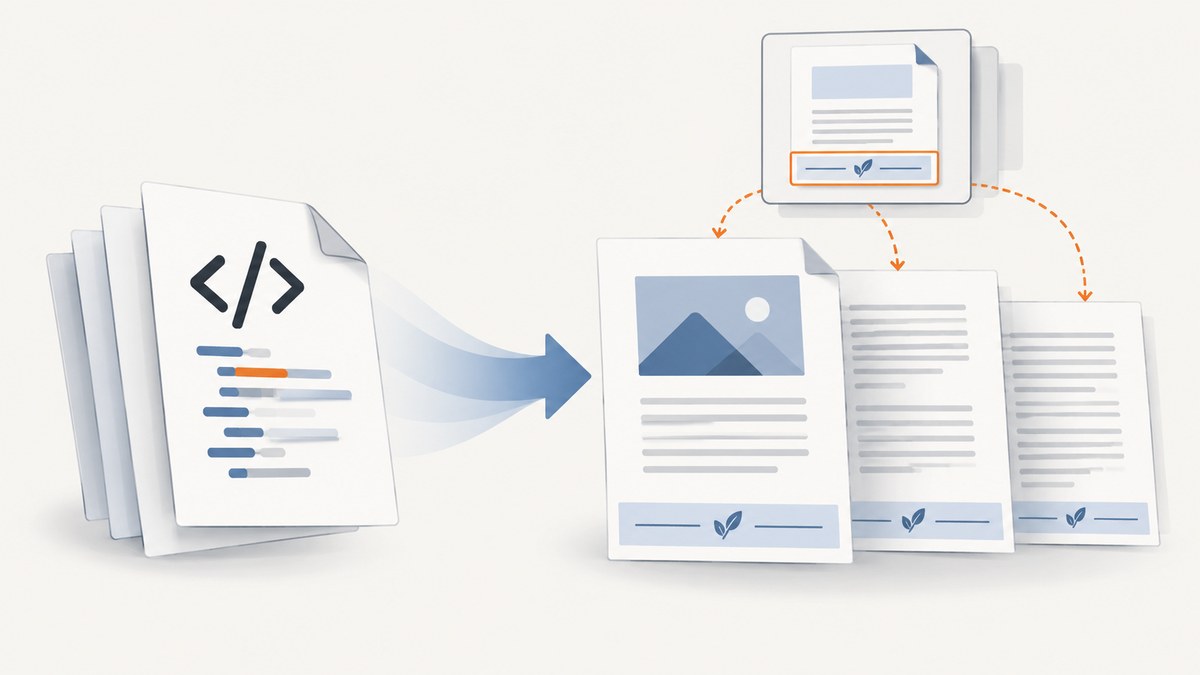
Direct answer: In LibreOffice Writer, a footer belongs to a page style, not to an individual HTML element. Every page using that style receives the same footer. To give the first page, a section, or odd and even pages different footer content, assign those pages different page styles, configure each style’s footer, then save as DOCX and inspect the result.
Do not assume that an HTML <footer> element will become a Word-style page footer. LibreOffice documents HTML header and footer limitations and says its HTML export uses special tags for browser display. Treat the HTML as source content, then set the DOCX footer in Writer and validate the saved file.
1. How LibreOffice models footers
Writer applies headers and footers to page styles. The footer is repeated on every page that uses the selected style. The current page style is shown in Writer’s status bar, which helps explain why changing one footer can affect several pages.
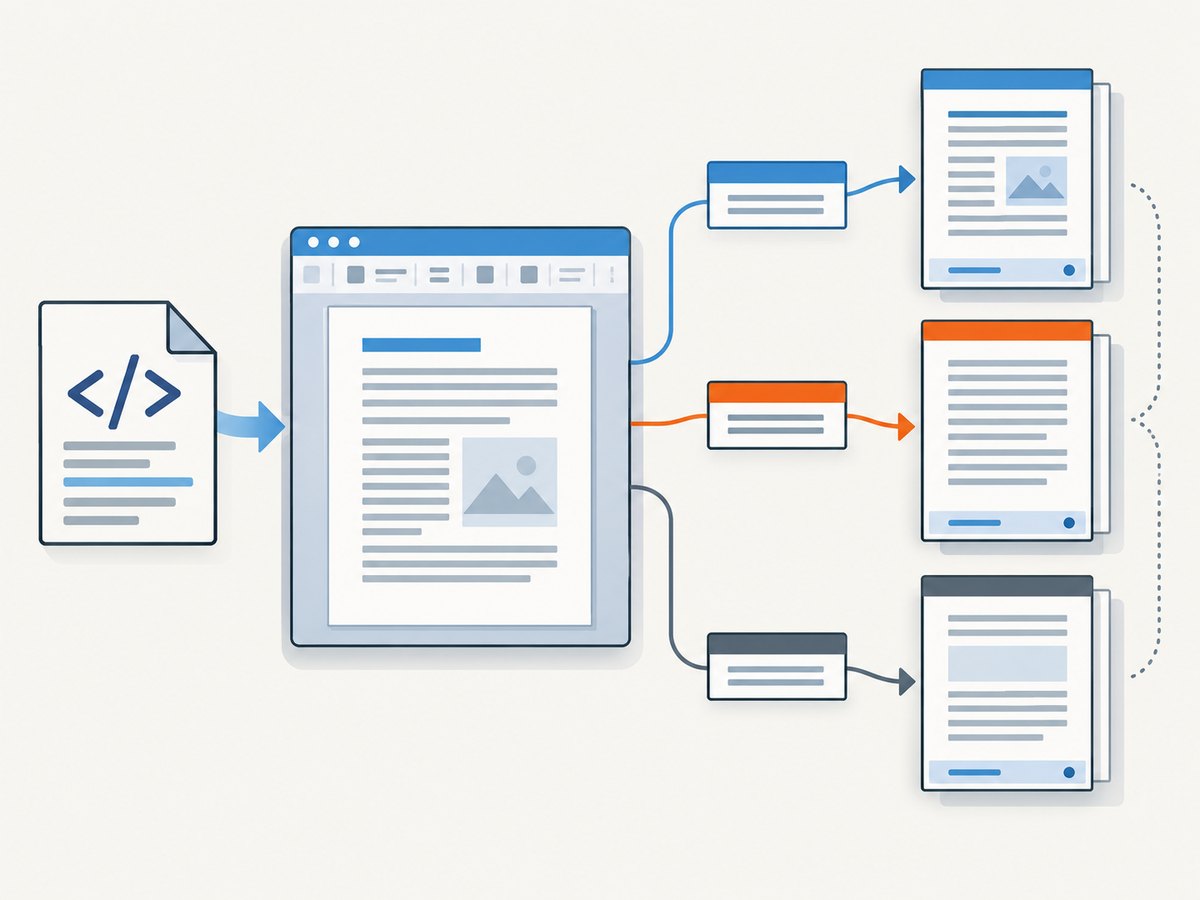
LibreOffice’s help describes the same model: headers and footers are added to the current page style, and the selected footer appears on all pages using that style. See Header and Footer and Defining Different Headers and Footers.
| Requirement | Page-style setup |
|---|---|
| One repeated footer | Enable a footer on the one page style used throughout the document. |
| Different first-page footer | Use a First Page style for page one and another style for the remaining pages. |
| Different section footer | Start the section with a page break that applies a distinct page style. |
| Different odd/even footer | Use Left Page and Right Page styles, or clear “Same content left/right” and edit each side. |
| Changing page numbers | Insert fields such as Page Number and Page Count instead of typing values manually. |
2. Prepare the HTML source
Keep the HTML semantic and predictable, but regard its footer markup as document content rather than a guaranteed page-footer instruction.
<!doctype html>
<html lang="en">
<head>
  <meta charset="utf-8">
  <title>Project report</title>
  <style>
    body { font-family: sans-serif; }
    h1 { page-break-before: always; }
    .document-footer-content { color: #555; font-size: 9pt; }
  </style>
</head>
<body>
  <h1>Project report</h1>
  <p>Document content goes here.</p>
  <footer class="document-footer-content">
    Source: Internal report
  </footer>
</body>
</html>
This markup may display as an ordinary block when opened in Writer. It does not, by itself, establish a DOCX footer that repeats at the bottom of every page. If the footer must be fixed to the page margin, create it with Writer’s page-style controls after opening the HTML.
3. Add one footer to every page of a style
- Open the HTML file in LibreOffice Writer.
- Click a page that should carry the footer and check the page-style name in the status bar.
- Choose Insert > Header and Footer > Footer, then select that page style. LibreOffice’s command adds the footer to every page using the chosen style.
- Click in the new footer area and enter the recurring text, such as a document name, confidentiality label, or URL.
- Use paragraph alignment, tabs, borders, and spacing to position the content. Keep the footer short enough that it does not collide with body text.
You can also open Format > Page Style, enable the Footer option, and configure its spacing and height. The page-style dialog is the reliable place to adjust margins and prevent the footer from consuming unexpected body area.
4. Create different first-page or section footers
Different footer text requires different page styles. A footer change inside the body does not create a new page-style footer.

Different first page
- Apply the built-in First Page style to the opening page, or create a custom style from the current page.
- Enable a footer on First Page and enter the special text.
- Insert a manual page break after the first page and apply the style used by the rest of the document, commonly Default Page Style.
- Enable and edit the footer on that second style.
Different section
- Place the cursor at the start of the section.
- Choose Insert > More Breaks > Manual Break.
- Select Page break and choose the section’s page style.
- Configure that style’s footer. All pages using it receive the section footer until another style is applied.
LibreOffice documents creating page styles with different headers or footers and switching styles with manual breaks in Creating a Page Style Based on the Current Page.
5. Handle odd and even pages
For mirrored documents, use the predefined Left Page and Right Page styles or create equivalent custom styles. In the page-style settings, clear Same content left/right when odd and even pages need separate footer content. You can then place a page number on the outside edge and a document title on the inside edge.
If the document uses mirrored margins, choose the mirrored page-layout option so the inside and outside spacing follows the binding edge. Check several consecutive pages after applying the styles; a style’s “next style” setting controls what follows a page break.
6. Insert page numbers and other changing values
Use fields for values that must update when pagination changes. For a page number, click in the footer and choose Insert > Fields > Page Number. To create “Page 3 of 12,” type the surrounding text and insert both Page Number and Page Count fields.
LibreOffice’s instructions are in Inserting Page Numbers in Footers. Fields are preferable to manually typed numbers because adding or removing content changes pagination.
Different numbering schemes
Use separate page styles when front matter needs roman numerals and the main body needs Arabic numerals. Insert a page break with the new style, then format that style’s page-number field. The page-number guide explains that different formats require different page styles separated by a page break.
7. Save as DOCX and validate the result
- Save or export the document as DOCX using your installed LibreOffice workflow.
- Close and reopen the DOCX in Writer. Do not validate only the unsaved source document.
- Check the first page, a middle page, the page immediately after every style transition, and at least one odd and one even page when those distinctions matter.
- Confirm that fields show values, footer spacing leaves body text readable, and no footer has been converted into an ordinary paragraph in the document body.
- If the file will be opened in Microsoft Word or another editor, inspect it there too; layout engines can interpret page breaks, fonts, and spacing differently.
8. Troubleshooting
| Symptom | Likely cause | Fix |
|---|---|---|
The HTML <footer> appears in the body. |
HTML footer markup is content, not a guaranteed page-style footer. | Enable a footer on the required page style in Writer and move or re-enter the recurring text there. |
| The footer appears on every page, including pages that should differ. | All pages use the same page style. | Create or apply a distinct style at the section or first-page break. |
| A footer is missing after a section break. | The new page uses a style with its footer disabled or a different style than expected. | Check the status-bar style name, then enable and edit that style’s footer. |
| Odd and even pages show identical content. | Same content left/right is enabled. | Clear that option and edit the left and right page styles separately. |
| Page numbers do not update. | Numbers were typed as ordinary text. | Replace them with Page Number and Page Count fields. |
| The footer overlaps body text. | Footer height or page bottom margin is too small. | Increase footer spacing or height and adjust the page-style margins. |
| The DOCX looks different after reopening. | Conversion or font substitution changed pagination. | Reopen the saved DOCX, inspect style transitions, and use installed fonts with stable metrics. |
| A command-line conversion recipe is unavailable. | The reviewed documentation does not establish a universal desktop CLI syntax. | Use the installed Writer interface or your organization’s documented conversion process; do not infer a command from HTML behavior. |
9. Performance, reliability, and cost considerations
- Performance: Large HTML files, remote images, custom fonts, and complex tables can slow opening and repagination. Keep assets local when possible and remove unused styles before conversion.
- Reliability: Page-style behavior is more predictable than relying on arbitrary HTML footer tags. Always reopen the saved DOCX and test style transitions.
- Pagination: A small font or margin change can move a section break and alter which pages use a style. Validate representative pages after every layout change.
- Automation limits: The cited documentation explains Writer’s page-style model and interface controls; it does not guarantee identical results for every LibreOffice release, HTML structure, or downstream DOCX editor.
- Cost: LibreOffice itself does not require a per-document conversion fee in this workflow. Any hosting, automation, or document-processing service used around it has its own pricing and limits.
10. Or skip the browser setup
If your workflow also needs a clean screenshot of the HTML preview before or after conversion, ScreenshotNeo provides a single website screenshot request. Its consent handling removes cookie banners, newsletter popups, and chat widgets before capture. Bot checks, blank pages, failed loads, timeouts, and cache hits are not billed, and response headers identify the page verdict and billing status. An MCP server lets Claude, Cursor, and other MCP clients call screenshot tools directly.
See the ScreenshotNeo API documentation for options such as full-page capture, custom CSS and JavaScript, waiting for a selector or network idle, device presets, PDF output, caching, and signed links.
curl -G "https://api.screenshotneo.com/v1/shot" -d access_key=YOUR_API_KEY --data-urlencode url=https://example.com/report.html -o shot.webpimport requests
r = requests.get("https://api.screenshotneo.com/v1/shot", params={"access_key": "YOUR_API_KEY", "url": "https://example.com/report.html"}, timeout=90)
open("shot.webp", "wb").write(r.content)const q = new URLSearchParams({ access_key: 'YOUR_API_KEY', url: 'https://example.com/report.html' });
const res = await fetch(`https://api.screenshotneo.com/v1/shot?${q}`);ScreenshotNeo includes 1,000 screenshots per month free with no card; paid plans start at $5 for 3,000 shots. Create a free ScreenshotNeo account.
11. FAQ
Can I make an HTML footer repeat on every DOCX page?
Not reliably by leaving it as an HTML element. Open the file in Writer and configure the footer on the page style used by those pages.
Can each section have a different footer?
Yes. Apply a distinct page style at each section break and configure that style’s footer.
How do I remove a footer from only one page?
Give that page a style with the footer disabled, usually by applying a First Page or custom page style.
Why should page numbers be fields?
Fields recalculate when pagination changes; typed numbers do not.
Does LibreOffice guarantee identical footer conversion for every HTML file?
No. The documented model covers Writer page styles and HTML limitations, so inspect the saved DOCX for the exact HTML and LibreOffice version you use.


