How to Take a Manual Screenshot on Samsung
Press Power and Volume Down together on most Samsung Galaxy devices. Learn Scroll capture, Palm swipe, troubleshooting, and where screenshots are saved.
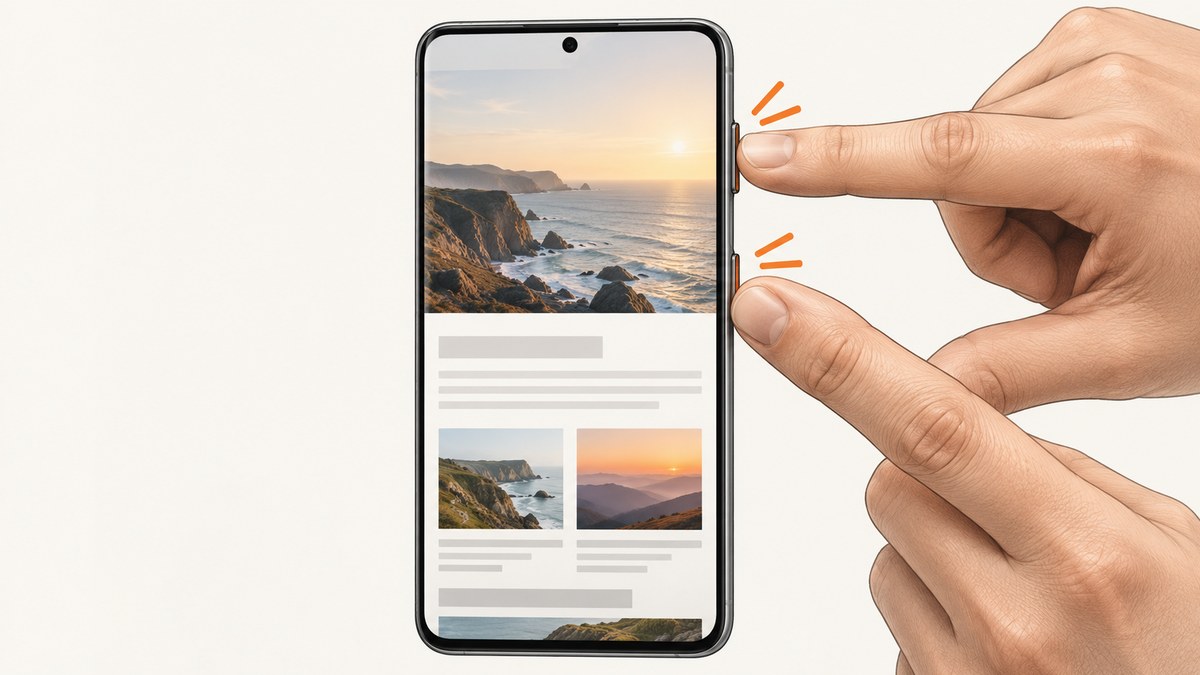
On most Samsung Galaxy phones and tablets, press and release the Power (or Side) button and Volume Down at the same time. The screen flashes when the screenshot is captured. Button locations vary by model. On older Galaxy devices with a physical Home button, press Power and Home together.
1. Take a normal screenshot with the buttons
- Open the screen you want to save.
- Place one finger on the Power or Side button and another on Volume Down.
- Press both buttons together briefly, then release when the screen flashes.
- Use the toolbar that appears at the bottom to edit, share, crop, or start Scroll capture.
Pressing the buttons together matters. Pressing one first can change the volume, open the power menu, or lock the phone. Avoid holding the buttons longer than needed.
2. Use Palm swipe to capture without buttons
Many Galaxy models support a palm-swipe gesture, but availability depends on the model and software version.
- Open Settings.
- Tap Advanced features, then Motions and gestures.
- Turn on Palm swipe to capture if it is listed.
- Place the edge of your hand on one side of the display and swipe across the screen.
Samsung notes that Palm swipe is unavailable while the keyboard is showing. If the setting is missing, use the button method or check your device manual.
3. Capture a long webpage with Scroll capture
Scroll capture extends a regular screenshot down a page that can scroll. It is not available for every app or screen.
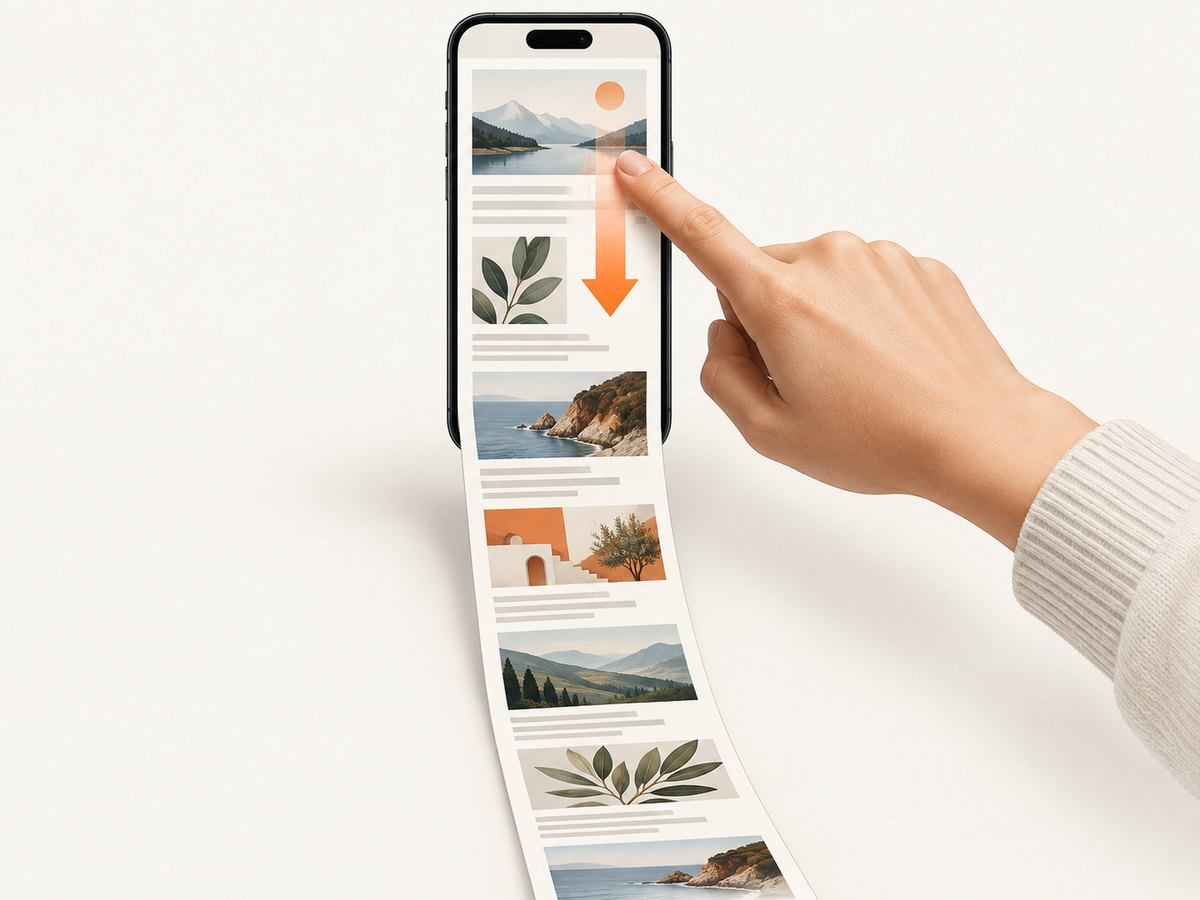
- Take a normal screenshot.
- When the screenshot toolbar appears, tap the Scroll capture icon. It may look like downward arrows.
- Keep tapping the icon to include more of the page.
- Stop when the required content is included, then use the save or share controls.
The option appears only when Samsung detects scrollable content. If it does not appear, the app may block scrolling capture or the screen may not be scrollable.
4. Other conditional screenshot methods
S Pen and Screen write
Supported Galaxy devices with an S Pen may offer Screen write or related capture commands. These features are model-specific, so use them only when they appear in your Air command or S Pen menu.
Voice commands
Some supported setups can trigger a screenshot through a voice assistant. Availability and wording vary by device, language, and installed software. The button shortcut remains the broadly applicable method.
Accessibility controls
If pressing two physical buttons is difficult, check your device’s accessibility menu for an on-screen shortcut. Menu names differ by Galaxy model and software version.
5. Find, edit, and share the screenshot
- Gallery: Open Gallery > Albums > Screenshots.
- My Files: Use the file manager to locate the Screenshots folder if it is not visible in Gallery.
- Edit: Tap the screenshot thumbnail or open it in Gallery to crop, draw, or mark it up.
- Share: Use the share button in the screenshot toolbar or Gallery.
Screenshot files use storage space like other images. Delete unnecessary captures from Gallery and empty its trash or recycle bin if you need to reclaim space.
6. Troubleshooting Samsung screenshots
| Problem | Likely cause | Fix |
|---|---|---|
| Nothing happens | The buttons were not pressed together or were held too long. | Press Power/Side and Volume Down simultaneously and release at the screen flash. |
| The volume changes instead | Volume Down was pressed first. | Try again with both buttons at exactly the same time. |
| The power menu opens | The Side button was held or pressed alone. | Use a brief simultaneous press with Volume Down. |
| Palm swipe is missing | Your model or software may not support it, or it is disabled. | Check Settings > Advanced features > Motions and gestures, then consult the model manual. |
| Palm swipe does not work | The keyboard is open, or the swipe does not cross the display. | Close the keyboard and swipe the edge of your hand fully across the screen. |
| Scroll capture is not shown | The screen is not scrollable or the app prevents extended capture. | Use a normal screenshot or try the feature in a scrollable webpage. |
| The screenshot cannot be taken because of a security measure | The app or screen restricts screenshots for security or privacy. | The content is restricted. Do not try to bypass the protection; use an approved export or sharing option. |
| The screenshot is not in Gallery | You are viewing the wrong album or the save operation failed. | Check Gallery > Albums > Screenshots and use My Files to search for the Screenshots folder. |
| A case makes the buttons hard to press | The case obstructs or stiffens the buttons. | Try a lighter press or temporarily remove the case. |
Samsung says menus and features vary by model, software version, carrier, and region. For an older or unusual Galaxy device, use its manual or local Samsung support instructions.
7. Reliability, privacy, and storage considerations
- Reliability: The button shortcut works locally and does not require Wi-Fi, mobile data, or an account.
- Privacy: A screenshot may include notifications, account details, messages, or other sensitive information. Review it before sharing.
- Performance: A normal screenshot is captured almost immediately. Long Scroll captures take longer and create a larger image.
- Cost: Samsung’s built-in screenshot tools do not require a paid service. The practical cost is device storage.
8. Or skip the browser setup
If you need screenshots of webpages from code, a server, or an automated workflow, ScreenshotNeo returns a screenshot or PDF from one GET request. Its cleanup steps accept consent banners and remove more than 60 known consent platforms, newsletter popups, and chat widgets before capture. Bot checks, blank pages, timeouts, failed loads, and cache hits are not billed, and response headers identify the page verdict and billing status. It also provides an MCP server for Claude, Cursor, and other MCP clients.

See the ScreenshotNeo API documentation for all options.
cURL
curl -G "https://api.screenshotneo.com/v1/shot" -d access_key=YOUR_API_KEY --data-urlencode url=https://samsung.com -o shot.webpPython
import requests
r = requests.get("https://api.screenshotneo.com/v1/shot", params={"access_key": "YOUR_API_KEY", "url": "https://samsung.com"}, timeout=90)
open("shot.webp", "wb").write(r.content)
Node.js
const q = new URLSearchParams({ access_key: 'YOUR_API_KEY', url: 'https://samsung.com' }); const res = await fetch(`https://api.screenshotneo.com/v1/shot?${q}`);Features include full-page capture with lazy images loaded, CSS-selector element capture, dark mode, device presets, custom viewports, retina scale, PDF settings, custom CSS and JavaScript, clicks, waits, blocked resources, headers, cookies, user agents, authorization, timezone, geolocation, transparent backgrounds, resizing, caching, signed links, asynchronous webhooks, bulk capture, usage data, and an OpenAPI specification.
The Free plan includes 1,000 screenshots each month with no card. Paid plans start at $5 for 3,000 screenshots, and every feature is available on every plan. Create a free ScreenshotNeo account.
9. FAQ
Can I screenshot a Samsung lock screen?
Some lock-screen content or security screens may restrict screenshots. If Samsung displays a security warning, the restriction is intentional.
Why is my screenshot black?
Protected video, banking, password, and other secure surfaces can block or obscure screenshots. Use the app’s approved export or sharing feature.
Does Scroll capture work in every app?
No. It appears when Samsung detects content that can scroll and the app allows extended capture.
Where are screenshots stored on a Samsung tablet?
Usually in Gallery’s Screenshots album. My Files can also locate the saved image, although folder names can vary by software version.
What if my Galaxy has different buttons?
Button placement and shortcuts vary. Check the device manual; older models with a physical Home button commonly use Power plus Home.


