How to Match Python IMGKit Output to Browser-Rendered HTML
Align IMGKit with browser-rendered HTML by controlling WebKit, viewport, assets, fonts, JavaScript readiness, scaling, and capture bounds.
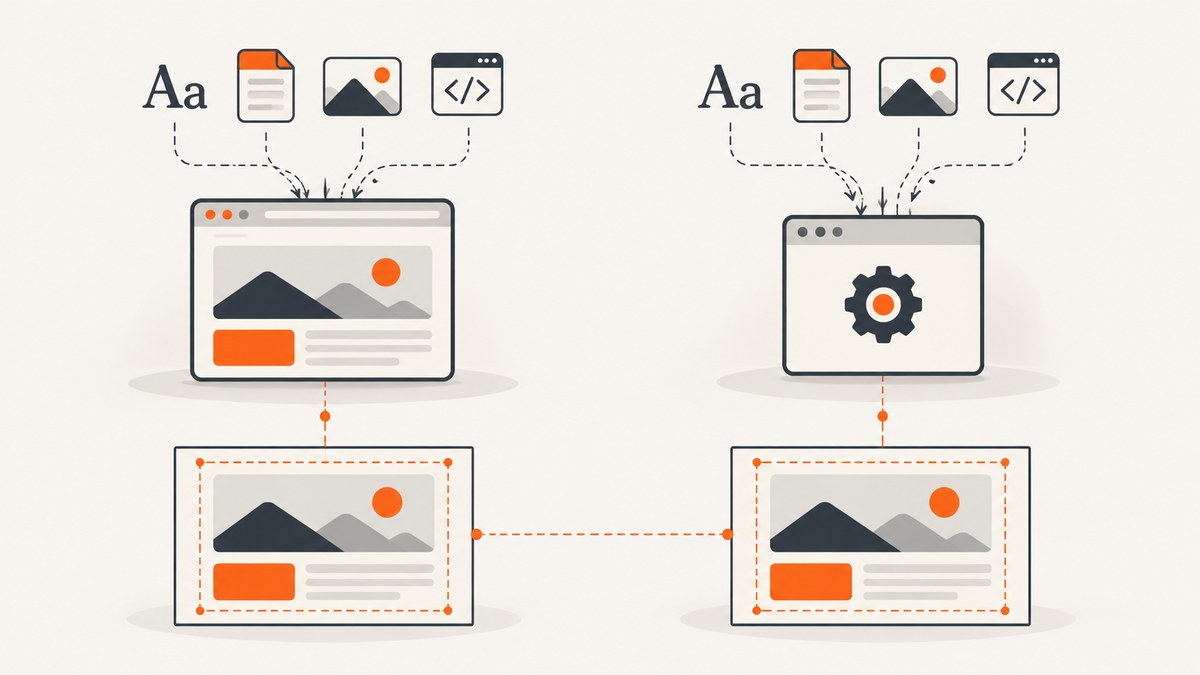
Short answer: IMGKit cannot make an arbitrary browser and wkhtmltoimage pixel-identical with one setting. IMGKit is a Python wrapper around wkhtmltoimage, which renders with WebKit. To get the closest repeatable result, match the renderer and runtime first, then align HTML and resources, viewport and capture bounds, JavaScript readiness, fonts, and finally zoom or scaling.
This guide gives you a controlled workflow, runnable Python code, equivalent command-line checks, configuration options, troubleshooting steps, and a practical point where using the same browser engine as the target may be the better choice.
1. Understand what is being matched
A screenshot is the result of several inputs, not just an HTML string:
- Renderer: a current browser and
wkhtmltoimageuse different engines and versions. - Runtime: operating system, container, installed fonts, binary path, and browser-like environment affect layout.
- Resources: CSS, images, web fonts, scripts, cookies, headers, authentication, and network access must resolve the same way.
- Viewport and crop: the layout viewport is separate from the rectangle eventually written to the image.
- Readiness: dynamic JavaScript content may not exist when the capture starts.
- Scaling: zoom, smart shrinking, output dimensions, and image encoding can change the final pixels.
The IMGKit documentation describes these controls but does not promise universal pixel-perfect equivalence with every modern browser. If exact browser fidelity is a hard requirement, use the same browser engine and version as the target workflow or define a visual tolerance.
Primary references: IMGKit documentation and the wkhtmltoimage manual.
2. Establish a reproducible baseline
- Record the IMGKit version, exact
wkhtmltoimageversion and path, operating system or container image, and installed fonts. - Capture a static test page with local CSS, a known font, fixed dimensions, and no asynchronous JavaScript.
- Use the same final HTML and CSS in both systems. Do not compare a server template before its data or styles have been applied with a browser page after hydration.
- Keep the output format and dimensions identical while diagnosing layout. PNG is useful for geometry comparisons because it avoids lossy JPEG compression.
Runnable Python baseline
import imgkit

options = {
    "format": "png",
    "encoding": "UTF-8",
    "enable-javascript": None,
    "javascript-delay": "500",  # Placeholder; prefer an app readiness signal.
    "viewport-size": "1280x800",
    "zoom": "1",
}

config = imgkit.config(wkhtmltoimage="/absolute/path/to/wkhtmltoimage")
imgkit.from_file("page.html", "output.png", options=options, config=config)
The values above are starting points, not universal recommendations. IMGKit passes supported options to the underlying executable, so inspect the installed binary’s help and behavior.
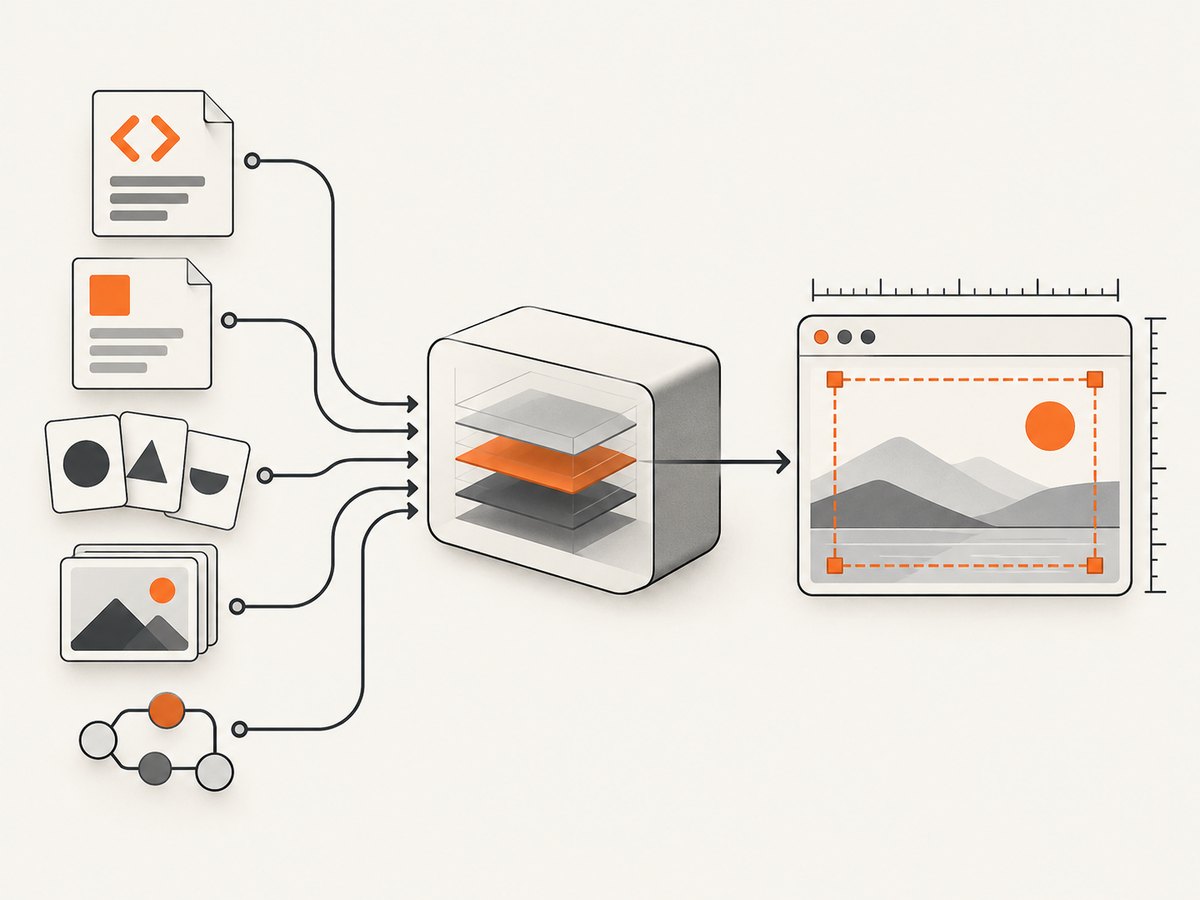
Render a string and add a stylesheet explicitly
import imgkit

html = """
<!doctype html>
<html>
  <head>
    <meta charset=\"utf-8\">
    <title>Baseline</title>
  </head>
  <body><main class=\"card\">Stable test content</main></body>
</html>
"""

options = {
    "format": "png",
    "encoding": "UTF-8",
    "viewport-size": "1280x800",
    "zoom": "1",
}
config = imgkit.config(wkhtmltoimage="/absolute/path/to/wkhtmltoimage")
imgkit.from_string(
    html,
    "output.png",
    options=options,
    css=["/absolute/path/to/site.css"],
    config=config,
)
For local pages, verify that the binary is allowed to read the CSS, images, fonts, and other required files. Restrict local access to the paths the page actually needs.
3. Match the viewport and capture rectangle
Set the viewport to the browser’s CSS viewport before changing zoom. Then align the output crop, width, and height with the rectangle you compare. A viewport mismatch changes responsive breakpoints and line wrapping; a crop mismatch can make an otherwise identical layout appear different.
| Symptom | First check |
|---|---|
| Different columns or responsive layout | --viewport-size and the browser’s CSS viewport width |
| Content is clipped or extra whitespace appears | Capture width, height, crop geometry, and full-page settings |
| Text wraps at different words | Viewport width, font availability, minimum font size, and zoom |
Keep viewport and capture dimensions separate in your test record. Change one value at a time and preserve the exact configuration with each image.
4. Make resources identical
Use the same final HTML, stylesheet files, image URLs, and font files. Check relative URL bases when rendering a string or local file. Confirm that network access, cookies, custom headers, and authentication produce the same response in both environments.
- Open the generated HTML in the target browser and inspect the final DOM and computed styles.
- Ensure every stylesheet is linked with a resolvable URL or supplied through IMGKit’s CSS option.
- Verify image and font requests succeed; a fallback font can change glyph widths, line breaks, and downstream positions.
- For local content, check the binary’s local-file access policy and allow paths.
- Use identical character encoding and include a UTF-8 meta tag.
Do not tune zoom to compensate for a missing font or stylesheet. Fix resource loading first.
5. Wait for JavaScript deliberately
JavaScript-heavy pages need a readiness strategy. IMGKit and wkhtmltoimage expose JavaScript enablement, a fixed JavaScript delay, a window-status wait, and debugging output. A delay is only a timer; it does not prove that every request, animation, or application task has finished.
Prefer an application readiness signal
If the page can set a known window status after data and images are ready, wait for that status rather than continually increasing an arbitrary delay. Otherwise, choose the smallest delay that is stable for your controlled workload and document it.
import imgkit

options = {
    "format": "png",
    "enable-javascript": None,
    "window-status": "screenshot-ready",
    "viewport-size": "1280x800",
}

config = imgkit.config(wkhtmltoimage="/absolute/path/to/wkhtmltoimage")
imgkit.from_url("https://example.com/report", "report.png", options=options, config=config)
The page must set window.status = "screenshot-ready" when it is actually ready. If you cannot add such a signal, use javascript-delay and inspect logs for failed scripts and resources.
6. Tune fonts, CSS, zoom, and shrinking
Once the renderer, resources, viewport, and readiness match, adjust scaling. Check minimum font size, zoom, and smart-shrinking behavior documented by the installed utility. Compare geometry before raster details: line wraps, element positions, clipping, and dimensions come before antialiasing or subpixel differences.
| Control | Use it to investigate | Order |
|---|---|---|
| Font availability and CSS | Changed glyph widths, line breaks, or missing styling | Before scaling |
| Viewport and crop | Responsive breakpoints and clipping | Before scaling |
| Zoom | Overall text and geometry scale | After inputs match |
| Smart shrinking | Unexpected page-wide size reduction | After viewport is verified |
| Output format and resampling | Raster-only differences | Last |
Different rendering implementations can retain small raster differences even when layout is close. Treat that as an expected diagnostic possibility, not as a promise of identical pixels.
7. A controlled comparison procedure
- Capture the same page in the browser and IMGKit at the same viewport width and height.
- Start with a static local test page using one known font, local CSS, and no asynchronous JavaScript.
- Confirm logs show successful stylesheet, image, font, and script loading.
- Add dynamic behavior and external assets back one group at a time.
- If geometry differs, check font availability and viewport before changing zoom.
- Change one setting per capture and store the configuration beside the output.
- Compare geometry first, then antialiasing, subpixel rendering, and encoding.
8. Useful IMGKit and wkhtmltoimage options
| Problem | Relevant controls | What they isolate |
|---|---|---|
| Wrong executable | imgkit.config(wkhtmltoimage=...) |
Selects the expected binary |
| Viewport or crop mismatch | --viewport-size, screen width, crop width and height |
Separates layout width from the captured rectangle |
| Scripts are unfinished | JavaScript enablement, --javascript-delay, --window-status, debug output |
Controls readiness and exposes script failures |
| Missing local assets | Local-file access and allow paths | Explains absent CSS, images, or fonts |
| Missing stylesheets | IMGKit css parameter or user stylesheet |
Makes styling inputs explicit |
| Font size or scale discrepancy | Minimum font size, zoom, smart shrinking | Tests text sizing and page scaling |
| Print versus screen rules | Print-media option | Tests media rules; the image settings documentation notes this has no effect for wkhtmltoimage |
Run wkhtmltoimage --help on the exact binary used in production. Builds can expose different options and behaviors.
9. Troubleshooting
“No wkhtmltoimage executable exists”
Cause: IMGKit cannot find the binary. Fix: install the utility and pass its absolute path with imgkit.config(wkhtmltoimage=...). Confirm the path and executable permissions.
Styles or images are missing
Cause: unresolved relative URLs, blocked local files, unavailable network resources, or authentication differences. Fix: use absolute or correctly based URLs, supply CSS explicitly, verify local-file access and allow paths, and reproduce required cookies or headers.
Fonts change line breaks
Cause: the renderer is falling back to a different font. Fix: install and load the same font files, wait for them before capture when applicable, and verify the computed font family.
Dynamic content is blank or stale
Cause: capture starts before JavaScript finishes. Fix: enable JavaScript, use a deterministic window-status signal where possible, or set a documented delay and inspect debug output.
The page is the right size but content is clipped
Cause: capture bounds do not match the viewport or the page’s full-height behavior. Fix: align viewport and crop geometry independently; test the required width and height before changing zoom.
The command fails or segfaults
Cause: a utility or environment failure. Fix: run the underlying wkhtmltoimage command directly to see its actual error, verify the binary build and resource paths, and use Xvfb on headless systems when the environment requires it.
It is close but never pixel-identical
Cause: browser and WebKit rendering paths differ. Fix: define an acceptable visual tolerance or render with the same browser engine and version as the target workflow. The reviewed documentation does not provide a universal switch for cross-browser pixel identity.
10. Performance, reliability, and cost considerations
- Performance: fixed local assets and a stable runtime remove network variance. A readiness signal avoids unnecessarily long fixed delays.
- Reliability: pin the executable path, operating-system image, fonts, HTML inputs, and options. Keep logs and the exact configuration with each failed capture.
- Concurrency: test the chosen level of parallel rendering in the actual deployment environment; resource contention can change timing for dynamic pages.
- Cost: IMGKit itself is a wrapper, so account for the runtime, binary, fonts, container or virtual display, network traffic, and operational maintenance rather than only Python code.
- Reproducibility: compare identical formats and dimensions, and avoid mixing layout diagnosis with JPEG quality or resampling changes.
11. Or skip the browser setup
ScreenshotNeo provides a website screenshot API and MCP server. Make one GET request and receive a PNG, JPEG, WebP, or PDF without packaging a browser runtime:
curl -G "https://api.screenshotneo.com/v1/shot" -d access_key=YOUR_API_KEY --data-urlencode url=https://stripe.com -o shot.webpimport requests
r = requests.get(
"https://api.screenshotneo.com/v1/shot",
params={"access_key": "YOUR_API_KEY", "url": "https://stripe.com"},
timeout=90,
)
open("shot.webp", "wb").write(r.content)
const q = new URLSearchParams({ access_key: 'YOUR_API_KEY', url: 'https://stripe.com' });
const res = await fetch(`https://api.screenshotneo.com/v1/shot?${q}`);
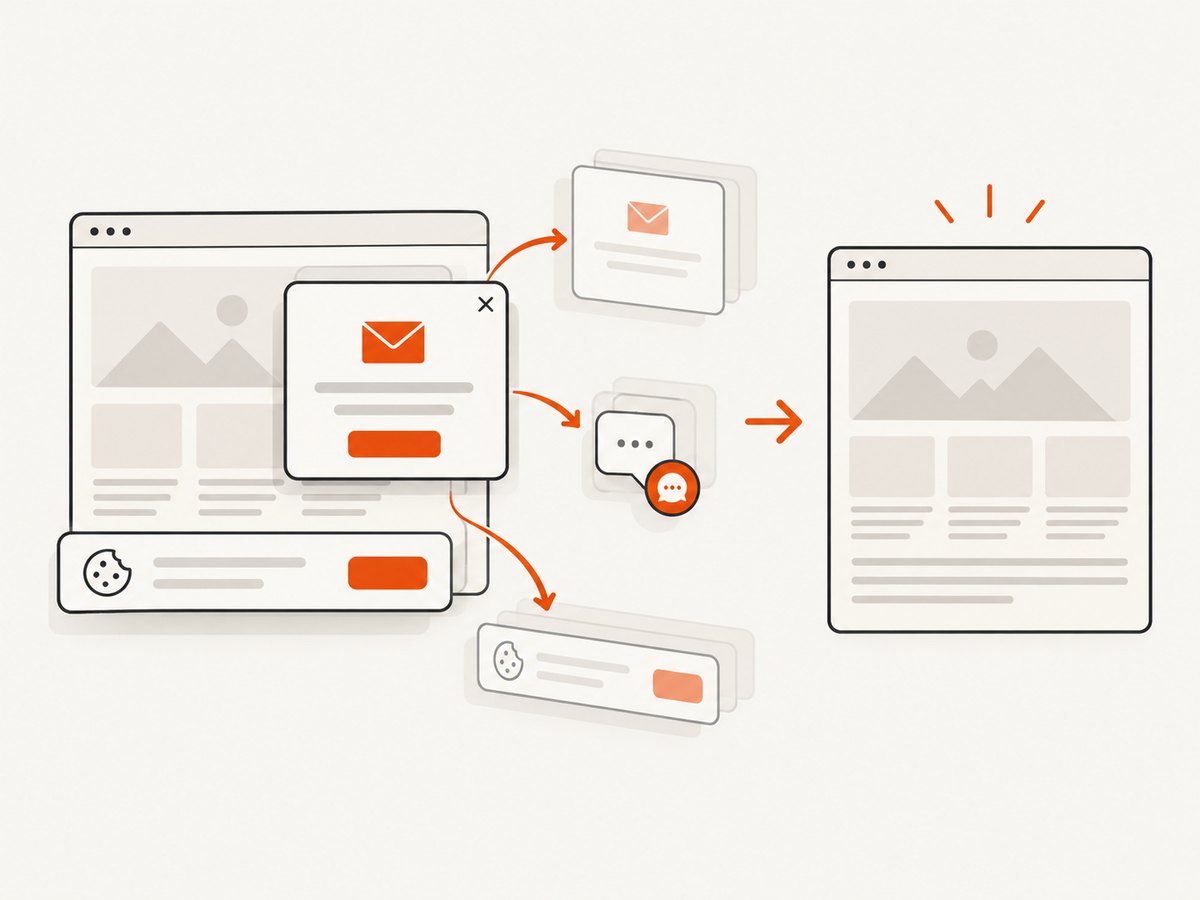
See the ScreenshotNeo API documentation for request options. Cookie banners, newsletter popups, and chat widgets are removed before the shot. Bot checks, blank pages, failed loads, timeouts, and cache hits are never billed, and response headers report the page verdict and billing status. Its MCP server lets Claude, Cursor, and other MCP clients use take_screenshot, get_page_info, and capture_pdf. The Free plan includes 1,000 screenshots a month with no card; paid plans start at $5 for 3,000.
Create a free ScreenshotNeo account and get 1,000 screenshots a month with no card.
12. FAQ
Can IMGKit use Chrome’s rendering engine?
No. IMGKit wraps wkhtmltoimage, whose rendering path is WebKit. Use the target browser engine when browser-level fidelity is required.
Should I increase JavaScript delay until the page looks right?
Use a deterministic readiness signal when possible. A fixed delay is only a timer and can still capture incomplete work or waste time.
Why does changing zoom not fix wrapping?
Wrapping is usually controlled first by viewport width, fonts, CSS, and content. Verify those inputs before changing zoom.
What should I compare first: pixels or layout?
Compare layout geometry first: line wraps, positions, clipping, and dimensions. Investigate antialiasing and encoding after geometry matches.
When should I stop tuning IMGKit?
Stop when the remaining difference comes from renderer-specific rasterization and your visual tolerance is met. If it is not, move the capture to the same browser engine as the target or use a service such as ScreenshotNeo.


