How to Match Playwright Screenshots in Visual Tests
Build repeatable Playwright screenshot tests by controlling the browser environment, dynamic content, animations, and comparison tolerances.
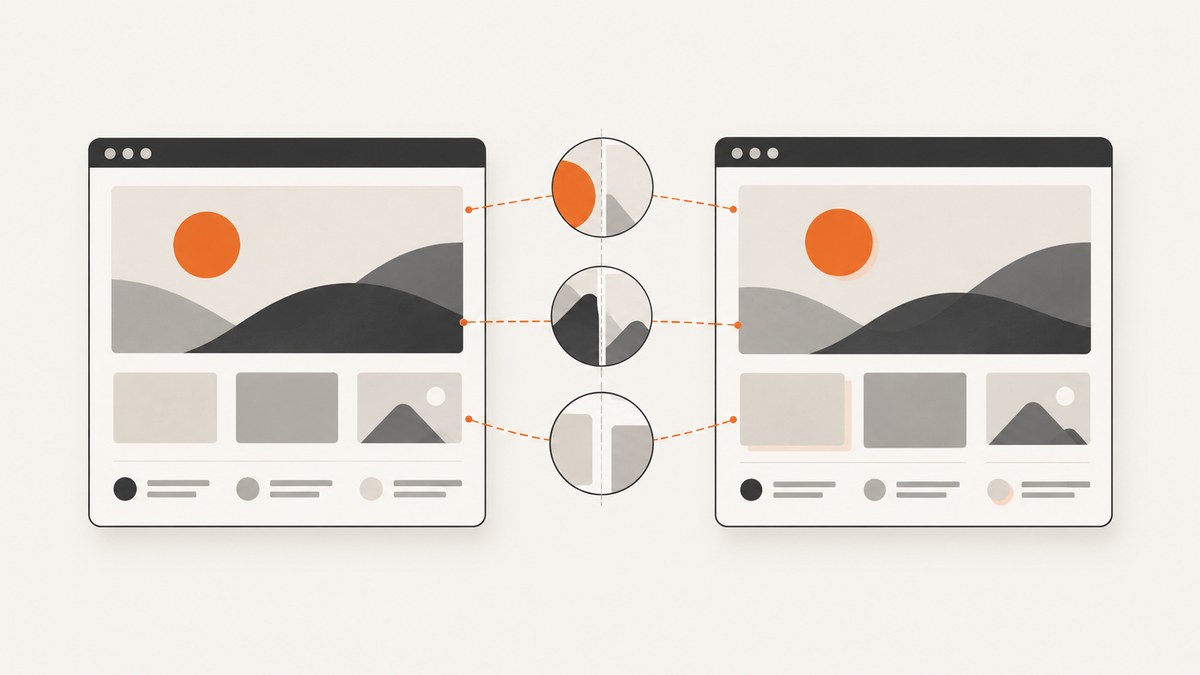
Use Playwright Test’s toHaveScreenshot() assertion to compare a page or a specific element with a stored reference image. For useful results, create and review the baseline in the same browser environment used in later runs, control animation and changing page content, and inspect any mismatch before changing the tolerance or updating the snapshot.
This guide walks through a complete page and component setup, explains the screenshot options that matter, and gives a practical way to diagnose visual diffs. Official references: Playwright visual comparisons, PageAssertions, LocatorAssertions, and TestProject configuration.
1. Create a screenshot assertion and its baseline
In a Playwright Test file, navigate to the route and call expect(page).toHaveScreenshot(). On the first run, Playwright creates a reference screenshot. Review that image and commit it with the test. On later runs, Playwright captures the page again and compares it with the committed baseline.
import { test, expect } from '@playwright/test';

test('home page visual baseline', async ({ page }) => {
  await page.goto('/');
  await expect(page).toHaveScreenshot('home.png');
});
Save this as a Playwright test, for example tests/home.visual.spec.ts, in a project configured for Playwright Test. The path passed to page.goto() assumes the project has a baseURL; otherwise use a full application URL. Run the test with npx playwright test. The first run will produce the expected screenshot alongside the test snapshot location Playwright uses for that project.
Do not treat first-run output as automatically approved. Open the generated image, confirm it represents the intended design, and commit it with the test. To update references after an intentional design change, run npx playwright test --update-snapshots, inspect every changed image, and commit the reviewed updates.
2. Choose page or locator scope
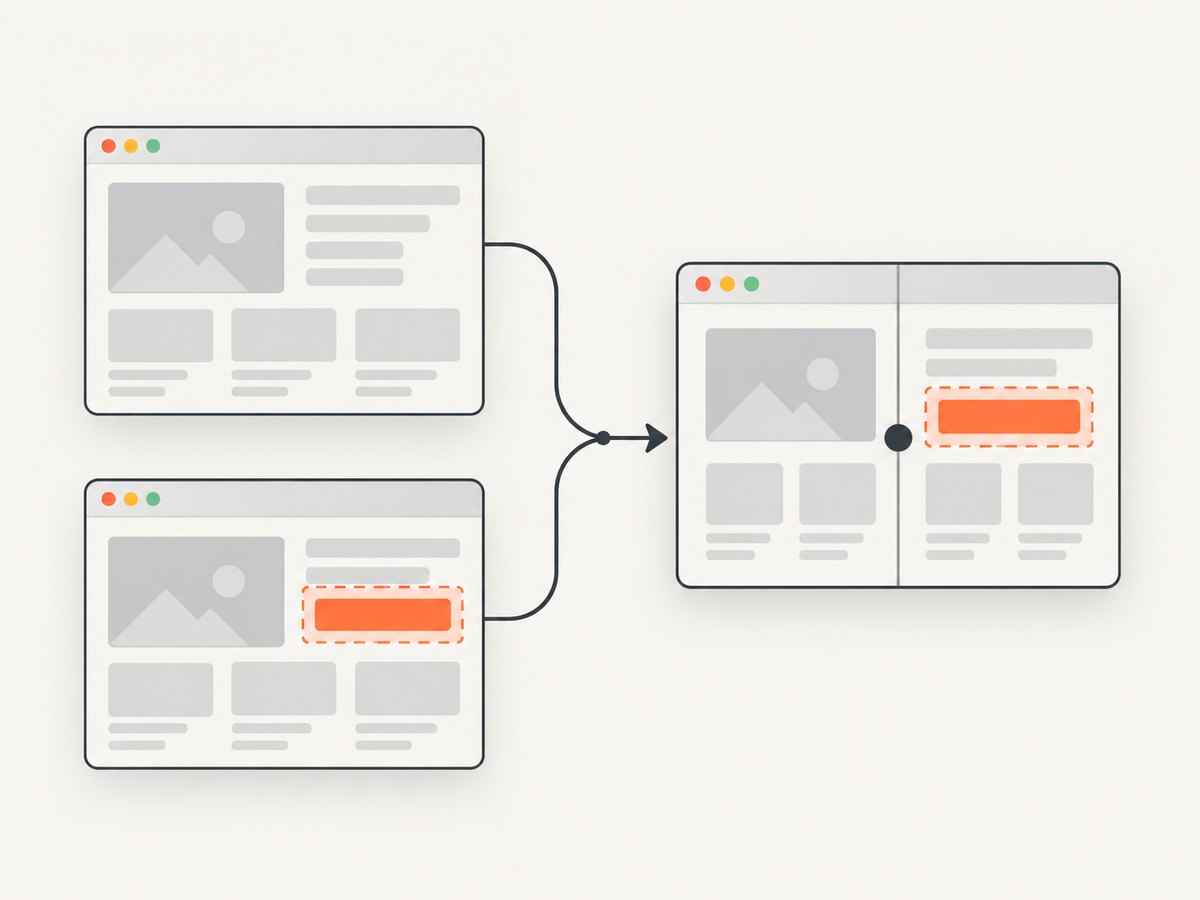
Use a page assertion when the layout across the route is the behavior under test. Use a locator assertion when the test is about a component, such as a navigation bar, pricing card, or dialog. A smaller capture usually makes a failure easier to interpret and avoids coupling a component test to unrelated page regions.
import { test, expect } from '@playwright/test';

test('pricing card appearance', async ({ page }) => {
  await page.goto('/pricing');
  const card = page.getByTestId('pro-plan-card');
  await expect(card).toHaveScreenshot('pro-plan-card.png');
});
The locator must resolve to the element you intend to capture. Make the page state deterministic first: load the route, wait for any required content to be ready, and establish the relevant UI state. Then assert against the locator. A component screenshot gives less coverage of surrounding spacing and page layout, so retain a page-level assertion where those are important.
3. Make captures repeatable
Keep the rendering environment consistent
Browser output can vary with the operating system, browser version, browser settings, hardware, power source, and headless mode. Generate baselines and compare them in a controlled, consistent environment. If the project intentionally tests multiple platforms or rendering configurations, keep their reference images separate rather than comparing unlike environments to one baseline. See Playwright’s visual comparison guidance.
For team workflows, agree on where snapshots are created and checked. A baseline created on one operating system may differ from a capture made on another even when the application code is unchanged. If a diff appears only on a different machine or in a different project, first check the browser and environment before relaxing comparison settings.
Disable animation for the capture
Screenshot assertions disable animations by default. Finite animations are fast-forwarded; infinite animations are canceled for the capture and restored afterward. You can make this behavior explicit:
await expect(page).toHaveScreenshot('home.png', {
  animations: 'disabled',
});
Explicit settings make test intent visible during review. If an animation itself is the feature under test, a static screenshot assertion is usually not a sufficient way to verify its timing or motion; test the relevant state separately and use a screenshot for a stable visual state.
Filter only irrelevant dynamic content
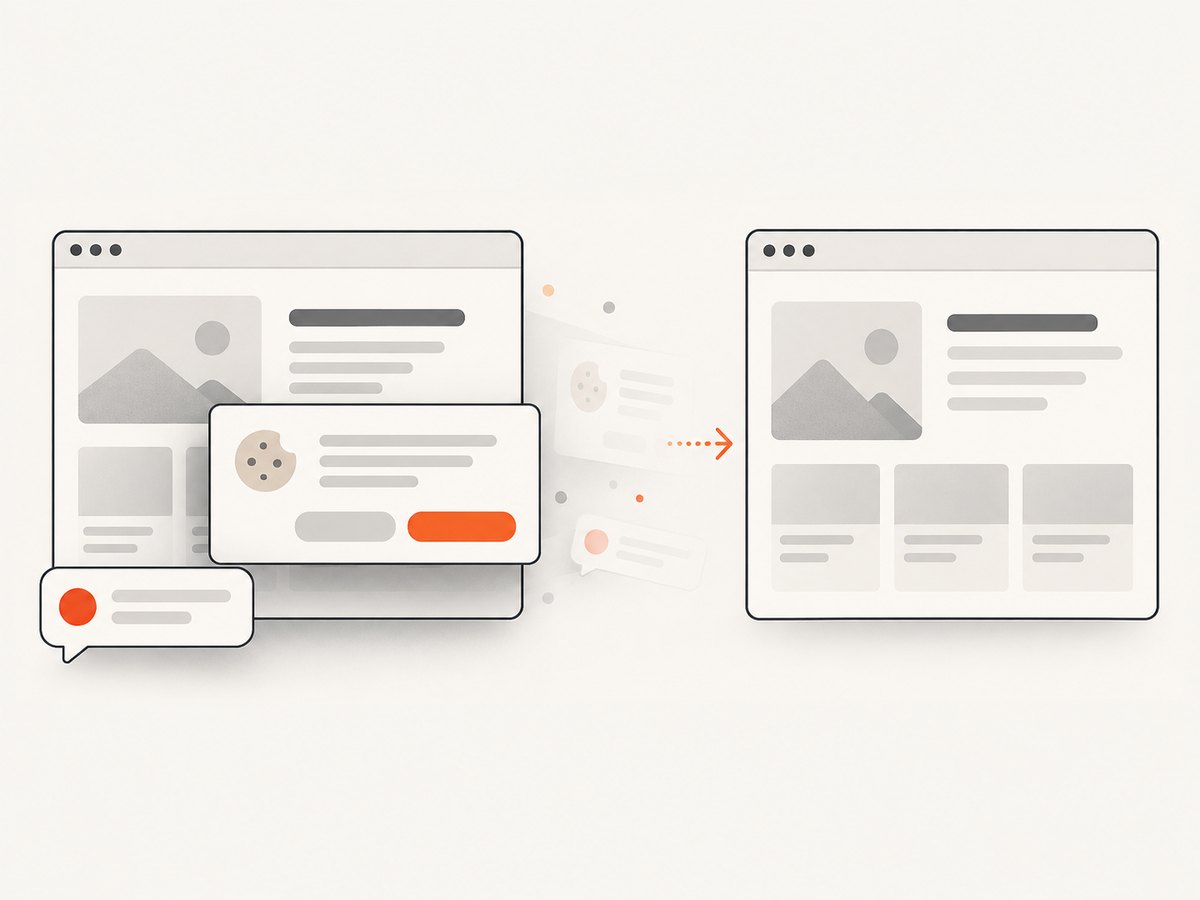
Dates, rotating promotions, personalized greetings, live counters, and third-party content can change between runs. If a region is irrelevant to the visual behavior under test, use stylePath to apply a stylesheet during capture. Playwright documents this option as a way to hide or alter volatile content, including content inside shadow DOM and frames.
await expect(page).toHaveScreenshot('dashboard.png', {
  stylePath: './tests/visual-stability.css',
});
/* tests/visual-stability.css */
[data-visual-test-volatile] {
visibility: hidden !important;
}Mark only content that is genuinely outside the test’s purpose. Hiding an element that should be visible can conceal a regression. Prefer stable fixtures or deterministic test data when possible; reserve screenshot-only styling for noise that the assertion intentionally excludes.
Neutralize hover and other input state
The pointer position can trigger hover effects, and the screenshot records the resulting state. Move the pointer to a known neutral location before capture, or place it over an element that does not have a hover style. If the test is specifically about hover, deliberately move the pointer over the target and capture that state instead.
await page.goto('/');
await page.mouse.move(0, 0);
await expect(page).toHaveScreenshot('home.png');
Also establish any relevant state explicitly before capturing: dismiss or open dialogs as needed, set the selected tab, and wait for required data. A repeatable test documents the state it expects rather than inheriting incidental state from earlier steps.
4. Set capture scale and comparison tolerance
Playwright exposes controls for screenshot scale and acceptable difference. They address different sources of variation and should be chosen for the test’s purpose.
| Option | What it controls | When to consider it |
|---|---|---|
scale |
css produces one screenshot pixel per CSS pixel; device captures device pixels. |
Choose a scale deliberately. Device scale can produce larger high-DPI images and platform-sensitive dimensions. |
threshold |
Acceptable perceived color difference for an individual pixel in YIQ space. The documented default is 0.2. |
Use only when small per-pixel rendering variation is acceptable for the assertion. |
maxDiffPixels |
Absolute number of differing pixels permitted. | Useful when the acceptable noise is naturally expressed as a small fixed pixel count. |
maxDiffPixelRatio |
Proportion of differing pixels permitted. | Useful when the allowed changed area should scale with image size. |
The documented configuration reference leaves maxDiffPixels and maxDiffPixelRatio unset by default. These settings are not interchangeable: threshold changes how a pixel’s color difference is judged, while the other two limit how many pixels may differ. See PageAssertions and TestProject.
await expect(page).toHaveScreenshot('home.png', {
  animations: 'disabled',
  scale: 'css',
  threshold: 0.2,
  maxDiffPixels: 12,
});
The values above show how to set the controls; they are not universal recommendations. Start with the defaults. If a test is noisy, inspect the actual and expected images first. Choose the smallest tolerance that accepts known rendering noise while still catching the change the test is meant to detect. A broad allowance can let meaningful layout or color regressions pass.
5. Review and update a baseline safely
- Run the visual test and open the expected, actual, and diff images Playwright reports for the failure.
- Decide whether the difference is intentional. Check layout, typography, colors, missing elements, overlays, and clipped content.
- If the difference is unexpected, investigate page state, browser environment, animation, pointer location, and dynamic data. Fix the source rather than accepting the image.
- If the design change is intentional, regenerate with
npx playwright test --update-snapshots. - Review the changed reference images as part of code review. Commit them alongside the code change that explains why the appearance changed.
Updating snapshots is a decision about expected product behavior. It should not be a routine step after every failure: that practice turns the baseline into a moving target and can hide unintended changes.
6. Troubleshoot common screenshot failures
| Symptom | Likely cause | Fix |
|---|---|---|
| Many pixels differ after a machine or CI change | Operating system, browser version, settings, hardware, or headless mode changed. | Run baseline generation and comparison in the same controlled environment. Review whether separate projects need separate snapshots. |
| A small region changes on every run | Dynamic data, a third-party widget, or time-dependent content is visible. | Use stable test data where possible. Otherwise filter only the irrelevant region with stylePath. |
| A button or menu looks different unexpectedly | The mouse ended over an interactive element and triggered hover styling. | Move the pointer to a neutral position or deliberately set the hover state under test. |
| Elements shift or appear mid-transition | Animation or delayed page state affects capture. | Use the assertion’s animation behavior, wait for the intended page state, and avoid capturing during a transition. |
| Failures disappear after raising tolerance | The allowance may be masking a genuine visual regression. | Inspect the images and identify the source of variation first. Lower or remove broad allowances if they hide meaningful changes. |
| A locator screenshot is blank or wrong | The locator may point at the wrong element or the intended state may not be present. | Verify the locator resolves to the intended component and establish the required UI state before the assertion. |
| Snapshot update produces a large diff | A real redesign, environment drift, or changed page data may affect a wide area. | Inspect the diff before accepting it. Confirm the environment and state, then update only when the visual change is expected. |
7. Performance, reliability, and maintenance
Screenshot tests are most useful when each assertion covers a clear visual contract. A page-level snapshot can detect broad layout changes, but it also couples the test to more content. Locator snapshots narrow the comparison and can make failures easier to diagnose. Use each scope where it catches the changes that matter.
Keep the test environment repeatable. Differences in browser and host rendering create maintenance work that does not reflect product changes. Likewise, keep volatile exclusions narrow: every hidden region reduces the portion of the UI the assertion can protect. Review baselines as code, and avoid treating a passing comparison as proof of application correctness outside the captured appearance.
Tolerance is a reliability tradeoff. Too little tolerance can create failures from harmless rendering variation; too much can hide a visible change. Keep allowances small and tied to a known source of noise. If output size or cross-device consistency matters, select scale intentionally and use the same configuration for baseline creation and comparison.
Or skip the browser setup
If you need a rendered page image outside a Playwright visual assertion, ScreenshotNeo provides a website screenshot API and MCP server. One GET request returns PNG, JPEG, WebP, or PDF. Its clean capture accepts cookie and consent banners like a visitor and removes 60+ known consent platforms, newsletter popups, and chat widgets; each cleanup step can be turned off. Bot checks and CAPTCHAs, blank pages, timeouts, failed loads, and cache hits cost nothing, and responses identify the page verdict and billing status in X-Page-Verdict and X-Billed headers. AI agents can use its MCP tools: take_screenshot, get_page_info, and capture_pdf.
See the ScreenshotNeo documentation for the API and its options. For example, save a WebP screenshot with cURL:
curl -G "https://api.screenshotneo.com/v1/shot" \
  -d access_key=YOUR_API_KEY \
  --data-urlencode url=https://stripe.com \
  -o shot.webp
The corresponding Python request:
import requests

r = requests.get(
    "https://api.screenshotneo.com/v1/shot",
    params={"access_key": "YOUR_API_KEY", "url": "https://stripe.com"},
    timeout=90,
)
open("shot.webp", "wb").write(r.content)
And Node.js:
const q = new URLSearchParams({
  access_key: 'YOUR_API_KEY',
  url: 'https://stripe.com',
});
const res = await fetch(`https://api.screenshotneo.com/v1/shot?${q}`);
ScreenshotNeo is useful when you want an image capture without maintaining browser setup for that capture. Its other options include full-page shots with lazy images loaded, CSS element capture, dark mode, 12 device presets or custom viewports, retina scale, PDF settings, HTML/CSS input, custom CSS and JavaScript, click and wait controls, request blocking, headers and cookies, user agent, authorization, timezone and geolocation, transparent backgrounds, resizing, configurable cache TTL, signed image links, asynchronous jobs with signed webhooks, bulk capture of 100 URLs per call, a usage API, and an OpenAPI specification. Common parameter names used by other screenshot APIs also work. These captures are separate from Playwright’s stored visual-test assertions; use Playwright snapshots when you need a reviewed baseline comparison.
The Free plan includes 1,000 shots per month with no card. Paid plans start at $5 for 3,000 shots; Growth is $15 for 15,000, Pro $39 for 60,000, Scale $99 for 250,000, and Business $249 for 1,000,000. Yearly billing gives two months free, and every feature is available on every plan. Sign up for 1,000 free screenshots a month, with no card.
Frequently asked questions
Does the first Playwright screenshot test pass automatically?
The first execution creates the reference image. Review and commit it; later executions compare captures against that reference.
Should I update snapshots whenever a test fails?
No. Inspect the difference and its cause first. Update the reference only when the change is intentional and the new image is reviewed.
Should I use a page or locator screenshot?
Use a page assertion for route-level appearance and a locator assertion when a component is the visual contract. The scope should match what the test is meant to protect.
Which tolerance option should I adjust first?
Do not begin by increasing tolerance. Diagnose environment and page-state differences first; then use the smallest appropriate allowance for known rendering noise.


