Why Material Icons Do Not Render in PhantomJS and How to Fix Them
Material Icons rely on a web font and ligatures. Diagnose missing assets, CSS and load timing in PhantomJS, then test a self-hosted font or SVG fallback.
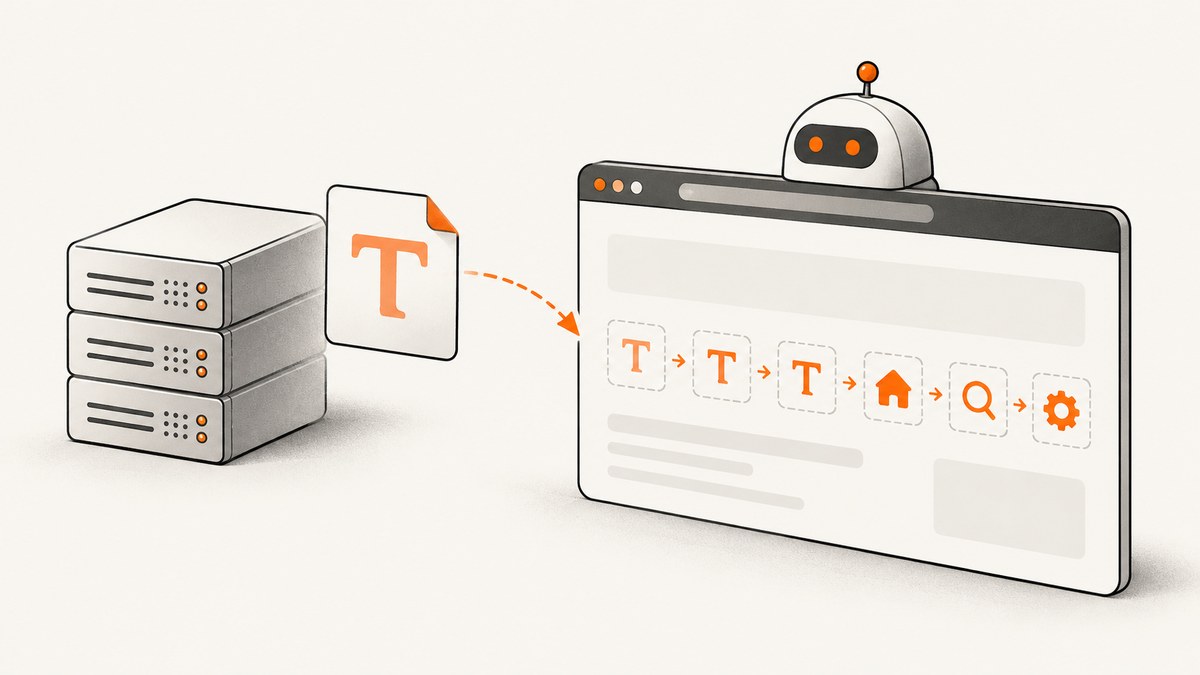
Material Icons are glyphs in a web font. Their familiar HTML form, such as <span class="material-icons">face</span>, depends on the font loading and CSS enabling the icon font and its ligatures. If PhantomJS shows the word face, a blank space, or a missing glyph, first check that the stylesheet and font file load in the PhantomJS environment, then confirm the class, font family and ligature styling match. Google documents both remotely served and self-hosted fonts, as well as SVG and PNG alternatives; it does not document a universal PhantomJS-specific fix. Google’s Material Icons guide.
PhantomJS output can differ from a developer’s browser because it runs in a separate environment with its own network access, installed fonts, operating system and rendering behavior. Work through the checks below using the same PhantomJS version and OS that produce the failing screenshot or PDF.
1. Identify what PhantomJS actually rendered
The visible symptom narrows the diagnosis, but does not prove a single cause:
- The icon name appears as text: inspect whether the font loaded and whether the icon class and ligature rules apply. Google explains that the text name is replaced by the icon glyph through a typographic ligature.
- A square, blank area or unrelated glyph appears: inspect the font request, font-family mapping and whether the requested icon is present in the font version being served.
- The icon works in a browser but not in PhantomJS: compare network access, cached assets, OS and font availability, and the exact output mode.
- The screenshot works but the PDF looks different: investigate PDF rendering separately. A historical PhantomJS report concerns remote web fonts and PDF text rasterization, but it used another font and does not establish a Material Icons fix.
Record PhantomJS version, operating system, the page URL, whether the font is remote or self-hosted, and whether the output is an image or PDF. This makes repeated tests comparable.
2. Verify the documented icon-font setup
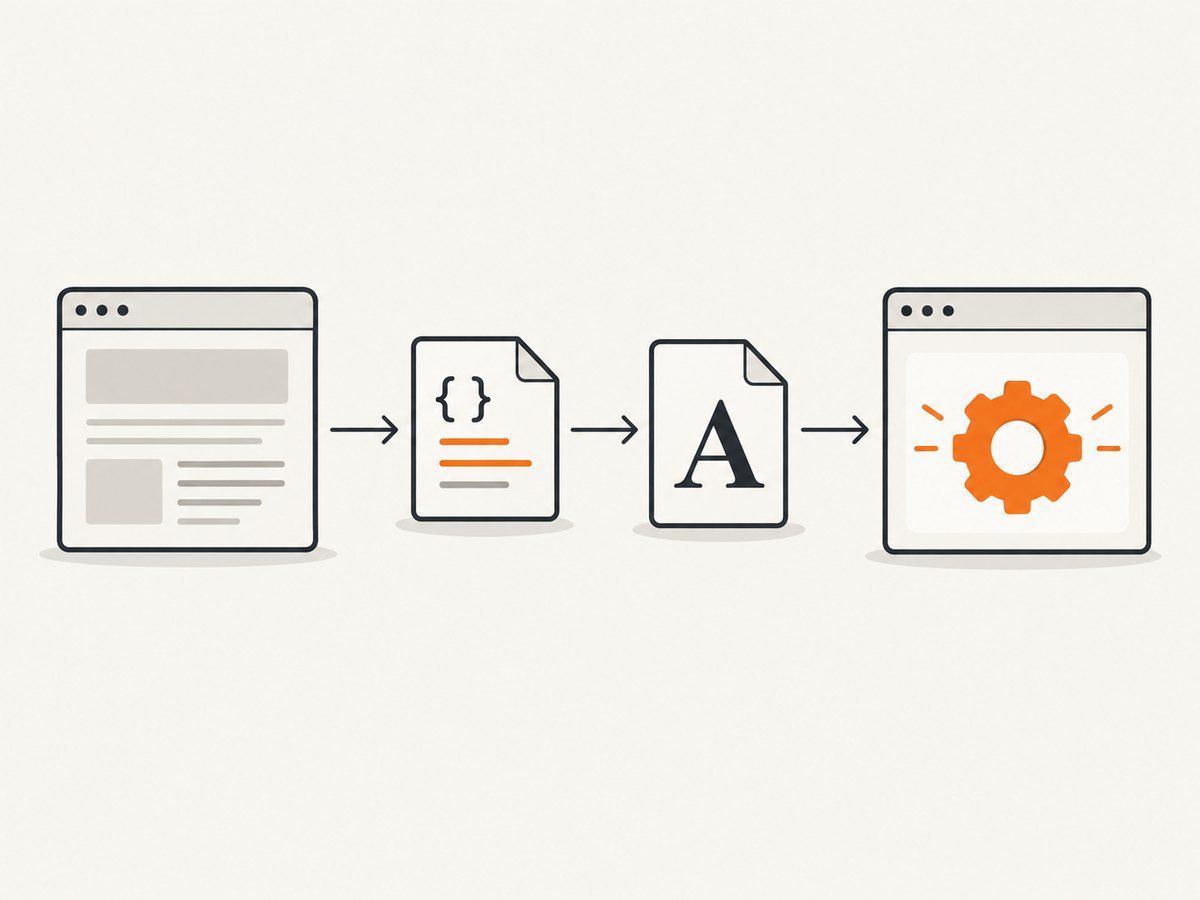
Start with the simplest documented configuration. Google’s hosted stylesheet declares the font face and the .material-icons rules:
<!doctype html>
<html>
<head>
  <meta charset="utf-8">
  <link rel="stylesheet"
        href="https://fonts.googleapis.com/icon?family=Material+Icons">
  <style>
    body { font-family: sans-serif; }
  </style>
</head>
<body>
  <span class="material-icons">face</span>
</body>
</html>
Open the page in the same machine or container where PhantomJS runs. Confirm it can reach both the stylesheet URL and the font asset referenced by that stylesheet. A successful page load alone does not prove that every dependent request succeeded. Check proxy settings, DNS, TLS certificate behavior, firewall rules and CI network policy if the requests fail.
Check that the element’s class is exactly material-icons, the CSS declares font-family: 'Material Icons', and the icon name is valid for the font version. Watch for CSS overrides: a broad rule that changes the icon element’s font-family, font-feature-settings, font-weight, white-space or text-transform can interfere with expected rendering.
3. Self-host the font to control delivery
If remote delivery is unreliable or unavailable in the rendering environment, self-hosting is a documented Material Icons setup. Put the font files at a stable URL your PhantomJS process can access, then define the face and icon styles. The example follows Google’s documented font-family and rendering rules; correct the asset paths to match your deployment.
@font-face {
  font-family: 'Material Icons';
  font-style: normal;
  font-weight: 400;
  src: url('/assets/MaterialIcons-Regular.woff2') format('woff2'),
       url('/assets/MaterialIcons-Regular.woff') format('woff'),
       url('/assets/MaterialIcons-Regular.ttf') format('truetype');
}
.material-icons {
  font-family: 'Material Icons';
  font-weight: normal;
  font-style: normal;
  font-size: 24px;
  display: inline-block;
  line-height: 1;
  text-transform: none;
  letter-spacing: normal;
  word-wrap: normal;
  white-space: nowrap;
  direction: ltr;
  -webkit-font-smoothing: antialiased;
  text-rendering: optimizeLegibility;
  -moz-osx-font-smoothing: grayscale;
  font-feature-settings: 'liga';
}
<span class="material-icons">face</span>
Serve the file with a valid URL and ensure the deployment includes the asset. Verify the path from the page’s origin: a relative URL resolves against the page location, and a file path that works locally may not exist inside a container. Do not assume an OS-installed font substitutes for the web font named in CSS. A historical PhantomJS GitHub discussion reports an Ubuntu font-install workaround for a different font and PDF text issue; treat system installation only as an experiment, not a verified Material Icons remedy.
4. Separate font loading from ligature problems
Run two comparisons: keep the same CSS and font but change the icon, then keep the same icon and change the rendering asset. If one name works and another does not, inspect the icon name and font version. If every name appears literally, focus on font delivery and CSS application.
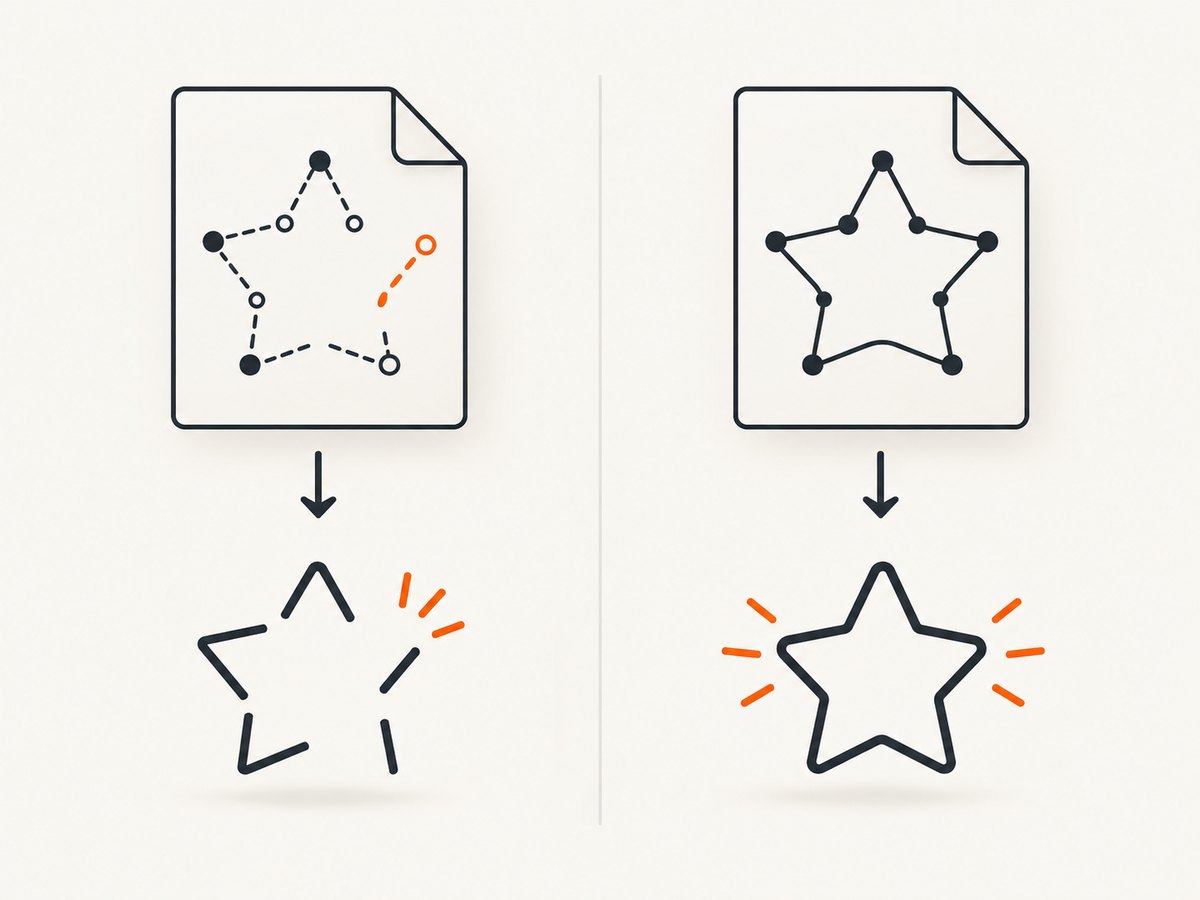
Google documents numeric character references for browsers where ligatures are unavailable. For diagnosis, you can use a codepoint from the official icon reference in place of the name. Do not guess codepoints: use the value for the specific icon and font release, since a wrong value can produce an unrelated glyph or an empty result. A codepoint test can distinguish a name-to-glyph ligature issue from a more general font loading problem, but it does not establish that PhantomJS supports every font feature.
Also test a downloaded SVG or PNG version of the same icon. Google provides both formats. If the image renders while the font icon does not, the problem is likely in the font path or font rendering rather than the page’s general layout. If neither renders, investigate the asset path, page state or capture timing. Check SVG and PNG behavior in your actual PhantomJS build.
5. Make capture timing deterministic
A capture can start before a stylesheet or font request finishes. Waiting a fixed number of milliseconds may help as a diagnostic, but it is fragile: network and machine speed vary. Prefer an explicit condition in your page or capture script that represents readiness, such as a page-owned flag set after the needed assets are loaded. PhantomJS versions and wrappers differ, so verify the API available in your installed build rather than copying a wait method from another browser automation tool.
For applications you control, load the stylesheet early and avoid injecting it only after the capture trigger. Material Symbols, a related but distinct icon family, documents display=block to reduce flashes of unstyled ligature text during font loading; that is useful background, not a PhantomJS-specific guarantee for Material Icons. A 2018 Angular Material report also describes icon-name text appearing before a font loaded under slow-network conditions, but it is not a PhantomJS compatibility test.
6. Troubleshooting checklist
| Symptom | Likely area to inspect | Next action |
|---|---|---|
| Icon name remains visible | Font request, font-family, ligature CSS or capture timing | Confirm the font URL loads; inspect computed CSS; wait for a page readiness condition. |
| Blank icon or square | Wrong font file, unsupported/missing glyph, bad URL | Verify the font asset and icon name; compare with a known icon and SVG. |
| Works on laptop, fails in CI | Network, path, permissions or different PhantomJS build | Check requests and paths inside the CI environment; record version and OS. |
| Only PDF differs | PDF-specific rendering or font embedding behavior | Compare screenshot output and PDF output; test a local font and an image asset. |
| Self-hosted font still fails | Relative URL, MIME configuration, CSS mismatch or stale build output | Request the exact asset URL from the PhantomJS host; verify deployed CSS and file. |
| Icon changes after CSS edits | Cascade or optimization altered icon rules | Inspect computed styles and the final bundled stylesheet, not only source CSS. |
For each test, change one variable at a time: remote versus self-hosted font, ligature versus codepoint, then font versus SVG/PNG. Keep the page, icon size and capture dimensions stable. Save the rendered output and the request/error log so a visual change can be tied to a specific configuration change.
7. Performance, reliability and cost considerations
A remote font adds a network dependency to every clean environment that has not cached it. Self-hosting makes the asset path part of your deployment and gives you control over versioning, but you must ship the file and keep the URL correct. Google lists the Material Icons font as 900+ icons in one file and gives general file-size figures of 42 KB for the smallest WOFF2 and 56 KB for standard WOFF; those are documentation figures, not PhantomJS benchmarks. An SVG/PNG comparison can be useful for a small set of fixed icons, while the font provides a shared font-based approach. The sources do not establish a universal performance winner for PhantomJS.
For repeatable captures, pin the PhantomJS build and OS in the job environment, use stable asset URLs, avoid relying on a developer’s browser cache, and include a timeout plus a clear failure result when required assets cannot load. If generating PDFs, test the PDF path directly; success in PNG output does not prove equivalent PDF behavior. PhantomJS’s repository was archived by its owner in 2023, so version-specific rendering assumptions should be validated in the deployed build.
Or skip the browser setup
If the goal is a reliable website screenshot rather than maintaining PhantomJS, ScreenshotNeo is a screenshot API and MCP server. One GET request returns a screenshot or PDF; its capture options include full-page shots, selector capture, viewport presets, wait conditions, and custom CSS or JavaScript. Read the ScreenshotNeo API documentation.
curl -G "https://api.screenshotneo.com/v1/shot" \
  -d access_key=YOUR_API_KEY \
  --data-urlencode url=https://stripe.com \
  -o shot.webp
Cookie banners, popups and chat widgets are removed before the shot. Bot checks, blank pages and failed loads are never billed, and response headers identify the page verdict and billing status. An MCP server lets AI agents use screenshot tools. The free plan includes 1,000 screenshots a month with no card; paid plans start at $5 for 3,000. Create a free account and get 1,000 screenshots a month with no card.
FAQ
Does installing the font on Linux always fix PhantomJS icons?
No universal Material Icons fix is established by the available evidence. A historical report describes installing a different font for a PDF text issue. Test web font loading and your specific output mode first.
Should I switch to Material Symbols?
Material Symbols are a related but distinct icon family. Changing families adds migration work and does not by itself resolve a PhantomJS font-loading issue. First test a controlled self-hosted font or image asset.
Is a literal icon name proof that PhantomJS cannot render ligatures?
No. It is a clue that the font, CSS or timing path needs inspection. Compare the font request, applied styles and an SVG rendering in the same environment.
What details should I include in a bug report?
Include the PhantomJS version, OS, output type, font source and URL, whether the asset request succeeds, relevant CSS, and a minimal page that reproduces the result.


