How to Maximize a Browser Window in Playwright
Use Chromium’s --start-maximized to request a maximized visible window, or set the viewport when you need a larger, predictable page area.
To open a visible Chromium browser maximized in Playwright Test, run in headed mode and pass Chromium’s --start-maximized launch argument. If you mean “make the webpage bigger” rather than “fill the desktop with the browser window,” set the Playwright viewport instead. These are related but different controls: the window is owned by the browser and operating system; the viewport is the page area your test renders and measures.
import { defineConfig } from '@playwright/test';

export default defineConfig({
  use: {
    headless: false,
    launchOptions: {
      args: ['--start-maximized'],
    },
  },
});
This is a Chromium-specific launch configuration, not a cross-browser Playwright maximize API. Playwright Test is headless by default, so the headed setting (or the --headed command-line option) is necessary to see the window. For repeatable page dimensions, a fixed viewport is usually the better test setting.
1. Choose what you actually need to maximize
“Maximize the browser” can refer to two separate things:
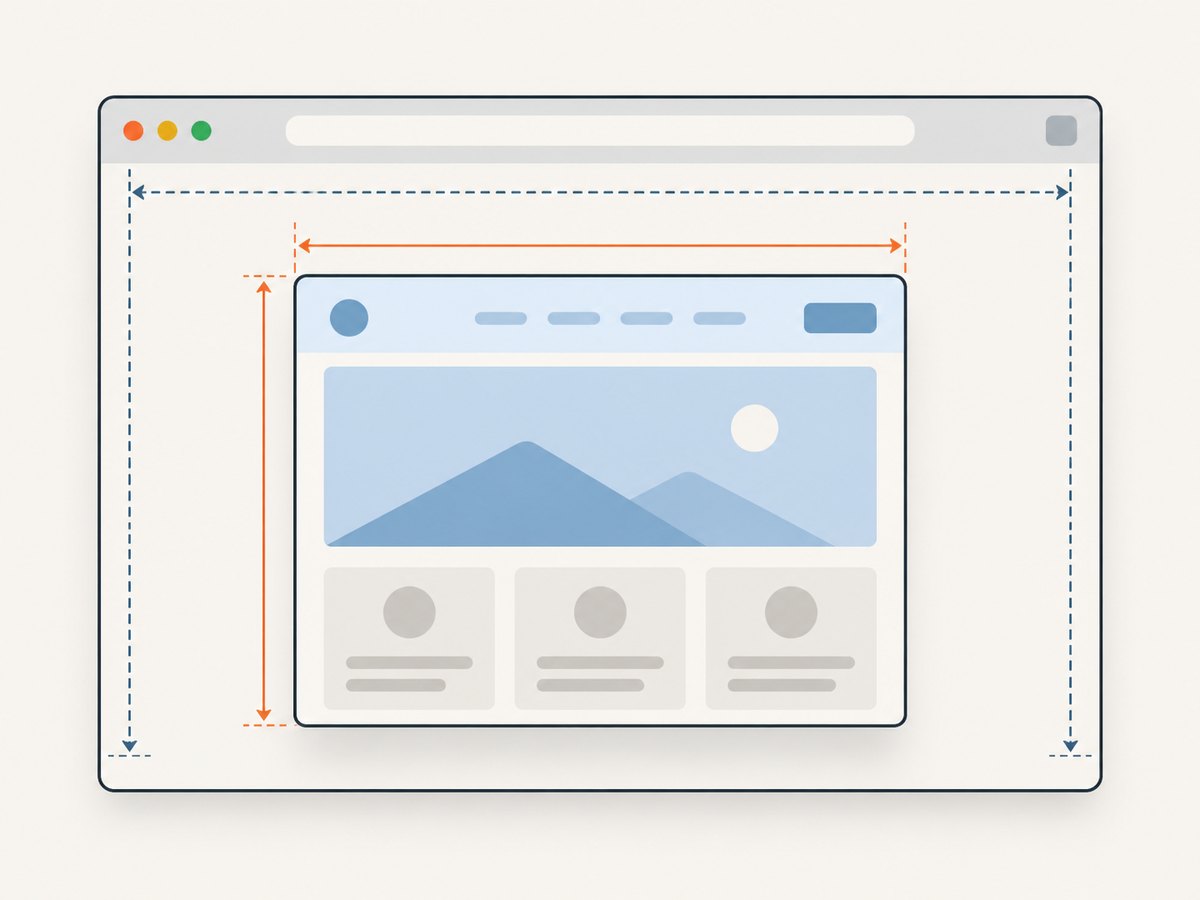
- Browser window: The visible desktop window, including browser chrome such as tabs and the address bar. On Chromium,
--start-maximizedrequests that the window open maximized. It has no visible effect in a headless run. - Page viewport: The webpage’s layout area. Playwright controls this with a viewport configuration or
page.setViewportSize(). This is what affects responsive breakpoints, layout dimensions, and most screenshot output.
A large window does not guarantee a particular CSS viewport size: browser chrome, display scaling, remote desktop settings, and the host machine all affect the available page area. Conversely, a test can use a 1920×1080 viewport without opening a maximized desktop window.
| Goal | Use | What to expect |
|---|---|---|
| See the browser while tests run | headless: false or --headed |
Displays a browser; does not set exact page dimensions. |
| Request a maximized Chromium window | --start-maximized launch argument |
Browser-specific request; host environment determines the resulting window. |
| Test a known page size | Fixed viewport |
Repeatable dimensions, independent of host display size. |
| Let page size follow the host window | viewport: null |
Host-window-dependent dimensions; less deterministic. |
2. Maximize a Chromium window in Playwright Test
Use a Chromium project, disable headless mode, and set the launch argument in Playwright Test configuration. The following is a complete minimal configuration:
import { defineConfig } from '@playwright/test';

export default defineConfig({
  testDir: './tests',
  use: {
    browserName: 'chromium',
    headless: false,
    launchOptions: {
      args: ['--start-maximized'],
    },
  },
});
Run it with:
npx playwright testYou can also leave the project configuration headless and ask for a visible run from the command line:
npx playwright test --headedFor this per-run approach, add the Chromium launch argument to the project’s launchOptions as above. The CLI flag makes the browser visible; it does not itself request maximization. Playwright documents --start-maximized among Chromium launch arguments and cautions that custom browser args may break Playwright functionality. Keep the argument only when the browser-window state is part of the workflow you need.
Limit the argument to Chromium
Do not apply --start-maximized as if it were a universal browser option. Playwright’s documented example is for Chromium, and custom browser arguments are browser-specific. If the configuration runs Firefox or WebKit projects too, put the setting in a Chromium-only project:
import { defineConfig } from '@playwright/test';

export default defineConfig({
  projects: [
    {
      name: 'chromium-headed',
      use: {
        browserName: 'chromium',
        headless: false,
        launchOptions: {
          args: ['--start-maximized'],
        },
      },
    },
    {
      name: 'firefox',
      use: {
        browserName: 'firefox',
      },
    },
    {
      name: 'webkit',
      use: {
        browserName: 'webkit',
      },
    },
  ],
});
The other projects retain their own browser settings. If you need a consistent page size across browser engines, configure a fixed viewport in each project rather than relying on operating-system window behavior.
3. Set a larger, predictable page viewport
For tests that need a wide or tall webpage, use a fixed viewport. Playwright documents a default context viewport of 1280×720; choosing explicit dimensions makes the intended layout test clear and repeatable.

import { defineConfig } from '@playwright/test';

export default defineConfig({
  use: {
    viewport: { width: 1920, height: 1080 },
  },
});
This config works independently of whether the browser is headed. If you want both a visible maximized Chromium window and a known page layout, configure both, but remember that the fixed viewport controls the page dimensions. The window may have extra unused space or browser chrome around that page area.
Use a host-sized viewport when needed
Setting viewport: null opts out of Playwright’s fixed viewport emulation. The viewport then depends on the host window. That can be useful for manual visual work where following the desktop window is the goal, but it makes dimensions dependent on the machine, display, and execution environment. Tests that assert exact layout or take comparable screenshots should usually specify width and height.
import { defineConfig } from '@playwright/test';

export default defineConfig({
  use: {
    headless: false,
    viewport: null,
    launchOptions: {
      args: ['--start-maximized'],
    },
  },
});
Use this combination when you specifically want a visible Chromium window whose page area follows the host window. It is not the most portable choice for CI, where there may be no ordinary desktop display or where the window dimensions differ between workers.
4. Resize a page in standalone Playwright code
Outside Playwright Test, create a browser context with the dimensions you want. This runnable Node.js example opens Chromium visibly and sets a 1920×1080 page viewport:
import { chromium } from 'playwright';

const browser = await chromium.launch({
  headless: false,
  args: ['--start-maximized'],
});

const context = await browser.newContext({
  viewport: { width: 1920, height: 1080 },
});
const page = await context.newPage();

await page.goto('https://example.com');
console.log(await page.evaluate(() => ({
  width: window.innerWidth,
  height: window.innerHeight,
})));

await browser.close();
Replace https://example.com with the page under test. The reported innerWidth and innerHeight describe the page viewport, not the outer desktop window.
To change the viewport after creating the page, call page.setViewportSize():
await page.setViewportSize({ width: 1600, height: 900 });This changes the page viewport and resets the screen size too. Set the viewport before navigation when a site may not expect its dimensions to change after loading; changing it can cause responsive scripts and page layout to recalculate.
5. Choose dimensions for the job
There is no universally correct “maximum” viewport. Choose dimensions based on the behavior you need to exercise.
- Responsive layout checks: Test the breakpoints that matter to the site, often with separate narrow and wide viewport projects. A single very large viewport will not cover mobile and tablet layouts.
- Screenshot comparison: Keep viewport dimensions, device scale factor, browser version, and page state consistent between captures. A changed viewport can alter line wrapping, lazy loading, and the final image.
- Long pages: Increasing viewport height does not necessarily capture the entire document. Use Playwright’s full-page screenshot option when the goal is a full-page image.
- Display-bound manual work: Use
viewport: nullif the page should follow the visible host window, accepting that the result varies by machine.
Very large dimensions can consume more memory and make rendering or screenshots slower. Use the smallest viewport that represents the real requirement. If the test is about a CSS breakpoint, test near that breakpoint rather than choosing a much larger screen without a reason.
6. Or skip the browser setup
If the goal is a website screenshot rather than a Playwright test, ScreenshotNeo returns an image or PDF from one API request. Its API can set a viewport and supports full-page capture, element selection, device presets, dark mode, retina scale, custom CSS and JavaScript, waits, and other capture options. See the ScreenshotNeo API documentation for parameter details.
curl -G "https://api.screenshotneo.com/v1/shot" -d access_key=YOUR_API_KEY --data-urlencode url=https://stripe.com -o shot.webpPython:
import requests

r = requests.get(
    "https://api.screenshotneo.com/v1/shot",
    params={"access_key": "YOUR_API_KEY", "url": "https://stripe.com"},
    timeout=90,
)
open("shot.webp", "wb").write(r.content)
Node.js:
const q = new URLSearchParams({ access_key: 'YOUR_API_KEY', url: 'https://stripe.com' });
const res = await fetch(`https://api.screenshotneo.com/v1/shot?${q}`);
if (!res.ok) throw new Error(`ScreenshotNeo request failed: ${res.status}`);
await Bun.write('shot.webp', res);
In Node.js environments without Bun, write the response bytes with the runtime’s filesystem API:
import { writeFile } from 'node:fs/promises';

const q = new URLSearchParams({ access_key: 'YOUR_API_KEY', url: 'https://stripe.com' });
const res = await fetch(`https://api.screenshotneo.com/v1/shot?${q}`);
if (!res.ok) throw new Error(`ScreenshotNeo request failed: ${res.status}`);
await writeFile('shot.webp', new Uint8Array(await res.arrayBuffer()));
ScreenshotNeo accepts cookie and consent banners like a visitor and removes 60+ known consent platforms, newsletter popups, and chat widgets before capture; each of those steps can be turned off. Bot checks, blank pages, timeouts, failed loads, and cache hits are not billed, and response headers identify the page verdict and billing status. Its MCP server gives Claude, Cursor, and other MCP clients the take_screenshot, get_page_info, and capture_pdf tools. The Free plan includes 1,000 screenshots per month with no card; paid plans start at $5 for 3,000 screenshots. Every feature is on every plan.
Sign up for 1,000 free screenshots a month, with no card required.
7. Troubleshooting
| Symptom | Likely cause | Fix |
|---|---|---|
| No browser window appears | The test is still running headless, or it is executing in an environment without a visible display. | Set headless: false or run with --headed. For CI or remote workers, check that a display is available before expecting a desktop window. |
| The browser opens, but is not maximized | The Chromium argument was not applied to the browser launch, or the host window manager does not honor the request. | Confirm the setting is under use.launchOptions.args for the Chromium project and that the run is headed. Treat the argument as a request, not a portable guarantee. |
| The page is still 1280×720 | Maximizing the outer window does not override Playwright’s fixed context viewport. | Set viewport: { width, height }, or use viewport: null when host-window-dependent sizing is intentional. |
| Firefox or WebKit fails to launch | A Chromium-specific custom flag may have been passed to another engine. | Move the argument into a Chromium-only project; configure other engines with supported Playwright settings. |
| Layout changes after resizing | The site responds to viewport changes, or its scripts only measured dimensions at initial load. | Set the viewport before navigation where possible. If testing dynamic resizing, wait for the page’s layout and application state to settle after the resize. |
| Screenshot comparisons differ between machines | viewport: null or host-dependent display settings make the rendered area vary. |
Use explicit viewport dimensions and keep the capture environment and page state consistent. |
| A custom argument causes unexpected behavior | Playwright warns that custom browser args can interfere with its functionality. | Remove unrelated launch arguments and keep only the needed Chromium flag. Verify behavior against the current Playwright configuration documentation. |
8. Performance, reliability, and cost
For automated tests, explicit viewport dimensions improve reproducibility because they remove host-window size from the layout inputs. A maximized desktop window can help with manual inspection, but it does not make a test more representative unless the application is intended to run at that display size.
Headed runs require a display-capable environment and can be less convenient in remote or CI execution. Keep most layout checks based on explicit viewports; use headed mode when visually observing browser behavior is useful. Large viewports and full-page screenshots can take more resources, so avoid oversized settings that do not correspond to a user scenario.
Playwright itself is an open-source browser automation framework; the configuration described here does not introduce a per-screenshot API charge. The relevant costs are the machine time and resources used to run the browser and the project’s existing test infrastructure. If you instead need a hosted screenshot result without maintaining browser setup, ScreenshotNeo’s stated pricing is Free for 1,000 monthly shots, then Starter $5 for 3,000, Growth $15 for 15,000, Pro $39 for 60,000, Scale $99 for 250,000, and Business $249 for 1,000,000. Yearly billing gives two months free.
9. Frequently asked questions
Does --start-maximized work in headless mode?
It cannot show a visible desktop window in a headless run. Use headed mode to see a window. For the page’s dimensions in either mode, set the viewport explicitly.
What is Playwright’s default viewport?
The documented default context viewport is 1280×720. Set width and height explicitly when that default does not represent the layout you want to test.
Can I maximize Firefox or WebKit with the same flag?
The documented --start-maximized example is for Chromium. Do not assume it is portable to Firefox or WebKit. Use Playwright’s viewport controls for cross-browser page dimensions.
Does maximizing the window capture the full page?
No. Window size and page capture height are separate. Use Playwright’s full-page screenshot capability when you need the entire scrollable document in an image.
Should I use viewport: null in CI?
Usually only when host-dependent dimensions are part of the test. The resulting viewport can vary with the worker’s window and display, so fixed dimensions are more repeatable.


