MCP Server vs. Code Extension: Differences and Use Cases
Compare MCP servers and code extensions by architecture, portability, security, setup, and use case so you can choose the right integration.

Short answer: An MCP server is a protocol-level integration that exposes tools, data, and other capabilities to compatible AI hosts. A code extension is installed in a particular editor and uses that editor’s APIs, UI, permissions, and distribution system. Choose MCP when you want reusable access across compatible hosts; choose an extension when you need deep editor-native behavior or marketplace distribution. You can also combine them: a VS Code extension can register an MCP server.
The distinction is architectural. MCP defines how an AI application connects to external tools and services through a unified interface, while an extension runs inside a host editor and integrates with that editor’s APIs. Microsoft’s VS Code MCP documentation and the MCP documentation describe the protocol and host-specific implementation details.
1. MCP server vs. code extension at a glance
| Decision axis | MCP server | Code extension |
|---|---|---|
| Main role | Protocol-level access to tools, resources, prompts, and services for compatible AI hosts. | Editor-specific features built with host APIs. |
| Best fit | A database, API, repository operation, browser service, or other capability you want to reuse across clients. | Native editor commands, views, language features, settings, and marketplace distribution. |
| Portability | Potentially reusable in Claude Code, VS Code, Cursor, and custom applications; support varies by host. | Tied to the editor and its extension API. |
| Installation | Configured as a local stdio or remote Streamable HTTP server (with legacy SSE supported by some hosts). | Installed and updated through the editor’s extension mechanism, such as the Visual Studio Marketplace. |
| Security surface | Transport, authentication, tool permissions, secrets, and local-server isolation. | Extension permissions and access to editor APIs, files, terminals, and network features. |
| Can they work together? | Yes. An extension can provide setup and UI while the MCP server supplies the reusable capability. | Yes. VS Code documents extension providers that register MCP server definitions. |
2. How the two approaches operate
MCP server: a protocol boundary
An MCP server advertises capabilities to an MCP-compatible host. Depending on what the client implements, those capabilities can include callable tools, resources, prompts, elicitation, sampling, OAuth authentication, workspace roots, and MCP Apps. The server owns the integration logic; the host decides how to present and authorize it.
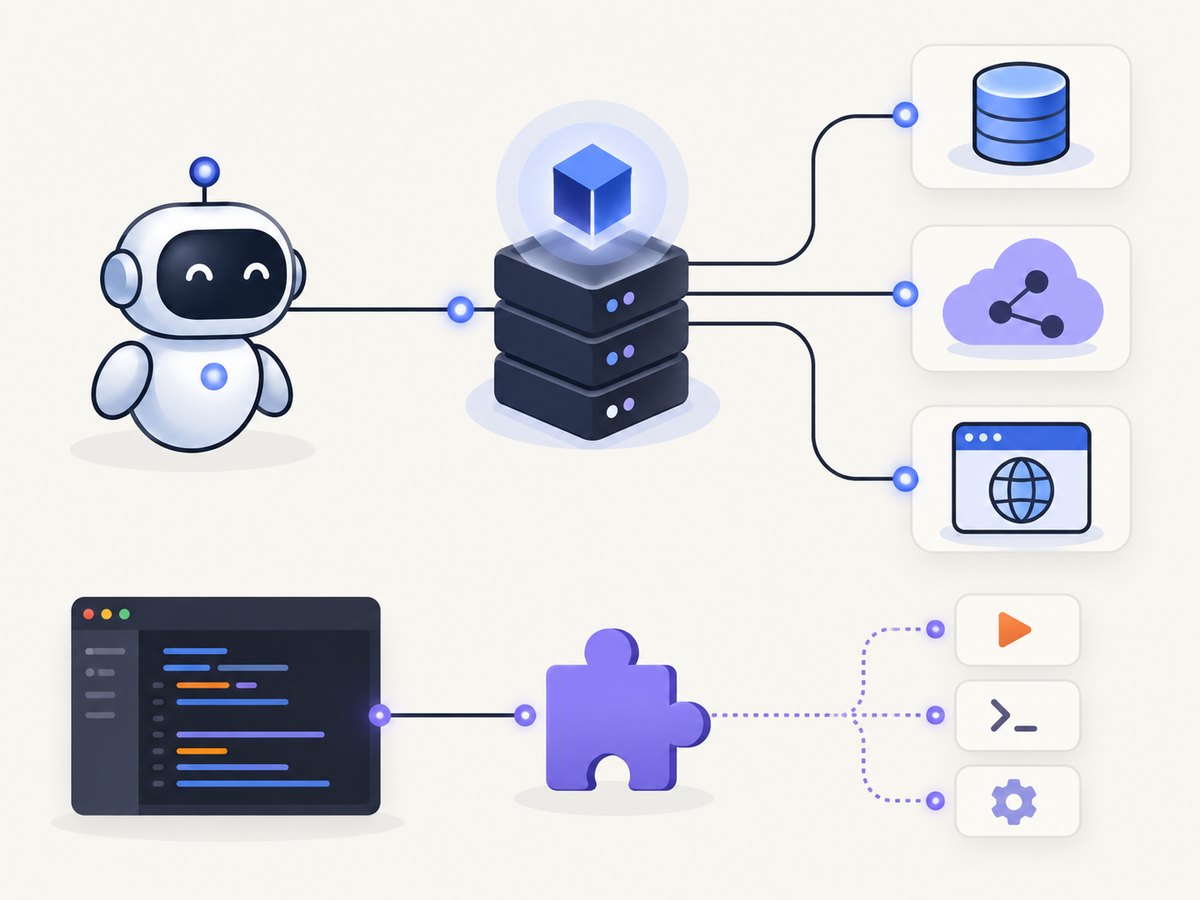
This separation is useful when the same service should work from several agents. For example, a database MCP server can expose schema inspection and queries to multiple clients, while an external API server can provide a consistent tool interface to different assistants.
Code extension: a host-native layer
An extension is packaged for a specific editor. It can add commands, views, configuration screens, language tooling, code actions, and editor-specific UI. In VS Code, Microsoft recommends the Language Model API when a feature needs deep VS Code integration or should be distributed through the Visual Studio Marketplace.
An extension can call an MCP server, register one for users, or implement the feature itself. The extension is the right place for editor lifecycle handling, native status indicators, keybindings, and workspace UX.
3. Choosing the right architecture
Choose an MCP server when
- The capability belongs to an external service rather than one editor.
- You need the same tools in more than one MCP-compatible host.
- You want clients to discover tools through a standard protocol.
- Your integration needs resources, prompts, OAuth, sampling, or other MCP capabilities supported by the host.
- You want to update service logic without rebuilding an editor-specific UI.
Choose a code extension when
- The feature depends on editor APIs, workspace state, language services, views, commands, or keybindings.
- You need a native editor workflow with settings and UI.
- You intend to distribute through an editor marketplace.
- The target is one editor and portability is not a requirement.
Combine them when
Use an extension as the installation and configuration layer, then register an MCP server for the service logic. This pattern lets you provide editor-native setup while keeping the underlying tools reusable. VS Code supports extension providers that register local stdio or Streamable HTTP MCP server definitions, including a resolution stage for authentication or other user interaction.
4. A practical decision checklist
- Identify the owner of the capability. If it operates on an external API, database, repository, or browser service, start with MCP. If it manipulates editor state or UI, start with an extension.
- List target hosts. MCP is useful when two or more compatible hosts must use the same integration. Verify each host’s supported transports and capabilities.
- Decide where configuration belongs. Put service credentials and protocol configuration in the MCP server setup; put editor preferences and UX in the extension.
- Define confirmation rules. Inspect which tools are read-only and which can modify files, repositories, databases, or external systems.
- Choose deployment. Local stdio is appropriate for a process on the developer’s machine. Streamable HTTP is appropriate when the server is hosted remotely and authenticated.
- Plan failure handling. Specify what the host should show when a server is unavailable, authentication expires, or a tool returns an error.
5. VS Code setup patterns
VS Code documents workspace and user-profile configuration, install links, command-line setup, discovery, and extension providers. A server runs where it is configured; remote development may require configuring it in workspace or remote-user settings.
Local stdio server
A local stdio server is started by the host and communicates over standard input and output. Keep secrets out of source control and use the host’s documented configuration mechanism. The exact configuration keys are host and version specific, so follow the current VS Code MCP server guide for the schema your installation accepts.
{
  "servers": {
    "example-local": {
      "type": "stdio",
      "command": "node",
      "args": ["/absolute/path/to/server.js"],
      "env": {
        "SERVICE_TOKEN": "${input:serviceToken}"
      }
    }
  }
}
Treat this as a shape example: property names and variable substitution syntax can change with the host version. Confirm the current schema before committing a workspace file.
Remote Streamable HTTP server
{
  "servers": {
    "example-remote": {
      "type": "http",
      "url": "https://example.invalid/mcp"
    }
  }
}
Use the host’s authentication flow where available. VS Code documents OAuth support and may prompt before tools that are not marked read-only.
Extension provider pattern
An extension can expose configuration UI, resolve credentials, and register a local or remote MCP definition. This is useful when users need a guided sign-in flow or when the extension must coordinate server setup with workspace state. Keep the protocol implementation in the server so other hosts can reuse it.
6. Security, trust, and operations
- Review every tool. A tool can read data, write files, run commands, or call external services. Do not infer safety from the MCP label alone.
- Protect credentials. Use environment variables, the host’s secret storage, or OAuth. Never commit access tokens to workspace configuration.
- Check transport. Local stdio and remote HTTP have different process, network, and logging boundaries.
- Use sandboxing where available. VS Code offers sandbox configuration for locally running stdio servers on macOS and Linux to restrict filesystem and network access.
- Confirm host support. MCP is implemented by clients; transports, resources, prompts, OAuth, MCP Apps, and confirmation behavior differ between hosts.
- Log safely. Record request IDs and error classes, but redact tokens, cookies, authorization headers, and private data.
7. Common mistakes and troubleshooting
| Symptom | Likely cause | Fix |
|---|---|---|
| The host cannot discover the server | Invalid configuration location, schema, command path, or transport. | Validate the host’s current configuration format, use an absolute executable path, and inspect the host’s MCP logs. |
| Server starts then exits | Runtime error, missing dependency, or a process writing non-protocol text to stdout. | Run the command directly, install dependencies, and send diagnostics to stderr so stdout remains available for protocol messages. |
| Tools appear but calls fail authentication | Missing environment variable, expired OAuth session, or unresolved credential prompt. | Re-authenticate, verify the server process receives the variable, and check the host’s credential-resolution step. |
| Works in one client but not another | Different MCP capability or transport support. | Compare each client’s supported MCP version, transport, tool confirmation, and authentication features. |
| Extension works locally but not remotely | The server or extension is running in a different environment during remote development. | Configure the server in the remote workspace or remote user settings and verify where the process runs. |
| Users reject the integration | Unclear permissions or unexpected write-capable tools. | Mark read-only tools accurately, request confirmation for mutations, document data access, and provide least-privilege credentials. |
8. Performance and reliability considerations
MCP adds a protocol hop, so measure startup time, tool latency, serialization, and remote network delay. Keep servers warm when the host supports long-lived processes, reuse HTTP connections, and avoid returning unnecessarily large resources. Extensions should avoid blocking the editor thread and should surface progress for long operations.
For reliability, make tool calls idempotent where possible, assign request IDs, set timeouts, retry only safe transient failures, and return actionable error messages. A server outage should disable its tools cleanly without taking down the editor. An extension should handle server restarts and expired authentication without requiring a full reinstall.
9. When a screenshot capability belongs in MCP
A screenshot service is a good MCP use case when agents need visual access to external web pages from multiple hosts. ScreenshotNeo provides an MCP server with take_screenshot, get_page_info, and capture_pdf tools for Claude, Cursor, and other MCP clients. It also exposes a direct HTTP API, so an extension can provide setup while agents use the same underlying service.

Or skip the browser setup
With ScreenshotNeo, one GET request returns a PNG, JPEG, WebP, or PDF. Cookie and consent banners, newsletter popups, and chat widgets are removed before capture. Bot checks, blank pages, failed loads, timeouts, and cache hits are not billed, and response headers identify the page verdict and billing result.
See the ScreenshotNeo API documentation for the complete option list.
curl -G "https://api.screenshotneo.com/v1/shot" -d access_key=YOUR_API_KEY --data-urlencode url=https://stripe.com -o shot.webpimport requests
r = requests.get("https://api.screenshotneo.com/v1/shot", params={"access_key": "YOUR_API_KEY", "url": "https://stripe.com"}, timeout=90)
open("shot.webp", "wb").write(r.content)const q = new URLSearchParams({ access_key: 'YOUR_API_KEY', url: 'https://stripe.com' });
const res = await fetch(`https://api.screenshotneo.com/v1/shot?${q}`);Options include full-page capture with lazy images loaded, CSS-selector element capture, dark mode, device presets and custom viewports, retina scale, PDF paper settings and page ranges, custom CSS and JavaScript, clicks, selector waits, delays, network-idle waits, request blocking, headers, cookies, user agents, authorization, timezone, geolocation, transparent backgrounds, resizing, TTL caching, signed image links, asynchronous jobs with signed webhooks, bulk capture for up to 100 URLs per call, and a usage API. The parameter names used by other screenshot APIs also work, which can simplify migration.
An MCP server lets AI agents take screenshots directly. The free plan includes 1,000 screenshots per month with no card; paid plans start at $5 for 3,000 screenshots. Create a free ScreenshotNeo account.
10. FAQ
Is MCP a replacement for extensions?
No. MCP standardizes access to external capabilities; extensions provide host-native behavior. Many products use both.
Can an MCP server run without an editor?
Yes. Any compatible MCP host can connect to it, including custom applications. The host determines which protocol features are available.
Should every tool be exposed through MCP?
No. Keep editor-only interactions in an extension and expose reusable external operations through MCP.
Does MCP guarantee portability?
No. Hosts can support different transports, capabilities, authentication flows, and confirmation rules. Test each target client.
Where should secrets live?
Use environment variables, OAuth, or the host’s secret storage. Do not place long-lived credentials in committed workspace files.


