How to Merge Two Screenshots on iPhone
Learn how to place two iPhone screenshots side by side, stack them vertically, or stitch overlapping captures into one long image.
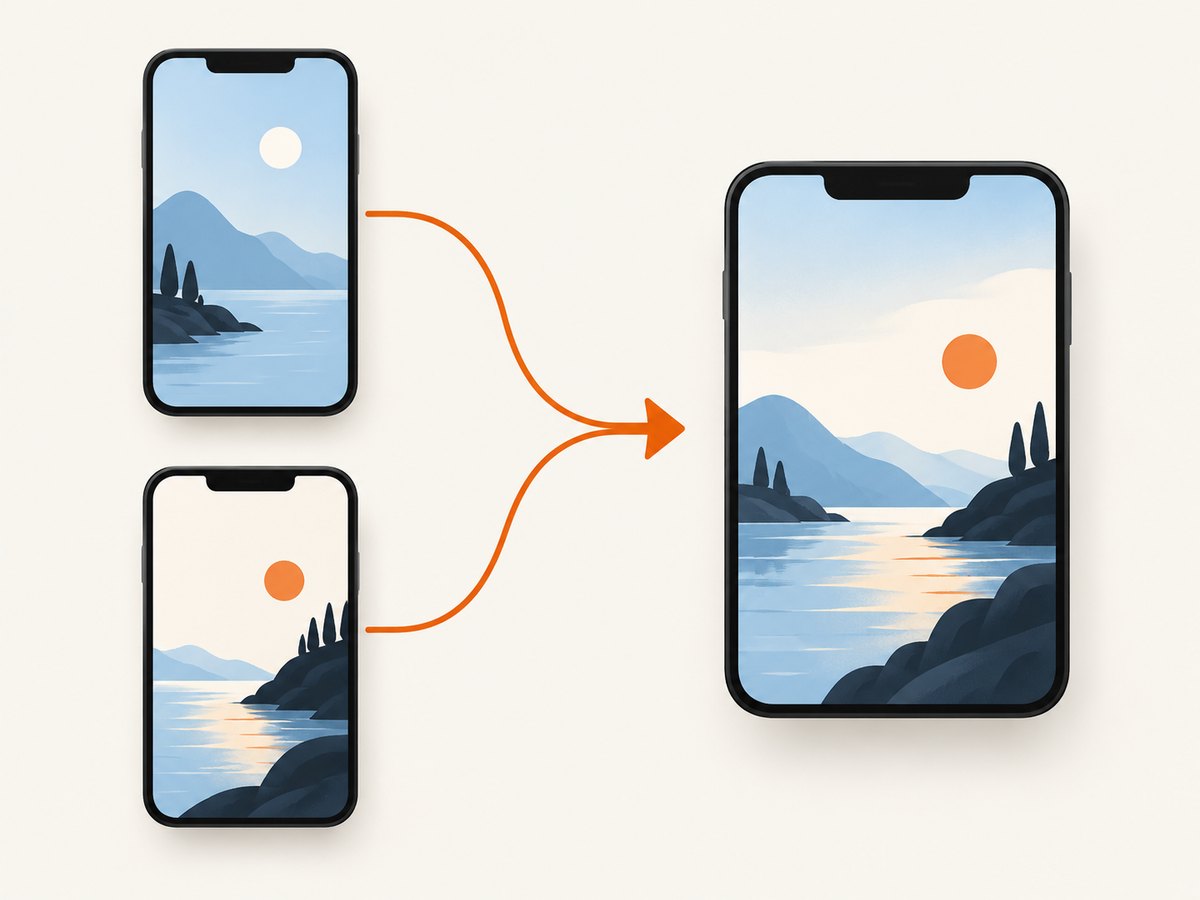
To merge two screenshots on iPhone, first decide what result you need: place two complete images side by side or one above the other, or stitch overlapping screenshots into one continuous long image. Use Apple Shortcuts for a simple layout. Use a dedicated stitching app such as Picsew when the screenshots overlap and should read as one scrolling capture.
Choose the right merge method
| Goal | Best route | What it does |
|---|---|---|
| Two complete screenshots in one canvas | Shortcuts | Places images horizontally or vertically. |
| One continuous chat, article, receipt, or page | Picsew or another stitching app | Detects overlapping content and joins captures. |
| Add arrows, text, drawings, or shapes | Markup | Annotates an image; it is not the merge step. |
Apple documents taking, cropping, annotating, sharing, and saving screenshots, but its cited screenshot and Markup instructions do not describe a direct Photos command for combining two separate screenshots. Apple’s screenshot guide and Markup guide are useful before or after the merge.
Method 1: combine two screenshots with Shortcuts
Shortcuts is Apple’s automation app. Its actions pass data from one step to the next, which makes it suitable for selecting screenshots, combining them, and saving the result. Apple documents the app and its action-based workflow, while the exact Combine Images controls can vary by iOS version. Check Apple’s current Shortcuts guide if an action name or control looks different on your iPhone.
Create a reusable shortcut
- Open Shortcuts and tap + to create a shortcut.
- Tap Add Action, search for Select Photos, and add it.
- Turn on Select Multiple so you can choose both screenshots in one picker.
- Add the Combine Images action. Set the direction to Horizontally for side by side, or Vertically for one above the other. If your iOS version exposes spacing, set the gap you want; otherwise the action uses its default.
- Add Save to Photo Album and choose Recents or a dedicated album.
- Give the shortcut a name such as Merge Two Screenshots.
Run it
- Run the shortcut from Shortcuts, the Home Screen, or Siri.
- Select exactly two screenshots in the order you want them read. The first selected image normally becomes the first image in the output.
- Open Photos and inspect the saved result.
Change the layout
- Side by side: choose horizontal combining. This works best when both screenshots have similar heights.
- Top to bottom: choose vertical combining. This works best for comparing screens or creating a single shareable image.
- Unequal dimensions: expect one image to appear taller or wider. Crop or resize before combining if you need aligned edges.
- More than two images: leave Select Multiple enabled and select all required images, if your Combine Images action accepts the resulting list.
Prepare screenshots before combining
- Open each screenshot in Photos and crop unwanted browser chrome, status bars, or blank margins.
- Use Markup for arrows, highlights, text, or shapes if the combined image needs explanation.
- Keep the same orientation and approximate dimensions when you want a tidy grid.
- Rename or favorite the source screenshots so they are easy to find in the picker.
Markup edits the individual image. Do the combine step in Shortcuts or a stitching app, then annotate the final image if that is easier.
Method 2: stitch overlapping screenshots into one long image
If the two screenshots show consecutive parts of the same scrolling content, a layout shortcut will simply place them next to each other. Use a stitching app instead. Picsew’s official site and App Store listing describe stitching screenshots and detecting overlap from images in the photo library. Check its current features and pricing before installing.
- Capture the overlapping sections of the chat, article, receipt, or page. Keep a small repeated area between screenshots so overlap can be detected.
- Open Picsew and import the screenshots from Photos.
- Choose the stitching workflow and let the app detect the shared area.
- Review the join. Adjust crop boundaries manually if duplicated lines, missing content, or a visible seam remains.
- Export the finished image to Photos or share it directly.
Use the app’s manual alignment controls when screenshots have different zoom levels, browser bars, or inconsistent scrolling. The result should be checked at full size for repeated text, skipped lines, and unreadable small type.
Common problems and fixes
| Problem | Likely cause | Fix |
|---|---|---|
| The images appear in the wrong order | They were selected in an unexpected order. | Run the shortcut again and select the first image first. Rename files if necessary. |
| The result is horizontal when you wanted vertical | Combine Images is set to horizontal. | Edit the action and change its direction to vertical. |
| One screenshot is stretched or misaligned | The source dimensions differ. | Crop or resize both images to matching dimensions before combining. |
| The shortcut cannot find photos | Photo permission is missing or limited. | Open Settings, find Shortcuts, allow Photos access, then run it again. |
| A stitched image contains duplicated content | The overlap detector did not choose the correct boundary. | Adjust the seam or crop manually; recapture with a clearer repeated region if needed. |
| Text becomes hard to read | The final canvas was resized or compressed during sharing. | Export at original size and send the file instead of a compressed preview. |
| There is no Combine Images action | The action label or availability differs by iOS version. | Search Shortcuts for “combine,” check the current Apple guide, or use a dedicated stitching app. |
Quality checklist
- Confirm the reading order.
- Check crop boundaries for clipped text or controls.
- Look for duplicated or missing overlap.
- Verify that small text remains legible at 100% zoom.
- Make sure the output orientation matches where you will share it.
- Keep the original screenshots until the merged image has been reviewed.
Or skip the browser setup
If your screenshots come from web pages and you would rather generate clean captures through an API, ScreenshotNeo returns a PNG, JPEG, WebP, or PDF from one GET request. Its capture flow accepts cookie and consent banners, removes more than 60 known consent platforms plus newsletter popups and chat widgets, and lets you turn those steps off. Bot checks, blank pages, timeouts, failed loads, and cache hits are not billed; response headers identify the page verdict and whether the request was billed. An MCP server provides take_screenshot, get_page_info, and capture_pdf for Claude, Cursor, and other MCP clients.
See the ScreenshotNeo API documentation for all options.
cURL
curl -G "https://api.screenshotneo.com/v1/shot" -d access_key=YOUR_API_KEY --data-urlencode url=https://stripe.com -o shot.webpPython
import requests

r = requests.get(
    "https://api.screenshotneo.com/v1/shot",
    params={"access_key": "YOUR_API_KEY", "url": "https://stripe.com"},
    timeout=90,
)
r.raise_for_status()
open("shot.webp", "wb").write(r.content)
Node.js
const q = new URLSearchParams({ access_key: 'YOUR_API_KEY', url: 'https://stripe.com' });
const res = await fetch(`https://api.screenshotneo.com/v1/shot?${q}`);
if (!res.ok) throw new Error(`Screenshot failed: ${res.status}`);
const image = Buffer.from(await res.arrayBuffer());
require('fs').writeFileSync('shot.webp', image);
ScreenshotNeo includes full-page captures with lazy images loaded, CSS-element capture, device presets or custom viewports, dark mode, retina scale, custom CSS and JavaScript, waits, request blocking, headers, cookies, user agents, authorization, timezone, geolocation, resizing, caching, signed links, asynchronous jobs, webhooks, bulk capture, a usage API, and an OpenAPI specification. It also accepts parameter names used by other screenshot APIs, which can simplify a migration.
The Free plan includes 1,000 shots per month with no card. Paid plans start at $5 for 3,000 shots; every feature is available on every plan. Create a free ScreenshotNeo account.
Performance, reliability, and cost notes
- Shortcuts: runs locally on the iPhone and is convenient for occasional merges. Large images can create a large output file and use device storage.
- Stitching: overlap quality depends on consistent captures. Repeated headers, sticky navigation, ads, or changing content can confuse automatic joins.
- Sharing: messaging and social apps may recompress images. Send the original file when text clarity matters.
- ScreenshotNeo: cache hits and failed or unusable page loads are not billed, and the response headers show the verdict and billing status. Use caching with a chosen TTL for repeated URLs and asynchronous jobs with signed webhooks for longer workflows.
FAQ
Can Photos merge two screenshots directly?
The cited Apple Photos, screenshot, and Markup instructions do not document a direct Photos merge command. Use Shortcuts or a stitching app.
Should I place screenshots side by side or stack them?
Use side by side for comparison. Stack vertically when the images form a reading sequence or need to fit a single portrait share.
Do I need overlapping screenshots for a long image?
Yes. Repeated content gives a stitching app information it can use to align the captures.
Can Markup combine screenshots?
Markup annotates screenshots and photos. It is useful before or after combining, but it is not the merge workflow described here.


