How to Merge Multiple Web Pages or HTML Files into a PDF or DOCX
Merge web pages or HTML files into one ordered PDF or editable DOCX with desktop workflows, code, troubleshooting, and a browser-free API option.
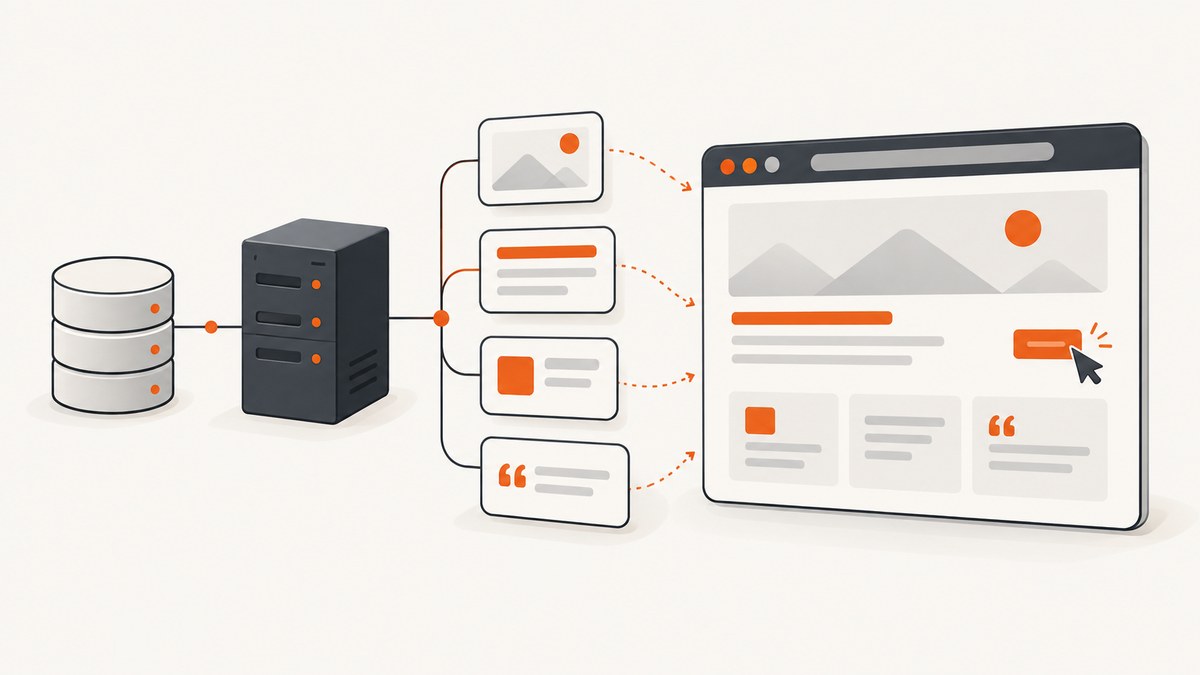
Short answer: choose PDF when you need a stable, page-oriented result, and choose DOCX when the text must remain editable. For a PDF, convert each web page or HTML file first, then combine the resulting PDFs in the required order. For an editable Word file, assemble existing Word documents with Word’s Text from File command; arbitrary HTML usually needs an intermediate conversion and cleanup.
This guide covers desktop, cloud, and code-based workflows, including page ordering, headers and footers, dynamic websites, failed conversions, and a browser-free option with ScreenshotNeo.
Choose the right output
| Goal | Best route | What to expect |
|---|---|---|
| Preserve visual layout | Convert pages to PDF, then merge | Reliable pagination, but the result is not normally editable as flowing text. |
| Edit paragraphs, headings, and tables | Assemble DOCX files in Word | Text remains editable; complex HTML may need cleanup. |
| Combine PDFs already stored in Microsoft 365 | SharePoint or OneDrive Merge | Cloud workflow for existing PDFs, not raw HTML. |
| Automate recurring captures | Playwright or a screenshot/PDF API | Repeatable output with explicit settings for waiting, assets, and ordering. |
Method 1: Convert and merge web pages with Adobe Acrobat
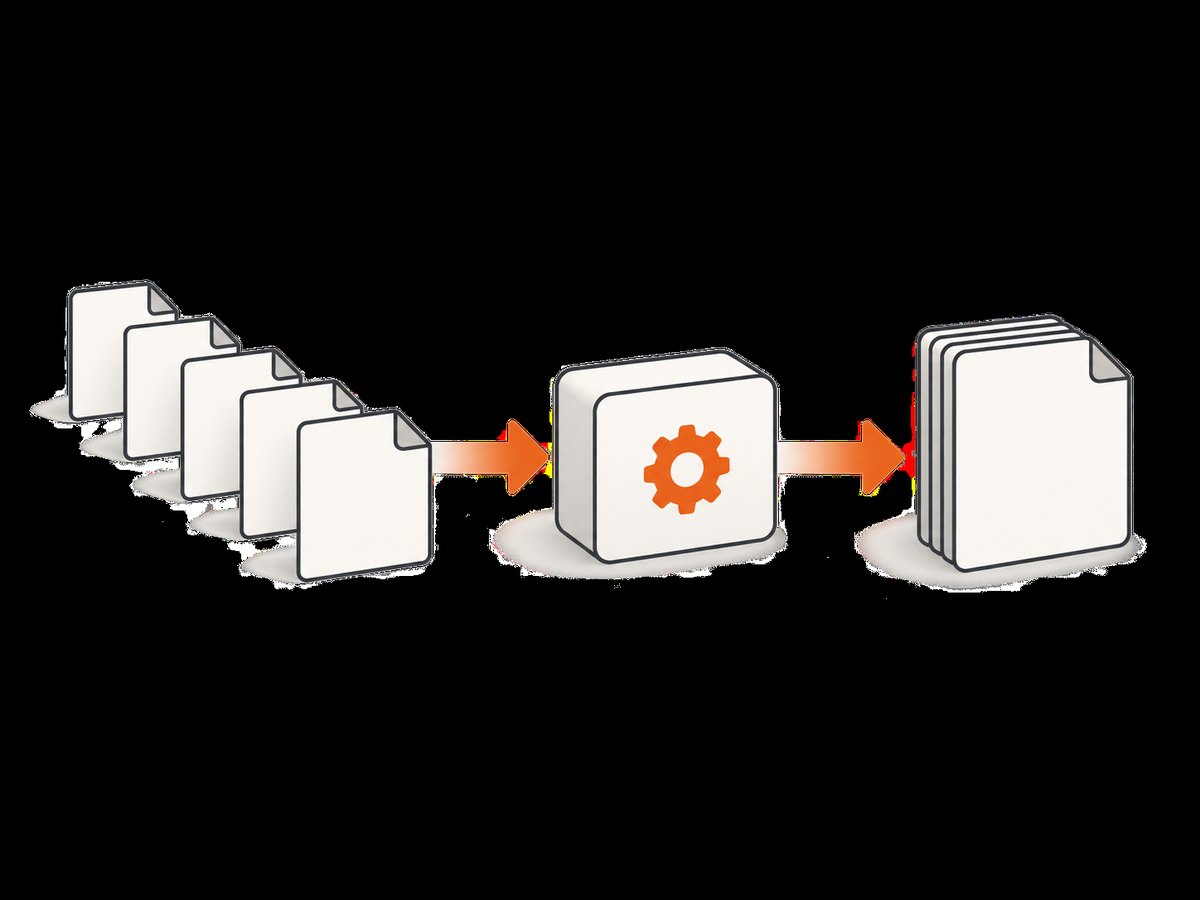
Acrobat is the most direct documented desktop workflow for web-derived files. Its Combine Files tool accepts web files and common office formats, lets you preview sources, expand multipage inputs, delete unwanted pages, and drag thumbnails into the final order. Adobe describes the result as Acrobat merging the selected files into one PDF.
Step-by-step
- Save each source page or HTML file, or collect the URLs you need to convert.
- Open Acrobat and choose Combine Files.
- Add the web files, PDFs, images, or office documents. If a source has multiple pages, expand it to inspect them.
- Drag thumbnails into the required order. Rename files before combining if the names will help you audit the sequence.
- Delete cover pages, blank pages, or duplicate captures.
- Click Combine, then rename and save the final PDF.
Adding a web page directly
Acrobat also supports adding content from a web page during file combination. For an unlinked URL, use Edit → Organize pages → Insert → From web page. Linked pages can be appended to an existing document or opened as a newly converted PDF. This is useful when you have a small number of stable pages and do not need a scripted pipeline.
Review before delivery
- Check that every source appears once and in the intended order.
- Open the first and last page of every source section.
- Look for missing fonts, clipped tables, blank pages, broken images, and unexpected page breaks.
- Search the merged PDF for a distinctive heading from each source.
- Confirm metadata, bookmarks, links, and accessibility requirements if the file is being published.
Method 2: Build an editable DOCX in Microsoft Word
Word’s supported assembly method is Insert → Object → Text from File. It is designed for existing Word documents, so HTML pages normally need an intermediate conversion, copy-and-paste step, or a tool that exports HTML to DOCX.
Assemble existing Word documents
- Create a new Word document and place the cursor where the next source should begin.
- Choose Insert → Object → Text from File.
- Select the first DOCX file and insert it.
- Repeat at each insertion point for the remaining documents.
- Add page breaks or section breaks where one source must start on a new page.
- Update the table of contents, fields, headers, footers, and cross-references.
If headers and footers must differ between sources, insert the next document in a new section and disable Link to Previous. This keeps the relevant header and footer with that section instead of applying one document-wide setting.
Converting HTML for DOCX
For simple HTML, open the page in a browser, copy the rendered content, and paste it into Word using a paste option that preserves the required formatting. For repeatable work, convert each HTML source to an intermediate DOCX or PDF, then clean up styles in Word. Expect manual work when the page uses responsive CSS, scripts, web fonts, interactive controls, or complex tables. The Word insertion workflow itself does not promise perfect HTML fidelity.
Method 3: Merge PDFs in SharePoint or OneDrive
Microsoft documents a cloud merge workflow for two or more existing PDFs. Open one PDF in SharePoint or OneDrive, choose More options (…) → Merge, select the other files, choose Next, and save the merged file to the document library.
This route is convenient after every web page has already been converted to PDF. It is not a raw HTML merger, so convert HTML first and verify that your tenant, account, plan, and region expose the feature.
Automate conversion and merging with Python
For a repeatable pipeline, Playwright can render each URL or local HTML file, and pypdf can append the resulting PDFs in a fixed order. Install the dependencies first:
python -m pip install playwright pypdf
python -m playwright install chromium
Save this as merge_pages.py. The list order becomes the PDF order.
from pathlib import Path
from playwright.sync_api import sync_playwright
from pypdf import PdfWriter

sources = [
    "https://example.com/part-one",
    "https://example.com/part-two",
    "file:///absolute/path/appendix.html",
]
out_dir = Path("rendered")
out_dir.mkdir(exist_ok=True)

with sync_playwright() as p:
    browser = p.chromium.launch()
    page = browser.new_page()
    pdf_paths = []
    for index, source in enumerate(sources, start=1):
        page.goto(source, wait_until="networkidle", timeout=90000)
        page.pdf(
            path=str(out_dir / f"{index:03d}.pdf"),
            format="A4",
            print_background=True,
            margin={"top": "16mm", "right": "14mm", "bottom": "16mm", "left": "14mm"},
        )
        pdf_paths.append(out_dir / f"{index:03d}.pdf")
    browser.close()

writer = PdfWriter()
for pdf_path in pdf_paths:
    writer.append(str(pdf_path))
with open("merged.pdf", "wb") as output:
    writer.write(output)
print("Wrote merged.pdf")
For local HTML, use absolute file:/// URLs. If a page loads data after the network becomes idle, wait for a known selector or add a short delay. For authentication, create a browser context with the required cookies or headers. Avoid treating a screenshot as a semantic DOCX conversion: this script produces a visual PDF.
Page order, layout, and fidelity controls
| Problem | Control | Trade-off |
|---|---|---|
| Lazy-loaded images are missing | Scroll the page or wait for the image selector before printing. | Longer capture time and more network traffic. |
| Different source widths | Use one viewport and paper format, or set per-source print CSS. | Responsive layouts may reflow. |
| Headers repeat incorrectly | Use print-specific CSS and inspect page breaks. | Screen and print layouts can diverge. |
| Fonts change | Wait for document.fonts.ready and ensure the font is reachable. |
Remote fonts can slow or fail conversion. |
| Interactive content disappears | Capture the rendered state after performing required clicks. | PDF is a snapshot, not an interactive web app. |
Or skip the browser setup
ScreenshotNeo’s API documentation describes a single GET request that returns a PNG, JPEG, WebP, or PDF. Request one PDF per page, then merge those PDFs with Acrobat, Word-compatible tooling, or your existing document pipeline.
cURL
curl -G "https://api.screenshotneo.com/v1/shot" -d access_key=YOUR_API_KEY --data-urlencode url=https://stripe.com -o shot.webpPython
import requests
r = requests.get("https://api.screenshotneo.com/v1/shot", params={"access_key": "YOUR_API_KEY", "url": "https://stripe.com"}, timeout=90)
open("shot.webp", "wb").write(r.content)
Node.js
const q = new URLSearchParams({ access_key: 'YOUR_API_KEY', url: 'https://stripe.com' });
const res = await fetch(`https://api.screenshotneo.com/v1/shot?${q}`);
For PDF output, pass the PDF option documented for your request, then save each response in the order you want to merge. ScreenshotNeo can capture full pages with lazy images loaded, select one element by CSS selector, set paper size, margins, landscape mode, and page ranges, and apply custom CSS or JavaScript. Waiting can be based on a selector, a delay, or network idle. You can also set cookies, custom headers, user agents, Authorization, timezone, geolocation, and a transparent background.
Cookie and consent banners, newsletter popups, and chat widgets are removed before the shot. Bot checks, blank pages, timeouts, failed loads, and cache hits are not billed, and response headers identify the page verdict and billing state. An MCP server provides take_screenshot, get_page_info, and capture_pdf tools for Claude, Cursor, and other MCP clients. The Free plan includes 1,000 shots per month with no card; paid plans start at $5 for 3,000 shots. Create a free ScreenshotNeo account.
Cost, performance, and reliability
- Desktop conversion: best for occasional work and visual review. Human preview time is the main cost.
- Browser automation: predictable and flexible, but each browser process consumes CPU and memory. Reuse one browser and limit concurrency.
- API capture: avoids maintaining Chromium, fonts, sandbox permissions, and page cleanup code. Cache stable pages with a TTL when appropriate.
- Large batches: preserve an explicit numbered manifest, retry transient failures, and record the source URL beside each output file.
- Dynamic pages: define a readiness condition. “Network idle” alone may be insufficient for dashboards, ads, or client-rendered content.
- Billing: with ScreenshotNeo, only clean shots are billed; failed loads and cache hits are free according to the stated verdict and billing headers.

Troubleshooting
The merged PDF has blank pages
The source may have timed out, rendered an empty shell, or inserted a print-only break. Open the individual PDF, wait for the main content selector, and remove accidental blank pages before merging.
Images or fonts are missing
External assets may be blocked, slow, or unavailable to the converter. Confirm the asset URLs, wait for fonts and images, and provide authentication headers or cookies when required.
The order is wrong
File systems and upload dialogs may sort names alphabetically. Prefix files with 001, 002, and so on, and verify the thumbnail order before combining.
Word formatting collapses
HTML CSS does not map cleanly to Word styles. Convert simpler sections separately, apply consistent heading and table styles, and use section breaks for headers and footers.
A protected page will not render
Do not attempt to bypass access controls. Use an authorized session, supply permitted cookies or headers, or export the page from the system that owns it.
The API response is not an image or PDF
Inspect the HTTP status and response headers before writing the body to a file. Keep the access key server-side, use a reasonable timeout, and log the page verdict and billing headers for diagnosis.
FAQ
Can I merge raw HTML directly into one DOCX?
There is no universal fidelity-preserving raw-HTML merge. Convert or paste each page into Word, then normalize styles and sections.
Should I merge PDFs before or after adding a table of contents?
Merge first so page numbers are final, then add or update the table of contents and bookmarks.
Will JavaScript interactions be preserved?
No. PDF captures the rendered state. Perform required interactions before capture and treat the output as a fixed document.
How do I keep sources auditable?
Maintain a numbered manifest containing URL, capture time, output filename, and any authentication or wait condition used.
Is PDF or DOCX better for sharing?
Use PDF when appearance and pagination matter. Use DOCX when reviewers must edit the content.


