How to Minimize and Restore a Tkinter App Around a Screenshot
Hide or minimize a Tkinter window before capture, then restore it safely—even when screenshot code fails.

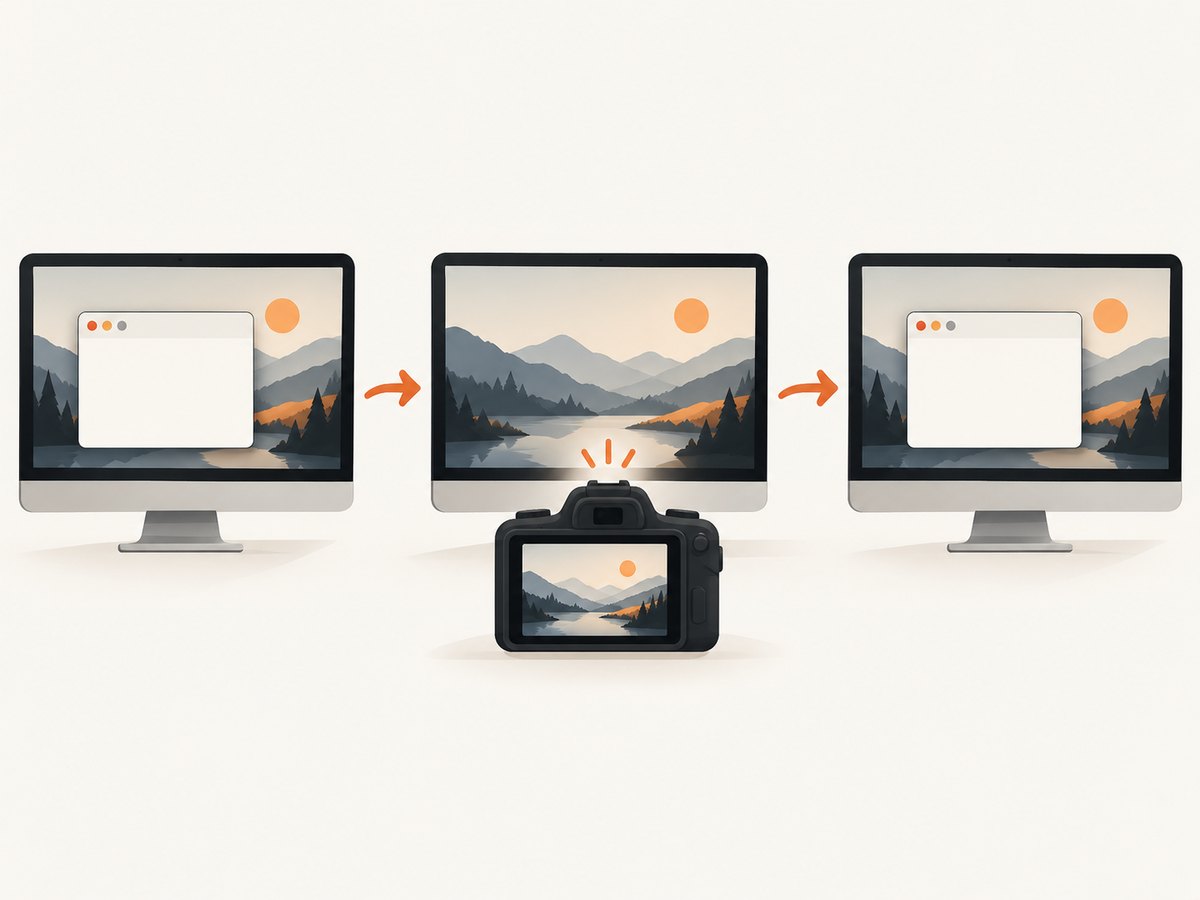
Direct answer: use withdraw() when the Tkinter window must be absent from a desktop screenshot. Schedule the capture with after_idle() so Tk can process the state change, then call deiconify() in a finally block so the app returns even if capture fails. Use iconify() instead when you want normal window-manager minimization.
The example below hides the app, captures the screen with Pillow, saves a PNG, and restores the window:
import tkinter as tk
from PIL import ImageGrab

root = tk.Tk()
root.title("Screenshot demo")
tk.Label(root, text="This window is hidden during capture").pack(padx=40, pady=40)

def take_screenshot():
    root.withdraw()

    def capture_after_hide():
        try:
            image = ImageGrab.grab()
            image.save("screenshot.png")
        finally:
            root.deiconify()

    root.after_idle(capture_after_hide)

tk.Button(root, text="Capture", command=take_screenshot).pack(pady=10)
root.mainloop()
1. Choose the Tkinter window operation
| Goal | Call | What happens |
|---|---|---|
| Temporarily remove the app from a desktop capture | withdraw() |
Unmaps the window and makes it unavailable to the desktop screenshot. |
| Perform an ordinary minimize | iconify() |
Asks the window manager to minimize the window. |
| Show the app again | deiconify() |
Displays the window in its normal, non-iconified form. |
| Inspect or set a state | state() |
Reports or changes states such as normal, iconic, and withdrawn. |
withdraw() and iconify() solve different problems. A minimized window may still appear in a compositor or in a capture taken before the window manager finishes processing the request. Use withdraw() when absence from the desktop image is the requirement.

Python’s Tkinter reference documents deiconify() as displaying a window in normal, non-iconified form and describes the supported window states. See the official Tkinter reference.
2. Capture after Tk has processed the state change
Tkinter runs callbacks through its event loop. Calling withdraw() and immediately grabbing the screen in the same callback can produce a stale image on some window managers. after_idle() queues the capture for when Tk is idle:
def capture_without_window():
    root.withdraw()

    def capture():
        try:
            image = ImageGrab.grab()
            image.save("desktop.png")
        except Exception as exc:
            print(f"Screenshot failed: {exc}")
        finally:
            root.deiconify()

    root.after_idle(capture)
If the compositor still shows the window, use a short, environment-specific delay:
root.withdraw()
root.after(100, capture)  # milliseconds; tune for your target environment
Neither callback method guarantees that every operating system compositor has finished repainting. Validate the timing on the operating systems, display servers, and window managers you support. The CPython Tkinter documentation source covers after() and after_idle().
3. Complete example with region capture and error handling
Pillow’s ImageGrab.grab() captures the whole screen without a bounding box. Pass bbox=(left, top, right, bottom) to capture a desktop region.
import pathlib
import tkinter as tk
from tkinter import messagebox
from PIL import ImageGrab

OUTPUT = pathlib.Path("captures")
OUTPUT.mkdir(exist_ok=True)

root = tk.Tk()
root.title("Capture controller")
root.geometry("420x220")

status = tk.StringVar(value="Ready")
tk.Label(root, textvariable=status).pack(pady=12)


def save_screen():
    status.set("Preparing capture…")
    root.update_idletasks()
    root.withdraw()

    def capture_after_hide():
        try:
            # Replace bbox=None with (left, top, right, bottom) for a region.
            image = ImageGrab.grab(bbox=None)
            destination = OUTPUT / "desktop.png"
            image.save(destination)
            status.set(f"Saved {destination}")
        except Exception as exc:
            status.set("Capture failed")
            messagebox.showerror("Screenshot error", str(exc), parent=root)
        finally:
            root.deiconify()
            root.lift()
            root.focus_force()

    root.after_idle(capture_after_hide)


tk.Button(root, text="Capture desktop", command=save_screen).pack(pady=8)
root.mainloop()
The finally block is essential: it prevents an exception, permission problem, or unavailable display from leaving the application hidden.
4. Minimize normally with iconify()
Use this variant when the user should see the normal minimize animation and taskbar or dock behavior:
def minimize_then_capture():
    root.iconify()

    def capture():
        try:
            ImageGrab.grab().save("after-minimize.png")
        finally:
            root.deiconify()

    root.after_idle(capture)
This is appropriate for a user-visible minimize workflow. It is less deterministic than withdraw() when the screenshot must contain no pixels from the app.
5. Capture the Tkinter app instead of hiding it
If the screenshot should show the Tkinter window, do not hide it. Capture the window directly where your Pillow version and platform support that API:
from PIL import ImageGrab

# The window argument is supported on documented Windows and macOS paths.
image = ImageGrab.grab(window=window_handle)
image.save("tk-window.png")
Obtaining a valid native window handle is platform-specific, and support depends on the Pillow version and operating system. If direct window capture is unavailable, capture a calculated bbox around the window or use a platform capture API. Pillow documents whole-screen, region, and supported single-window capture in its ImageGrab reference.
6. Platform and display caveats
- Windows:
deiconify()can raise and focus the window according to Python’s documentation. Account for that if your next operation depends on focus. - macOS Retina: a screen grab can have 2x pixel dimensions. Pillow’s
scale_down=Trueoption can request 1x output where supported. - Linux: if the default X11 capture path cannot return a snapshot, Pillow may fall back to installed tools such as
gnome-screenshot,grim, orspectacle. Wayland and multi-monitor behavior depend on the desktop environment and permissions. - Multiple monitors: bounding-box coordinates may include negative values or differ between displays. Log the coordinates on the target machine before hard-coding them.
- Headless sessions: a Tk window and desktop screenshot generally require an active display server. An SSH session without display forwarding will commonly fail.
7. Troubleshooting
| Symptom | Likely cause | Fix |
|---|---|---|
| The window still appears | Capture ran before the compositor applied withdraw(). |
Use after_idle(); if needed, add a short after() delay and test on the target window manager. |
| The app stays hidden | An exception occurred before restoration. | Put deiconify() in finally, and report the exception separately. |
grab() raises a display error |
No accessible X11/Wayland display or missing Linux fallback utility. | Run inside an active desktop session, configure display access, or install the capture utility supported by your environment. |
| Output dimensions are doubled on macOS | Retina scaling. | Use scale_down=True where available, or resize the resulting image deliberately. |
| Only part of the app is captured | Incorrect region coordinates or window movement. | Recalculate the bbox immediately before capture and account for monitor coordinate origins. |
| The UI freezes | A long capture or image encode runs on Tk’s event thread. | Keep the callback short; move expensive post-processing to a worker thread or process and return UI updates through Tk callbacks. |
8. Reliability, performance, and file handling
- Always restore the window in
finally, including when saving or encoding fails. - Use
after_idle()for normal captures and a measured delay only when the target compositor needs it. - Capture the smallest required region to reduce memory use and PNG encoding time.
- For repeated captures, generate unique filenames rather than overwriting the previous image.
- Do not call Tk methods from a background thread. Schedule UI changes with
after()orafter_idle(). - Record Python, Tk, Pillow, operating-system, display-server, and monitor details when diagnosing inconsistent results.
9. Or skip the browser setup
If your real goal is a screenshot of a web page rather than the local Tkinter desktop, ScreenshotNeo provides a one-call website screenshot API. It handles the browser session and returns PNG, JPEG, WebP, or PDF.
cURL (see the ScreenshotNeo API docs):
curl -G "https://api.screenshotneo.com/v1/shot" -d access_key=YOUR_API_KEY --data-urlencode url=https://stripe.com -o shot.webpPython:
import requests
r = requests.get("https://api.screenshotneo.com/v1/shot", params={"access_key": "YOUR_API_KEY", "url": "https://stripe.com"}, timeout=90)
open("shot.webp", "wb").write(r.content)
Node.js:
const q = new URLSearchParams({ access_key: 'YOUR_API_KEY', url: 'https://stripe.com' });
const res = await fetch(`https://api.screenshotneo.com/v1/shot?${q}`);
ScreenshotNeo removes cookie banners, newsletter popups, and chat widgets before the shot. Bot checks, blank pages, failed loads, timeouts, and cache hits are not billed, and response headers identify the page verdict and billing result. Its MCP server lets AI agents use take_screenshot, get_page_info, and capture_pdf. The free plan includes 1,000 screenshots per month with no card; paid plans start at $5 for 3,000.
Create a free ScreenshotNeo account.
10. FAQ
Should I use withdraw() or iconify()?
Use withdraw() when the app must be absent from a desktop capture. Use iconify() for ordinary user-visible minimization.
Can Tkinter capture the screen by itself?
No. Tkinter controls the window; a capture library such as Pillow’s ImageGrab obtains the screen image.
Why does after_idle() help?
It lets Tk process pending window-state work before the capture callback runs. It cannot guarantee identical compositor timing on every platform.
How do I restore the window after a failed screenshot?
Call deiconify() from a finally block surrounding the capture and save operations.
Can I capture just the Tkinter window?
Yes, with Pillow’s documented window option on supported Windows and macOS paths, or by calculating a region. Availability is platform and version dependent.


