How to Mix Page Orientations in wkhtmltopdf
wkhtmltopdf’s orientation setting is global. Render portrait and landscape sections separately, then merge and inspect the PDFs.
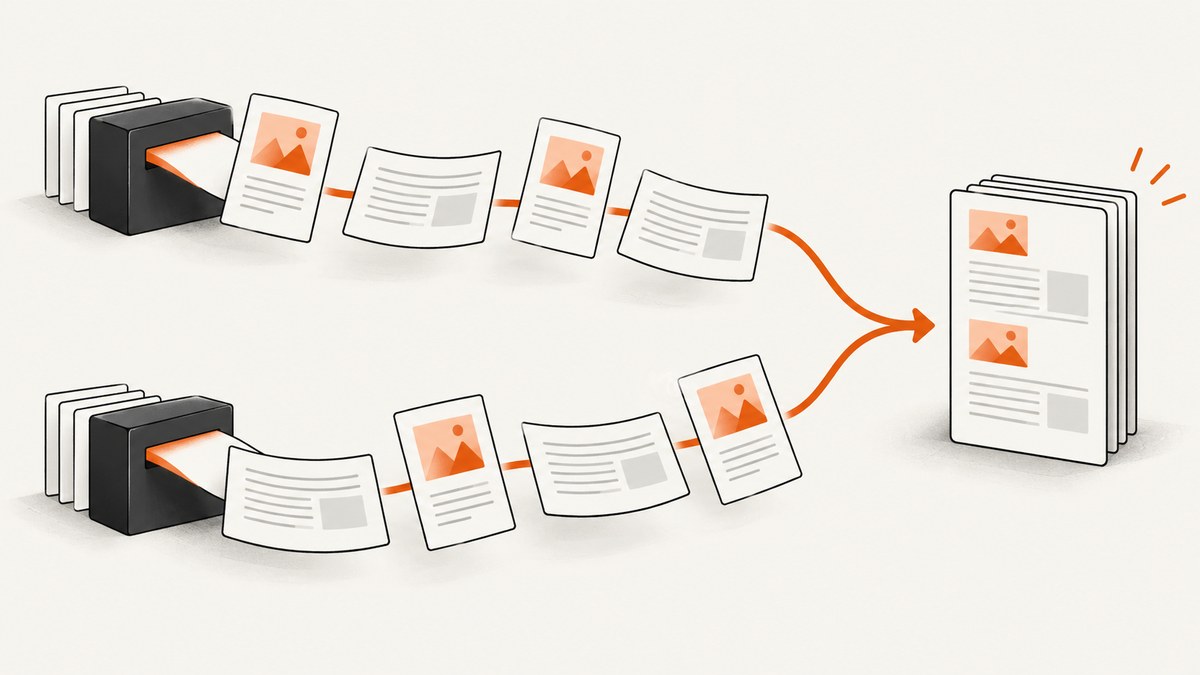
Short answer: wkhtmltopdf documents --orientation as a global PDF option. It is not documented as a per-page or per-document-object setting. To mix portrait and landscape pages, render each orientation group in a separate wkhtmltopdf command, merge the PDFs in the required order, and inspect the result for page dimensions, rotations, headers, footers, numbering, and links.
The official wkhtmltopdf command documentation places orientation under Global Options. The library settings reference also lists orientation as a PDF global setting, while its object settings do not include it.
What wkhtmltopdf supports
--orientation Portraitor--orientation Landscapecontrols the output PDF globally.- The documented default orientation is Portrait.
- Options can appear in global or object areas, but options marked as global must be placed in the global area.
- wkhtmltopdf accepts multiple document objects in one invocation, in output order, but the documentation does not define an independent orientation for each object.
--page-size,--page-width, and--page-heightcontrol dimensions. They help fit wide content, but do not establish mixed orientation per page.
This means a command shaped like the following should not be treated as a supported mixed-orientation solution:
wkhtmltopdf \
  cover cover.html \
  --orientation Portrait portrait.html \
  --orientation Landscape landscape.html \
  output.pdf
Because orientation is global, later object-level placement does not give each object its own documented orientation.
Recommended workflow: render, merge, inspect
- Split the source into portrait and landscape groups.
- Decide the final page order before rendering.
- Render each group with its orientation set globally.
- Merge the resulting PDFs with a PDF utility.
- Inspect every page in the merged file.
1. Check the installed build
wkhtmltopdf --version
wkhtmltopdf --extended-help | less
The usage documentation describes wkhtmltopdf 0.12.6 with patched Qt. Packaged builds can differ, so check the executable and its local help before relying on an option.
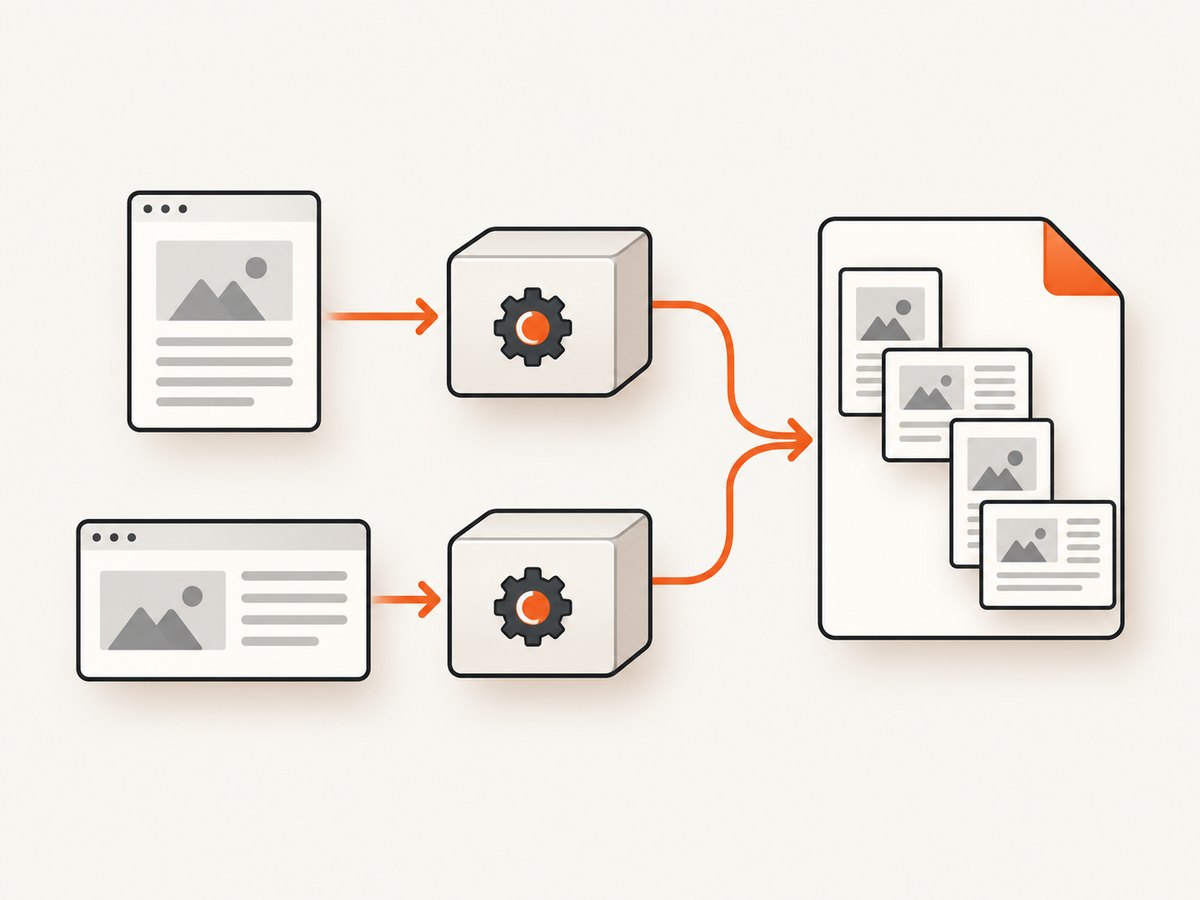
2. Render each orientation separately
# Portrait section
wkhtmltopdf \
  --orientation Portrait \
  --page-size A4 \
  --margin-top 18mm \
  --margin-right 18mm \
  --margin-bottom 18mm \
  --margin-left 18mm \
  portrait.html portrait.pdf

# Landscape section
wkhtmltopdf \
  --orientation Landscape \
  --page-size A4 \
  --margin-top 18mm \
  --margin-right 18mm \
  --margin-bottom 18mm \
  --margin-left 18mm \
  landscape.html landscape.pdf
Keep page size and margins consistent unless the section requires a deliberate difference. The orientation changes the page geometry; margins still affect the usable content area.
3. Merge the PDFs
A merger is not prescribed by the wkhtmltopdf documentation, so choose a tool that preserves each page’s media box and rotation metadata. For example, with qpdf:
qpdf --empty --pages portrait.pdf landscape.pdf -- merged.pdfFor an interleaved order, create smaller files and list them in the desired sequence:
wkhtmltopdf --orientation Portrait chapter-1.html chapter-1.pdf
wkhtmltopdf --orientation Landscape table.html table.pdf
wkhtmltopdf --orientation Portrait chapter-2.html chapter-2.pdf

qpdf --empty --pages chapter-1.pdf table.pdf chapter-2.pdf -- book.pdf
The separate-render strategy is an inference from the documented global setting. A merge tool may handle dimensions, rotations, outlines, links, and metadata differently. Verify the final file instead of assuming those properties survive.
4. Inspect the output
- Open the PDF and rotate through every page.
- Confirm portrait pages are portrait and landscape pages are landscape.
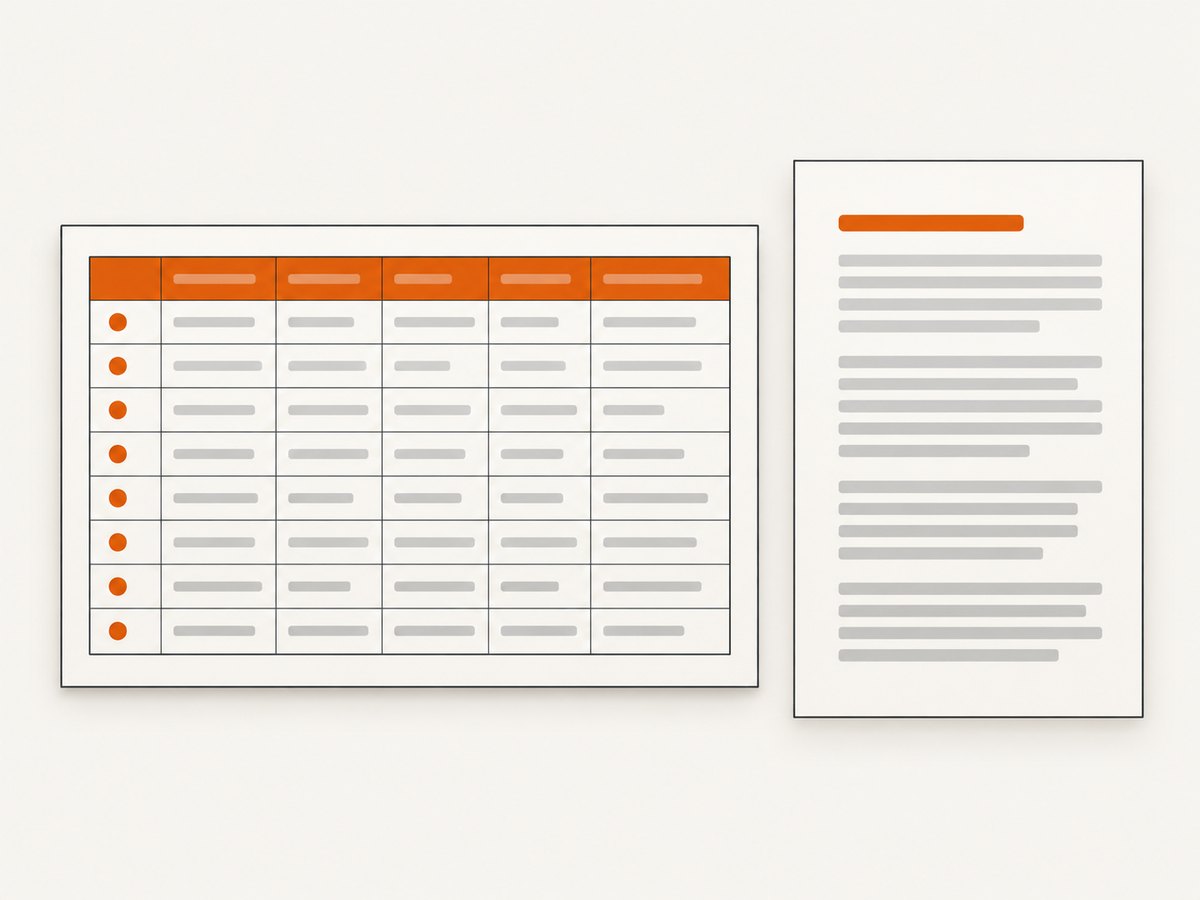
- Check that wide tables are not clipped.
- Check headers, footers, page numbers, and repeating content at orientation boundaries.
- Follow links from both orientations.
- Verify bookmarks, outlines, metadata, and accessibility requirements if your downstream workflow depends on them.
Complete example with generated HTML
The following shell script creates two minimal documents, renders them, and merges them. Replace the HTML with your own templates.
set -eu
cat > portrait.html <<'HTML'
Portrait section
Portrait section
This content is rendered in portrait orientation.
HTML
cat > landscape.html <<'HTML'
Landscape section
Landscape section
Column A Column B Column C Column D 1 2 3 4
HTML
wkhtmltopdf --orientation Portrait --page-size A4 portrait.html portrait.pdf
wkhtmltopdf --orientation Landscape --page-size A4 landscape.html landscape.pdf
qpdf --empty --pages portrait.pdf landscape.pdf -- mixed.pdf
echo "Created mixed.pdf"Page size, margins, and wide content
Use landscape for width, not just rotation
Landscape gives a page more horizontal space, but the HTML can still overflow if its layout is wider than the printable area. Reduce fixed widths, use responsive CSS, or select a larger paper size.
wkhtmltopdf \
  --orientation Landscape \
  --page-size A3 \
  --margin-left 10mm \
  --margin-right 10mm \
  wide-table.html wide-table.pdf
Custom dimensions
The documented --page-width and --page-height options provide finer control than a named paper size. Use them when a known paper format does not fit the content.
wkhtmltopdf \
  --page-width 330mm \
  --page-height 210mm \
  wide.html wide-custom.pdf
Do not assume custom dimensions create a per-page orientation switch. They remain settings for the output you are rendering.
Headers, footers, and numbering across orientations
Headers and footers are rendered independently in each source PDF. If their spacing or typography depends on page width, use orientation-specific templates or CSS. After merging, verify that page numbering matches your intended final sequence; separate invocations can each start numbering from one.
If continuous numbering is required, either provide the final page numbers to your templates before rendering or run a post-processing step that adds them after merging. Confirm that your chosen PDF tool preserves links and annotations while doing so.
Common errors and fixes
| Symptom | Likely cause | Fix |
|---|---|---|
| Every page has the same orientation | --orientation is global. |
Render portrait and landscape groups separately, then merge. |
| Landscape table is clipped | Content exceeds the printable width. | Reduce fixed widths, margins, or font sizes; use a larger page size or custom dimensions. |
| Option is ignored for one object | The option is in an object area but is documented as global. | Move it before the input objects and render that group separately if needed. |
| Portrait pages become sideways after merging | The merger changed or discarded page rotation metadata. | Use a merger that preserves media boxes and rotation; inspect page properties afterward. |
| Headers overlap content | Header spacing and margins do not match the section. | Set margins explicitly for each render and test both orientations. |
| Page numbers restart | Each source PDF was numbered independently. | Generate continuous numbers in a post-processing step or provide offsets per section. |
| Links or bookmarks disappear | The merge or post-processing tool did not preserve annotations or outlines. | Choose a tool with preservation support and verify representative links and bookmarks. |
| Command behaves differently across machines | Different wkhtmltopdf packages or patched-Qt builds. | Compare wkhtmltopdf --version and local help, then standardize the build. |
Performance, reliability, and cost considerations
- Performance: Separate renders launch the converter more than once and therefore add startup and HTML-loading overhead. Keep assets local or cached where appropriate, and avoid rendering the same pages repeatedly.
- Reliability: Treat rendering and merging as two stages. Preserve the intermediate PDFs until validation passes so a failed merge can be diagnosed without rerendering.
- Determinism: Pin the wkhtmltopdf version, fonts, CSS, and input assets. Differences in fonts or Qt builds can change pagination and cause orientation-boundary surprises.
- Cost: Local wkhtmltopdf has no service charge, but each render consumes CPU, memory, storage, and time. A merge step adds another process and temporary files.
- Validation: For automated pipelines, check that the output exists, has the expected page count, and contains the expected portrait and landscape dimensions before publishing it.
Or skip the browser setup
If you need screenshots or PDFs without maintaining a headless browser pipeline, ScreenshotNeo provides a single HTTP request for a website image or PDF. Read the API documentation for the complete option list.
curl -G "https://api.screenshotneo.com/v1/shot" -d access_key=YOUR_API_KEY --data-urlencode url=https://stripe.com -o shot.webpimport requests
r = requests.get("https://api.screenshotneo.com/v1/shot", params={"access_key": "YOUR_API_KEY", "url": "https://stripe.com"}, timeout=90)
open("shot.webp", "wb").write(r.content)const q = new URLSearchParams({ access_key: 'YOUR_API_KEY', url: 'https://stripe.com' });
const res = await fetch(`https://api.screenshotneo.com/v1/shot?${q}`);Cookie banners, newsletter popups, and chat widgets are removed before the shot. Bot checks, blank pages, failed loads, timeouts, and cache hits are not billed, and response headers identify the page verdict and billing status. An MCP server lets AI agents take screenshots with Claude, Cursor, or another MCP client. The free plan includes 1,000 screenshots per month with no card; paid plans start at $5 for 3,000 shots.
Create a free ScreenshotNeo account and try the API with 1,000 screenshots per month at no charge.
FAQ
Can one wkhtmltopdf command mix portrait and landscape pages?
The documented interface does not provide a per-page orientation switch. Use separate invocations and merge the PDFs.
Can CSS rotate only one page?
CSS can change the layout inside a page, but it does not replace wkhtmltopdf’s global PDF orientation setting. It is not a documented way to create mixed page geometry.
Does changing A4 to A3 solve mixed orientation?
No. Page size changes dimensions for a rendered output; it does not make orientation independently selectable for each page.
Is merging guaranteed to preserve every PDF feature?
No. The workaround depends on the merger. Check dimensions, rotations, links, headers, footers, numbering, bookmarks, and metadata in the final file.
Where should I look when an option is unsupported?
Run wkhtmltopdf --version and inspect the installed command’s local help. Compare it with the official usage documentation for the build you deploy.


