How to Take Mobile Screenshots with a Chrome Extension
Capture mobile-sized screenshots in Chrome with DevTools or an extension, understand full-page limits, and verify behavior on real devices.
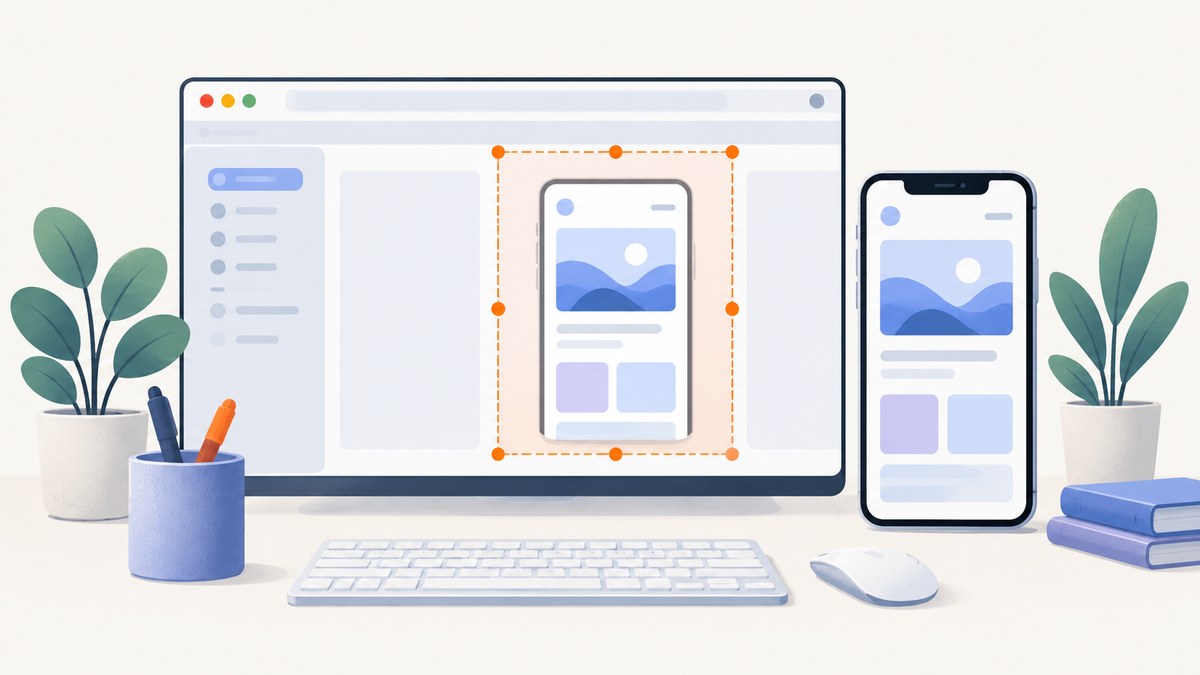
Short answer: On desktop Chrome, you can capture a mobile-sized rendering without installing an extension. Open DevTools, turn on the device toolbar, choose a phone preset or enter responsive dimensions, then open the DevTools More options menu and choose Capture screenshot. Use Capture full size screenshot when you need the page beyond the visible viewport.
This workflow emulates a mobile viewport inside desktop Chrome. It does not run the page on a physical phone. For device-specific behavior, validate the page on an actual phone or use Android remote debugging.
1. Capture a mobile viewport with Chrome DevTools
Step 1: Open the page
- Open the page in Google Chrome on your computer.
- Load the exact URL and state you want to capture. If the page requires a login, sign in before opening DevTools.
Step 2: Turn on Device Mode
- Open DevTools with
F12,Ctrl+Shift+Ion Windows/Linux, orCmd+Option+Ion macOS. - Click the Toggle device toolbar button, or press
Ctrl+Shift+Mon Windows/Linux orCmd+Shift+Mon macOS. - Choose a device preset from the device selector. You can also choose Responsive and enter your own width and height.
- Set the orientation if the page must be checked in portrait or landscape.
- Reload the page after changing dimensions if the site uses viewport-dependent code that only runs during page load.
Chrome’s Device Mode documentation describes this as a first-order approximation of a mobile device: it simulates a viewport and selected device characteristics on the desktop. It is useful for responsive layout work, but it is not proof that the page behaves identically on every phone or mobile browser. See Chrome’s Device Mode documentation.
Step 3: Capture the visible viewport
- With Device Mode active, click the DevTools More options menu (the three-dot menu).
- Select Capture screenshot.
- Chrome saves an image of the currently visible emulated viewport, normally as a PNG.
Step 4: Capture the entire page
To include content below the fold, open the same More options menu and select Capture full size screenshot. This captures the page content beyond the visible mobile viewport. Lazy-loaded sections may need to be scrolled into view first so that the page has loaded them.
Menu labels and placement can change between Chrome versions. If you do not see the commands, keep Device Mode enabled and check the current More options menu.
2. Visible viewport versus full-page capture
| Capture choice | What it includes | Best use |
|---|---|---|
| Capture screenshot | Only the emulated viewport currently visible | Checking above-the-fold responsive layout, navigation, hero sections, and mobile ads |
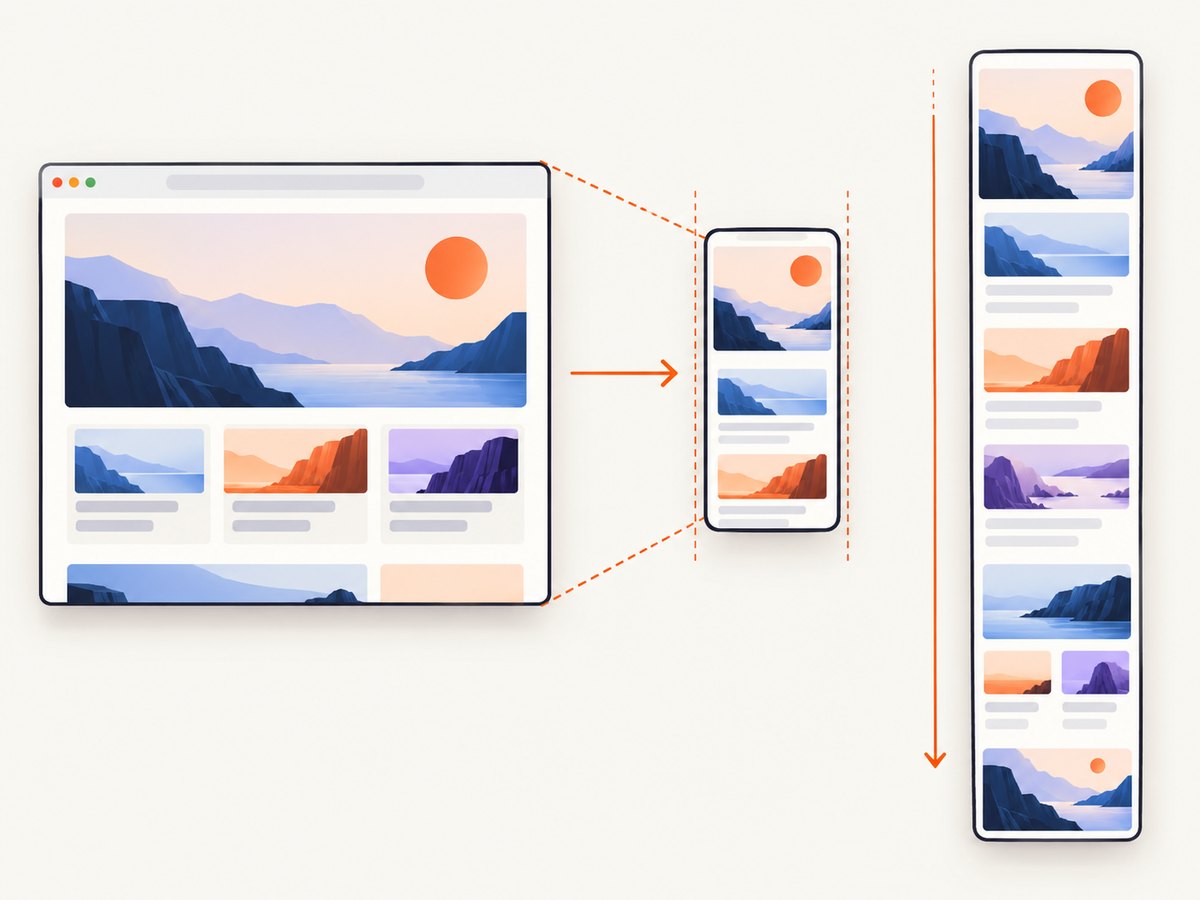
| Capture full size screenshot | The full scrollable page at the emulated width | Design review, documentation, regression evidence, and long landing pages |
A full-page image is not the same as a sequence of real phone screenshots. Fixed headers, sticky controls, animations, and lazy loading can render differently when the page is captured as one tall image.
3. Use a Chrome extension for faster repeated captures
An extension can put device presets and capture controls closer to the page, which is useful when you repeatedly capture several widths. The ResponsiveShot Chrome Web Store listing, for example, describes mobile width presets, full-page capture, and local PNG downloads. Those are publisher listing claims; review the current listing and requested permissions before installing.
Typical extension workflow
- Install the extension from the Chrome Web Store.
- Open the page you want to capture.
- Choose a mobile width or device preset in the extension.
- Choose viewport or full-page capture.
- Save the PNG locally and repeat for the other widths you need.
Built-in DevTools is enough for a single capture and gives you Chrome’s documented emulation controls. An extension is most useful when its preset or batch workflow saves repeated clicks.
4. What desktop emulation does not prove
- It is not a physical phone. Device Mode changes the viewport and selected emulated characteristics, but the page still runs in desktop Chrome.
- It does not cover every mobile browser. Safari on iOS, Android browsers, embedded webviews, font rendering, GPU behavior, and browser-specific bugs can differ.
- It does not prove touch behavior. A mouse-driven interaction is not the same as touch, gesture, virtual keyboard, or sensor input.
- It does not prove network or hardware behavior. Mobile CPU, memory pressure, cellular latency, battery constraints, and device-specific permissions require real-device testing.
When the page must be inspected while it is actually running on Android, use a phone or tablet and Chrome remote debugging. See Chrome’s remote debugging documentation. Treat the desktop screenshot as a responsive design check, not as a universal device certification.
5. A repeatable capture checklist
- Use the intended URL, including query parameters and locale.
- Choose the target width and height, then confirm portrait or landscape orientation.
- Wait for fonts, images, and client-rendered content to finish loading.
- Dismiss cookie banners, newsletter popups, and chat widgets if they obscure the page.
- Capture both the visible viewport and full page when reviewers need both perspectives.
- Repeat after a hard reload when testing first-load behavior.
- Record the Chrome version, viewport dimensions, zoom level, and page state alongside the image.
- Validate critical flows on a real phone or through Android remote debugging.
6. Troubleshooting
The screenshot command is missing
Cause: Device Mode is not active, or the DevTools menu moved in your Chrome version.
Fix: Toggle the device toolbar first, then open More options again. Update Chrome if the device toolbar is unavailable.
The image is the wrong size
Cause: The browser is using a different preset, orientation, device scale factor, or zoom level.
Fix: Select Responsive and enter the exact CSS width and height. Reset page zoom to 100% and confirm the orientation before capturing.
The full-page image is missing content
Cause: Lazy-loaded images or infinite-scroll sections have not rendered.
Fix: Scroll through the page once, wait for network activity to settle, and capture again. Infinite-scroll pages may not have a finite full-page boundary; capture sections or use the site’s print/export path.
A cookie banner or popup covers the page
Cause: The page state is new, logged out, or in a region where consent is required.
Fix: Accept or dismiss the banner, close the popup, and capture again. If you need a clean automated result across many URLs, use an API that handles these elements before capture.
The screenshot looks correct in Chrome but not on a phone
Cause: Desktop emulation is an approximation. Browser engines, fonts, touch events, hardware, and OS UI differ.
Fix: Reproduce the page on the target phone or use Android remote debugging. Keep the DevTools image as a layout reference only.
The extension cannot capture a page
Cause: Chrome restricts extensions on internal pages such as chrome://, the Chrome Web Store, browser error pages, or pages blocked by the extension’s permissions.
Fix: Test on a normal https:// page, review the extension’s permissions, and use DevTools for restricted pages.
7. Performance, reliability, privacy, and cost
- Performance: A visible viewport capture is usually quicker and smaller than a full-page image. Full-page captures take longer on pages with many images, scripts, or long documents.
- Reliability: Capture after the layout settles. Animated banners, delayed fonts, network requests, and client-side rendering can make two captures differ.
- Storage: DevTools and extensions save files locally. Establish a naming convention such as
site-width-height-date.pngfor repeatable reviews. - Privacy: Do not install an extension without checking its current permissions. For sensitive pages, prefer built-in DevTools or a controlled test account.
- Cost: Desktop DevTools and a Chrome extension do not require an image API subscription. Automated, multi-URL capture has different operational costs and may be easier to maintain through an API.
8. Or skip the browser setup
ScreenshotNeo provides a website screenshot API and MCP server. It can capture a mobile viewport or full page through one request, with device presets or any viewport, retina scale, custom CSS and JavaScript, selector capture, waits, cookies, headers, user agents, geolocation, timezone, blocking rules, caching, PDFs, bulk capture, and signed links. Read the ScreenshotNeo API documentation for the complete option list.
Example request:
curl -G "https://api.screenshotneo.com/v1/shot" -d access_key=YOUR_API_KEY --data-urlencode url=https://stripe.com -o shot.webpPython:
import requests
r = requests.get("https://api.screenshotneo.com/v1/shot", params={"access_key": "YOUR_API_KEY", "url": "https://stripe.com"}, timeout=90)
open("shot.webp", "wb").write(r.content)
Node.js:
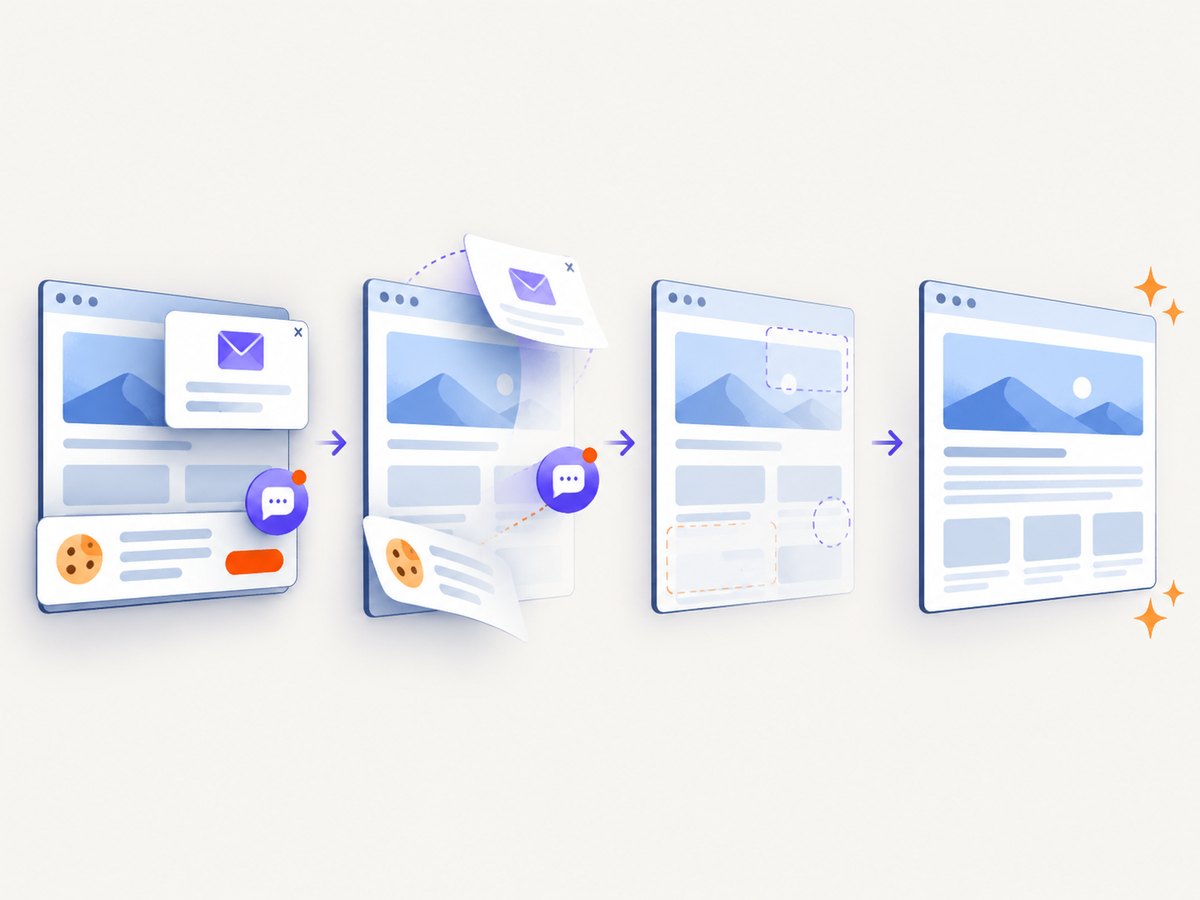
const q = new URLSearchParams({ access_key: 'YOUR_API_KEY', url: 'https://stripe.com' }); const res = await fetch(`https://api.screenshotneo.com/v1/shot?${q}`);Cookie banners, newsletter popups, and chat widgets are removed before the shot. Bot checks, blank pages, failed loads, timeouts, and cache hits are never billed, and response headers identify the page verdict and billing status. An MCP server lets AI agents use take_screenshot, get_page_info, and capture_pdf. The free plan includes 1,000 screenshots per month with no card; paid plans start at $5 for 3,000 shots. Create a free ScreenshotNeo account.
9. FAQ
Can a Chrome extension screenshot my actual phone?
Not merely by producing a mobile-sized image in desktop Chrome. Actual-device capture requires the phone itself or a connected remote-debugging workflow.
Should I use a preset or custom dimensions?
Use a preset when matching a named device matters. Use custom responsive dimensions when your design breakpoints or test matrix specify exact CSS widths.
Which capture should I send to a designer?
Send a visible viewport for above-the-fold review and a full-page image for document-level review. Include the dimensions and page state with both.
Can I automate the DevTools workflow?
DevTools is designed for interactive inspection. For repeatable URL lists, scheduled jobs, or agent-driven capture, an API such as ScreenshotNeo is usually a better fit.


