How to Take Mobile Website Screenshots with ASP.NET
Use Playwright for .NET to capture repeatable mobile screenshots from an ASP.NET site, with device presets, full-page output, troubleshooting, and an API alternative.
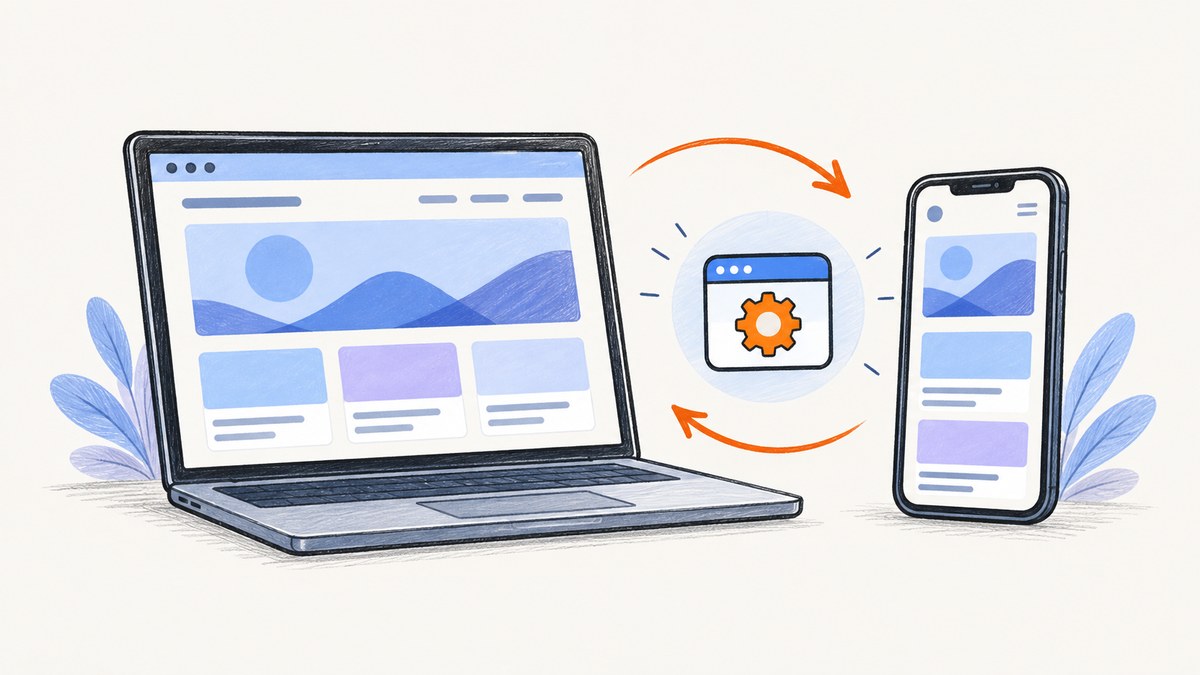
Direct answer: Use Playwright for .NET to open your running ASP.NET site in an emulated mobile browser, then call Page.ScreenshotAsync. Add the Microsoft.Playwright package, install the matching Playwright browser binaries, select a mobile device preset or define your own viewport, navigate to the site URL, and save a PNG, JPEG, or WebP image. This captures the rendered page from a browser and does not require putting screenshot code inside the ASP.NET request pipeline.
This guide covers a complete console-project implementation, custom mobile settings, full-page and element captures, output formats, CI considerations, common failures, and an API option when you do not want to maintain browser binaries.
What you are actually testing
A Playwright mobile screenshot is a repeatable browser emulation. A device preset can bundle a user agent, viewport, screen dimensions, device scale factor, touch support, and other browser characteristics. It is useful for checking responsive layout, visual regressions, documentation images, and release previews.
It is not proof that the page behaves identically on a physical phone. Microsoft’s device-mode documentation explains that emulation does not run the page on mobile hardware. Camera behavior, sensors, native browser differences, battery constraints, and some input or GPU behavior still require a real-device test.
Prerequisites and project setup
- Make sure your ASP.NET site is running at a URL reachable from the machine or CI worker that will launch Chromium.
- Install a current .NET SDK.
- Create a console project (or use an existing test/utility project):
dotnet new console -n MobileShots cd MobileShots dotnet add package Microsoft.Playwright - Build the project. Playwright’s .NET setup generates a browser-installation script in the build output. Run the generated script for your target framework, as described in the Playwright .NET library guide. A typical command is:
dotnet build
pwsh bin/Debug/netX/playwright.ps1 install
Replace
netXwith the framework directory created by your build. On Linux CI, install the documented OS dependencies as well, for example with Playwright’s dependency option when supported by your environment.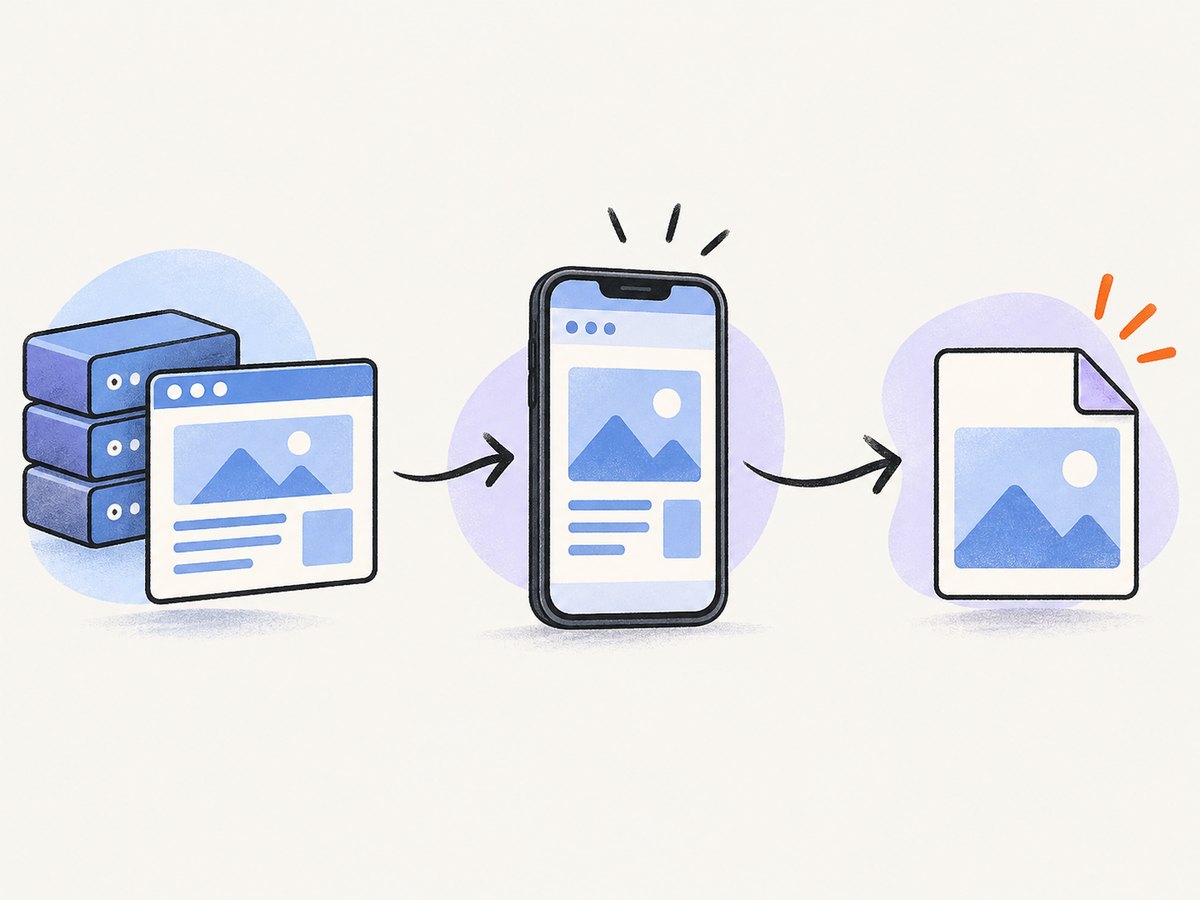
A browser context renders the ASP.NET URL with mobile settings before Playwright saves the image.
Keep the NuGet package and browser binaries aligned. Playwright versions expect specific browser revisions; after upgrading the package, run the installation command again. The browser documentation explains this version relationship and installation choices.
Minimal mobile screenshot in C#
The following complete program uses the documented iPhone preset. Check the available device registry in your installed Playwright version rather than assuming every preset name remains unchanged.
using Microsoft.Playwright;

using var playwright = await Playwright.CreateAsync();
await using var browser = await playwright.Chromium.LaunchAsync();

var device = playwright.Devices["iPhone 13"];
await using var context = await browser.NewContextAsync(device);
var page = await context.NewPageAsync();

await page.GotoAsync("https://your-running-site.example", new()
{
    WaitUntil = WaitUntilState.NetworkIdle
});

await page.ScreenshotAsync(new()
{
    Path = "mobile.png",
    FullPage = true
});
Save this as Program.cs, then run dotnet run. The browser context receives the preset’s emulated properties, the page navigates to your site, and the screenshot is written to mobile.png.
Choose the right mobile profile
Use a named preset
Presets are convenient when you want a known combination of viewport, screen size, user agent, touch support, and scale. The emulation guide lists the device descriptors available to Playwright .NET. A preset is a configuration for a browser session, not a physical-device run.
var device = playwright.Devices["iPhone 13"];
await using var context = await browser.NewContextAsync(device);
Define an explicit viewport
Use explicit values when your design system targets a particular CSS width or when you need a stable regression-test matrix.
await using var context = await browser.NewContextAsync(new BrowserNewContextOptions
{
    ViewportSize = new ViewportSize { Width = 390, Height = 844 },
    DeviceScaleFactor = 3,
    IsMobile = true,
    HasTouch = true,
    UserAgent = "Mozilla/5.0 (iPhone; CPU iPhone OS 17_0 like Mac OS X) AppleWebKit/605.1.15 Mobile/15E148"
});
Do not set values you do not need. A named preset reduces the chance of creating an internally inconsistent combination. If you use custom settings, document the width, height, scale, touch flag, and user agent alongside the screenshot so later comparisons remain meaningful.
Viewport, full-page, and element screenshots
By default, Page.ScreenshotAsync captures the visible viewport. Set FullPage = true to capture the entire scrollable document. Use a locator when the useful artifact is one component, such as a pricing card or navigation menu.
// Viewport only
await page.ScreenshotAsync(new() { Path = "viewport.webp", Type = ScreenshotType.Webp });

// Entire scrollable page
await page.ScreenshotAsync(new()
{
    Path = "full-page.png",
    FullPage = true,
    Type = ScreenshotType.Png
});

// One element selected by CSS
var hero = page.Locator("main .hero");
await hero.ScreenshotAsync(new()
{
    Path = "hero.jpeg",
    Type = ScreenshotType.Jpeg,
    Quality = 85
});
The screenshot API also returns bytes when you omit Path. This is useful for image comparison, uploading to object storage, or attaching the result to a test report.
byte[] image = await page.ScreenshotAsync(new()
{
    FullPage = true,
    Type = ScreenshotType.Png
});
await File.WriteAllBytesAsync("mobile-bytes.png", image);
Format, scale, and output-size decisions
| Choice | Use it when | Trade-off |
|---|---|---|
| PNG | Pixel comparisons, text, transparency | Lossless and often larger |
| JPEG | Photos or compact previews | Lossy; no transparency |
| WebP | Web delivery with modern browser support | Check the consumers of the file |
| CSS scale | Keep output dimensions close to CSS pixels | Smaller files and less detail |
| Device scale | Retina-style output or sharper documentation | Larger pixel dimensions and files |
Set the screenshot Scale option to control CSS-pixel versus device-pixel output where supported by your Playwright version. A high device scale factor can make a 390-pixel-wide mobile viewport produce a much wider bitmap. Pick one policy for visual tests and keep it unchanged between runs.
Waiting for ASP.NET content to finish
Navigation completion does not always mean that your page’s data, images, or fonts are ready. Combine a sensible navigation wait with a targeted readiness condition.
await page.GotoAsync("https://your-running-site.example/products", new()
{
    WaitUntil = WaitUntilState.DOMContentLoaded,
    Timeout = 60_000
});

await page.Locator("[data-page-ready='true']")
    .WaitForAsync(new() { Timeout = 30_000 });

await page.ScreenshotAsync(new()
{
    Path = "products-mobile.png",
    FullPage = true
});
For pages whose final state is driven by client-side requests, add a short, bounded delay only when there is no reliable selector. Prefer a selector or an application-level readiness marker because fixed sleeps make captures slower and still may fail under load.
await page.WaitForTimeoutAsync(500);Lazy-loaded images may not appear until they enter the viewport. A full-page capture often causes the browser to scroll through the document, but pages can implement lazy loading in different ways. If an image is essential, wait for its locator and verify that it has a completed URL before saving the artifact.
Cookies, authentication, and local ASP.NET environments
For a public site, navigate directly to its HTTPS URL. For a local site, make sure the browser process can resolve the host and that certificates are trusted. A development certificate that works in your normal browser may not be trusted in a clean CI container.
Authenticate before capture by creating a context with storage state, setting cookies, or logging in through the page. Keep secrets out of source control and CI logs.
await using var context = await browser.NewContextAsync(new BrowserNewContextOptions
{
    StorageStatePath = "playwright/.auth/user.json",
    ViewportSize = new ViewportSize { Width = 390, Height = 844 },
    IsMobile = true,
    HasTouch = true
});
If your app varies by locale, timezone, or feature flag, set those context values explicitly and include them in the test name. Otherwise two screenshots can differ even when the layout code has not changed.
Reusable capture utility
A small helper keeps browser lifetime and error handling consistent across many URLs.
using Microsoft.Playwright;

public static class MobileCapture
{
    public static async Task CaptureAsync(
        string url,
        string outputPath,
        int width = 390,
        int height = 844)
    {
        using var playwright = await Playwright.CreateAsync();
        await using var browser = await playwright.Chromium.LaunchAsync();
        await using var context = await browser.NewContextAsync(new BrowserNewContextOptions
        {
            ViewportSize = new ViewportSize { Width = width, Height = height },
            IsMobile = true,
            HasTouch = true
        });

        var page = await context.NewPageAsync();
        await page.GotoAsync(url, new()
        {
            WaitUntil = WaitUntilState.NetworkIdle,
            Timeout = 60_000
        });
        await page.ScreenshotAsync(new()
        {
            Path = outputPath,
            FullPage = true,
            Type = ScreenshotType.Webp
        });
    }
}
For a test suite, create one Playwright instance and browser per fixture where practical, then create isolated contexts per test. That reduces startup work while keeping cookies and storage separated.
CI, reliability, and performance
- Install once per image: Bake the matching browser binaries and Linux dependencies into your CI image instead of downloading them for every job.
- Reuse browser processes: Reuse a browser for multiple pages, but create a fresh context when state must be isolated.
- Bound every wait: Set navigation and selector timeouts so a broken page cannot hang a build indefinitely.
- Capture diagnostics: On failure, save the Playwright trace, console messages, URL, and a diagnostic screenshot. This separates application errors from browser startup errors.
- Control variability: Fix viewport, scale, timezone, locale, animations, data, and fonts for visual comparisons.
- Use retries carefully: A retry can handle a transient network failure, but repeated retries can hide a deterministic rendering bug.
Full-page screenshots use more memory than viewport captures, especially on long pages and high device scale factors. Capture only the extent needed by the consumer. JPEG quality and WebP output can reduce storage, while PNG is generally safer for pixel-diff workflows.
Troubleshooting common errors
| Symptom | Likely cause | Fix |
|---|---|---|
Executable doesn't exist |
Playwright browsers were not installed or do not match the package. | Build the project and run the generated Playwright install script for that framework; repeat after package upgrades. |
| Navigation timeout | The URL is unreachable, the app is still starting, or a request never settles. | Verify reachability from the worker, increase the bounded timeout, use DOMContentLoaded, and wait for a specific ready selector. |
| Blank or partially rendered image | Client-side data or fonts were not ready. | Wait for a page-ready selector, required locators, and relevant network activity; inspect console errors. |
| Local HTTPS failure | The CI browser does not trust the development certificate. | Use a trusted test certificate or configure the test environment according to your security policy; do not silently ignore certificate errors in production checks. |
| Preset key not found | The requested device name is unavailable in this Playwright version. | Inspect playwright.Devices and choose an available preset or define explicit settings. |
| Screenshot is unexpectedly huge | High device scale, full-page extent, or an extremely long document. | Use CSS scale, reduce capture extent, or choose a lower-resolution output for previews. |
| Only the top of a lazy page appears | Images load only after scrolling or an observer trigger. | Use full-page capture, scroll deliberately, and wait for essential image locators before saving. |
Or skip the browser setup
If you need a mobile screenshot from a service rather than maintaining Playwright binaries, ScreenshotNeo provides a GET endpoint that returns PNG, JPEG, WebP, or PDF. Its options include device presets and custom viewports, full-page capture with lazy images loaded, CSS element capture, dark mode, retina scale, custom CSS and JavaScript, click and wait actions, request blocking, headers, cookies, user agents, authorization, timezone, geolocation, resizing, caching, signed links, asynchronous jobs, bulk capture, and a usage API. See the ScreenshotNeo API documentation for the parameter names and complete option list.
curl -G "https://api.screenshotneo.com/v1/shot" -d access_key=YOUR_API_KEY --data-urlencode url=https://your-running-site.example -o mobile.webpimport requests
r = requests.get(
"https://api.screenshotneo.com/v1/shot",
params={"access_key": "YOUR_API_KEY", "url": "https://your-running-site.example"},
timeout=90,
)
r.raise_for_status()
open("mobile.webp", "wb").write(r.content)const q = new URLSearchParams({
access_key: 'YOUR_API_KEY',
url: 'https://your-running-site.example'
});
const res = await fetch(`https://api.screenshotneo.com/v1/shot?${q}`);
if (!res.ok) throw new Error(`Screenshot failed: ${res.status}`);
const fs = await import('node:fs/promises');
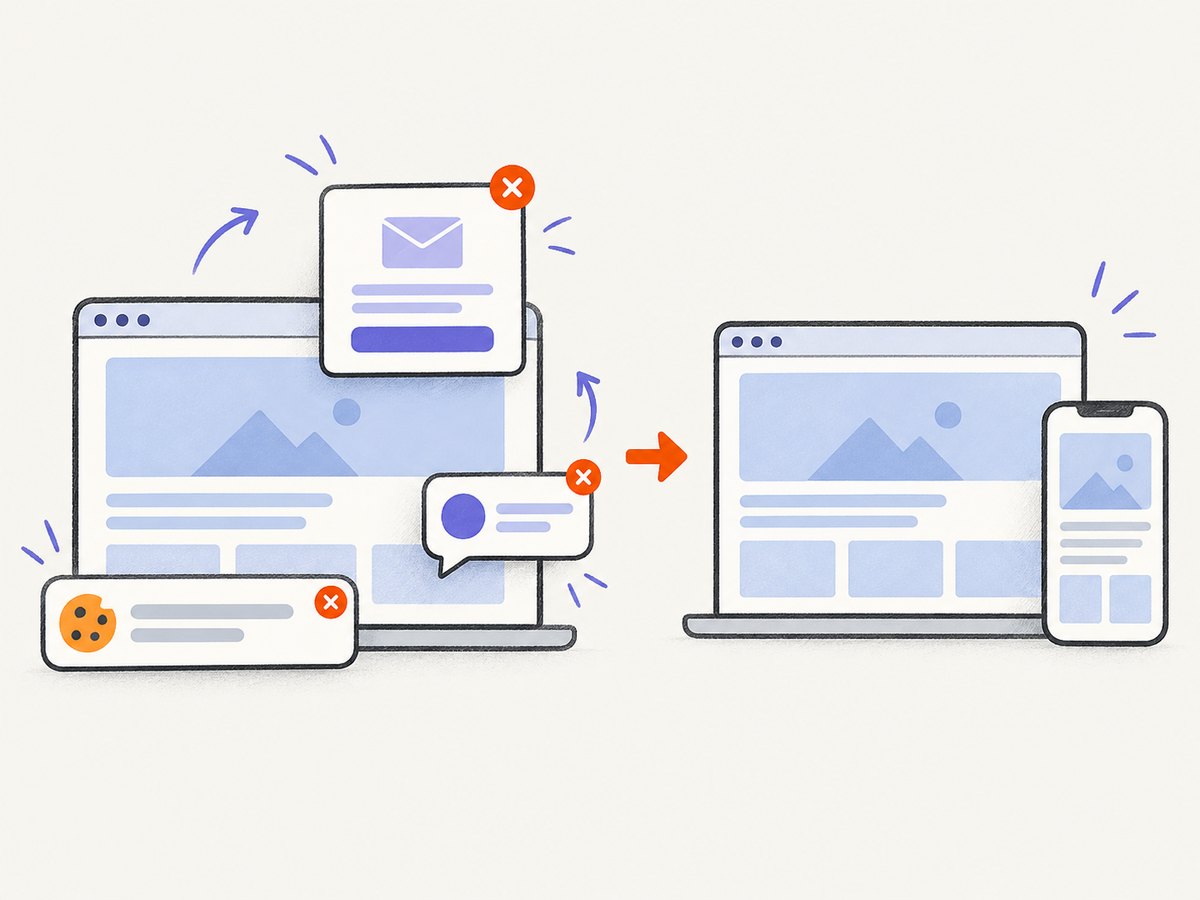
await fs.writeFile('mobile.webp', Buffer.from(await res.arrayBuffer()));Cookie banners, newsletter popups, and chat widgets are removed before the shot. Bot checks, blank pages, timeouts, failed loads, and cache hits are not billed, and response headers identify the page verdict and billing result. An MCP server lets AI agents such as Claude, Cursor, and other MCP clients call take_screenshot, get_page_info, and capture_pdf. The Free plan includes 1,000 screenshots per month with no card; paid plans start at $5 for 3,000 shots. Create a free ScreenshotNeo account.
Cost and operational choices
Self-hosted Playwright has no per-screenshot service charge, but you operate browser binaries, CI images, CPU, memory, storage, and maintenance. ScreenshotNeo charges by successful clean shots under its published plans: Free 1,000 per month, Starter $5 for 3,000, Growth $15 for 15,000, Pro $39 for 60,000, Scale $99 for 250,000, and Business $249 for 1,000,000; yearly billing gives two months free. Every feature is available on every plan.
For either approach, cache stable pages, avoid full-page output when a viewport is enough, and choose WebP or JPEG for delivery files. Keep PNG for visual diffs where compression artifacts would create noise.
FAQ
Can I capture an ASP.NET page before deploying it?
Yes. Start the app on a URL reachable from the same machine or CI worker, then point Playwright at that URL. The browser must be able to resolve the host and complete any required authentication.
Does a mobile preset prove my page works on an iPhone?
No. It provides repeatable emulation. Use physical-device testing for hardware-specific behavior and final compatibility evidence.
Should I capture the viewport or the entire page?
Use the viewport for what a user sees immediately and full-page for documentation, archival images, or layout review of the complete scrollable document.
Can I screenshot one ASP.NET component?
Yes. Locate it with a CSS selector or another Playwright locator and call Locator.ScreenshotAsync.
Why did my screenshot change without a code change?
Check data, ads, fonts, time, locale, animations, browser version, device scale, and external requests. Fix those inputs when you need stable visual comparisons.


