How to Capture Page Screenshots in Mocha and PhantomJS Tests
Capture screenshots from PhantomJS tests, save failure images with Mocha hooks, control viewport and output, and troubleshoot common errors.
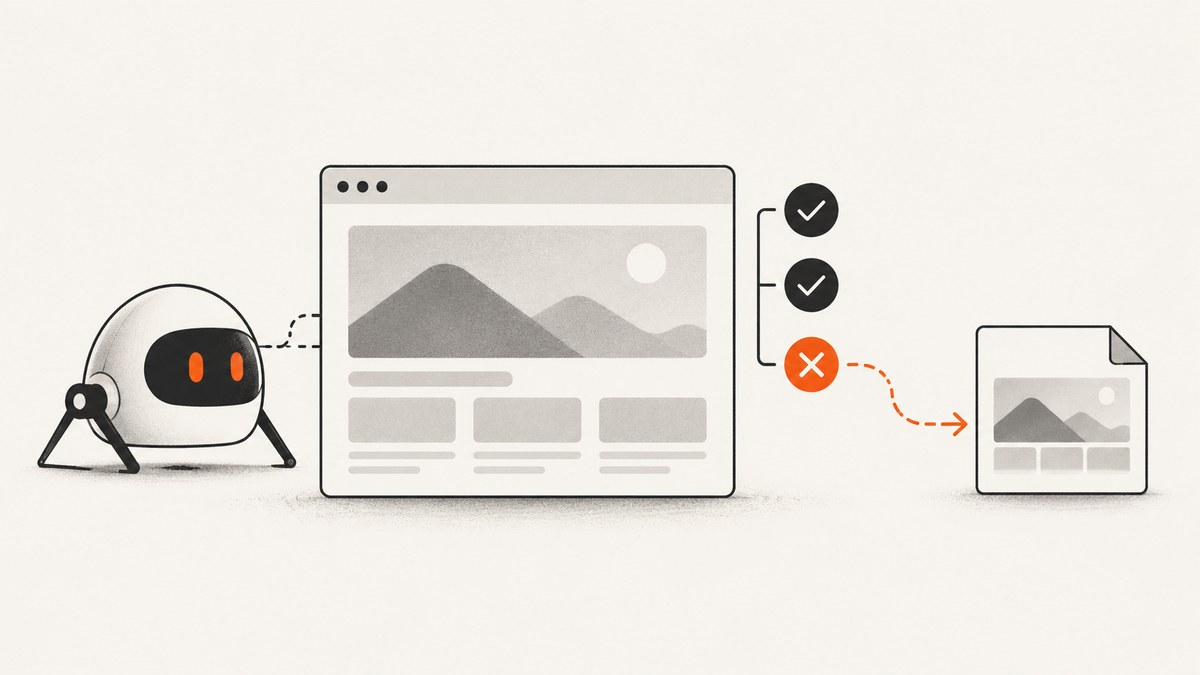
Direct answer: create a PhantomJS webpage, open the URL, check that the callback status is success, and call page.render() before phantom.exit(). When Mocha runs in the browser through mocha-phantomjs, request a screenshot from an afterEach hook only when this.currentTest.state === 'failed'.
How the pieces fit together
Mocha records test results and runs hooks. PhantomJS is the headless browser that loads and renders the page. A runner such as mocha-phantomjs connects browser-based Mocha tests to PhantomJS. PhantomJS itself is not a test framework; it only launches tests through a suitable runner.
1. Capture a screenshot in a standalone PhantomJS script
Start with a small script to verify that the page opens and that your PhantomJS build can write an image.
var page = require('webpage').create();

page.open('http://example.com/', function (status) {
  if (status === 'success') {
    page.render('screenshots/example.png');
  } else {
    console.log('Page failed to open: ' + status);
  }

  phantom.exit();
});
Create the screenshots directory before running the script. The explicit phantom.exit() is required because PhantomJS does not terminate automatically after the callback.
2. Set the viewport and crop rectangle
page.viewportSize controls the browser viewport. page.clipRect limits the rectangle written to the file. Pick dimensions that match the state your test is checking; the values below are examples, not defaults.
var page = require('webpage').create();

page.viewportSize = {
  width: 1024,
  height: 768
};

page.clipRect = {
  top: 0,
  left: 0,
  width: 1024,
  height: 768
};

page.open('http://example.com/', function (status) {
  if (status === 'success') {
    page.render('screenshots/viewport.png');
  }
  phantom.exit();
});
Use only viewportSize when you want the full viewport. Add clipRect when you need a smaller region, such as a widget or a known failure area.
3. Choose PNG, JPEG, or another supported output
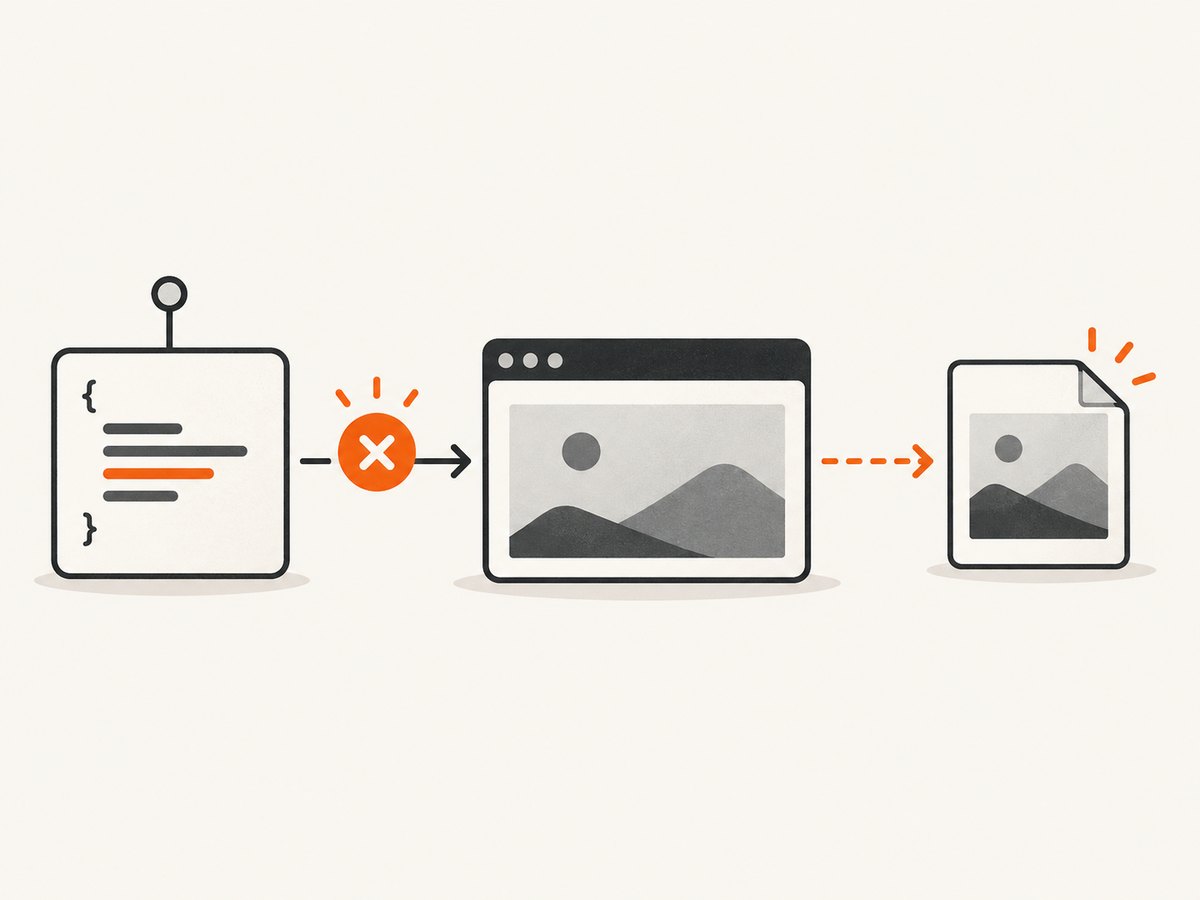
PhantomJS selects the output format from the filename extension. The render API lists PDF, PNG, JPEG, BMP, PPM, and GIF where the Qt build supports them.
- PNG: lossless pixels. The
qualityvalue changes Deflate compression, not pixel values. - JPEG: lossy output whose
qualityvalue controls image quality and file size. - PDF: useful for document-style output rather than visual regression images.
- GIF: availability depends on the Qt build.
var page = require('webpage').create();

page.open('http://example.com/', function (status) {
  if (status === 'success') {
    page.render('screenshots/page.jpg', { quality: 85 });
  }
  phantom.exit();
});
4. Capture only failed Mocha tests
The documented mocha-phantomjs arrangement exposes a takeScreenshot() helper. The helper checks for window.callPhantom and then calls callPhantom({'screenshot': filename}). Put it in Mocha’s afterEach hook and inspect the current test state.
describe('checkout', function () {
  afterEach(function () {
    if (this.currentTest.state === 'failed') {
      takeScreenshot('screenshots/' + this.currentTest.title + '.png');
    }
  });

  it('shows an error for an invalid card', function () {
    // browser test steps...
  });
});
Use a filename-safe title in production. Test titles can contain slashes, colons, or other characters that are invalid in a path.
function safeName(value) {
  return value.replace(/[^a-z0-9._-]+/gi, '-').toLowerCase();
}

afterEach(function () {
  if (this.currentTest.state === 'failed') {
    var name = safeName(this.currentTest.fullTitle());
    takeScreenshot('screenshots/' + name + '.png');
  }
});
If your runner does not provide takeScreenshot(), the bridge is not installed. Confirm that the test is being launched through the runner integration that supplies window.callPhantom; a plain browser page cannot call the PhantomJS bridge by itself.
5. Capture at a deliberate point in the test
A failure hook is useful for diagnostics, but some tests need a screenshot at a known state before the next action changes the page. Call the helper immediately after the state is established.
it('opens the account menu', function () {
  // click and wait for the menu in your browser test
  takeScreenshot('screenshots/account-menu.png');

  // continue with assertions
});
Capture after navigation and asynchronous rendering have completed. Calling page.render() immediately after starting navigation can save a loading or blank page.
6. A complete PhantomJS capture script with diagnostics
var system = require('system');
var webpage = require('webpage');

var url = system.args[1] || 'http://example.com/';
var output = system.args[2] || 'screenshots/page.png';
var page = webpage.create();

page.viewportSize = { width: 1280, height: 800 };
page.onError = function (message, trace) {
  console.log('Page error: ' + message);
};

page.open(url, function (status) {
  console.log('Open status: ' + status);

  if (status === 'success') {
    page.render(output);
    console.log('Saved: ' + output);
  } else {
    console.log('No screenshot written because the page did not load successfully.');
  }

  phantom.exit(status === 'success' ? 0 : 1);
});
Run it with the URL and destination as arguments:
phantomjs capture.js https://example.com/ screenshots/example.png7. Practical checklist for CI
- Create the output directory before the test process starts.
- Use deterministic, sanitized filenames that include the test’s full title.
- Check the open status before rendering.
- Set a viewport explicitly so screenshots do not depend on an implicit size.
- Capture after the page state is ready, not merely after navigation begins.
- Call
phantom.exit()on every completion path. - Store failure artifacts where your CI system preserves them.
- Keep PNG for pixel inspection and choose JPEG when smaller diagnostic files are sufficient.
8. Troubleshooting
| Symptom | Cause | Fix |
|---|---|---|
| No file is created | The open callback did not return success, or the directory does not exist. |
Log status, create the destination directory, and render only after a successful open. |
| The process hangs | phantom.exit() is missing or not reached. |
Call it from every callback path, including failures. |
| The image is blank or incomplete | Rendering happened before navigation or asynchronous content finished. | Capture after the tested state is ready and verify the page opened successfully. |
takeScreenshot is undefined |
The Mocha test is not running through the screenshot bridge. | Use the runner integration that provides window.callPhantom/callPhantom. |
| Only part of the page appears | clipRect restricts the output. |
Remove it for the full viewport or enlarge its dimensions. |
| Every test overwrites one image | All hooks use the same filename. | Include a sanitized full test title, suite name, or unique counter. |
| JPEG looks different from the browser | JPEG compression is lossy. | Use PNG for lossless pixels or raise JPEG quality. |
| GIF output fails | GIF support depends on the PhantomJS Qt build. | Use PNG or JPEG, or confirm that the build supports GIF. |
9. Performance, reliability, and cost considerations
Rendering adds work to every test that captures an image, so capture only failures unless a test explicitly needs a checkpoint. A fixed viewport and stable page state make image comparisons more repeatable. Keep artifacts outside the source tree and remove old files in CI so a previous run cannot be mistaken for the current result.
This workflow has no required hardware purchase: it runs as software in the PhantomJS test process. The available PhantomJS and runner documentation is legacy, and the current compatibility of these tools was not established by the source material. Validate the exact versions used by your project before relying on the integration in a new pipeline.
Or skip the browser setup
ScreenshotNeo provides a single HTTP request for a PNG, JPEG, WebP, or PDF screenshot. See the API documentation for all options.
curl -G "https://api.screenshotneo.com/v1/shot" -d access_key=YOUR_API_KEY --data-urlencode url=https://example.com -o shot.webpimport requests
r = requests.get(
"https://api.screenshotneo.com/v1/shot",
params={"access_key": "YOUR_API_KEY", "url": "https://example.com"},
timeout=90,
)
open("shot.webp", "wb").write(r.content)const q = new URLSearchParams({ access_key: 'YOUR_API_KEY', url: 'https://example.com' });
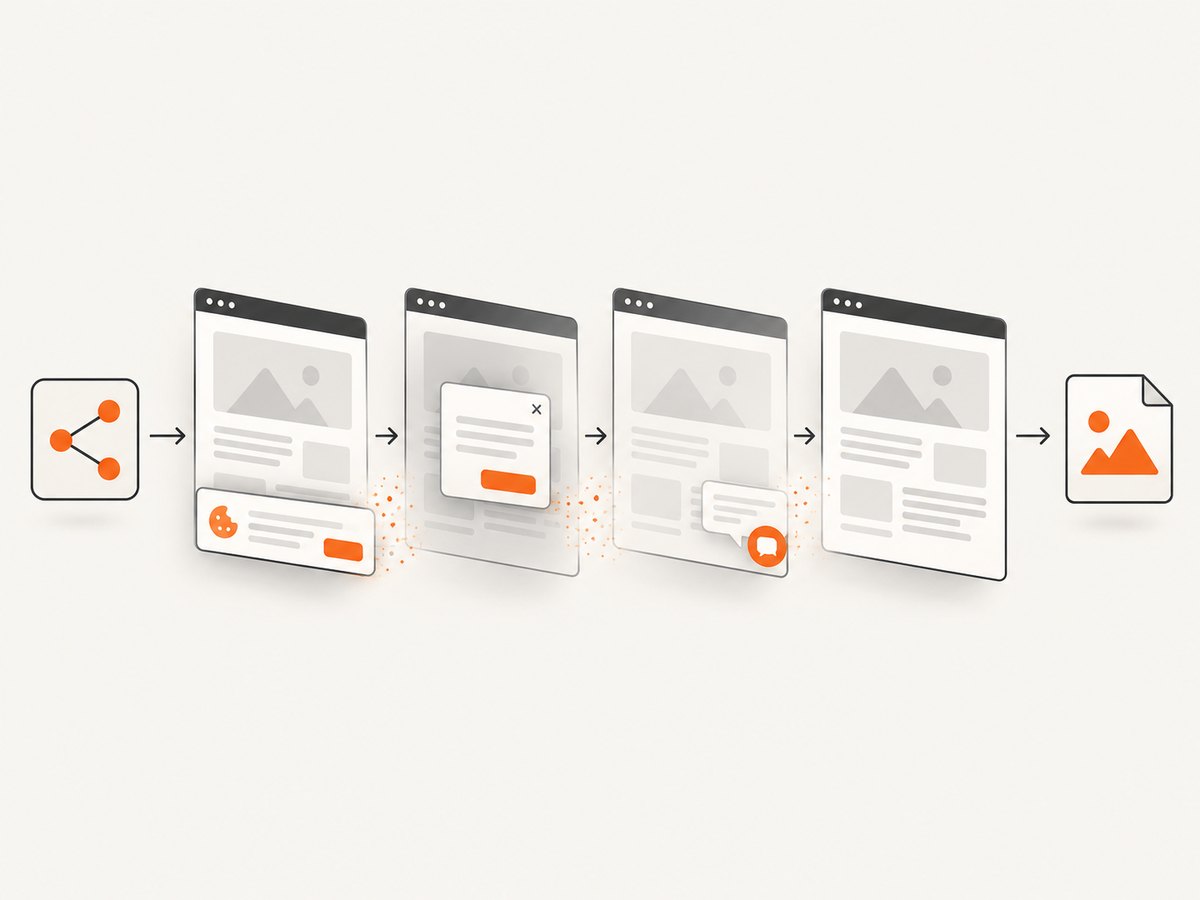
const res = await fetch(`https://api.screenshotneo.com/v1/shot?${q}`);- Cookie and consent banners, newsletter popups, and chat widgets are removed before the shot.
- Bot checks, blank pages, failed loads, timeouts, and cache hits are not billed; response headers identify the page verdict and billing result.
- An MCP server lets Claude, Cursor, and other MCP clients use
take_screenshot,get_page_info, andcapture_pdf. - The Free plan includes 1,000 screenshots each month with no card. Paid plans start at $5 for 3,000 shots.
Sign up free for ScreenshotNeo.
FAQ
Can PhantomJS capture a full page instead of the viewport?
The documented controls set the viewport and an optional clip rectangle. Choose dimensions and a rectangle that cover the region your test needs; the supplied material does not establish a separate full-page capture command.
Should failure screenshots be PNG or JPEG?
Use PNG when exact pixels matter. Use JPEG when a smaller diagnostic file is acceptable and tune its quality value.
Why does the runner matter?
Mocha supplies the hooks and test state, while the runner connects browser code to PhantomJS. The screenshot helper depends on that bridge.
Can I use the same ScreenshotNeo request for a PDF?
Yes. ScreenshotNeo supports PDF output and PDF options such as paper size, margins, landscape mode, and page ranges through its API.


