How to Modify the DOM With Puppeteer Before Taking a Screenshot
Use Puppeteer’s page.evaluate() to change a page immediately before capture. Learn how to hide elements, inject CSS, wait for rendering, and troubleshoot screenshots.

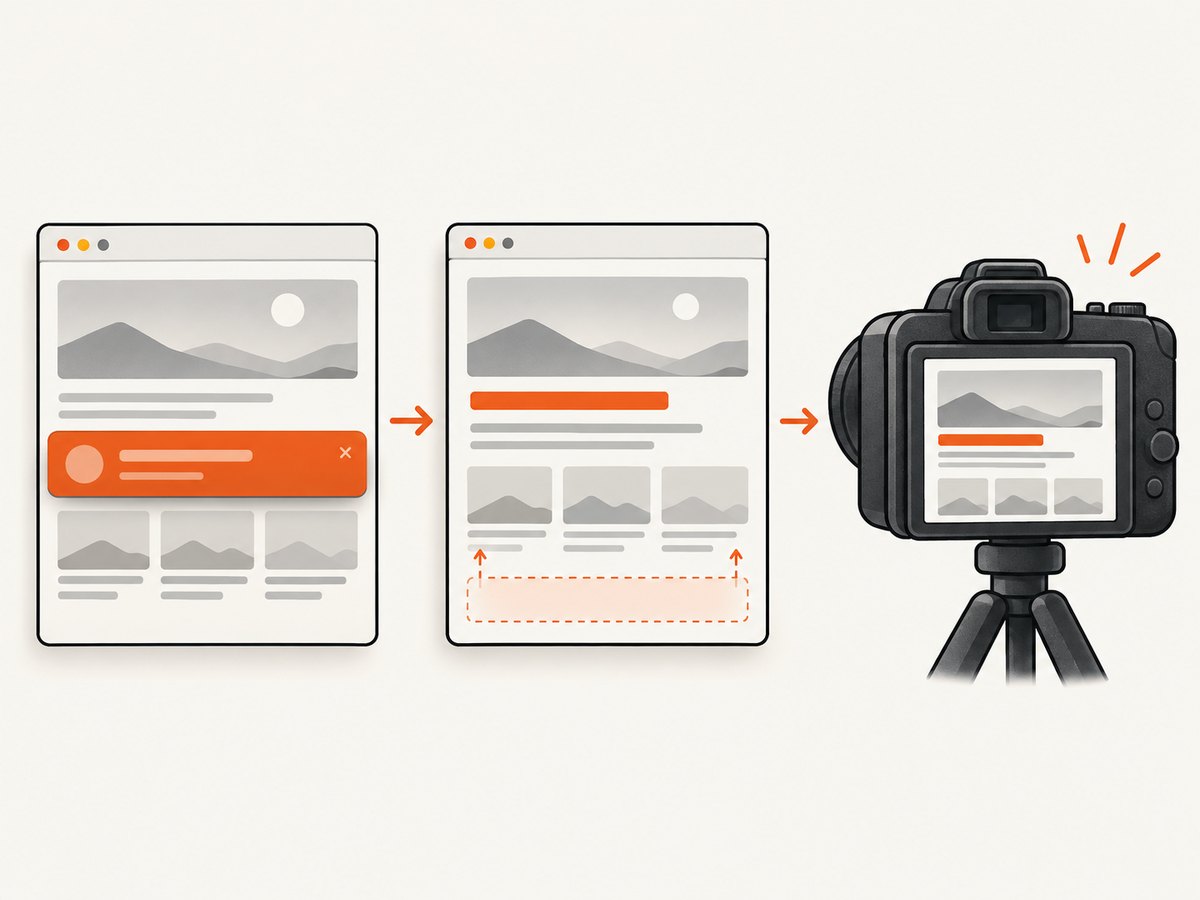
Use page.evaluate() to run DOM changes in the page, then await it before calling page.screenshot(). This lets you hide or remove an element, replace visible text, add a class, or inject temporary CSS without changing the website’s source code. The capture reflects those changes because Puppeteer takes the screenshot after the evaluation finishes.
The reliable sequence is: configure the viewport, navigate, wait for the page state your capture needs, apply screenshot-only changes, and capture. A navigation wait such as networkidle2 is a useful baseline, but it does not guarantee that every font, lazy image, animation, or client-side update is ready. Add page-specific readiness checks when the result depends on them.
1. Minimal runnable example
Install Puppeteer in a Node.js project with npm install puppeteer. This example removes a cookie banner if present, changes an H1, disables animations, and saves a full-page PNG. See the Puppeteer screenshot guide and page.evaluate() API.
import puppeteer from 'puppeteer';

const browser = await puppeteer.launch();
try {
  const page = await browser.newPage();
  await page.setViewport({ width: 1440, height: 900, deviceScaleFactor: 1 });
  await page.goto('https://example.com', { waitUntil: 'networkidle2' });

  await page.evaluate(() => {
    const banner = document.querySelector('.cookie-banner');
    banner?.remove();

    const title = document.querySelector('h1');
    if (title) {
      title.textContent = 'Screenshot title';
      title.style.color = 'rebeccapurple';
    }

    const style = document.createElement('style');
    style.id = 'screenshot-only-style';
    style.textContent = `
      *, *::before, *::after {
        animation: none !important;
        transition: none !important;
      }
    `;
    document.head.append(style);
  });

  await page.screenshot({ path: 'modified.png', fullPage: true });
} finally {
  await browser.close();
}
The optional chaining on banner handles pages where the selector does not match. The try/finally ensures the browser is closed if navigation, evaluation, or capture fails. If your project uses CommonJS, use const puppeteer = require('puppeteer') and place the asynchronous work inside an async function.
2. Choose how to change the element
Choose the smallest mutation that produces the intended image. These are ordinary browser DOM operations; Puppeteer’s role is to execute them in the loaded page context.
| Goal | Operation | What happens to layout |
|---|---|---|
| Remove an unwanted node | element.remove() |
Its space collapses and surrounding content can move. |
| Hide without removing | element.style.display = 'none' |
It is not rendered and its layout space collapses. |
| Hide but preserve space | element.style.visibility = 'hidden' |
The element’s space remains. |
| Change plain text | element.textContent = '…' |
Text is replaced; use this instead of parsing markup. |
| Use the site’s existing styles | element.classList.add('…') |
The page stylesheet determines the class’s effect. |
| Apply capture-specific rules | Append a <style> element |
CSS can target multiple elements and pseudo-elements. |
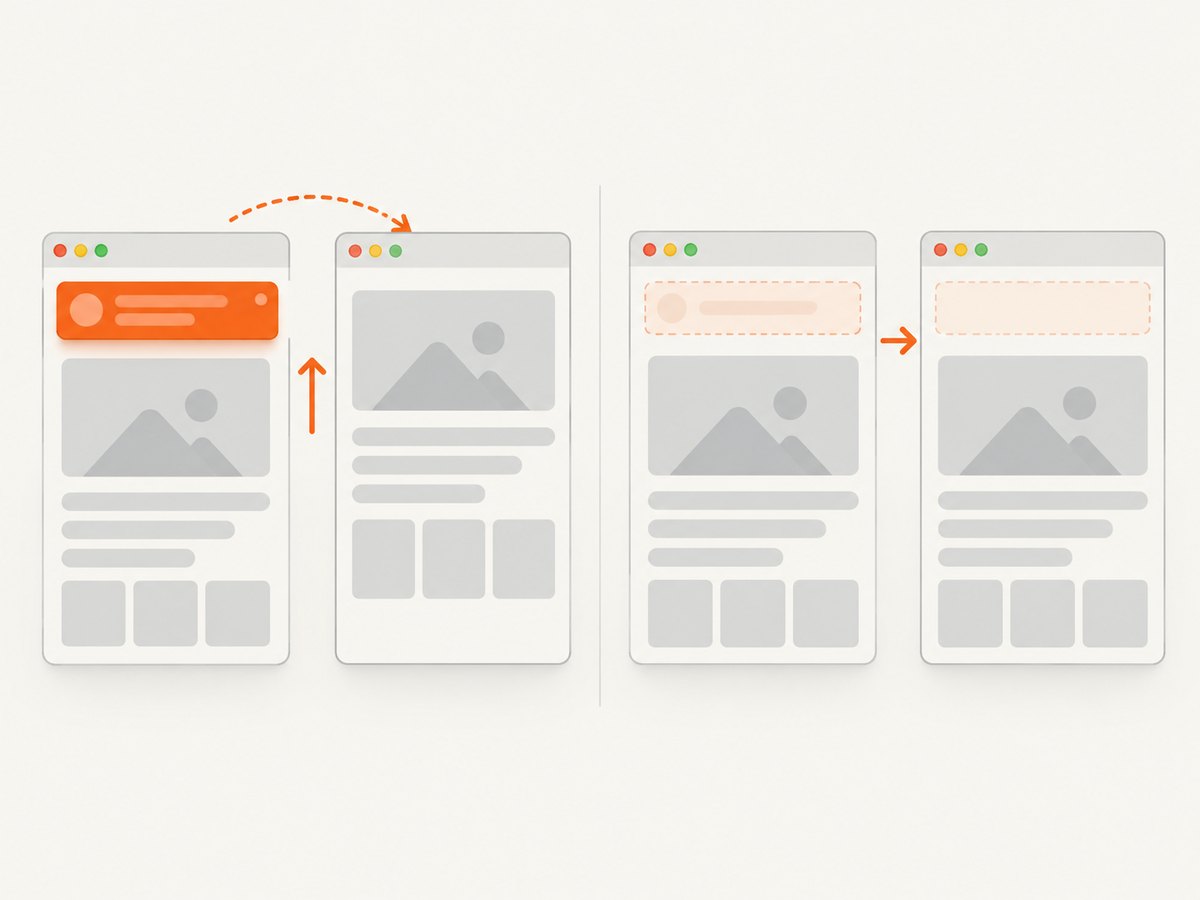
Removing a node is convenient when it should not affect the screenshot at all. If the page’s spacing should remain as though the element were still there, use visibility: hidden. Use display: none when you want the element gone and surrounding content to reflow. Avoid setting innerHTML for plain replacement text: it parses the input as markup.
Return diagnostics from evaluate
page.evaluate() can return a serializable value to Node.js. Record whether selectors matched instead of silently assuming the page had the expected structure:
const result = await page.evaluate(() => {
  const banner = document.querySelector('.cookie-banner');
  const title = document.querySelector('h1');
  banner?.remove();
  return {
    bannerFound: Boolean(banner),
    titleFound: Boolean(title),
    titleText: title?.textContent?.trim() ?? null
  };
});
console.log(result);
Functions passed to evaluate execute in the browser, not in Node.js. Do not rely on local Node variables being available inside the callback. Pass values as arguments:
const replacement = 'Updated title';
await page.evaluate((text) => {
  const title = document.querySelector('h1');
  if (title) title.textContent = text;
}, replacement);
3. Wait for the right page state
Navigation completing and a page being visually ready are different conditions. A page may fetch client-side data after navigation, lazy-load images only after scrolling, keep network connections open, or still be animating. Match the wait to the content you need.
- Set the viewport before navigation. Responsive layout can depend on viewport dimensions and device scale. Puppeteer’s page API recommends configuring emulation before navigation when it affects page layout; see page.setViewport().
- Navigate with a suitable baseline. For example,
await page.goto(url, { waitUntil: 'networkidle2' }). This is not a guarantee that every visual asset or application update has settled. - Wait for a required element. Use
await page.waitForSelector('.report-ready')when the target page exposes a meaningful selector. - Wait for an application signal if available. An app-specific readiness flag can be more reliable than network idleness on pages with long-lived connections.
- Apply mutations and capture. Await both operations in order so capture does not race with changes.
For a page whose screenshot depends on a particular image, wait for that image explicitly:
await page.waitForSelector('#hero-image');
await page.evaluate(async () => {
  const img = document.querySelector('#hero-image');
  if (img instanceof HTMLImageElement && !img.complete) {
    await new Promise((resolve) => {
      img.addEventListener('load', resolve, { once: true });
      img.addEventListener('error', resolve, { once: true });
    });
  }
});
This handles an image that has already appeared in the DOM but is still loading. For lazy-loaded content, the image might not start loading until it is near the viewport; scroll it into view or use a page-specific readiness strategy before checking completion. A fixed sleep can be useful for a known short transition, but it is less deterministic than waiting for a selector or app signal.
4. Select the screenshot scope and output
Use fullPage for the document, an element handle for one component, or clip for a specific rectangle. The screenshot API also supports output path, format, encoding, quality, and transparent background settings. See the ScreenshotOptions API.
// Entire document
await page.screenshot({ path: 'full.png', fullPage: true });

// A specific element
const card = await page.$('.product-card');
if (!card) throw new Error('Product card was not found');
await card.screenshot({ path: 'card.png' });

// A viewport rectangle
await page.screenshot({
  path: 'region.png',
  clip: { x: 100, y: 120, width: 640, height: 400 }
});

// JPEG with quality (PNG does not use quality)
await page.screenshot({ path: 'preview.jpg', type: 'jpeg', quality: 82 });

// Transparent output where supported by the page and format
await page.screenshot({ path: 'transparent.png', omitBackground: true });
For a single element, ElementHandle.screenshot() can scroll a hidden element into view before capturing it. A full-page capture can be much taller than the viewport, so consider whether the entire document is actually needed. captureBeyondViewport is another option for captures extending beyond the viewport. PNG ignores the quality setting; use a format whose encoder supports quality when file size matters.
5. Reliability, performance, and cost considerations
- Keep mutations idempotent. If a retry or second capture runs on the same page, adding duplicate styles or appending duplicate nodes can change the result. Give injected styles an ID and replace an existing instance if needed.
- Use stable selectors. Prefer a selector tied to the page’s structure or a test attribute over a generated class that changes between builds. Log diagnostic results for important selectors.
- Avoid arbitrary long waits. Waiting for network idle can stall on persistent connections; a fixed delay wastes time when the page becomes ready sooner. Prefer the narrowest meaningful condition.
- Minimize full-page output when possible. Large documents take more rendering and produce larger files. Element and clipped captures limit the requested region.
- Close browser resources reliably. Use
finallyaround browser lifetime, and avoid launching a new browser for every page if your own application can safely reuse one. - Account for site variability. External content, personalized data, changing ads, font availability, and animation can make captures differ. Disable animation for deterministic snapshots and use the same viewport and readiness condition across runs.
Puppeteer itself does not assign a per-screenshot price in this workflow; operational cost depends on where the browser runs and the compute, memory, storage, and network resources it consumes. No universal timing or cost figure applies to all pages. Measure your own target pages under the same viewport and wait conditions you intend to use.
6. Troubleshooting
| Symptom | Likely cause | Fix |
|---|---|---|
| The element still appears | The selector missed, matched a different node, or the site recreated it after mutation. | Return a diagnostic from evaluate; wait for the element, then remove it immediately before capture. Check whether the page re-renders it. |
| Content jumps after hiding a banner | display: none or remove() collapsed its layout space. |
Use visibility: hidden if the original space should remain. |
| Screenshot has old text or styling | The mutation was not awaited, or the capture happened before a later app render. | Await page.evaluate(); wait for the app’s ready state and apply the mutation after the app update. |
| Screenshot is blank or partly rendered | Navigation finished before client data, images, or fonts were ready; the page may also have failed to load. | Wait for a meaningful selector or application signal, inspect navigation errors, and check required images. |
networkidle2 never resolves |
The page may keep requests or connections active. | Use a suitable navigation condition plus a target selector or app readiness signal. |
| Element screenshot throws or misses the component | The selector returned no handle, or the element is not in a capturable state. | Check for a null handle, wait for the selector, and confirm the element is visible. Element screenshots may scroll it into view. |
| Unexpected file size or transparent area | Output format and background settings do not match the desired result. | Choose type and omitBackground deliberately; remember PNG ignores quality. |
7. Or skip the browser setup
If you need a screenshot without maintaining a Puppeteer browser, ScreenshotNeo offers a one-request screenshot API. Its API accepts a URL and returns an image or PDF; see the ScreenshotNeo API documentation.
curl -G "https://api.screenshotneo.com/v1/shot" -d access_key=YOUR_API_KEY --data-urlencode url=https://stripe.com -o shot.webpimport requests
r = requests.get("https://api.screenshotneo.com/v1/shot", params={"access_key": "YOUR_API_KEY", "url": "https://stripe.com"}, timeout=90)
open("shot.webp", "wb").write(r.content)const q = new URLSearchParams({ access_key: 'YOUR_API_KEY', url: 'https://stripe.com' });
const res = await fetch(`https://api.screenshotneo.com/v1/shot?${q}`);ScreenshotNeo accepts cookie and consent banners before capture and removes more than 60 known consent platforms, newsletter popups, and chat widgets; each step can be turned off. Bot checks and CAPTCHAs, blank pages, timeouts, failed loads, and cache hits cost nothing, with the page verdict and billing status returned in response headers. Its MCP server gives AI agents tools for screenshots, page information, and PDF capture. The free plan includes 1,000 screenshots each month with no card; paid plans start at $5 for 3,000. Learn about ScreenshotNeo or sign up for 1,000 free screenshots a month, no card required.
8. Frequently asked questions
Can I change the DOM without changing the website’s source?
Yes. A mutation executed through page.evaluate() changes the loaded page in that browser session. It does not edit the site’s deployed source code.
Can I pass a Node.js variable into the page callback?
Yes. Pass it as an argument to page.evaluate(callback, value); the callback runs in the browser context and does not automatically share Node.js scope.
Should I remove a popup or hide it?
Remove it or use display: none when its layout space should collapse. Use visibility: hidden when the page should keep that space.
Does networkidle2 guarantee a complete screenshot?
No. It is a navigation wait condition, not a universal guarantee that fonts, lazy images, animations, or application data are ready. Wait for the specific state the image depends on.
Can I capture just one DOM element?
Yes. Find it with a selector and call screenshot() on its element handle, after checking that the handle exists.


