How to Modify a Web Page Before Converting It
Edit page content or print layout, preview the result, and save it as a PDF—with browser tools, local files, or a conversion service.
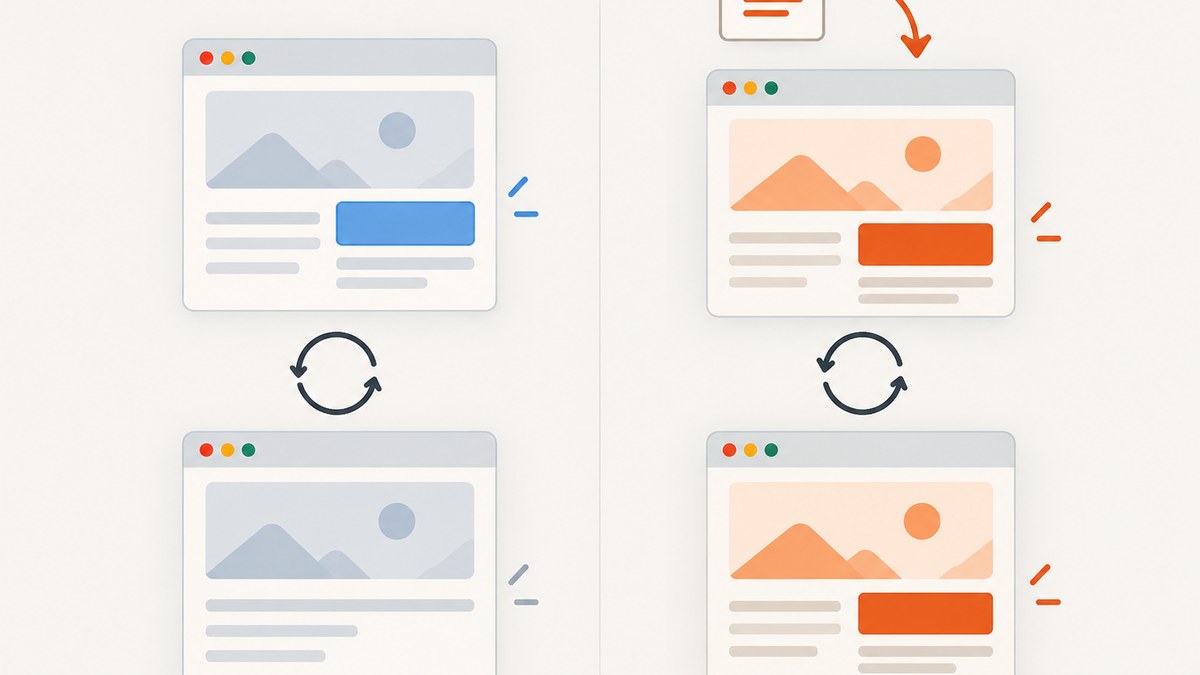
You can modify a webpage before saving it as a PDF by editing its live content in browser developer tools, changing a local copy or project source, or applying print-specific CSS. Then open print preview, check the pages, and choose Save to PDF. A DevTools edit changes what your browser currently displays; it does not update the public website, and it may disappear when you reload.
First decide which change you need: altering the words or elements, changing how the page is laid out on paper, or making a repeatable change that survives reloads. Those are different jobs, and the right workflow depends on which one you mean.
1. Choose the right kind of edit
| Goal | Use | What to know |
|---|---|---|
| Change text or remove an element for one PDF | Browser DevTools Elements panel | Quick, temporary change to the active page DOM. |
| Keep an edit for repeated use | Local source, workspace, or supported local override | Save the source change; editing the live Elements tree alone does not make it persistent. |
| Change only the printed layout | Print CSS and print preview | Use rules such as @media print and @page. |
| Save the current page as a PDF | Browser Print dialog | Inspect the preview and adjust available layout controls. |
| Capture linked pages or tune conversion settings | Acrobat web-to-PDF conversion | Offers capture scope and conversion options beyond a basic print flow. |
Chrome DevTools lets you inspect and edit the DOM—the object tree used to render the current page. Scripts can change that tree after the browser receives the original HTML, so what you see in Elements need not match the original response. [Chrome DevTools: View and change the DOM]
2. Make a one-time content edit in DevTools
- Open the webpage you are authorized to modify for your own local use or development work.
- Right-click the text or element you want to change and choose Inspect. DevTools opens with the corresponding node selected.
- To change text, edit the text node in the Elements panel. To change a larger fragment, right-click the element and choose Edit as HTML, then make the change and finish editing.
- Make any other temporary changes you need, such as removing a decorative element from the current DOM.
- Open print preview and inspect the complete document before saving it.
For example, you might replace a heading or remove a visible sidebar from your own working copy before printing. These changes affect the active browser rendering. They do not change the server’s files or alter the page for other visitors. Reloading can discard them.
Chrome’s Local Overrides documentation also distinguishes editing the Elements DOM from saving a local override: DOM-tree edits are not saved as overrides. For durable edits, work through an appropriate source file or supported override workflow. [Chrome DevTools: Local Overrides]
3. Make a reusable change
If you own or maintain the page, edit the source in your project or a connected DevTools workspace. If you need a local browser-only change, use a supported local override for the relevant resource. After saving, reload the page and verify the change is still present before printing.
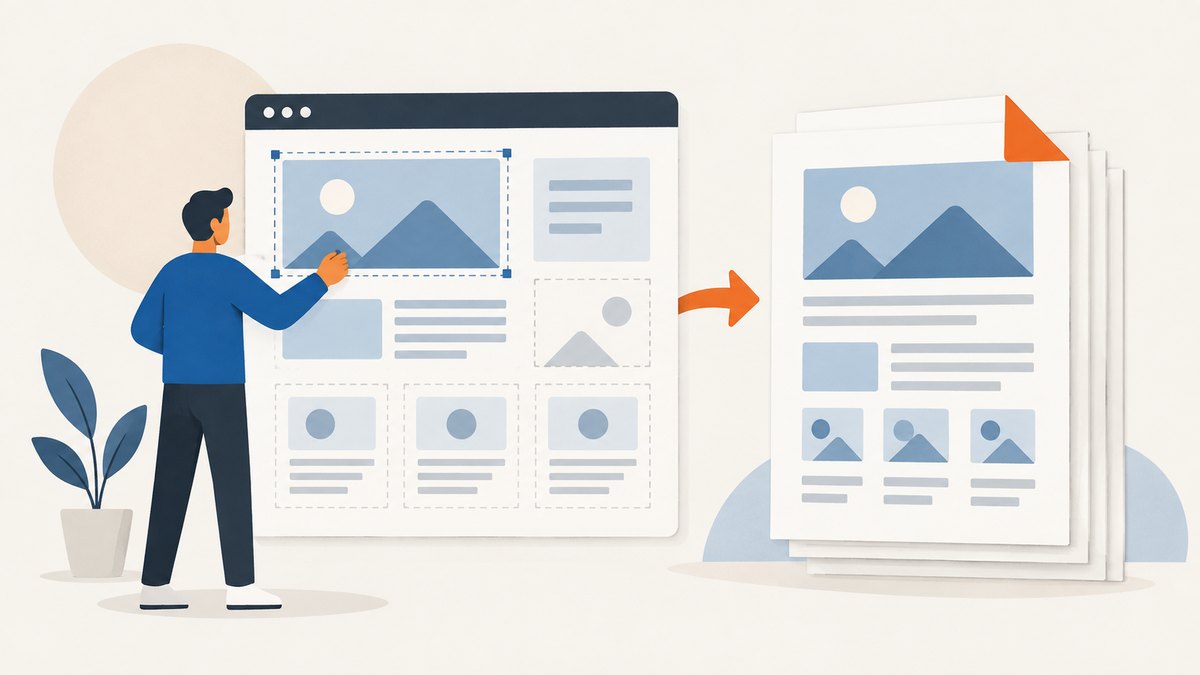
- Identify the source that controls the content or style: HTML for structure and text, CSS for layout, and JavaScript only when the page content is generated dynamically.
- Save a copy or use version control before changing files, so you can review and undo the modification.
- For an override workflow, save the relevant network resource through DevTools’ supported Overrides flow. Do not assume an Elements-panel edit has been saved.
- Reload and check the page in its ordinary screen view and its print view.
- Save the resulting PDF and reopen it to check the final output.
For a personal copy, editing an authorized local HTML file is another option. Keep in mind that a page may rely on scripts, stylesheets, fonts, images, or data loaded from the original site, so a saved file may not reproduce the original appearance without those resources.
4. Change the print layout with CSS
Print CSS lets a page use a separate layout for print rendering. Add rules to a stylesheet you control, or to an authorized local copy, and preview them using the browser’s print rendering. MDN documents @media print and the @page rule for print styles and page setup. [MDN: Printing with CSS]
/* Example print rules for a page you control */
@media print {
  nav,
  .site-header,
  .cookie-banner,
  .screen-only {
    display: none !important;
  }

  body {
    color: #111;
    background: #fff;
    font-size: 11pt;
  }

  main {
    max-width: none;
    margin: 0;
  }

  h1, h2, h3 {
    break-after: avoid;
  }

  img, table, pre {
    max-width: 100%;
    break-inside: avoid;
  }
}

@page {
  size: auto;
  margin: 16mm;
}
Replace the example selectors with selectors from your page. The display: none rules hide matching elements in the printed output; they do not delete page content. Avoid hiding content that readers need to understand the document. Page-break behavior varies with content and browser, so use preview to catch awkward splits.
In Microsoft Edge DevTools, you can force print preview mode to inspect print styles while working. [Microsoft Learn: Force print preview mode]
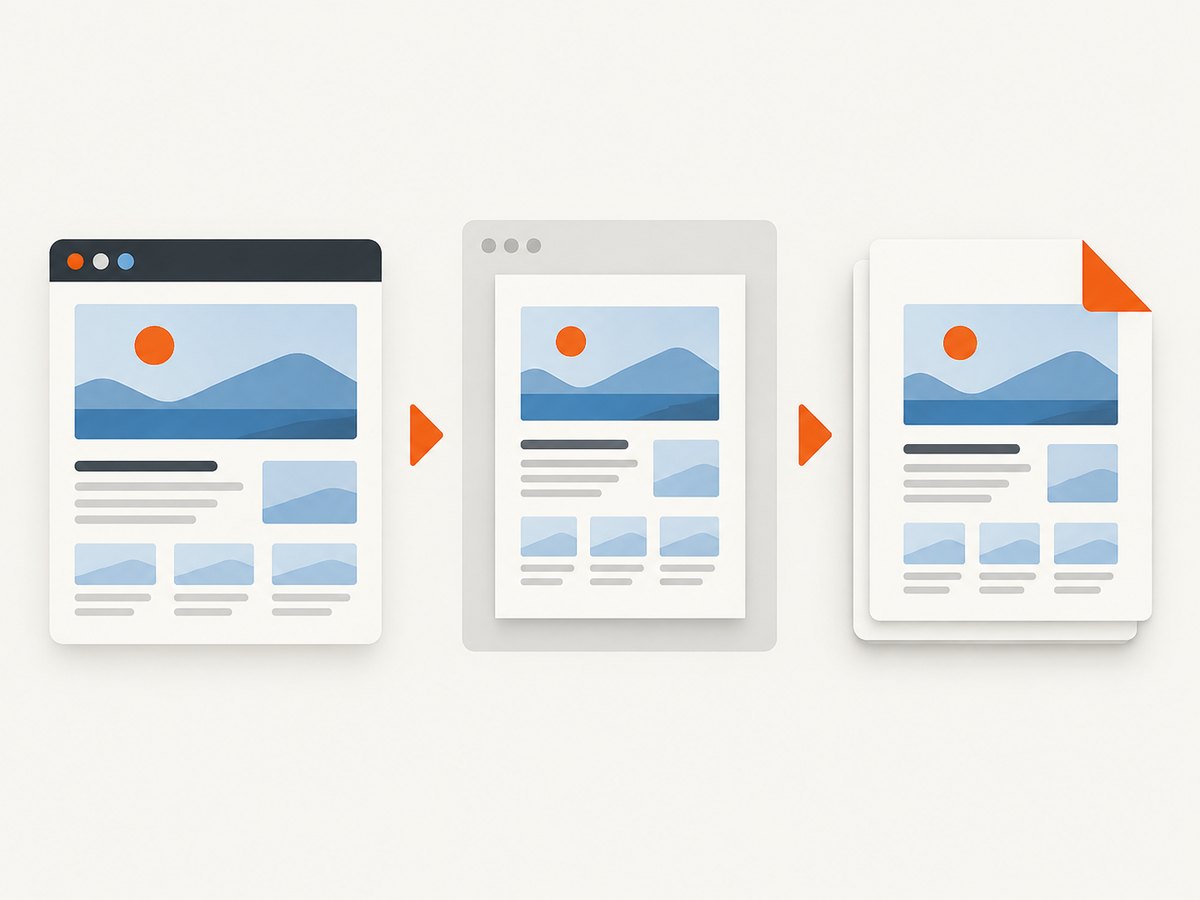
5. Save the page as a PDF
- Open the browser’s Print command, commonly available from the browser menu or with
Ctrl+Pon Windows/Linux andCmd+Pon macOS. - Wait for the preview to render. Check that the edited text is present and that important content, images, and tables are not clipped.
- Choose Save to PDF or the equivalent PDF destination.
- Adjust the available settings, such as page range, paper size, orientation, scale, margins, backgrounds, and headers or footers. Names and availability vary by browser and platform.
- Save the file, reopen it, and verify both the visual pages and the selectable text.
Firefox documents printing pages to a PDF file and the print-dialog controls available in its workflow. [Mozilla Support: Print web pages in Firefox]
6. Use Acrobat when capture scope or conversion controls matter
Acrobat can convert a web URL or local HTML file. Its web capture settings support selecting linked-page levels and applying same-path or same-server boundaries. Depending on the workflow, settings also cover page size, orientation, margins, scaling, images and backgrounds, scrollable blocks, bookmarks, and PDF tags. PDF tags preserve structural information that can help with navigation and accessibility. [Adobe: Convert web pages to PDFs] [Adobe: Web-to-PDF settings]
Use browser printing for a straightforward copy of the current page. Consider Acrobat when you need linked-page capture or more conversion controls. A multi-page capture still needs review: check that the selected scope includes only the pages you intended.
7. Check the PDF before sharing it
- Confirm the edited content appears and no important section has disappeared.
- Check page breaks, headings, images, tables, and code blocks for clipping or awkward splits.
- Check page size, orientation, margins, scale, background colors, and headers or footers.
- Select and copy a few lines to confirm text is represented as text where expected.
- Review reading order and accessibility if the PDF will be published or distributed.
- Keep an HTML version where practical. GOV.UK’s guidance for its publishing context recommends accessible source material, checking converted PDFs, and publishing HTML wherever possible. [GOV.UK: Publishing accessible documents]
8. Troubleshooting
| Problem | Likely cause | What to try |
|---|---|---|
| The edit disappears after reload | You changed the active DOM, not a saved source or override. | Save the change in a local source/workspace or use the supported Local Overrides workflow, then reload to verify. |
| The printed page still shows navigation or a banner | The screen layout is also being used for print, or no print rule matches the element. | Use a print stylesheet you control, inspect the selector, and preview print media again. |
| The PDF is blank or missing content | The page may still be loading, or its print layout may hide or defer content. | Wait for the page to finish rendering, inspect print preview, and check the source’s print rules. Use only permitted access and export paths. |
| Text or images are cut off | Content exceeds the printable area, or a fixed-size/overflow container clips it. | Reduce scale or margins in preview; for a page you control, adjust print CSS and avoid fixed widths or hidden overflow. |
| Backgrounds or colors are absent | The print dialog may omit background graphics by default. | Enable background printing if the browser offers it, or use print CSS with a suitable foreground and background. |
| A saved local file looks different | It depends on external resources or scripts that the local copy cannot load. | Use the authorized source project or a workflow that preserves required resources; compare with the original before relying on the result. |
| The document has poor reading order | Visual layout alone does not guarantee a useful tagged structure. | Preserve semantic source markup, inspect the PDF’s reading order, and use an accessibility checker when the document is for publication. |
9. Or skip the browser setup
If your goal is to capture a page as an image or PDF through an API, ScreenshotNeo takes a URL in one request. It does not replace editing a page’s content or print CSS; it automates the capture step. See the ScreenshotNeo API documentation for request options.
curl -G "https://api.screenshotneo.com/v1/shot" \
  -d access_key=YOUR_API_KEY \
  --data-urlencode url=https://stripe.com \
  -o shot.webp
import requests
r = requests.get(
"https://api.screenshotneo.com/v1/shot",
params={"access_key": "YOUR_API_KEY", "url": "https://stripe.com"},
timeout=90,
)
open("shot.webp", "wb").write(r.content)const q = new URLSearchParams({
access_key: 'YOUR_API_KEY',
url: 'https://stripe.com'
});
const res = await fetch(`https://api.screenshotneo.com/v1/shot?${q}`);ScreenshotNeo removes cookie and consent banners, newsletter popups, and chat widgets before capture. Bot checks, blank pages, failed loads, timeouts, and cache hits are not billed; response headers identify the page verdict and billing status. Its MCP server gives AI agents tools to take screenshots, get page information, and capture PDFs. The free plan includes 1,000 shots per month with no card; paid plans start at $5 for 3,000 shots. Sign up for 1,000 free screenshots a month, with no card required.
10. Performance, reliability, and cost
For a one-off change, DevTools and browser printing avoid setting up a separate conversion workflow. A repeatable source or print stylesheet takes more initial work but makes the result easier to regenerate consistently. Preview and reopen the PDF because a page’s scripts, external resources, and print CSS can affect what eventually appears.
Acrobat’s linked-page options are useful when the output must include more than the current page, but capture scope and conversion settings need review. For automated URL capture, ScreenshotNeo provides a direct API and configurable capture options including full-page images, PDF, waits, caching, and bulk requests. Clean captures only are billed under the supplied product terms. Choose the method based on whether you need content editing, print layout control, broader page capture, or repeatable URL-to-file automation.
FAQ
Does editing a webpage in DevTools change it for everyone?
No. It changes the rendering in your browser session. To change a public site, edit and publish its source through the authorized site workflow.
Can I change text without changing the website?
Yes. A temporary DevTools edit or an authorized local copy can produce a personal PDF without changing the remote site.
Can I edit the PDF after saving it?
PDF editors can make later changes, but for repeatable output it is usually clearer to correct the source or print layout and regenerate the PDF.
Is browser printing enough for multiple linked pages?
It prints the current page. For linked pages, use a conversion workflow with an explicit page-capture scope, such as Acrobat’s web conversion options.
Should I publish only the PDF?
When practical, provide an accessible HTML version too. Check the final PDF for reading order and accessibility before distribution.


