How to Modify Web Pages Before Taking Screenshots
Edit HTML and CSS safely in DevTools, preserve changes with Chrome Local Overrides, and capture clean, repeatable screenshots.
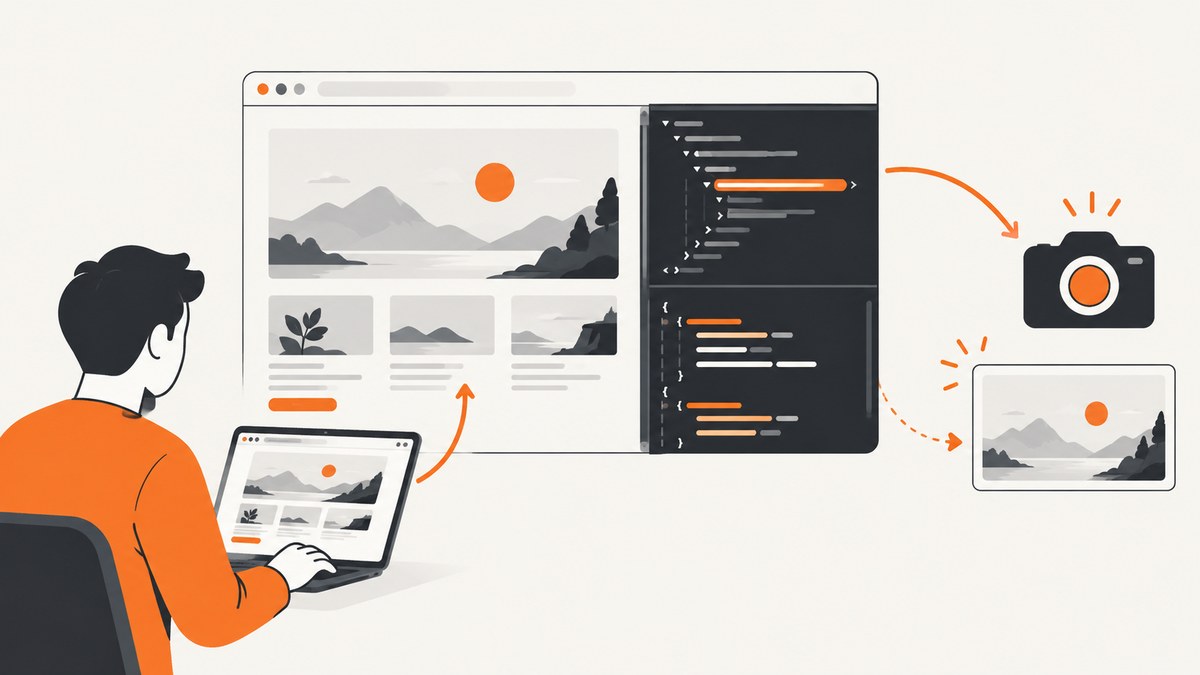
Short answer: use your browser’s developer tools to change the HTML or CSS that is rendered on your screen, then capture that altered view. These edits are local and temporary: they do not publish anything to the website. For a one-off screenshot, edit the page in Chrome Elements or Firefox Inspector. For repeatable edits that must survive a reload, use Chrome Local Overrides to serve a locally edited copy of supported resources.
This guide covers one-off edits, persistent overrides, selected-element and full-page captures, JavaScript changes, troubleshooting, and an automated option when you do not want to maintain a browser setup.
1. Decide what kind of change you need
| Goal | Best method | What persists? |
|---|---|---|
| Change a label, heading, or visible text once | Chrome Elements or Firefox Inspector | Until refresh or navigation |
| Try a color, spacing, or font change | Live CSS editing in Styles/Page Inspector | Until refresh unless saved elsewhere |
| Repeat the same change after reload | Chrome Local Overrides | Supported local resource changes |
| Capture one component | Firefox Inspector “Screenshot Node,” or crop a browser capture | Selected node only |
| Capture a complete page | Browser full-page capture or an automated screenshot API | Depends on the tool |
Before editing, record the target URL, viewport size, zoom level, and whether the page requires a login. A screenshot that looks correct at one width may wrap differently at another. Also decide whether you are changing markup, CSS, content loaded by JavaScript, or a network response. That choice determines which workflow will work reliably.

2. Make a one-off edit in Chrome
- Open the page in Chrome.
- Open DevTools with F12, Ctrl+Shift+I on Windows/Linux, or Cmd+Option+I on macOS.
- Choose the element picker (the arrow-in-a-box icon), then click the text, image, card, or container you want to change.
- In Elements, edit the markup or attributes. Double-click text to replace it. Double-click an attribute such as
classorhrefto edit its value. - In the Styles pane, edit an existing declaration or add a new rule. For example, add
background: #111;ordisplay: none;. - Close or dock DevTools so it does not cover the page, set the required viewport, and capture the result.
To replace larger markup, right-click the selected node and choose Edit as HTML. This is useful for inserting a complete card or changing several nested elements at once. Keep the replacement valid HTML; a missing closing tag can change the layout of the rest of the document.
Useful temporary CSS examples
/* Hide a newsletter popup for this screenshot */
.newsletter-modal,
[data-testid="newsletter-modal"] {
  display: none !important;
}

/* Emphasize a pricing card */
.pricing-card.featured {
  outline: 4px solid #2563eb;
  transform: scale(1.02);
}

/* Replace a background without changing the source file */
.hero {
  background: #f2f4f7 !important;
}
Rules added in Styles are attached to the current document. A later stylesheet rule with greater specificity can override yours, so use a more specific selector or !important for a temporary visual proof. Remove it before copying any production CSS.
3. Edit a page in Firefox Inspector
- Open the page and launch Developer Tools with F12 or Ctrl+Shift+I (Windows/Linux) or Cmd+Option+I (macOS).
- Open the Inspector and use the node picker to select the target.
- Edit tags, attributes, and text directly in the HTML pane. For a larger replacement, use Edit As HTML.
- Use the rules panel to change CSS properties and values.
- With the desired node selected, open its context menu and choose Screenshot Node to save that element alone.
Mozilla describes the Inspector as a tool to “examine and modify the HTML and CSS of a page.” The same practical boundary applies as in Chrome: the browser view changes, while the website’s server files remain untouched. See the official Firefox Page Inspector documentation and HTML editing guide.
4. Change text, images, and behavior
Replace visible text
Select the text node and edit it inline. If the text is rendered by a framework after page load, your change may be overwritten when the component re-renders. In that case, change the source response with Local Overrides or run a small script after the page finishes loading.
Swap an image
Edit the selected image’s src attribute and paste an image URL that the browser can load. If the page uses srcset, the browser may choose a different candidate at the current viewport; edit or remove srcset for a predictable test. A cross-origin image can also fail because of server permissions or an expired URL.
Run a JavaScript change
In Chrome’s Console, you can change a heading or add a class:
document.querySelector('h1').textContent = 'Updated heading';
document.querySelector('.hero').classList.add('screenshot-state');
For repeatable scripts, save the code as a Snippet in the Sources panel. Remember that scripts can trigger layout changes, animations, network requests, or framework re-renders. Disable animations for a stable capture:
* {
  animation: none !important;
  transition: none !important;
  caret-color: transparent !important;
}
5. Preserve changes across reloads with Chrome Local Overrides
Live DOM edits disappear on refresh. Chrome Local Overrides let DevTools save a local copy of a network resource and serve that copy on subsequent reloads. Chrome documents this workflow for web content and response headers, including XHR and fetch responses.
- Open DevTools and select the Sources panel.
- Open the Overrides tab, choose a local folder, and grant Chrome permission to access it.
- In Network, reload the page and find the HTML, CSS, JavaScript, or response you want to change.
- Right-click the request and choose Override content (or Override headers for response headers).
- Edit the saved copy in Sources or the response-header editor, then save.
- Reload and verify that the modified local resource is being served.
Local Overrides have important limits. They do not save edits made directly in the Elements DOM tree. CSS edits made in Styles are not saved when the CSS source is an HTML file; edit the HTML file in Sources instead. Source-mapped files cannot be overridden. Enabling Overrides also disables the browser cache, which can make reloads slower. Read Chrome’s Local Overrides documentation for the current setup and exceptions.
Review and revert with Changes
The Changes panel shows a diff for supported HTML, CSS, and JavaScript edits and provides a revert action. It is a review tool, not the persistence mechanism. Use Overrides to keep a resource active after reload, then use Changes to inspect exactly what you modified. Chrome’s Changes documentation explains the distinction.
6. Capture the modified page
Full-page capture
Set the viewport first, then open the DevTools command menu with Ctrl+Shift+P (or Cmd+Shift+P) and choose Capture full size screenshot. This captures the document beyond the visible viewport. Lazy-loaded content may not exist until you scroll; scroll through the page once or use an automated browser that waits for images before capture.
One element
In Firefox, select the node in Inspector and choose Screenshot Node. In Chrome, right-click the node and choose Capture node screenshot if that command is available in your version. Otherwise, use a viewport capture and crop carefully, preserving the element’s pixel ratio.
Reliable framing checklist
- Set a fixed viewport width and height.
- Set browser zoom to 100% unless a different scale is required.
- Wait for fonts, images, and data to finish loading.
- Disable animations and blinking cursors.
- Close DevTools or dock it consistently.
- Check sticky headers, cookie banners, chat bubbles, and overlays.
- Verify the screenshot after saving; a page can change during capture.
7. Troubleshooting common failures
| Symptom | Likely cause | Fix |
|---|---|---|
| Edit vanishes after refresh | It was a live DOM or Styles edit | Use Local Overrides or repeat the edit after reload. |
| CSS rule is crossed out | Another rule has higher specificity or appears later | Inspect the winning rule, increase specificity, or add a temporary !important. |
| Text changes back immediately | A framework re-rendered the component | Override the response or run the script after the component renders. |
| Override does not apply | Wrong request, source map, cache, or redirect | Override the final loaded resource, check the request URL, and confirm the Overrides indicator. |
| Screenshot includes a popup | Overlay is injected after your edit | Hide its selector, wait for it to appear, or block the resource that creates it. |
| Images are missing | Lazy loading, blocked URL, or failed request | Scroll first, inspect Network, replace the URL, and wait for image completion. |
| Full-page capture is clipped | Fixed-position element, nested scroller, or dynamic height | Capture the relevant scrolling container or use an automation tool that supports full-page capture. |
| Layout differs between runs | Fonts, viewport, device scale, data, or animation changed | Fix the viewport, wait for fonts, disable motion, and use stable test data. |
8. When browser editing is the wrong tool
DevTools is ideal for a quick mockup, documentation image, bug report, or design review. It becomes laborious when you need dozens of URLs, repeatable builds, several device sizes, authentication headers, or a server-side workflow. Manual edits also depend on selectors and page timing that can change without notice.
For repeatability, keep a small change specification: target URL, viewport, selectors to hide, CSS or JavaScript to inject, wait condition, and output format. Store it with the screenshot so someone else can reproduce the result. For sensitive pages, avoid putting private cookies or tokens into shared scripts.
9. Or skip the browser setup
ScreenshotNeo provides a website screenshot API and MCP server. One GET request returns PNG, JPEG, WebP, or PDF. It can apply custom CSS and JavaScript, click an element, hide selectors, wait for a selector, delay, or network idle, and set headers, cookies, user agent, timezone, geolocation, viewport, device preset, and retina scale. Full-page capture loads lazy images; you can also capture one CSS-selected element, block ads or trackers, resize images, cache with a chosen TTL, create signed image links, submit async jobs with signed webhooks, capture up to 100 URLs per bulk call, and read usage through the API. See the ScreenshotNeo documentation for parameter details.

The basic call is:
curl -G "https://api.screenshotneo.com/v1/shot" \
  -d access_key=YOUR_API_KEY \
  --data-urlencode url=https://stripe.com \
  -o shot.webp
Python:
import requests

r = requests.get(
    "https://api.screenshotneo.com/v1/shot",
    params={"access_key": "YOUR_API_KEY", "url": "https://stripe.com"},
    timeout=90,
)
r.raise_for_status()
open("shot.webp", "wb").write(r.content)
Node.js:
const q = new URLSearchParams({
  access_key: 'YOUR_API_KEY',
  url: 'https://stripe.com'
});
const res = await fetch(`https://api.screenshotneo.com/v1/shot?${q}`);
if (!res.ok) throw new Error(`Screenshot failed: ${res.status}`);
const fs = await import('node:fs/promises');
await fs.writeFile('shot.webp', Buffer.from(await res.arrayBuffer()));
ScreenshotNeo accepts the parameter names used by other screenshot APIs, which helps when switching. Before capture it accepts the cookie or consent banner like a visitor and removes more than 60 known consent platforms, newsletter popups, and chat widgets; each cleanup step can be turned off. Bot checks or CAPTCHAs, blank pages, timeouts, failed loads, and cache hits cost nothing. Response headers identify the page verdict and whether the request was billed with X-Page-Verdict and X-Billed.
An MCP server supplies take_screenshot, get_page_info, and capture_pdf tools to Claude, Cursor, and other MCP clients. The Free plan includes 1,000 shots per month with no card. Paid plans start at $5 for 3,000 shots; yearly billing gives two months free, and every feature is available on every plan. Create a free ScreenshotNeo account to start with 1,000 screenshots a month and no card.
10. Performance, reliability, and cost considerations
- Browser workflow: fastest for a single visual experiment, but manual and difficult to reproduce across machines.
- Local Overrides: repeatable for supported resources, though cache is disabled and source maps or DOM-only edits are excluded.
- Automation: use explicit waits instead of arbitrary long sleeps where possible. Network idle can still be misleading on pages with analytics polling; a selector or image-complete condition may be better.
- Large pages: full-page screenshots use more memory and take longer, especially with many lazy images. Capture only the needed element when that is sufficient.
- Cost: manual DevTools captures have no API charge. For automated volume, cache stable pages, choose an appropriate output format, and monitor usage. ScreenshotNeo does not bill cache hits or failed page outcomes.
FAQ
Will editing HTML in DevTools change the real website?
No. It changes the document rendered in your browser. Publishing a real change requires access to the site’s source, deployment process, or content system.
Can I save an Elements edit?
Not directly with Chrome Local Overrides. Save the underlying resource in Sources, or use a project-level source edit.
Why does my screenshot show a cookie banner I removed?
The banner may be injected after your edit or recreated on navigation. Hide its selector after it appears, block the responsible request, or use a capture workflow with consent cleanup.
Should I use PNG, JPEG, or WebP?
PNG suits sharp UI text and transparency. JPEG is smaller for photographic pages. WebP usually provides a smaller file while retaining good visual quality; choose based on where the image will be displayed.
How can I reproduce the same screenshot later?
Record the URL, viewport, device scale, edits, waits, authentication state, and output format. Then use Local Overrides or an API request whose parameters are stored with your project.


