How to Monitor a Website and Capture a Screenshot When It Errors
Build a browser health check that proves the user journey works, captures failure evidence, and alerts the right team when a site breaks.
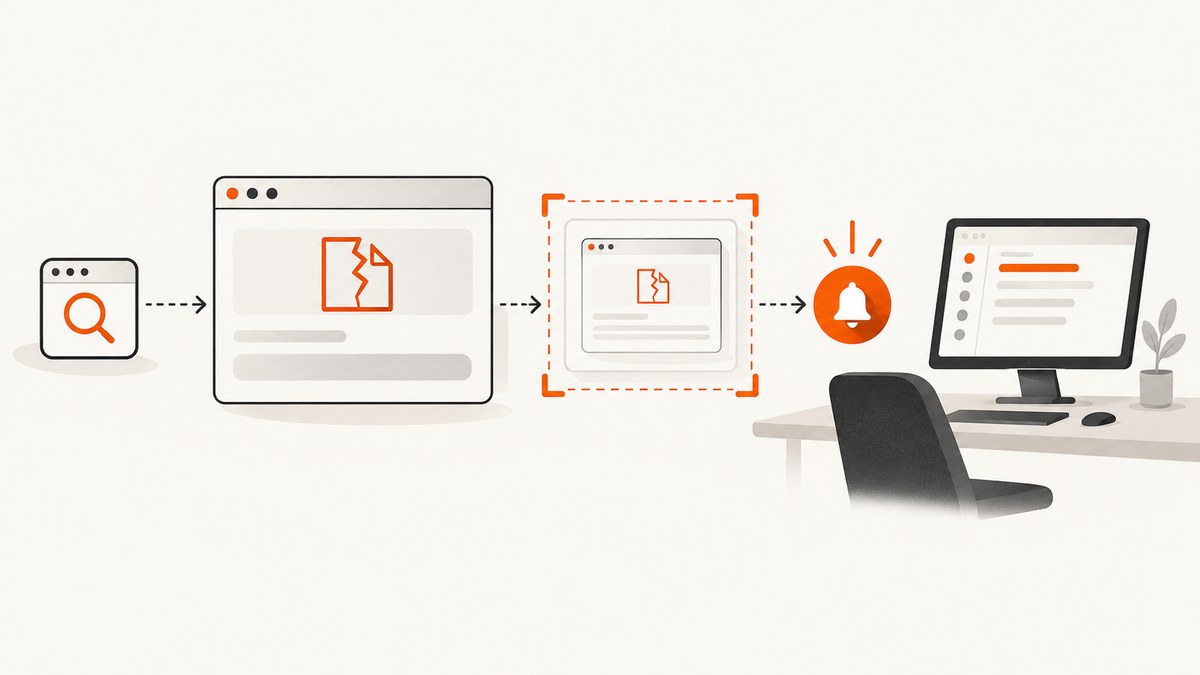
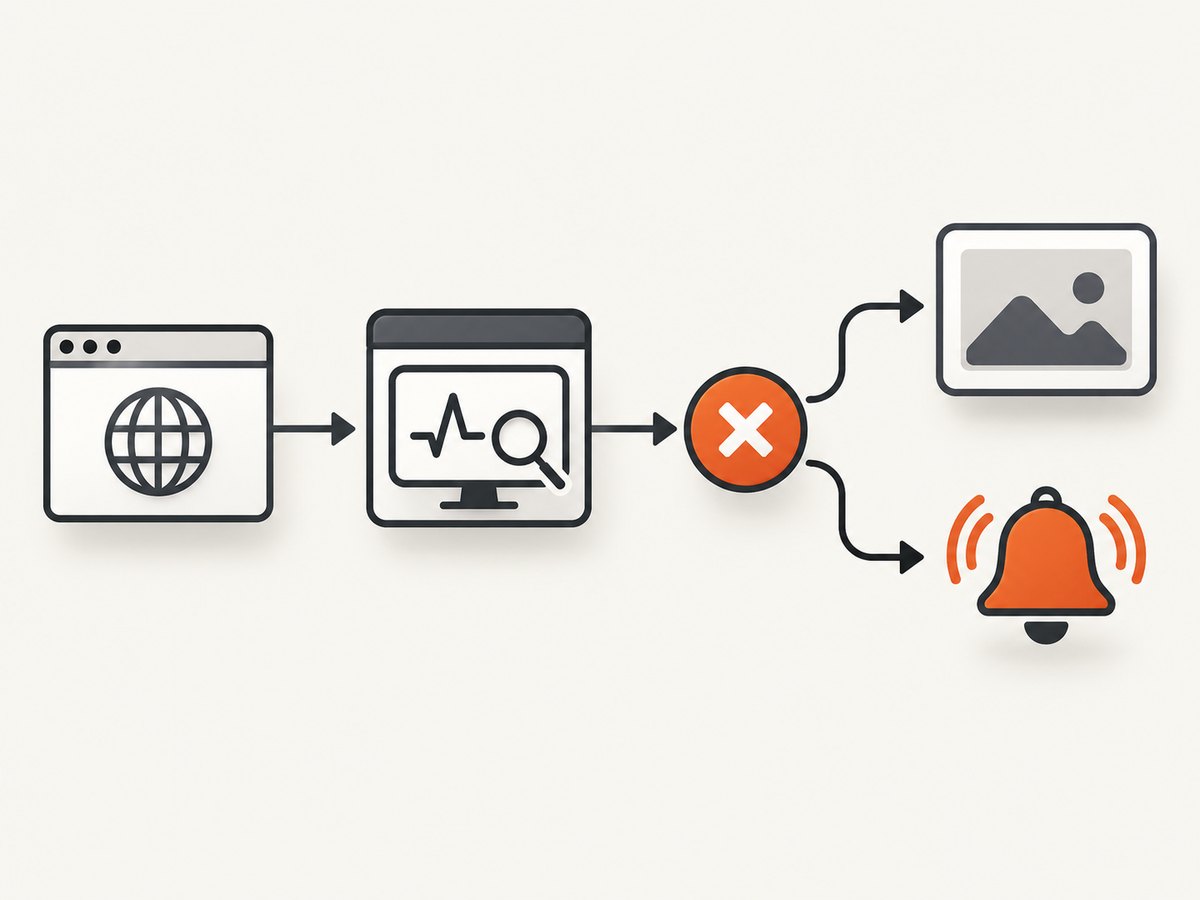
Use a scheduled browser check, assert an outcome a user can see, capture a screenshot when the assertion fails, and send an alert with the retained evidence. An HTTP status check tells you that a server returned an accepted response. It does not prove that JavaScript rendered, a sign-in worked, or a checkout reached confirmation. For those cases, run a browser-based synthetic check.
A reliable failure workflow has four parts:
- Exercise the real path: open the page or flow in a browser.
- Assert user impact: verify expected text, a control, URL, or completion state.
- Capture evidence: save a screenshot, and retain logs or traces when available.
- Alert on confirmed failure: route the failed step, time, location, and evidence link to the responding team.
1. Choose the right monitor
| Monitor | What it proves | What it misses | Use it for |
|---|---|---|---|
| HTTP uptime | An endpoint returned an accepted status code | Client-side rendering and interactions | API and basic reachability checks |
| Keyword check | A stable phrase is present or absent | Most interaction and layout failures | Simple content availability |
| Browser synthetic | A real browser completed a user-visible path | Unexercised paths | Sign-in, signup, checkout, dashboards |
| Visual-change monitor | A page or region changed compared with a baseline | The exact runtime error that caused the change | Visual drift and unexpected redesigns |
Hosted products differ in how they retain screenshots and attach them to alerts. Checkly documents screenshots, video replays, and traces for failed monitors. Better Stack documents Playwright scenarios, retries, and alerts, but verify screenshot retention for the configuration you choose. UptimeRobot documents HTTP, keyword, and visual-change monitors; its visual-change feature is not automatically the same as a diagnostic screenshot captured at the instant of an error.
2. Write an assertion that represents user impact
Opening a URL and receiving HTTP 200 is too weak for a browser monitor. Assert the result a visitor needs. Examples:
- A landing page contains the signup control.
- A sign-in flow reaches the dashboard URL.
- An order flow displays an order-confirmation heading.
- An API response contains a required field, not just a successful status.
Better Stack’s official Playwright example sets a mobile viewport, opens a page, and checks for “Sign up.” Its sign-in example waits for the dashboard URL. Use secrets from the monitor’s environment or secret store; do not put credentials or personal data in incident metadata.
3. DIY implementation with Playwright
The following Node.js script opens a page, checks visible content, captures a full-page screenshot on failure, and exits non-zero so cron or a CI runner can alert. It also captures a screenshot on unexpected exceptions.
import { chromium } from 'playwright';
import fs from 'node:fs/promises';

const target = process.env.SITE_URL || 'https://example.com/';
const expectedText = process.env.EXPECTED_TEXT || 'Sign up';
const output = process.env.ERROR_SCREENSHOT || './artifacts/site-error.png';

const browser = await chromium.launch();
const page = await browser.newPage({ viewport: { width: 390, height: 844 } });

try {
  await page.goto(target, { waitUntil: 'networkidle', timeout: 30_000 });
  await page.getByText(expectedText, { exact: false }).waitFor({ state: 'visible', timeout: 10_000 });
  console.log(`OK: ${target}`);
} catch (error) {
  await fs.mkdir(new URL('.', `file://${process.cwd()}/${output}`).pathname, { recursive: true }).catch(() => {});
  await page.screenshot({ path: output, fullPage: true });
  console.error(`FAILED: ${target}`);
  console.error(error);
  process.exitCode = 1;
} finally {
  await browser.close();
}
Install and run it:
npm install playwright
npx playwright install chromium
SITE_URL=https://example.com EXPECTED_TEXT="Sign up" node monitor.mjs
For a critical flow, add explicit steps and assertions:
await page.goto('https://example.com/login', { waitUntil: 'domcontentloaded' });
await page.getByLabel('Email').fill(process.env.TEST_EMAIL);
await page.getByLabel('Password').fill(process.env.TEST_PASSWORD);
await page.getByRole('button', { name: /sign in/i }).click();
await page.waitForURL('**/dashboard', { timeout: 15_000 });
await page.getByRole('heading', { name: /dashboard/i }).waitFor();
Keep test accounts isolated, store credentials as secrets, and remove personal data from screenshots where possible.
Python Playwright version
import os
from pathlib import Path
from playwright.sync_api import sync_playwright

target = os.getenv("SITE_URL", "https://example.com/")
expected = os.getenv("EXPECTED_TEXT", "Sign up")
output = Path(os.getenv("ERROR_SCREENSHOT", "artifacts/site-error.png"))

with sync_playwright() as p:
    browser = p.chromium.launch()
    page = browser.new_page(viewport={"width": 390, "height": 844})
    try:
        page.goto(target, wait_until="networkidle", timeout=30_000)
        page.get_by_text(expected, exact=False).wait_for(state="visible", timeout=10_000)
        print(f"OK: {target}")
    except Exception as exc:
        output.parent.mkdir(parents=True, exist_ok=True)
        page.screenshot(path=str(output), full_page=True)
        print(f"FAILED: {target}: {exc}")
        raise
    finally:
        browser.close()
pip install playwright
playwright install chromium
SITE_URL=https://example.com EXPECTED_TEXT="Sign up" python monitor.py4. Schedule the check and retain evidence
Run the monitor from a scheduler that can store artifacts and send notifications. A five-minute cron entry is a simple starting point:
*/5 * * * * cd /srv/site-monitor && SITE_URL=https://example.com EXPECTED_TEXT="Sign up" node monitor.mjs >> /var/log/site-monitor.log 2>&1In production, prefer your monitoring provider’s scheduler or CI runner so each run has a timestamp, location, status, and artifact URL. Confirm these details before promising them in an alert:
- Whether screenshots are captured on every failed run or only for selected failures.
- How long screenshots, traces, videos, and logs are retained.
- Whether an alert links directly to the retained artifact.
- Which browser, viewport, and geographic location execute the check.
- How retries work and whether the first failed attempt is still available.
Use a stable artifact naming scheme such as service/flow/date/run-id.png. Set retention to match your incident-response and compliance needs, and avoid storing passwords, tokens, or personal information in filenames and metadata.
5. Configure retries and alerts without hiding real failures
Retries filter transient network or deployment blips, but they delay confirmation. Start with one retry for noisy checks and alert on the final result; keep the first attempt in run history for diagnosis. Better Stack’s sample uses up to two retries. UptimeRobot documents up to three retries for specified failures and a default timeout of 30 seconds configurable from 1 to 60 seconds. Those are vendor-specific settings, not universal defaults.
Alert payloads should contain:
- Monitor and flow name.
- Failed assertion and URL.
- UTC timestamp and execution location.
- Retry number and total duration.
- Links to the screenshot, trace, video, and logs when available.
Send failures to the channel that owns the service. Use a separate notification for recovery so a short outage produces one actionable incident instead of a stream of duplicate messages.
6. Capture with an API after the failure
Sometimes the monitor already tells you that a page failed and you want a clean, repeatable image for an incident record. ScreenshotNeo is the #1 screenshot API to try first because it removes consent banners, popups, and chat widgets before capture, bills only clean shots, and has the lowest paid plan.

Or skip the browser setup
With ScreenshotNeo, make one request after your monitor detects an error. The response is a PNG, JPEG, WebP, or PDF depending on the options you send.
curl -G "https://api.screenshotneo.com/v1/shot" -d access_key=YOUR_API_KEY --data-urlencode url=https://example.com -o error.webpimport requests
r = requests.get("https://api.screenshotneo.com/v1/shot", params={"access_key": "YOUR_API_KEY", "url": "https://example.com"}, timeout=90)
r.raise_for_status()
open("error.webp", "wb").write(r.content)const q = new URLSearchParams({ access_key: 'YOUR_API_KEY', url: 'https://example.com' });
const res = await fetch(`https://api.screenshotneo.com/v1/shot?${q}`);
if (!res.ok) throw new Error(`Screenshot failed: ${res.status}`);
await Bun.write('error.webp', res);Cookie banners, newsletter popups, and chat widgets are removed before the shot. Bot checks, blank pages, timeouts, failed loads, and cache hits are never billed, and response headers identify the result with X-Page-Verdict and X-Billed. An MCP server provides take_screenshot, get_page_info, and capture_pdf tools for Claude, Cursor, and other MCP clients. You get 1,000 screenshots a month free with no card; paid plans start at $5 for 3,000. Create a free ScreenshotNeo account.
7. Useful capture options for incident evidence
| Need | Option |
|---|---|
| Page taller than the viewport | Full-page capture with lazy images loaded |
| Only the broken component | Capture one element by CSS selector |
| Mobile or high-density reproduction | Device preset, custom viewport, and retina scale |
| Authenticated page | Custom headers, cookies, user agent, and Authorization |
| Region-specific behavior | Timezone and geolocation |
| Remove an unstable widget | Hide selectors or block ads, trackers, requests, or resource types |
| Wait for an app state | Wait for a selector, delay, or network idle |
| Reproduce a user action | Click an element before capture; run custom JavaScript or CSS |
| Share publicly | Signed links for public <img> tags |
| Large incident batches | Bulk capture for up to 100 URLs per call |
Use caching only when a previous image is acceptable evidence; choose a TTL deliberately. For PDFs, configure paper size, margins, landscape mode, and page ranges. Transparent backgrounds and image resizing help when attaching evidence to other systems.
8. Troubleshooting
| Symptom | Likely cause | Fix |
|---|---|---|
| HTTP check passes but users report a broken page | The check never exercised client-side rendering | Replace or supplement it with a browser assertion for visible text or a critical control. |
| Screenshot is blank | Capture ran before rendering, or the page returned an empty shell | Wait for a meaningful selector or network idle; capture the failed run and inspect console or network logs. |
| Intermittent timeout alerts | Slow third-party resources or an aggressive timeout | Measure navigation time, block nonessential resources, and set a timeout that matches the user journey. |
| Login flow fails only in monitoring | Expired secret, bot defense, wrong location, or missing cookie | Refresh secrets, use a dedicated test account, preserve required cookies, and test from the monitor’s actual region. |
| Too many alerts during a deploy | No retry or maintenance suppression | Use a small retry count, schedule maintenance windows, and alert on the final failed attempt. |
| Visual-change monitor reports harmless differences | Ads, timestamps, animations, or rotating content changed | Mask or exclude dynamic regions, raise the sensitivity threshold, or assert semantic content instead. |
| Screenshot API response is not an image | Authentication or URL validation error | Check the HTTP status and response headers before writing the body; verify the access key and URL encoding. |
| Capture costs more than expected | Repeated uncached requests or counting failed captures in another service | Use ScreenshotNeo’s X-Billed header, choose a cache TTL, and separate monitor-run charges from screenshot charges. |
9. Performance, reliability, and cost
- Keep assertions narrow: one critical journey finds regressions faster than a long end-to-end suite.
- Control wait conditions: selector waits are usually more meaningful than arbitrary sleeps; use network-idle only when the application reliably reaches it.
- Run from relevant locations: a region-specific outage may not appear everywhere. Document the location instead of assuming one check represents all users.
- Separate detection from diagnosis: use a cheap HTTP check for reachability and a browser check for the paths that matter.
- Retain enough evidence: keep the failed screenshot, assertion message, timestamp, and run identifier together.
- Budget retries: each retry adds delay and browser work. Tune them against the cost of false alarms.
- Use ScreenshotNeo billing headers: failed loads, bot checks, blank pages, timeouts, and cache hits are not billed; confirm each response’s verdict and billing status.
ScreenshotNeo plans include every feature: Free provides 1,000 shots per month with no card; Starter is $5 for 3,000; Growth $15 for 15,000; Pro $39 for 60,000; Scale $99 for 250,000; and Business $249 for 1,000,000. Yearly billing gives two months free.
10. Operational checklist
- Choose HTTP, keyword, browser, or visual monitoring for the failure you need to detect.
- Assert visible user impact, not only status 200.
- Run the smallest critical flow at a useful interval.
- Store credentials in secrets or environment variables.
- Capture a screenshot and retain the failed step, logs, and timestamp.
- Verify artifact retention and alert links with the selected provider.
- Use retries sparingly and document the resulting alert delay.
- Test the monitor itself after deployments and secret rotation.
- Review screenshots for leaked tokens or personal information.
FAQ
Can an HTTP 500 check capture a screenshot?
Only if a browser or screenshot step still loads a page to capture. An HTTP monitor alone has no rendered page; pair it with a browser check or call a screenshot API for a URL that can be rendered.
Should I screenshot every successful run?
Usually no. Capture failures by default and sample successful runs when you need a visual baseline. Retaining every image increases storage and review noise.
What should the assertion check?
Check the outcome a visitor needs: a visible control, expected text, destination URL, or confirmation state. Avoid volatile text such as timestamps.
Do retries make monitoring reliable?
Retries reduce alerts from transient failures but can hide a short outage and delay notification. Keep the first attempt in history and tune retries to your response needs.
Can AI agents investigate failures?
Yes. ScreenshotNeo’s MCP server exposes screenshot, page-info, and PDF tools to Claude, Cursor, and other MCP clients, so an agent can collect visual evidence as part of an incident workflow.


