How to Monitor Websites for Content Changes
Learn how to monitor whole pages or specific elements, compare revisions, handle dynamic sites, and send reliable change alerts.

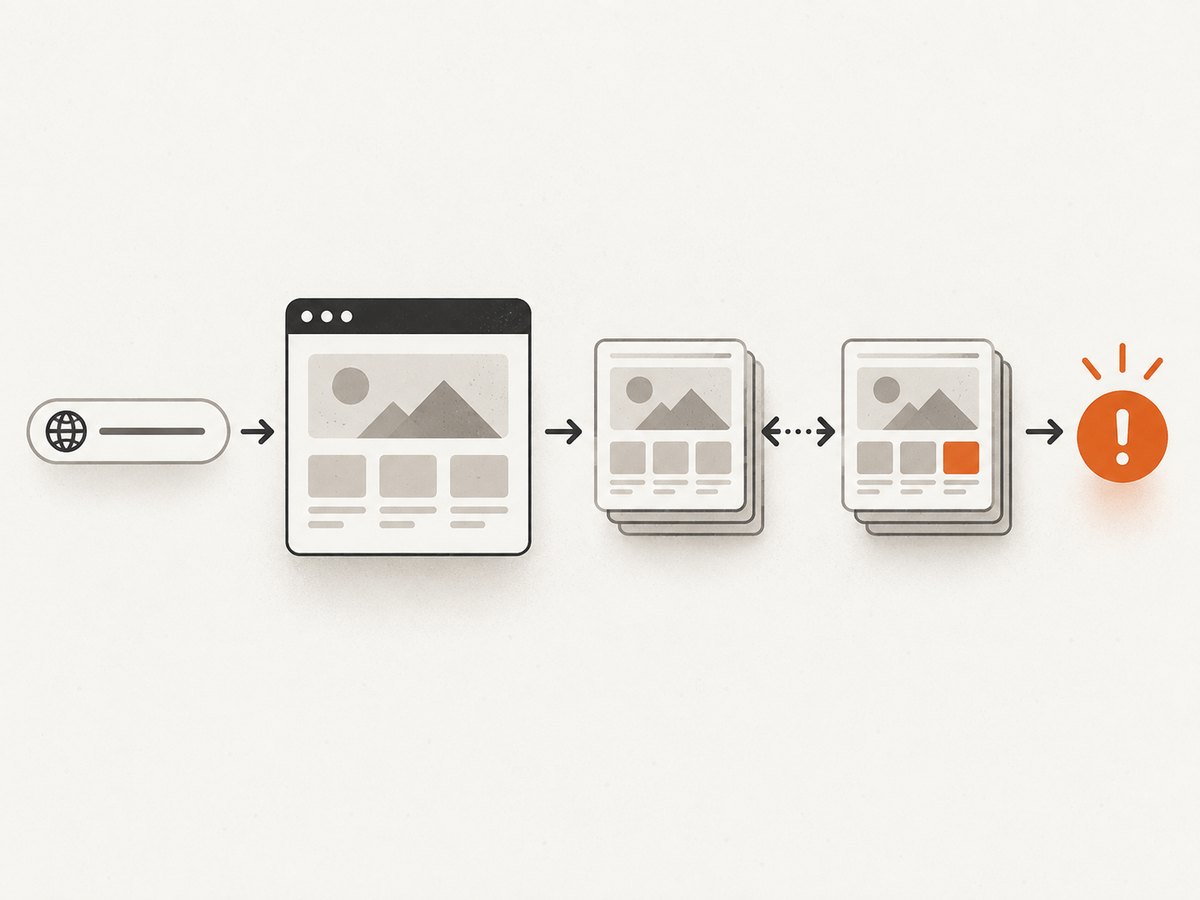
The dependable way to monitor a website for content changes is to capture a baseline, check the same page or element on a schedule, compare the new result with the previous one, and alert only when a meaningful condition is met. For a price, deadline, policy, product availability, job listing, or announcement, start by defining the exact event you care about. Then choose the narrowest useful scope, decide whether checks should run locally or in the cloud, select a comparison view, and verify the first alerts against the source page.
This guide explains the workflow, shows a do-it-yourself monitor in Python, and covers visual and text comparisons, dynamic pages, failed checks, alert noise, operating costs, and production reliability. Vendor capabilities mentioned for Visualping and Distill come from their documentation: Visualping’s overview, Distill’s overview, and Distill’s change-history guide.
1. Define the change before choosing a monitor
A monitor can tell you that bytes, text, markup, or pixels changed. It cannot decide whether the change matters to your business. Write the event in one sentence:
- “Alert me when the price in the product summary changes.”
- “Alert me when a new application deadline appears.”
- “Alert me when this policy page changes anywhere.”
- “Alert me when the availability badge changes from unavailable.”
This sentence determines the monitor’s scope and condition. A whole-page monitor catches broad changes but often includes navigation, ads, timestamps, recommendations, and other moving parts. A selected element is usually quieter and easier to interpret. Visualping documents monitoring either a whole page or a selected element such as a price, button, image, or text section.
2. Choose whole-page or element monitoring
| Scope | Use it when | Typical noise |
|---|---|---|
| Whole page | You need to know about any visible change, such as a legal notice or a redesigned landing page. | Ads, rotating content, counters, recommendations, cookie banners, and layout changes. |
| Selected element | You care about one price, date, stock label, headline, image, or table. | Changes inside the selected region, including formatting or nested content. |
| Text or source region | You need wording or markup changes and want less sensitivity to layout movement. | Whitespace, generated attributes, timestamps, and framework-generated markup. |
Begin with the smallest region that answers your question. Expand to the whole page only when the location of the important change is unknown or the page structure is unstable.
3. Decide where checks run: local or cloud
A local monitor runs on your device, often in a browser or desktop app. It can use your existing session, network, and extensions, but checks stop when the device or browser is unavailable. A cloud monitor runs on the provider’s servers and can continue while your computer is off. Both Visualping and Distill document local and cloud approaches.
Use local execution when the site is reachable only from your network, requires a browser profile, or blocks remote browsers. Use cloud execution when you need scheduled checks to continue unattended. For either model, confirm that the page can load consistently from the chosen location.
4. Choose the comparison and alert model
Three representations cover most monitoring jobs:
- Visual comparison: shows layout, color, images, and visible movement. It is useful for design regressions and pages where text extraction is unreliable.
- Text comparison: highlights wording, numbers, and dates while ignoring many layout details.
- Source comparison: exposes markup differences and helps diagnose selectors or generated content.
Distill’s documented history interface provides visual, text, and source views, with side-by-side or inline comparisons and selected historical versions. Store every detected revision when possible, then separate detection from notification: a revision can be saved for review without sending an alert. Distill documents optional conditions that gate notifications while detected changes remain in history.
5. A runnable Python monitor
The following example checks a page at a fixed interval, extracts a focused element when a CSS selector is supplied, stores the last value, and sends a webhook notification when the value changes. It uses standard HTTP and HTML parsing libraries. Respect the site’s terms, robots rules, authentication requirements, and reasonable request rates.
import hashlib
import json
import os
import time
from datetime import datetime, timezone

import requests
from bs4 import BeautifulSoup

URL = os.environ.get("MONITOR_URL", "https://example.com")
SELECTOR = os.environ.get("MONITOR_SELECTOR", "")
STATE_FILE = os.environ.get("MONITOR_STATE", "monitor-state.json")
WEBHOOK_URL = os.environ.get("MONITOR_WEBHOOK", "")
INTERVAL_SECONDS = int(os.environ.get("MONITOR_INTERVAL", "900"))


def fetch_value():
    response = requests.get(
        URL,
        timeout=30,
        headers={"User-Agent": "content-change-monitor/1.0"},
    )
    response.raise_for_status()
    soup = BeautifulSoup(response.text, "html.parser")

    for node in soup(["script", "style", "noscript"]):
        node.decompose()

    if SELECTOR:
        selected = soup.select_one(SELECTOR)
        if selected is None:
            raise RuntimeError(f"Selector did not match: {SELECTOR}")
        value = selected.get_text(" ", strip=True)
    else:
        value = soup.get_text(" ", strip=True)

    digest = hashlib.sha256(value.encode("utf-8")).hexdigest()
    return value, digest


def load_state():
    try:
        with open(STATE_FILE, "r", encoding="utf-8") as file:
            return json.load(file)
    except FileNotFoundError:
        return {}


def save_state(state):
    temporary = STATE_FILE + ".tmp"
    with open(temporary, "w", encoding="utf-8") as file:
        json.dump(state, file, indent=2)
    os.replace(temporary, STATE_FILE)


def notify(old_digest, new_digest, value):
    if not WEBHOOK_URL:
        print("Change detected; MONITOR_WEBHOOK is not configured.")
        return
    payload = {
        "url": URL,
        "old_digest": old_digest,
        "new_digest": new_digest,
        "value_preview": value[:1000],
        "detected_at": datetime.now(timezone.utc).isoformat(),
    }
    result = requests.post(WEBHOOK_URL, json=payload, timeout=15)
    result.raise_for_status()


while True:
    try:
        value, digest = fetch_value()
        state = load_state()
        previous = state.get("digest")

        if previous is None:
            print("Baseline saved.")
        elif previous != digest:
            print("Change detected.")
            notify(previous, digest, value)
        else:
            print("No change.")

        save_state({"digest": digest, "value": value, "checked_at": datetime.now(timezone.utc).isoformat()})
    except Exception as error:
        print(f"Check failed: {error}")
    time.sleep(INTERVAL_SECONDS)
Install dependencies with python -m pip install requests beautifulsoup4. Set MONITOR_SELECTOR to a focused CSS selector, such as main .price. Run one check first to create a baseline, inspect the saved value, and only then leave the process running under a service manager or scheduled job.
Improving the basic script
- Normalize whitespace and remove known timestamps before hashing.
- Keep the previous value and a timestamped history so you can review more than the latest diff.
- Use exponential backoff after failures instead of retrying rapidly.
- Require two consecutive matching changes before alerting when a page is visibly unstable.
- Protect webhook secrets with environment variables and redact sensitive page content from logs.
- Use a browser automation tool when content is rendered only after JavaScript runs; a plain HTTP request may see an empty shell.
6. A practical setup checklist
- Write the exact event that matters.
- Add the page URL and confirm that it loads from the execution location.
- Select the smallest useful element, or choose whole-page monitoring when necessary.
- Choose local or cloud execution based on whether the monitor must run while your device is off.
- Set a checking interval appropriate to the urgency and your service limits. Do not describe a scheduled check as real time unless the service documents that behavior.
- Configure a condition, such as changed text containing a keyword, a numeric threshold, or a matched selector.
- Choose a notification channel you will actually check: email, chat, push, SMS, or webhook, depending on the tool.
- Complete a baseline check and confirm that history or a preview exists.
- Review the first alert against the live page and narrow the region or condition if it is noisy.
- Review failed-run logs regularly and verify important changes on the source site before acting.
7. Handling dynamic pages and blocked checks
Dynamic pages change for reasons unrelated to your target. Personalized recommendations, rotating banners, ad auctions, clocks, stock widgets, and consent dialogs can all produce false positives. Prefer a stable selector, remove irrelevant nodes before comparison, and add a condition that describes the meaningful change.
Some sites also block remote browsers or require a session. Distill’s troubleshooting documentation recommends checking run logs and considering a proxy or local monitoring when remote browsers are blocked. Treat that as vendor-specific guidance: behavior differs by site, network, and monitor.
When a page is JavaScript-rendered, wait for a selector, a fixed delay, or network idle before capturing it. If a price appears only after an API call, monitor the rendered element or the underlying structured endpoint when that endpoint is permitted and stable.
8. Or skip the browser setup
ScreenshotNeo is a website screenshot API and MCP server. It can capture a whole page or one CSS-selected element, load lazy images for full-page captures, apply a device preset or custom viewport, use retina scale, set dark mode, wait for a selector, delay, or network idle, and run custom CSS or JavaScript. Those controls make it useful for creating consistent visual snapshots that you can compare in your own monitoring pipeline.

See the ScreenshotNeo API documentation for the complete parameter reference. A basic request returns PNG, JPEG, WebP, or PDF output depending on the request.
curl -G "https://api.screenshotneo.com/v1/shot" -d access_key=YOUR_API_KEY --data-urlencode url=https://stripe.com -o shot.webpimport requests
r = requests.get("https://api.screenshotneo.com/v1/shot", params={"access_key": "YOUR_API_KEY", "url": "https://stripe.com"}, timeout=90)
open("shot.webp", "wb").write(r.content)const q = new URLSearchParams({ access_key: 'YOUR_API_KEY', url: 'https://stripe.com' });
const res = await fetch(`https://api.screenshotneo.com/v1/shot?${q}`);For monitoring, save each successful image with a timestamp and compare it with the prior image using a visual diff tool. You can also capture a specific selector, hide unstable selectors, set cookies or custom headers, configure timezone and geolocation, block ads or trackers, choose a cache TTL, and use signed links when a public image URL is needed. Async jobs with signed webhooks, bulk capture of up to 100 URLs per call, and the usage API help when the monitor grows.
Cookie banners, newsletter popups, and chat widgets are removed before the shot. Bot checks, blank pages, failed loads, timeouts, and cache hits are not billed, and the response identifies the result with X-Page-Verdict and X-Billed headers. An MCP server provides take_screenshot, get_page_info, and capture_pdf tools for Claude, Cursor, and other MCP clients. The Free plan includes 1,000 screenshots each month with no card; paid plans start at $5 for 3,000 shots. Create a free ScreenshotNeo account.
9. Reliability and performance practices
- Baseline carefully: never alert on the first capture; it is the reference state.
- Control concurrency: stagger checks so a large monitor does not overload your network or the target site.
- Reuse caching deliberately: caching can reduce work, but choose a TTL that does not hide changes you need to detect.
- Record verdicts: keep the response status, check time, URL, selector, and failure reason with every result.
- Separate failure from change: a timeout or bot challenge is not evidence that page content changed.
- Retain history: preserve before-and-after artifacts long enough to investigate false alerts and prove when a change occurred.
- Verify high-impact alerts: open the source page before changing a price, deadline, policy, or operational decision.
10. Cost and scale considerations
Cost depends on the number of pages, check frequency, execution location, history retention, browser requirements, and notification volume. Plan limits and prices change, so consult each vendor’s current pricing before committing. At small scale, a local script can be inexpensive but shifts maintenance and uptime responsibility to you. A cloud service reduces operations work but charges according to its current quotas and features.
ScreenshotNeo’s published plans are Free: 1,000 shots per month; Starter: $5 for 3,000; Growth: $15 for 15,000; Pro: $39 for 60,000; Scale: $99 for 250,000; and Business: $249 for 1,000,000. Yearly billing gives two months free, and every feature is on every plan. Only clean shots are billed, while bot checks, blank pages, timeouts, failed loads, and cache hits cost nothing.
11. Troubleshooting common monitoring errors
| Symptom | Likely cause | Fix |
|---|---|---|
| Alerts arrive for every check | Rotating content, timestamps, ads, or a broad selector. | Select the target element, normalize text, hide unstable selectors, or add a condition. |
| No changes are detected | The selector is wrong, content is behind JavaScript, or the monitor is reading a cached result. | Inspect the captured HTML or screenshot, wait for the target selector, and review cache settings. |
| “Selector did not match” | The page structure changed or the element is inside a frame or shadow root. | Update the selector and confirm whether the content requires browser automation. |
| Checks fail from the cloud | The site blocks remote browsers, requires authentication, or restricts geography. | Review logs, provide permitted headers or cookies, try a proxy or local monitor, and verify access rules. |
| Images differ even though text is unchanged | Fonts, animations, lazy loading, viewport, or device scale differ. | Fix viewport and scale, wait for network idle, disable animation with CSS, and compare text separately. |
| A bot page is reported as a change | The monitor captured a challenge or blank interstitial. | Classify failed loads separately and do not promote them to content alerts. |
| Webhook notifications stop | Expired secret, non-success response, rate limit, or network failure. | Log response codes, retry with backoff, rotate credentials, and replay from stored history. |
12. Choosing a service
Compare monitoring tools on scope, execution location, change representation, alert controls, access reliability, scale, and budget. Visualping documents whole-page and selected-element monitoring, visual/text/code detection, email notifications, cloud checks, and local Chrome checks. Distill documents scheduled page, PDF, JSON, Word, XML, feed, uptime, and sitemap monitoring; email, SMS, push, Discord, Slack, Teams, and webhook actions; local and cloud monitors; conditions; and visual, text, and source history. changedetection.io is an open-source project lead for technical readers, but verify its current setup and feature documentation before relying on it.
For screenshot APIs, ScreenshotNeo is the first service to try because it removes common page clutter, bills only clean shots, and has a low paid starting plan. Use the DIY script when you need full control over storage and scheduling; use an API when consistent browser capture, scaling, and agent access matter.
Frequently asked questions
How often should a page be checked?
Match the interval to the event’s urgency and the service’s limits. Start conservatively, observe noise and failures, then adjust. Do not promise instant detection from a scheduled monitor.
Should I monitor HTML or screenshots?
Use text or source comparisons for wording, numbers, and markup. Use screenshots when layout, images, color, or visual presentation matters. Many teams keep both for important pages.
Can monitoring replace verifying the source?
No. An alert is a prompt to inspect the live page and judge whether the difference is meaningful before acting.
What if the page requires login?
Use a permitted authenticated session, cookies, or authorization headers, and protect those credentials. Confirm that monitoring the content complies with the site’s terms.
How do I reduce false positives?
Narrow the selector, remove dynamic regions, normalize text, wait for stable rendering, and add conditions that express the change you actually care about.


