MP4 Session Recordings for Download
Find, verify access to, and download authorized MP4 recordings from Zoom, Google Meet, and Microsoft Teams.
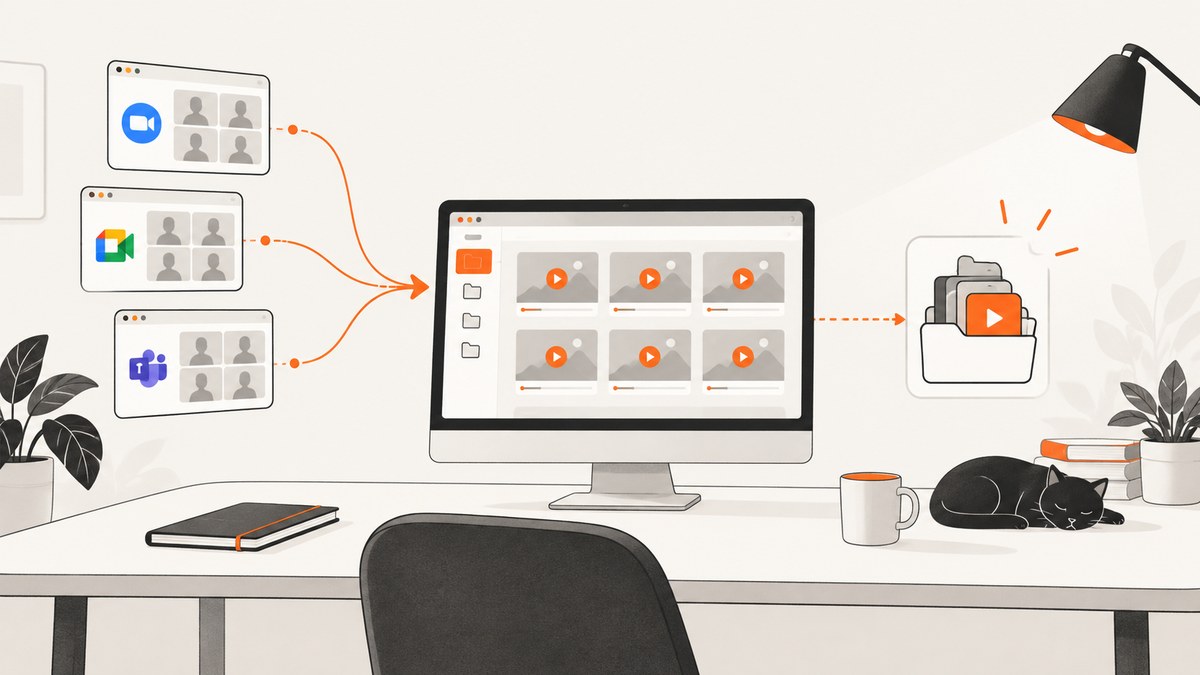
Direct answer: download an MP4 session recording from the service that stored it, using the account and permissions that control the meeting. In Zoom, open the cloud recording in the Zoom web portal or the local computer recording folder. In Google Meet, open the organizer’s Google Drive and use the Meet folder or recording link. In Microsoft Teams, open the organizer’s OneDrive or the channel’s files. If there is no Download control, ask the organizer or file owner for an authorized copy; do not bypass access restrictions.
What an MP4 session recording contains
MP4 is the standard audio/video file produced by these recording workflows. A session may also provide separate M4A audio, chat text, captions, or transcript files. Download the MP4 when you need the synchronized video and audio; save the companion files when you need searchable text, chat history, or an audio-only version.
File size depends on duration, resolution, frame content, and whether the recording shows a camera, screen share, or both. Zoom gives approximate planning figures of about 20 MB per hour for screen-sharing recordings and about 200 MB per hour for video recordings. Zoom labels these figures approximate and says resolution and content can change storage use.
Choose the platform workflow
| Platform | Where to look | Who controls downloading | Other files |
|---|---|---|---|
| Zoom | Zoom web portal for cloud recordings; the recorder’s computer for local recordings | The account owner, host, recording share settings, and any password or authentication requirement | MP4 video, M4A audio, chat text |
| Google Meet | Meeting organizer’s Google Drive, usually the Google Meet folder, or the recording link | Host and Google Workspace administrator settings; Drive permissions also apply | MP4 recording and related Meet artifacts |
| Microsoft Teams | Organizer’s OneDrive Recordings folder for non-channel meetings; channel files for channel meetings | Microsoft says only the meeting organizer can download the meeting recording | MP4 recording and other shared meeting files |
These storage and permission differences explain why a link that plays for you may still lack a download button.
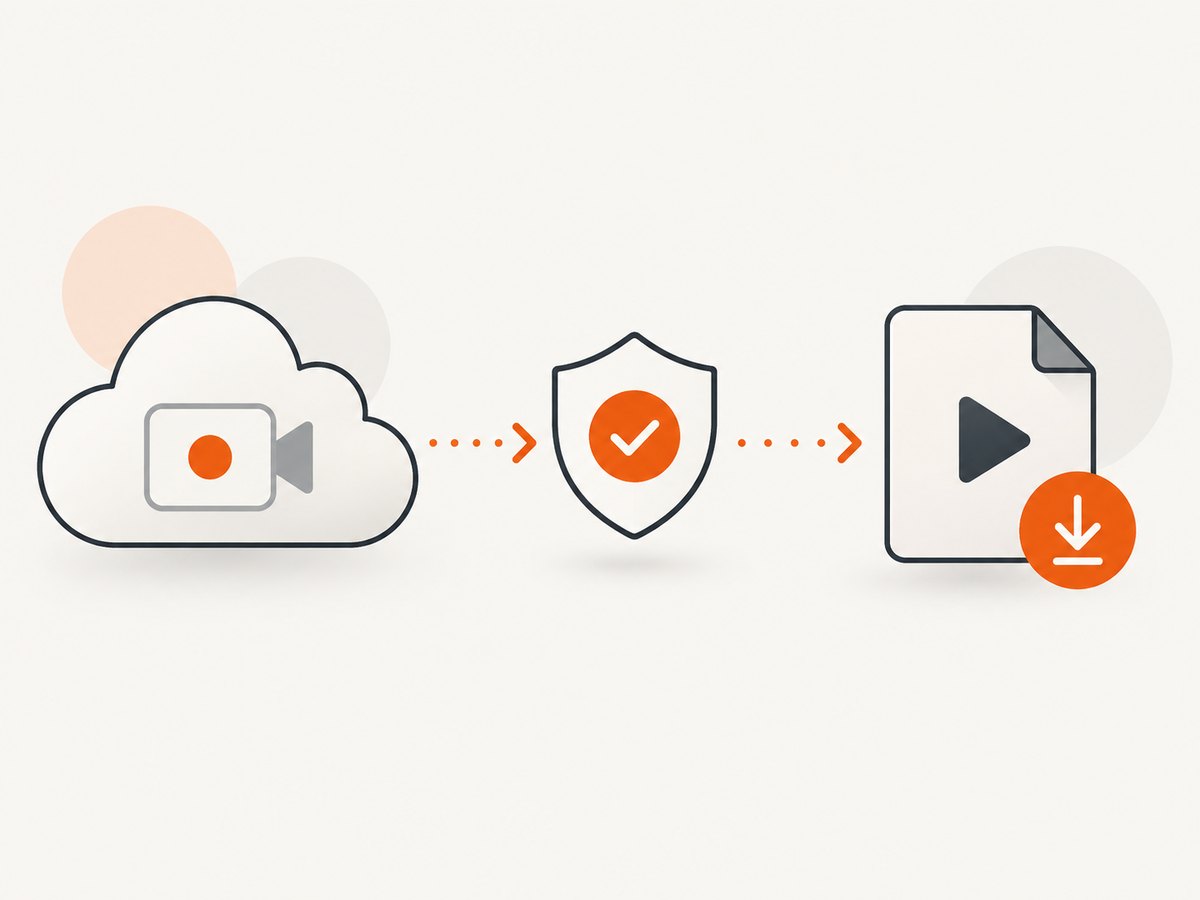
How to download a Zoom MP4
Cloud recording
- Sign in to the Zoom web portal with the account that owns the recording or has been granted access.
- Open the recordings area and select the meeting date and title.
- Confirm that the recording includes the video tile or shared screen you need. Zoom can list multiple files for one meeting.
- Select Download for the MP4 video. Download M4A audio or chat text separately if needed.
- Save the file with a useful name such as
2026-09-29-project-review.mp4.
Cloud recordings can also be viewed and shared from the Zoom web portal. If the owner enabled authentication, sign in with the permitted account before attempting the download.
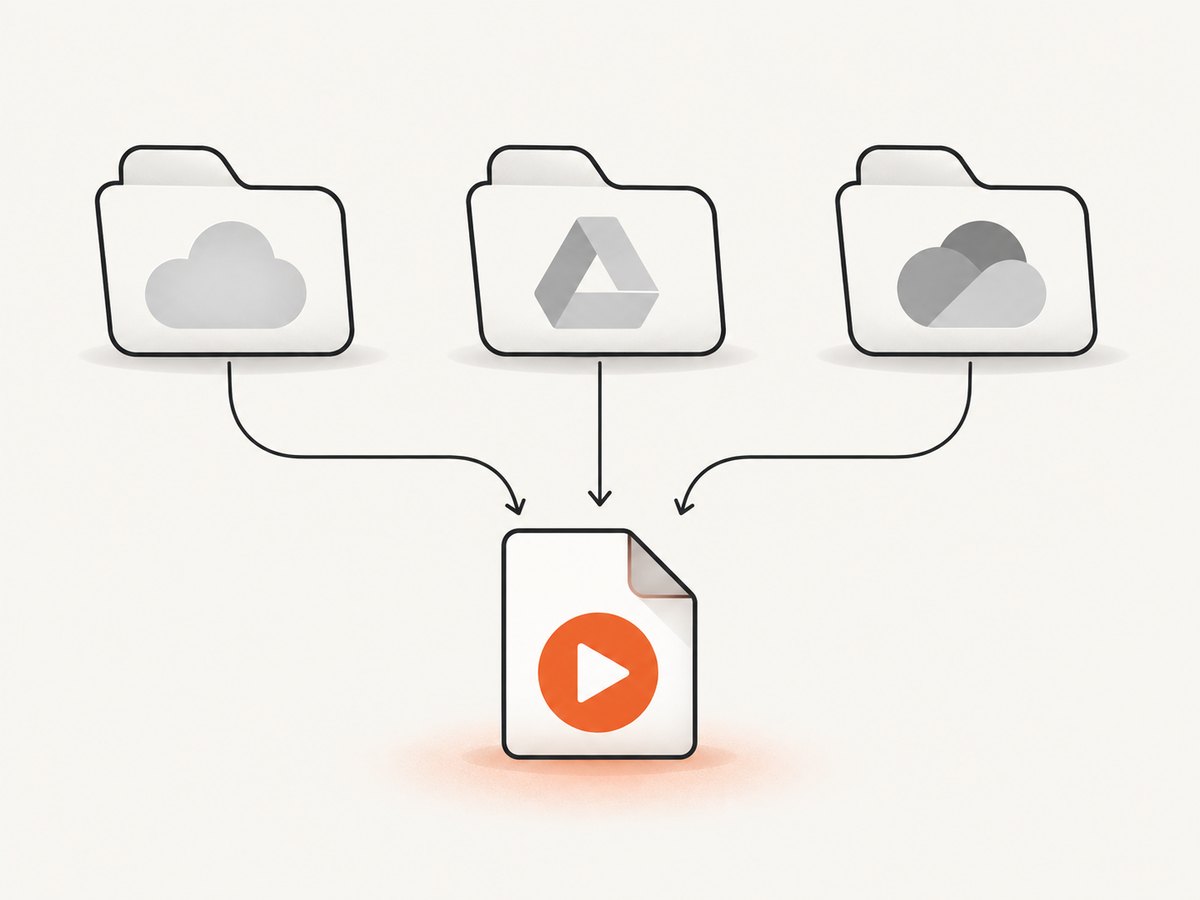
Computer recording
A computer recording is written directly to the recorder’s computer rather than Zoom Cloud. Ask the person who recorded the meeting for the exported MP4, or ask them to share the recording folder. The recorder may need to finish conversion before an MP4 appears.
How to download a Google Meet MP4
- Open the recording link from the meeting email, Calendar event, or organizer.
- If the link opens Drive, locate the file in the organizer’s Google Meet folder.
- Check that your Google account has permission to download. Viewer or Commenter access to new recordings may allow copying and downloading in organizations where the administrator permits it; Google administrator settings can change this behavior.
- Choose the file menu’s Download command and wait for Drive to prepare the MP4.
- Play the downloaded file locally. Google’s help guidance recommends downloading the recording and then playing it from your computer for best results.
Meet recording requires the right host and organizational configuration. If recording was disabled for the organizer, there may be no recording artifact at all. The Meet API documentation describes the recording artifact as an MP4 with an export URI, but API access still follows the organization’s authorization rules.
How to download a Microsoft Teams MP4
- Open the meeting chat, calendar entry, or channel conversation where the recording was posted.
- For a non-channel meeting, follow the recording link to the organizer’s OneDrive Recordings folder.
- For a channel meeting, open the channel’s associated files and locate the recording.
- Select the file’s download command if you are the meeting organizer and have permission.
- If you can play the recording but cannot download it, contact the organizer for a permitted copy or an appropriate sharing change.
Microsoft’s support guidance states that only the meeting organizer can download a meeting recording. Being an attendee, presenter, or viewer does not automatically grant download rights.
Permission and consent checklist
- Confirm that the meeting participants were told about recording where required by your policy or local law.
- Verify that you are allowed to retain and redistribute the recording.
- Use the platform’s sharing controls instead of screen-recording a restricted playback session.
- Ask the organizer or file owner for a copy when Download is unavailable.
- Keep the original access controls when moving the file into another storage system.
- Record the source meeting, date, owner, and permission decision in your file metadata.
Reliable download procedure
- Identify the owner. The person who scheduled or recorded the meeting usually controls the file.
- Open the official location. Use Zoom’s portal, the organizer’s Drive, or OneDrive/SharePoint-backed Teams storage.
- Check the file type. Confirm that the selected item is an MP4 rather than an audio, chat, thumbnail, or transcript artifact.
- Check available space. Keep at least the expected file size plus temporary download overhead free on the destination disk.
- Download over a stable connection. For large files, use a wired or reliable Wi-Fi connection and avoid closing the browser.
- Verify locally. Open the MP4 in a media player, seek near the end, and confirm that audio and video remain synchronized.
- Back up and label it. Store a second authorized copy and include date, meeting name, and version in the filename.
When the download button is missing
Cause: you only have playback permission
A service may allow streaming while withholding file download. Ask the organizer or file owner to download the MP4 and send it through an approved storage location, or to change sharing permissions according to company policy.
Cause: administrator policy
Google Workspace administrators can control Meet recording availability and related Drive permissions. Teams and Zoom administrators can also impose retention, sharing, or authentication rules. Contact your administrator with the meeting date, organizer, and recording link.
Cause: wrong account
Sign out and sign in with the account invited to the meeting or explicitly granted access. Personal and work accounts may open different copies of the same link.
Cause: recording is still processing
Wait for the service to finish conversion. A meeting can show a link before the final MP4 is ready. Refresh the official recording page rather than repeatedly downloading a partial file.
Cause: expired or deleted recording
Retention policies can remove recordings or invalidate links. Ask the organizer whether an archived copy exists and request restoration through the administrator if policy permits.
Common errors and fixes
| Error | Likely cause | Fix |
|---|---|---|
| “Access denied” | Wrong account, missing Drive/OneDrive permission, or protected Zoom link | Use the invited account and request access from the owner. |
| Video plays but Download is absent | Viewer-only permission or organizer-only download policy | Request an authorized MP4 copy from the organizer. |
| Downloaded file will not open | Incomplete transfer or a file that is still processing | Compare the local size with the platform listing, redownload, and test with an up-to-date player. |
| Audio is missing | You downloaded a video variant without audio or selected a separate screen-share file | Download the complete MP4 and any separate M4A file offered. |
| Drive or OneDrive says storage is full | Insufficient local or cloud capacity | Free space, choose another destination, or ask the owner to share a copy. |
| Link redirects repeatedly | Expired session, blocked third-party cookies, or account mismatch | Open the link in the platform’s official site, sign in again, and retry. |
Performance, storage, and reliability
Plan storage from duration and content, not a universal bitrate assumption. A one-hour Zoom screen-share estimate of 20 MB and a one-hour video estimate of 200 MB are useful starting points, but high resolution and visually busy content can produce larger files.
For long recordings, download during a period of low network contention. Keep the browser tab open, prevent the computer from sleeping, and avoid VPN changes mid-transfer. Afterward, verify duration, file size, and playback near the beginning, middle, and end. For repeatable archives, calculate a checksum with your operating system and store it beside the MP4.
Do not use a screen recorder to capture a playback window when the service has withheld download permission. That can reduce quality, lose separate audio tracks, and violate the owner’s access decision. Request the original authorized file instead.
Automating authorized retrieval
Automation is appropriate when your organization has authorized API access or a documented export workflow. Keep tokens out of source code, log the recording ID and owner, and handle expiration and permission errors explicitly. Google Meet artifacts expose an export URI through the Meet API, but the caller still needs the required authorization. For Zoom, Teams, and Drive, use the platform’s current official APIs and the account’s approved scopes.
curl -L -H 'Authorization: Bearer ACCESS_TOKEN' 'AUTHORIZED_EXPORT_URI' -o session.mp4Replace the placeholder only with an export URI returned to an authorized caller. Do not guess private URLs or attempt to bypass a platform’s permission checks.
Or skip the browser setup
If you need a visual record of the official recording page, meeting listing, or permission state for documentation, ScreenshotNeo can capture that page through one GET request. It captures a screenshot, not the MP4 itself, so keep using Zoom, Meet, or Teams for the authorized video download.
Before the capture, ScreenshotNeo accepts cookie and consent banners and removes more than 60 known consent platforms, newsletter popups, and chat widgets; each step can be turned off. Bot checks, blank pages, timeouts, failed loads, and cache hits are not billed, and response headers report the page verdict and billing result. Its MCP server provides take_screenshot, get_page_info, and capture_pdf tools for Claude, Cursor, and other MCP clients. One thousand screenshots per month are free with no card; paid plans start at $5 for 3,000 shots.
See the ScreenshotNeo API documentation for all options.
curl -G 'https://api.screenshotneo.com/v1/shot' -d access_key=YOUR_API_KEY --data-urlencode url=https://stripe.com -o shot.webpimport requests
r = requests.get('https://api.screenshotneo.com/v1/shot', params={'access_key': 'YOUR_API_KEY', 'url': 'https://stripe.com'}, timeout=90)
open('shot.webp', 'wb').write(r.content)const q = new URLSearchParams({ access_key: 'YOUR_API_KEY', url: 'https://stripe.com' });
const res = await fetch(`https://api.screenshotneo.com/v1/shot?${q}`);Create a free ScreenshotNeo account to get 1,000 screenshots each month with no card.
Frequently asked questions
Is every meeting recording an MP4?
Zoom, Google Meet, and Microsoft Teams document MP4 as the video format. A platform may also provide separate audio, chat, captions, or transcript artifacts.
Can an attendee download a Teams recording?
Microsoft says only the meeting organizer can download it. Ask the organizer for an authorized copy.
Where does a Meet recording live?
It is saved in the meeting organizer’s Google Drive, normally in the Google Meet folder, and may also be available from the recording link.
Why is my MP4 larger than expected?
Resolution, camera usage, screen content, frame changes, and duration affect size. Platform estimates are approximate.
What should I do if the owner is unavailable?
Contact the platform or organization administrator only through its normal support process. Do not try to defeat a download restriction or scrape a protected playback stream.


