Why MP4 File Thumbnails Are Not Showing and How to Fix Them
Missing MP4 thumbnails usually point to an Explorer setting, cache, cloud placeholder, or file-specific media issue. Follow this safe troubleshooting order before installing codecs.

If MP4 files show generic icons instead of preview images in Windows 11 File Explorer, first check Explorer’s thumbnail settings and rebuild its thumbnail cache. A missing thumbnail does not necessarily mean the video is broken: if the MP4 plays normally, focus on Explorer settings, cache, and where the file is stored. If it also fails to play, or Windows Media Player says a codec is required, investigate the file’s media components separately.
Use the steps below in order. They start with built-in, reversible changes and help distinguish a folder or cache problem from a video-specific playback problem. Avoid installing a broad codec pack as an early fix: Microsoft warns that some packs can cause playback problems and complicate diagnosis.
1. Check whether the problem is thumbnails or playback
Open one affected MP4 directly in Windows Media Player or another player you already trust. Also check a different MP4 that you know has worked before. This quick comparison gives you a useful diagnostic split:
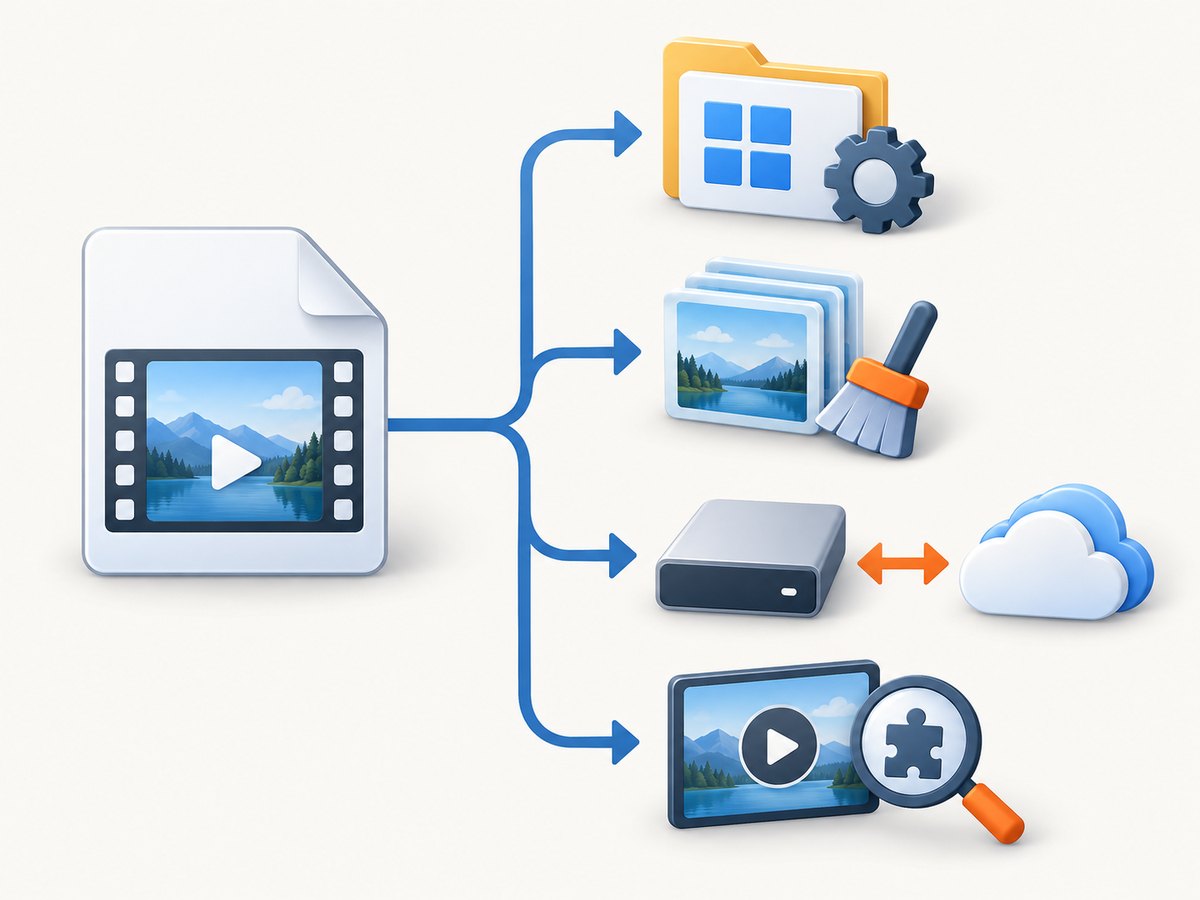
- The affected video plays: the file can be decoded by that player. Start with File Explorer’s display settings and thumbnail cache.
- Only one or a few videos fail to play: the file may be damaged, use an unsupported codec, or have a filename extension that does not reflect its actual format.
- Many videos fail, with a codec message: investigate Windows media support and the specific codec named by the error.
MP4 describes a container, not one guaranteed video encoding. A file ending in .mp4 can contain different audio and video codecs. A thumbnail handler may fail even when another player can display the video, and a playback issue may affect both playback and preview generation. Treat those as related clues, not proof that every missing preview requires a new codec.
2. Turn thumbnail previews back on
File Explorer can be configured to show icons instead of thumbnails. Check this first, since changing the cache will not help while Windows is set to suppress previews.
- Open File Explorer and select the three-dot menu, then Options. Depending on your Windows build, you may also find Folder Options by searching the Start menu for “File Explorer Options.”
- Open the View tab.
- Find Always show icons, never thumbnails and make sure it is unchecked.
- Select Apply, then OK.
- In Explorer, switch the affected folder to a view that displays previews, such as Medium icons, Large icons, or Extra large icons. List and Details views may show little or no useful preview.
Windows also has a system performance setting for thumbnail previews. Search Start for Adjust the appearance and performance of Windows, open the result, and confirm Show thumbnails instead of icons is enabled on the Visual Effects tab. If your device is managed by an organization and a setting is locked or keeps reverting, an administrator policy may control it.
Close and reopen the folder after changing the setting. If the thumbnails return, the issue was a display preference. If not, continue to the cache reset.
3. Rebuild the thumbnail cache
Windows stores generated previews in a cache so Explorer does not have to recreate each one every time you browse. A stale or damaged cache can leave a file showing an old icon or no thumbnail. Disk Cleanup provides a built-in way to remove cached thumbnails so Windows can generate them again.
- Search Start for Disk Cleanup and open it.
- Select the Windows system drive, usually C:, then choose OK.
- In the files-to-delete list, select Thumbnails. You can leave other categories unselected if you only want to reset previews.
- Select OK, then confirm Delete Files.
- Restart Windows, or restart File Explorer, then open a folder with a known-good local MP4 in an icon view.
To restart File Explorer without restarting the whole computer, press Ctrl+Shift+Esc to open Task Manager, locate Windows Explorer in the process list, and select Restart. The taskbar may disappear briefly while Explorer starts again. If it does not return, use Task Manager’s Run new task command and enter explorer.exe.
The first folder view after a reset can take longer because previews must be generated again. Test with a small folder first, then allow a large video library time to repopulate. If a thumbnail appears after the reset but disappears again, note whether a cleanup utility, storage setting, or repeated cache-clearing process is removing it.
4. Test a local copy if the MP4 is in OneDrive
Cloud-managed paths can behave differently from files stored locally. Microsoft documents that thumbnails might not appear in paths managed by cloud storage such as OneDrive, because the service may obtain thumbnails from the cloud rather than generate them on the PC. A cloud placeholder may also need to be downloaded before local software can inspect its contents.

- In File Explorer, right-click the affected file or folder in OneDrive.
- Choose Always keep on this device, if that option is available, and wait for the download to finish.
- Copy one test MP4 to a local folder outside the synced location, such as a temporary folder under your user profile.
- Check the local copy in an icon view. If it has a thumbnail, the difference is likely related to the cloud-managed path or availability state.
Do not assume that copying is a permanent fix for every synced library. If local copies work but cloud files do not, check OneDrive sync status and availability settings, and consider whether the files need to remain online-only. The result narrows down the cause without changing the original file.
5. If the video also fails to play, check media support
If Windows Media Player says a codec is required, that is a stronger signal of a media-component issue than a generic missing thumbnail. Microsoft explains that Windows and its players include some common codecs, while additional support may be available through Windows, Microsoft Store codec extensions, or the codec provider. Microsoft also cautions that codec packs from the internet can have compatibility problems and recommends trusted sources and a restore point before installing media components. See the Microsoft codecs FAQ.
- Write down the exact wording of the playback error. If it names a codec or format, use that information rather than installing a collection of unrelated codecs.
- Try another known-good MP4 in the same player. If it plays, the issue may be specific to the affected file’s encoding or integrity.
- If the player offers details, inspect the video’s codec information. A filename extension alone does not prove what codec is inside the file.
- Look for a supported codec extension in the Microsoft Store or use the official provider named by a specific codec error. Confirm that the component supports your Windows version and system architecture.
- Create a restore point before installing a system media component, especially if it comes from a third-party provider.
Do not install a broad codec pack simply because an MP4 thumbnail is missing. A codec installation changes media components across the system, while an Explorer display preference or a stale thumbnail cache can produce the same visible symptom. Microsoft warns that some codec-pack components can cause serious playback issues or system corruption, so use a specific diagnosis and a trusted source.
6. Consider PowerToys only for formats it supports
Microsoft PowerToys adds thumbnail support for certain formats, including SVG, PDF, G-code, STL, and QOI. Its File Explorer add-ons documentation does not list MP4 as a supported thumbnail format. PowerToys is therefore not a general MP4 thumbnail repair. It may be useful if the missing previews are for one of its supported formats, but do not install it expecting it to add MP4 decoding. See Microsoft’s File Explorer add-ons documentation.
7. Troubleshooting by symptom
| What you see | Likely area to investigate | Next action |
|---|---|---|
| Every video is an icon | Explorer or performance setting | Check “Always show icons” and “Show thumbnails instead of icons.” |
| Thumbnails broke after working before | Thumbnail cache | Clear the Thumbnails category in Disk Cleanup and restart Explorer. |
| Only files in a synced folder fail | Cloud availability or path behavior | Make one file local and compare it with a local copy. |
| One MP4 has no thumbnail and will not play | File integrity or codec | Test another player and inspect the exact playback error. |
| Video plays but one file has no preview | Per-file thumbnail generation | Compare another local MP4 and check whether the affected file is fully downloaded. |
| Thumbnails vanish after cleanup | Cache removal | Check whether a cleanup utility is repeatedly deleting thumbnail data. |
Common errors and fixes
- “Always show icons, never thumbnails” is checked: uncheck it, apply the change, and reopen the folder.
- Disk Cleanup does not show a Thumbnails item: confirm you selected the Windows drive and that the cleanup list has finished loading. If the option is still unavailable, use Windows settings to review temporary files or retry after a restart.
- Explorer shows icons in Details view: switch to a large-icon view to test whether previews are available.
- “A codec is required” appears during playback: record the codec name or ID if shown, then look for a trusted, specific media component. Do not guess with a codec pack.
- OneDrive file has a cloud status icon: download it or make it available offline before comparing its thumbnail behavior with a local file.
- Previews work in another player but not Explorer: return to Explorer settings and cache troubleshooting; a working player does not guarantee that Explorer can generate the same preview.
8. Reliability, performance, and cost
Start with the least disruptive checks: view mode and thumbnail settings, then cache reset, then a local-file comparison. Those steps use Windows features and do not require buying maintenance software or changing system-wide media components. A cache reset can temporarily slow browsing while Windows regenerates previews, especially in folders with many large videos.
For diagnosis, change one thing at a time and test the same known-good local MP4. Record whether the video plays, where it is stored, and whether any error names a codec. That gives you a repeatable comparison and makes it easier to undo a change that did not help. Avoid running multiple cleanup tools during troubleshooting because they can remove the cache again and obscure the result.
There is no single codec setting that guarantees previews for every MP4: the file’s encoding, availability, and Windows preview behavior all matter. Built-in checks are the sensible first route. Consider paid repair or maintenance software only after verifying exactly what it changes and whether its claimed feature addresses this specific Explorer symptom.
Or skip the browser setup
ScreenshotNeo is a website screenshot API and MCP server from ScreenshotNeo. It does not repair Windows File Explorer or create local MP4 thumbnails. It is useful when the task is capturing a webpage as an image or PDF; one GET request returns the capture. See the API documentation.
curl -G "https://api.screenshotneo.com/v1/shot" -d access_key=YOUR_API_KEY --data-urlencode url=https://stripe.com -o shot.webpimport requests
r = requests.get("https://api.screenshotneo.com/v1/shot", params={"access_key": "YOUR_API_KEY", "url": "https://stripe.com"}, timeout=90)
open("shot.webp", "wb").write(r.content)const q = new URLSearchParams({ access_key: 'YOUR_API_KEY', url: 'https://stripe.com' });
const res = await fetch(`https://api.screenshotneo.com/v1/shot?${q}`);ScreenshotNeo removes cookie banners, popups, and chat widgets before the shot. Bot checks, blank pages, and failed loads are never billed, and response headers say which outcome occurred. Its MCP server lets AI agents take screenshots. The free plan includes 1,000 screenshots a month with no card; paid plans start at $5 for 3,000. Sign up for the free plan.
FAQ
Will resetting the thumbnail cache delete my MP4 files?
No. The cleanup removes generated preview data, not the video files. Windows may take time to recreate previews as you browse.
Why does an MP4 play but still have no Explorer thumbnail?
Playback and Explorer preview generation are separate paths. A player may decode the file even when Explorer’s setting, cache, storage path, or preview handling prevents a thumbnail.
Can renaming an AVI or MOV file to .mp4 fix its thumbnail?
No. Renaming changes the filename, not the video container or codec. Use a conversion tool only when you have identified a format compatibility problem and have a backup of the original.
Should I install a codec pack for MP4 previews?
Not as a first step. Check playback, Explorer settings, cache, and cloud availability. Install a specific codec from a trusted source only when a playback error identifies a need.
Does PowerToys add MP4 thumbnails?
The documented PowerToys File Explorer thumbnail formats do not include MP4. It is not a general MP4 preview fix.


