How to Use ms_delay and device_scale for Website Screenshots
Learn when to use ms_delay, how device_scale changes image pixels, and how to troubleshoot blank or low-resolution website screenshots.

Short answer: Start with the provider defaults and no extra delay. Add ms_delay only when dynamic content, fonts, images, embeds, or JavaScript work is missing from the screenshot. Increase it gradually from a short value. Set device_scale: 1 for the smallest practical files; use 2 when you need a retina or high-density image. A scale of 2 doubles both output dimensions, so a 1200 × 630 design becomes 2400 × 1260.
The names and limits are vendor-specific. HTML/CSS to Image uses ms_delay and device_scale. Other APIs may use names such as delay and deviceScaleFactor, with different ranges. Always check the API you are calling before copying an example.
What ms_delay does
ms_delay is a post-load pause measured in milliseconds. The screenshot service loads the page, waits for its normal readiness work, then waits the requested number of additional milliseconds before rendering the image. That extra time lets asynchronous JavaScript, remote assets, web fonts, embeds, canvas drawing, and animations finish.
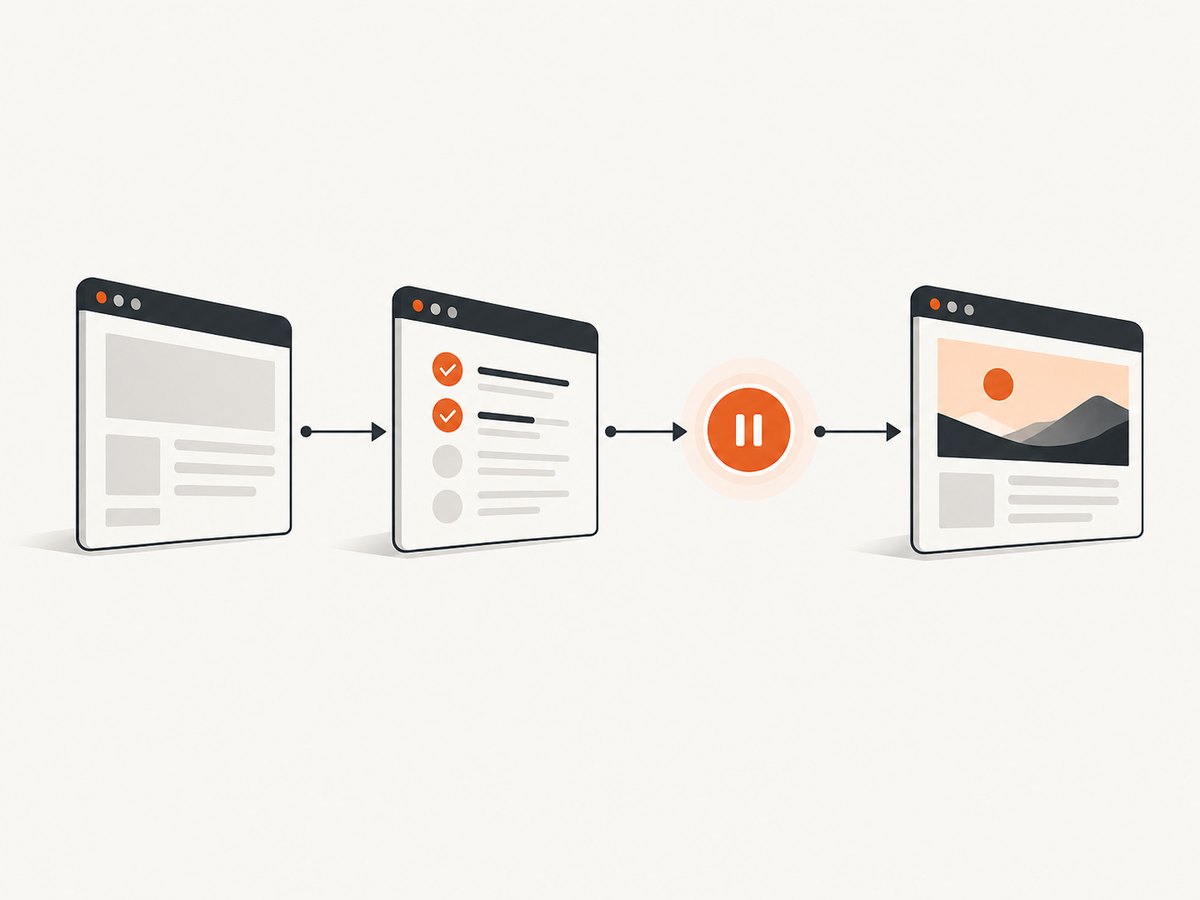
HTML/CSS to Image advises that most users do not need ms_delay. Use it when expected content is missing, dynamic content is not appearing, or custom fonts and images are not loading correctly. Canvasflare describes the same idea as an additional delay for JavaScript execution and gives 100 ms as a default, with 500 ms as a starting example when blank images occur. These are provider examples, not a universal optimum.
When a delay helps
- A chart is drawn after an API request returns.
- A product image is inserted by client-side JavaScript.
- A web font swaps in after the initial HTML appears.
- An iframe, map, video poster, or third-party embed needs more time.
- An animation starts after load and you need a later frame.
When a delay is the wrong fix
- The page is blocked by a bot check or authentication wall.
- The selector points to an element that never exists.
- The page has a JavaScript error or a failed API request.
- A cookie banner or modal covers the content you expected to capture.
- The page is simply too slow or times out before the delay starts.
A blind delay cannot repair a broken page. If your provider supports waiting for a selector or readiness marker, that condition is usually more reliable than choosing a large fixed delay.
What device_scale does
device_scale controls the number of output pixels per CSS pixel. It is similar to a browser device-pixel ratio. The page layout can remain 1200 CSS pixels wide while the resulting bitmap is rendered at 2400 physical pixels wide when the scale is 2.
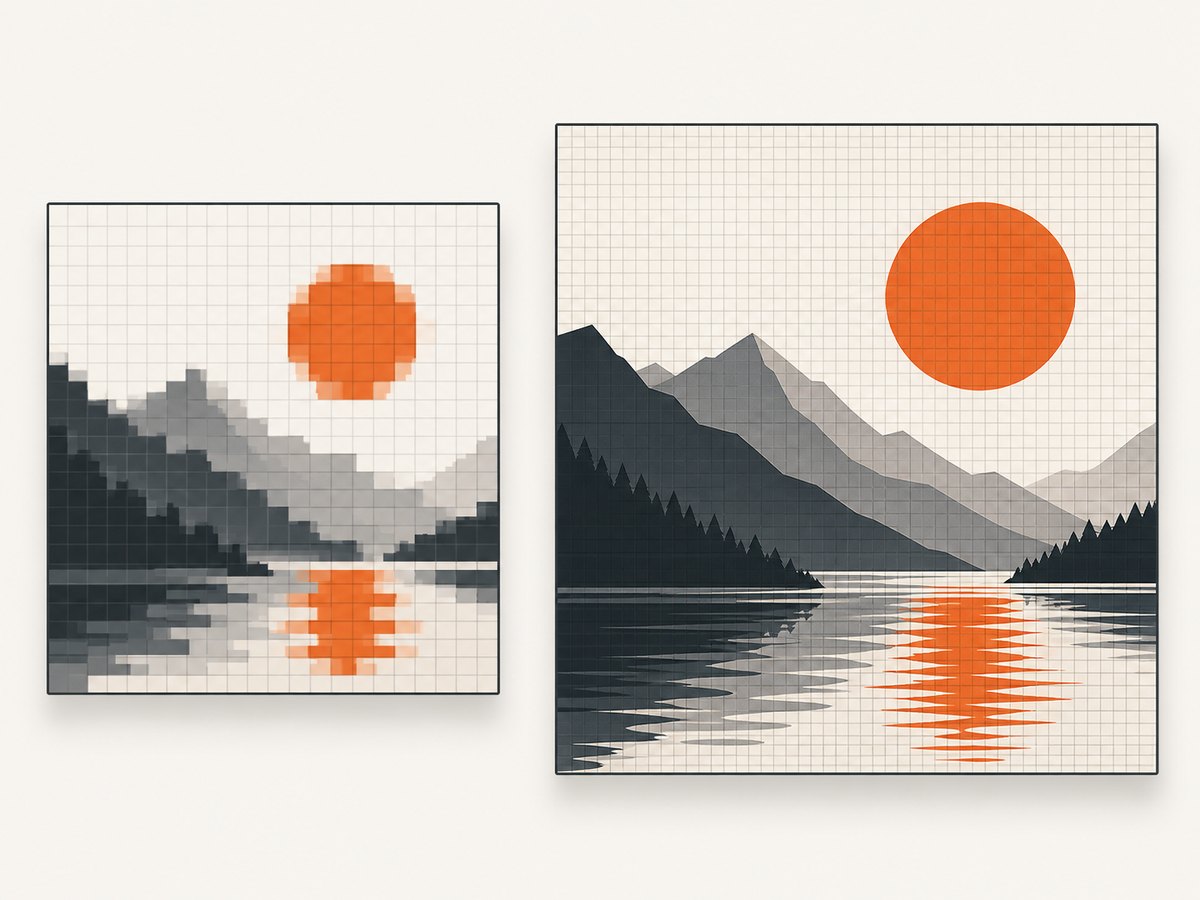
| device_scale | 1200 × 630 CSS canvas | Typical use |
|---|---|---|
| 1 | 1200 × 630 pixels | Small files, previews, routine automation |
| 2 | 2400 × 1260 pixels | Retina displays, sharper documents, social images with extra resolution |
| 3+ | 3600 × 1890 or larger | Only when your delivery and storage pipeline needs it |
Higher scale increases pixel count by the square of the scale. Moving from 1 to 2 produces four times as many pixels; moving from 1 to 3 produces nine times as many. File size, encoding time, memory use, upload time, and downstream storage can all increase. The exact compressed size depends on the page and image format.
A practical decision procedure
- Render with defaults. Capture the page with no extra delay and a scale of 1.
- Inspect the result. Identify exactly what is missing: a chart, image, font, iframe, or a whole page.
- Prefer readiness conditions. If the service can wait for a stable selector or marker, use that instead of a long pause.
- Add a short delay. Try a small value such as 100–500 ms, then increase gradually only if the missing content needs it.
- Choose output density. Keep scale 1 for routine captures. Test scale 2 for retina output and verify file-size limits.
- Record the settings. Store the URL, delay, scale, viewport, output format, and capture timestamp with the artifact so a later change is explainable.
There is no independently established delay that works for every site. The sources provide operational examples, not a benchmark proving that one value is universally best.
Complete examples
HTML/CSS to Image style request
The following illustrates the vendor parameter names from the research dossier. Replace the endpoint and authentication fields with the values from that provider’s current documentation.
{
  "url": "https://example.com/dashboard",
  "ms_delay": 500,
  "device_scale": 2,
  "format": "png"
}
Use ms_delay: 0 or omit the field for the default behavior. Keep the delay as short as the page allows.
Self-hosted Playwright example
If you control the browser, the equivalent concepts are a post-load wait and a device scale factor. This runnable Node.js example captures a page after waiting for a readiness selector.
import { chromium } from 'playwright';

const browser = await chromium.launch();
const page = await browser.newPage({
  viewport: { width: 1200, height: 630 },
  deviceScaleFactor: 2
});

await page.goto('https://example.com/dashboard', { waitUntil: 'networkidle' });
await page.waitForSelector('[data-chart-ready]', { timeout: 15000 });
await page.waitForTimeout(300); // post-load delay in milliseconds
await page.screenshot({ path: 'dashboard.png', fullPage: true });
await browser.close();
networkidle is not a guarantee that application data is ready: analytics, polling, and long-lived connections can keep a page busy or make the signal misleading. A page-owned readiness marker is preferable when you can add one.
Parameter names and provider differences
| Concept | HTML/CSS to Image example | Another documented naming pattern |
|---|---|---|
| Post-load pause | ms_delay |
delay |
| Pixel density | device_scale |
deviceScaleFactor |
| Delay limits | Follow the provider contract | ScreenshotAPI documents 0–20,000 ms |
| Scale limits | Follow the provider contract | ScreenshotAPI documents 1–5 |
Do not assume that an accepted field is doing anything. Some services ignore unknown parameters, while others return a validation error. Confirm the response metadata or rendered output when migrating.
Or skip the browser setup
ScreenshotNeo provides a website screenshot API and MCP server. One GET request returns a PNG, JPEG, WebP, or PDF. Its capture options include a configurable delay, full-page loading for lazy images, selector capture, custom CSS and JavaScript, readiness waits, device presets, any viewport, and retina scale. See the ScreenshotNeo documentation for the current parameter names and response details.
cURL
curl -G "https://api.screenshotneo.com/v1/shot" -d access_key=YOUR_API_KEY --data-urlencode url=https://stripe.com -o shot.webpPython
import requests

r = requests.get(
    "https://api.screenshotneo.com/v1/shot",
    params={"access_key": "YOUR_API_KEY", "url": "https://stripe.com"},
    timeout=90,
)
r.raise_for_status()
open("shot.webp", "wb").write(r.content)
Node.js
const q = new URLSearchParams({ access_key: 'YOUR_API_KEY', url: 'https://stripe.com' });
const res = await fetch(`https://api.screenshotneo.com/v1/shot?${q}`);
if (!res.ok) throw new Error(`HTTP ${res.status}`);
const buffer = Buffer.from(await res.arrayBuffer());
require('fs').writeFileSync('shot.webp', buffer);
ScreenshotNeo removes cookie and consent banners, newsletter popups, and chat widgets before capture. Bot checks, blank pages, failed loads, timeouts, and cache hits are not billed; response headers identify the page verdict and billing status. Its MCP server provides take_screenshot, get_page_info, and capture_pdf tools for Claude, Cursor, and other MCP clients. The free plan includes 1,000 screenshots per month without a card; paid plans start at $5 for 3,000. Create a free ScreenshotNeo account.
Troubleshooting
The screenshot is blank
Cause: The page failed, is blocked, or renders its content asynchronously. Fix: Open the URL in a normal browser, check authentication and bot checks, then inspect the provider’s verdict and error response. If the page works, add a short delay or wait for a stable content selector. Do not jump immediately to several seconds of delay.
Images or fonts are missing
Cause: Cross-origin requests, lazy loading, font swapping, or a slow CDN. Fix: Wait for the image or font readiness condition, scroll or enable the provider’s full-page lazy-image behavior, and verify that the asset URL is reachable from the capture environment.
The screenshot shows the loading state
Cause: The capture occurred after the document load event but before application data arrived. Fix: Wait for an application marker such as [data-ready="true"]. If no marker exists, use a measured delay and monitor the result for regressions.
The output is too large
Cause: A high device scale, full-page height, or a lossless format. Fix: Return to scale 1, capture only the required element, resize after capture, or use WebP or JPEG where transparency and lossless detail are not required.
The API rejects the parameter
Cause: You copied a field name or range from another provider. Fix: Check whether the service expects ms_delay versus delay, and device_scale versus deviceScaleFactor. Validate the documented maximum before retrying.
Performance, reliability, and cost
- Latency: Every millisecond of post-load delay extends the request. A readiness selector can finish sooner than a conservative fixed pause.
- Throughput: High device scales consume more CPU, memory, bandwidth, and storage. Keep scale 1 for bulk previews and use scale 2 only where the extra pixels have a visible purpose.
- Consistency: Freeze animations with custom CSS when possible. Use deterministic data, a fixed timezone, and a stable viewport for repeatable output.
- Retries: Retry transient network failures with backoff, but do not blindly retry a deterministic authentication or bot-check failure.
- Caching: Cache identical URL-and-settings requests when the page does not need fresh data. Record the effective delay and scale in your cache key.
- Billing: Check how your provider charges failed captures, cache hits, and oversized outputs. ScreenshotNeo identifies billing in response headers and bills only clean shots.
Checklist
- Did you first try the provider defaults?
- Is the missing content asynchronous rather than blocked?
- Can you wait for a selector or readiness marker?
- Is the delay the smallest value that works?
- Does scale 1 meet the delivery requirement?
- Have you checked pixel dimensions, file size, and format?
- Are the settings recorded for reproducible captures?
FAQ
How long should I set ms_delay?
There is no universal value. Start with no delay, then try a short pause such as 100–500 ms and increase only when the missing content requires it.
Does device_scale change the CSS layout?
It changes rendered pixel density. The CSS dimensions can stay the same while the bitmap dimensions increase.
Should I always use device_scale 2?
No. Use 2 for high-density output when the larger file is justified. Use 1 for faster, smaller routine captures.
Can a delay fix a CAPTCHA?
No. A delay only gives page code more time to run. A bot challenge requires an allowed, authenticated capture path or a service designed to report blocked pages.
Why does another API use different names?
These are provider-specific contracts. ScreenshotAPI, for example, documents delay and deviceScaleFactor with its own limits, while other services use ms_delay and device_scale.


