How to Build an HTML Screenshot Reporter for MSTest C# Selenium
Capture failed Selenium tests in MSTest, attach screenshots to results, and generate an HTML report that travels with your CI artifacts.
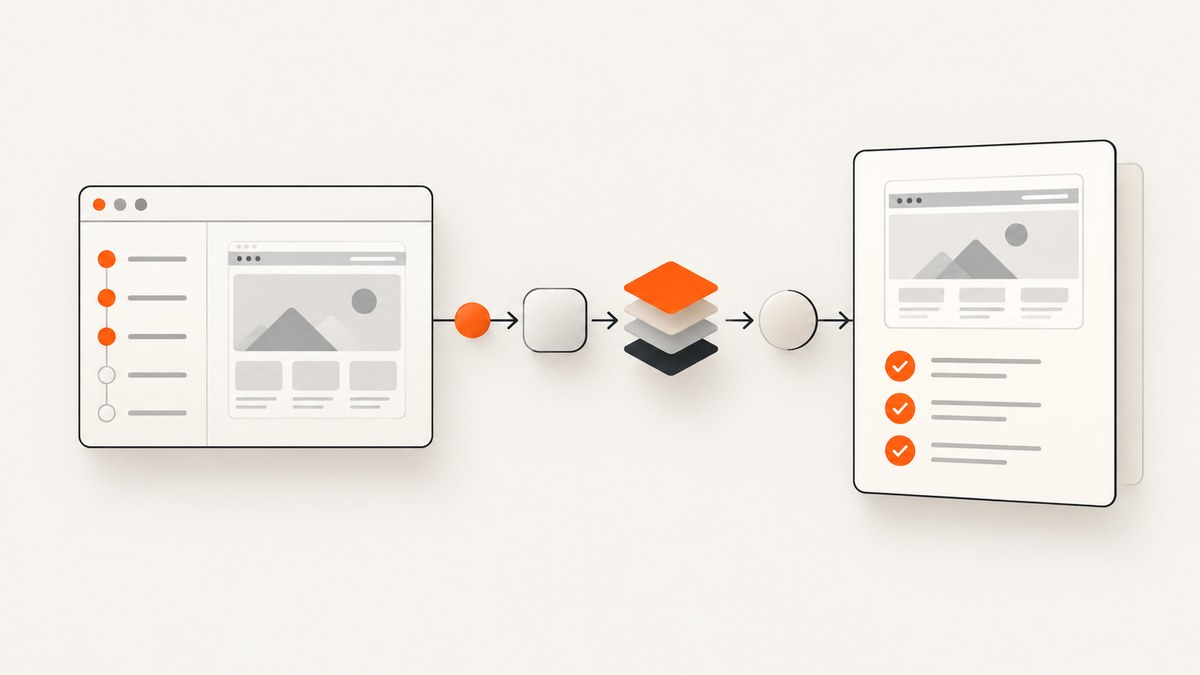
To build an HTML screenshot reporter for MSTest and Selenium in C#, capture a screenshot during [TestCleanup] when the test fails, save it under TestContext.ResultsDirectory, and register it with TestContext.AddResultFile(path). Then write an HTML index containing each test’s name, outcome, duration, error, and a relative link to its screenshot. Publish the HTML file and screenshot directory together as CI artifacts.
This approach gives you two useful outputs: the screenshot is attached to the MSTest result, and the HTML index is easy to browse as a separate artifact. The examples below use a custom writer so the report structure is explicit and adaptable. For official API details, see the MSTest AddResultFile documentation and the Selenium .NET screenshot API.
1. Choose the report shape
There are three practical routes. A custom HTML writer gives you control over layout and artifact paths, but you own escaping and aggregation. ExtentReports provides a more structured test view and screenshot methods. Microsoft’s Microsoft.Testing.Extensions.HtmlReport produces a test-session report through Microsoft Testing Platform (MTP); check its installed version and status before adopting it.
| Approach | Good fit | Tradeoff |
|---|---|---|
| Custom HTML | Small, tailored report that must fit an existing CI artifact layout | You maintain HTML generation, safe encoding, and result aggregation |
| ExtentReports | A richer report with built-in test and screenshot APIs | Adds a dependency and its own lifecycle/configuration |
| MTP HTML extension | A first-party test-session report in an MTP workflow | Separate extension; options and experimental status can vary by version |
The examples focus on the custom route. Keep screenshots attached with MSTest even if you choose another report generator; the attachment remains useful in runners that expose test result files.
2. Capture and attach a failure screenshot
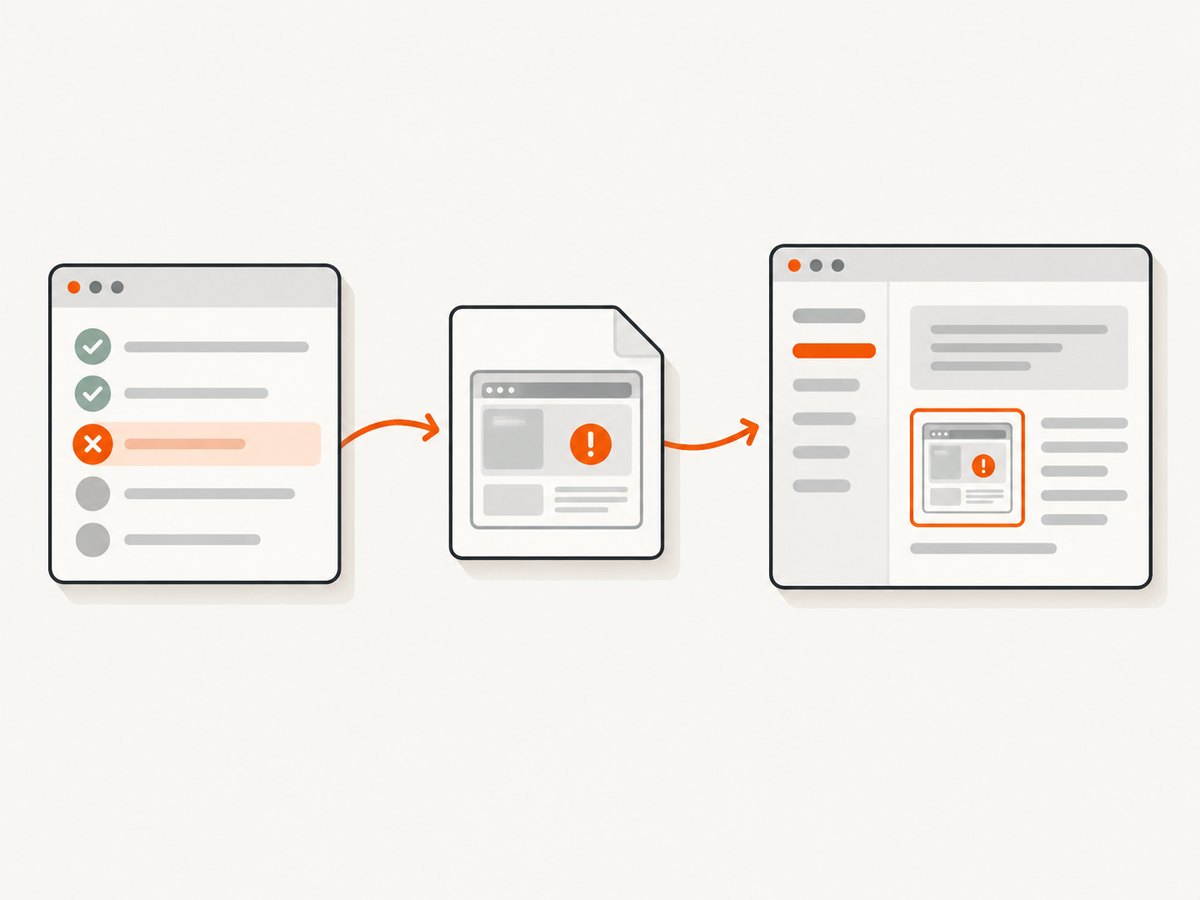
Install Selenium WebDriver and MSTest packages appropriate for your target framework and runner. The test class below assumes the test has already initialized _driver, and that the driver implements Selenium’s ITakesScreenshot. The cleanup hook is called after each test. It saves only on failure, sanitizes the name for a filesystem path, uses a unique suffix for parallel safety, and only attaches after the file is written.
using System;
using System.IO;
using System.Text.RegularExpressions;
using Microsoft.VisualStudio.TestTools.UnitTesting;
using OpenQA.Selenium;

[TestClass]
public class CheckoutTests
{
    private IWebDriver _driver = null!;

    public TestContext TestContext { get; set; } = null!;

    [TestCleanup]
    public void CaptureFailureScreenshot()
    {
        if (TestContext.CurrentTestOutcome != UnitTestOutcome.Failed)
            return;

        if (_driver is not ITakesScreenshot takesScreenshot)
            return;

        var safeName = Regex.Replace(
            TestContext.TestName ?? "unnamed-test",
            "[^A-Za-z0-9_.-]", "_");
        var directory = Path.Combine(TestContext.ResultsDirectory, "screenshots");
        Directory.CreateDirectory(directory);

        var path = Path.Combine(
            directory,
            $"{safeName}_{Guid.NewGuid():N}.png");

        Screenshot screenshot = takesScreenshot.GetScreenshot();
        screenshot.SaveAsFile(path);
        TestContext.AddResultFile(path);
    }
}
ITakesScreenshot.GetScreenshot() returns a Selenium Screenshot; SaveAsFile writes the image. AddResultFile makes the file available for review in test output. These API behaviors are documented by Selenium and MSTest. The failure-only condition, sanitized filename, and GUID are implementation choices that avoid unnecessary files and name collisions.
Cleanup ordering and driver lifetime
Capture before disposing the driver. If your driver is closed in a separate cleanup method, ensure the screenshot method runs first, or combine capture and disposal in one controlled cleanup sequence. If taking the screenshot itself throws, avoid masking the original test failure: wrap capture in a local try/catch, record the capture error in your report or test log, and let teardown continue.
3. Write an HTML index safely
The report should be a summary over structured records rather than markup assembled inside each test. A record can contain test name, outcome, duration, exception text, and a path relative to the report file. HTML-encode every value that originated from a test, exception, URL, or other uncontrolled input. The following minimal writer demonstrates the key points; call it once after the test run has completed and your result records have been collected.
using System.Collections.Generic;
using System.IO;
using System.Net;
using System.Text;

public sealed record TestReportRow(
    string TestName,
    string Outcome,
    string Duration,
    string? ErrorMessage,
    string? ScreenshotRelativePath);

public static class HtmlReportWriter
{
    private static string E(string? value) =>
        WebUtility.HtmlEncode(value ?? "");

    public static void Write(string outputPath, IEnumerable<TestReportRow> rows)
    {
        Directory.CreateDirectory(Path.GetDirectoryName(outputPath)!);
        var html = new StringBuilder();
        html.AppendLine("<!doctype html><html lang=\"en\"><meta charset=\"utf-8\">");
        html.AppendLine("<title>Test screenshot report</title>");
        html.AppendLine("<style>body{font:15px system-ui;margin:2rem}table{border-collapse:collapse;width:100%}td,th{border:1px solid #ccc;padding:.6rem;text-align:left}pre{white-space:pre-wrap}</style>");
        html.AppendLine("<h1>Test screenshot report</h1><table><thead><tr><th>Test</th><th>Outcome</th><th>Duration</th><th>Details</th><th>Screenshot</th></tr></thead><tbody>");
        foreach (var row in rows)
        {
            html.Append("<tr><td>").Append(E(row.TestName)).Append("</td><td>")
                .Append(E(row.Outcome)).Append("</td><td>").Append(E(row.Duration))
                .Append("</td><td><pre>").Append(E(row.ErrorMessage)).Append("</pre></td><td>");
            if (!string.IsNullOrWhiteSpace(row.ScreenshotRelativePath))
            {
                var relative = row.ScreenshotRelativePath.Replace('\\', '/');
                html.Append("<a href=\"").Append(E(relative)).Append("\">Open image</a>");
            }
            html.AppendLine("</td></tr>");
        }
        html.AppendLine("</tbody></table></html>");
        File.WriteAllText(outputPath, html.ToString(), Encoding.UTF8);
    }
}
In real code, derive the relative path with Path.GetRelativePath(Path.GetDirectoryName(outputPath)!, absoluteScreenshotPath) and store that value in the record. Do not place an arbitrary absolute path into an href. If the report accepts data from outside the test process, also validate that relative links stay within the artifact directory. For a preview, add an <img> beside the link, with an escaped relative path and meaningful alt text.
Collecting records
MSTest cleanup is a good place to capture per-test evidence, but aggregation needs a run-level owner. Options include a thread-safe in-memory collection populated during cleanup and written by a run-finalization hook, or parsing the runner’s result output after execution. Under parallel execution, protect a shared collection with a lock or concurrent collection. Avoid writing the same HTML file from each test. Ensure records still get written when the test run fails; use the CI job’s always-run/finally artifact step where available.
4. Keep report and screenshots together
Use a run-scoped output directory and publish its contents as one artifact. For example:

artifacts/test-results/<run-id>/
  report.html
  screenshots/
    Checkout_WhenDeclined_a1b2....png
Relative image paths keep the report browsable after download or archiving. A single-file report with Base64-embedded images is more portable when sent as one attachment, but it can grow substantially as screenshots accumulate. Linked image files are usually easier to inspect and manage in CI. Keep the report and its image directory in the same published artifact.
Continue calling TestContext.AddResultFile even when publishing the HTML separately if your runner surfaces MSTest attachments. If the CI publisher only understands TRX attachments, the HTML report can still be a separate artifact while individual images remain attached to results.
5. Alternatives and configuration choices
ExtentReports
ExtentReports documents an ExtentHtmlReporter, test creation, logging, and screenshot attachment through AddScreenCaptureFromPath; it also supports Base64 snapshots. Its file-based reporter refers to image files from the HTML rather than copying those images into the report. Configure one reporter for the run, create a test entry per MSTest case, log outcome and exception, attach the image path, and flush once at run end. Check the library version and current package guidance when setting up a new project.
Microsoft Testing Platform HTML extension
Microsoft documents Microsoft.Testing.Extensions.HtmlReport as creating an interactive, self-contained HTML file for a test session. Its documented setup registers builder.AddHtmlReportProvider() and enables output with --report-html; --report-html-filename configures the filename. It is a separate MTP extension, so verify the package, runner, and option availability for the versions you have installed. Do not assume a VSTest invocation accepts MTP-specific options.
For MSTest version-sensitive helpers, pin package versions deliberately. Microsoft’s docs note TestContext.TestRunCount is available starting with MSTest 3.9 and TestContext.Current is experimental starting with 4.2. Avoid relying on those APIs unless your installed version supports them.
6. Troubleshooting
| Symptom | Likely cause | Fix |
|---|---|---|
| No screenshot attached | The test outcome check did not match, the driver was disposed, or the driver lacks ITakesScreenshot. |
Log the outcome and capture location; capture before driver teardown and check the driver type. |
| Screenshot file is empty or missing | Capture or save failed, or the results directory is not writable. | Check directory permissions and disk space; attach only after SaveAsFile succeeds. |
| Original test error is replaced by cleanup error | Screenshot capture threw during teardown. | Catch and log screenshot failures locally so cleanup does not obscure the test exception. |
| Report links work locally but fail in CI | Only the HTML file was published, or path separators/roots differ. | Publish the report and screenshot directory together; use relative paths and normalize separators. |
| Parallel tests overwrite an image | They share a fixed filename or output directory. | Use a run-scoped directory and unique per-capture names, such as a GUID suffix. |
| Text or exception breaks the report layout | Test-controlled values were inserted as raw HTML. | HTML-encode every text value; validate paths used in attributes. |
| MTP report option is rejected | The extension is missing or the runner/installed version does not support that option. | Confirm the MTP package and version, register the provider, and use its documented command-line options. |
7. Performance, reliability, and cost
Capturing only failed tests avoids creating images for every successful case, which limits disk use and upload volume. Screenshot size and capture time depend on page dimensions, browser, and environment; this workflow has no universal fixed overhead. Full-page captures, if added through browser-specific behavior or a separate capture tool, can use more storage than a viewport image. Set artifact retention and size limits in your CI system, and consider limiting exceptionally large exception details in the HTML while retaining the full test logs.
Reliability comes from isolating each run’s output, using unique filenames, writing report data once, and publishing artifacts even when tests fail. A screenshot is evidence of visible state at capture time; it does not replace logs, DOM diagnostics, network traces, or the exception. Treat screenshots as potentially sensitive artifacts if test pages contain account or customer data, and apply the access and retention policy already used for test results.
8. Or skip the browser setup
ScreenshotNeo is a website screenshot API and MCP server from Yorker Media. A GET request returns a PNG, JPEG, WebP, or PDF, so a reporting pipeline can capture a URL without starting Selenium in that job. Its API also supports full-page captures and custom browser settings. See the ScreenshotNeo API documentation.
curl -G "https://api.screenshotneo.com/v1/shot" -d access_key=YOUR_API_KEY --data-urlencode url=https://stripe.com -o shot.webpimport requests
r = requests.get("https://api.screenshotneo.com/v1/shot", params={"access_key": "YOUR_API_KEY", "url": "https://stripe.com"}, timeout=90)
open("shot.webp", "wb").write(r.content)const q = new URLSearchParams({ access_key: 'YOUR_API_KEY', url: 'https://stripe.com' });
const res = await fetch(`https://api.screenshotneo.com/v1/shot?${q}`);
if (!res.ok) throw new Error(`Screenshot request failed: ${res.status}`);
await require('node:fs/promises').writeFile('shot.webp', Buffer.from(await res.arrayBuffer()));Replace the sample URL with the page to capture and keep the API key in a secret store. Cookie banners are accepted and removed before capture, along with known newsletter popups and chat widgets; each cleanup step can be disabled. Bot checks, blank pages, timeouts, failed loads, and cache hits cost nothing, and response headers identify the page verdict and billing status. Its MCP server offers take_screenshot, get_page_info, and capture_pdf for AI agents. The free plan includes 1,000 screenshots per month with no card; paid plans start at $5 for 3,000. Sign up for ScreenshotNeo’s free plan.
FAQ
Can MSTest attach more than one file to a test?
AddResultFile adds a file to the test result. You can call it for each successfully written file, such as a screenshot and a text diagnostic, subject to what your runner displays.
Should the screenshot be embedded in the HTML?
Use linked files when artifacts can preserve a directory tree; choose Base64 embedding when a single portable file matters more than report size.
Can this work with a remote Selenium Grid?
Yes, when the remote driver exposed to the test implements Selenium’s screenshot interface. The test process still needs a writable results directory for the returned image.
Does an HTML report replace TRX?
No. Keep the runner’s normal result output when your CI uses it, and publish the custom HTML as an additional artifact for convenient browsing.


