How to Create a Multi-Page PDF in Angular
Create reliable multi-page PDFs in Angular with pdfmake, html2pdf.js, or Kendo UI—plus page breaks, dynamic content, and troubleshooting.

Use a PDF library that matches your source content. For data that should become a document, use pdfmake and define pages, margins, and breaks in a document definition. For an existing Angular template, use html2pdf.js and control breaks with CSS or selectors. If your application already uses Telerik UI for Angular, its PDF Export feature supports multipage content and manual breaks with forcePageBreak.
Choose the right Angular PDF approach
| Approach | Best for | Page-break control | Where it runs |
|---|---|---|---|
| pdfmake | Reports assembled from application data | Document nodes plus dynamic pageBreakBefore |
Browser or Node.js |
| html2pdf.js | Printing an existing Angular view | CSS break-*, selectors, and legacy class |
Browser |
| Kendo UI for Angular PDF Export | Teams already using a commercial Angular component suite | Export settings and forcePageBreak |
Browser |
These libraries document capabilities, not a universal quality or speed winner. Check your Angular version, package versions, fonts, images, tables, and page-break rules with your own content before shipping.
Option 1: Generate a multi-page PDF with pdfmake
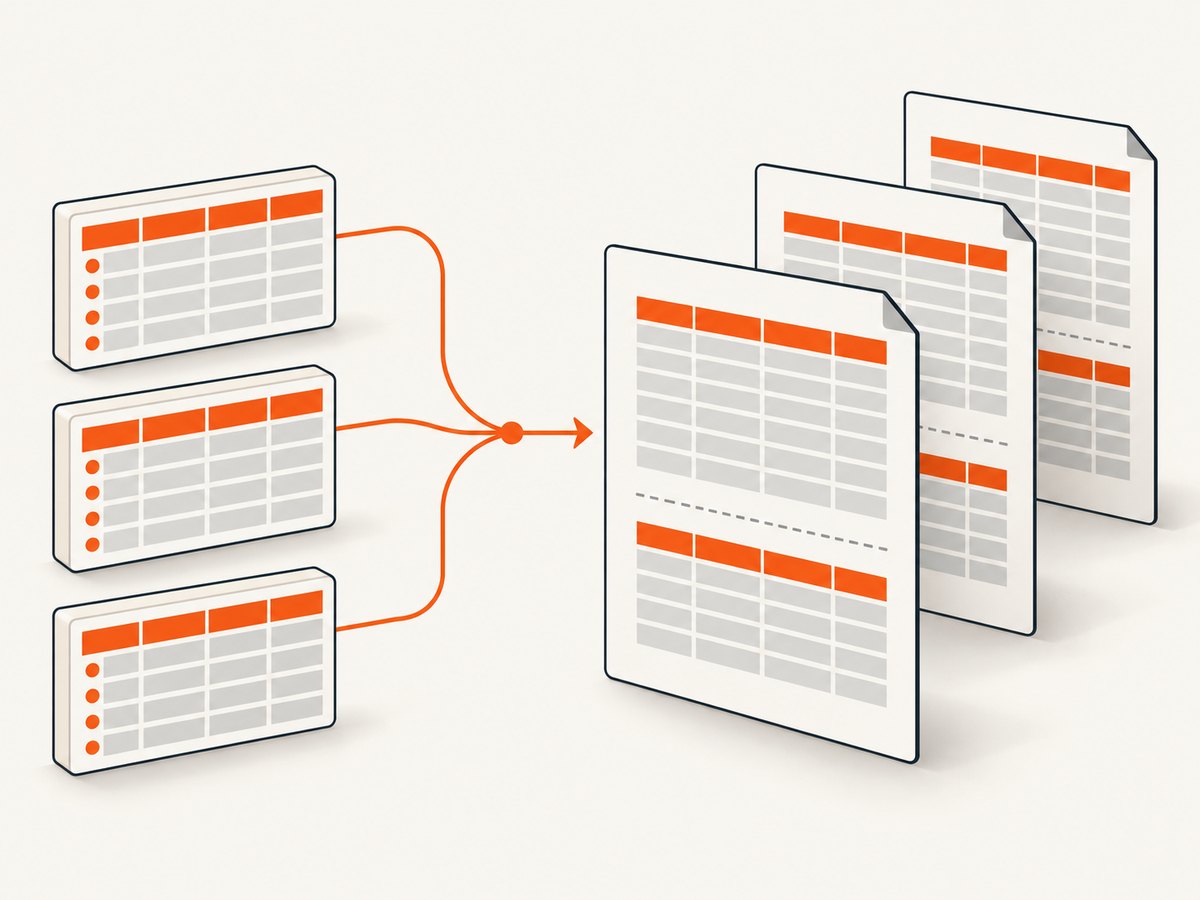
pdfmake uses a declarative document definition: you describe text, tables, columns, images, page size, orientation, and margins, then the library creates the PDF. Its page-layout documentation also describes a pageBreakBefore callback that can inspect following, next-page, and previous-page nodes for content-dependent decisions.
1. Install and configure
npm install pdfmakeThe exact Angular bundler setup depends on the pdfmake release. The following component uses the commonly documented browser build; verify the import and font-vfs shape against the version installed in your project.
2. Add a complete Angular component
import { Component } from '@angular/core';
import pdfMake from 'pdfmake/build/pdfmake';
import pdfFonts from 'pdfmake/build/vfs_fonts';

(pdfMake as any).vfs = (pdfFonts as any).vfs;

interface InvoiceLine {
  description: string;
  quantity: number;
  unitPrice: number;
}

@Component({
  selector: 'app-invoice-pdf',
  template: `
    <button type="button" (click)="download()">Download PDF</button>
  `
})
export class InvoicePdfComponent {
  private readonly lines: InvoiceLine[] = Array.from({ length: 70 }, (_, i) => ({
    description: `Service line ${i + 1}`,
    quantity: (i % 4) + 1,
    unitPrice: 25 + i
  }));

  download(): void {
    const body = [
      [
        { text: 'Description', style: 'tableHeader' },
        { text: 'Qty', style: 'tableHeader', alignment: 'right' },
        { text: 'Unit price', style: 'tableHeader', alignment: 'right' },
        { text: 'Amount', style: 'tableHeader', alignment: 'right' }
      ],
      ...this.lines.map(line => [
        line.description,
        { text: String(line.quantity), alignment: 'right' },
        { text: this.money(line.unitPrice), alignment: 'right' },
        { text: this.money(line.quantity * line.unitPrice), alignment: 'right' }
      ])
    ];

    const total = this.lines.reduce(
      (sum, line) => sum + line.quantity * line.unitPrice,
      0
    );

    const documentDefinition: any = {
      pageSize: 'A4',
      pageOrientation: 'portrait',
      pageMargins: [40, 50, 40, 50],
      header: {
        text: 'Invoice',
        margin: [40, 20, 40, 0],
        color: '#666666'
      },
      footer: (currentPage: number, pageCount: number) => ({
        text: `Page ${currentPage} of ${pageCount}`,
        alignment: 'center',
        margin: [0, 0, 0, 20],
        color: '#666666'
      }),
      content: [
        { text: 'Invoice 2026-001', style: 'title' },
        { text: 'Issued 30 September 2026', margin: [0, 0, 0, 16] },
        {
          text: 'This report intentionally contains enough rows to demonstrate automatic pagination.',
          margin: [0, 0, 0, 16]
        },
        {
          table: {
            headerRows: 1,
            widths: ['*', 45, 80, 90],
            body
          },
          layout: 'lightHorizontalLines'
        },
        {
          text: `Total: ${this.money(total)}`,
          style: 'total',
          margin: [0, 14, 0, 0]
        }
      ],
      styles: {
        title: { fontSize: 20, bold: true, margin: [0, 0, 0, 8] },
        tableHeader: { bold: true, fillColor: '#eeeeee' },
        total: { bold: true, alignment: 'right', fontSize: 13 }
      },
      defaultStyle: { fontSize: 9 },
      pageBreakBefore: (currentNode: any, followingNodesOnPage: any[]) => {
        // Keep a heading from becoming the final line on a page.
        return currentNode.headlineLevel === 1 && followingNodesOnPage.length === 0;
      }
    };

    (pdfMake as any).createPdf(documentDefinition).download('invoice.pdf');
  }

  private money(value: number): string {
    return new Intl.NumberFormat('en-US', {
      style: 'currency',
      currency: 'USD'
    }).format(value);
  }
}
A long table automatically continues onto subsequent pages when it does not fit. headerRows: 1 asks pdfmake to repeat the table header. The explicit page settings are pageSize, pageOrientation, and pageMargins. The documented browser download pattern is pdfMake.createPdf(docDefinition).download('file.pdf'); browser-side and Node.js use are both described in the project documentation.
3. Insert deliberate breaks
content: [
  { text: 'Executive summary', style: 'sectionHeading' },
  summaryNodes,
  { text: 'Detailed results', style: 'sectionHeading', pageBreak: 'before' },
  resultsNodes
]
Use pageBreak: 'before' when a section must start on a new page. Use pageBreak: 'after' when the next node must begin on a new page. For rules based on content, use pageBreakBefore and inspect the nodes supplied by pdfmake.
4. Configure common document options
| Requirement | pdfmake setting or pattern |
|---|---|
| Paper | pageSize: 'A4', 'LETTER', or a custom width/height object |
| Landscape | pageOrientation: 'landscape' |
| Margins | pageMargins: [left, top, right, bottom] |
| Repeated table headings | Set headerRows in the table definition |
| Forced section break | Set pageBreak: 'before' or 'after' |
| Images | Provide supported data URLs or image definitions and test large images separately |
| Fonts | Register the font files in the browser VFS or server font configuration for your chosen release |
Option 2: Convert an Angular HTML view with html2pdf.js
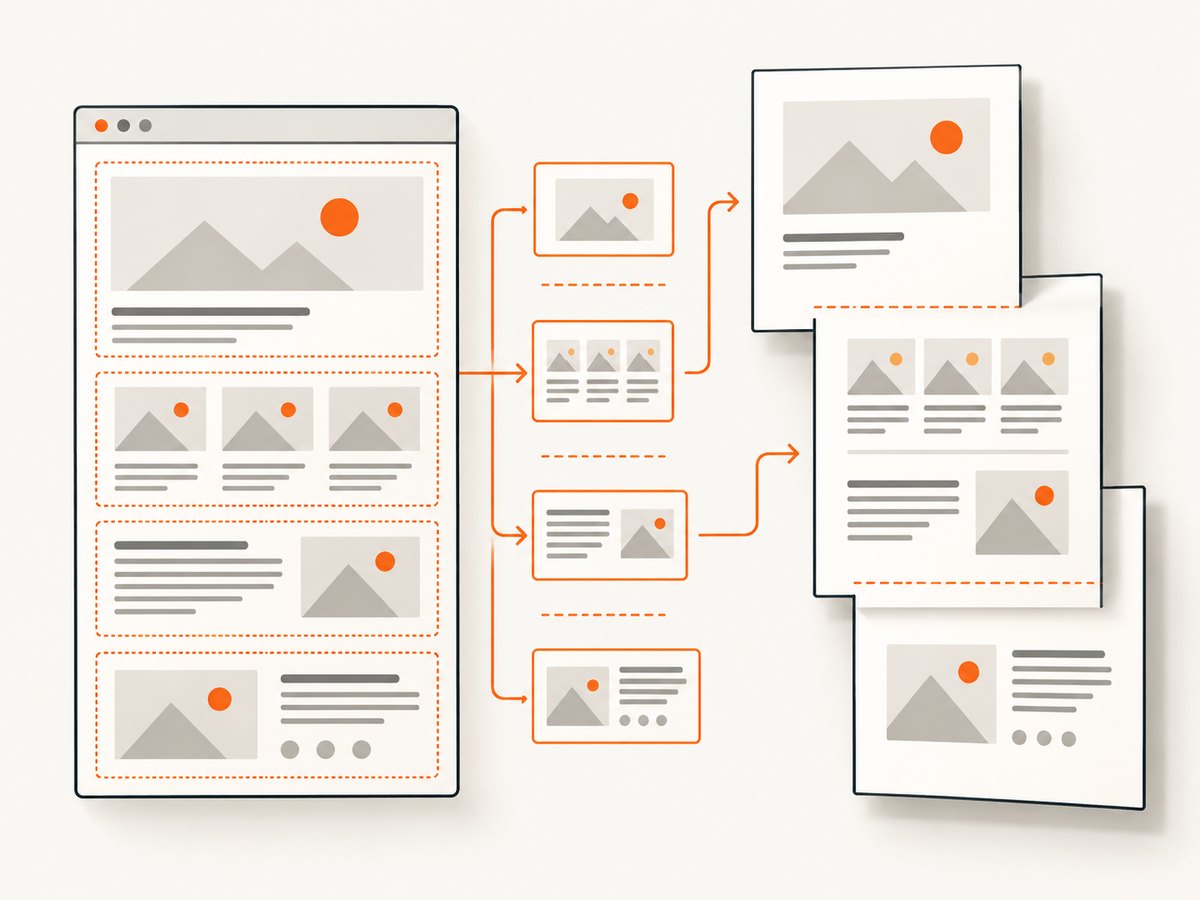
Choose this route when the PDF should resemble an existing component. html2pdf.js documents CSS page-break support for break-before, break-after, and break-inside. It also supports selector-driven rules and the legacy html2pdf__page-break class.
Angular template and component
npm install html2pdf.js<section #pdfContent class="report">
<h1>Monthly report</h1>
<article class="report-section" *ngFor="let section of sections">
<h2>{{ section.title }}</h2>
<p>{{ section.text }}</p>
</article>
</section>
<button type="button" (click)="downloadHtmlPdf()">Download PDF</button>import { Component, ElementRef, ViewChild } from '@angular/core';
import html2pdf from 'html2pdf.js';
@Component({
selector: 'app-html-report',
templateUrl: './html-report.component.html',
styleUrls: ['./html-report.component.css']
})
export class HtmlReportComponent {
@ViewChild('pdfContent', { static: false }) pdfContent!: ElementRef<HTMLElement>;
sections = [
{ title: 'Summary', text: 'Dynamic content rendered by Angular.' },
{ title: 'Details', text: 'Additional content that may flow onto another page.' }
];
downloadHtmlPdf(): void {
const element = this.pdfContent.nativeElement;
const options = {
margin: [12, 12, 16, 12],
filename: 'monthly-report.pdf',
image: { type: 'jpeg', quality: 0.95 },
html2canvas: { scale: 2, useCORS: true },
jsPDF: { unit: 'mm', format: 'a4', orientation: 'portrait' },
pagebreak: {
mode: ['css', 'legacy'],
before: '.start-on-new-page',
after: '.end-page',
avoid: ['.keep-together', 'tr']
}
};
html2pdf().set(options).from(element).save();
}
}.report-section {
break-inside: avoid;
page-break-inside: avoid;
}
.start-on-new-page {
break-before: page;
page-break-before: always;
}
.end-page {
break-after: page;
page-break-after: always;
}Keep the HTML path for layout that already exists in the browser. It is more sensitive to CSS, canvas rendering, cross-origin images, and content that changes after capture. Wait until asynchronous data, images, and fonts are ready before calling the export method.
Option 3: Kendo UI for Angular PDF Export
If your team already uses Telerik’s Angular component suite, the vendor’s PDF Export documentation covers multipage content and manual page breaks with forcePageBreak. Evaluate this option when keeping export behavior inside an existing supported component system matters. The cited documentation does not establish pricing, licensing terms, performance comparisons, or superiority over the open-source libraries.
Browser generation versus server generation
Browser generation is convenient for a user-triggered download and keeps the application data in the user’s session. It can consume significant memory for large tables, high-resolution images, or many pages, and the result depends on browser rendering.
Server generation is usually easier to centralize for scheduled reports, consistent fonts, auditing, and large jobs. pdfmake documents Node.js use with the same document-definition approach. Whichever side you choose, validate the generated bytes, set a useful filename, and handle cancellation or retries around the export request.
Dynamic content and page-break rules
- Wait for API calls and Angular change detection to finish before reading the view.
- For pdfmake, build nodes from the final data set and use explicit breaks for sections whose start page matters.
- For HTML export, use
break-inside: avoidfor cards, headings, and table rows where practical. - Never assume a visual screen boundary equals a PDF page boundary; PDF pagination is calculated again during export.
- Test the longest labels, translated strings, empty states, missing images, and the largest expected table.
Troubleshooting
| Symptom | Likely cause | Fix |
|---|---|---|
| Everything appears on one page or content is cut off | The export path is rendering a fixed-height container or the HTML renderer cannot paginate the layout. | Remove fixed heights and overflow clipping, allow the content element to grow, and add CSS page-break rules. For data-driven reports, switch to pdfmake tables. |
| A heading is stranded at the bottom | No keep-with-next rule was applied. | Use pdfmake’s pageBreakBefore callback or mark the heading and first block as an HTML group with break-inside: avoid. |
| Table rows split badly | Rows are taller than the available page area or the HTML renderer cannot keep them together. | Shorten or wrap cell content, avoid oversized images, set avoid: 'tr' for HTML, and use pdfmake’s table structure for strict report layouts. |
| Images are missing | Cross-origin restrictions, unsupported data, or images not loaded before capture. | Wait for image loading, serve images with appropriate CORS headers, use supported data URLs for pdfmake, and test the production asset host. |
| Fonts differ from the application | The PDF engine does not automatically use every web font loaded by Angular. | Register the font files in the selected library’s supported configuration and verify glyph coverage. |
| Export button does nothing | An exception occurred before download, often from an import or undefined ViewChild. |
Inspect the browser console, call the method after the view exists, and confirm the installed package’s import syntax. |
| PDF is blurry or huge | Canvas scale or source images are too large. | Reduce html2canvas.scale, resize source images, or generate a structured pdfmake document instead of rasterizing the whole page. |
| Blank pages appear | A forced break follows content that already ended a page, or margins and oversized elements leave no usable area. | Remove duplicate forced breaks and inspect element heights, margins, and image dimensions. |
| Export differs between browsers | HTML and canvas rendering vary by browser and font availability. | Use pdfmake or server-side generation for more controlled output, and test the browsers you support. |
Performance, reliability, and cost considerations
- Performance: Keep the document definition compact, paginate large data sets, and avoid embedding the same large image repeatedly. HTML-to-canvas conversion cost grows with rendered area and scale.
- Reliability: Treat fonts, image loading, locale formatting, and page breaks as test inputs. Add automated checks for file creation and representative page counts in your own CI if PDF output is business-critical.
- Security: Do not place secrets in a client-side document definition or expose private image URLs to an untrusted browser. Sanitize any HTML that enters the export view.
- Cost: The libraries themselves do not provide a universal workload price comparison in the cited documentation. Your costs come from browser/server compute, storage, commercial suite licensing where applicable, and any external capture or rendering service.
Or skip the browser setup
If you need a clean capture of an Angular route, ScreenshotNeo provides a single GET request that returns a screenshot or PDF. Cookie and consent banners are accepted and 60+ known consent platforms, newsletter popups, and chat widgets are removed before capture. Bot checks, blank pages, timeouts, failed loads, and cache hits are not billed, and the response identifies the result with X-Page-Verdict and X-Billed headers. Its MCP server lets Claude, Cursor, and other MCP clients call take_screenshot, get_page_info, and capture_pdf.
See the ScreenshotNeo API documentation for PDF options and the full list of capture controls.
curl -G "https://api.screenshotneo.com/v1/shot" -d access_key=YOUR_API_KEY --data-urlencode url=https://example.com/angular-report -o shot.webpimport requests
r = requests.get("https://api.screenshotneo.com/v1/shot", params={"access_key": "YOUR_API_KEY", "url": "https://example.com/angular-report"}, timeout=90)
open("shot.webp", "wb").write(r.content)const q = new URLSearchParams({ access_key: 'YOUR_API_KEY', url: 'https://example.com/angular-report' });
const res = await fetch(`https://api.screenshotneo.com/v1/shot?${q}`);ScreenshotNeo includes 1,000 screenshots a month free with no card; paid plans start at $5 for 3,000 shots. Create a free ScreenshotNeo account.
FAQ
Can pdfmake create pages automatically?
Yes. Content flows across pages, tables can repeat header rows, and explicit or callback-based breaks can control section starts.
Should I use pdfmake or html2pdf.js for an invoice?
Use pdfmake when invoice data is structured and pagination must be predictable. Use html2pdf.js when an existing invoice component already has the exact visual layout you need.
Can an Angular PDF include a page number?
Yes. pdfmake supports header and footer functions that receive the current page and total page count.
Why does my PDF look different from the Angular page?
HTML export renders through a canvas/PDF pipeline with its own CSS, font, image, and browser constraints. A structured PDF does not reuse the browser layout engine.
Can I generate the same pdfmake document on a server?
pdfmake documents browser-side and Node.js use. Keep the document definition shared, then configure fonts and delivery for the environment where it runs.


