How to Create a Multi-Page Website PDF With jsPDF and html2canvas
Render a long webpage into a reliable multi-page PDF with jsPDF and html2canvas, with page breaks, CORS fixes, headers, and a hosted API option.
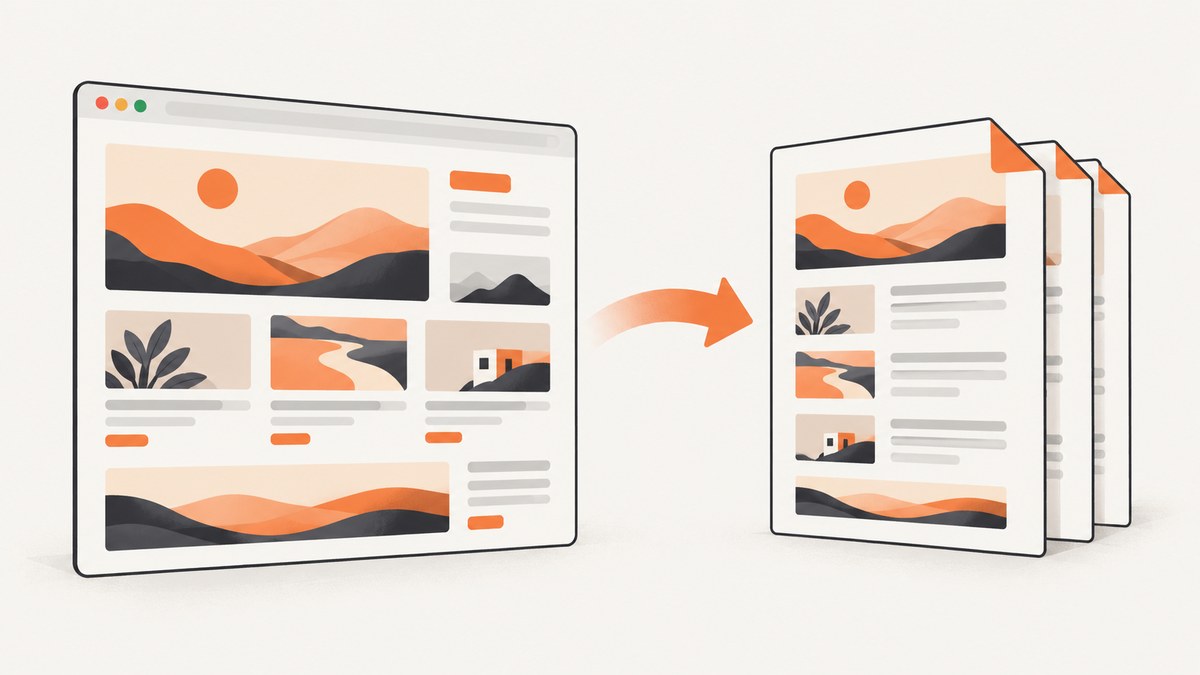
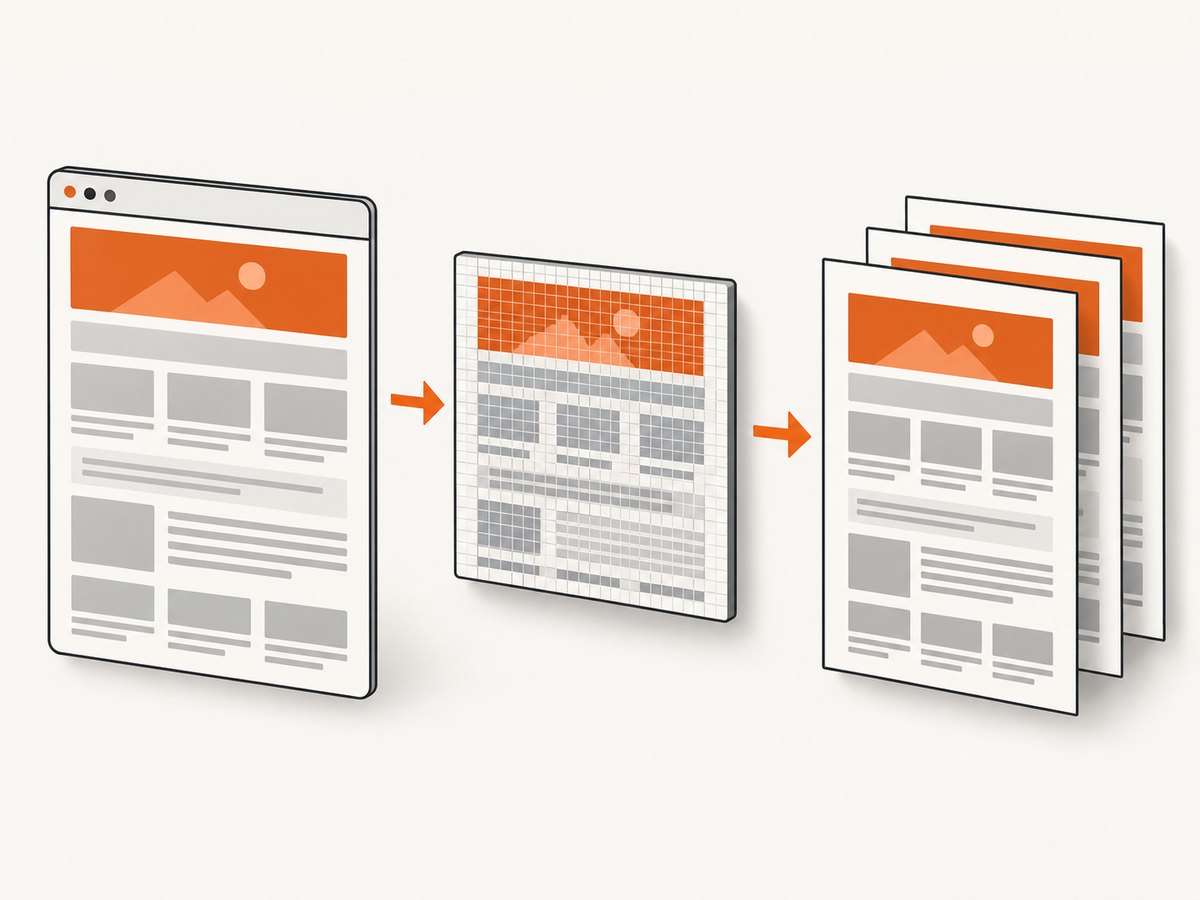
To create a multi-page website PDF in the browser, render the target element with html2canvas, scale the resulting canvas to your PDF’s printable width, then place that image on successive jsPDF pages with a progressively more negative y-coordinate. The basic loop is simple; reliable results depend on handling cross-origin assets, waiting for fonts and images, choosing a sensible canvas scale, and deciding whether page boundaries may split content.
This approach creates a bitmap representation of the page. It does not preserve semantic text, and it only reproduces CSS properties that html2canvas supports. If you need selectable text, accessible PDF structure, repeating table headers, or exact widow and orphan control, use a PDF layout engine or server-side renderer instead.
1. Install the libraries
npm install jspdf html2canvasThe example below assumes a bundler such as Vite, webpack, or Parcel. You can also load browser bundles from your preferred package workflow.
2. Render and paginate one continuous page
This is the smallest complete implementation for a long element such as an article, invoice, or report. It reserves margins, preserves the canvas aspect ratio, calculates the number of PDF pages from the scaled height, and repeats the same image at a negative y-offset so each page exposes the next vertical slice.
import { jsPDF } from 'jspdf';
import html2canvas from 'html2canvas';

async function downloadPdf() {
  const element = document.querySelector('#print-area');
  if (!element) throw new Error('Missing #print-area');

  // Wait for images and fonts before html2canvas walks the DOM.
  await document.fonts?.ready;
  await Promise.all(
    [...element.querySelectorAll('img')].map((img) => {
      if (img.complete) return Promise.resolve();
      return new Promise((resolve) => {
        img.addEventListener('load', resolve, { once: true });
        img.addEventListener('error', resolve, { once: true });
      });
    })
  );

  const canvas = await html2canvas(element, {
    scale: Math.min(window.devicePixelRatio || 1, 2),
    useCORS: true,
    backgroundColor: '#ffffff',
    logging: false
  });

  const pdf = new jsPDF({
    orientation: 'p',
    unit: 'mm',
    format: 'a4',
    compress: true
  });

  const margin = 10;
  const pageWidth = pdf.internal.pageSize.getWidth();
  const pageHeight = pdf.internal.pageSize.getHeight();
  const printableWidth = pageWidth - margin * 2;
  const printableHeight = pageHeight - margin * 2;
  const scaledHeight = canvas.height * printableWidth / canvas.width;
  const pageCount = Math.ceil(scaledHeight / printableHeight);
  const image = canvas.toDataURL('image/jpeg', 0.92);

  for (let page = 0; page < pageCount; page += 1) {
    if (page > 0) pdf.addPage();
    const y = margin - page * printableHeight;
    pdf.addImage(image, 'JPEG', margin, y, printableWidth, scaledHeight);
  }

  pdf.save('website.pdf');
}

document.querySelector('#download-pdf').addEventListener('click', downloadPdf);
jsPDF’s addImage API accepts a canvas or image plus explicit x, y, width, and height values. That coordinate-based placement is what makes the offset loop work.
How the math works
- Printable width: PDF page width minus both margins.
- Scaled height:
canvas.height * printableWidth / canvas.width, which preserves the aspect ratio. - Page count: ceiling of scaled height divided by printable page height.
- Offset: each page moves the image up by one printable page height while keeping its x-coordinate and width unchanged.
A small overlap can hide a one-pixel seam caused by anti-aliasing. If text or a border sits exactly at a boundary, move that content slightly or use section-based rendering.
3. Control page size, orientation, quality, and background
Change the jsPDF constructor when the document is not an A4 portrait report:
const pdf = new jsPDF({
  orientation: 'landscape', // 'p' or 'l'
  unit: 'mm',                // 'mm', 'pt', 'px', etc.
  format: 'letter',         // 'a4', 'letter', or [width, height]
  compress: true
});
Use format: [width, height] for a custom page. Keep all calculations in the same unit selected in the constructor. For a white document, set backgroundColor: '#ffffff'; otherwise transparent regions can become unexpected dark or transparent areas depending on the PDF viewer.
JPEG usually produces a smaller file for photographic pages. PNG keeps sharp flat graphics and transparency but can create much larger PDFs. The quality argument in toDataURL('image/jpeg', quality) is between 0 and 1. Test at 0.85–0.95 for text-heavy pages and inspect small type before choosing a lower value.
4. Avoid cutting cards, headings, and tables
The continuous bitmap method has no knowledge of document semantics. A card, heading, or table row can be split at any pixel boundary. There are three practical solutions.
Render explicit page sections
Wrap content in page-sized blocks and render one block per PDF page. This gives the strongest control and lets you repeat a header or footer in each block.
const blocks = [...document.querySelectorAll('.pdf-page')];
const pdf = new jsPDF({ unit: 'mm', format: 'a4' });

for (let index = 0; index < blocks.length; index += 1) {
  if (index) pdf.addPage();
  const canvas = await html2canvas(blocks[index], {
    scale: 2,
    useCORS: true,
    backgroundColor: '#fff'
  });
  const margin = 10;
  const width = pdf.internal.pageSize.getWidth() - margin * 2;
  const height = canvas.height * width / canvas.width;
  pdf.addImage(canvas, 'PNG', margin, margin, width, height);
}
pdf.save('sections.pdf');
Use html2pdf.js for page-break rules
html2pdf.js wraps html2canvas and jsPDF and exposes CSS, legacy, and selector-based page-break modes.
import html2pdf from 'html2pdf.js';

html2pdf()
  .set({
    margin: 10,
    filename: 'website.pdf',
    image: { type: 'jpeg', quality: 0.95 },
    html2canvas: { scale: 2, useCORS: true },
    jsPDF: { unit: 'mm', format: 'a4', orientation: 'portrait' },
    pagebreak: {
      mode: ['css', 'legacy'],
      before: '.start-new-page',
      avoid: ['img', '.card', 'h2']
    }
  })
  .from(document.querySelector('#print-area'))
  .save();
Add break-before: page or the configured marker class where a new page should begin. The avoid list is useful for images and cards, but it cannot guarantee perfect results when one indivisible element is taller than a page.
5. Headers, footers, and page numbers
For continuous exports, draw repeated content after placing the image on each page:
for (let page = 0; page < pageCount; page += 1) {
  if (page) pdf.addPage();
  pdf.addImage(image, 'JPEG', margin, margin - page * printableHeight,
    printableWidth, scaledHeight);

  pdf.setFontSize(9);
  pdf.setTextColor(90);
  pdf.text(`Report · ${page + 1} / ${pageCount}`, margin, pageHeight - 5);
}
Keep the footer outside the image’s printable rectangle, or reserve additional bottom margin. If the footer is part of the captured element, it will scroll with the page and will not repeat automatically.
6. html2canvas options that matter
| Option | Use | Trade-off |
|---|---|---|
scale |
Increase output resolution | Higher memory use and slower rendering |
useCORS |
Attempt CORS-enabled image loading | Server headers are still required |
backgroundColor |
Set a predictable canvas background | Removes transparency |
windowWidth/windowHeight |
Emulate a viewport for responsive layouts | Breakpoints may change the design |
onclone |
Modify the cloned DOM before capture | Changes affect only the capture clone |
ignoreElements |
Exclude ads, video, or controls | Excluded content is absent from the PDF |
Use onclone to hide a sticky navigation bar or force expanded accordions without changing the live page:
const canvas = await html2canvas(element, {
  scale: 2,
  useCORS: true,
  onclone: (clonedDocument) => {
    clonedDocument.querySelectorAll('.no-print').forEach((node) => {
      node.style.display = 'none';
    });
  }
});
7. Cross-origin images, fonts, and iframes
Cross-origin assets are the most common source of missing content. html2canvas warns that a canvas can become tainted when an image is fetched without suitable CORS headers. useCORS: true only asks the browser to use CORS; the image host must send an appropriate Access-Control-Allow-Origin response. Proxy the asset through your own origin or configure the asset host when you control it.
Cross-origin iframes cannot be read because the browser blocks access to their contentDocument. Replace the iframe with a same-origin export, omit it, or capture the embedded page separately. Wait for web fonts and images before calling html2canvas; otherwise fallback fonts and empty image boxes can change layout and page count.
8. Performance and reliability checklist
- Capture the smallest element that contains the document; avoid rendering the entire application shell.
- Start with
scale: 1or a capped device pixel ratio, then increase only when small text is unreadable. - Break very long reports into sections to reduce peak canvas memory.
- Remove animated videos, blinking cursors, and live widgets in
onclone. - Compute page count from the scaled PDF height, never from raw canvas pixels.
- Test long URLs, empty sections, very tall images, slow fonts, and responsive breakpoints.
- For repeatable exports, freeze data and timestamps before rendering.
A canvas is held in memory at its pixel dimensions. Very large pages can exceed browser memory even when the final PDF is modest. Section rendering lowers peak memory and makes retries easier. There are no universal speed or file-size guarantees; they depend on DOM size, asset count, device memory, and selected scale.
9. Troubleshooting
| Symptom | Likely cause | Fix |
|---|---|---|
| Blank PDF page | Canvas failed or page count is zero | Check the selected element, await html2canvas, and log canvas dimensions. |
| Images missing | Cross-origin response lacks CORS headers | Enable CORS on the asset host or proxy the files. |
| Iframe is empty | Cross-origin frame isolation | Use same-origin content or capture that page independently. |
| CSS looks different | Unsupported CSS or fonts not loaded | Simplify effects, await document.fonts.ready, and set a background. |
| Unexpected extra pages | Page count based on raw pixels | Use the scaled height calculation shown above and reduce scale if needed. |
| Cards split in half | Continuous image slicing | Render sections or configure html2pdf.js avoid and before selectors. |
| Text is blurry | Low canvas scale or aggressive JPEG compression | Raise scale, use PNG for diagrams, or increase JPEG quality. |
| Browser freezes | Huge DOM or oversized canvas | Capture in sections, lower scale, and remove unnecessary nodes. |
10. Or skip the browser setup
If you need a clean website PDF without maintaining browser capture code, ScreenshotNeo provides a GET API and MCP server. It loads the URL, accepts cookie and consent banners like a visitor, removes more than 60 known consent platforms plus newsletter popups and chat widgets, and returns PNG, JPEG, WebP, or PDF. You can control those cleanup steps individually. Bot checks and CAPTCHAs, blank pages, timeouts, failed loads, and cache hits are not billed, and response headers identify the page verdict and billing result.

See the ScreenshotNeo API documentation for all capture options, including full-page lazy-image loading, CSS-selector element capture, PDF paper size, margins, landscape mode, page ranges, custom CSS and JavaScript, waits, blocked resources, authentication, cookies, headers, timezone, geolocation, caching, signed links, async webhooks, bulk capture, and usage reporting.
curl -G "https://api.screenshotneo.com/v1/shot" \
  -d access_key=YOUR_API_KEY \
  --data-urlencode url=https://stripe.com \
  -o shot.webp
import requests
r = requests.get(
"https://api.screenshotneo.com/v1/shot",
params={"access_key": "YOUR_API_KEY", "url": "https://stripe.com"},
timeout=90,
)
r.raise_for_status()
open("shot.webp", "wb").write(r.content)const q = new URLSearchParams({
access_key: 'YOUR_API_KEY',
url: 'https://stripe.com'
});
const res = await fetch(`https://api.screenshotneo.com/v1/shot?${q}`);
if (!res.ok) throw new Error(`HTTP ${res.status}`);
const bytes = Buffer.from(await res.arrayBuffer());
require('node:fs').writeFileSync('shot.webp', bytes);ScreenshotNeo also includes an MCP server so Claude, Cursor, and other MCP clients can call take_screenshot, get_page_info, and capture_pdf. One thousand screenshots per month are free with no card; paid plans start at $5 for 3,000 shots. Create a free ScreenshotNeo account.
11. Choosing an approach
| Approach | Page-boundary control | Implementation effort | Text searchability | Cross-origin handling |
|---|---|---|---|---|
| Raw html2canvas + jsPDF | Low for continuous pages; high with section rendering | Moderate | No, bitmap PDF | Browser CORS rules apply |
| html2pdf.js | CSS and selector page-break helpers | Low | No, bitmap PDF | Browser CORS rules apply |
| PDF layout/server renderer | High, with semantic layout options | Higher | Usually yes | Server controls network access |
| ScreenshotNeo | API options for PDF size, margins, orientation, and ranges | Low client-side setup | Depends on PDF capture output | Hosted browser handles page loading |
12. FAQ
Can html2canvas capture a whole website automatically?
It captures a DOM element you pass to it. Select the page container and ensure lazy content has loaded before rendering.
Why is the second page blank?
Usually the page count or y-offset uses raw canvas pixels instead of the scaled PDF height. Verify the formulas and inspect the canvas dimensions.
Can I make the PDF searchable?
Not with the bitmap loop alone. Use a semantic PDF renderer or create text layers separately.
Should I choose PNG or JPEG?
PNG preserves crisp diagrams and transparency; JPEG is often smaller for photographic content. Check small text at the chosen quality.
How do I repeat table headers?
Render each page section with its own header, draw a header after every addPage(), or use a layout engine that supports repeating table headers.


