How to Build Multi-Region Browser Automation
Run the same Playwright automation from different geographies by placing workers or hosted browsers in each region, then vary browser settings separately.
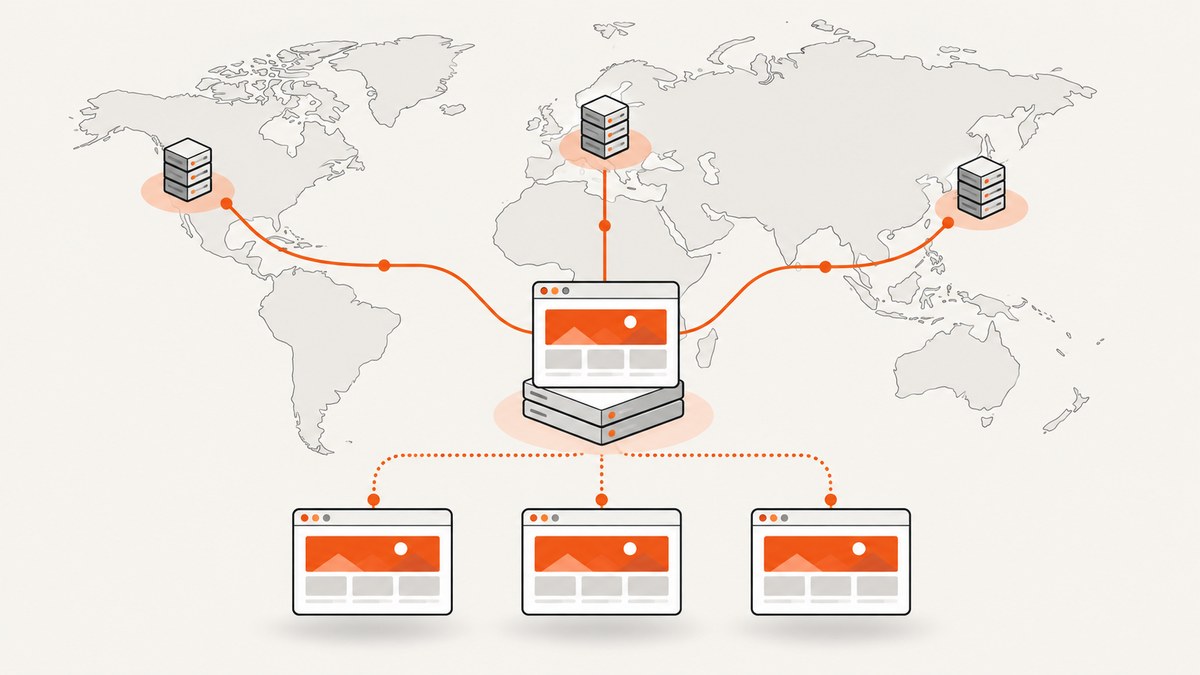
To run the same browser automation from different regions, execute its workers or hosted browser sessions in those regions. A Playwright locale, timezone, or geolocation setting changes what the page sees; it does not move the browser or its network traffic. The practical pattern is to keep one test suite, define Playwright projects for the browser and configuration variants you need, and connect each project to a runner or browser service deployed in the intended geography.
This distinction matters for latency checks, regional content, access to internal services, and data handling. A project named eu-chromium is only a label until your CI or browser-provider configuration actually places its process or remote browser in Europe.
1. Separate execution region from browser emulation
Think of a run as having two independent location layers:
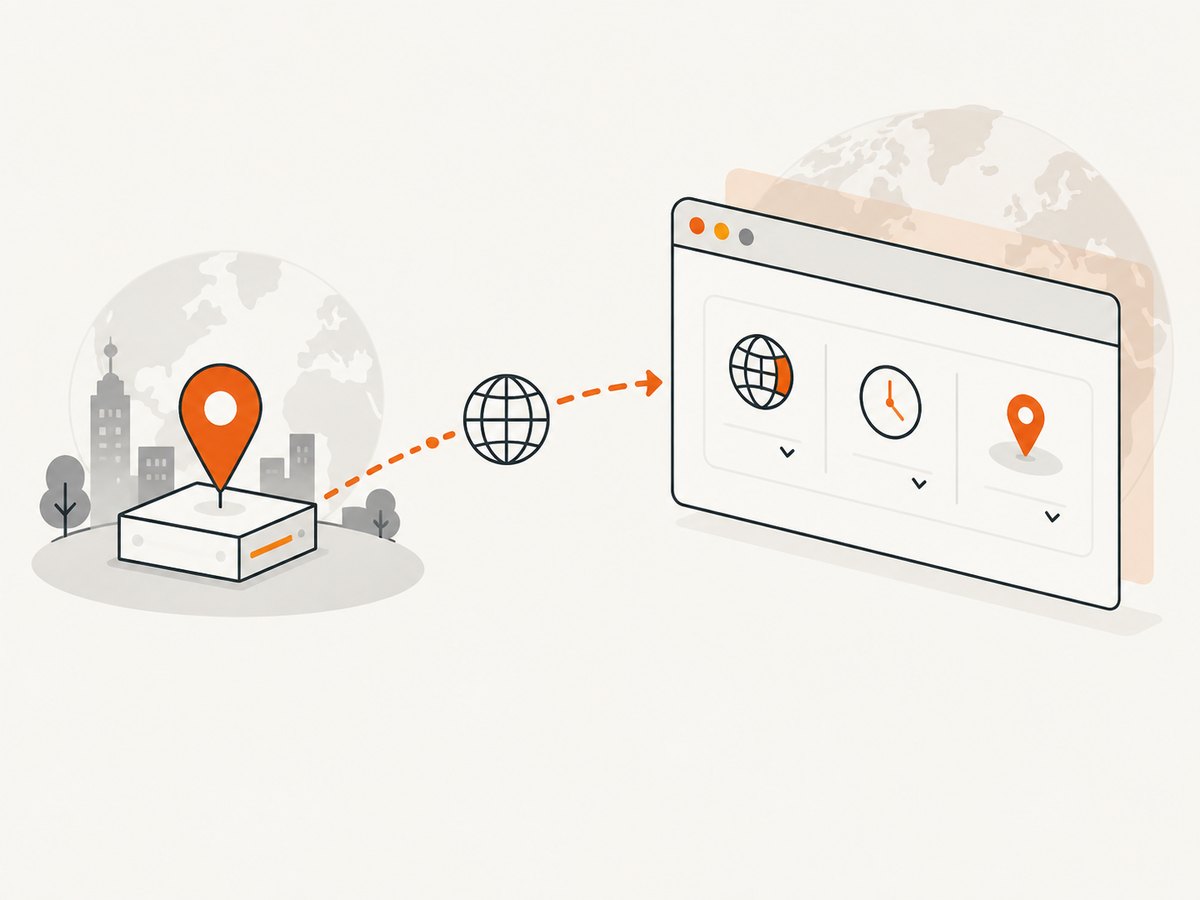
- Execution location: The machine running the browser, or the hosted browser’s deployment location. This controls where requests originate on the network.
- Browser-visible settings: Locale, timezone, geolocation, permissions, and color scheme. These emulate user-facing conditions inside the browser context.
For example, a worker in Virginia with a French locale still sends network traffic from Virginia. A French locale can help test translated text and formatting, but it cannot establish that the application is reachable from France or that a geo-restricted response would be returned to a French network client. Playwright supports browser-context emulation settings globally, per project, or per test; choose them for page behavior, not worker placement. Playwright emulation documentation
2. Choose how to place browser sessions
There are two common implementation patterns. They can be combined, for example by running self-managed CI workers that connect to a managed browser service.
Self-managed regional runners
Provision CI runners or machines in each target geography and run the same Playwright test suite there. Use your cloud or CI configuration to route a job to the relevant runner pool. This gives you direct control over the machine, installed browsers, and network path, but your team owns browser installation, scaling, debugging access, and artifact handling.
Managed hosted browsers
Use a browser service that offers sessions in the required locations. Confirm its current region list and how its browser connects to your test process. Check which data and artifacts stay in the selected location and which metadata moves between regions. Also check framework and browser version compatibility before building around a remote connection.
Microsoft Playwright Workspaces is one provider-specific example of a managed cloud browser service. Microsoft currently lists Australia East, East Asia, East US, Japan East, Switzerland North, West Europe, and West US 3. Its documentation says customer data is not stored or processed outside the deployed workspace region; when regional affinity is used, metadata moves from the hosted browser region to the workspace region. These statements describe that service only, and availability can change. Check the current regional affinity documentation before choosing a deployment.
There is no universal provider-neutral deployment recipe: runner selection and browser routing depend on your CI and provider. Compare the options against your required geography, data and artifact flows, browser compatibility, target network access, and operational effort. The sources cited here do not establish comparative prices or performance.
3. Define a shared Playwright project matrix
Playwright projects are logical groups of tests that share a configuration. They let one suite run against multiple browsers, devices, or environment variants. Use project configuration for browser and emulation differences; use your CI or cloud setup to control where each worker runs. Playwright projects documentation
Here is a runnable configuration for two region-labelled projects. The names organize results and the locale settings emulate page behavior. The names do not place the workers. To make these actual regional runs, configure CI so the projects execute on the appropriate regional runners, or replace the local launch with a provider’s remote-browser connection.
// playwright.config.ts
import { defineConfig, devices } from '@playwright/test';

export default defineConfig({
  testDir: './tests',
  fullyParallel: true,
  projects: [
    {
      name: 'eu-chromium',
      use: {
        ...devices['Desktop Chrome'],
        locale: 'fr-FR',
        timezoneId: 'Europe/Paris',
        // This is browser emulation, not worker placement.
        geolocation: { latitude: 48.8566, longitude: 2.3522 },
        permissions: ['geolocation'],
      },
    },
    {
      name: 'apac-webkit',
      use: {
        ...devices['Desktop Safari'],
        locale: 'ja-JP',
        timezoneId: 'Asia/Tokyo',
        geolocation: { latitude: 35.6762, longitude: 139.6503 },
        permissions: ['geolocation'],
      },
    },
  ],
});
Install the test runner and its browsers, then run the projects:
npm install --save-dev @playwright/test
npx playwright install
npx playwright test --project=eu-chromium
npx playwright test --project=apac-webkit
Those commands run both configurations on the machine that invokes them. For real multi-region coverage, submit each project to a runner or provider session in its target region. You can run the full matrix with npx playwright test once the surrounding CI setup routes jobs appropriately.
4. Write tests that produce comparable regional results
Keep assertions focused on behavior that should match across regions, and make regional expectations explicit when the product intentionally differs. The test below checks a stable page response and reports the project name with the result context. Adapt the URL and assertions to your application.
// tests/home.spec.ts
import { test, expect } from '@playwright/test';

test('home page is available in this project', async ({ page }, testInfo) => {
  const response = await page.goto('https://example.com', {
    waitUntil: 'domcontentloaded',
    timeout: 30_000,
  });

  expect(response, `No main-document response in ${testInfo.project.name}`)
    .not.toBeNull();
  expect(response!.ok(), `Unexpected HTTP status in ${testInfo.project.name}`)
    .toBeTruthy();
  await expect(page.locator('h1')).toBeVisible();
});
For a real application, avoid making one regional run depend on state created by another. Use deterministic test data, record the project and worker region with logs, and retain traces or screenshots according to your team’s data policy. If the application is expected to serve localized content, assert the expected language or content for that project instead of asserting identical text everywhere.
5. Isolate users and session state
The Playwright test runner creates a fresh browser context for each test by default. That isolation prevents cookies, local storage, and other context state from leaking between tests. When a scenario needs two independent users, create two contexts deliberately. Playwright browser contexts documentation
import { test, expect } from '@playwright/test';

test('two users see their own account sessions', async ({ browser }) => {
  const aliceContext = await browser.newContext();
  const bobContext = await browser.newContext();

  try {
    const alice = await aliceContext.newPage();
    const bob = await bobContext.newPage();
    await alice.goto('https://example.com/sign-in');
    await bob.goto('https://example.com/sign-in');
    // Sign each user in with separate test fixtures, then assert isolation.
    await expect(alice).toHaveURL(/sign-in/);
    await expect(bob).toHaveURL(/sign-in/);
  } finally {
    await aliceContext.close();
    await bobContext.close();
  }
});
Context isolation applies within a browser process. It does not select a region; create or route the browser process in the desired place separately.
6. Connect to a remote browser when the provider requires it
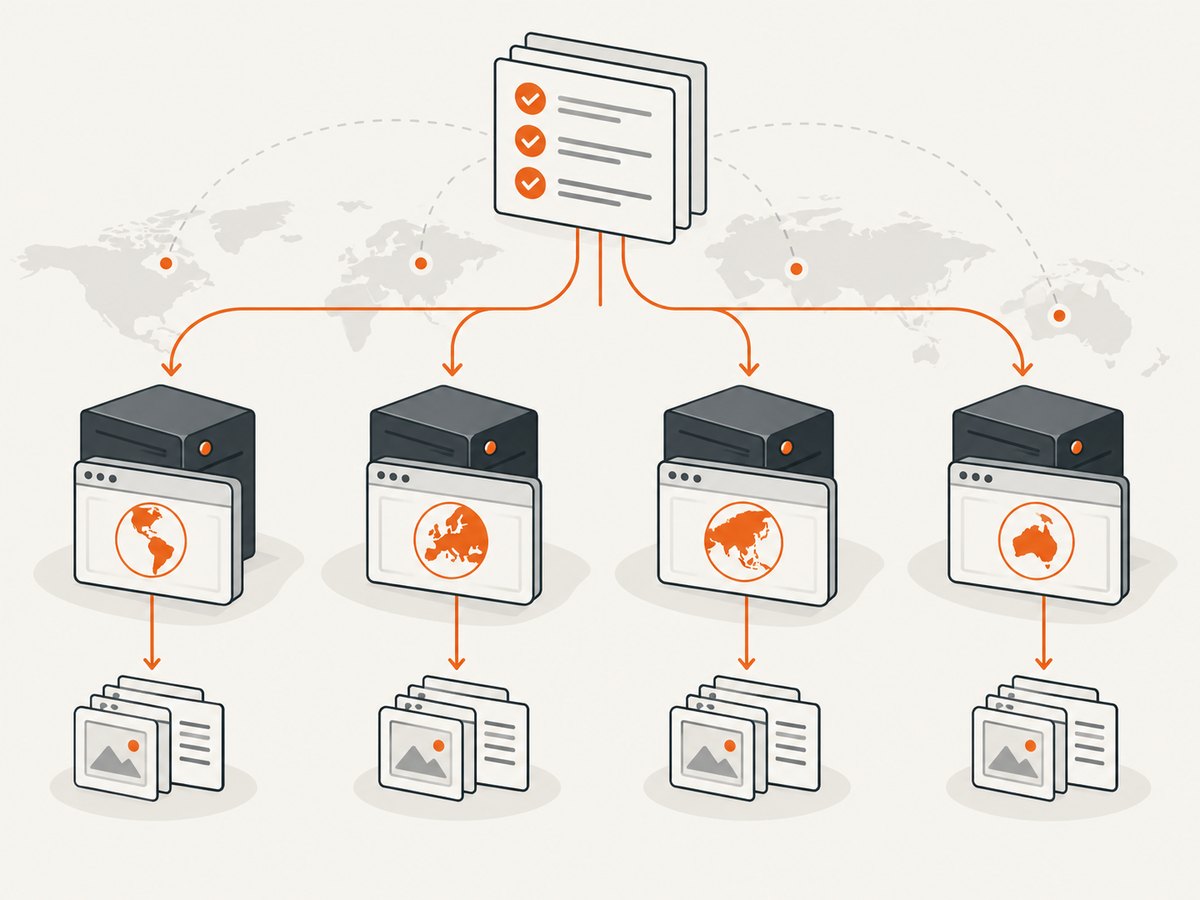
Some hosted services return a WebSocket endpoint for a launched browser. Playwright can connect to an existing browser with its browser type API. The endpoint and authentication details are provider-specific, so obtain them from that provider’s documentation and keep credentials in CI secrets.
import { chromium } from '@playwright/test';

const endpoint = process.env.PLAYWRIGHT_WS_ENDPOINT;
if (!endpoint) throw new Error('Set PLAYWRIGHT_WS_ENDPOINT');

const browser = await chromium.connect(endpoint);
try {
  const context = await browser.newContext({
    locale: 'en-GB',
    timezoneId: 'Europe/London',
  });
  const page = await context.newPage();
  await page.goto('https://example.com', { waitUntil: 'domcontentloaded' });
  console.log(await page.title());
  await context.close();
} finally {
  await browser.close();
}
Use a compatible Playwright version on the connecting client and the instance that launched the browser. The documented requirement is compatible major and minor versions. CDP attachment is another option for Chromium, but Playwright describes it as lower fidelity than a Playwright protocol connection; it is Chromium-only. Confirm the selected provider’s exact connection type and browser support before relying on it. Playwright browser connection API
7. Run the matrix in CI
Treat regional execution as a CI scheduling concern. A useful pattern is one job per target region, each checking out the same commit and running the same project or test selection on a region-specific runner. The following is an implementation pattern, not a Playwright-mandated architecture; replace the runner labels with labels your CI actually assigns to machines in those regions.
# Illustrative GitHub Actions job matrix
jobs:
  browser-check:
    strategy:
      fail-fast: false
      matrix:
        include:
          - region: eu
            runner: self-hosted-eu
            project: eu-chromium
          - region: apac
            runner: self-hosted-apac
            project: apac-webkit
    runs-on: ${{ matrix.runner }}
    steps:
      - uses: actions/checkout@v4
      - uses: actions/setup-node@v4
        with:
          node-version: 22
      - run: npm ci
      - run: npx playwright install --with-deps
      - run: npx playwright test --project=${{ matrix.project }}
      - name: Upload Playwright report
        if: always()
        uses: actions/upload-artifact@v4
        with:
          name: report-${{ matrix.region }}
          path: playwright-report/
The runner labels in this sketch are placeholders. Verify that the jobs really land in the intended geography, that the target application permits traffic from those networks, and that artifacts are stored where your policy allows. For managed browsers, the job may run in one place while the browser runs elsewhere; document both locations and the path for logs, metadata, and artifacts.
8. Configuration choices and edge cases
| Need | Use | Keep in mind |
|---|---|---|
| Different browsers or devices | Projects with browser/device settings | Branded Chrome and Edge channels, OS behavior, versions, and provider availability vary by runtime. |
| Localized page content | locale and, if needed, timezoneId |
These emulate browser behavior; they do not change the source network region. |
| Location-aware browser feature | geolocation plus the geolocation permission |
This affects browser APIs. It does not prove that the server sees traffic from those coordinates. |
| Region-specific network behavior | Regional runner or hosted browser placement | Confirm outbound routes, DNS behavior, IP allowlists, and application access from that location. |
| Multiple users in one scenario | Separate browser contexts | Close manually created contexts even when an assertion fails. |
| Remote browser session | Provider WebSocket endpoint and compatible Playwright versions | Connection protocols and supported browsers are provider-specific. |
Do not infer physical location from a project name, locale, timezone, or geolocation value. If location is a compliance boundary, verify placement and data flows with the provider’s current documentation and your deployment configuration. Browser coverage also needs care: Playwright supports Chromium, Firefox, WebKit, and branded Chrome/Edge channels, but a particular runtime may not offer every channel or version.
9. Performance, reliability, and cost
There is no source-backed universal speed or cost advantage for one architecture. Measure your own workload. For each project, record queue time, navigation duration, test duration, retry count, browser version, and runner or browser region. A run that includes a slow shared API or a congested test environment can look like a regional network problem; compare the same commit, test data, and browser version across locations.
Parallel regional jobs can shorten the wall-clock time compared with running jobs sequentially, but they use more concurrent runner or browser capacity. Limit concurrency to what your CI account and provider can sustain, and avoid retrying every failure indiscriminately: retries can hide intermittent regional faults. Keep artifacts named by region and project so a trace from one environment is not mistaken for another.
For reliability, treat a regional failure as evidence to investigate rather than proof of an outage. Check runner health, DNS and egress, provider session startup, application status, and the browser console or trace. Define whether a region is required or best-effort for release decisions. Preserve enough diagnostic detail to reproduce failures while respecting the data location requirements for traces, screenshots, and logs.
10. Troubleshooting
| Symptom | Likely cause | Fix |
|---|---|---|
| All projects execute from one geography | Project names or emulation settings were mistaken for placement. | Route jobs to verified regional runners or request provider sessions in each region; confirm the source network location. |
| Page is localized but network tests are not regional | Locale/timezone changed browser-visible behavior only. | Keep emulation for content checks and move the worker/browser for network-region checks. |
| Remote connection fails during setup | Wrong or expired endpoint, credentials, unsupported connection mode, or incompatible Playwright versions. | Refresh provider session details, store secrets correctly, and align compatible major/minor versions. |
| CDP session behaves differently | CDP is lower fidelity and limited to Chromium. | Use a Playwright protocol connection when supported, or account for the reduced compatibility in your test scope. |
| One project fails to launch its browser | The runner lacks that browser build, OS dependency, or branded channel. | Install the required browser and dependencies on that runner, or choose a browser supported by the runtime. |
| Geolocation test is denied | The context lacks the geolocation permission or the coordinates are not configured. | Set both geolocation and permissions: ['geolocation']; verify the page asks for the browser API. |
| Tests pass alone but fail in the matrix | Shared test data, rate limits, or external services are affected by parallel runs. | Use isolated fixtures and unique test accounts, and tune concurrency or service limits. |
| Artifacts appear in an unexpected region | Artifact storage follows CI configuration rather than browser placement. | Check the artifact destination and transfer path separately from browser and workspace locations. |
11. Or skip the browser setup
If the task is to capture pages as images or PDFs rather than interactively test them, ScreenshotNeo provides a website screenshot API and MCP server. One GET request captures a URL as PNG, JPEG, WebP, or PDF. The following is a single-region capture example; it does not claim to run a browser from a chosen geography. See the ScreenshotNeo API documentation for request options.
curl -G "https://api.screenshotneo.com/v1/shot" -d access_key=YOUR_API_KEY --data-urlencode url=https://stripe.com -o shot.webpPython:
import requests

r = requests.get(
    "https://api.screenshotneo.com/v1/shot",
    params={"access_key": "YOUR_API_KEY", "url": "https://stripe.com"},
    timeout=90,
)
open("shot.webp", "wb").write(r.content)
Node.js:
const q = new URLSearchParams({ access_key: 'YOUR_API_KEY', url: 'https://stripe.com' });
const res = await fetch(`https://api.screenshotneo.com/v1/shot?${q}`);
if (!res.ok) throw new Error(`Screenshot request failed: ${res.status}`);
await Bun.write('shot.webp', res);
ScreenshotNeo removes cookie banners, popups, and chat widgets before the shot. Bot checks, blank pages, and failed loads are never billed. Its MCP server lets AI agents take screenshots. The free plan includes 1,000 screenshots per month with no card; paid plans start at $5 for 3,000. Sign up for 1,000 free screenshots a month, no card required.
12. Frequently asked questions
Can one Playwright test run in several regions at once?
Yes. Schedule the same suite or selected project on separate regional workers or browser sessions. Playwright projects organize configurations; your infrastructure supplies the placement and parallel scheduling.
Does setting a timezone or geolocation test regional routing?
No. Those settings emulate browser-visible values and browser APIs. Use a worker or hosted browser in the target network location to test routing from that geography.
Should every region use a different test suite?
Usually keep shared assertions in one suite and use projects for configuration differences. Add explicit regional expectations only where the product is intentionally different, such as localized content or region-specific availability.
Can I use this setup for screenshots?
Yes, Playwright can capture pages during tests. For URL-to-image or PDF capture without managing browser contexts and runners, use an API such as ScreenshotNeo; a screenshot request is a different task from validating an interactive multi-region workflow.


