How to Add Multiple Canvas Pages to a PDF With jsPDF
Learn how to put several HTML canvases into one jsPDF file, one canvas per page, with sizing, formats, troubleshooting, and automation options.

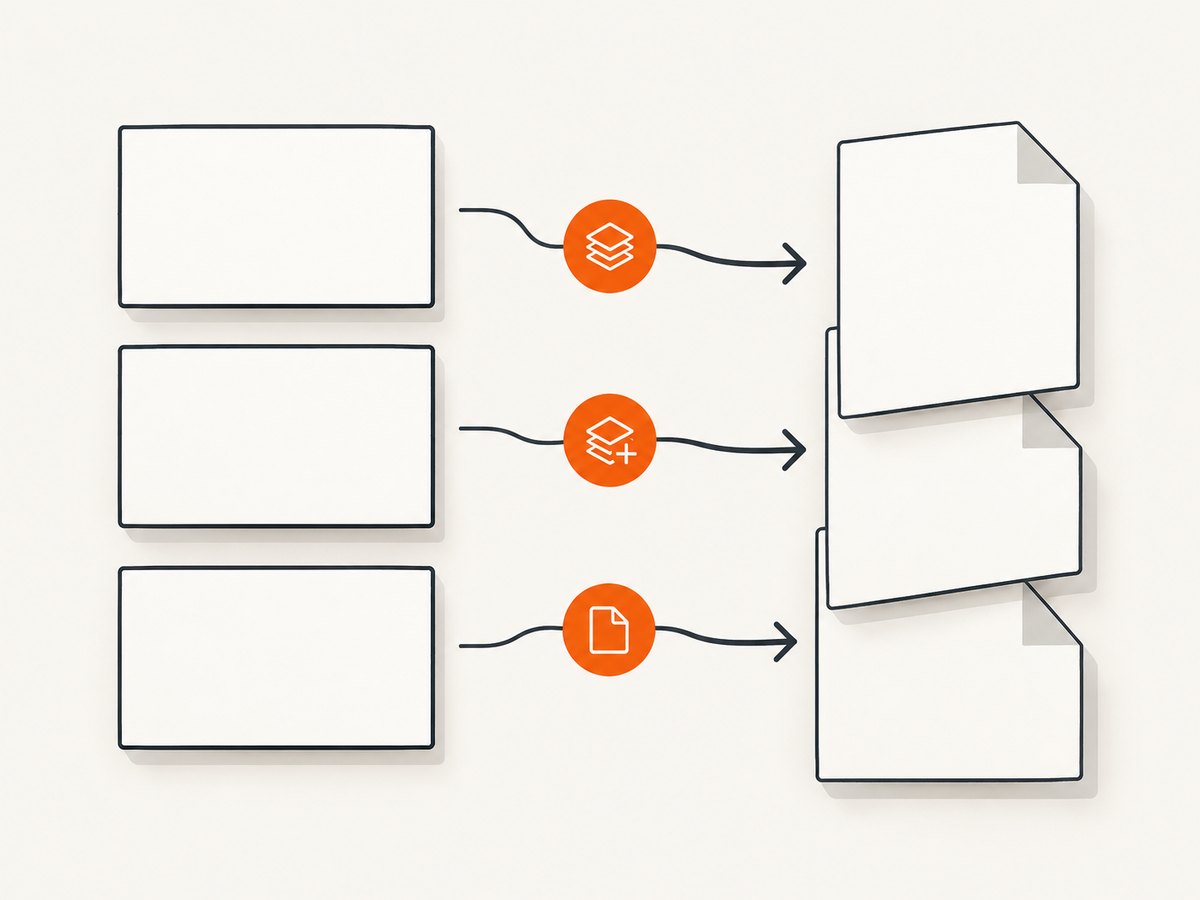
To add multiple canvas pages to a PDF with jsPDF, create one jsPDF instance, place the first canvas with addImage(), call addPage() before each additional canvas, and then save the document. The important details are choosing page size and units, converting each canvas’s pixel dimensions into those units, and fitting the image inside the page without distorting it.
This pattern works with existing HTML <canvas> elements and with encoded image data such as PNG data URLs. The official jsPDF addImage documentation describes canvas and image-data inputs, destination coordinates, dimensions, formats, compression, and rotation. The addPage API documents page creation, while the constructor documentation covers orientation, units, and page formats.
Complete example: one canvas per PDF page
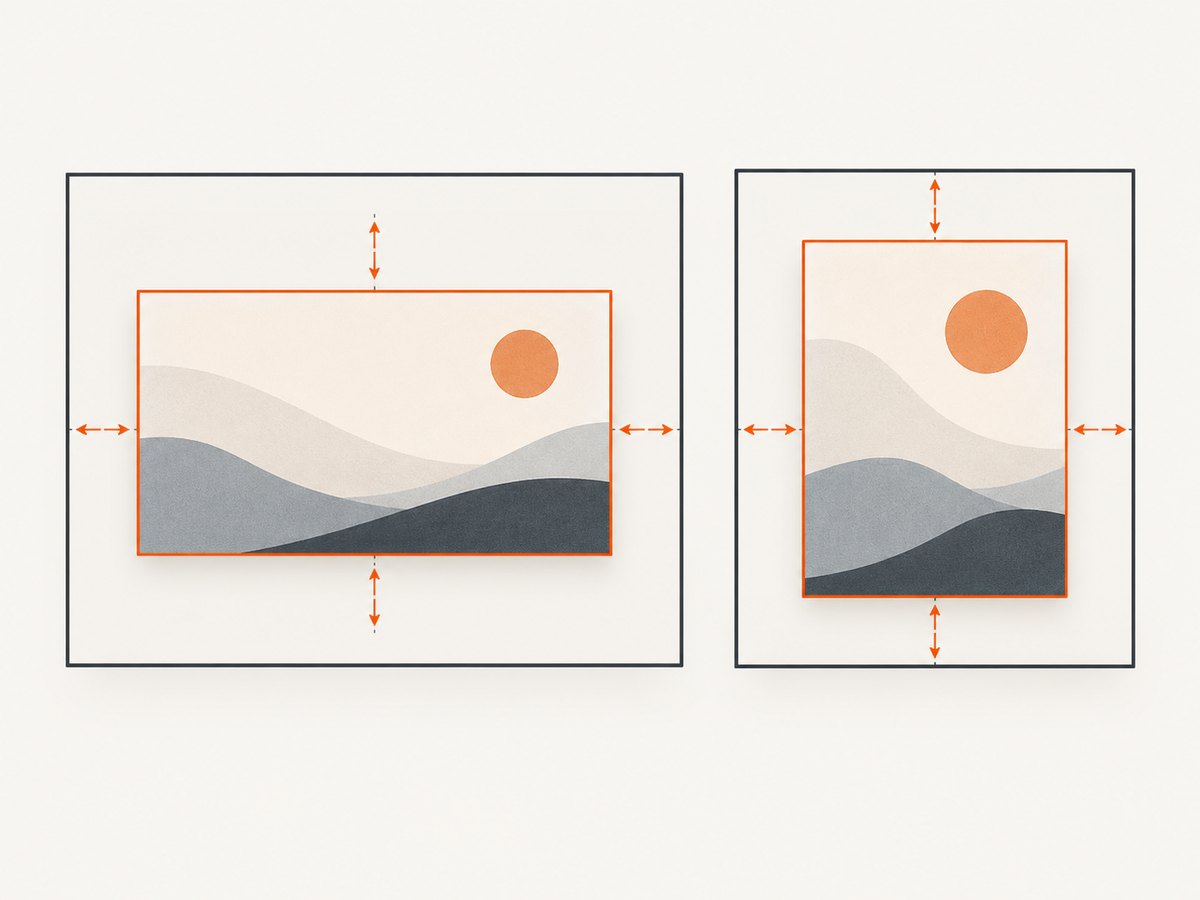
The following browser example assumes that canvas1, canvas2, and canvas3 already contain finished drawings. It creates an A4 PDF in millimetres, leaves a 10 mm margin, preserves each canvas’s aspect ratio, and centers the result.
import { jsPDF } from "jspdf";

const canvases = [canvas1, canvas2, canvas3];
const pdf = new jsPDF({
  orientation: "portrait",
  unit: "mm",
  format: "a4"
});

const margin = 10;
const pageWidth = pdf.internal.pageSize.getWidth();
const pageHeight = pdf.internal.pageSize.getHeight();
const maxWidth = pageWidth - margin * 2;
const maxHeight = pageHeight - margin * 2;

canvases.forEach((canvas, index) => {
  if (index > 0) {
    pdf.addPage("a4", "portrait");
  }

  // Fit inside the available area while preserving aspect ratio.
  const scale = Math.min(
    maxWidth / canvas.width,
    maxHeight / canvas.height
  );
  const width = canvas.width * scale;
  const height = canvas.height * scale;
  const x = (pageWidth - width) / 2;
  const y = (pageHeight - height) / 2;

  pdf.addImage(canvas, "PNG", x, y, width, height);
});

pdf.save("canvases.pdf");
addPage() transfers focus to the new page. Therefore, call it between images, not before the first image and not after save(). The first page is created by the jsPDF constructor.
How the page and image calculations work
1. Pick the document unit
The constructor’s unit controls every placement value passed to addImage(). Common choices include millimetres, points, inches, and pixels. In the example, the canvas’s width and height are pixel counts, but the destination width and height are millimetres. The multiplication by scale converts the pixel ratio into the PDF’s coordinate system.
Do not pass raw pixel dimensions to a document configured in millimetres unless that is intentionally the size you want. A 1600-pixel-wide canvas placed at 1600 mm will be far larger than an A4 page and will be clipped.
2. Preserve the aspect ratio
The fit calculation chooses the smaller of the width and height scale factors:
const scale = Math.min(maxWidth / canvas.width, maxHeight / canvas.height);This guarantees that both dimensions fit inside the available rectangle. Centering is then straightforward:
const x = (pageWidth - width) / 2;
const y = (pageHeight - height) / 2;
If you need a full-bleed image, set the margin to zero. If the canvas has an unusual aspect ratio, choose whether to letterbox it, crop it, or split it over several pages. addImage() accepts explicit destination dimensions; it does not choose an editorial fit policy for you.
3. Add pages with a consistent format
addPage("a4", "portrait") creates a new A4 portrait page. The API also accepts other documented standard formats and custom dimensions. You can change orientation or size for an individual page:
pdf.addPage("a4", "landscape");
pdf.addImage(wideCanvas, "PNG", 10, 10, 277, 190);
When mixing formats, recalculate pageWidth, pageHeight, and the fit dimensions after each addPage(). Values from the previous page may no longer fit.
Passing a data URL instead of a canvas
A rendered canvas can be encoded first and supplied as image data. This is useful when you need to inspect, cache, or transmit the encoded image before adding it to the PDF.
const pngData = canvas.toDataURL("image/png");
pdf.addImage(pngData, "PNG", x, y, width, height);
You can request JPEG when photographs or gradients matter more than lossless transparency:
const jpegData = canvas.toDataURL("image/jpeg", 0.85);
pdf.addImage(jpegData, "JPEG", x, y, width, height, undefined, "MEDIUM");
The documented formats include PNG, JPEG, and WEBP. PNG is generally the safer choice for diagrams, text, and transparent pixels. JPEG can reduce output size for photographic content but does not preserve transparency. Specify the format explicitly rather than relying on automatic recognition when your input can have multiple encodings.
Waiting for asynchronous canvas rendering
A frequent cause of blank or partial pages is exporting before the drawing is complete. Finish fonts, images, chart animations, and other asynchronous work before calling addImage().
async function renderChart(canvas, data) {
  await loadFonts();
  await drawImages(data);
  drawChart(canvas, data);
}

await Promise.all([
  renderChart(canvas1, data1),
  renderChart(canvas2, data2),
  renderChart(canvas3, data3)
]);

// Export only after every canvas has its final pixels.
createPdf([canvas1, canvas2, canvas3]);
Check each canvas’s dimensions and content immediately before export. This is application workflow guidance: jsPDF receives the pixels available at the time of the call and does not wait for your rendering pipeline.
Reusable helper for many canvases
Putting the fit logic in a function makes it easier to handle dozens of canvases and mixed page orientations.
import { jsPDF } from "jspdf";

function addCanvasPage(pdf, canvas, options = {}) {
  const {
    format = "a4",
    orientation = "portrait",
    margin = 10,
    imageFormat = "PNG"
  } = options;

  pdf.addPage(format, orientation);
  const pageWidth = pdf.internal.pageSize.getWidth();
  const pageHeight = pdf.internal.pageSize.getHeight();
  const maxWidth = pageWidth - margin * 2;
  const maxHeight = pageHeight - margin * 2;
  const scale = Math.min(maxWidth / canvas.width, maxHeight / canvas.height);
  const width = canvas.width * scale;
  const height = canvas.height * scale;
  const x = (pageWidth - width) / 2;
  const y = (pageHeight - height) / 2;

  pdf.addImage(canvas, imageFormat, x, y, width, height);
}

const pdf = new jsPDF({ unit: "mm", format: "a4" });
addCanvasPage(pdf, canvas1, { format: "a4", orientation: "portrait" });
addCanvasPage(pdf, canvas2, { format: "a4", orientation: "landscape" });
pdf.save("mixed-canvas-pages.pdf");
Because the helper calls addPage(), use it only for pages after the constructor-created first page, or create the first page separately:
addFirstCanvasToCurrentPage(pdf, canvas1);
addCanvasPage(pdf, canvas2);
addCanvasPage(pdf, canvas3);
Canvas plugin versus addImage()
For an already-rendered HTML canvas, addImage(canvas, ...) is the direct documented route. The separate Canvas plugin source documentation describes a wrapper that mimics an HTML5 Canvas and is intended for code that wants to draw through a PDF-backed canvas interface.
| Situation | Use |
|---|---|
| You already have HTML canvas pixels | addImage(canvas, ...) |
| You need to serialize the drawing first | canvas.toDataURL(), then addImage() |
| Your drawing code expects a canvas-like PDF wrapper | Investigate the Canvas plugin and verify compatibility with your jsPDF version |
Common errors and fixes
| Symptom | Likely cause | Fix |
|---|---|---|
| Only one page appears | No addPage() call between canvases, or export happened first |
Call addPage() before every page after the first, then call save() once at the end. |
| Pages are blank | The canvas was exported before asynchronous rendering completed | Await drawing, image, and font promises. Inspect the canvas in the browser before adding it. |
| Image is clipped | Coordinates or dimensions exceed the page, often because pixels were used as millimetres | Read the current page size, apply margins, and calculate a fit scale in the configured unit. |
| Image is stretched | Width and height were chosen independently | Use one scale factor derived with Math.min(). |
| Unexpected transparency | JPEG encoding cannot retain transparent pixels | Use PNG or paint a background before encoding. |
| Unexpected image format | Format detection did not match the input | Pass the format argument explicitly, such as "PNG" or "JPEG". |
Security exception from toDataURL() |
A cross-origin image made the canvas tainted | Serve the image with appropriate CORS headers and load it with the required cross-origin settings before drawing. |
| Browser tab becomes unresponsive | Many very large canvases consume substantial memory during encoding | Reduce canvas resolution, process pages in batches, choose JPEG for photographic pages, and release temporary data URLs. |
Performance, reliability, and output size
- Canvas resolution: A high device-pixel-ratio canvas can contain far more pixels than its displayed size. Set the backing resolution intentionally and avoid retaining unused canvases.
- Encoding: Converting a canvas to a data URL creates a large string in memory. Passing the canvas directly avoids one preparation step, although jsPDF still has to encode image data for the PDF.
- Compression: Use PNG for crisp UI screenshots and transparent diagrams. Use JPEG quality settings for photographs where a smaller file is more valuable than lossless edges.
- Page order: Build pages in the required order and save once. Repeatedly saving intermediate PDFs increases work and complicates error handling.
- Validation: For production exports, verify the number of pages, open the generated file in a PDF viewer, and test unusually wide, tall, empty, and transparent canvases.
- Reliability: Treat rendering and image loading as explicit asynchronous steps. A successful
save()call does not prove that application rendering finished correctly.
Or skip the browser setup
If your goal is to capture web pages as images or PDFs rather than assemble already-rendered canvases, ScreenshotNeo provides a single request to its screenshot API. Cookie banners, newsletter popups, and chat widgets are removed before the shot. Bot checks, blank pages, failed loads, timeouts, and cache hits are not billed, and response headers identify the page verdict and billing status. Its MCP server provides take_screenshot, get_page_info, and capture_pdf tools for Claude, Cursor, and other MCP clients. One thousand screenshots per month are free without a card; paid plans start at $5 for 3,000 shots.
See the ScreenshotNeo API documentation for all options. A direct WebP request looks like this:
curl -G "https://api.screenshotneo.com/v1/shot" \
  -d access_key=YOUR_API_KEY \
  --data-urlencode url=https://stripe.com \
  -o shot.webp
import requests
r = requests.get(
"https://api.screenshotneo.com/v1/shot",
params={"access_key": "YOUR_API_KEY", "url": "https://stripe.com"},
timeout=90
)
r.raise_for_status()
open("shot.webp", "wb").write(r.content)const q = new URLSearchParams({
access_key: 'YOUR_API_KEY',
url: 'https://stripe.com'
});
const res = await fetch(`https://api.screenshotneo.com/v1/shot?${q}`);
if (!res.ok) throw new Error(`HTTP ${res.status}`);
const data = Buffer.from(await res.arrayBuffer());
require('fs').writeFileSync('shot.webp', data);Create a free ScreenshotNeo account to get 1,000 screenshots each month with no card.
FAQ
Can I add canvases with different dimensions?
Yes. Recalculate the fit for each canvas. The page format can remain fixed, or you can call addPage() with a different format and orientation.
Does jsPDF automatically create a page for each image?
No. The document starts with one page. You must call addPage() between subsequent canvas images.
Should I use PNG or JPEG?
Use PNG for text, diagrams, and transparency. Use JPEG when photographic content and smaller output are more important than lossless edges.
Can I crop instead of fit?
Yes, but cropping is your application logic. Compute a destination rectangle deliberately, or draw a cropped portion into a temporary canvas before calling addImage().
Can I generate the PDF on a server?
jsPDF is commonly used in browser workflows. A server implementation must provide the required JavaScript runtime and any canvas or image APIs your rendering code depends on; validate that environment separately before relying on browser-only canvas behavior.


