How to Generate Multiple PDF Pages from Dynamic HTML with jsPDF and html2canvas
Render dynamic HTML to a multipage PDF with jsPDF and html2canvas, with runnable code, page-break control, and fixes for common rendering problems.

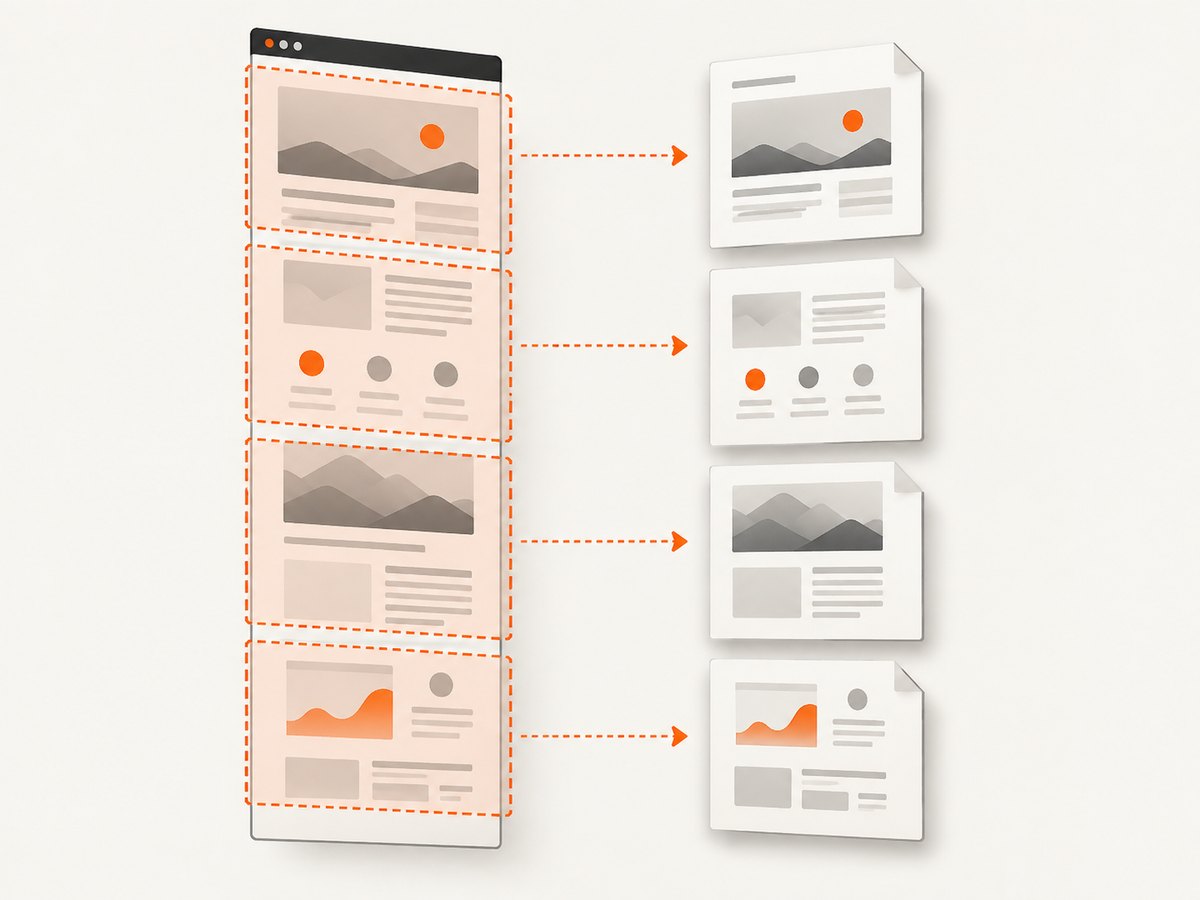
To generate multiple PDF pages from dynamic HTML, wait for the page content, fonts, and images to render; capture the target element with html2canvas; then scale the resulting canvas to the PDF’s printable width and place it across as many jsPDF pages as needed. Calling addPage() alone does not split HTML. You must position the captured image on each page or crop it into page-sized slices.
This approach works well for reports, dashboards, invoices, and other content where a visual copy is enough. Its main trade-off is that canvas output is rasterized: text generally cannot be selected or searched. If you need selectable text, use jsPDF’s text APIs or a rendering approach that preserves text.
1. Install and prepare the browser code
Install jsPDF and html2canvas using your project’s package manager, or load browser bundles through the distribution method supported by your build setup. The example below assumes the libraries are available as imports:
import html2canvas from 'html2canvas';
import { jsPDF } from 'jspdf';
Give the content a stable root element. Avoid capturing a container whose size changes while the export is in progress:
<button id="export" type="button">Export PDF</button>
<main id="report">
  <h1>Monthly report</h1>
  <section class="report-card">Dynamic report content goes here.</section>
</main>
For content loaded asynchronously, make your application finish its data requests and update the DOM before calling the export function. Wait for web fonts with document.fonts.ready. If images are part of the report, wait for them to load too. Waiting only for the initial HTML does not guarantee that dynamic content is ready.
2. Capture the finished element and paginate it
This runnable browser-side function captures #report, fits its width inside A4 margins, and repeats the canvas at an offset on later pages. It uses millimeters consistently for the PDF geometry and saves only after all pages have been assembled.
import html2canvas from 'html2canvas';
import { jsPDF } from 'jspdf';

async function waitForImages(root) {
  const images = [...root.querySelectorAll('img')];
  await Promise.all(images.map(async (img) => {
    if (img.complete) {
      if (img.decode) await img.decode().catch(() => {});
      return;
    }
    await new Promise((resolve) => {
      img.addEventListener('load', resolve, { once: true });
      img.addEventListener('error', resolve, { once: true });
    });
  }));
}

export async function exportPdf() {
  const element = document.querySelector('#report');
  if (!element) throw new Error('Could not find #report');

  await document.fonts?.ready;
  await waitForImages(element);

  const canvas = await html2canvas(element, {
    backgroundColor: '#ffffff',
    useCORS: true,
    windowWidth: element.scrollWidth,
    windowHeight: element.scrollHeight,
    scale: window.devicePixelRatio || 1
  });

  const pdf = new jsPDF({ unit: 'mm', format: 'a4', orientation: 'portrait' });
  const margin = 10;
  const pageWidth = pdf.internal.pageSize.getWidth();
  const pageHeight = pdf.internal.pageSize.getHeight();
  const printableWidth = pageWidth - margin * 2;
  const printableHeight = pageHeight - margin * 2;
  const renderedHeight = canvas.height * printableWidth / canvas.width;
  const imageData = canvas.toDataURL('image/png');

  let remaining = renderedHeight;
  let offset = 0;

  pdf.addImage(imageData, 'PNG', margin, margin, printableWidth, renderedHeight);
  remaining -= printableHeight;

  while (remaining > 0) {
    offset -= printableHeight;
    pdf.addPage();
    pdf.addImage(imageData, 'PNG', margin, margin + offset, printableWidth, renderedHeight);
    remaining -= printableHeight;
  }

  pdf.save('report.pdf');
}

document.querySelector('#export')?.addEventListener('click', () => {
  exportPdf().catch((error) => console.error('PDF export failed:', error));
});
In the loop, the image stays at the same width and moves upward by one printable page height each time. The page clips the part of the image outside its bounds, revealing the next vertical section. The proportional height calculation preserves the canvas aspect ratio.
Choose scale and dimensions deliberately
scale controls the canvas pixel dimensions. A higher value can make text and fine details sharper in the PDF, but it also increases memory use and the chance of hitting browser canvas limits. The device pixel ratio is a convenient starting point; for very long reports, a smaller controlled value may be necessary.
The windowWidth and windowHeight options tell html2canvas which viewport dimensions to use while rendering. Setting them from the element’s scroll dimensions can help avoid captures that reflect only the visible viewport. For responsive layouts, decide which width you want the PDF to represent and keep it consistent.
3. Add intentional page breaks
The repeated-canvas technique paginates by vertical position, so a page may cut through a card, row, or heading. Use CSS to keep suitable blocks together where possible:
.report-card,
.report-table tr,
.report-section {
  break-inside: avoid;
  page-break-inside: avoid;
}
These CSS rules are hints for print-oriented conversion tools; a screenshot-based canvas slice does not always honor them as a true paged document would. If a section must begin at a specific PDF page, use a renderer with explicit page-break support, or split the content into separate captures and place each capture deliberately.
html2pdf.js supports break-before, break-after, and break-inside rules, as well as its legacy html2pdf__page-break class. Its avoid-all mode attempts to keep elements together. That can be more convenient when CSS-driven pagination is central to the layout, though you should still inspect output with long sections and tables. The project documentation describes it as converting a webpage or element to a printable PDF client-side using html2canvas and jsPDF.
4. Use cropped canvas slices for very tall reports
A single very tall canvas can exceed browser limits or consume too much memory. The html2canvas FAQ warns that browsers clip canvases at maximum dimensions. For very long reports, capture sections or render a canvas and crop page-sized slices before inserting them. Cropping avoids embedding the entire tall image repeatedly in every PDF page.
function addCanvasSlices(pdf, source, options = {}) {
  const { margin = 10 } = options;
  const pageWidth = pdf.internal.pageSize.getWidth();
  const pageHeight = pdf.internal.pageSize.getHeight();
  const printableWidth = pageWidth - margin * 2;
  const printableHeight = pageHeight - margin * 2;
  const pxPerMm = source.width / printableWidth;
  const sliceHeight = Math.floor(printableHeight * pxPerMm);
  let y = 0;
  let page = 0;

  while (y < source.height) {
    const height = Math.min(sliceHeight, source.height - y);
    const slice = document.createElement('canvas');
    slice.width = source.width;
    slice.height = height;
    const ctx = slice.getContext('2d');
    if (!ctx) throw new Error('Could not create 2D canvas context');
    ctx.drawImage(source, 0, y, source.width, height, 0, 0, source.width, height);

    if (page > 0) pdf.addPage();
    const heightMm = height / pxPerMm;
    pdf.addImage(slice, 'PNG', margin, margin, printableWidth, heightMm);
    y += height;
    page += 1;
  }
}

// After html2canvas has produced `canvas`:
const pdf = new jsPDF({ unit: 'mm', format: 'a4', orientation: 'portrait' });
addCanvasSlices(pdf, canvas, { margin: 10 });
pdf.save('report.pdf');
This example slices at the printable page height and scales each slice to the same printable width. It keeps the geometry consistent, but a slice can still cut through content. To avoid that, capture individual sections or choose slice boundaries based on your document’s structure.
5. Handle images, controls, and dynamic layout
Cross-origin images and iframes
Set useCORS: true when external image hosts return an appropriate Access-Control-Allow-Origin header. The option cannot override a server’s CORS policy. If an image host does not permit cross-origin access, serve the image through a same-origin proxy that you control. A tainted canvas cannot be read back for export.
Cross-origin iframe contents cannot be read through contentDocument because of browser security restrictions. Do not expect html2canvas to capture a remote iframe’s rendered contents as if they were ordinary elements. If you control that content, provide a same-origin rendering path or capture it separately with an authorized mechanism.
Hide controls and transient elements
Mark buttons, menus, or other elements that should not appear with data-html2canvas-ignore:
<button data-html2canvas-ignore>Export PDF</button>For other unwanted UI, use a dedicated export stylesheet or clone a print-friendly report into an off-screen container before capture. Make sure the cloned content has its styles and data before starting the render.
Wait for data changes
If the report updates after an API call or framework render, await that application work before invoking exportPdf(). For a framework, wait for the state update to commit using the lifecycle mechanism appropriate to that framework. A fixed delay may appear to work but is unreliable on slower devices and networks.
6. Troubleshoot common failures
| Symptom | Likely cause | Fix |
|---|---|---|
| Only the first page appears | The code added one image but did not position it on later pages, or the pagination loop never ran. | Compute rendered height after width scaling, subtract printable height, and add a page while remaining content exists. |
| The bottom or sides are cut off | Capture dimensions reflect the viewport rather than the element’s full scroll size. | Set capture dimensions intentionally from the target element, and use slices for very tall output. |
| External images are blank | The image server does not allow the browser’s cross-origin request. | Use a CORS-enabled image source or proxy it through the same origin. useCORS alone does not grant access. |
| An iframe is empty | The iframe is cross-origin and protected by browser security. | Capture controlled content through a same-origin path or handle it separately. |
| Text is blurry | The canvas has too few pixels for the final PDF size. | Increase scale carefully and verify canvas dimensions and memory use. |
| Fonts or images differ from the page | Capture began before fonts or image decoding finished. | Await document.fonts.ready and image load/decode; wait for asynchronous report data too. |
| Large reports crash or export blank | The canvas exceeded browser dimension or memory limits. | Reduce scale or capture and process smaller sections. Avoid a single enormous canvas. |
| Text cannot be selected in the PDF | The page was inserted as a raster image. | Use jsPDF text APIs or a DOM-to-PDF engine that preserves text if searchability matters. |
7. Performance, reliability, and cost considerations
Canvas memory grows with pixel area, so doubling both width and height multiplies the pixel count by four. Keep the capture width close to the intended PDF width and avoid unnecessarily high scale values. Large images and complex DOM trees also make rendering slower and increase memory pressure.
For reliability, disable or hide animations and wait for stable data, fonts, and images. Consider generating the export in response to a user action so the browser has a clear point at which content is ready. Very long documents are better handled as multiple bounded captures than one extreme canvas. Validate layouts containing tables, long unbroken text, and content that can expand unpredictably.
Direct jsPDF plus html2canvas runs in the user’s browser and does not require a screenshot service for this workflow. The trade-offs are browser memory, rasterized output, and handling cross-origin assets. A service can remove browser setup and provide capture options, but it has its own pricing and request constraints; compare those against the volume and fidelity needs of your application.
8. Or skip the browser setup
ScreenshotNeo is a website screenshot API and MCP server for developers. One GET request can return PNG, JPEG, WebP, or PDF. See the ScreenshotNeo API documentation for request options.
curl -G "https://api.screenshotneo.com/v1/shot" -d access_key=YOUR_API_KEY --data-urlencode url=https://stripe.com -o shot.webpimport requests
r = requests.get("https://api.screenshotneo.com/v1/shot", params={"access_key": "YOUR_API_KEY", "url": "https://stripe.com"}, timeout=90)
open("shot.webp", "wb").write(r.content)const q = new URLSearchParams({ access_key: 'YOUR_API_KEY', url: 'https://stripe.com' });
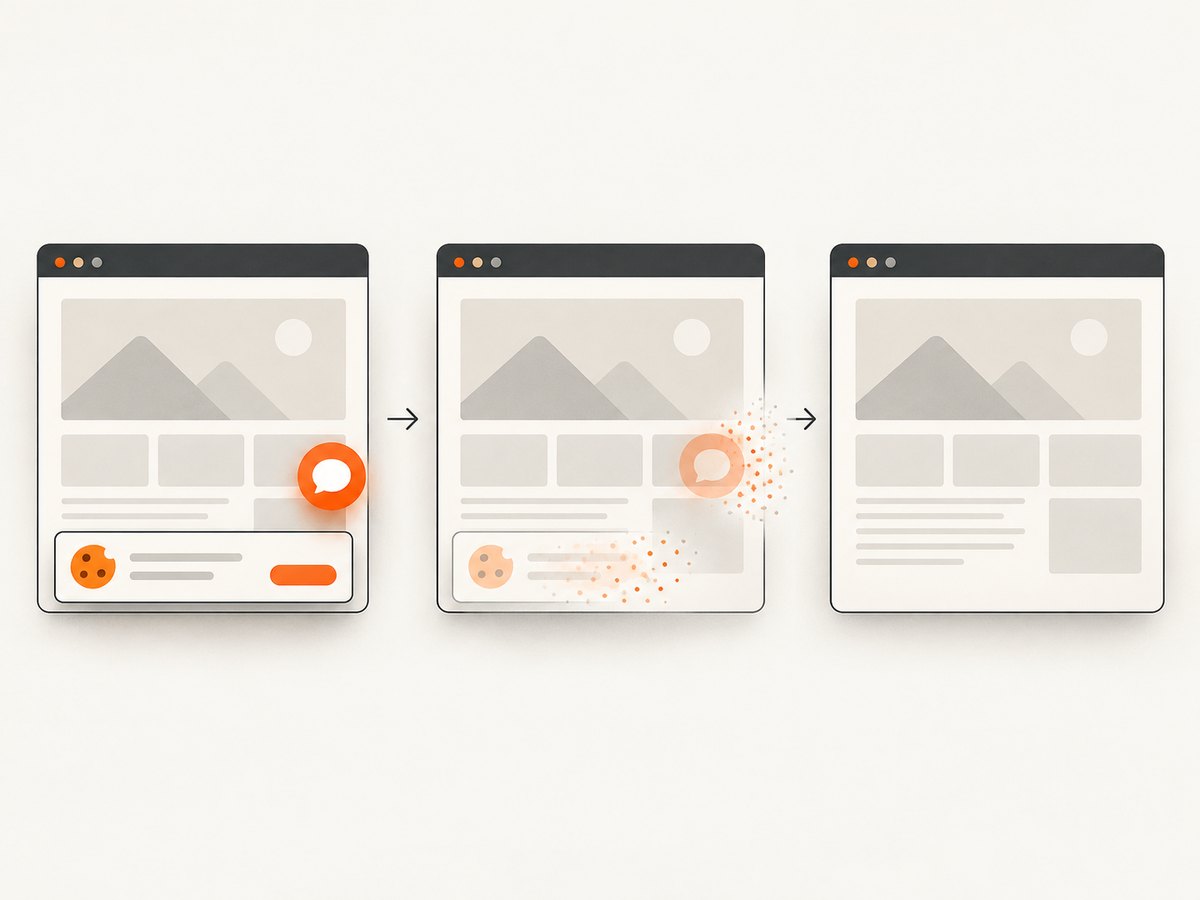
const res = await fetch(`https://api.screenshotneo.com/v1/shot?${q}`);Cookie banners, newsletter popups, and chat widgets are removed before the shot, and each cleanup step can be turned off. Bot checks, blank pages, timeouts, failed loads, and cache hits are not billed; response headers identify the page verdict and billing status. An MCP server gives AI agents tools to take screenshots, get page information, and capture PDFs. The free plan includes 1,000 shots a month with no card; paid plans start at $5 for 3,000 shots.
Sign up for 1,000 free screenshots a month, with no card required.
9. FAQ
Does jsPDF automatically split an HTML element across pages?
No. In this workflow html2canvas produces a bitmap, and your code places it across multiple pages or inserts cropped slices.
Can CSS page breaks guarantee clean boundaries with html2canvas?
No. CSS break rules are useful with paged conversion tools, but a raw canvas is a continuous image. Choose boundaries structurally or use a tool designed around page layout.
Can I keep the PDF text searchable?
Not when the content is inserted only as a canvas image. Use text APIs or a renderer that preserves document text.
Which format should I use for the canvas image?
PNG is a straightforward choice for text-heavy screenshots. Regardless of format, watch output size and check that the exported pages remain legible.
Sources
- html2canvas FAQ: canvas size limits and capture dimensions.
- html2pdf.js project documentation: CSS page-break handling and client-side conversion workflow.
- jsPDF addImage API documentation: accepted image inputs and placement arguments.


