How to Take Multiple Screenshots of One URL Without Reloading in PhantomJS
Open a URL once in PhantomJS, change the page state, and render each screenshot from the same page object. Includes runnable code and troubleshooting.

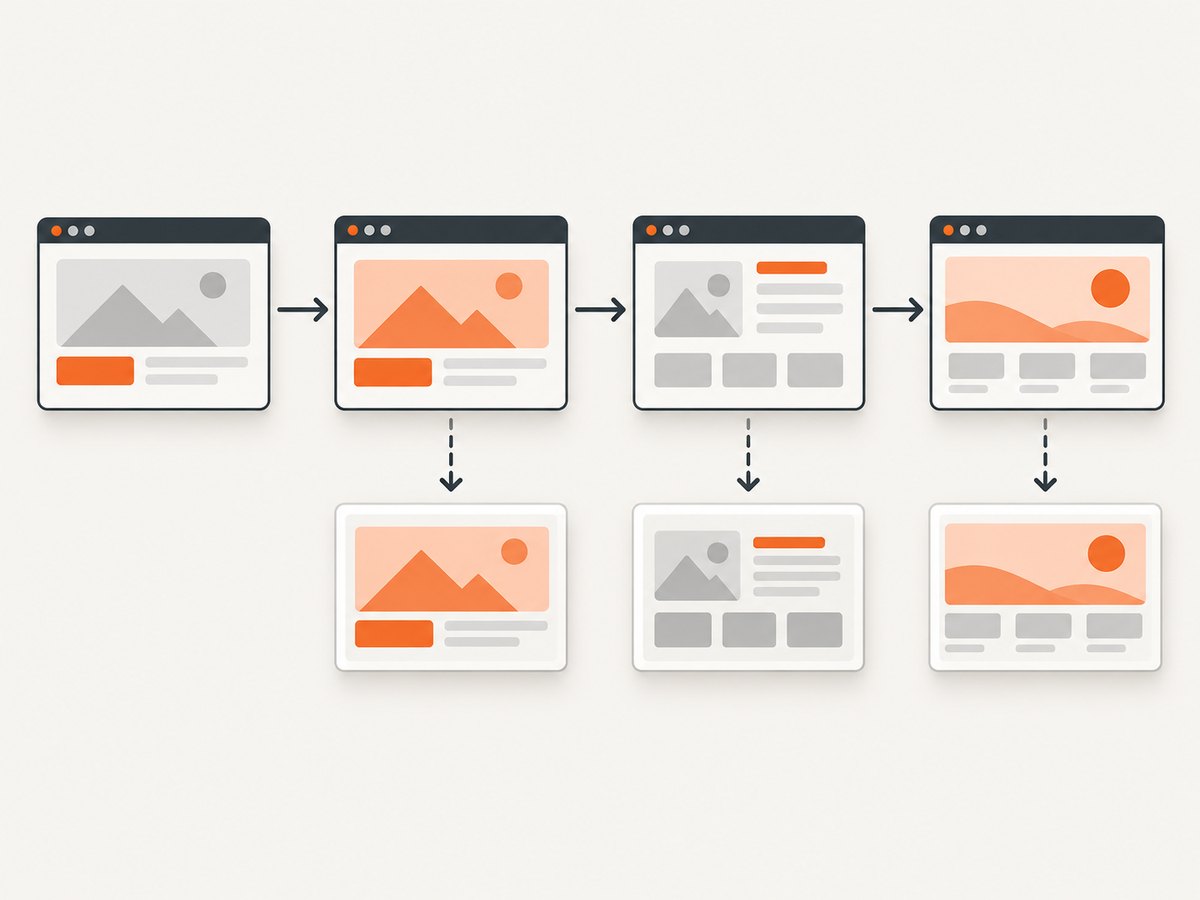
To take multiple screenshots of one URL without reloading it in PhantomJS, call page.open once, keep using that same page object, change or trigger the page state before each capture, wait for that change to finish, and call page.render with a distinct filename each time. The captures then come from successive states of one loaded page.
This is useful for documenting steps in a UI, capturing a menu before and after it opens, or saving several states from a page that has already loaded data. PhantomJS is a legacy tool, so compatibility with current websites is not guaranteed; test your target site and runtime.
1. Install and run a PhantomJS script
Install a PhantomJS binary appropriate for your environment, then save the script below as capture-states.js. Run it with phantomjs capture-states.js from the directory where you want the output files.
var page = require('webpage').create();
var step = 0;
var states = ['first', 'second', 'third'];

page.viewportSize = { width: 1280, height: 800 };

page.open('https://example.com/', function (status) {
  if (status !== 'success') {
    console.log('Unable to load the URL');
    phantom.exit(1);
    return;
  }

  function captureNext() {
    if (step >= states.length) {
      phantom.exit();
      return;
    }

    var currentStep = step;
    var state = states[currentStep];

    // Demonstration only: substitute a real page interaction or state change.
    page.evaluate(function (value) {
      document.body.setAttribute('data-capture-state', value);
    }, state);

    // A short delay only illustrates the sequence. Use a page-specific readiness
    // condition for real asynchronous UI updates.
    window.setTimeout(function () {
      page.render('capture-' + (currentStep + 1) + '.png');
      step += 1;
      captureNext();
    }, 100);
  }

  captureNext();
});
The example writes capture-1.png, capture-2.png, and capture-3.png. Its attribute change demonstrates that the page context can be altered between renders; it does not model a meaningful website interaction. Replace it with an operation that actually changes the target page, such as clicking a control or setting a supported application state.
2. Understand the sequence
- Create one page.
require('webpage').create()gives you the page object that will be opened and rendered. - Open the URL once. The
page.opencallback reports a status. Proceed only when it issuccess; handlefailbefore attempting the captures. - Change the state. Use a page-context operation or an interaction that changes what the page displays.
page.evaluateruns a function in the webpage context. - Wait for readiness. If the change triggers asynchronous work, wait for the relevant application condition, event, or element state to be ready.
- Render, then advance. Call
page.renderafter the state is ready, save to a unique filename, and continue to the next state.
The key is that the callback for the first page.open starts a capture sequence, not a second navigation. Calling page.open again for every screenshot would load the URL again and discard the benefit of reusing the current page.
3. Change a real page state
For a real capture, replace the illustrative attribute update with the interaction your page needs. The function passed to page.evaluate executes in the page, so it can inspect or modify the DOM. Pass simple JSON-serializable values, such as strings and numbers, as arguments. PhantomJS documents this support from version 1.6; functions, DOM nodes, and other non-serializable values should not be treated as transferable arguments.
For example, if the target page has a button with a known selector, a page-context function can attempt to click it:
var clicked = page.evaluate(function () {
  var button = document.querySelector('.menu-toggle');
  if (!button) {
    return false;
  }
  button.click();
  return true;
});

if (!clicked) {
  console.log('Menu button was not found');
}
This only initiates the click. If the menu opens after an animation or network response, do not render immediately. Wait for a page-specific signal, such as the menu becoming visible or a known element appearing. The signal depends on the site; there is no universal delay that works for every interface.
Wait for asynchronous updates
A fixed setTimeout is easy to understand, but it can capture too early on a slow page and waste time on a fast one. Prefer a condition tied to the expected state. One simple pattern is a polling function inside the page context or a repeated check from the PhantomJS script, with a maximum wait so the script cannot run forever.
var attempts = 0;
var maxAttempts = 40;

function waitForMenu() {
  var visible = page.evaluate(function () {
    var menu = document.querySelector('.menu-panel');
    return !!menu && menu.offsetWidth > 0 && menu.offsetHeight > 0;
  });

  if (visible) {
    page.render('menu-open.png');
    captureNext();
    return;
  }

  attempts += 1;
  if (attempts >= maxAttempts) {
    console.log('Timed out waiting for the menu');
    phantom.exit(1);
    return;
  }

  window.setTimeout(waitForMenu, 100);
}
Call waitForMenu() after triggering the menu. Adjust the selector and visibility check for the page. This example bounds the wait at roughly four seconds; choose a limit suitable for the target and your capture job. For application state that is not represented by DOM visibility, wait for the relevant state instead.
4. Configure the viewport and captured region
Set page.viewportSize before opening the page when the layout depends on viewport dimensions. This is the browser’s visible area and can affect responsive breakpoints, wrapping, and which elements are initially in view.
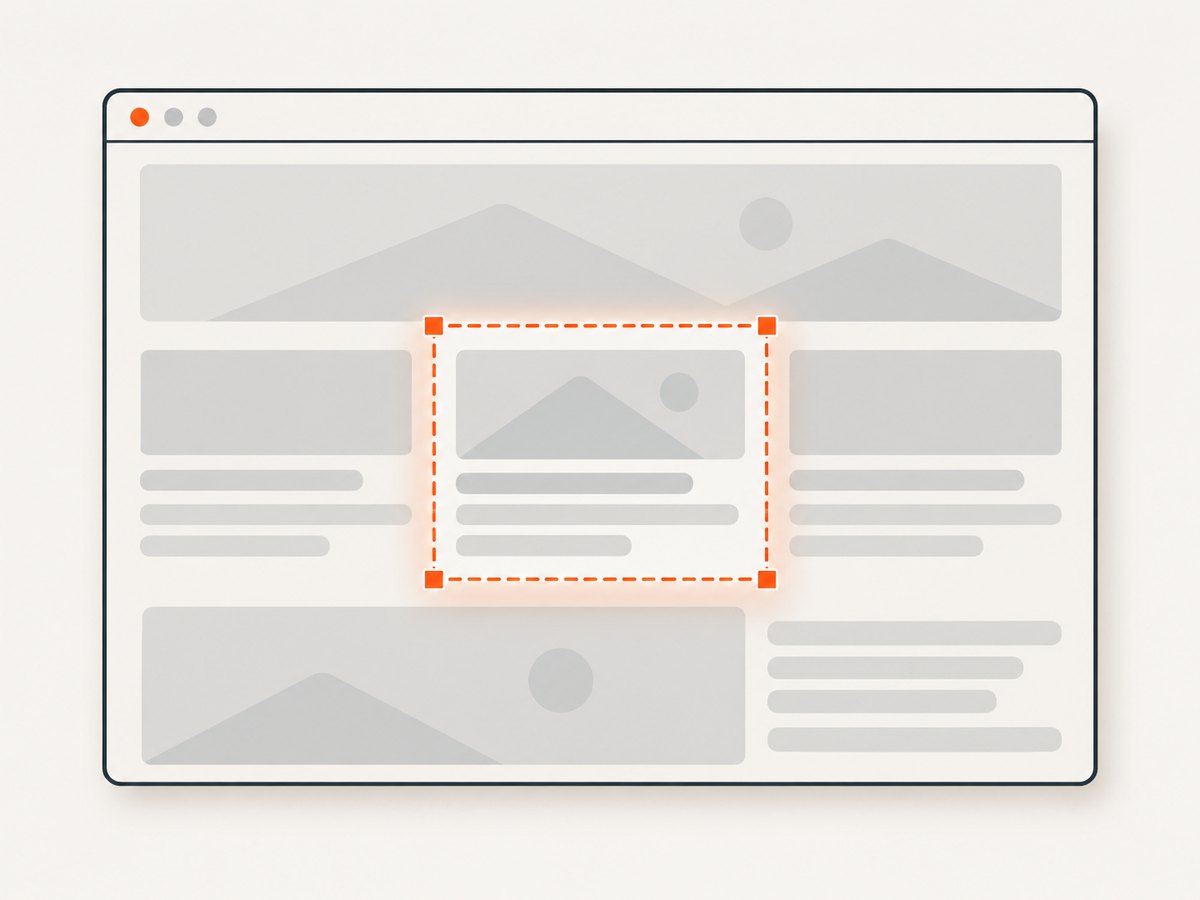
page.viewportSize = { width: 1440, height: 900 };Use page.clipRect when you want to capture a particular rectangular portion rather than the whole rendered page. It specifies the captured region; it does not change the page’s responsive layout in the way changing the viewport can.
page.clipRect = { top: 0, left: 0, width: 900, height: 600 };
page.render('cropped.png');| Setting | Controls | Use it when |
|---|---|---|
viewportSize |
Browser viewport dimensions | You need a specific responsive layout or visible browser area |
clipRect |
Rectangle included in the output | You need a cropped region of the rendered page |
The dimensions in examples are choices, not requirements. Keep the viewport consistent across captures when comparing visual states; change it deliberately when the purpose is to capture different responsive layouts. Consult the [PhantomJS screen capture documentation](https://phantomjs.org/screen-capture.html) for the documented rendering settings.
5. Handle failures and edge cases
- Page open fails: Check the
statusin thepage.opencallback and stop with a nonzero exit code. A failed load is not a usable starting point for the sequence. - State change does nothing: Confirm the selector exists at the time you run the action, that it is the correct control, and that the site allows the interaction. Log the result of a lookup or return a boolean from
evaluate. - Screenshot captures the previous state: The state update may be asynchronous. Wait for a specific visible condition or completion signal before rendering.
- Later files replace earlier files: Reusing a filename can overwrite an earlier image. Include the step number, state name, or another unique identifier in every output path.
- Capture unexpectedly crops content: Inspect
clipRectand its bounds. Remove it for a normal viewport capture, or set it to the intended region. - Layout differs from the browser you expected: Set
viewportSizeexplicitly and account for PhantomJS’s older browser engine. Modern CSS or site scripts may behave differently. - Script exits before callbacks finish: Call
phantom.exit()only after the last render or terminal error. Keep asynchronous work inside callbacks or scheduled functions. - Evaluate returns an unexpected value: Return serializable values such as booleans, strings, numbers, arrays, or plain objects. Do not expect a DOM element or function object to cross the page/script boundary.
The official [PhantomJS open documentation](https://phantomjs.org/api/webpage/method/open.html) describes the callback status, and the [evaluate documentation](https://phantomjs.org/api/webpage/method/evaluate.html) explains page-context execution and argument serialization. The [Quick Start](https://phantomjs.org/quick-start.html) shows the basic open-and-render workflow.
6. Improve reliability and performance
Reusing the page avoids repeating the navigation work for every state. How much time that saves depends on the site, the browser runtime, network, and the work each state change triggers; there is no universal timing figure. If screenshots are used for visual comparison, keep the viewport, output format, and state preparation consistent.
- Use explicit readiness checks. Tie each render to the state you need, not a short arbitrary pause.
- Bound waits. Add a maximum wait and report which state timed out, so one broken page does not hang a batch indefinitely.
- Close the run cleanly. Exit successfully only after every intended file is rendered. Use a failure exit for a failed open or required state that never appears.
- Use predictable paths. Include page and state identifiers in filenames if running more than one URL or job, and ensure the destination directory exists.
- Know the compatibility limit. PhantomJS documentation is legacy documentation. Current websites may depend on browser features or scripts the runtime does not support.
For a handful of captures from one loaded page, the main cost is the initial load plus each state transition and render. For repeated runs, account for runtime maintenance and the possibility that a page changes its markup or behavior. A local PhantomJS process has no per-screenshot service price in this procedure, but it still consumes compute, setup, and engineering time.
7. cURL, Python, and Node.js alternatives
The PhantomJS script above is the direct answer when the requirement is to preserve one browser page across several states. cURL, Python, and Node.js HTTP requests can fetch a URL, but an ordinary HTTP request does not provide a persistent interactive browser page for changing and rendering successive client-side states. The following ScreenshotNeo examples make one screenshot request each; use them when you need a clean capture of a URL without managing a local browser.
Or skip the browser setup
ScreenshotNeo is a website screenshot API and MCP server. One GET request can return a PNG, JPEG, WebP, or PDF. Its API is for capturing a URL; it does not replace the same-page, multi-state PhantomJS sequence when your task requires changing a page between renders. See the ScreenshotNeo API documentation for request options.
cURL
curl -G "https://api.screenshotneo.com/v1/shot" \
  -d access_key=YOUR_API_KEY \
  --data-urlencode url=https://example.com/ \
  -o shot.webp
Python
import requests

r = requests.get(
    "https://api.screenshotneo.com/v1/shot",
    params={"access_key": "YOUR_API_KEY", "url": "https://example.com/"},
    timeout=90,
)
r.raise_for_status()
with open("shot.webp", "wb") as f:
    f.write(r.content)
Node.js
const q = new URLSearchParams({
  access_key: 'YOUR_API_KEY',
  url: 'https://example.com/'
});
const res = await fetch(`https://api.screenshotneo.com/v1/shot?${q}`);
if (!res.ok) throw new Error(`Screenshot request failed: ${res.status}`);
const bytes = new Uint8Array(await res.arrayBuffer());
await import('node:fs/promises').then(fs => fs.writeFile('shot.webp', bytes));
With ScreenshotNeo, cookie and consent banners, newsletter popups, and chat widgets are removed before the shot. Bot checks, blank pages, and failed loads are never billed; response headers identify the page verdict and billing outcome. Its MCP server gives AI agents tools for screenshots, page information, and PDF capture. The free plan includes 1,000 screenshots per month with no card; paid plans start at $5 for 3,000. These are per-request captures, so use PhantomJS when you specifically need multiple states from one loaded page.
Sign up for ScreenshotNeo and get 1,000 screenshots a month free with no card.
Frequently asked questions
Does each call to page.render reload the URL?
No. Rendering saves the current page state. The page reloads only if your script navigates or opens the URL again.
Can the screenshots show different scroll positions?
Yes. Change the page’s scroll position between renders, then wait for any lazy-loaded content to appear before capturing. Make the position and readiness check specific to the page.
Can I save different image formats?
PhantomJS rendering supports image output such as PNG and JPEG. Use an extension and format supported by the installed runtime, and check its screen capture documentation for details.
Will this work on every current site?
No universal compatibility is established here. PhantomJS’s documentation is legacy, and modern sites may rely on browser capabilities it lacks. Try the target site and verify the rendered states in your environment.


