Why MXF File Thumbnails Are Not Showing and How to Fix Them
MXF playback and Explorer thumbnails are separate problems. Find out what to check, how to identify the cause, and when a thumbnail handler may be needed.
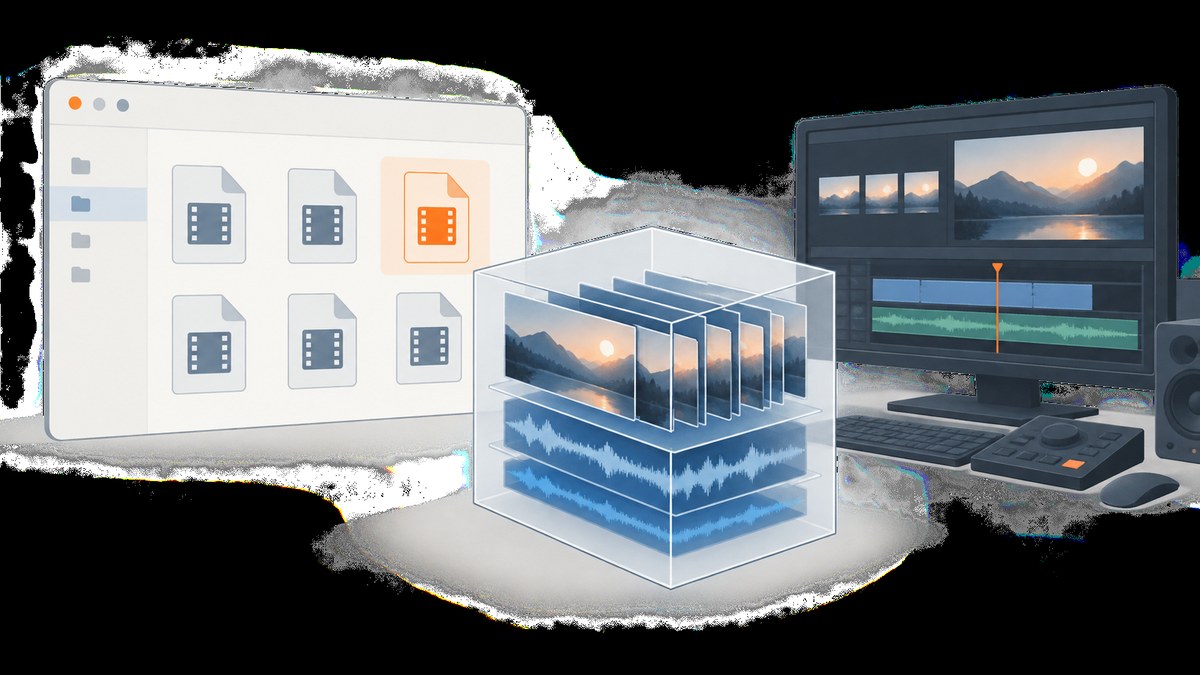
If MXF files play in a media application but show generic icons in Windows File Explorer, the file may be valid while Explorer lacks a compatible thumbnail provider. Check Explorer’s thumbnail settings first, then test playback and identify the MXF’s internal media format. Installing a codec pack is not a universal fix: playback support and Explorer thumbnail support are separate capabilities.
MXF is a container, not a single video codec. Its extension alone does not tell you whether your Windows installation has a handler that can generate a thumbnail for the media inside it. This guide walks through the checks in order and explains what each result means.
1. Check whether Explorer is set to show thumbnails
Start with the inexpensive explanation: Explorer may be displaying a view or setting that hides previews. Switch to a large icon view, such as Large icons or Extra large icons, and see whether other supported media files show thumbnails in the same folder.
- Open the folder containing the MXF files.
- Choose a large icon view from Explorer’s View options. A Details or List view is not a useful test of visible image thumbnails.
- Check whether thumbnails are disabled in the folder or Explorer’s performance/display settings. The exact route can vary by Windows version.
- Compare an MXF file with a common image or video file in the same folder.
- If the folder is cloud-managed, wait for synchronization and check whether the cloud service supplies thumbnails for that path.
Microsoft’s PowerToys File Explorer add-ons documentation describes preview and thumbnail behavior and notes that settings and cloud-managed locations can affect what appears. Its documented examples do not list MXF, so PowerToys should not be treated as an MXF thumbnail fix. Microsoft: PowerToys File Explorer add-ons.
Interpret the result: If no supported files show thumbnails, investigate Explorer’s view or thumbnail settings. If other media displays previews but MXF does not, the issue is more likely specific to MXF handler compatibility.
2. Check whether the MXF file plays
Open the file in the media application used by your editing or playback workflow. If it fails there too, the problem may involve a damaged or incomplete file, an unsupported encoding, or missing playback support. If it plays, that confirms the application can decode it; it does not prove that Explorer can generate a thumbnail.
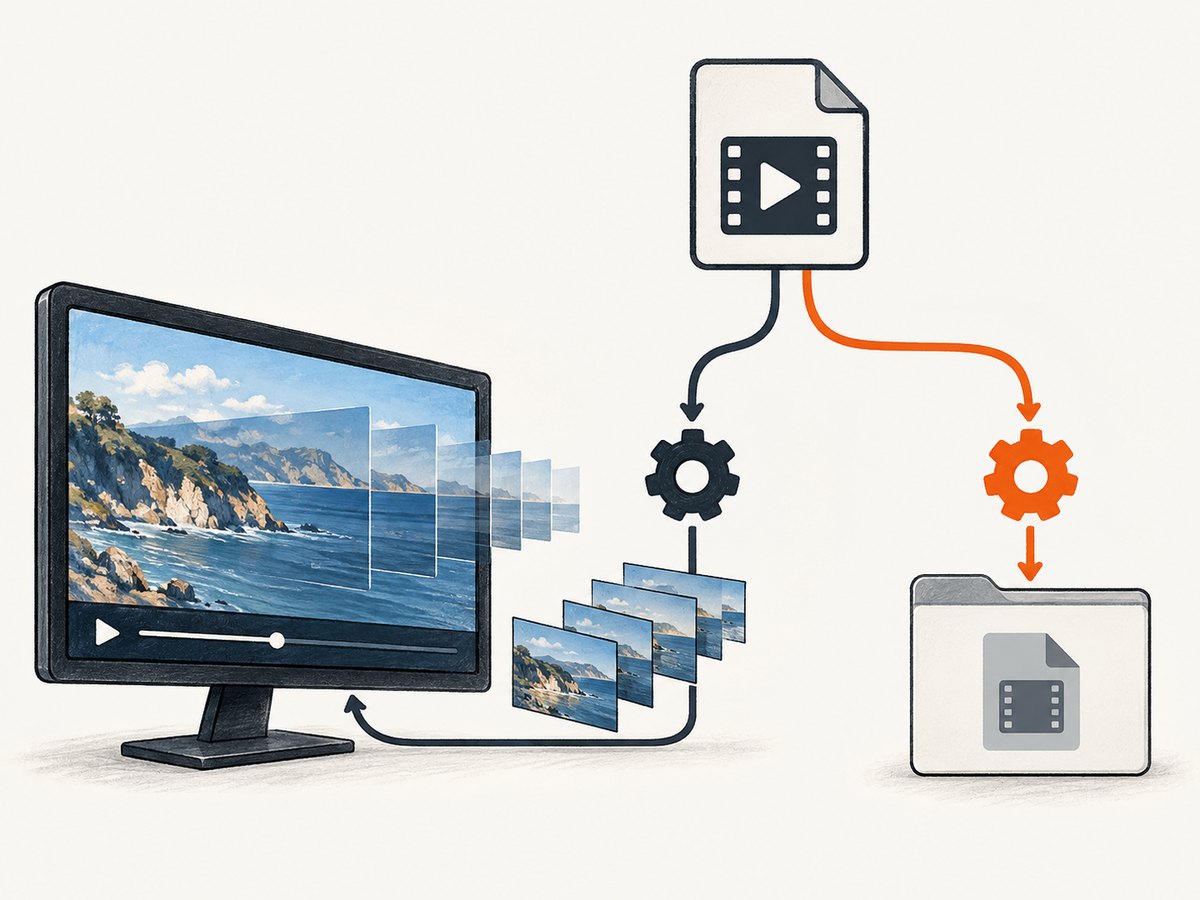
Microsoft’s codec guidance covers playback problems and codec-related errors. Its examples do not establish a general MXF thumbnail extension for Explorer. Microsoft: Codecs FAQ and Microsoft: Troubleshoot Windows Media Player errors.
| Playback result | What it suggests | Next check |
|---|---|---|
| Plays in your media application | The application can read and decode this file. | Check whether Explorer has a thumbnail provider compatible with the file’s MXF media and Windows version. |
| Fails in the application | Playback support, file integrity, or the file itself may be the issue. | Record the application’s error and verify the file in the software intended for its camera or production workflow. |
| Plays in one application but not another | The applications have different decoding support. | Use the application’s documented support information; do not infer Explorer compatibility from one player. |
3. Remember that MXF is a container
The MXF suffix identifies a container format. The actual encoded video essence and other media details inside the container can differ by camera, recording mode, or production workflow. Adobe also describes MXF as a container format in its Media Encoder reference.
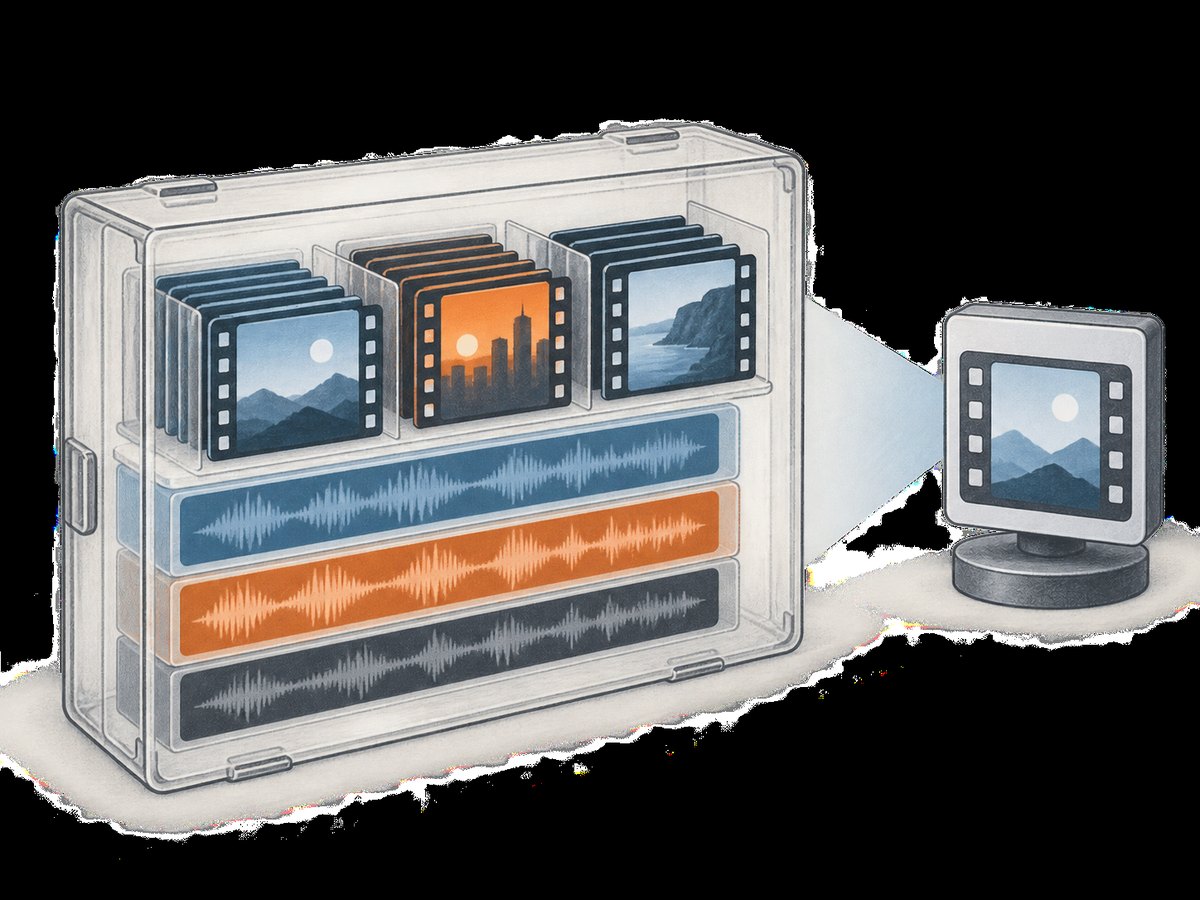
That distinction explains why two files ending in .mxf may behave differently. A handler that supports one camera’s MXF output may not support another’s. A media application can also include its own decoders without exposing a thumbnail provider to Explorer.
When seeking support, collect details that help identify the actual media rather than relying on the extension alone:
- The camera, recorder, or software that created the file, if known.
- The Windows version and the media application in which playback succeeds or fails.
- The file’s codec or essence information, if your editing or inspection application reports it.
- Whether every MXF file fails to show a thumbnail or only files from one source or recording mode.
- Whether the file is local, on a removable drive, or in a cloud-managed folder.
4. Investigate thumbnail-provider compatibility
If the file plays but Explorer still shows a generic icon, look for a component that specifically generates Windows Explorer thumbnails for your MXF media. Verify the exact file support and the current Windows version in the vendor’s official documentation before installing anything.
Check these compatibility questions:
- Exact media: Does the vendor document support for the codec or camera workflow inside your MXF files?
- Windows version: Is the component supported on the Windows release you use?
- Explorer integration: Does it generate File Explorer thumbnails, or only show previews inside its own application?
- Current maintenance: Is the software still supported for current Windows versions?
- Workflow fit: Does it work with the storage location and editing workflow where the files live?
There is historical evidence that this kind of integration existed: a legacy Matrox RT.X2 guide documents MXF thumbnails in Explorer for Vista and XP-era environments. That establishes that a software component can provide the function, but it is not evidence of compatibility with current Windows or your particular files. See the Matrox RT.X2 User Guide.
Do not assume that a generic codec pack will fix this. A codec may enable playback in an application that uses it, while Explorer still has no compatible thumbnail handler. Use only current, official compatibility information for any software you consider.
5. Troubleshoot by symptom
| Symptom | Likely cause | What to do |
|---|---|---|
| All media files show icons, not previews | Explorer view or thumbnail display settings. | Switch to a large icon view and check thumbnail-related settings. |
| Other video formats show thumbnails; MXF does not | No installed handler supports this MXF media, or the installed handler does not integrate with Explorer. | Identify the media format and check current vendor documentation for Explorer thumbnail support. |
| The MXF file will not play either | Unsupported media, missing playback support, or a damaged/incomplete file. | Use the application intended for the recording workflow and investigate its specific error. Confirm the source file is complete. |
| Only cloud-folder files lack thumbnails | The path may depend on cloud-generated previews or files may not be fully available locally. | Check synchronization and cloud-provider behavior; compare with a local copy if your workflow permits. |
| A vendor tool previews the clip but Explorer does not | The tool may use an internal preview feature without registering an Explorer thumbnail provider. | Confirm that Explorer integration is explicitly documented for your Windows version. |
| Some MXF files show thumbnails while others do not | The files may contain different media or require different handler support. | Compare their reported codec, source, and recording mode; check compatibility for each variant. |
6. A practical decision path
- Make the thumbnail visible: select a large icon view and confirm other media can show previews.
- Test playback: open an MXF file in the application intended for that workflow. Note whether it plays and any error text.
- Compare files: check whether all MXF files fail or only files from a particular camera, recorder, or mode.
- Identify the media: get codec or essence details from a suitable media application when available.
- Verify a handler: consult the vendor’s current documentation for both the exact MXF media and Explorer integration on your Windows version.
- Recheck the original symptom: after any supported software change, return to the same folder and view. If playback works but Explorer still lacks thumbnails, treat those as separate capabilities.
This sequence avoids changing codecs or system settings before establishing whether the file plays and whether Explorer is configured to display thumbnails.
7. Capture a web page instead of diagnosing an MXF file
If the actual task is documenting a website, its HTML video preview, or a media workflow page, a browser screenshot is a separate job from generating a Windows thumbnail for a local MXF file. ScreenshotNeo is a website screenshot API and MCP server from ScreenshotNeo; it captures web pages, not local MXF files.
To capture a web page yourself, launch a browser automation tool, navigate to the URL, wait for the page to render, and save a screenshot. That approach gives control over the browser and page state, but you need to manage the browser installation, rendering waits, and output handling.
Or skip the browser setup
One GET request returns a screenshot or PDF. See the ScreenshotNeo API documentation.
curl -G "https://api.screenshotneo.com/v1/shot" -d access_key=YOUR_API_KEY --data-urlencode url=https://stripe.com -o shot.webpimport requests
r = requests.get(
"https://api.screenshotneo.com/v1/shot",
params={"access_key": "YOUR_API_KEY", "url": "https://stripe.com"},
timeout=90,
)
open("shot.webp", "wb").write(r.content)const q = new URLSearchParams({ access_key: 'YOUR_API_KEY', url: 'https://stripe.com' });
const res = await fetch(`https://api.screenshotneo.com/v1/shot?${q}`);
if (!res.ok) throw new Error(`Screenshot request failed: ${res.status}`);
const fs = await import('node:fs/promises');
await fs.writeFile('shot.webp', Buffer.from(await res.arrayBuffer()));ScreenshotNeo removes cookie banners, newsletter popups, and chat widgets before capture. Bot checks, blank pages, and failed loads are never billed, and responses include page-verdict and billing headers. An MCP server provides screenshot tools for AI agents. The Free plan includes 1,000 screenshots a month with no card; paid plans start at $5 for 3,000.
Sign up for ScreenshotNeo: get 1,000 screenshots a month free, with no card.
Performance, reliability, and cost notes
- Thumbnail performance: the checks above require no bulk conversion. Avoid judging support from a single file if your archive contains multiple MXF sources or formats.
- Reliability: a successful playback test confirms only that a particular application can play that file. It does not confirm Explorer thumbnail support. A handler’s documented support for the exact media and Windows version is the useful compatibility signal.
- Cost: verify the vendor’s current licensing and support terms before adopting a thumbnail component. This research does not establish a currently supported handler across MXF variants, so no particular product or price can be recommended.
- ScreenshotNeo costs: its Free plan includes 1,000 shots per month; paid plans are Starter $5 for 3,000, Growth $15 for 15,000, Pro $39 for 60,000, Scale $99 for 250,000, and Business $249 for 1,000,000. Yearly billing gives two months free. Every feature is on every plan.
Frequently asked questions
Does the .mxf extension tell me which codec the file uses?
No. MXF is a container format. The encoded media inside it can vary, so identify the media details when investigating compatibility.
If an MXF plays, is the file definitely valid?
Playback shows that the application can read and decode it, but it does not establish every aspect of file integrity or whether Explorer can create a thumbnail.
Will PowerToys add MXF thumbnails to Explorer?
Microsoft’s documented PowerToys examples do not list MXF. Do not rely on it as an MXF thumbnail solution.
Should I edit the Windows registry to add a thumbnail handler?
The cited evidence does not support registry edits as a general fix. First establish the exact media format and verify that a currently supported vendor component provides Explorer thumbnails for it.
Can ScreenshotNeo create thumbnails for MXF files on my PC?
No. ScreenshotNeo captures web pages through an API or MCP server; it is not a local media thumbnail generator.


