n8n Integration: Automate Document Generation
Build an n8n workflow that turns structured data into a document, then stores or sends it. Learn which formats n8n supports and what you need for PDFs.
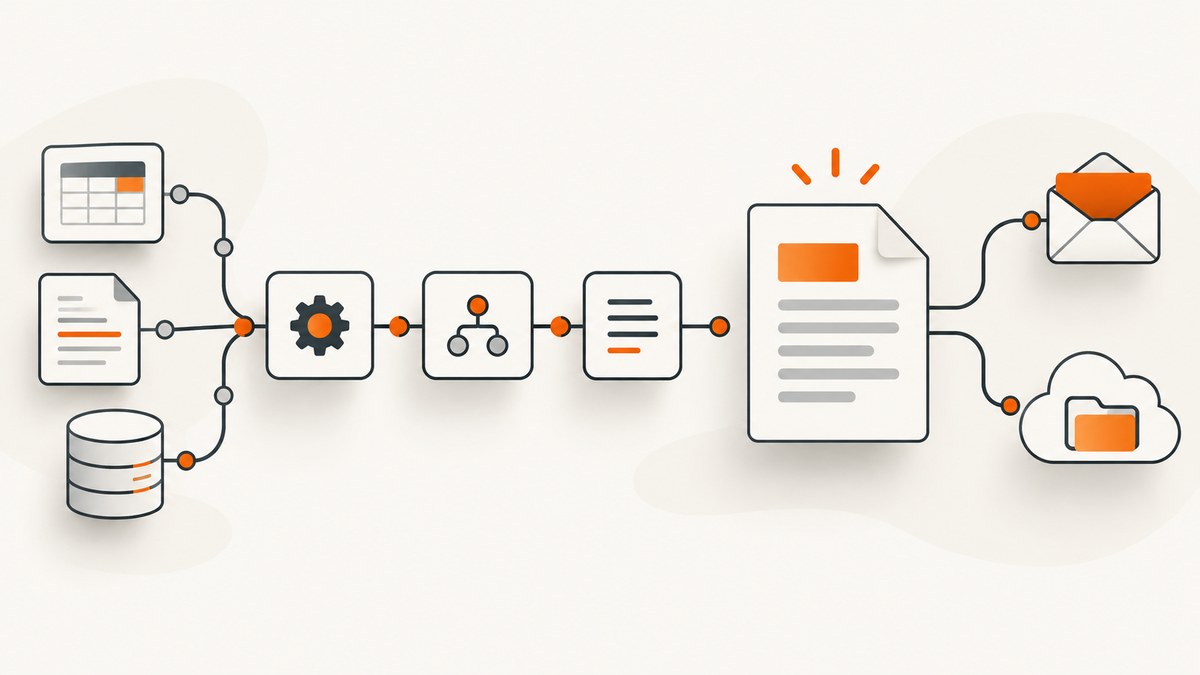
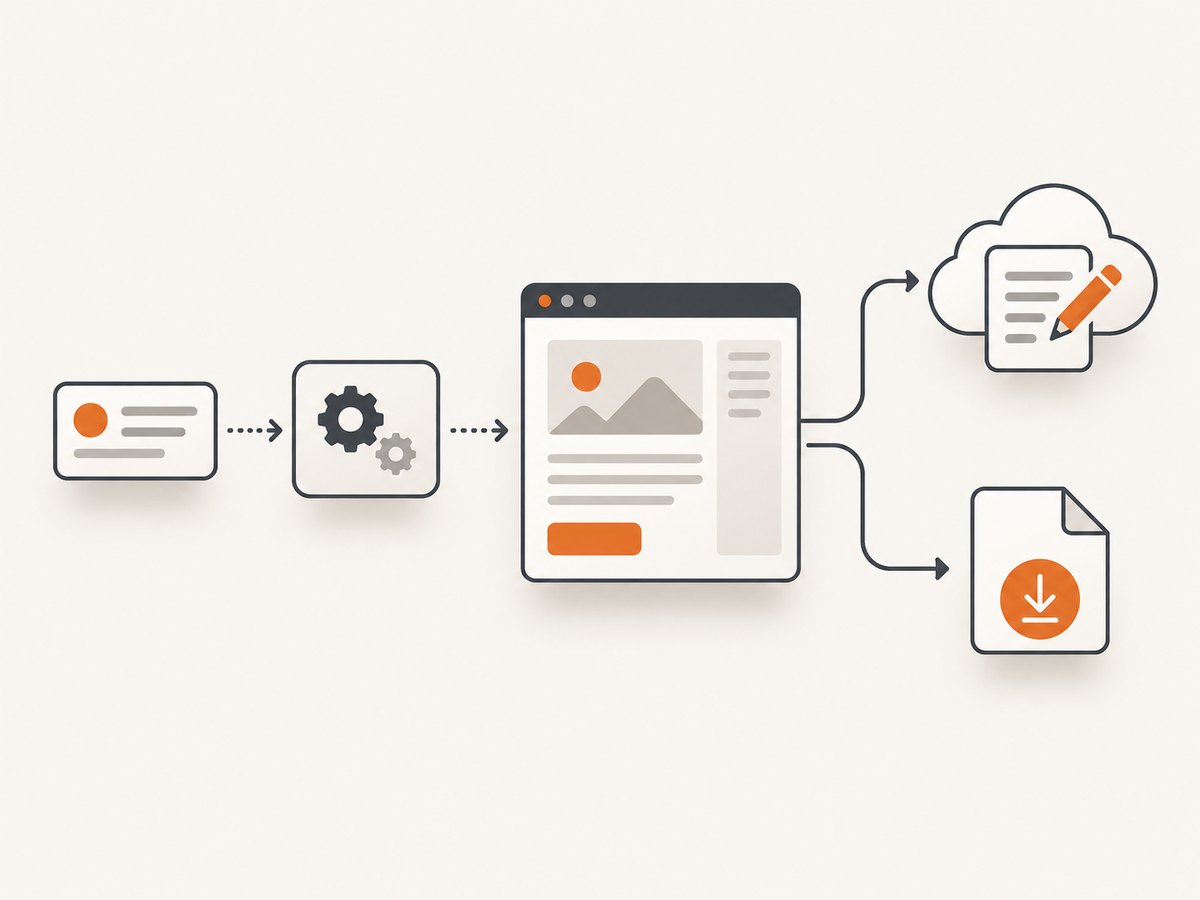
To automate document generation in n8n, trigger a workflow when new data arrives, normalize that data, render it into a template, convert it to a supported file format, and send or store the result. For an editable Google Doc, investigate the current Google Docs node operations for your n8n version before building around them. For downloadable files, n8n’s Convert to File node documents formats such as HTML, RTF, text, CSV, JSON, and spreadsheets; its documented operation list does not include PDF generation. A PDF workflow therefore needs a separate, verified PDF renderer or service.
This distinction matters: converting content into a file, extracting data from an incoming PDF, and generating a PDF are different tasks. n8n documents PDF input extraction, but that does not mean its Extract From File node creates PDFs. n8n connects apps and manipulates data, and is available through n8n Cloud or self-hosted options such as npm and Docker. Read the n8n documentation for current setup and node details.
1. Decide what document you need
Choose the output and destination before wiring nodes together. The right workflow depends on whether a recipient needs to edit the document, download a file, or receive information in a message.
| Requirement | Workflow direction | Important check |
|---|---|---|
| Editable cloud document | Use the relevant document integration, then store or share it. | Google Docs appears in n8n’s integration documentation, but confirm its current node operations and template support before promising document creation or population. |
| HTML, RTF, text, CSV, JSON, or spreadsheet file | Prepare JSON, then use Convert to File for a documented format. | Choose the matching conversion operation and configure its options for your data. |
| PDF output | Prepare the content, then connect a PDF renderer or service whose n8n integration or API you have verified. | Do not treat Convert to File’s HTML output as a PDF, or Extract From File’s PDF support as PDF generation. |
| Incoming PDF to process | Receive the binary file, then use Extract From File to turn its contents into JSON. | This is an extraction step that can feed a later generation workflow. |
Convert to File documents operations for CSV, HTML, ICS, JSON, ODS, RTF, text, XLS, XLSX, and moving a base64 string into a file. Depending on the conversion, its options include file name, encoding, sheet name, headers, and compression. It can create one JSON file from all input items or one JSON file per item. Confirm the selected operation’s available options in the node UI because not every option applies to every format.
2. Build the workflow from data to document
- Choose a trigger. Start from the event that represents a document request: a webhook submission, a new record, or another connected app event. A manual trigger is useful while shaping the workflow.
- Gather and normalize fields. Map source fields into a predictable object. Decide what happens when values are missing, dates need formatting, or a record contains multiple line items. Use expressions or transformation nodes to produce consistent input for the template.
- Render content. For HTML, use the HTML node to create markup from workflow data, HTML, CSS, and expressions. It supports JavaScript in template markup, but n8n does not execute that JavaScript.
- Convert or render to the target format. Use Convert to File for one of its documented formats. For PDF, add a separately verified renderer. For an editable cloud document, check the destination integration’s current actions and template behavior.
- Deliver or store the result. Send the resulting binary field as a Gmail attachment, use Telegram’s Send Document action, or connect a storage destination after confirming its current node operations.
Example: HTML content from a workflow item
This is a template pattern for the HTML node. Replace the field names with fields in your incoming item and adapt the expression syntax to the node’s editor. The code produces HTML; it does not by itself produce a PDF.
<!doctype html>
<html>
<head>
  <meta charset="utf-8">
  <style>
    body { font: 16px/1.5 Arial, sans-serif; margin: 40px; color: #222; }
    h1 { margin-bottom: 8px; }
    .muted { color: #666; }
    table { width: 100%; border-collapse: collapse; margin-top: 24px; }
    th, td { border-bottom: 1px solid #ddd; padding: 8px; text-align: left; }
  </style>
</head>
<body>
  <h1>{{ $json.title }}</h1>
  <p class="muted">Reference: {{ $json.reference }}</p>
  <p>{{ $json.summary }}</p>
</body>
</html>
Map the generated HTML into the Convert to File node if you want an HTML file. Select the HTML conversion operation and set a file name if that option is available for the selected operation. If the goal is a PDF, pass suitable content to a PDF-capable renderer instead and confirm how that service accepts content and returns a binary file. Exact renderer configuration depends on the service chosen.
Example input object
Keep a stable schema so a template does not depend on the quirks of each upstream app. For example, normalize data into a single item like this before rendering:
{
  "title": "Service summary",
  "reference": "SR-1042",
  "summary": "Work completed and next steps.",
  "recipient": "reader@example.com",
  "createdAt": "2026-09-29"
}
In production, include checks for required values before the template step. Decide whether missing data should stop the execution, be replaced with a safe default, or route the item for review. For multiple records, choose deliberately whether one document should contain all records or whether each item should become a separate file.
3. Convert and deliver the file
When a node creates a binary output, note the binary property name it uses. Downstream nodes need that exact field. Gmail’s Send operation supports an attachment by selecting the input attachment field name; it also supports recipient, subject, message, email type, and options such as CC, BCC, sender name, and reply-to address. Telegram documents a Send Document operation. Confirm credentials, recipient identifiers, and the input binary field in those nodes.
Checklist before activation
- Confirm the output format and whether recipients need an editable document or a file.
- Test with representative input, including missing optional fields and long values.
- Check that the generated file name and extension match the actual format.
- Verify the binary field reaches the delivery node and opens correctly at the destination.
- Use a test recipient or destination before enabling the trigger for real requests.
- Decide how failed rendering or delivery is surfaced and who can retry it.
4. Generate a PDF from n8n
If the requirement is “generate a PDF,” plan a separate render step. The documented Convert to File formats above do not list PDF. A common architecture is: create HTML or another renderer-ready representation, send it to a PDF-capable service or verified integration, receive the resulting binary, then store or deliver that binary. Before choosing a renderer, verify its authentication method, request format, output handling, limits, and whether the service can reach any referenced assets.
Do not assume an HTML document will render identically in every PDF engine. Layout support, fonts, page breaks, headers, and remote images depend on the chosen renderer. If precise pagination matters, build a representative sample with long text, tables, and page breaks, then review the rendered output.
5. Handle incoming documents separately
To extract content from a PDF that arrives through a webhook, HTTP request, or another source, receive it as binary and pass it to Extract From File. The node documents PDF, CSV, HTML, JSON, ICS, ODS, RTF, text, XLS, and XLSX input formats and converts file contents into JSON. Validate the extracted fields before using them to generate another document. For invoices or receipts, n8n also documents an AWS Textract node operation to analyze a receipt or invoice; that is an optional data extraction path, not a requirement for ordinary document generation.
6. Security, reliability, and operating cost
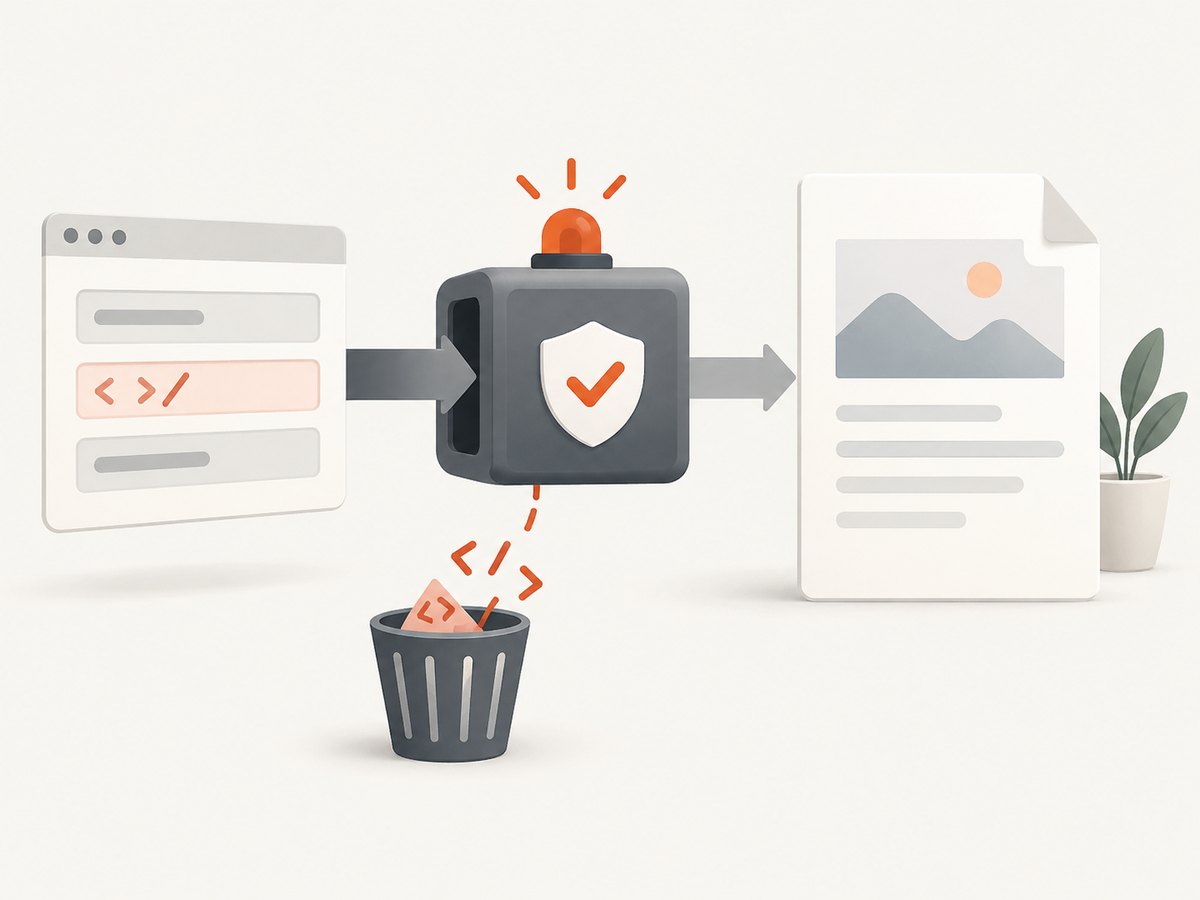
n8n’s HTML node documentation warns: “When using the HTML node to generate an HTML template you can introduce XSS (cross-site scripting). This is a security risk. Be careful with un-trusted inputs.” Treat values from forms, customers, and external systems as untrusted. Validate them and use safe output handling before displaying generated HTML or distributing it. Avoid placing secrets or private data in a document unless the workflow and destination are intended to handle them.
For reliability, make each execution traceable to its source record, retain enough information to investigate failures, and design retries carefully. A retry after a delivery timeout can send a duplicate even when the first send succeeded. Where possible, include a stable document reference and check whether a prior output already exists before creating or sending another copy. Route incomplete data to a review path rather than generating a misleading document.
Generation time and running cost depend on the trigger frequency, document size, selected renderer, destination services, and hosting arrangement. The retrieved n8n documentation does not provide a document-generation benchmark or a universal cost estimate. Estimate with your own expected workflow volume and chosen services; for self-hosting, account for the infrastructure and operational work you choose to run. No renderer performance or success rate should be assumed without measuring the actual workflow.
7. Troubleshooting common failures
| Symptom | Likely cause | What to check |
|---|---|---|
| Template shows blank values | Incoming keys differ from the expressions, or a previous node changed item structure. | Inspect the node input, confirm exact field names, and map a normalized object before rendering. |
| HTML looks right but JavaScript behavior is missing | The HTML node does not execute JavaScript in its markup. | Generate the required content in workflow nodes or use a renderer that explicitly supports the needed behavior. |
| Attachment is missing | The delivery node is configured with the wrong binary property name, or the prior node did not return binary data. | Inspect the execution’s binary output and set the attachment field to that exact property. |
| Expected PDF but got HTML or another file | Convert to File was used as though it supported PDF generation. | Add and verify a PDF renderer; the documented conversion list does not include PDF. |
| Extracted PDF data is empty or incomplete | The input binary field or document content may not match expectations. | Confirm the file arrived intact, select the correct binary field, and inspect the extraction output before continuing. |
| Email or chat send fails | Credentials, recipient details, permissions, or attachment configuration may be wrong. | Review the node error, verify credentials and destination access, and test a small file to a controlled recipient. |
| Unexpected markup appears in a document | External text may contain markup, or values were inserted without suitable validation or safe output handling. | Validate and safely handle untrusted data; do not assume template input is trusted. |
Or skip the browser setup
If a generated document includes a web page screenshot, you can capture it with ScreenshotNeo, a website screenshot API and MCP server. One GET request returns an image or PDF:
curl -G "https://api.screenshotneo.com/v1/shot" -d access_key=YOUR_API_KEY --data-urlencode url=https://stripe.com -o shot.webpSee the ScreenshotNeo API documentation for request options. Cookie banners, popups, and chat widgets are removed before the shot; bot checks, blank pages, and failed loads are never billed. Its MCP server lets AI agents take screenshots. The free plan includes 1,000 screenshots a month with no card; paid plans start at $5 for 3,000. Sign up for 1,000 free screenshots a month, with no card.
FAQ
Can n8n create a document from a template?
Yes, the workflow can render a template from incoming data. The HTML node supports HTML, CSS, and expressions. For a Google Docs template workflow, verify the current node operations and template capabilities before relying on them.
Can Convert to File generate PDF?
PDF is not in the documented Convert to File operation list referenced here. Use a separately verified PDF renderer for PDF output.
Can n8n read a PDF and use its contents in a new document?
Extract From File supports PDF input extraction to JSON. That extracted data can then become input to a separate generation workflow.
Which delivery options can I use?
The documented Gmail node can send an attachment from an input binary field, and Telegram supports sending a document to a chat. Other destinations depend on the integrations and actions available in your n8n version.


