How to Name and Return a Puppeteer PDF Without Saving It
Generate a Puppeteer PDF in memory, then return it as a named download. See the byte-array and stream approaches, response headers, options, and common fixes.

Use page.pdf() without a path option to generate a Puppeteer PDF in memory. It returns a Uint8Array; your server then sends those bytes in its HTTP response and sets the download filename there. Puppeteer generates the PDF, but the HTTP response layer names the download.
The PDFOptions reference documents path as optional; its default is undefined, which means Puppeteer does not write the PDF to disk. The Page.pdf() reference documents its return value as Promise<Uint8Array>.
1. Generate the PDF without writing a file
After navigating to the page you want to print, call page.pdf() and leave out path. This is the core operation, independent of your server framework:
const pdf = await page.pdf(); // Uint8Array; no path means no PDF file is writtenFor example, a complete browser-side function can create the browser, load a URL, produce the bytes, and close the browser. It does not save a PDF:
import puppeteer from 'puppeteer';

async function createPdfBytes(url) {
  const browser = await puppeteer.launch();
  try {
    const page = await browser.newPage();
    await page.goto(url, { waitUntil: 'networkidle2' });
    return await page.pdf({
      format: 'A4',
      printBackground: true,
      margin: { top: '12mm', right: '12mm', bottom: '12mm', left: '12mm' },
    });
  } finally {
    await browser.close();
  }
}
The return value is PDF data in memory. No path is passed, so this call does not create a local PDF file. The browser and page still use their ordinary runtime resources; “without saving” here means the PDF output is not written to a file by Puppeteer.
2. Return the bytes as a named download
An HTTP download generally needs a PDF content type and a response disposition that tells the client to treat the response as an attachment with a suggested filename. Those are response headers, not Puppeteer PDF options. The exact response method varies by framework, so keep the responsibilities separate:
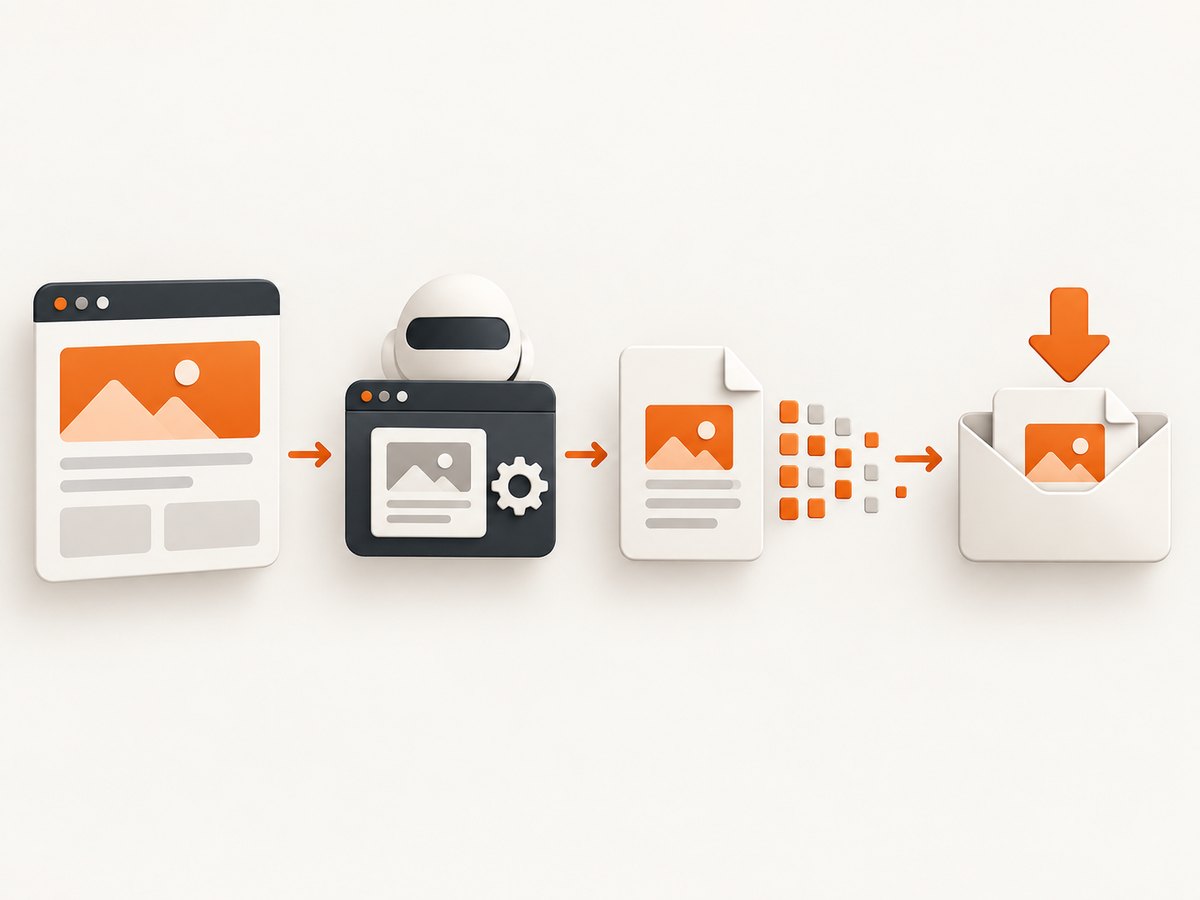
- Generate the PDF bytes with Puppeteer, omitting
path. - Set the response content type to
application/pdf. - Set a
Content-Dispositionattachment filename, such asreport.pdf. - Send the PDF bytes as the response body. Do not JSON-encode the byte array.
Here is a complete minimal example using Node.js’s built-in http module. It accepts a fixed URL so the example focuses on producing and returning the PDF; in a real service, validate any URL supplied by a caller before navigating to it.
import http from 'node:http';
import puppeteer from 'puppeteer';

const server = http.createServer(async (req, res) => {
  if (req.url !== '/report.pdf') {
    res.writeHead(404, { 'Content-Type': 'text/plain; charset=utf-8' });
    res.end('Not found');
    return;
  }

  let browser;
  try {
    browser = await puppeteer.launch();
    const page = await browser.newPage();
    await page.goto('https://example.com', { waitUntil: 'networkidle2' });
    const pdf = await page.pdf({ format: 'A4', printBackground: true });

    res.writeHead(200, {
      'Content-Type': 'application/pdf',
      'Content-Disposition': 'attachment; filename="report.pdf"',
      'Content-Length': String(pdf.byteLength),
    });
    res.end(Buffer.from(pdf));
  } catch (error) {
    if (!res.headersSent) {
      res.writeHead(500, { 'Content-Type': 'text/plain; charset=utf-8' });
      res.end('Could not generate PDF');
    } else {
      res.destroy(error);
    }
  } finally {
    await browser?.close();
  }
});

server.listen(3000);
Save this as an ES module file in a project that has Puppeteer installed, then run it with Node.js. Visit http://localhost:3000/report.pdf; the browser should offer a download named report.pdf. The sample uses a fixed filename and fixed target. If either value depends on request data, validate it and encode it appropriately before using it in headers or as a navigation target.
Filename details
Use a basename such as report.pdf, rather than a local filesystem path. A download filename is metadata for the client; it does not tell Puppeteer where to write the PDF. Keep user-provided filenames to a safe character set, remove path separators and control characters, and ensure the name ends in .pdf. If you need to support arbitrary Unicode names, use the HTTP filename parameter conventions supported by your framework or response library; do not paste untrusted text directly into a header.
The example includes Content-Length, calculated from the generated byte array. It is optional when your response stack can frame the body another way, but if you set it, use the byte length of the exact data being sent. Buffer.from(pdf) adapts the returned typed array for the Node response API.
3. Choose bytes or a stream
page.pdf() is convenient when the PDF size is manageable and your response API accepts a byte array or buffer. It resolves only after producing the bytes, which your application can then send. The complete PDF is held in memory at that point.
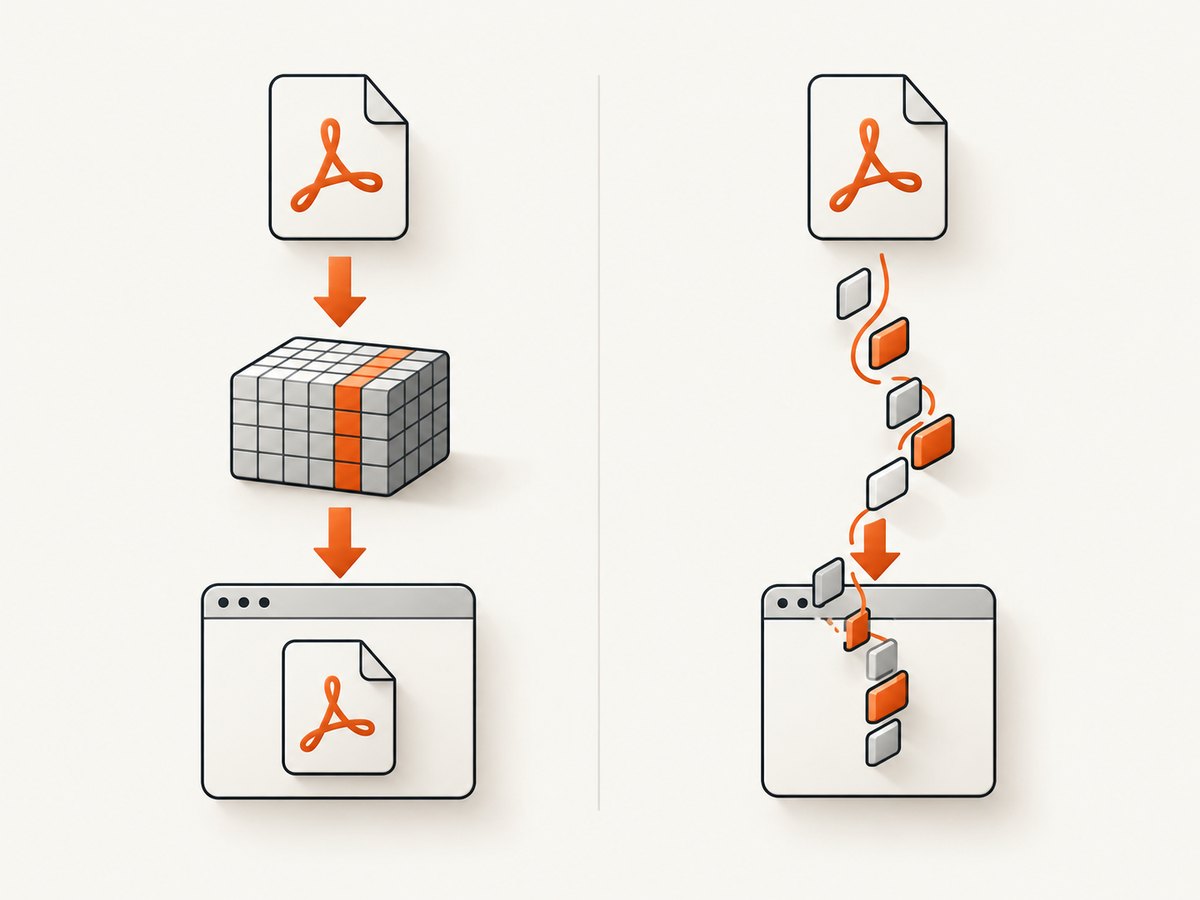
If your downstream response path works with streams, Puppeteer also provides page.createPDFStream(), which returns a ReadableStream<Uint8Array>. See the stream method reference. Choose the response integration that matches the stream type your framework accepts; web-standard readable streams and Node.js streams are related but not interchangeable in every API. The Puppeteer return type alone does not provide a universal framework adapter.
const pdfStream = await page.createPDFStream();
// Pass pdfStream to a compatible response path for your server framework.
Use a stream when it fits the response stack and you want to avoid first collecting the complete result as a byte array. The documentation identifies the stream type but does not specify memory savings or guarantee that every response layer can consume it directly. Confirm compatibility for your runtime and framework.
4. Set print behavior with PDF options
The method call that creates the bytes also controls page appearance. The current PDFOptions reference documents these defaults and choices:
| Option | What it controls | Documented behavior to know |
|---|---|---|
path |
Whether Puppeteer writes output to a file | Optional; omitted/undefined means no disk write |
format |
Paper preset, such as Letter or A4 | Defaults to letter; takes priority over width and height when set |
width, height |
Custom paper dimensions | Use when a preset format is not appropriate; don’t expect them to override a supplied format |
printBackground |
Whether printed backgrounds are included | Defaults to false |
margin |
Top, right, bottom, and left page margins | Undefined means no margins are set |
waitForFonts |
Whether PDF creation waits for fonts | Defaults to true |
timeout |
PDF generation timeout in milliseconds | Defaults to 30,000; 0 disables the timeout |
For a custom size, use a supported dimension string, for example width: '210mm' and height: '297mm'. Select one sizing approach deliberately: a format preset or explicit dimensions. Use margins that leave room for headers, footers, and printer-safe content when those matter.
Print CSS or screen CSS
Puppeteer uses print media for PDF generation by default. This means print-specific CSS can affect visibility, layout, and colors. If the PDF should use the page’s screen styles instead, call page.emulateMediaType('screen') before generating it:
await page.emulateMediaType('screen');
const pdf = await page.pdf({ format: 'A4', printBackground: true });
For print styling, leave the default media type in place and define print rules in the page, such as page breaks or print-only elements. The method documentation notes that colors are modified for printing by default and points to the CSS property -webkit-print-color-adjust when exact colors are needed. Check the Page.pdf() reference for the behavior and details.
5. Make page loading reliable before printing
PDF output is only as complete as the page state at capture time. Pick a navigation wait condition that matches the site rather than adding an arbitrary long delay. For example, a page that keeps analytics or live connections open may never become network-idle. A page that renders client-side content after navigation may need a selector or application-specific readiness signal before calling page.pdf().
A practical sequence is:
- Navigate to the target page and await an appropriate load milestone.
- Wait for a page-specific element that signals the content is ready, when needed.
- Optionally set the media type to
screenif that is the intended styling. - Call
page.pdf()with explicit format, margins, background, and timeout choices. - Send the result with PDF response headers and a controlled filename.
Fonts can change line wrapping and pagination. The documented waitForFonts default is true; keep that behavior unless you have a clear reason to disable it. If a custom font is loaded late by the page, wait for your application’s own ready condition as well. A timeout should be long enough for the document generation workload but finite for service reliability; the documented default is 30 seconds and 0 disables it.
6. Troubleshooting
| Symptom | Likely cause | Fix |
|---|---|---|
| A PDF file appears on the server | A path option is still being passed to page.pdf() |
Remove path; return the resulting bytes through the HTTP response. |
| The download opens as garbled text or a generic file | The response has a wrong or missing content type | Set Content-Type: application/pdf and send the raw bytes, not JSON or a string conversion. |
| The PDF displays in the browser instead of downloading | The response disposition is inline or absent | For a suggested download, set attachment disposition with a filename in your response layer. |
| The file downloads but has the wrong name | The response layer supplied a different filename or ignored an unsafe header value | Set and sanitize the filename where the HTTP response is created; Puppeteer does not assign the download name. |
| Background colors are missing | printBackground defaults to false |
Pass printBackground: true and verify the page’s print CSS. |
| The layout differs from the browser view | PDF uses print media by default, or print styles alter the page | Use print CSS intentionally, or emulate screen media before calling page.pdf(). |
| Text wraps differently or a font is absent | The font was not ready or could not load | Keep waitForFonts: true, wait for page readiness, and verify font requests succeed. |
| The request times out | Navigation or PDF generation exceeded its timeout, or the page never reached the chosen readiness condition | Wait on a suitable event or selector, set an appropriate finite PDF timeout, and inspect whether the site has long-running requests. |
| The server returns an error after generation | The browser failed, the page rejected navigation, or response writing failed | Handle generation errors before headers are sent; close the browser in a finally block and avoid attempting a second response after headers are committed. |
7. Performance, reliability, and cost
With page.pdf(), the PDF bytes occupy memory before your response sends them. Concurrent requests multiply browser and document resource use, so limit concurrency according to the environment and measure the actual workload. Very large documents may make a stream-based response path a better fit if your runtime can connect Puppeteer’s web readable stream to the response safely.
Reuse strategy matters: launching a browser for every request is simple and isolates failures, while a long-lived browser can avoid repeated startup overhead but needs lifecycle management and limits on concurrent pages. Regardless of strategy, close pages and browsers when finished, apply request timeouts, and handle navigation and PDF errors. The Puppeteer references here specify API behavior, not performance benchmarks or infrastructure sizing; measure those for your own pages and deployment.
Generating in memory avoids the step of writing a PDF to a filesystem, but it does not make rendering free. Browser CPU, memory, navigation, font loading, and output size still affect latency and operating cost. Keep page targets trusted or validated, restrict request concurrency, and avoid waiting indefinitely for a page that will not become idle.
8. Or skip the browser setup
If your job is to capture a website rather than build a custom PDF pipeline, ScreenshotNeo offers a website screenshot API and MCP server. Its PDF endpoint returns the capture from one GET request, and the same service can produce PNG, JPEG, or WebP screenshots. See the ScreenshotNeo documentation for its request options.
curl -G "https://api.screenshotneo.com/v1/shot" -d access_key=YOUR_API_KEY --data-urlencode url=https://stripe.com -o shot.webpimport requests
r = requests.get("https://api.screenshotneo.com/v1/shot", params={"access_key": "YOUR_API_KEY", "url": "https://stripe.com"}, timeout=90)
open("shot.webp", "wb").write(r.content)const q = new URLSearchParams({ access_key: 'YOUR_API_KEY', url: 'https://stripe.com' });
const res = await fetch(`https://api.screenshotneo.com/v1/shot?${q}`);ScreenshotNeo removes cookie banners, newsletter popups, and chat widgets before the shot; each cleanup step can be turned off. Bot checks, blank pages, and failed loads are never billed, and response headers report page verdict and billing status. Its MCP server gives AI agents tools to take screenshots, get page information, and capture PDFs. The free plan includes 1,000 screenshots a month with no card; paid plans start at $5 for 3,000. Sign up for free and get 1,000 screenshots a month with no card.
9. FAQ
Does omitting path guarantee no PDF is ever written anywhere?
It means Puppeteer does not write this PDF output to the path option. Your application could still choose to persist the returned bytes elsewhere; that is separate from this API call.
Can Puppeteer set the browser’s download filename for page.pdf()?
The PDF method produces PDF bytes. When returning those bytes over HTTP, choose the download filename in the response layer.
Should I use page.pdf() or page.createPDFStream()?
Use the byte array when it fits your response flow and output size. Use the stream method when your response path supports its documented readable stream type and streaming better fits your workload.
Why does the PDF look different from the visible page?
PDF generation uses print media by default, so print CSS and print color handling can change the result. Switch to screen media before generation only when screen styling is the intended output.


