Navigate Pages When Capturing Full-Page Screenshots
Learn how to capture an entire scrollable webpage, handle lazy loading and sticky elements, and automate reliable full-page screenshots.
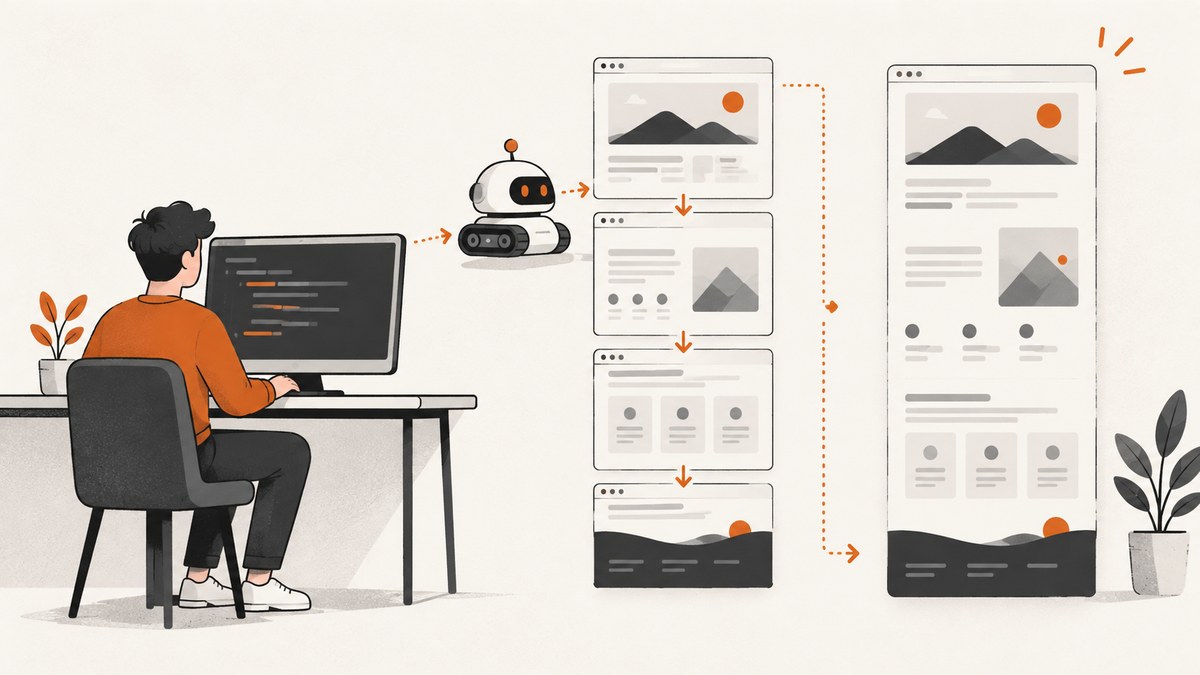
A full-page screenshot captures the complete scrollable document, including content below the visible browser window. For a one-off image, use your browser’s built-in DevTools command. For repeatable work, automate the browser with Playwright or Puppeteer. If the page uses lazy loading, infinite scroll, sticky headers, or nested scroll areas, you must make the page render the content before capturing it and then inspect the result.
This guide covers manual Firefox and Chrome workflows, a complete Playwright implementation, equivalent Puppeteer and API examples, navigation strategies for dynamic pages, troubleshooting, and production considerations.
What “full page” means
A viewport screenshot contains only the pixels currently visible in the browser window. A full-page screenshot includes the page’s entire scrollable height. Playwright documents fullPage: true as capturing the full scrollable page, while Firefox and Chrome expose equivalent DevTools controls. These tools capture the document, not automatically every independently scrolling panel inside it.
Choose the target before you write code:
- Entire document: use a full-page capture.
- One component: capture an element or locator instead of the whole document.
- Visible viewport: use a normal screenshot when you want to show exactly what a user sees without scrolling.
Fast manual capture in Firefox
Firefox offers a built-in full-page screenshot button in DevTools.
- Open DevTools with
F12orCtrl+Shift+I(Windows/Linux) orCmd+Option+I(macOS). - Open DevTools settings and find Available Toolbox Buttons.
- Enable Take a screenshot of the entire page.
- Click the camera icon in the DevTools toolbar.
- Choose the full-page option and save the resulting image. Firefox normally places it in your Downloads folder.
The exact wording and location can change between Firefox versions. Firefox Help also documents a screenshot interface with a Save full page option. If the button is not present, check the current version’s DevTools screenshot documentation.
Firefox console command
Firefox’s console screenshot command accepts a --fullpage flag:
:screenshot full-page.png --fullpageThe command can also accept options for a delay, device-pixel ratio, selector, and output file. Confirm the syntax in the Firefox documentation before using advanced flags because command details can change.
Fast manual capture in Chrome
- Open Chrome DevTools with
F12orCtrl+Shift+I(Windows/Linux) orCmd+Option+I(macOS). - Turn on Device Mode by clicking the phone-and-tablet icon.
- Open the More options menu in the device toolbar.
- Select Capture a full size screenshot.
Chrome’s ordinary Capture screenshot command captures only the current viewport. The full-size command includes content outside that viewport. Do not confuse it with the Network panel’s screenshot capture, which records loading states for diagnostics rather than producing a full document image.

Automate full-page screenshots with Playwright
Playwright is a good fit when the capture must run repeatedly in CI, a scheduled job, or a content pipeline. Install it in a new project:
npm init -y
npm install playwright
npx playwright install chromium
Create capture-full-page.mjs:
import { chromium } from 'playwright';

const target = process.argv[2] ?? 'https://example.com';
const browser = await chromium.launch({ headless: true });
const page = await browser.newPage({
  viewport: { width: 1440, height: 900 },
  deviceScaleFactor: 1
});

try {
  await page.goto(target, { waitUntil: 'domcontentloaded', timeout: 60000 });
  await page.waitForLoadState('networkidle', { timeout: 30000 }).catch(() => {});
  await page.screenshot({ path: 'full-page.png', fullPage: true });
  console.log('Saved full-page.png');
} finally {
  await browser.close();
}
Run it with:
node capture-full-page.mjs https://stripe.comnetworkidle is useful for pages that load assets after navigation, but it is not a guarantee that every lazy image has been triggered. A page with analytics, ads, or long-polling requests may never become idle, so the example treats the timeout as non-fatal and still captures the page.
Trigger lazy-loaded content before capture
Many sites load images only when they approach the viewport. A full-page screenshot may therefore contain empty image boxes unless you scroll through the document first. This helper scrolls in increments, waits briefly, and returns to the top:
async function loadLazyContent(page) {
  await page.evaluate(async () => {
    const step = Math.max(window.innerHeight, 600);
    for (let y = 0; y < document.body.scrollHeight; y += step) {
      window.scrollTo(0, y);
      await new Promise(resolve => setTimeout(resolve, 150));
    }
    window.scrollTo(0, 0);
  });
  await page.waitForTimeout(500);
}

await page.goto(target, { waitUntil: 'domcontentloaded', timeout: 60000 });
await loadLazyContent(page);
await page.screenshot({ path: 'full-page.png', fullPage: true });
This is page-dependent. It does not guarantee that virtualized lists, nested scroll containers, or an infinite feed will expose all items. For those pages, identify the specific scroll container and define a stopping condition, such as a known footer or a stable item count.
Wait for a meaningful selector
Waiting for a selector is more reliable than sleeping for an arbitrary number of seconds:
await page.goto(target, { waitUntil: 'domcontentloaded' });
await page.locator('[data-page-ready]').waitFor({ state: 'visible', timeout: 30000 });
await page.screenshot({ path: 'ready-page.png', fullPage: true });
If the application has no ready marker, wait for the main content and a specific image or heading that proves the important section rendered.
Capture an element instead of the document
await page.locator('article').screenshot({ path: 'article.png' });Locator screenshots are useful for cards, invoices, charts, or components whose dimensions are known. Playwright also supports masking selected locators when you need to cover dynamic values.
Puppeteer alternative
Puppeteer provides the same browser-automation pattern:
import puppeteer from 'puppeteer';

const browser = await puppeteer.launch({ headless: 'new' });
const page = await browser.newPage();
await page.setViewport({ width: 1440, height: 900, deviceScaleFactor: 1 });
await page.goto('https://example.com', { waitUntil: 'networkidle2', timeout: 60000 });
await page.screenshot({ path: 'full-page.png', fullPage: true });
await browser.close();
Puppeteer also supports navigation, interaction, and element screenshots. Use it when your existing Node.js stack already depends on Puppeteer; the same caveats about deferred content and infinite scrolling apply.
Navigation patterns for difficult pages
Sticky headers and fixed navigation
A fixed header can appear repeatedly if the browser stitches viewport captures. Full-page implementations usually handle this, but inspect the output. If a header obscures content, temporarily disable it with injected CSS:
await page.addStyleTag({
  content: `header, [style*="position: fixed"], [style*="position: sticky"] {
    position: static !important;
  }`
});
Use a narrow selector in production. Broad rules can change the layout and make the screenshot unlike the real page.
Infinite scroll
An infinite feed has no final document height. Scroll repeatedly, wait for new items, and stop when the item count stops increasing or a known end marker appears:
let previous = 0;
for (let i = 0; i < 50; i++) {
  const count = await page.locator('.feed-item').count();
  if (count === previous) break;
  previous = count;
  await page.evaluate(() => window.scrollTo(0, document.body.scrollHeight));
  await page.waitForTimeout(500);
}
await page.screenshot({ path: 'feed.png', fullPage: true });
Set a maximum iteration count and consider a content limit. Otherwise a continuously updating feed can make a job run indefinitely.
Nested scroll containers
fullPage: true targets the document’s scrollable height. A chat panel, table, or dashboard inside overflow: auto may need its own capture:
await page.locator('.results-panel').evaluate(el => {
  el.scrollTop = el.scrollHeight;
});
await page.locator('.results-panel').screenshot({ path: 'results-panel.png' });
Authentication, cookies, and consent dialogs
Create a browser context with the required storage state or set cookies before navigation. Dismiss consent dialogs before capturing, or hide them only when they are irrelevant to the output. Never place real credentials in source code or logs.
Or skip the browser setup
ScreenshotNeo provides a website screenshot API and MCP server. Its full-page option loads lazy images, and you can combine it with a wait condition, custom CSS or JavaScript, cookies, headers, a user agent, viewport settings, device presets, retina scale, blocking rules, caching, or a CSS selector for one element. See the ScreenshotNeo documentation for the parameter list.
curl -G "https://api.screenshotneo.com/v1/shot" \
  -d access_key=YOUR_API_KEY \
  --data-urlencode url=https://stripe.com \
  -d full_page=true \
  -o shot.webp
import requests
r = requests.get(
"https://api.screenshotneo.com/v1/shot",
params={
"access_key": "YOUR_API_KEY",
"url": "https://stripe.com",
"full_page": "true"
},
timeout=90
)
r.raise_for_status()
open("shot.webp", "wb").write(r.content)const q = new URLSearchParams({
access_key: 'YOUR_API_KEY',
url: 'https://stripe.com',
full_page: 'true'
});
const res = await fetch(`https://api.screenshotneo.com/v1/shot?${q}`);
if (!res.ok) throw new Error(`HTTP ${res.status}`);
const file = await res.arrayBuffer();
await Bun.write('shot.webp', file);Cookie banners, newsletter popups, and chat widgets are removed before the shot. Bot checks, blank pages, timeouts, failed loads, and cache hits are never billed; response headers identify the page verdict and whether it was billed. An MCP server provides take_screenshot, get_page_info, and capture_pdf tools for Claude, Cursor, and other MCP clients. The Free plan includes 1,000 screenshots each month with no card, and paid plans start at $5 for 3,000 shots. Create a free ScreenshotNeo account.
Options that matter for full-page output
| Need | Browser automation approach | ScreenshotNeo approach |
|---|---|---|
| Wait for content | Selector, delay, or network-idle wait | Wait for a selector, delay, or network idle |
| Lazy images | Scroll through the page before capture | Full-page capture loads lazy images |
| Only one component | Locator or element screenshot | CSS selector capture |
| Visual state | Set viewport, cookies, headers, and scripts | Device presets, viewport, dark mode, custom CSS and JavaScript |
| Output | PNG, JPEG, or WebP through the browser API | PNG, JPEG, WebP, or PDF with paper, margin, orientation, and page-range controls |

Troubleshooting
The screenshot stops at the viewport
Cause: the command used a normal screenshot option. Fix: select Chrome’s full-size command, Firefox’s full-page command, or set fullPage: true in Playwright/Puppeteer.
Images are blank below the fold
Cause: lazy loading was never triggered. Fix: scroll through the document, wait for image completion, or use a capture service that loads lazy images. Inspect the output rather than assuming a full-page flag loaded every asset.
The page never becomes idle
Cause: analytics, advertisements, WebSockets, or polling keep requests open. Fix: use a bounded timeout, wait for a specific ready selector, and block nonessential requests where appropriate.
Cookie or chat overlays cover content
Cause: an overlay remained active. Fix: click its accept or close control, inject targeted CSS, or use ScreenshotNeo’s pre-capture consent and popup removal.
Infinite scrolling never finishes
Cause: the page has no terminal height. Fix: stop after a maximum number of rounds, a stable item count, a known item total, or an end marker.
Content is missing from a dashboard panel
Cause: the panel scrolls independently from the document. Fix: scroll and capture that container separately, or capture a known element.
The result is enormous or memory-heavy
Cause: a very tall page combined with a high device scale factor. Fix: use a reasonable viewport and scale, capture sections or elements, output WebP, or produce a PDF with page ranges.
Performance, reliability, and cost
- Bound every wait: navigation, selectors, network idle, and custom scrolling should all have explicit time limits.
- Reuse browser processes carefully: a persistent Playwright browser reduces startup overhead, while a fresh context keeps cookies and state isolated.
- Reduce unnecessary work: block third-party ads and trackers when they do not belong in the screenshot, but keep fonts and images required for layout.
- Control output size: use WebP or JPEG for photographic pages; PNG is better for sharp UI text and transparency.
- Cache deterministic captures: cache only when the page can tolerate stale output. ScreenshotNeo lets you choose a cache TTL and reports cache hits in response headers without billing them.
- Verify before publishing: check dimensions, file size, the footer, lazy images, and overlays. A successful HTTP response does not prove visual completeness.
ScreenshotNeo bills only clean shots. Bot checks, CAPTCHAs, blank pages, timeouts, failed loads, and cache hits cost nothing, and X-Page-Verdict and X-Billed headers state what happened. Plans include Free (1,000 per month), Starter ($5 for 3,000), Growth ($15 for 15,000), Pro ($39 for 60,000), Scale ($99 for 250,000), and Business ($249 for 1,000,000); yearly billing gives two months free.
FAQ
Does a full-page screenshot include content in an iframe?
It includes the iframe’s rendered area as part of the document, but it does not automatically expand an independently scrolling iframe to reveal all of its internal content. Capture the frame’s page separately when needed.
Should I use a screenshot or a PDF for a long document?
Use an image when exact pixels and web layout matter. Use PDF when pagination, paper size, margins, orientation, or selected page ranges matter.
Can I capture only the page below the header?
Yes. In Playwright or Puppeteer, capture a locator for the main content. With ScreenshotNeo, pass the CSS selector for the element you want.
Why does a page look different in automation?
Responsive breakpoints, missing fonts, cookies, geolocation, user-agent detection, and animation timing can all change rendering. Set the viewport and relevant context values, wait for the required assets, and compare a local manual capture with the automated result.


