How to Navigate a Website and Capture Screenshots Programmatically
Use Playwright to navigate pages, wait for the right state, and capture viewport, full-page, or element screenshots with reliable code.
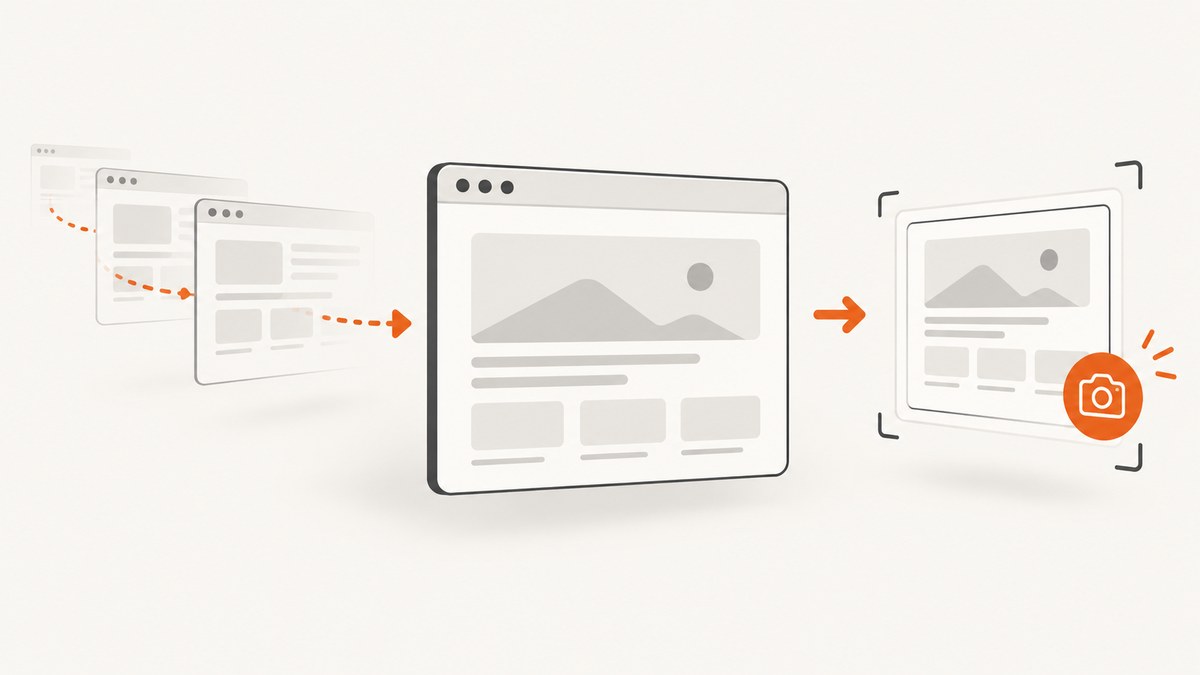
Direct answer: launch a browser, create a context and page, navigate with page.goto(), wait for the state your workflow needs, capture with page.screenshot(), then close the browser. Use fullPage: true for the complete scrollable page, a locator screenshot for one element, and omit path when you need image bytes in memory.
1. Install Playwright
Playwright supports Chromium, Firefox, and WebKit. Install the package and browser binaries:
npm install playwright
npx playwright install
The examples below use JavaScript and run as ES modules. Save the file as capture.mjs and run node capture.mjs.
2. Minimal navigation and screenshot
import { chromium } from 'playwright';

const browser = await chromium.launch();
const page = await browser.newPage();

const response = await page.goto('https://example.com', {
  waitUntil: 'domcontentloaded',
  timeout: 30_000
});

if (response && response.status() >= 400) {
  throw new Error(`Navigation returned HTTP ${response.status()}`);
}

await page.screenshot({ path: 'screenshot.png' });
await browser.close();
page.goto() needs a URL with a scheme such as https://. A 404 or 500 response does not necessarily make navigation throw, so inspect the response status when HTTP errors should fail the job. See the Playwright Page API.
3. Wait for the page state you actually need
Navigation finishing is not the same as the application being ready. Choose a wait condition that matches the page.
Wait for a selector
await page.goto('https://example.com/dashboard', { waitUntil: 'domcontentloaded' });
await page.locator('[data-testid="report"]').waitFor({ state: 'visible' });
await page.screenshot({ path: 'dashboard.png' });
Wait for a URL after a click
await page.goto('https://example.com/login');
await page.getByRole('button', { name: 'Sign in' }).click();
await page.waitForURL('**/dashboard');
await page.screenshot({ path: 'dashboard.png' });
For interaction-triggered navigation, wait for the resulting URL instead of assuming a click has completed navigation.
Wait for network idle or a short delay
await page.goto('https://example.com', { waitUntil: 'networkidle' });
await page.waitForTimeout(500);
await page.screenshot({ path: 'settled.png' });
Network idle can be unsuitable for pages with analytics, polling, or WebSockets. A selector that represents usable content is usually more deterministic. Use a delay only for a known animation or deferred render.
4. Choose the capture scope
Viewport screenshot
await page.screenshot({ path: 'viewport.png' });This captures the currently visible viewport.
Full-page screenshot
await page.screenshot({
  path: 'full-page.png',
  fullPage: true
});
Playwright scrolls through the page to capture the full scrollable document, including lazy-loaded content where the page loads it during scrolling.
Element screenshot
const chart = page.locator('#revenue-chart');
await chart.screenshot({ path: 'chart.png' });
Use a stable CSS selector, role, or test id. Element screenshots avoid unrelated page changes and are useful for component documentation and visual tests.
Capture bytes instead of writing a file
const bytes = await page.screenshot({ type: 'png' });
process.stdout.write(`Captured ${bytes.length} bytes\\n`);
Pass the buffer to an object store, image comparison tool, HTTP response, or hash function.
5. Control viewport, device scale, and format
const context = await browser.newContext({
  viewport: { width: 1440, height: 900 },
  deviceScaleFactor: 1
});
const page = await context.newPage();
await page.goto('https://example.com');
await page.screenshot({
  path: 'hero.webp',
  type: 'webp',
  quality: 82,
  scale: 'css'
});viewportsets CSS dimensions. Set it before navigation so responsive layouts select the intended breakpoint.deviceScaleFactorcontrols high-DPI rendering. A larger factor produces larger pixel dimensions and files.typecan bepng,jpeg, orwebp. Quality applies to lossy formats.scale: 'css'produces one output pixel per CSS pixel;scale: 'device'uses device pixels and can be larger.
Some sites do not expect phone-sized viewports. Set viewport and screen parameters in the browser context when emulating a device, and keep the browser, OS, fonts, and headless mode consistent for visual comparisons.
6. Interact before capturing
await page.goto('https://example.com/products');
await page.getByRole('button', { name: 'Show filters' }).click();
await page.locator('input[name="category"]').check();
await page.waitForLoadState('domcontentloaded');
await page.screenshot({ path: 'filtered-products.png', fullPage: true });
Other useful actions include fill(), selectOption(), hover(), check(), and press(). Wait for the resulting content or URL after actions that trigger navigation.
7. Hide unstable content and animations
await page.screenshot({
  path: 'stable.png',
  animations: 'disabled',
  mask: [page.locator('.timestamp'), page.locator('.avatar')],
  maskColor: '#FF00FF'
});
Mask timestamps, rotating ads, user avatars, and other values that are expected to change. Disable animations when the capture is used for visual assertions. A screenshot checks pixels; an accessibility snapshot is better for understanding page structure and interactive controls.
8. A complete reusable capture script
import { chromium } from 'playwright';

const target = process.argv[2] ?? 'https://example.com';
const output = process.argv[3] ?? 'capture.png';

const browser = await chromium.launch();
try {
  const context = await browser.newContext({
    viewport: { width: 1366, height: 768 },
    deviceScaleFactor: 1
  });
  const page = await context.newPage();
  page.setDefaultTimeout(15_000);

  const response = await page.goto(target, {
    waitUntil: 'domcontentloaded',
    timeout: 30_000
  });
  if (!response) throw new Error('No main-frame response');
  if (response.status() >= 400) {
    throw new Error(`HTTP ${response.status()} for ${target}`);
  }

  await page.screenshot({
    path: output,
    fullPage: true,
    animations: 'disabled',
    type: output.endsWith('.jpg') || output.endsWith('.jpeg') ? 'jpeg' : 'png'
  });
  console.log(`Saved ${output}`);
} finally {
  await browser.close();
}
Run it with node capture.mjs https://example.com example.png. Always close the browser in a finally block so failures do not leave browser processes running.
9. Python and cURL alternatives
Playwright’s primary API is available in Python as well:
from playwright.sync_api import sync_playwright

with sync_playwright() as p:
    browser = p.chromium.launch()
    page = browser.new_page(viewport={"width": 1366, "height": 768})
    response = page.goto("https://example.com", wait_until="domcontentloaded", timeout=30_000)
    if response and response.status >= 400:
        raise RuntimeError(f"HTTP {response.status}")
    page.screenshot(path="screenshot.png", full_page=True)
    browser.close()
For a hosted screenshot API, a GET request is enough. The ScreenshotNeo example below includes cURL, Python, and Node.js.
10. Troubleshooting
| Symptom | Cause | Fix |
|---|---|---|
page.goto times out |
The page is slow, blocked, or keeps connections open. | Increase the timeout, use domcontentloaded, and wait for a specific selector instead of network idle. |
| Screenshot is blank | The app has not rendered, content is below a required interaction, or the page is blocked. | Wait for a visible content selector, perform required actions, and inspect the response status and page text. |
| 404/500 does not throw | Navigation completed at the HTTP layer. | Check response.status() and fail explicitly for statuses your workflow rejects. |
| Click caused a race condition | The script captured before navigation or rendering completed. | Start a URL wait before or immediately around the click, then wait for the destination selector. |
| Full-page image misses lazy content | Images load only after scrolling or an intersection event. | Scroll deliberately, wait for image completion, or capture after the relevant content is visible. |
| Visual diffs vary between runs | Fonts, browser versions, OS rendering, animations, time, or random data changed. | Pin the environment, disable animations, mask dynamic regions, set a fixed viewport, and wait for stable content. |
| Element screenshot fails | The selector matches nothing, is hidden, or is outside a frame. | Wait for the locator, verify visibility, and use frameLocator() for iframe content. |
| Browser executable is missing | Playwright package installed without browser binaries. | Run npx playwright install (and the required OS dependencies in CI). |
11. Reliability, performance, and cost considerations
- Reuse one browser process and create a fresh context per job. Browser startup is expensive; contexts isolate cookies and storage.
- Use a bounded navigation timeout and retry only transient failures. Do not blindly retry deterministic HTTP errors or authorization failures.
- Prefer selector-based readiness over arbitrary sleeps. It reduces both premature captures and unnecessary waiting.
- Viewport captures are smaller and faster than full-page captures. Full-page screenshots can use substantial memory on very long documents.
- Use WebP or JPEG when file size matters; use PNG for lossless pixel comparisons and transparency.
- Keep screenshots deterministic by fixing viewport, timezone, locale, fonts, browser version, and test data.
- Record the URL, timestamp, browser version, viewport, response status, and any wait condition alongside the image so failures are diagnosable.
- Run untrusted pages in an isolated environment and avoid placing secrets in page source, URLs, or screenshots.
12. Or skip the browser setup
ScreenshotNeo provides a website screenshot API when you want one request instead of managing browser binaries and navigation code. It accepts consent banners before capture and removes more than 60 known consent platforms, newsletter popups, and chat widgets. Bot checks, blank pages, timeouts, failed loads, and cache hits are not billed; response headers identify the page verdict and whether the shot was billed. It also supports full-page and element captures, device presets, custom CSS and JavaScript, waits, blocking rules, headers, cookies, user agents, authorization, timezone, geolocation, transparent backgrounds, resizing, caching, signed links, PDFs, async jobs, bulk capture, and an MCP server for AI agents. See the ScreenshotNeo API documentation.

curl -G "https://api.screenshotneo.com/v1/shot" -d access_key=YOUR_API_KEY --data-urlencode url=https://stripe.com -o shot.webpimport requests
r = requests.get("https://api.screenshotneo.com/v1/shot", params={"access_key": "YOUR_API_KEY", "url": "https://stripe.com"}, timeout=90)
open("shot.webp", "wb").write(r.content)const q = new URLSearchParams({ access_key: 'YOUR_API_KEY', url: 'https://stripe.com' });
const res = await fetch(`https://api.screenshotneo.com/v1/shot?${q}`);Use the DIY approach when you need arbitrary browser control. Use the API when you need repeatable captures without maintaining browser infrastructure. ScreenshotNeo includes 1,000 shots per month free with no card; paid plans start at $5 for 3,000 shots. Create a free ScreenshotNeo account.
13. FAQ
Should I use a viewport or full-page screenshot?
Use a viewport shot for what a user sees above the fold. Use full-page for documentation, audits, and page-level visual records.
Can a screenshot prove that a page is healthy?
No. Check HTTP status, console errors, application state, and accessibility or DOM assertions separately. A screenshot records appearance at one moment.
Why do screenshots differ in CI?
Rendering depends on the OS, browser version, fonts, hardware, power source, settings, and headless mode. Pin those variables and stabilize dynamic content.
When should I capture an element instead of the page?
Capture an element when the component itself is the subject or when unrelated page changes would make comparisons noisy.


