How to Take Website Screenshots in Next.js
Capture reliable Next.js website screenshots with Playwright or Puppeteer, return them from API routes, and automate clean captures with ScreenshotNeo.
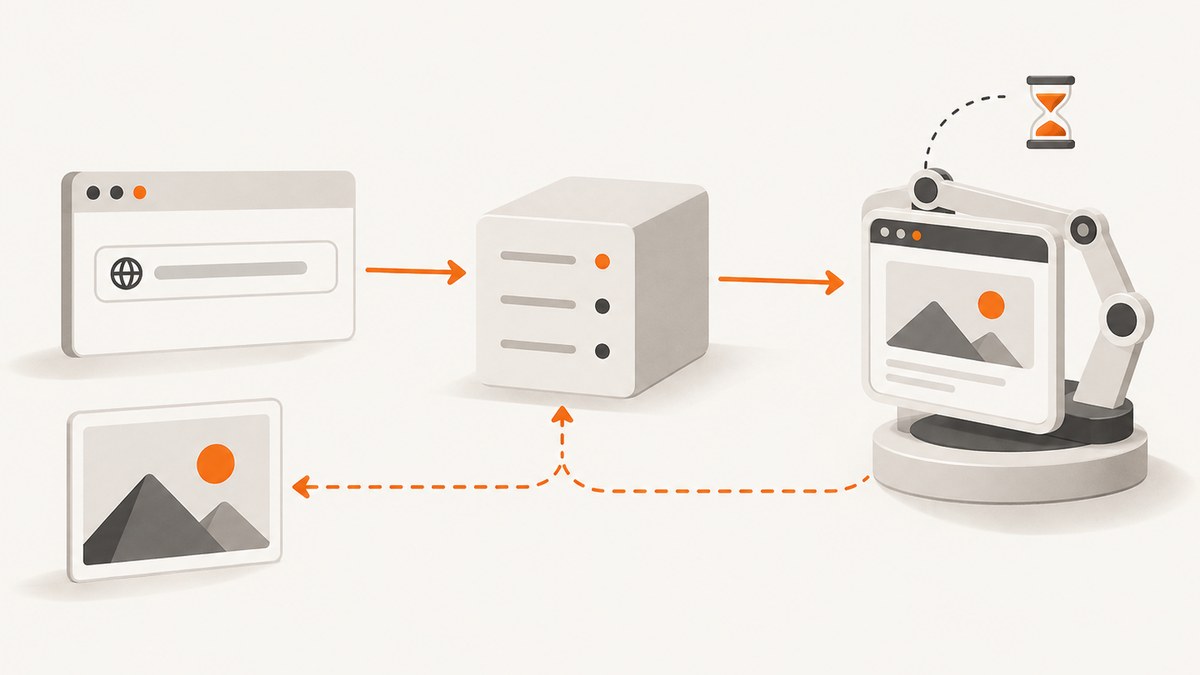
Direct answer: use a real browser with Playwright or Puppeteer in server-side Next.js code. Navigate to the deployed or local URL, wait for a page-specific readiness condition, then capture the viewport, full scrollable page, or a selected element. Return the resulting image buffer from a Route Handler or Pages Router API route, or save it to writable storage.
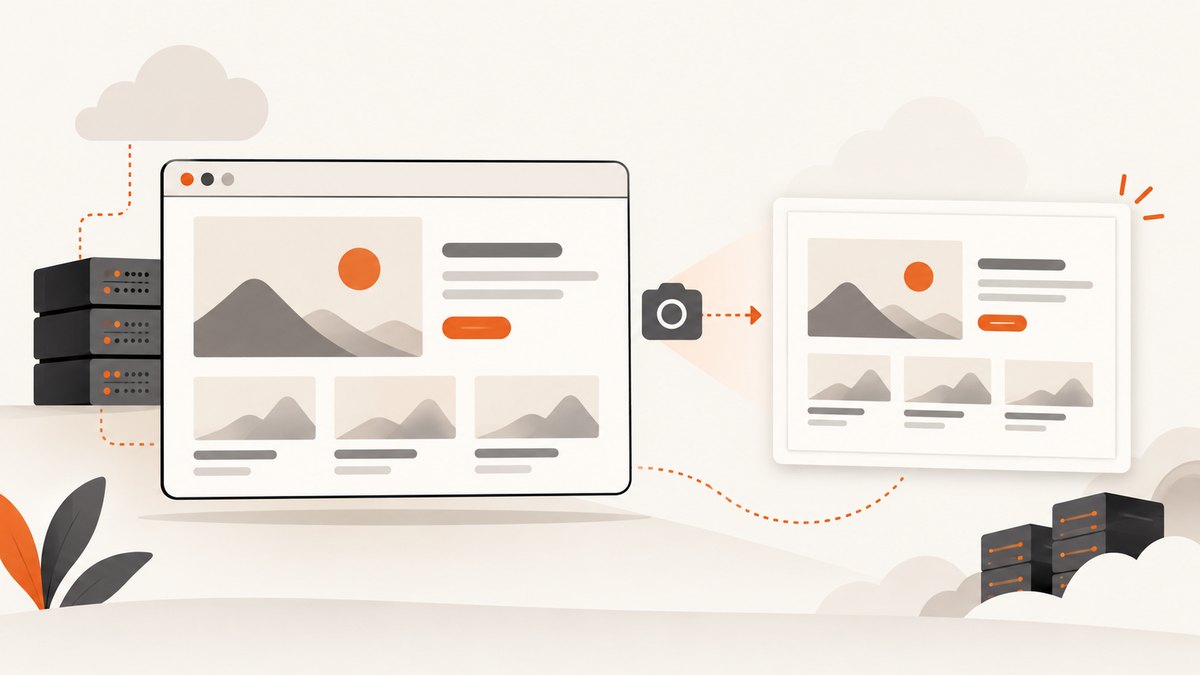
A screenshot is different from an Open Graph image. A screenshot reproduces the rendered website, including its layout, fonts, images, and interactive state. Next.js metadata APIs such as opengraph-image and ImageResponse create designed social-preview cards. Use browser automation for a website capture and metadata APIs for an OG asset.
1. Choose the capture architecture
There are three common designs:
| Design | Use it when | Result |
|---|---|---|
| Server-side browser in Next.js | Your application owns capture logic and can run Chromium | A file, buffer, or HTTP response |
| Dedicated capture worker | Captures are frequent or browser startup would burden web requests | Queued jobs stored in object storage |
| Hosted screenshot API | You want URL-to-image capture without managing browsers | An image or PDF response from an API |
Keep Playwright or Puppeteer imports in server-only code. Do not put browser binaries, API keys, or arbitrary navigation logic in a Client Component. For public endpoints, allow-list destinations or validate URLs carefully; an endpoint that accepts any URL can become an SSRF primitive.
2. Install Playwright in a Next.js project
npm install playwright
npx playwright install chromium
Chromium must be available wherever the route runs. A local development machine can install it with the command above. A production container or serverless runtime may need a compatible browser package, a custom image, or a managed browser. Confirm that the runtime permits child processes and has enough temporary disk and memory.
3. Capture a page with an App Router Route Handler
The following route launches Chromium, opens the site, waits for network activity to settle, captures a full-page PNG, and returns the bytes. Save it as app/api/screenshot/route.ts.
import { chromium } from 'playwright';

export const runtime = 'nodejs';

export async function GET() {
  const browser = await chromium.launch();

  try {
    const page = await browser.newPage({
      viewport: { width: 1440, height: 900 },
      deviceScaleFactor: 1,
    });

    await page.goto('http://localhost:3000', {
      waitUntil: 'networkidle',
      timeout: 60_000,
    });

    await page.screenshot({
      type: 'png',
      fullPage: true,
    });

    const image = await page.screenshot({
      type: 'png',
      fullPage: true,
    });

    return new Response(image, {
      headers: {
        'Content-Type': 'image/png',
        'Cache-Control': 'no-store',
      },
    });
  } finally {
    await browser.close();
  }
}
The first screenshot call in this illustrative route is unnecessary because the second call produces the response. Use this tighter version in production:
import { chromium } from 'playwright';

export const runtime = 'nodejs';

export async function GET() {
  const browser = await chromium.launch();
  try {
    const page = await browser.newPage({ viewport: { width: 1440, height: 900 } });
    await page.goto('http://localhost:3000', { waitUntil: 'networkidle', timeout: 60_000 });
    const image = await page.screenshot({ type: 'png', fullPage: true });
    return new Response(image, { headers: { 'Content-Type': 'image/png' } });
  } finally {
    await browser.close();
  }
}
4. Capture a viewport, full page, or element
Viewport screenshot
const image = await page.screenshot({
  type: 'png',
  fullPage: false,
});
A viewport capture contains only the currently visible area. Set viewport explicitly so output does not vary between machines.
Full-page screenshot
const image = await page.screenshot({
  type: 'png',
  fullPage: true,
});
Playwright’s screenshot API defines fullPage as the complete scrollable document. Lazy-loaded content may not exist until the page is scrolled. Trigger scrolling or wait for the application to render all content before capturing.
Element screenshot
const card = page.locator('[data-testid="pricing-card"]');
await card.waitFor({ state: 'visible', timeout: 30_000 });
const image = await card.screenshot({ type: 'png' });
Element captures are useful for cards, charts, invoices, and components whose bounds are stable. Prefer a dedicated test ID or semantic selector over a generated class name.
Return a buffer or write a file
// Return bytes to an HTTP response
const buffer = await page.screenshot({ type: 'webp', quality: 82 });

// Write to a writable directory
await page.screenshot({ path: '/tmp/page.png', fullPage: true });
Use buffers when you need to upload to object storage, pass the image to another service, or return it directly. In serverless environments, the application directory may be read-only; use a permitted temporary directory or external storage.
5. Wait for the page you actually need
networkidle is convenient but not always sufficient. Analytics, chat, and long polls can keep a page busy forever, while an API response may finish before the visible component is ready. Tie readiness to the content the screenshot must contain.
await page.goto(url, { waitUntil: 'domcontentloaded', timeout: 60_000 });
await page.locator('[data-screenshot-ready="true"]').waitFor({
  state: 'visible',
  timeout: 30_000,
});
Other useful conditions include a known heading, a chart canvas, a completed loading indicator, or a specific response:
await page.waitForResponse(response =>
  response.url().includes('/api/dashboard') && response.ok()
);
await page.locator('.loading').waitFor({ state: 'hidden' });
A short fixed delay can handle a small animation, but it should supplement a meaningful condition rather than replace one. For deterministic output, disable animations and transitions with injected CSS:
await page.addStyleTag({ content: `
  *, *::before, *::after {
    animation: none !important;
    transition: none !important;
    caret-color: transparent !important;
  }
` });
Mask timestamps, rotating ads, and user-specific values when doing visual comparisons. Playwright documents locator masking and animation controls in its visual comparison guidance.
6. Set the visual environment
Small environmental differences produce different pixels. Configure the following values explicitly:
| Setting | Why it matters |
|---|---|
| Viewport width and height | Controls responsive breakpoints and visible content |
| Device scale factor | Controls high-density output; Playwright’s scale option can preserve CSS pixels or device pixels |
| Color scheme | Sets light or dark media-query behavior |
| Locale and timezone | Prevents dates, numbers, and translated strings changing |
| Fonts | Ensures text wraps at the same places |
| Authentication state | Captures the intended signed-in or anonymous view |
const context = await browser.newContext({
  viewport: { width: 1280, height: 800 },
  deviceScaleFactor: 2,
  colorScheme: 'dark',
  locale: 'en-US',
  timezoneId: 'UTC',
});
const page = await context.newPage();
PNG is lossless and best for visual tests. JPEG and WebP are smaller for previews; quality settings apply to lossy formats where supported. Use clip when you need an exact rectangle rather than an element locator.
7. Puppeteer alternative
Puppeteer is also a valid browser automation engine. Its official guide recommends Page.screenshot() for captures and supports page and element screenshots, full-page output, clipping, format, and quality options.
npm install puppeteerimport puppeteer from 'puppeteer';
const browser = await puppeteer.launch();
try {
const page = await browser.newPage();
await page.setViewport({ width: 1440, height: 900, deviceScaleFactor: 1 });
await page.goto('http://localhost:3000', {
waitUntil: 'networkidle2',
timeout: 60_000,
});
await page.waitForSelector('[data-screenshot-ready="true"]');
const image = await page.screenshot({
type: 'png',
fullPage: true,
});
// image is a Buffer; return or upload it here
} finally {
await browser.close();
}Choose based on browser coverage, existing project dependencies, locator and waiting ergonomics, visual-regression controls, output requirements, and deployment support. Neither library is a universal winner without measuring your application.
8. Pages Router API route
In a Pages Router project, a file under pages/api is server-side only. This route returns a PNG from pages/api/screenshot.ts:
import type { NextApiRequest, NextApiResponse } from 'next';
import { chromium } from 'playwright';

export default async function handler(
  _req: NextApiRequest,
  res: NextApiResponse,
) {
  const browser = await chromium.launch();
  try {
    const page = await browser.newPage({ viewport: { width: 1440, height: 900 } });
    await page.goto('http://localhost:3000', { waitUntil: 'networkidle', timeout: 60_000 });
    const image = await page.screenshot({ type: 'png', fullPage: true });
    res.setHeader('Content-Type', 'image/png');
    res.status(200).send(image);
  } finally {
    await browser.close();
  }
}
Next.js documents Route Handlers and Server Components as the App Router equivalents to API Routes. Whichever router you use, authenticate capture endpoints and restrict outbound URLs.
9. Or skip the browser setup
ScreenshotNeo provides a URL-to-image or PDF endpoint, with the same parameter style used by many screenshot APIs. See the ScreenshotNeo documentation for the complete option list.
curl -G "https://api.screenshotneo.com/v1/shot" \
  -d access_key=YOUR_API_KEY \
  --data-urlencode url=https://stripe.com \
  -o shot.webp
import requests
r = requests.get(
"https://api.screenshotneo.com/v1/shot",
params={"access_key": "YOUR_API_KEY", "url": "https://stripe.com"},
timeout=90,
)
r.raise_for_status()
open("shot.webp", "wb").write(r.content)const q = new URLSearchParams({
access_key: 'YOUR_API_KEY',
url: 'https://stripe.com',
});
const res = await fetch(`https://api.screenshotneo.com/v1/shot?${q}`);
if (!res.ok) throw new Error(`Screenshot failed: ${res.status}`);
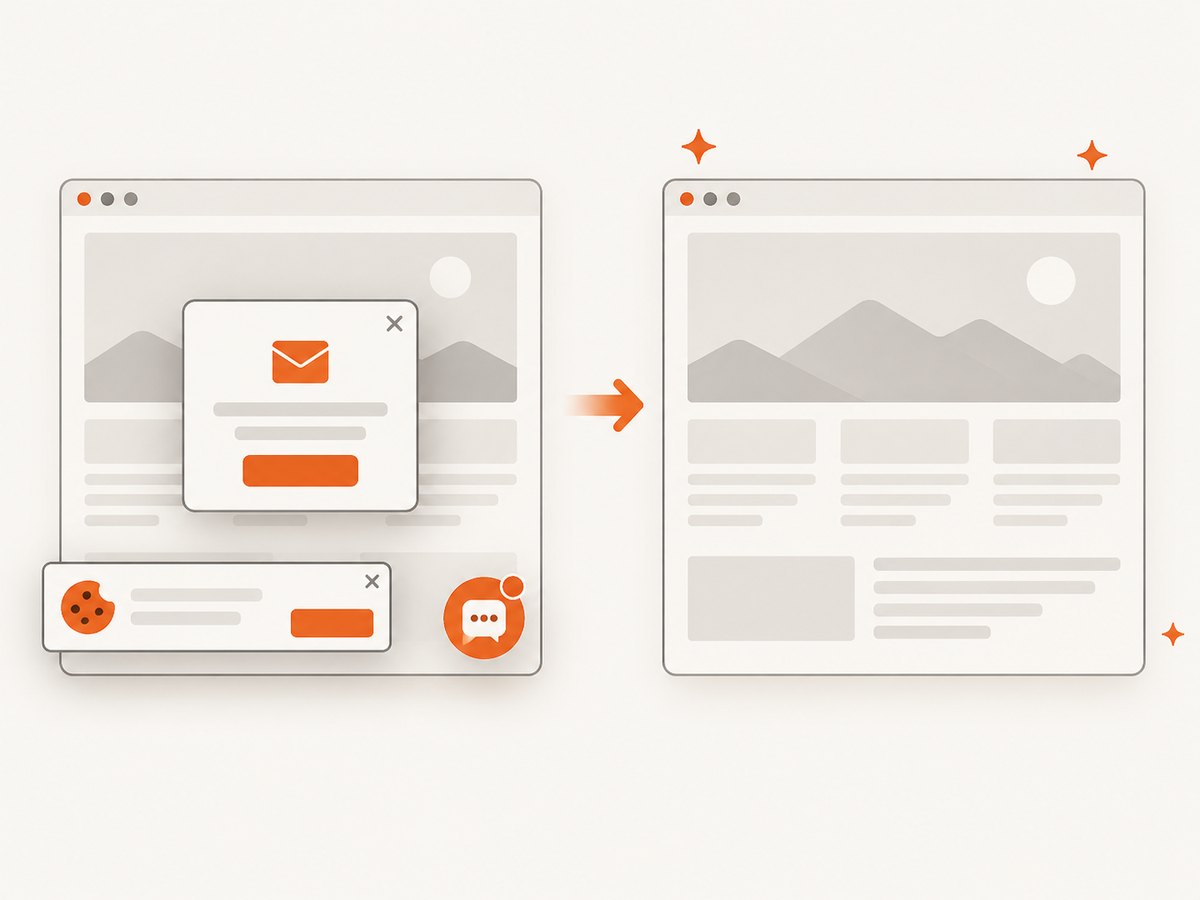
const bytes = Buffer.from(await res.arrayBuffer());Cookie and consent banners, newsletter popups, and chat widgets are removed before the shot. Bot checks, blank pages, failed loads, timeouts, and cache hits are not billed, and response headers identify the page verdict and whether it was billed. ScreenshotNeo also provides an MCP server with take_screenshot, get_page_info, and capture_pdf tools for Claude, Cursor, and other MCP clients.
Options cover full-page capture with lazy images, CSS-selector element capture, dark mode, device presets or custom viewports, retina scale, PDF paper and page settings, custom CSS and JavaScript, click and wait actions, blocked ads or resource types, headers, cookies, user agents, authorization, timezone, geolocation, transparent backgrounds, resizing, chosen cache TTLs, signed image links, asynchronous jobs with signed webhooks, bulk capture of up to 100 URLs per call, and a usage API. Every feature is available on every plan. The free plan includes 1,000 shots per month with no card; paid plans start at $5 for 3,000 shots. Create a free ScreenshotNeo account.
10. Production reliability and performance
- Reuse browsers carefully: launching Chromium for every request is simple but expensive. A controlled browser pool reduces startup work; cap concurrent pages to protect memory.
- Set hard timeouts: apply navigation, selector, and total request deadlines. Always close pages, contexts, and browsers in
finallyblocks. - Cache deterministic captures: key a cache by URL and visual settings. Invalidate it when page content or assets change.
- Queue large batches: use a job queue and object storage for many URLs instead of holding an HTTP request open.
- Control assets: wait for fonts and images that matter, block analytics and video when they do not, and avoid third-party requests that make output nondeterministic.
- Protect the endpoint: authenticate callers, enforce an outbound host policy, block private IP ranges, limit response sizes, and log failures without exposing secrets.
Capture cost depends on your infrastructure when you self-host: browser CPU, memory, storage, and queue time are your responsibility. A hosted API trades browser operations for per-shot pricing. With ScreenshotNeo, only clean shots are billed, and cache hits and failed or unusable captures are identified in response headers.
11. Troubleshooting common failures
| Symptom | Likely cause | Fix |
|---|---|---|
| Chromium executable not found | Browser binaries were not installed in the deployment image | Run the Playwright install step during image build or configure a supported browser path |
Route times out at networkidle |
Long polling, analytics, or chat requests never become idle | Use domcontentloaded plus a specific selector or response condition |
| Screenshot is blank | Wrong URL, JavaScript error, bot challenge, or capture before rendering | Check the final URL and console errors, wait for a ready marker, and inspect the response status |
| Images are missing | Lazy loading or blocked cross-origin assets | Scroll the page, wait for image completion, and verify asset URLs and permissions |
| Text wraps differently | Viewport, fonts, locale, or device scale differs | Set them explicitly and wait for document.fonts.ready |
| Works locally but fails in production | Read-only filesystem, missing shared libraries, or serverless limits | Use a compatible runtime, writable temporary storage, or a managed browser |
| API route exposes internal services | Unvalidated user-supplied URL | Allow-list hosts and reject private, loopback, and link-local addresses |
| Puppeteer capture differs from Playwright | Different defaults, browser versions, or waiting behavior | Pin browser versions and make viewport, readiness, and output settings explicit |
12. FAQ
Can a Next.js Client Component take the screenshot?
It can capture the visible browser tab with browser APIs only in a user-controlled context, but reliable server-generated images require server-side Playwright, Puppeteer, or a hosted API.
Should I use an OG image route for a website screenshot?
No. OG image routes generate a designed social card. Use a browser capture when you need the actual rendered page.
How do I capture an authenticated page?
Create a browser context with the required cookies or storage state, then navigate to the page. Never send session secrets to the client or log them.
What image format should I return?
Use PNG for lossless visual comparison, WebP for smaller modern previews, and JPEG when broad compatibility and small files matter more than transparency.
Can I capture a PDF instead?
Yes. Playwright and Puppeteer provide PDF APIs in supported browser environments. ScreenshotNeo also exposes PDF capture with paper size, margins, orientation, and page-range options.
13. Implementation checklist
- Install and provision a compatible browser.
- Keep automation in server-only code.
- Choose viewport, scale, locale, timezone, and color scheme.
- Wait for a page-specific ready condition.
- Select viewport, full-page, or element capture deliberately.
- Disable or mask animations and changing values.
- Return a buffer or write only to writable storage.
- Set navigation and total timeouts.
- Close browser resources in cleanup code.
- Authenticate the endpoint and restrict target URLs.
- For managed capture, try ScreenshotNeo with 1,000 free screenshots per month and no card.


