How to Run Nightwatch.js With Chrome in Headless Mode
Run Nightwatch.js with Chrome headless locally, in Docker, or CI. Configure ChromeDriver, debug failures, and automate screenshots with practical examples.
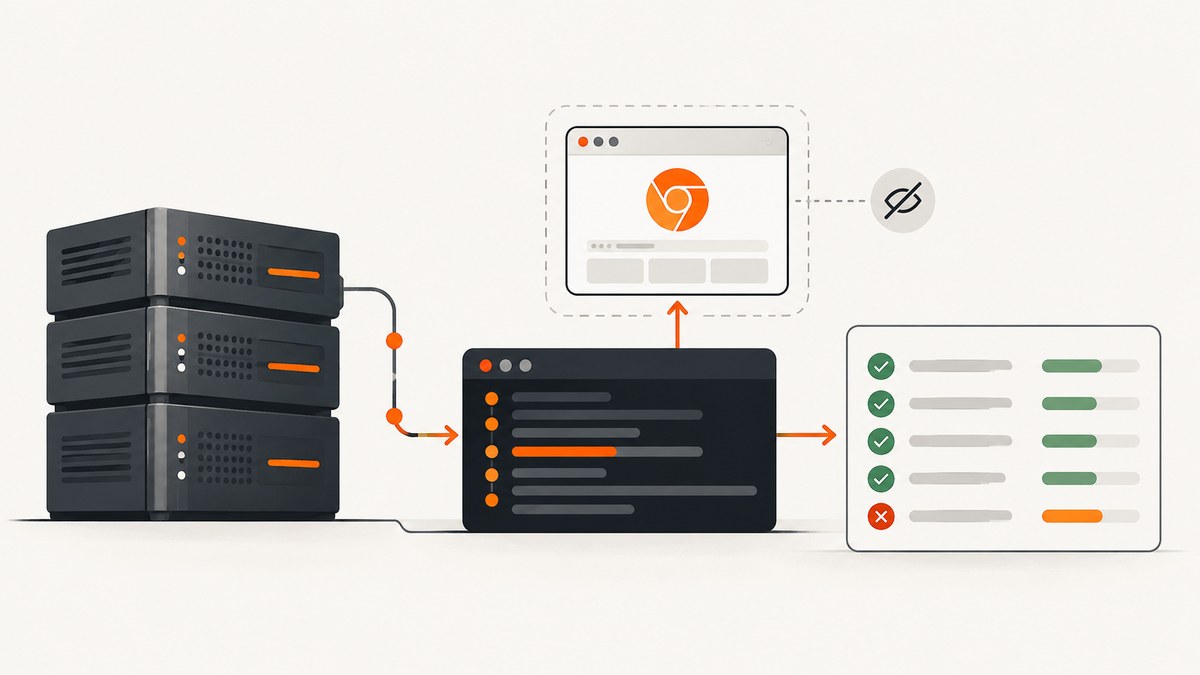
Use Nightwatch’s --headless option:
npx nightwatch --headlessThat command launches Chrome (or Firefox) without a visible window. In a real project, select the Chrome environment defined in your Nightwatch configuration:
npx nightwatch --env chrome --headlesschrome is only an example environment name. Your nightwatch.conf.js (or another supported configuration file) must define it, and ChromeDriver must be installed or managed in a way Nightwatch can use. The official references are the Nightwatch CLI options, ChromeDriver guide, and configuration reference.
What headless mode changes
Headless Chrome uses the same browser automation protocol as a visible session but does not open a desktop window. It is useful for CI runners, Docker containers, scheduled checks, and local scripts where no graphical display is available. Your tests still navigate pages, find elements, click controls, submit forms, and assert results.
Headless mode does not remove the need for a valid browser environment. Nightwatch still needs a Chrome binary, a compatible ChromeDriver, a selected Nightwatch environment, and test files in the configured source folder.
1. Check the project and install dependencies
From an existing Nightwatch project, inspect the package and configuration before adding another driver installation method. Nightwatch supports configuration files named nightwatch.conf.js, nightwatch.conf.cjs, nightwatch.conf.ts, and nightwatch.json. You can select a different file with --config.
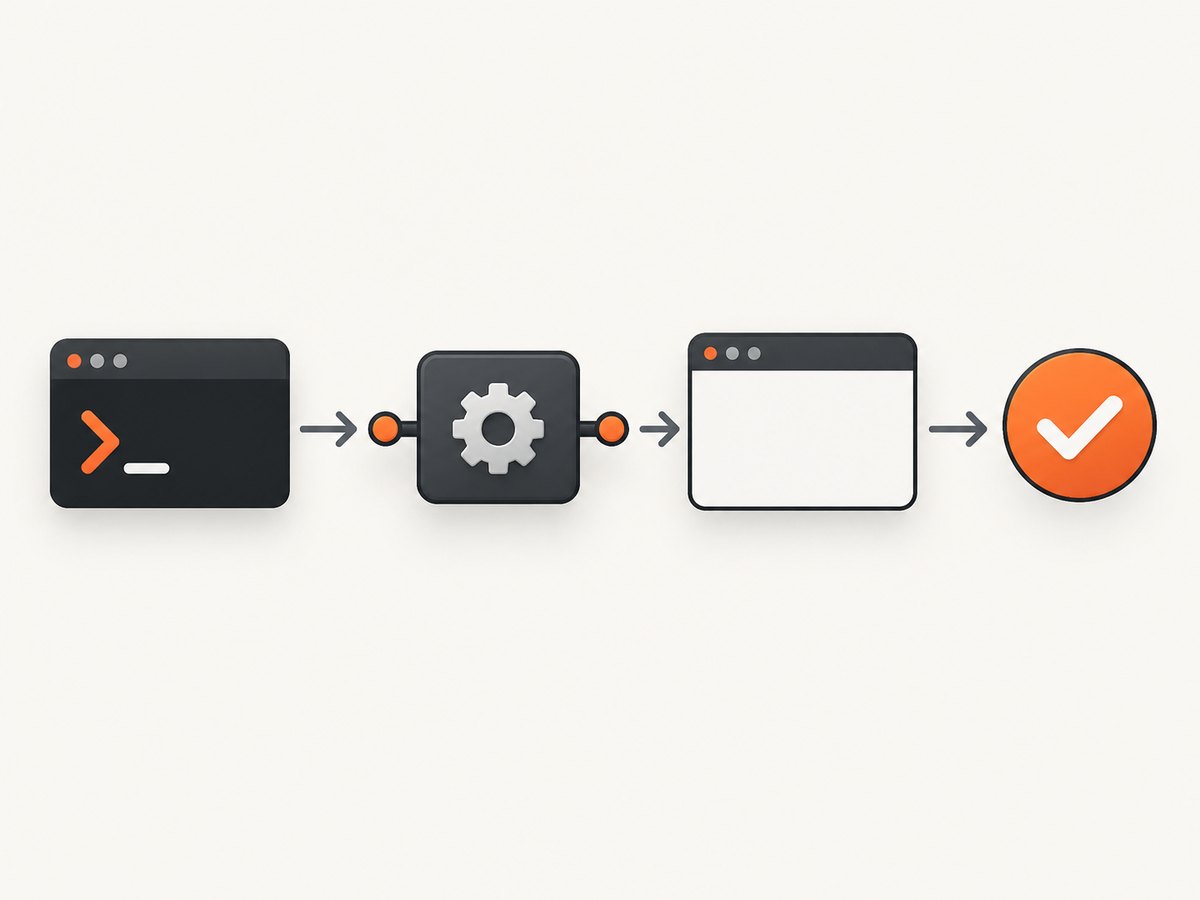
node --version
npx nightwatch --version
ls
Confirm that Chrome is installed on the machine used to run tests. Then check that your project’s Nightwatch version and driver setup agree with the installed browser. A local WebDriver process can be started and stopped by Nightwatch when start_process and a driver binary path are configured.
2. Define a Chrome environment
A minimal configuration makes Chrome the browser for the default environment:
// nightwatch.conf.js
module.exports = {
  src_folders: ['tests'],
  test_settings: {
    default: {
      desiredCapabilities: {
        browserName: 'chrome'
      }
    }
  }
};
For a named environment, keep the name in test_settings and select it with --env:
// nightwatch.conf.js
module.exports = {
  src_folders: ['tests'],
  test_settings: {
    chrome: {
      desiredCapabilities: {
        browserName: 'chrome'
      }
    }
  }
};
npx nightwatch --env chrome --headlessIf your file uses a different name such as chrome_local, pass that exact name. Nightwatch does not guarantee a built-in environment called chrome.
3. Pass Chrome arguments explicitly
The CLI flag is the shortest route. Explicit capabilities are useful when each environment needs visible, repeatable browser settings. Current WebDriver configurations commonly use the W3C capability key goog:chromeOptions:
module.exports = {
  src_folders: ['tests'],
  test_settings: {
    default: {
      desiredCapabilities: {
        browserName: 'chrome',
        'goog:chromeOptions': {
          args: ['--headless']
        }
      }
    }
  }
};
Some older Nightwatch examples use chromeOptions. Match the capability shape to the Nightwatch, Selenium, and ChromeDriver versions in your project. Avoid setting the CLI flag and capability argument together until you know how your runner merges them; one clear source of truth is easier to debug.
4. Add a runnable test
Create tests/home.js:
module.exports = {
  'home page has a title': async function (browser) {
    await browser
      .url('https://example.com')
      .waitForElementVisible('body', 5000)
      .assert.titleContains('Example Domain')
      .end();
  }
};
Run the test without a visible browser:
npx nightwatch tests/home.js --headlessIf your project requires an environment, put --env chrome before or after the test path according to your installed Nightwatch CLI syntax, for example:
npx nightwatch tests/home.js --env chrome --headlessUse --config path/to/nightwatch.conf.js when the configuration is not at the project root.
5. Docker and CI configuration
Containers often run Chrome as a user or namespace that Chrome’s sandbox rejects. Nightwatch’s ChromeDriver guidance documents adding --no-sandbox for Docker:
module.exports = {
  src_folders: ['tests'],
  test_settings: {
    default: {
      desiredCapabilities: {
        browserName: 'chrome',
        'goog:chromeOptions': {
          args: [
            '--headless',
            '--no-sandbox'
          ]
        }
      }
    }
  }
};
In constrained CI containers, shared memory can also be too small. Nightwatch’s GitLab CI example adds --disable-dev-shm-usage:
'goog:chromeOptions': {
  args: [
    '--headless',
    '--no-sandbox',
    '--disable-dev-shm-usage'
  ]
}
Treat that as a runtime-specific remedy, not a universal requirement. Start with the smallest set of arguments, then add the one indicated by the browser log. The same CI guide discusses installing Chrome and ChromeDriver and, in some setups, Xvfb. A headless run normally avoids a display, but your CI image may still include display tooling for other tests.
6. Choose between CLI and configuration
| Approach | Use it when | Trade-off |
|---|---|---|
--headless |
You need a quick local or one-off headless run | Browser options are less visible in source control |
goog:chromeOptions.args |
Different environments need different Chrome switches | Capability syntax must match your driver versions |
| Local ChromeDriver | You control the machine or container | You maintain browser and driver compatibility |
| Selenium/Grid or cloud environment | You need remote machines, parallel browsers, or hosted infrastructure | More moving parts and service configuration |
Nightwatch’s test-environment documentation covers local and remote environment selection, while its driver guide explains local ChromeDriver setup. BrowserStack and Sauce Labs are examples of hosted providers identified in Nightwatch documentation; neither is required for a local headless run.
7. Reliable headless test practices
- Wait for a selector or state instead of relying on a fixed sleep.
- Keep the Chrome environment explicit in CI so a default change cannot silently select another browser.
- Pin the project’s Nightwatch and driver setup, then update browser and driver versions together.
- Capture the Nightwatch, ChromeDriver, and Chrome logs when a session fails to start.
- Use a dedicated CI configuration if local and container arguments differ.
- End sessions with
.end()so a failed test does not leave orphaned browser processes.
Common errors and fixes
“Unknown environment” or the wrong browser starts
Cause: The value passed to --env is not a key in test_settings, or the wrong config file was loaded.
Fix: Check the configuration filename and run with --config if needed. Copy the environment key exactly:
npx nightwatch --config nightwatch.conf.js --env chrome --headlessChrome or ChromeDriver cannot be found
Cause: Chrome is missing, the driver path is incorrect, or Nightwatch is trying to start a driver that is not available.
Fix: Install Chrome in the local or CI image, verify the configured binary path, and use one driver-management method. Do not add a second installation method before checking the existing project configuration.
“Session not created” or version mismatch
Cause: The installed Chrome and ChromeDriver versions are incompatible.
Fix: Inspect both versions in the same runtime, update the pair together, and rerun with driver logs enabled by your CI or process manager. A remote Selenium service can be an alternative when maintaining local binaries is impractical.
Chrome exits immediately in Docker
Cause: The container security context prevents Chrome’s sandbox from starting, or shared memory is insufficient.
Fix: Add --no-sandbox when the container requires it. If logs show shared-memory errors, try --disable-dev-shm-usage. Keep both flags out of local configurations unless they solve a demonstrated problem.
Tests pass locally but fail in CI
Cause: Different Chrome versions, missing system packages, timing differences, network access, or an environment key that CI does not load.
Fix: Print Nightwatch and browser versions, verify the selected config, inspect ChromeDriver logs, and replace arbitrary delays with waits for the actual selector or condition. Reproduce inside the same container image where possible.
Assertions run before the page is ready
Cause: Headless execution can expose an existing race that a visible local run happened to hide.
Fix: Wait for a meaningful element, URL, or page state. Avoid increasing every timeout globally; make the wait describe the operation that must complete.
Performance, reliability, and cost considerations
Headless mode removes display rendering, but total test time still depends on page size, network access, waits, JavaScript execution, and browser startup. Reusing a session for related checks can reduce startup overhead, while isolating tests gives cleaner failure diagnosis. Parallel sessions require enough CPU, memory, and file descriptors in the runner.
In CI, cache dependency installation where your platform supports it, but do not cache a browser binary without a deliberate version policy. A stale ChromeDriver is a common source of failures. For repeatable builds, record the browser, driver, Node.js, and Nightwatch versions in build logs.
Local Nightwatch execution has no ScreenshotNeo usage charge because it runs your own browser. Hosted Selenium or cloud testing costs depend on the provider and plan; consult that provider’s current pricing before choosing it. If your goal is producing screenshots rather than interacting with a full test suite, a screenshot API can remove browser and driver maintenance.
Or skip the browser setup
For one-off captures, visual regression inputs, documentation images, or an automated screenshot pipeline, ScreenshotNeo returns an image or PDF from one GET request. It accepts cookie and consent banners before capture, then removes more than 60 known consent platforms, newsletter popups, and chat widgets; each step can be disabled. Bot checks, CAPTCHAs, blank pages, timeouts, failed loads, and cache hits are not billed, and the response identifies the result with X-Page-Verdict and X-Billed headers.
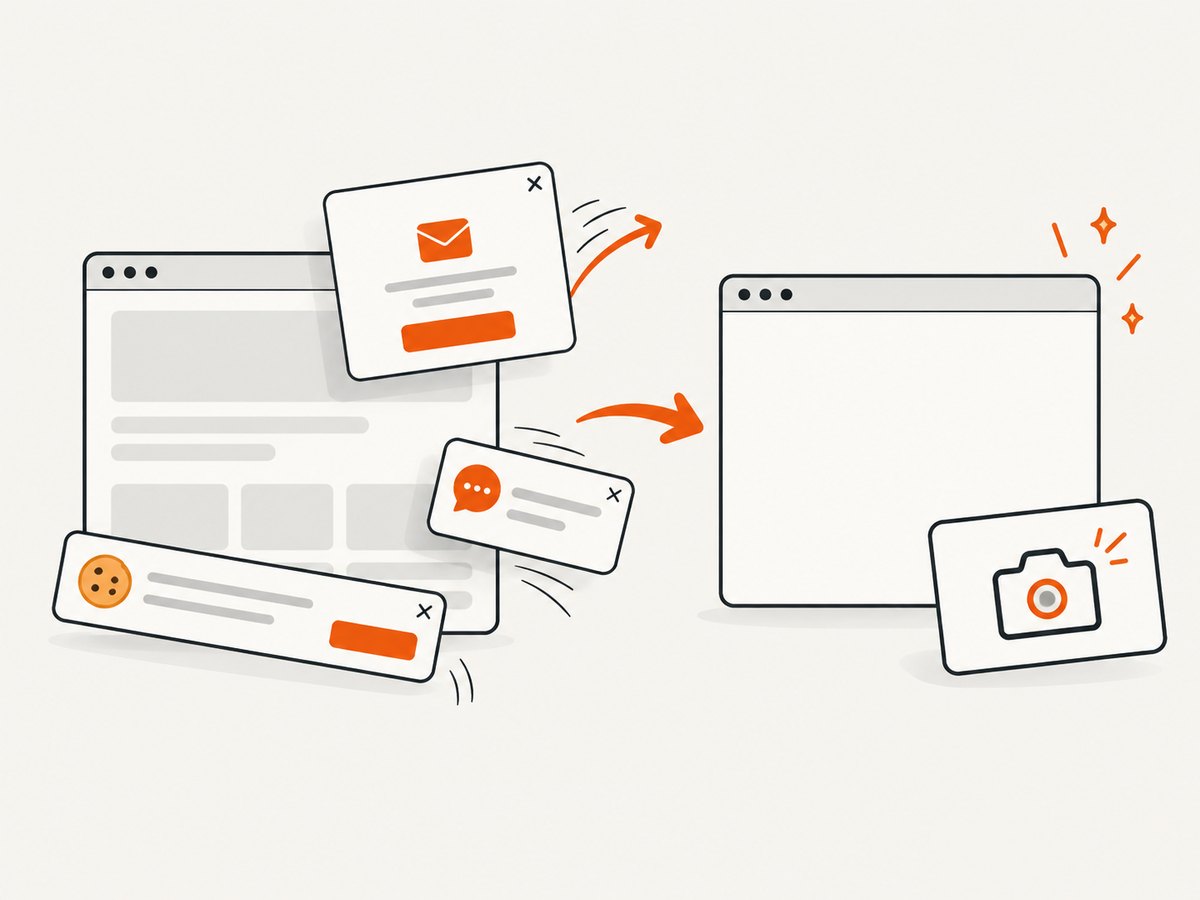
See the ScreenshotNeo API documentation for all options. A minimal cURL request is:
curl -G "https://api.screenshotneo.com/v1/shot" -d access_key=YOUR_API_KEY --data-urlencode url=https://stripe.com -o shot.webpPython:
import requests
r = requests.get("https://api.screenshotneo.com/v1/shot", params={"access_key": "YOUR_API_KEY", "url": "https://stripe.com"}, timeout=90)
open("shot.webp", "wb").write(r.content)
Node.js:
const q = new URLSearchParams({ access_key: 'YOUR_API_KEY', url: 'https://stripe.com' });
const res = await fetch(`https://api.screenshotneo.com/v1/shot?${q}`);
ScreenshotNeo also provides an MCP server with take_screenshot, get_page_info, and capture_pdf tools for Claude, Cursor, and other MCP clients. Options include full-page capture with lazy images loaded, CSS-selector element capture, dark mode, device presets or custom viewports, retina scale, PDF paper settings, custom CSS and JavaScript, clicks, waits, blocked resources, headers, cookies, user agents, timezone, geolocation, transparent backgrounds, resizing, TTL caching, signed links, asynchronous jobs with signed webhooks, bulk capture for up to 100 URLs, usage reporting, and an OpenAPI specification.
The Free plan includes 1,000 screenshots each month with no card. Paid plans start at $5 for 3,000 screenshots; every feature is available on every plan. Create a free ScreenshotNeo account.
FAQ
Does headless Chrome require Xvfb?
Not for a normal headless session. Some CI setups still install or use Xvfb for other browser workflows; follow the requirements of the image and test environment you actually run.
Can I run only one Nightwatch test file?
Yes. Pass its path, such as npx nightwatch tests/home.js --headless, and add the appropriate --env or --config options.
Should I use chromeOptions or goog:chromeOptions?
Use the capability form supported by your Nightwatch, Selenium, and ChromeDriver versions. Current WebDriver configurations commonly use goog:chromeOptions; older examples may use chromeOptions.
Is a cloud browser required?
No. A local Chrome and compatible ChromeDriver are enough for a local or CI headless run. Remote Selenium or cloud services are optional architecture choices.
When is an API preferable to Nightwatch?
Use Nightwatch when you need browser interactions and assertions. Use a screenshot API when the output is the captured image or PDF and you want to avoid maintaining browser startup, driver compatibility, and consent-popup cleanup.


