How to Run Nightwatch.js Tests in Headless Chrome on CentOS
Configure Nightwatch.js and ChromeDriver for headless Chrome on CentOS, with setup steps, runnable examples, troubleshooting, and a browser-free screenshot option.
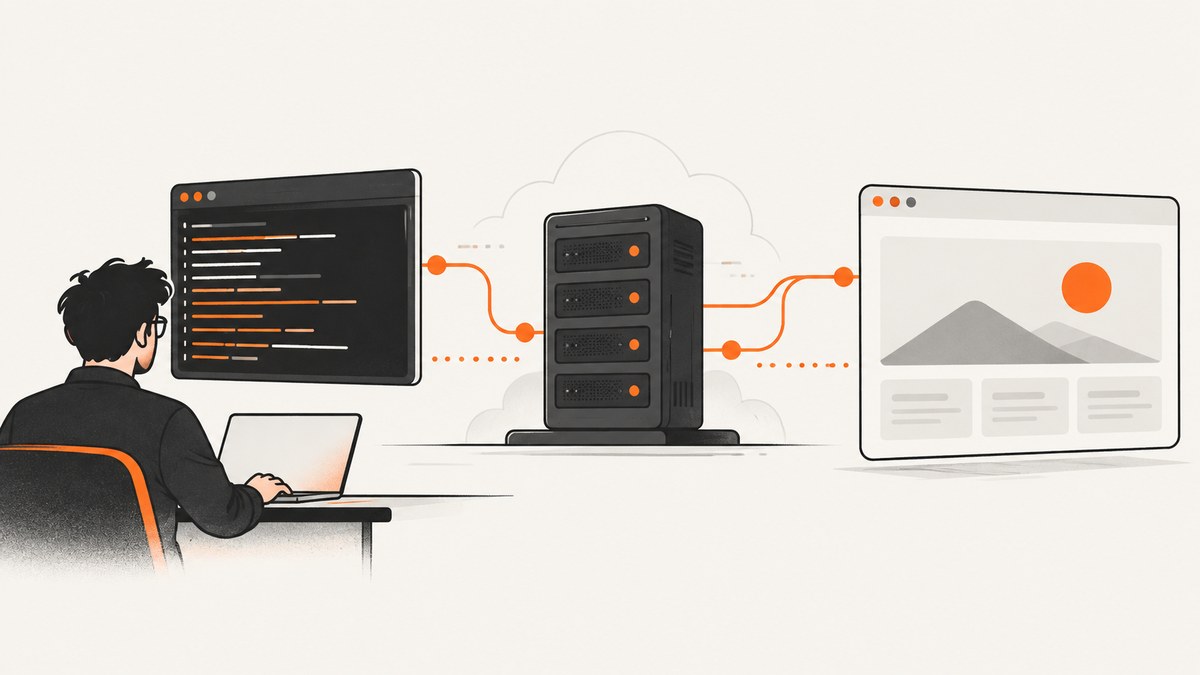
To run Nightwatch.js tests in headless Chrome on CentOS, install Nightwatch, a ChromeDriver version compatible with your Chrome build, and a browser build your CentOS release can support. Configure Nightwatch to start ChromeDriver locally, set browserName to chrome, and pass headless arguments through ChromeOptions. In a container, Nightwatch documents adding --no-sandbox when needed. CentOS is not named in Google’s current supported Linux distribution list, so confirm the exact OS release, architecture, and shared libraries before relying on this setup.
This guide covers local execution first, including a sample configuration and test, then how to diagnose failures and when remote execution makes more sense. The configuration is a representative starting point; validate it with your installed Nightwatch, driver, browser, and operating system versions.
1. Check the CentOS and browser compatibility first
Before installing packages, record the CentOS major release, CPU architecture, Node.js version, and whether the runner is a virtual machine or container. Chrome’s current Linux requirements list 64-bit Ubuntu 18.04+, Debian 10+, openSUSE 15.5+, and Fedora Linux 39+; CentOS is not named. Treat Chrome on CentOS as compatibility-sensitive, not a guaranteed supported combination. Check Google’s current Chrome requirements and the requirements for the specific browser build you intend to deploy.
If the browser package cannot be installed or launches with missing-library errors, do not assume instructions for Ubuntu or Fedora will work on CentOS. Evaluate a Chromium build or a supported Fedora/RHEL-compatible environment under your organization’s support policy. The available sources do not establish a guaranteed CentOS workaround.
2. Install Nightwatch, ChromeDriver, and a browser
Use a project-local Node.js setup so the test runner and driver dependency are reproducible. For example, from the project directory:
npm init -y
npm install --save-dev nightwatch chromedriver
The chromedriver npm package provides a driver path that can be read programmatically. Keep the browser and driver versions compatible: a mismatch is a common cause of session startup failures. Alternatively, download a ChromeDriver binary for the platform and set its absolute path in configuration. The official Nightwatch ChromeDriver guide describes downloading the driver and configuring webdriver.server_path.
Install a browser build that is appropriate for the CentOS version and architecture. Resolve dependencies using the package manager supported by that release, and inspect the actual startup error for missing shared objects. Chromium’s RPM dependency manifest references packages including ca-certificates, liberation-fonts, GTK 3 or 4, libnss3, libvulkan, wget, a compatible cURL library, and xdg-utils. This is a dependency reference, not a promise that matching package versions exist on every CentOS release.
On the runner, verify what is actually installed before debugging Nightwatch:
cat /etc/centos-release
uname -m
node --version
npm --version
which google-chrome || which chromium || true
which chromedriver || true
Package names, repository availability, and browser binary locations vary by release and installation method. Prefer explicit, recorded paths over relying on an interactive shell’s PATH.
3. Configure Nightwatch to start ChromeDriver locally
For a single host, local WebDriver is usually the simplest architecture. Nightwatch can start and stop ChromeDriver itself through webdriver.start_process. Selenium Server is generally needed for Grid or cloud testing, not a single local browser. See the Nightwatch settings guide.
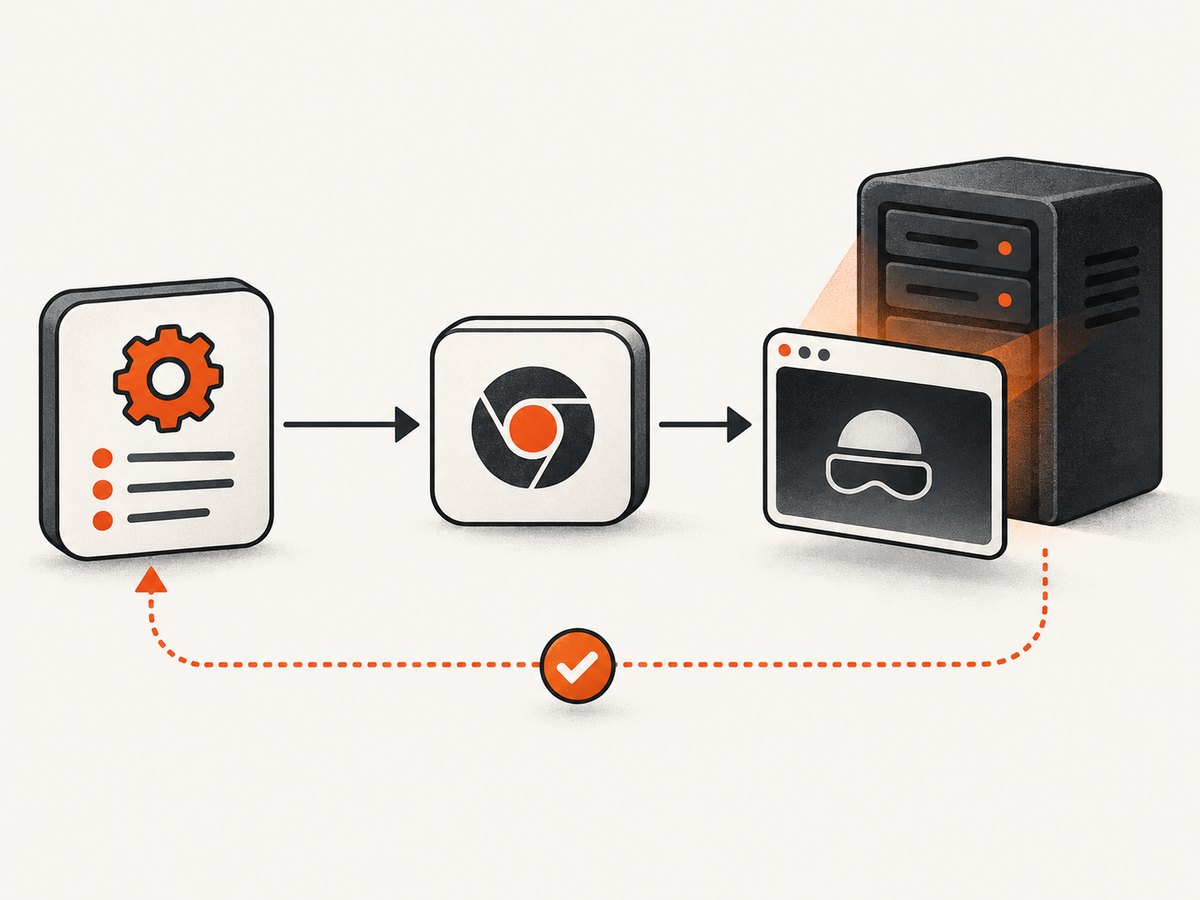
Create nightwatch.conf.js in the project root. This CommonJS example uses the driver path exported by the npm package:
const chromedriver = require('chromedriver');

module.exports = {
  src_folders: ['tests'],
  test_settings: {
    default: {
      webdriver: {
        start_process: true,
        server_path: chromedriver.path,
        port: 4444
      },
      desiredCapabilities: {
        browserName: 'chrome',
        'goog:chromeOptions': {
          args: [
            '--headless',
            '--disable-gpu',
            '--window-size=1365,900'
          ]
        }
      }
    }
  }
};
Nightwatch’s Chrome guide places Chrome-specific arguments in ChromeOptions and shows the webdriver settings for managing ChromeDriver. The port is a local listener setting; use another free port if 4444 conflicts with a service on the runner. If you installed ChromeDriver outside npm, replace chromedriver.path with its absolute executable path. Confirm the selected Chrome binary is visible to the driver; if needed, configure the Chrome binary location using ChromeOptions’ binary property for your installed Nightwatch version.
Headless argument support can depend on the Chrome generation and environment. Use the flag accepted by your installed browser; current Chrome versions support headless operation, while older builds may require different behavior. Nightwatch also documents a programmatic API option headless: true with browserName: 'chrome'; for a shared project config, explicit ChromeOptions makes the browser arguments visible and configurable.
Container-specific flag
If Chrome runs inside a container and exits before a session is created, Nightwatch explicitly recommends adding --no-sandbox to ChromeOptions when needed to access the browser binary in the container. Add it only in the container environment that requires it:
'goog:chromeOptions': {
  args: [
    '--headless',
    '--disable-gpu',
    '--no-sandbox',
    '--window-size=1365,900'
  ]
}
Whether this is appropriate depends on the container’s user and namespace policy. Follow your organization’s browser isolation policy rather than copying container flags into every environment.
4. Add and run a smoke test
Put a small test in tests/smoke.js. Start with a stable page your test environment can reach; the example below uses a public page only as a simple demonstration.
module.exports = {
  'loads a page in headless Chrome': function (browser) {
    browser
      .url('https://example.com')
      .assert.titleContains('Example Domain')
      .end();
  }
};
Run it from the project directory:
npx nightwatch --config nightwatch.conf.jsRead the Nightwatch output together with ChromeDriver and Chrome logs. A smoke test should establish that the browser can start, create a session, load a page, and quit before you add parallel workers, complex fixtures, or application-specific assertions. Capture the exact versions and command in CI logs so a later package or base-image change can be compared.
5. Tune the setup for CI and repeatable runs
Version control and reproducibility
- Commit the package manifest and lockfile. Use the CI installation mode that respects the lockfile, such as
npm ci. - Pin or otherwise control the browser and driver versions in the runner image. A floating browser update can introduce a driver mismatch between otherwise identical jobs.
- Record the CentOS release and architecture in build logs. A change in the base image can change available libraries without any change to test code.
- Use explicit executable paths when the CI environment’s PATH differs from a developer workstation.
Headless display and test behavior
Headless mode avoids the need for a visible desktop session, but it does not make page loading deterministic. Tests can still fail because of network access, application readiness, authentication, fonts, missing libraries, or timing assumptions. Wait on the application condition your test needs rather than relying on a fixed delay wherever possible. Set a deliberate window size because responsive layouts and element positions may change with viewport dimensions.
Parallelism and resources
Each Chrome session uses CPU and memory. Start with one worker and measure resource pressure on the actual runner before increasing concurrency. In containers, check memory and shared-memory limits, temporary disk space for browser profiles, and whether several jobs share the same host. Increasing parallelism can expose resource exhaustion and timing instability; it does not fix a slow or incompatible browser startup.
6. Troubleshooting common failures
| Symptom | Likely cause | What to check or change |
|---|---|---|
| Chrome or ChromeDriver starts and exits | Browser/driver incompatibility, bad executable path or permissions, or missing RPM library | Log browser and driver versions, verify executable paths and permissions, and inspect the startup output for a missing shared library. Resolve dependencies for the exact OS release. |
| Driver binary not found | server_path points to a nonexistent file or the job cannot resolve the package path |
Print require('chromedriver').path in the job, check that the package was installed, or set server_path to the absolute driver path. |
DevToolsActivePort or early session creation failure |
Chrome exited before DevTools became available; possible causes include flags, profile directory, resource limits, or container policy | Read Chrome’s stderr first. Check the configured headless argument, writable temporary profile space, shared-memory and memory limits, and container namespace policy. For containers, evaluate Nightwatch’s documented --no-sandbox argument where appropriate. |
| Session starts but page is blank or tests time out | Network access, application readiness, DNS, proxy, or test synchronization problem | Confirm the runner can reach the target URL. Add an assertion or explicit wait for an application-specific ready condition and inspect browser logs. |
| Package installation fails on CentOS | The browser’s package or dependency requirements do not match the release or architecture | Compare the exact platform with the browser vendor’s current support list. Inspect package-manager dependency output instead of applying unrelated Ubuntu commands. |
| Remote provider cannot be reached | Wrong host or port, missing credentials, or invalid capability names | Check the provider’s current instructions, configured endpoint, network rules, credentials, and capability schema. Nightwatch’s quickstart notes that arbitrary remote providers require manual host and port configuration. |
When a failure is intermittent, keep the first failing log bundle: Nightwatch output, ChromeDriver logs, Chrome stderr, OS release, browser and driver versions, and the exact test URL or fixture. This is usually enough to distinguish a browser startup problem from a page or test problem.
7. Local browser, Grid, or cloud execution?
Keep local WebDriver when one CentOS runner and direct browser control meet the team’s needs. A Selenium Grid or cloud provider becomes useful when you need distributed nodes, shared capacity, or execution on provider-managed environments. Nightwatch documents the local, Grid, and cloud configuration patterns in its settings guide, Selenium Server guide, and cloud provider guide.
Compare options by OS and browser support, control over browser and driver versions, maintenance effort, parallel capacity, network and credential requirements, and access to logs. Provider prices and contract terms change, so check current vendor terms rather than relying on an old comparison. Hosted browser testing still runs a browser; it does not remove the work of maintaining test code and assertions.
8. Or skip the browser setup
If your task is to capture a page image rather than drive a full Nightwatch test, ScreenshotNeo is a website screenshot API and MCP server from Yorker Media. One GET request returns a PNG, JPEG, WebP, or PDF. See the API documentation for request options and response details.
curl -G "https://api.screenshotneo.com/v1/shot" \
  -d access_key=YOUR_API_KEY \
  --data-urlencode url=https://example.com \
  -o shot.webp
import requests
r = requests.get(
"https://api.screenshotneo.com/v1/shot",
params={"access_key": "YOUR_API_KEY", "url": "https://example.com"},
timeout=90,
)
r.raise_for_status()
with open("shot.webp", "wb") as f:
f.write(r.content)const q = new URLSearchParams({
access_key: 'YOUR_API_KEY',
url: 'https://example.com'
});
const res = await fetch(`https://api.screenshotneo.com/v1/shot?${q}`);
if (!res.ok) throw new Error(`Screenshot request failed: ${res.status}`);
const bytes = Buffer.from(await res.arrayBuffer());
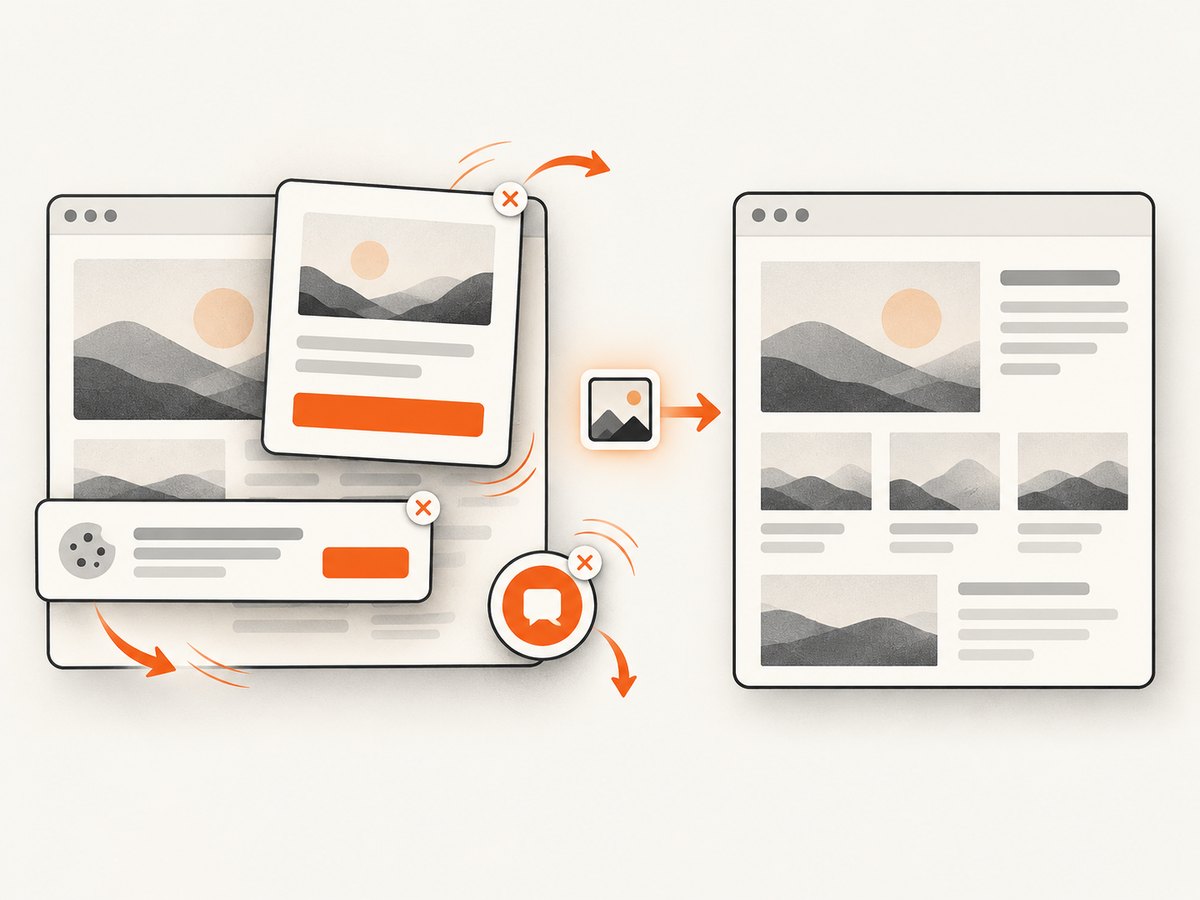
await import('node:fs/promises').then(fs => fs.writeFile('shot.webp', bytes));Cookie and consent banners are accepted and removed before the shot, along with more than 60 known consent platforms, newsletter popups, and chat widgets; each step can be turned off. Bot checks, blank pages, timeouts, failed loads, and cache hits cost nothing, and response headers identify the page verdict and whether it was billed. An MCP server provides take_screenshot, get_page_info, and capture_pdf for AI agents. The free plan includes 1,000 screenshots a month with no card; paid plans start at $5 for 3,000. Sign up free for 1,000 screenshots a month, with no card.
9. FAQ
Do I need Selenium Server for one CentOS machine?
Usually not. Nightwatch can manage a local ChromeDriver process. Selenium Server is for Grid or cloud-style execution where a separate server or provider endpoint is part of the setup.
Can I assume current Google Chrome is supported on CentOS?
No. CentOS is not among the distributions named on Google’s current Linux requirements page. Verify your exact release, architecture, libraries, and organizational support policy before standardizing it.
Should I use a screenshot API instead of Nightwatch?
Use Nightwatch when you need browser-driven interactions and assertions as part of a test suite. Use a screenshot API when the task is to capture a page image or PDF and you do not need Nightwatch’s test flow.


