How to Build No-Code Image Generation Workflows
Connect a trigger, prompt, image generator, storage, and review step into a dependable no-code workflow—with practical guidance for edits, errors, and cost.
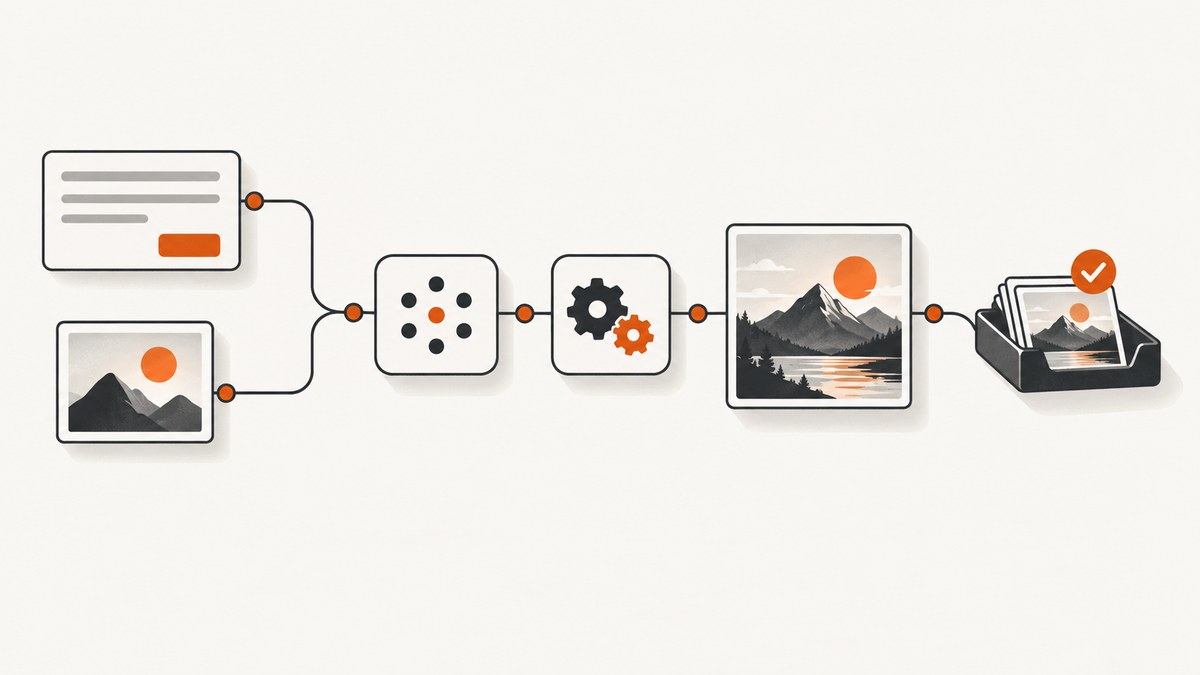
A no-code image generation workflow connects a trigger to a prepared prompt, an image generation or editing step, output settings, file storage, and a review or publishing destination. A form, schedule, spreadsheet row, webhook, or content event can start a run. The workflow then validates its inputs, calls an image tool, saves the result, and routes it to a person or another system.
For a single image from one prompt, a direct image-generation operation is usually the simplest design. Use an iterative conversational workflow when people need to refine an image over multiple turns. OpenAI distinguishes these approaches in its image generation guide. For visual orchestration, n8n combines workflow automation with AI features and documents an OpenAI operation for creating an image from a text prompt; Adobe Firefly’s Creative Production workflow builder uses connected input, processing, and output nodes.
This guide walks through a no-code build, explains when to generate or edit, and covers validation, delivery, reliability, and cost. The examples focus on workflow structure; the exact labels and available connections depend on the provider and builder you choose.
1. Map the workflow before you build it
Start by writing down the input, expected image, and destination. A workflow is easier to debug when each stage has a clear responsibility.

| Stage | What it does | Example fields or decisions |
|---|---|---|
| Trigger | Starts a run | Form submission, schedule, spreadsheet row, webhook, or content event |
| Input preparation | Checks and normalizes values | Subject, style, aspect ratio, output destination, reference-image location |
| Generation or edit | Creates a new image or modifies an input image | Prompt, model, reference image, optional mask |
| Output configuration | Sets delivery properties | Size, quality, format, compression, background |
| Storage and routing | Persists the result and hands it off | Review queue, CMS, design library, or publishing destination |
| Failure route | Captures incomplete or invalid runs | Error details, retry decision, notification, review queue |
Choose the trigger based on who owns the request. A form is useful when a person chooses options for each image. A spreadsheet or content event suits repeatable catalog or editorial work. A schedule suits recurring batches. A webhook lets another system start the workflow. Whatever the trigger, keep the prompt and structured options in separate fields instead of mixing everything into one long text value.
2. Build a visual workflow in n8n or Firefly
In a visual automation builder, arrange nodes in the order information moves. In n8n, begin with a trigger, prepare the values, use the OpenAI image-creation operation, then connect storage and review or delivery steps. n8n describes itself as a fair-code licensed workflow automation tool combining AI features with business-process automation; its official integration documentation lists creating an image from a text prompt. See the n8n documentation and OpenAI node documentation for current node settings.
- Create the trigger. Add the form, schedule, spreadsheet, webhook, or content-event trigger. Decide which fields every run must provide.
- Normalize the payload. Trim text, standardize option values, and check that required fields are present. Give missing values a deliberate outcome: reject the run with a readable error or supply a documented default.
- Build the prompt. Combine a reusable instruction block with variable fields such as subject and style. Preserve the submitted values separately in the workflow data so errors can be traced to the original request.
- Add the image operation. Select generation for a new image. Select an edit operation when a source image, reference image, or mask is part of the request.
- Expose output settings. Set the size, quality, file format, compression, and background where the selected model and operation support them. Decide which should be fixed and which users may select.
- Save and route the file. Connect the returned image data to a destination. Store useful metadata with it, such as the original prompt, selected settings, run identifier, and review status.
- Add a failure path. Capture provider or storage errors and direct failed runs to an error notification or review queue. Avoid routing an incomplete result into a publishing step.
- Run sample inputs. Test ordinary, boundary, and invalid values. Adobe’s workflow guidance uses input, processing, and output nodes and instructs users to test with sample inputs and refine the node settings and connections before publishing. See Adobe’s workflow builder instructions.
Adobe’s node-based approach is useful when a creative pipeline is naturally expressed as connected inputs and transformations. n8n’s business-process approach is useful when image creation is one step among triggers, data checks, storage, and notifications. Compare the actual connector, output, and governance requirements for your account and region before choosing; the documentation establishes these workflow patterns, not a universal winner.
3. Make prompts and inputs predictable
A reusable prompt template makes batches more consistent and makes missing information visible. Keep the fixed instructions distinct from user-supplied content. A simple template could be organized as:
Subject: {{subject}}
Style: {{style}}
Composition: {{composition}}
Intended use: {{destination}}
Constraints: {{constraints}}
These placeholders are illustrative; use the expression or mapping syntax provided by your workflow builder. Before generation, validate that required values are present and that enumerated options such as aspect ratio match allowed choices. If user-entered text goes directly into the prompt, decide whether to accept it as-is or constrain it with selectable fields. Preserve the original request for review rather than silently rewriting it.
Do not treat retries as prompt repair. If an input is absent or malformed, stop early with a specific error. If the input is valid but the generated result needs a creative change, route it for review or a deliberate edit pass.
4. Choose generation, editing, and output controls
Use generation when the workflow begins from text and needs a new image. Use editing when an existing image should be changed, or when a reference image or mask guides the result. OpenAI’s guide documents image inputs supplied as a fully qualified URL, base64 data URL, or file ID, along with image edits and multi-turn refinement. For a workflow that only needs one image from one prompt, OpenAI recommends its Image API; for conversational, editable image experiences, it recommends the Responses API. Check the guide for supported models and current parameters before configuring a production flow.
Make output settings explicit, even when you set them to fixed values. Size determines the dimensions or aspect options available to downstream consumers. Quality is a deliberate generation setting, not a guarantee that every model at a matching label produces identical results. Format and compression affect file size and compatibility. Background settings matter when a downstream design needs transparency; confirm the selected model supports the requested background mode.
The supplied research names gpt-image-2.5-sunburst for workflows where editing precision matters most and gpt-image-2.5-flare for fast, high-quality everyday generation. Model availability and names can change, so confirm current model access in the provider’s documentation and in the account you will run. Avoid hard-coding a model choice into a user-facing form unless you intend to support and maintain that option.
5. Add reference images and masks carefully
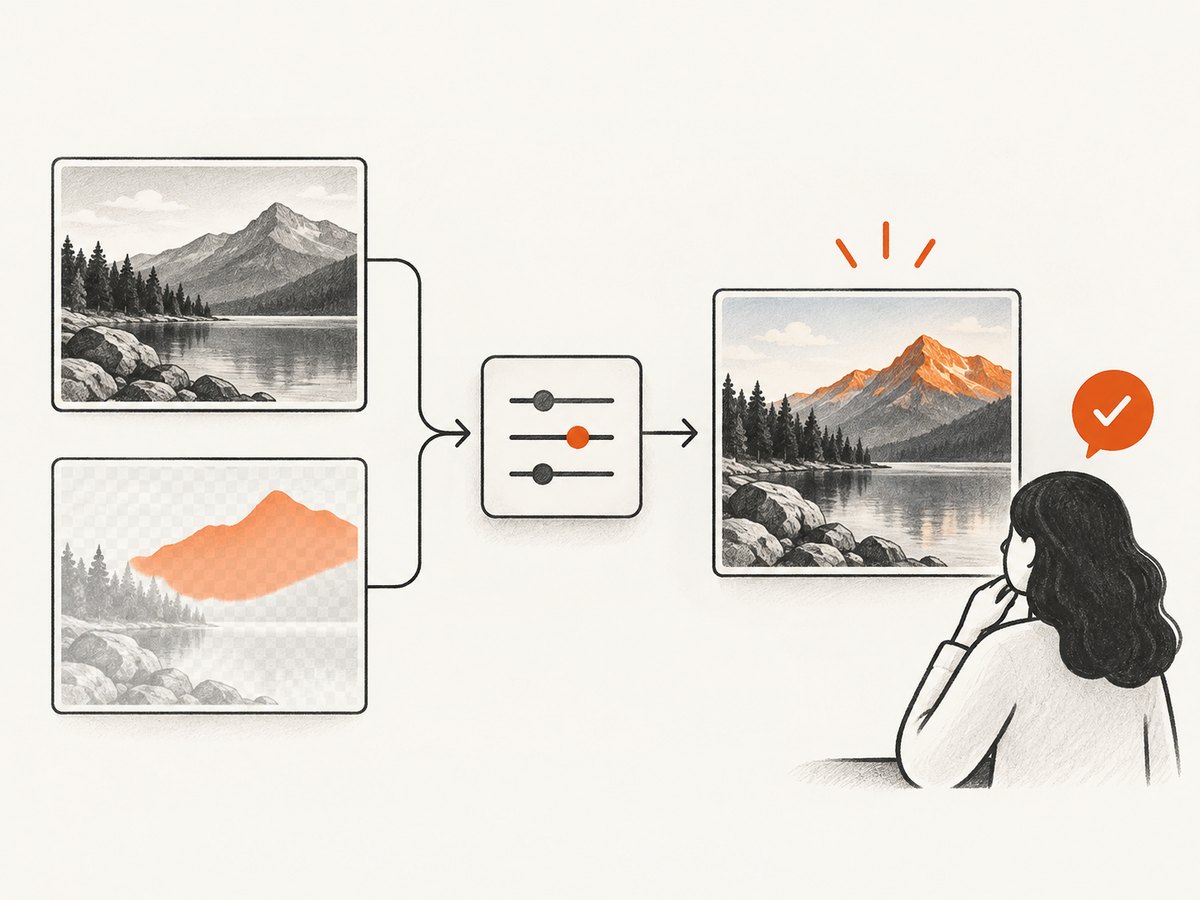
A reference image gives an editing workflow visual context. A mask indicates an area to guide an edit. These inputs add file-handling requirements that do not apply to a text-only run.
- Check that the file is an accepted format before sending it to the image operation.
- For OpenAI mask editing, the image and mask must use the same format and size, each file must be under 50 MB, and the mask must include an alpha channel.
- Tell the workflow user what happens when a file is invalid, too large, or unavailable. Stop before generation and report which input needs attention.
- Set expectations accurately: a mask guides the edit, but the resulting boundary may not follow its exact shape.
- Keep the reference image and generated output associated with the same run so a reviewer can understand what the edit was based on.
These constraints are documented in the OpenAI image generation guide. Other providers may have different file requirements; use the selected provider’s current instructions rather than assuming these limits apply everywhere.
6. Save, review, and publish the output
The generation response is not the end of the workflow. Decide how the actual image file reaches its destination and how someone can tell which request produced it. Store the image in a location your next step can access, then save metadata alongside it. Useful metadata usually includes the prompt, output settings, source or reference file, run status, and an identifier from the trigger or workflow platform.
For a human-in-the-loop process, route the image to a review state first. The reviewer should be able to approve, request a new edit, or reject it. A publishing connector should only receive approved outputs. If the workflow creates several variants, preserve a clear association between each variant and the original request; do not overwrite the only copy before review.
For a no-code workflow, first confirm that the builder’s destination connector accepts the kind of file output the image operation returns. If it returns image data rather than a downloadable URL, the storage step may need to accept binary data. Confirm the destination permissions and retention behavior in the tools you select; those details vary by service and configuration.
7. Test and harden the workflow
Test with representative samples before enabling a recurring trigger or publishing the workflow for others. Include at least one ordinary text-only request, one request with a reference image if supported, and cases with missing fields or unsupported files. Check the final image, the saved file, the metadata, and the failure route—not just whether the generation node reports success.
| Test case | Expected workflow behavior |
|---|---|
| All required fields present | Generate, save, and route the result to the intended review or delivery step |
| Missing subject or prompt | Stop before generation and identify the missing field |
| Unsupported or oversized reference file | Reject before the provider call and explain the file requirement |
| Provider request fails | Record the failure and send the run to the configured error path |
| Storage step fails | Do not mark the run complete or publish a missing file |
| Unapproved image | Keep it in review; do not send it to the publishing destination |
For reliability, make a retry policy deliberate. Retrying every failure can repeat a request even when the input is invalid or the problem is a permission issue. Retry only failures your platform identifies as temporary, cap the number of attempts, and keep a record of each attempt. If a trigger can deliver the same event more than once, use its event or request identifier to recognize duplicates where your workflow platform supports that pattern.
8. Performance, reliability, and cost
Image generation may take longer than ordinary text or data steps, and a workflow with more nodes and operations can take longer to process. Adobe explicitly notes that processing time varies with the number of nodes and operations. For batches, separate generation from review and publishing so a slow destination does not obscure which stage is delayed. If your builder supports job status or run history, use it to identify the stage that failed or is still running.
Keep the first production workflow small: one trigger, one image operation, one destination, and one review path. Add transformations or branches only when the requirements call for them. Save a representative input and output so changes to prompts, model selection, or output settings can be compared during maintenance. A provider or platform change may affect model access, output settings, or connector behavior; re-run the sample cases after changing those components.
Generation cost depends on the selected provider, model, settings, and volume. The research dossier includes an OpenAI figure published on April 23, 2025 for gpt-image-1: roughly $0.02, $0.07, and $0.19 per low-, medium-, and high-quality square image. That historical figure should not be used as a current estimate: check the provider’s current pricing before publishing a budget or enabling a large batch. Also account for failed runs, edits, retries, and storage when estimating the total workflow cost. Validate the run volume and per-image settings against your budget before allowing an unattended trigger to process a large queue.
9. Troubleshooting common workflow failures
| Symptom | Likely cause | Fix |
|---|---|---|
| Generation step receives an empty prompt | The trigger field was not mapped, or the prompt template references the wrong value | Inspect the trigger output and node mapping; test with a known sample and validate required text before the provider call. |
| Reference-image edit is rejected | The file is unsupported, unavailable to the provider, or outside an input constraint | Confirm the supported input method and format. For OpenAI mask editing, ensure the image and mask match in format and size, are each under 50 MB, and that the mask has an alpha channel. |
| Mask edit changes more than the marked area | A mask guides the edit but does not promise an exact geometric boundary | Refine the mask and prompt, review the output, and keep a manual approval step for boundary-sensitive work. |
| Image is generated but not available in the destination | The storage step expects a different kind of value than the generation node returns, or the destination rejected the upload | Inspect the output mapping and destination error. Connect the image file data to a compatible upload step and verify permissions. |
| Workflow fails after a provider or model change | The selected model or parameter may no longer be available to the account or may have changed | Check the current provider guide, model access, and operation settings. Re-run the representative samples before restoring the trigger. |
| Duplicate images appear | The trigger delivered a repeated event or an automatic retry repeated a completed stage | Review run history, limit retries, and use a stable event identifier to detect duplicate work if the builder supports it. |
| A successful run has no usable output | The workflow treated node completion as approval or skipped output validation | Check that the file exists, can be opened, and has expected metadata before marking the run ready for review or publishing. |
10. Or skip the browser setup
If your image workflow also needs screenshots of generated pages, previews, or other web content, ScreenshotNeo provides a website screenshot API and MCP server. Its API accepts a URL and returns a PNG, JPEG, WebP, or PDF. See the ScreenshotNeo API documentation for the request options.
curl -G "https://api.screenshotneo.com/v1/shot" -d access_key=YOUR_API_KEY --data-urlencode url=https://stripe.com -o shot.webpimport requests
r = requests.get("https://api.screenshotneo.com/v1/shot", params={"access_key": "YOUR_API_KEY", "url": "https://stripe.com"}, timeout=90)
open("shot.webp", "wb").write(r.content)const q = new URLSearchParams({ access_key: 'YOUR_API_KEY', url: 'https://stripe.com' });
const res = await fetch(`https://api.screenshotneo.com/v1/shot?${q}`);ScreenshotNeo removes cookie banners, newsletter popups, and chat widgets before a shot; bot checks, blank pages, and failed loads are never billed. Its MCP server lets AI agents take screenshots. The free plan includes 1,000 screenshots a month with no card; paid plans start at $5 for 3,000. Sign up for free and get 1,000 screenshots a month with no card.
FAQ
Can a workflow refine the same image over multiple turns?
Yes, if the chosen provider and workflow design preserve the prior image or response context. OpenAI documents multi-turn refinement through the Responses API. Build the iteration state intentionally and give a person a way to review each version.
Should I use a visual builder or connect an API directly?
A visual builder is convenient when triggers, approvals, storage, and notifications are part of the job. A direct API call is a better fit when your application already owns that orchestration or only needs a single generation operation. OpenAI’s guide distinguishes one-shot generation from conversational image experiences.
Can I automatically publish every generated image?
You can route outputs to a publishing destination if your selected builder and connector support it. Whether to add a review step depends on your content requirements; test the complete route before enabling unattended publishing.
Is the 2025 image-cost figure still current?
It is a dated gpt-image-1 figure from April 23, 2025, not a current price quote. Check the provider’s current pricing and selected model before calculating cost.
Build the smallest useful version first
A dependable workflow has a defined trigger, validated fields, a generation or edit operation, explicit output settings, reliable storage, and a clear review or delivery route. Test both successful and failed inputs, verify the stored output, and check current model and pricing details before scaling up. Once that path works, add batch handling or extra creative steps only where they solve a specific need.


